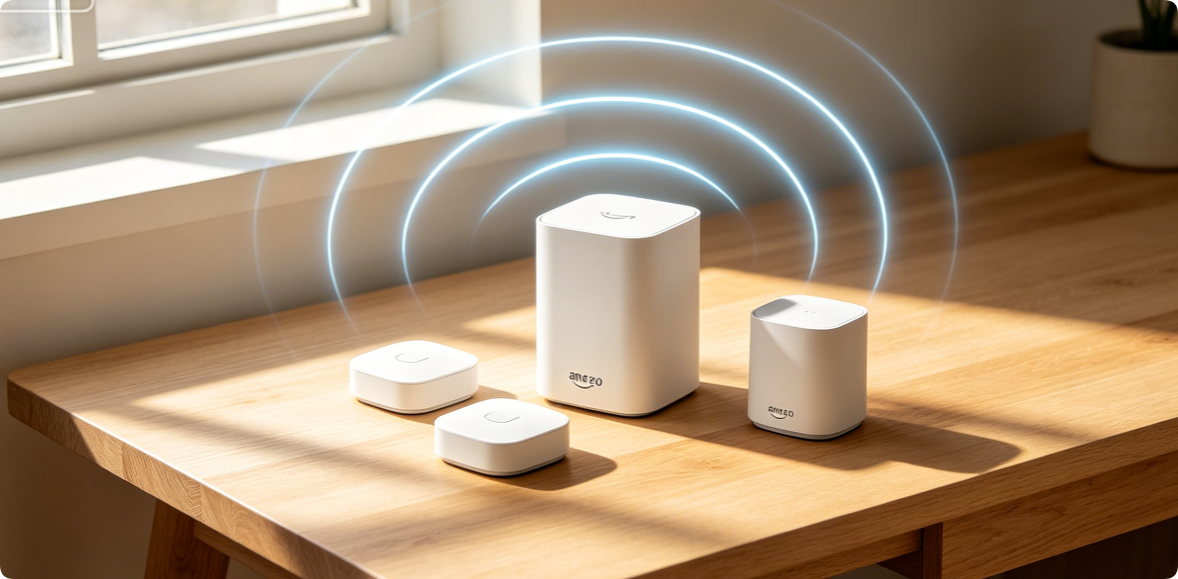
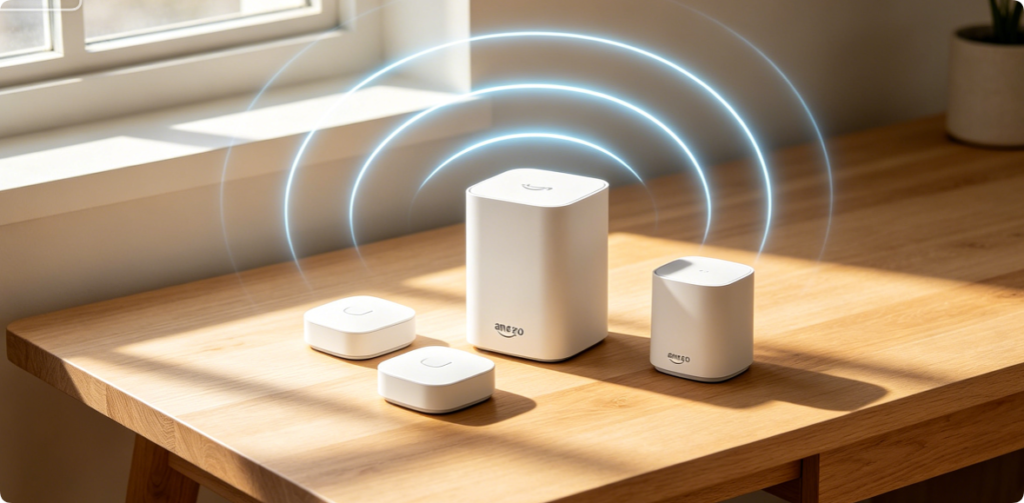
Eero mesh systems eliminate dead zones, auto-manage band steering, and deliver consistent Wi-Fi across multi-story homes. Unlike complicated traditional routers, Eero’s entire configuration runs exclusively through the official mobile app, finishing full network deployment in roughly 10 minutes. This step-by-step tutorial covers unboxing, hardware placement, app pairing, post-setup optimization, and quick troubleshooting for Eero Gateway and satellite Beacon units.
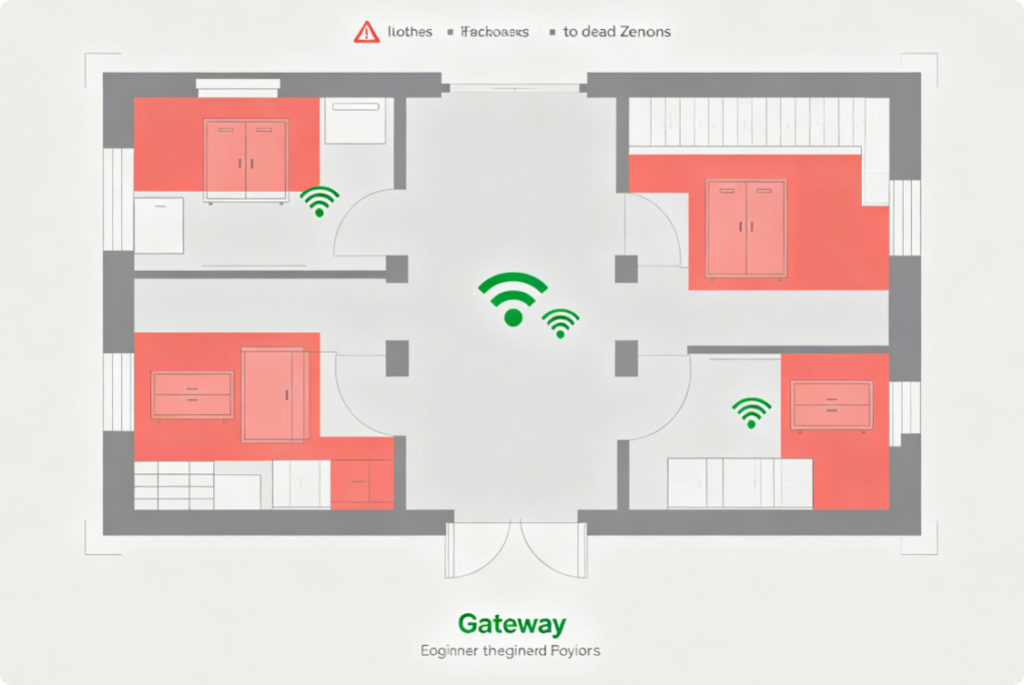
Critical Placement Rules Before Powering On
Mesh performance hinges on device positioning:
- Main Gateway: Place centrally near your ISP modem, open space, no enclosed metal cabinets
- Eero Beacons: Position halfway between gateway and weak-signal rooms; limit 1–2 solid walls between mesh units
- Avoid interference: Keep units away from microwaves, baby monitors, thick concrete or large metal furniture
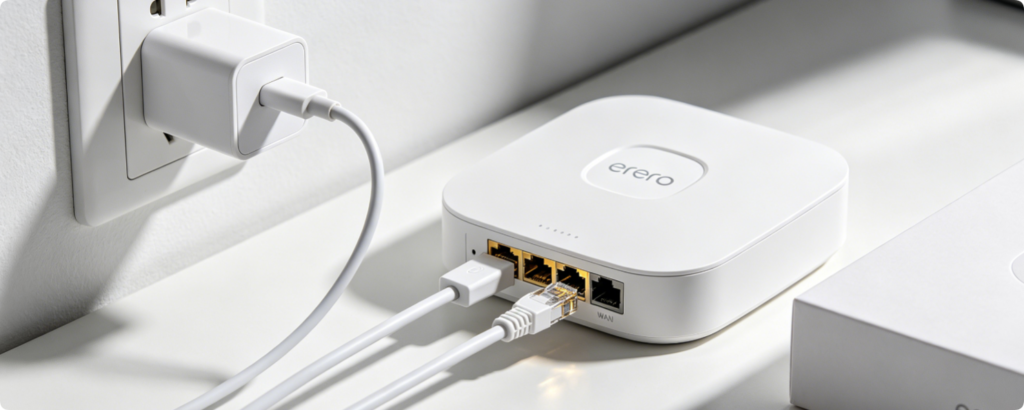
- Unpack the main Eero gateway, power cord and supplied Ethernet cable.
- Turn off your ISP modem, wait 60 seconds, then plug the modem back in.
- Run Cat6 cable from modem LAN port to the labeled WAN port on your Eero gateway.
- Plug in the gateway power supply; wait 2 minutes until the LED glows solid white (ready for pairing).
App Preparation
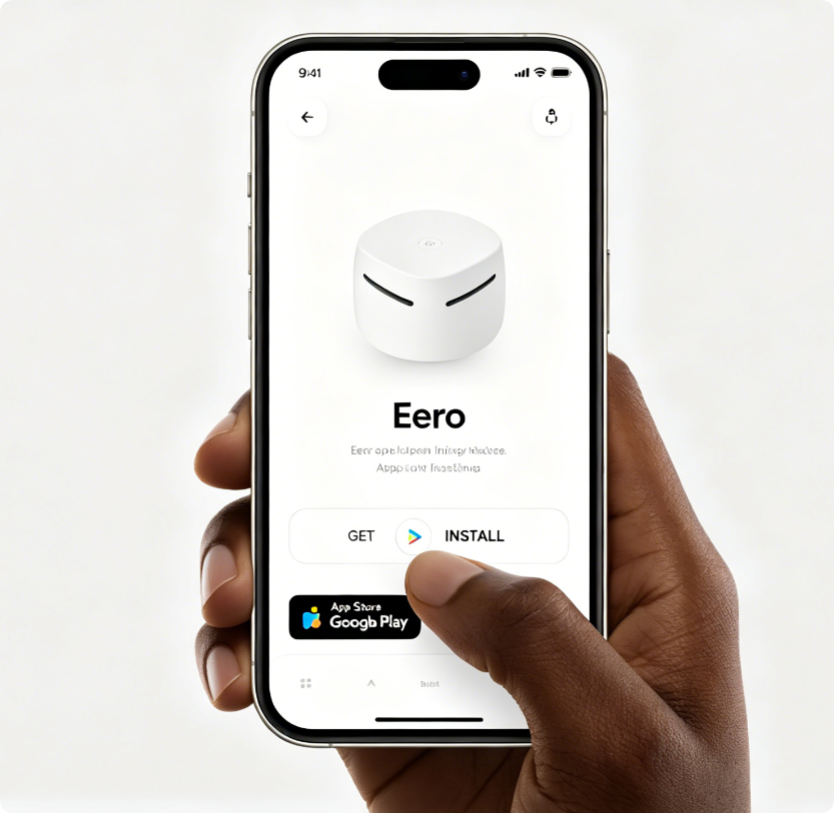
- Download the official Eero app from iOS App Store or Android Google Play Store.
- Create or log into your Amazon account (Eero requires Amazon login for full functionality).
- Enable Bluetooth and location permissions when prompted—Bluetooth speeds up mesh beacon detection.
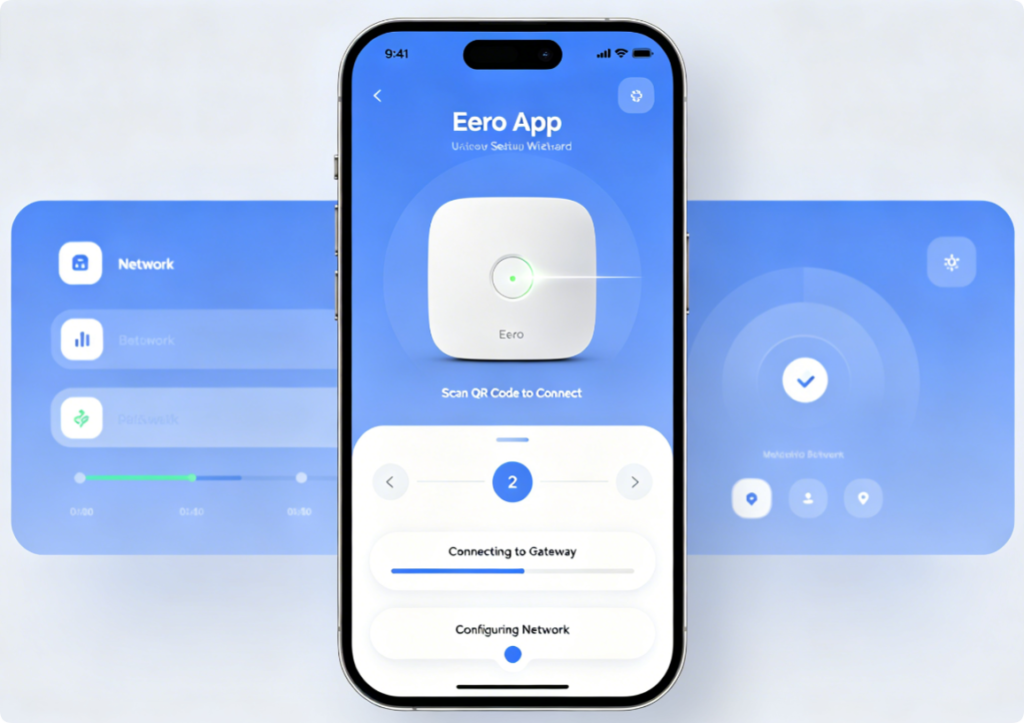
- Open the Eero app and tap “Set up new Eero network”.
- Scan the QR sticker located on the bottom of your main gateway unit.
- The app will detect the powered-on gateway via Bluetooth automatically.
- Create your unified single SSID Wi-Fi name and complex secure password for the whole mesh network.
Pair Additional Beacons
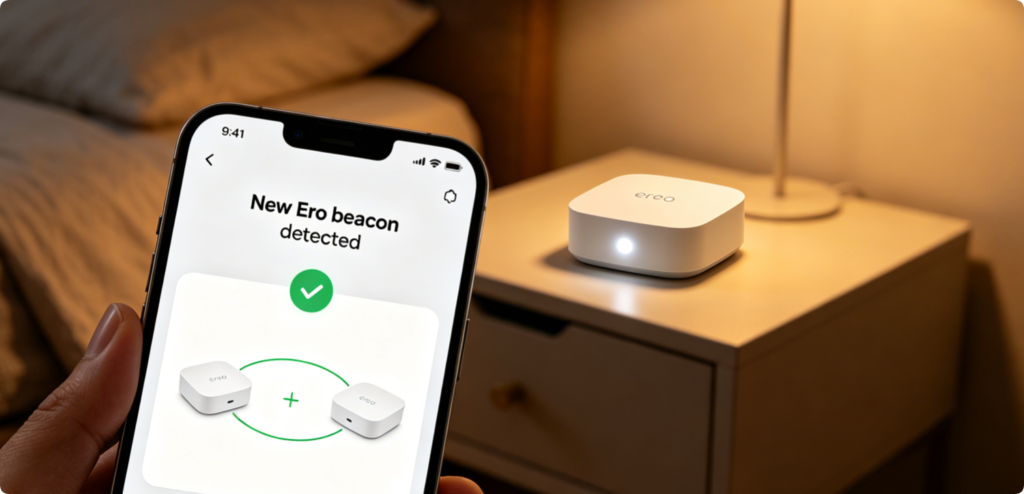
- Place and power on one beacon at a time; do not plug all satellites in simultaneously.
- Tap “Add another Eero” inside the app home dashboard.
- Scan the beacon’s bottom QR code and wait 30–60 seconds for automatic mesh sync.
- Repeat for every extra beacon you own until full home coverage is built.
Must-Enable Optimization Settings
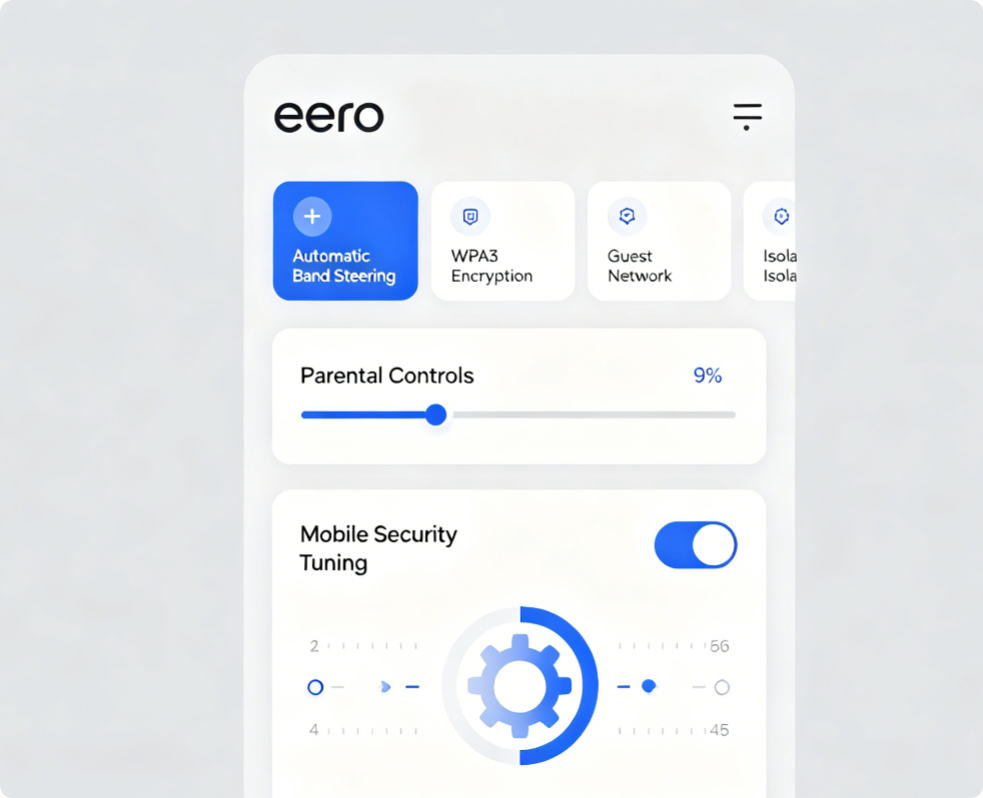
After all units sync, tweak these key features inside app settings:
- Switch wireless security mode to WPA3 for maximum device protection
- Turn on automatic band steering to let devices hop between 2.4GHz/5GHz seamlessly
- Enable isolated guest Wi-Fi to block visitor access to private local devices
- Toggle automatic nightly firmware updates to patch security flaws silently
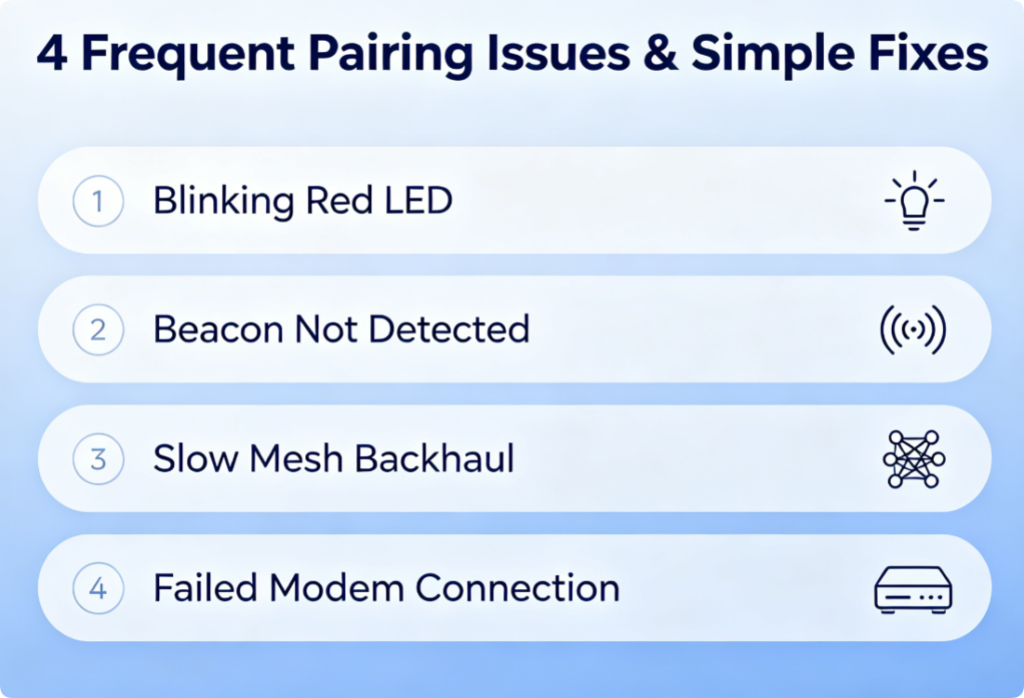
Fast Fixes For Setup Errors
- Blinking red LED on Eero unit: Unplug power, wait 1 minute, reposition device with fewer wall obstructions
- App cannot find beacon: Disable phone VPN, double-check Bluetooth, reset beacon via pinhole hold for 7 seconds
- Slow satellite speeds: Run wired Cat6 backhaul between gateway and beacons if possible
- No internet after setup: Power cycle both Eero gateway and ISP modem fully
Conclusion
The complete Eero mesh installation process only takes around 10 minutes when following this workflow: connect the gateway to your modem, pair the main unit via the Eero mobile app, add satellite beacons one by one, and enable built-in security and performance optimizations. Proper hardware placement is the biggest factor in eliminating home Wi-Fi dead zones, while the unified single SSID design delivers seamless roaming without manual network switching. If pairing errors appear, use the quick troubleshooting steps to restore mesh connectivity instantly, and enable automatic app updates to keep your whole-home network secure long-term.