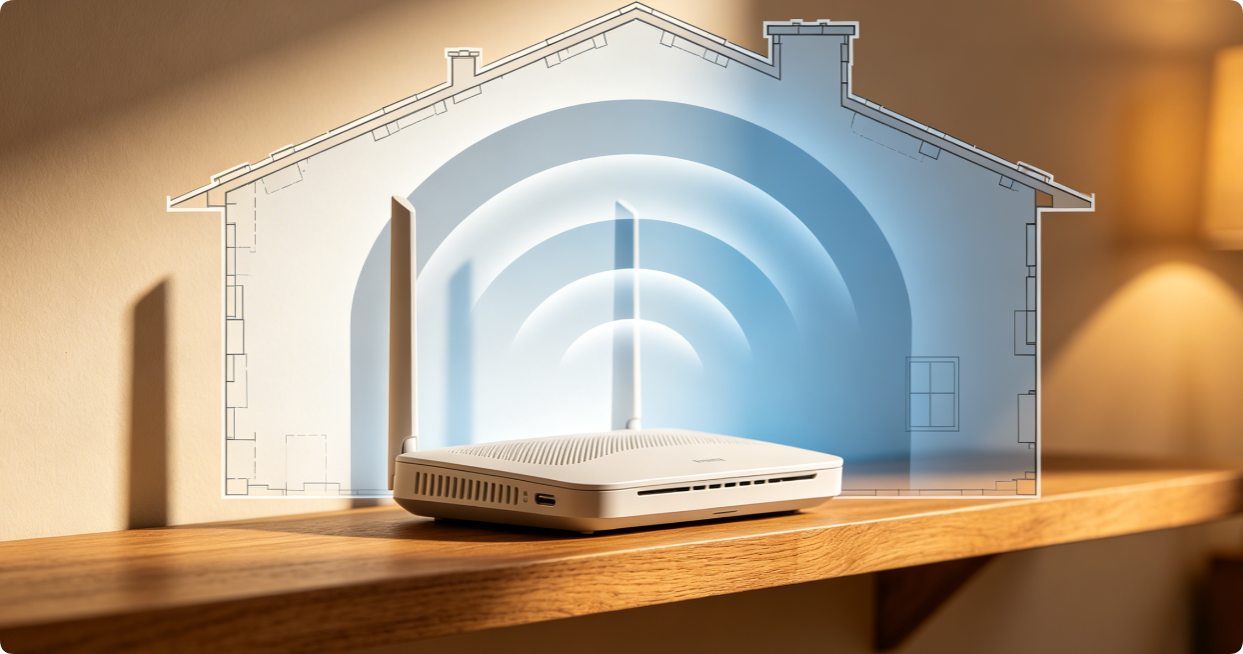
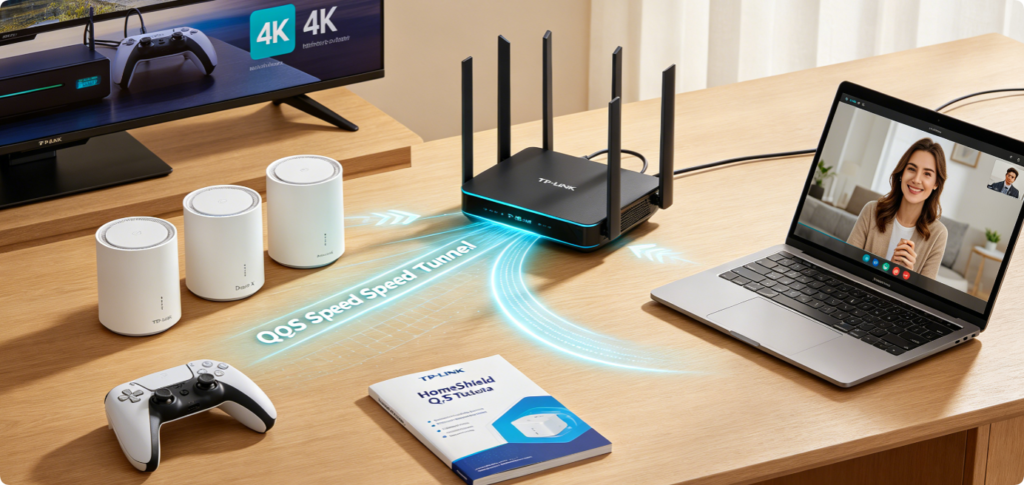
Network congestion triggers gaming lag, stuttering 4K streams and frozen Zoom calls when multiple devices download files simultaneously. TP-Link HomeShield QoS delivers two flexible priority modes—Scene Acceleration for app traffic and Client Acceleration for specific hardware—compatible with all Wi-Fi 6 Archer AX single routers and Deco whole-home mesh systems. This step-by-step walkthrough eliminates bandwidth competition to keep high-priority activities smooth.


Initial Mandatory Configuration
- Launch Tether (Archer AX) or Deco app, log in with your TP-Link ID
- Tap More > QoS, toggle Enable QoS to activate the feature
- Enter the exact download and upload bandwidth from your ISP contract; inaccurate values break QoS traffic scheduling
Optimize Traffic Category Priority
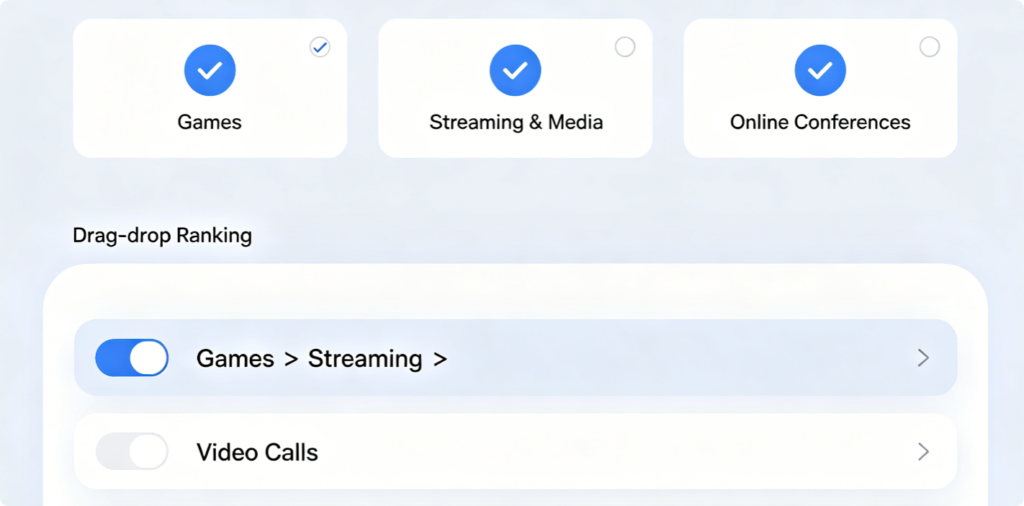
- Select Scene Acceleration mode after bandwidth setup
- Check three core critical scenes: Games, Streaming & Media, Online Conferences
- Reorder priority rank: Gaming first (lowest latency), then 4K streaming, followed by work video calls
- Skip low-priority File Transfer and Social media to avoid bandwidth waste
Dedicated Device Priority Rules
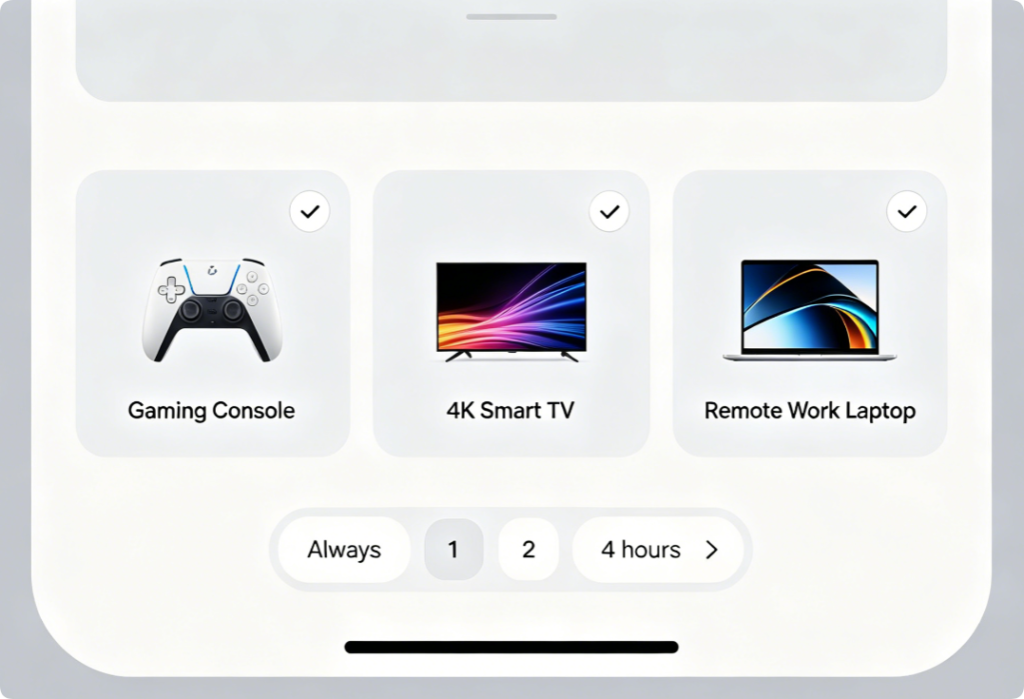
- Switch to Client Acceleration for hardware-specific prioritization
- Add your game console, streaming TV and work laptop to the high-priority list
- Set priority duration to Always for permanent protection, or timed limits for temporary video meetings
- Leave IoT cameras and background phones as default low priority
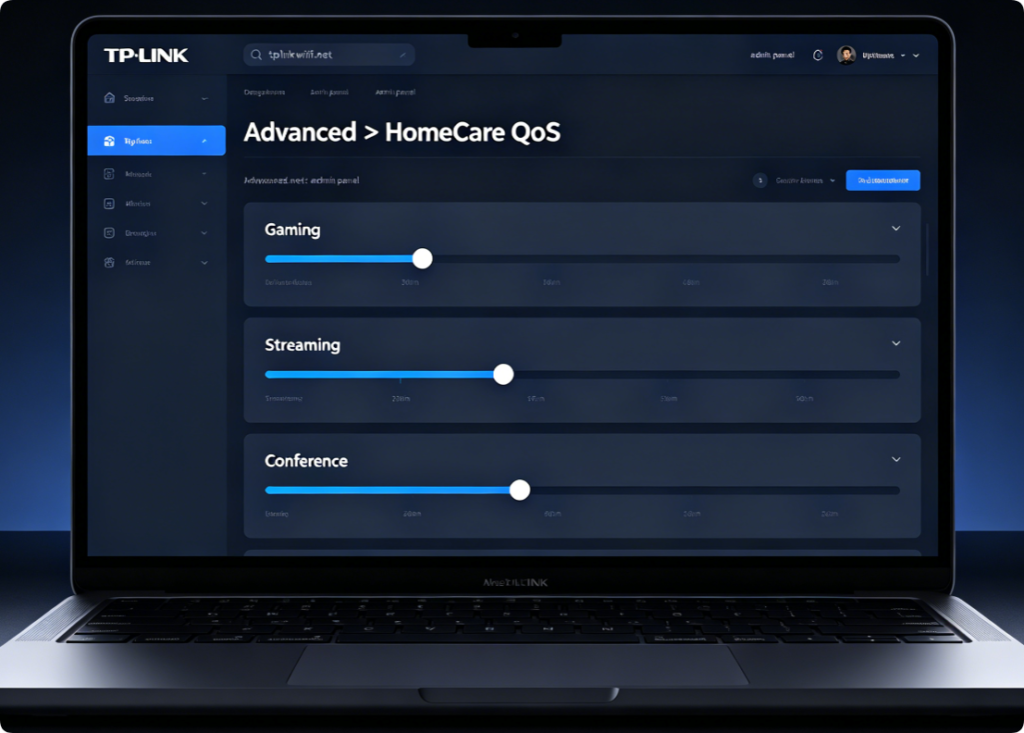
Archer AX Web Panel Alternative Setup
If you prefer desktop configuration:
- Log into
tplinkwifi.net, navigate Advanced > HomeCare > QoS - Input matching ISP bandwidth values
- Boost Gaming, Streaming and Chat traffic sliders to maximum priority
- Save settings and reboot the router to apply traffic rules
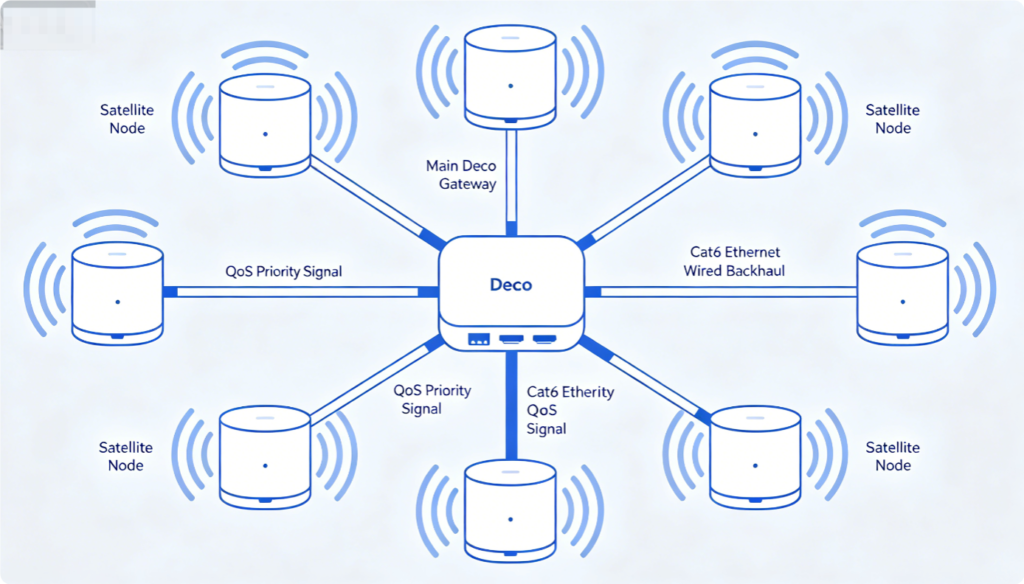
Critical Deco Mesh Optimization
QoS rules sync automatically across all Deco satellites, but wireless mesh backhaul weakens priority bandwidth delivery. Run wired Ethernet between main and secondary Deco units to guarantee consistent low-latency gaming and streaming in distant bedrooms.
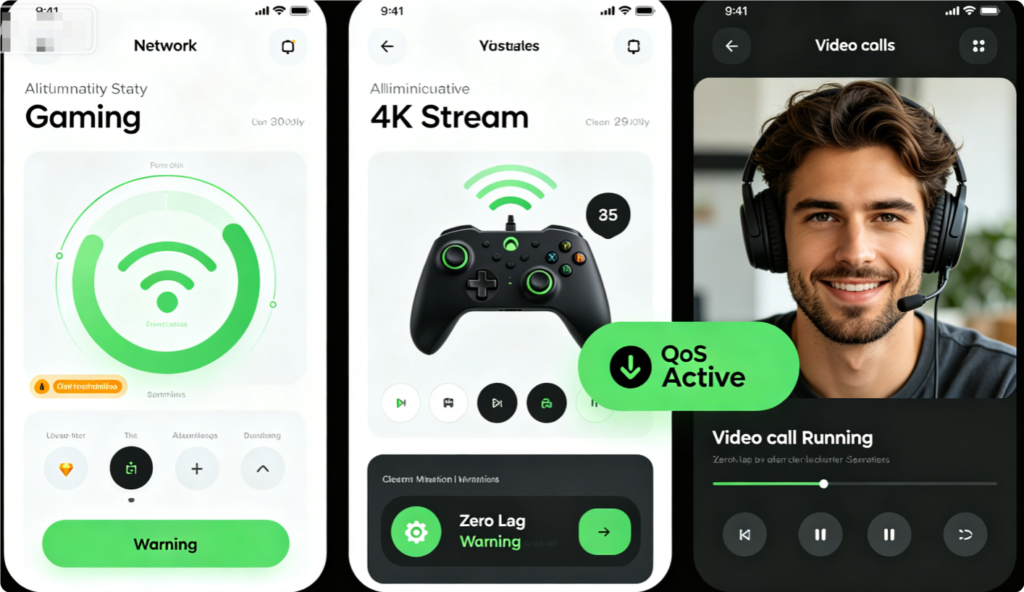
Verify Successful QoS Activation
- Run simultaneous heavy tasks: online multiplayer game, 4K Netflix stream and Zoom call
- Confirm no frame drops, buffering or audio freezes while other devices download large files
- Check app QoS report to confirm high-priority scenes/devices receive reserved bandwidth
Conclusion
TP-Link HomeShield QoS solves all common congestion issues for Archer AX and Deco mesh networks. Start with Scene Acceleration to rank gaming, streaming and video call traffic, then use Client Acceleration to lock dedicated hardware into high-priority queues. Input accurate ISP bandwidth and hardwire mesh satellites for full QoS performance. Once configured, your high-demand activities stay lag-free even during peak household internet usage.