The TP-Link TL-WR841N is a widely used low-cost 2.4GHz-only router, yet many users suffer slow speeds, frequent disconnections and weak coverage due to default factory settings and outdated firmware. This complete setup & optimization guide tweaks every critical menu to eliminate lag and dropouts without hardware upgrades.
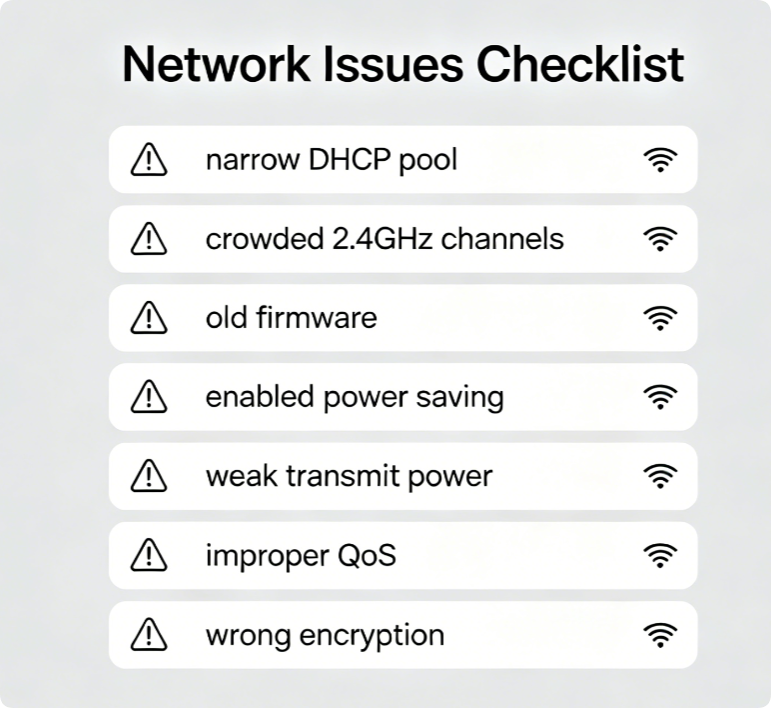
Main Flaws of Default TL-WR841N Settings
- Outdated firmware with wireless stability bugs
- Auto channel selection stuck on overlapping 2.4GHz frequencies
- Limited DHCP IP range triggering address conflicts
- Wi-Fi power saving mode cutting signal periodically
- Low default transmit power shrinking coverage
- Unoptimized QoS causing bandwidth bottlenecks
- Insecure outdated encryption interfering with device compatibility
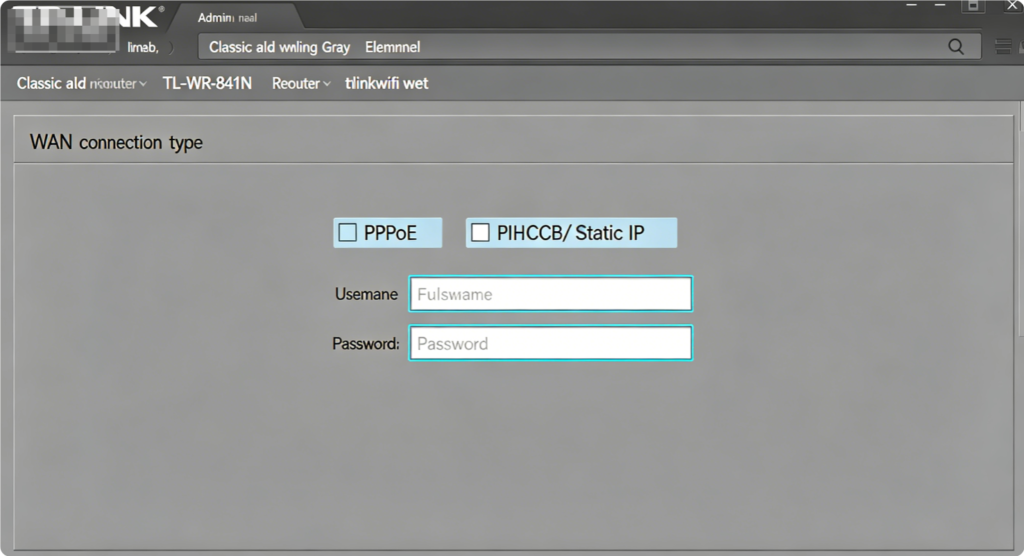
Stable WAN Connection Configuration
- Connect PC via Ethernet cable, log into
192.168.1.1 - Go to Network > WAN and pick your ISP’s connection mode
- Fill in login credentials if using PPPoE, save and reboot WAN
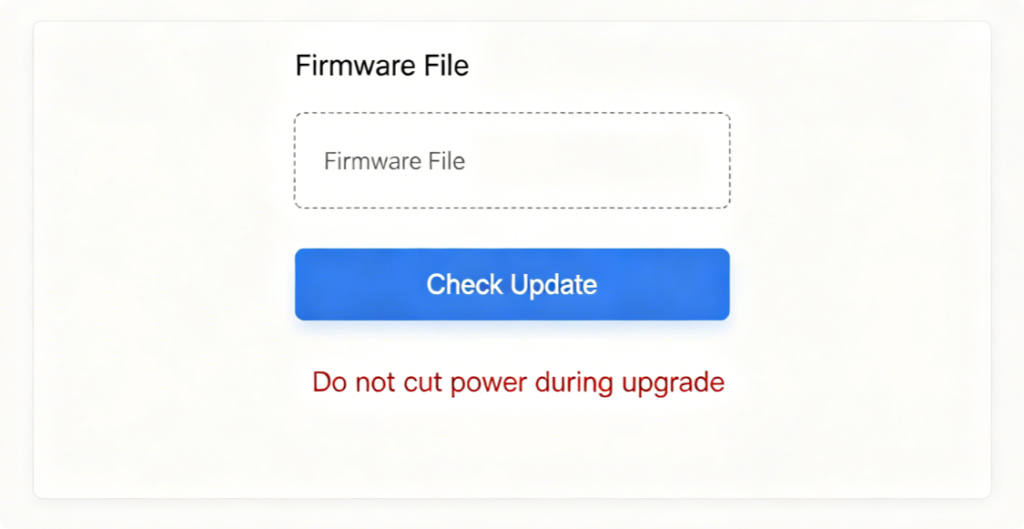
Patch Native Wireless Glitches
Visit TP-Link official support page to download the latest TL-WR841N firmware. Install via the system upgrade page; new firmware drastically reduces sudden Wi-Fi drops.
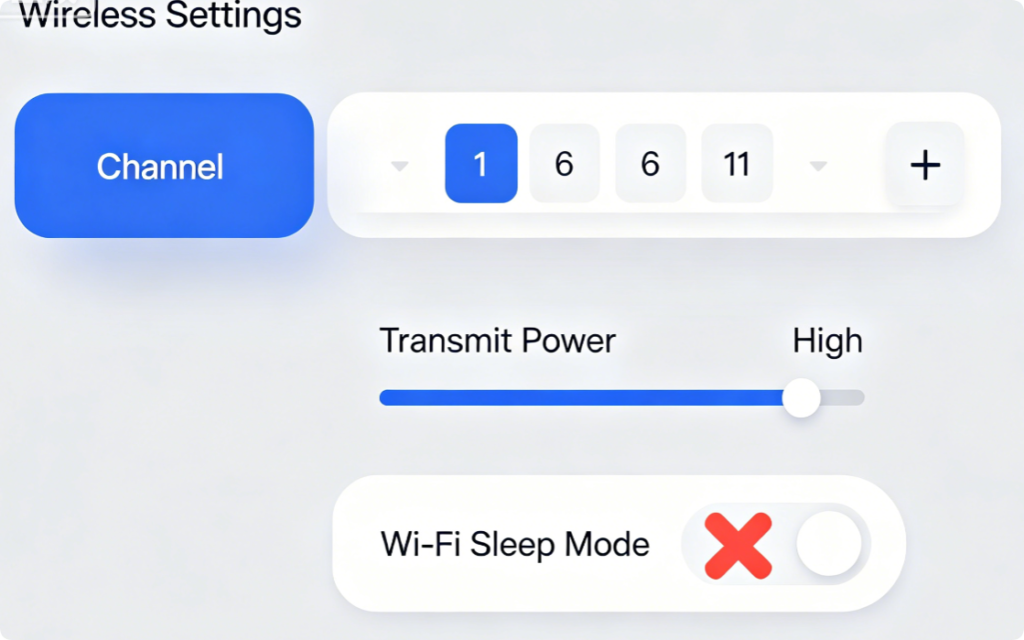
Eliminate Neighbor Interference
Only use non-overlapping channels 1,6,11 for 2.4GHz. Max out transmit power and fully disable Wi-Fi energy saving to avoid periodic signal restarts.
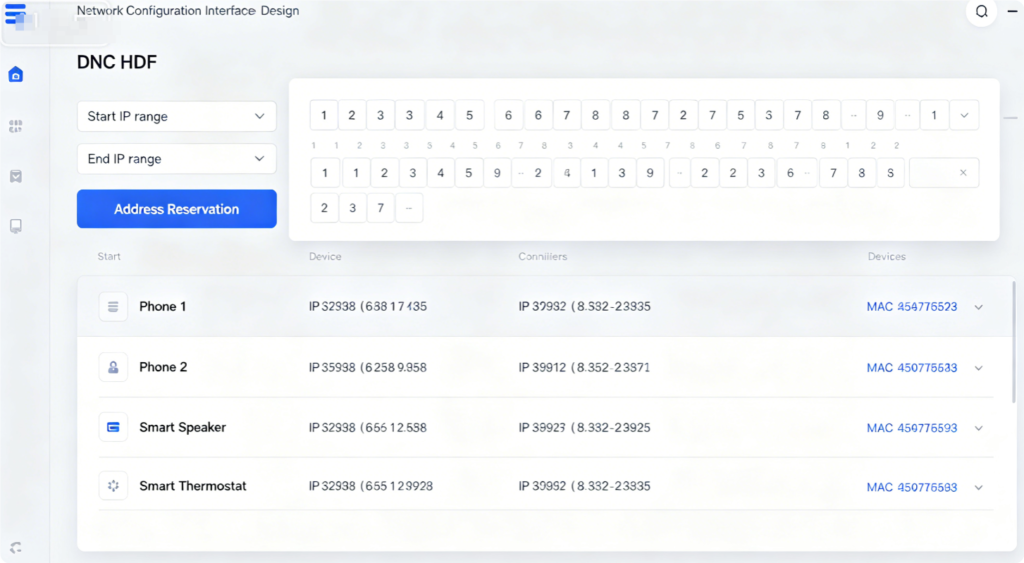
Prevent IP Conflict Disconnections
Default DHCP range only supports a small number of devices. Extend the IP pool and reserve fixed local IPs for cameras and streaming devices to stop forced reconnections.
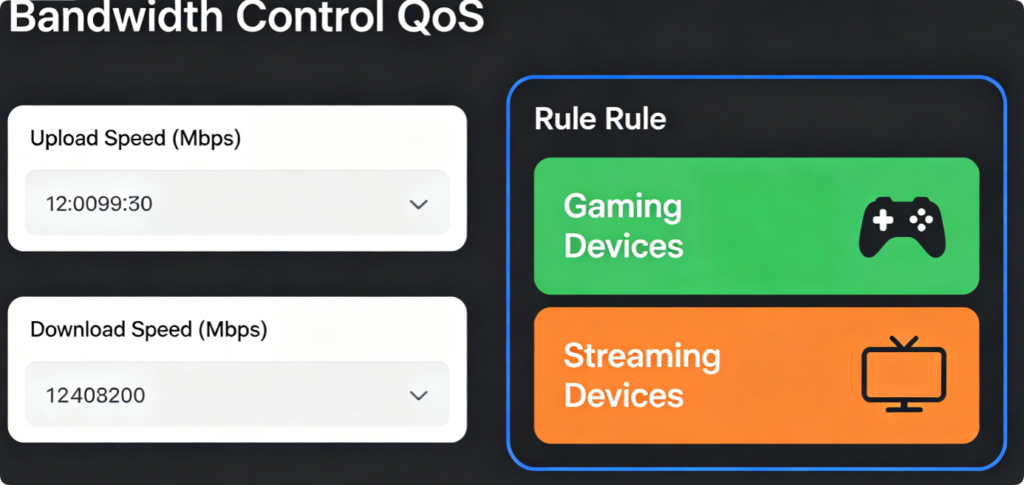
Remove Household Bandwidth Congestion
Input your actual ISP download and upload speeds, create QoS rules to assign higher bandwidth priority to game consoles and laptops, limiting background downloads.
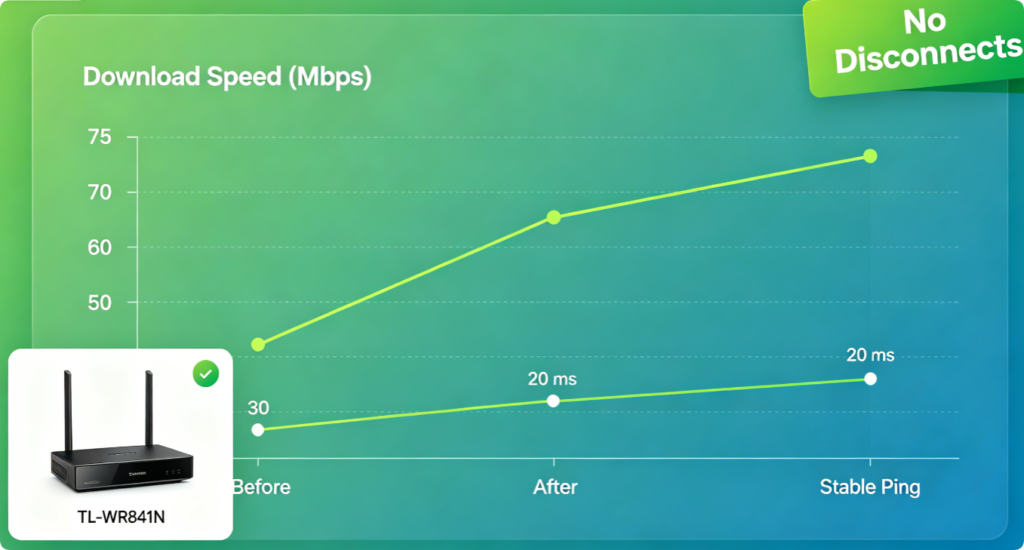
Test Final Network Stability
After all tweaks, run a 20-minute continuous ping test. If no packet loss or disconnections appear, your budget TL-WR841N is fully optimized for consistent fast Wi-Fi.
Conclusion
The cheap TP-Link TL-WR841N can deliver smooth, reliable Wi-Fi once properly configured. Prioritize firmware updates and 2.4GHz channel tuning to fix random disconnects, then expand DHCP ranges, disable power saving and enable bandwidth QoS to boost slow network speeds. These zero-cost adjustments unlock the full performance of this entry-level router for daily browsing, streaming and light gaming.