Frequent random Wi-Fi drops, brief internet outages and constant device reconnection are one of the most annoying home network issues. Most disconnection faults stem from incorrect router configurations instead of broken hardware. This guide covers universal, brand-agnostic setting adjustments to stop unstable connections permanently, working for TP-Link, Netgear, Eero and all mesh routers.
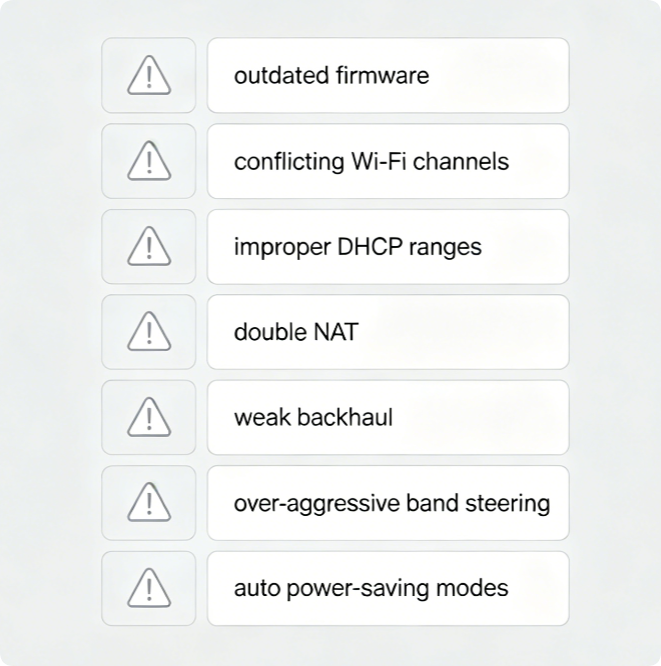
Top Config Triggers for Constant Disconnects
- Outdated firmware with unresolved wireless stability bugs
- Overlapping 2.4GHz/5GHz/6GHz Wi-Fi channels causing interference
- Misconfigured DHCP pool leading to IP address conflicts
- Double NAT between ISP modem-router and your main router
- Mesh backhaul mismatches for multi-node Wi-Fi systems
- Overly aggressive band steering kicking devices offline
- Enabled router power-saving sleep modes cutting signals
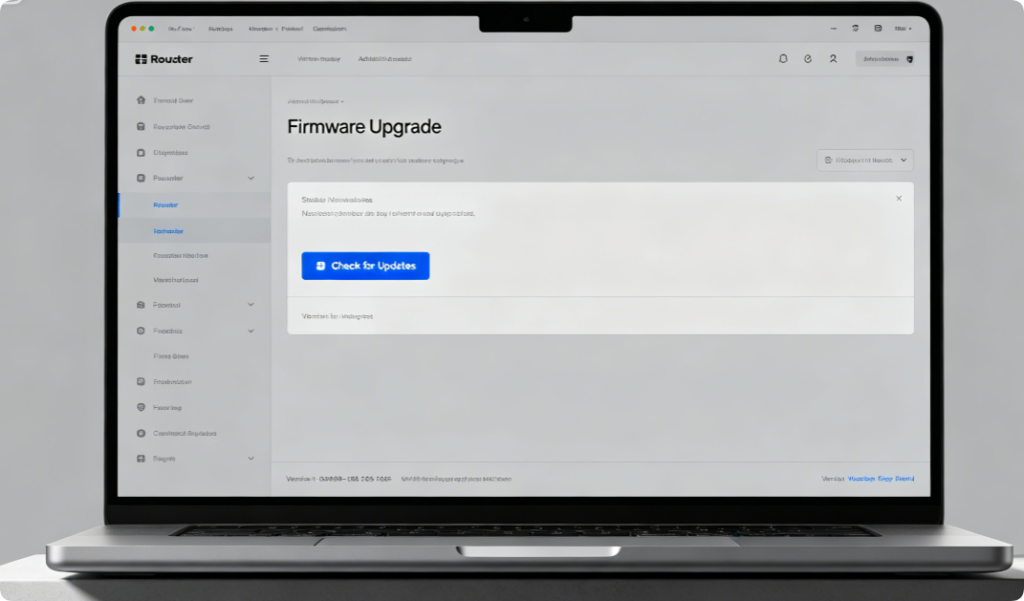
Patch Built-In Wireless Glitches
Router manufacturers release firmware to fix roaming and connection bugs every few months. Enter the admin dashboard and install official updates; never cut power during installation. Enable auto-updates to avoid recurring disconnects long-term.
Reduce Neighbor Signal Interference
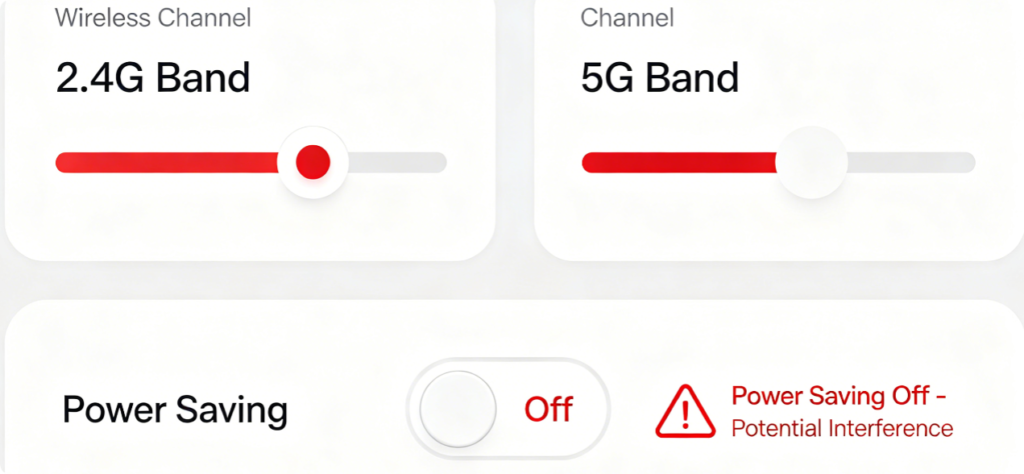
Lock 2.4GHz to channels 1, 6 or 11 only. Let 5GHz/6GHz run on auto-scan. Turn off transmit power saving, as sleep modes force periodic Wi-Fi restarts that drop connected devices.
Eliminate IP Conflict Disconnects
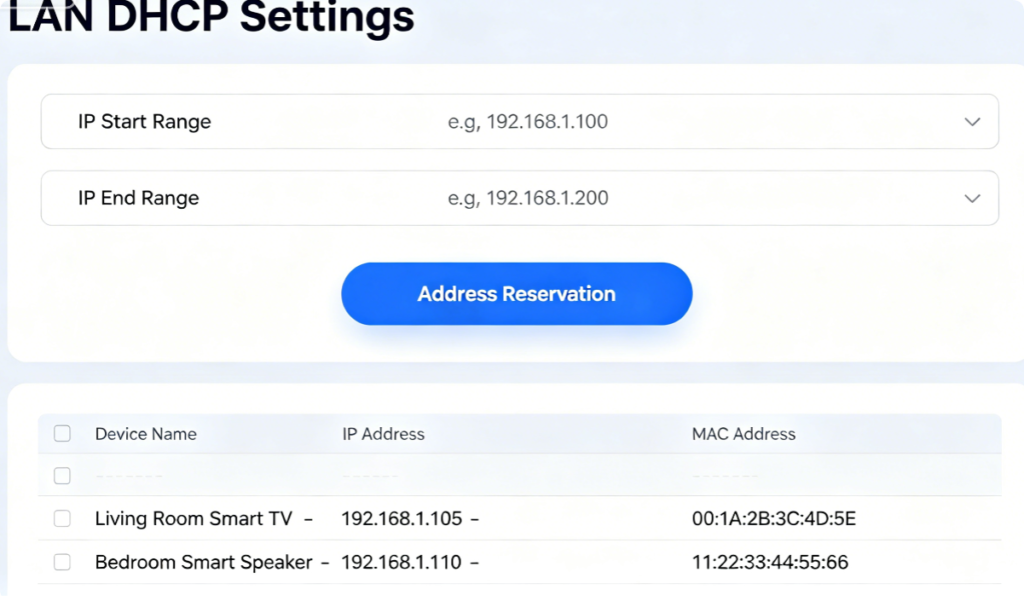
A too-small DHCP pool runs out of available local IPs, forcing devices to drop offline. Expand your IP range, and reserve static addresses for always-on hardware like cameras, NAS and game consoles.
Stop WAN Connection Interruptions
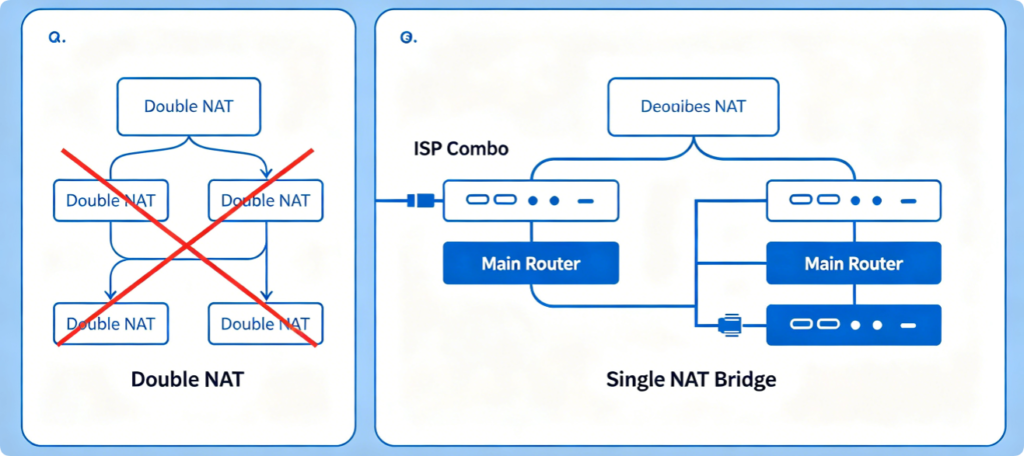
Double NAT breaks port forwarding and creates unstable WAN negotiation. Put your ISP modem-router into bridge mode to let your main router handle all routing duties. If locked out, enable bridge mode inside your mesh router as a fallback.
Prevent Forced Device Roaming Drops
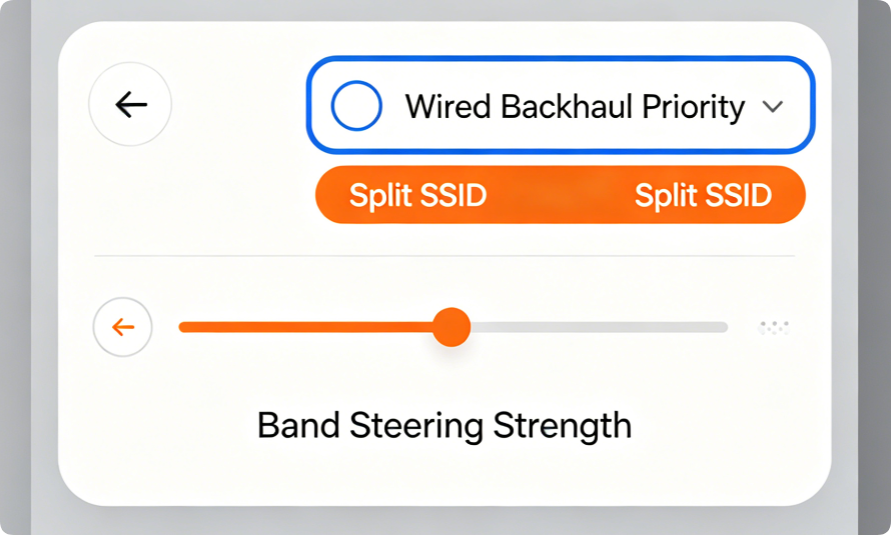
Lower band steering aggressiveness if phones/laptops repeatedly kick offline. For mesh kits, use Cat6 wired backhaul between nodes instead of wireless links to eliminate weak mesh sync disconnections.
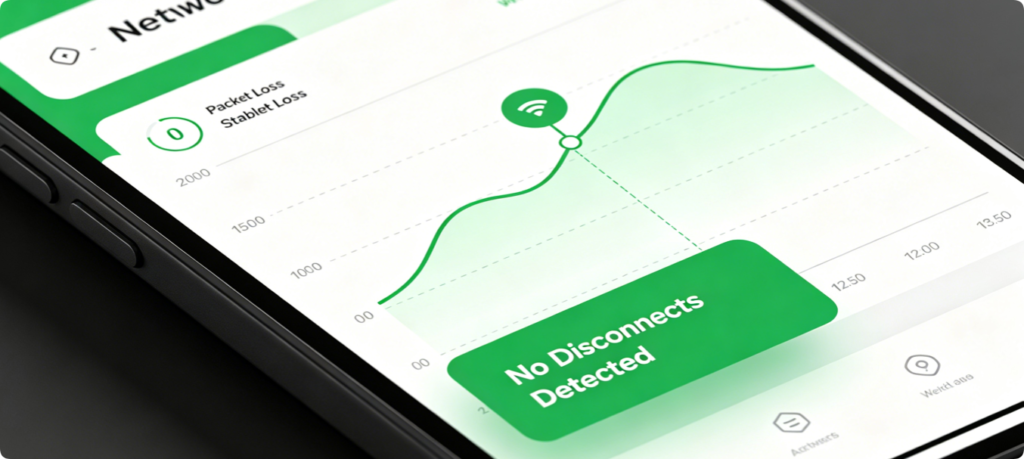
Verify Long-Term Stability
After applying all configuration fixes, run a continuous ping test for 30 minutes. If no packet loss or disconnections appear, your router settings are fully optimized. Monitor connected devices daily to spot early signs of returning instability.
Conclusion
Persistent router disconnections are almost always solvable through targeted configuration tweaks. Prioritize firmware upgrades and Wi-Fi channel optimization first, then fix DHCP limits, double NAT and mesh backhaul settings. Disable power-saving features and adjust band steering to avoid forced device reboots. These universal fixes work across all mainstream router brands and eliminate random Wi-Fi drops without purchasing new hardware.