Unsecured home routers become easy entry points for hackers, botnet attacks, and neighbor bandwidth theft. Most owners leave critical default settings untouched, exposing smart cameras, NAS drives and personal data. This universal hardening checklist covers mandatory security tweaks compatible with TP-Link, Netgear, Eero and all Wi-Fi mesh systems to lock down your entire local network.
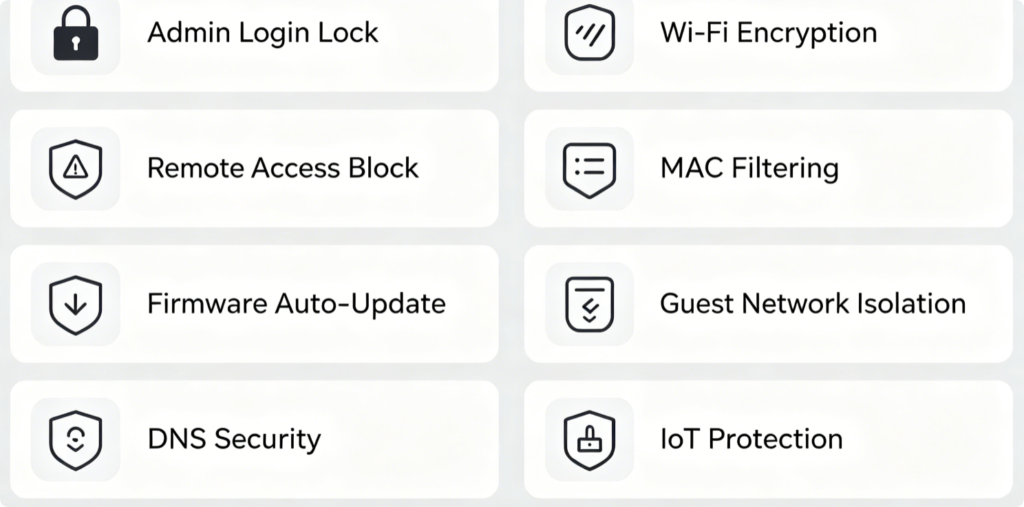
Core Hardening Categories Covered
- Admin panel credential protection
- Wireless network encryption & access control
- Remote management and port blocking
- Automated firmware patching
- Isolated guest Wi-Fi
- Custom secure DNS and threat filtering
- Device access approval rules
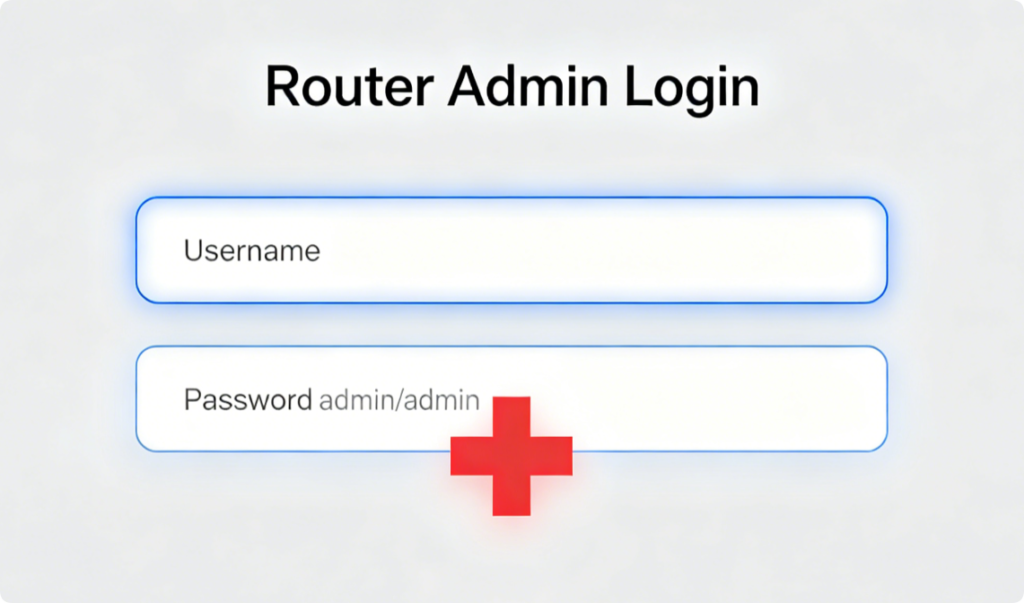
Critical Login Hardening
- Never keep factory default admin username and password
- Create a long random passphrase with mixed letters, numbers and symbols
- Disable remote admin access over the public internet entirely
- Restrict admin login only to wired LAN connections if possible
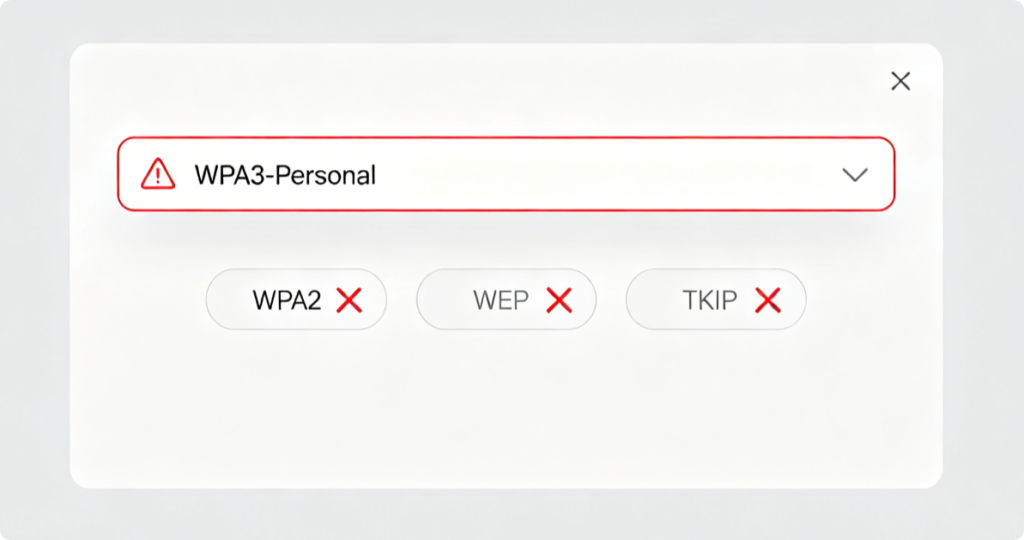
Secure Wireless Configuration
- Set Wi-Fi security mode to WPA3; use WPA2-PSK as backup for older devices
- Turn off outdated insecure modes: WEP, WPA, TKIP
- Create a complex Wi-Fi passphrase separate from router admin credentials
- Disable WPS PIN and WPS push-button to eliminate brute-force attack risks
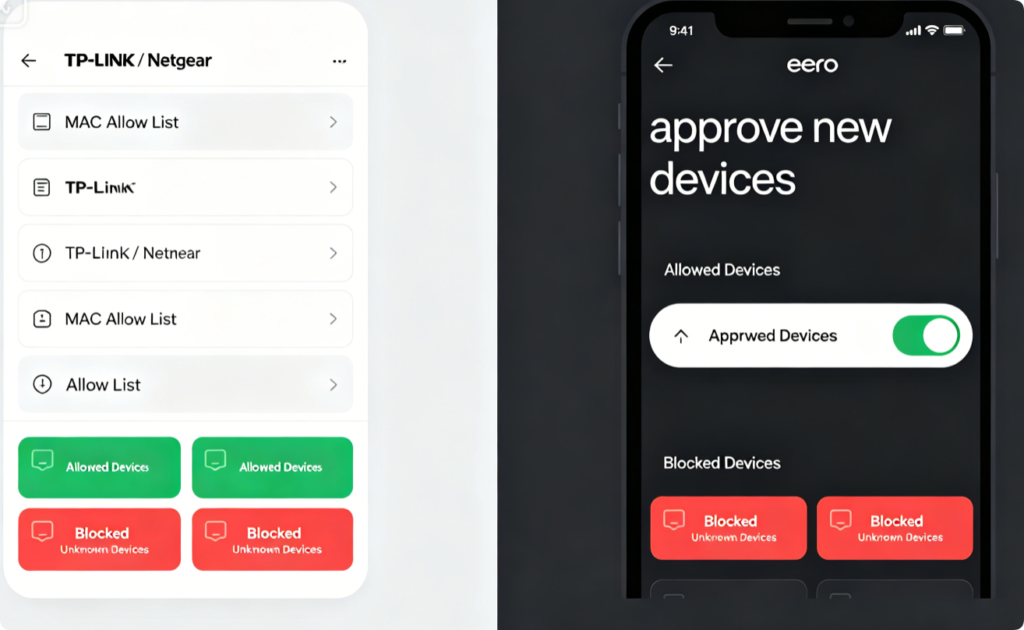
Block Unauthorized Network Access
- TP-Link / Netgear: Turn on MAC address filtering, set to allow only manually added trusted hardware
- Eero Mesh: Activate “Require approval for new devices” to reject unknown phones/tablets automatically
- Periodically audit connected client lists to spot suspicious unknown gadgets
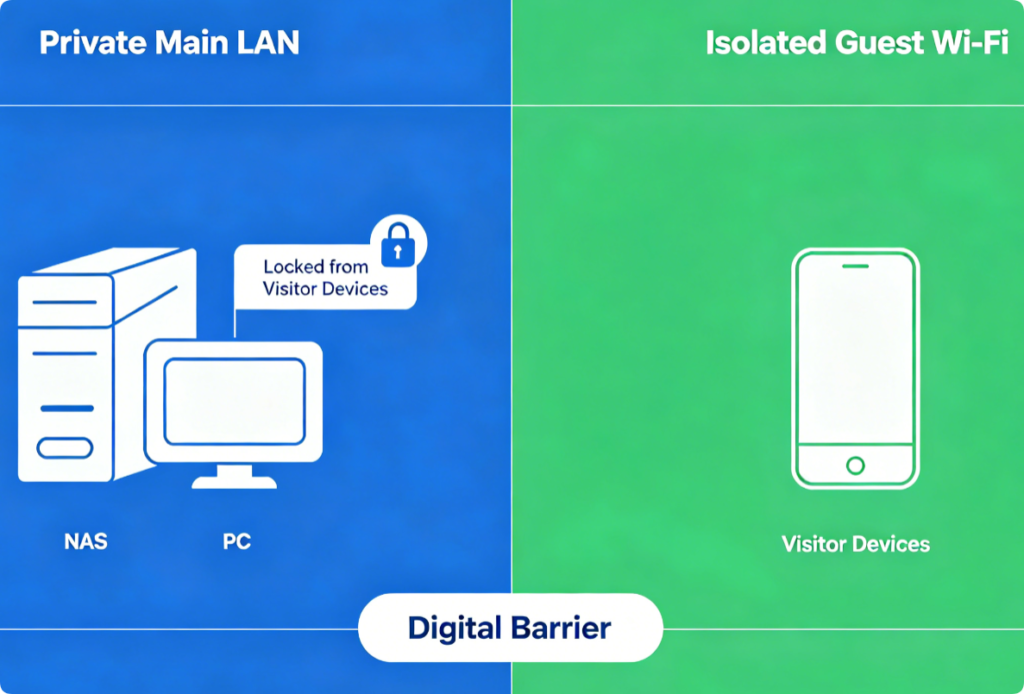
Guest Network Security Rule
- Always create a separate guest Wi-Fi SSID with unique password
- Enable full network isolation so guests cannot view local printers, storage or cameras
- Schedule auto-shutdown for guest Wi-Fi when unused to reduce exposure surface
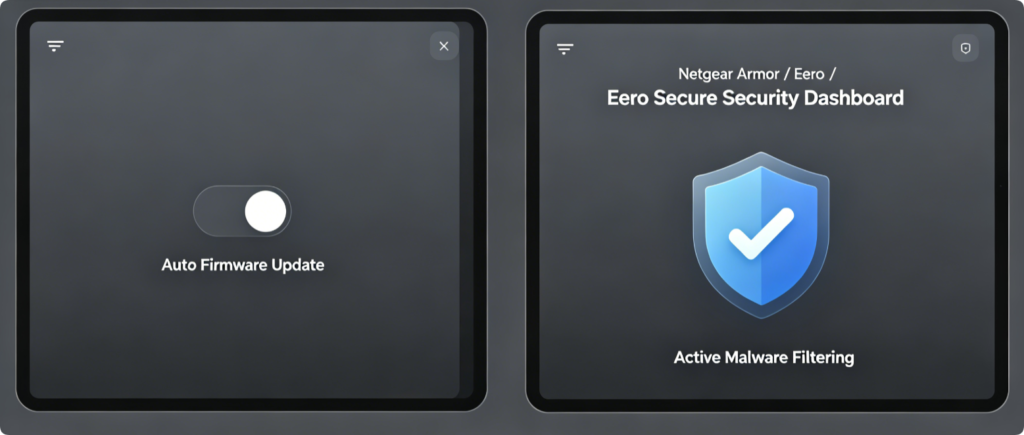
Automated Long-Term Protection
- Switch on automatic over-the-air firmware upgrades to patch zero-day flaws
- Enable native security suites: Netgear Armor (Bitdefender), Eero Secure
- Use privacy-focused public DNS (Cloudflare / Quad9) to block malicious domains
- Avoid third-party custom firmware unless you have advanced technical knowledge
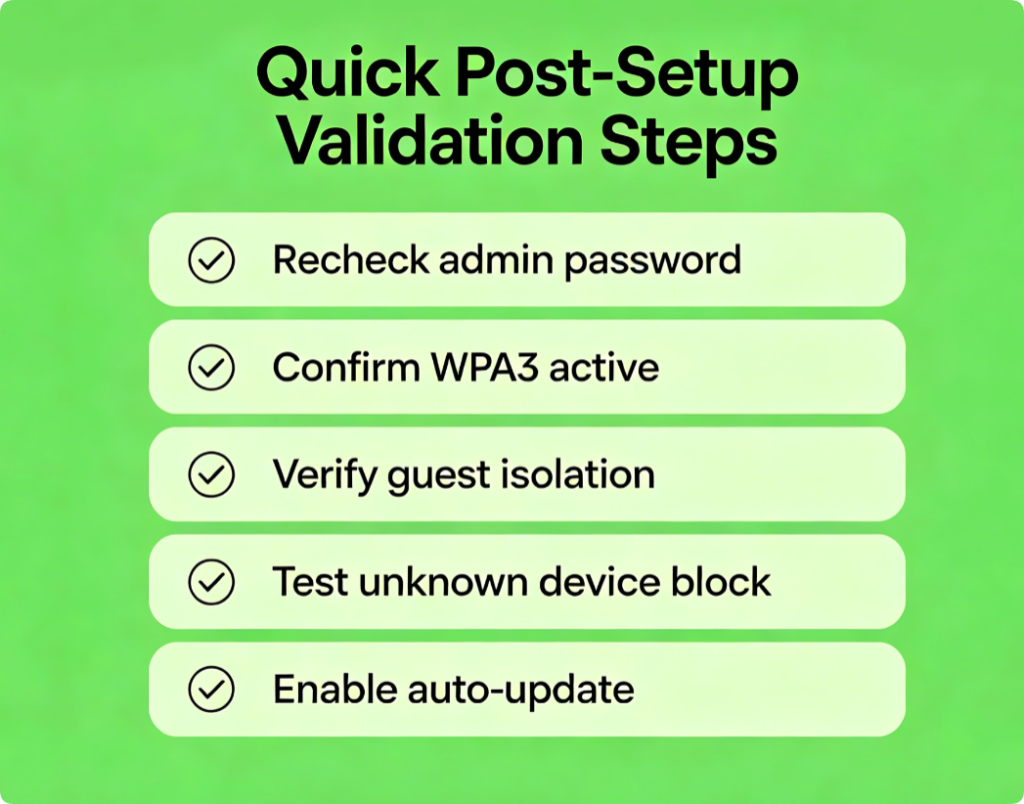
Final Security Audit
After applying all hardening settings:
- Reboot the router to fully save all security rules
- Attempt to connect an unregistered spare device to confirm it gets blocked
- Double-check remote management remains disabled
- Set a monthly reminder to review connected device activity logs
Conclusion
These universal router security settings work across TP-Link, Netgear, Eero and all mesh routers to eliminate most common network attack vectors. Prioritize changing admin credentials, upgrading to WPA3 encryption, blocking unknown devices, isolating guest traffic and enabling auto firmware patches. Combined with built-in threat filtering and secure DNS, this complete hardening checklist creates a robust barrier against hackers, botnets and unauthorized Wi-Fi leeching for your whole-home network.