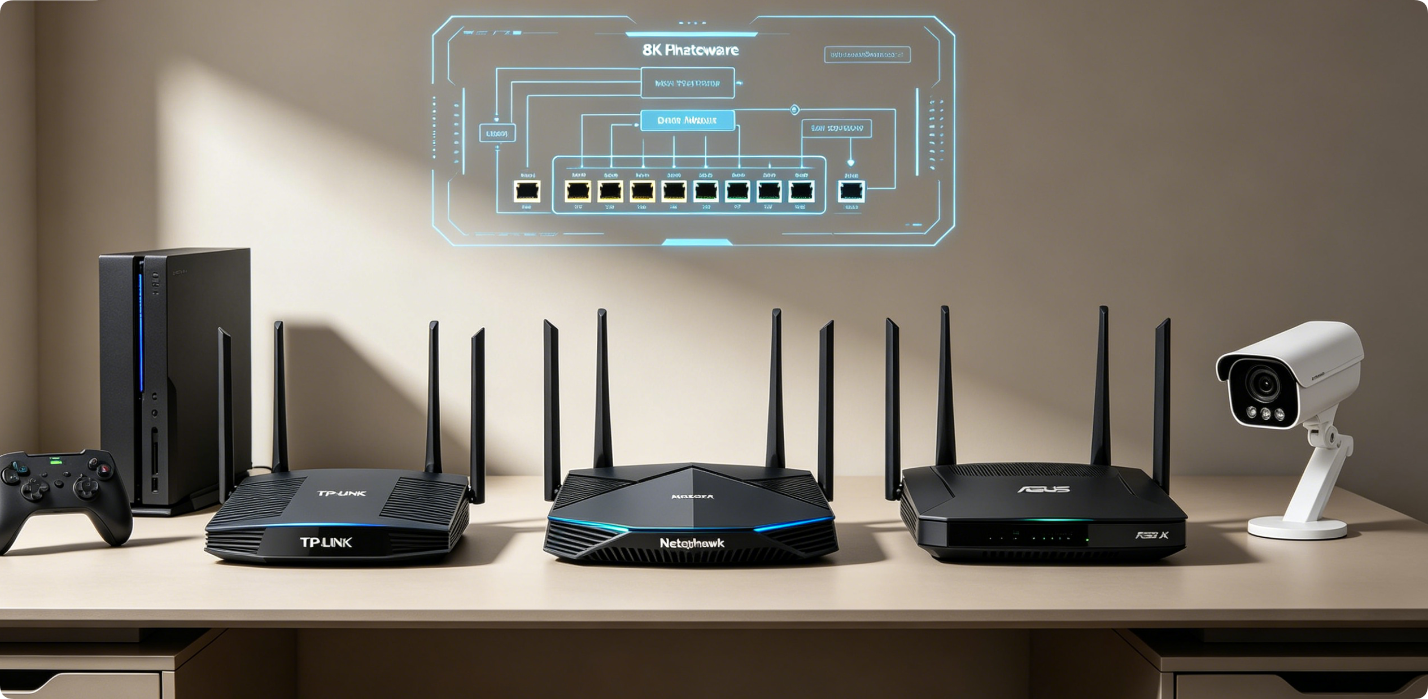
Port forwarding opens targeted router firewall ports to allow stable external access to local devices: gaming consoles, remote IP camera viewing, NAS storage and self-hosted servers. Without proper rules, online multiplayer suffers lag or disconnections, and you cannot check security cameras away from home. This universal guide covers core concepts and step workflows for the three most popular router brands, with critical security best practices.
Core Port Forwarding Basics
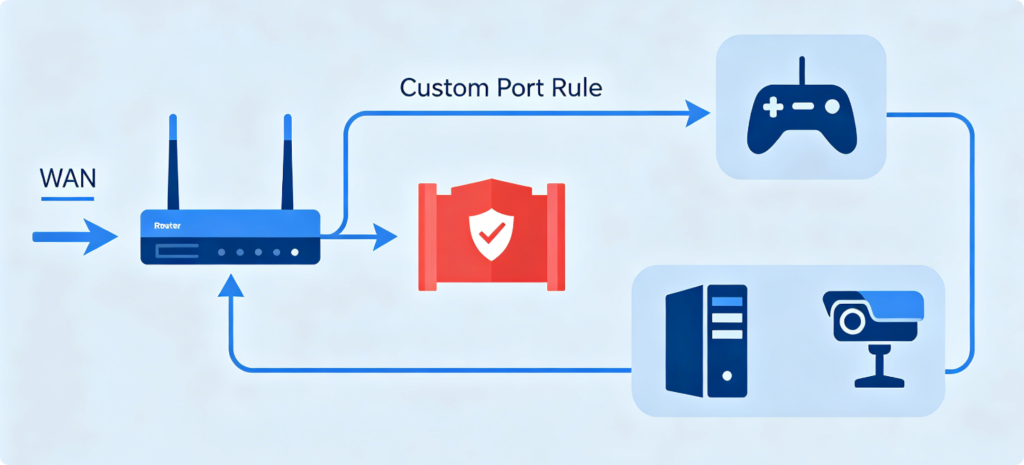
Your router’s SPI firewall blocks unsolicited incoming internet traffic by default. Port forwarding creates an exception rule: when external traffic hits a specific port number, the router routes that data straight to a designated local device via its private LAN IP address.
Two primary use cases for home users:
- Gaming: Reduce strict NAT type, fix multiplayer disconnects for Xbox, PlayStation, Steam PC
- IP Cameras: Stream live footage remotely via phone apps from outside your home Wi-Fi
Step 1: Set Static LAN IP (Mandatory First Step)
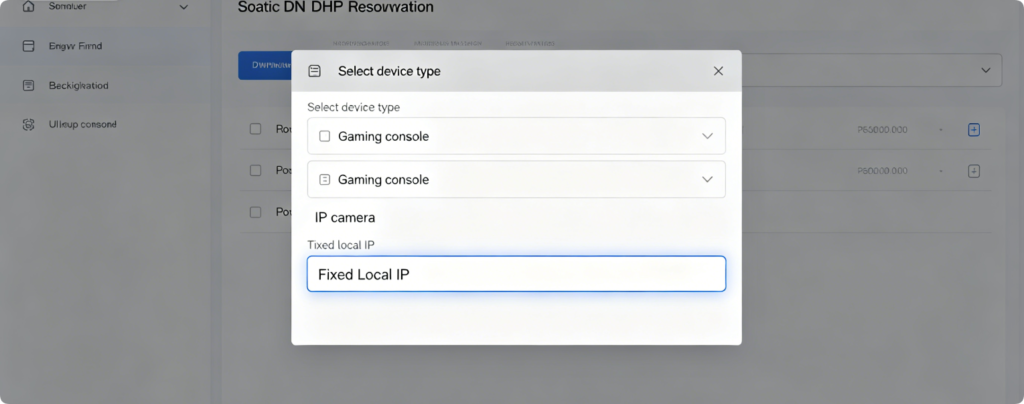
Dynamic DHCP IP addresses change after router reboots, breaking port forward rules. Lock a fixed IP for your device:
- Log into router admin panel via wired Ethernet
- Navigate LAN > DHCP Reservation / Address Reservation
- Select your gaming console or IP camera from connected device list
- Assign a permanent static private IP and save changesRepeat this before creating any port forwarding rules on TP-Link, Netgear or ASUS hardware.
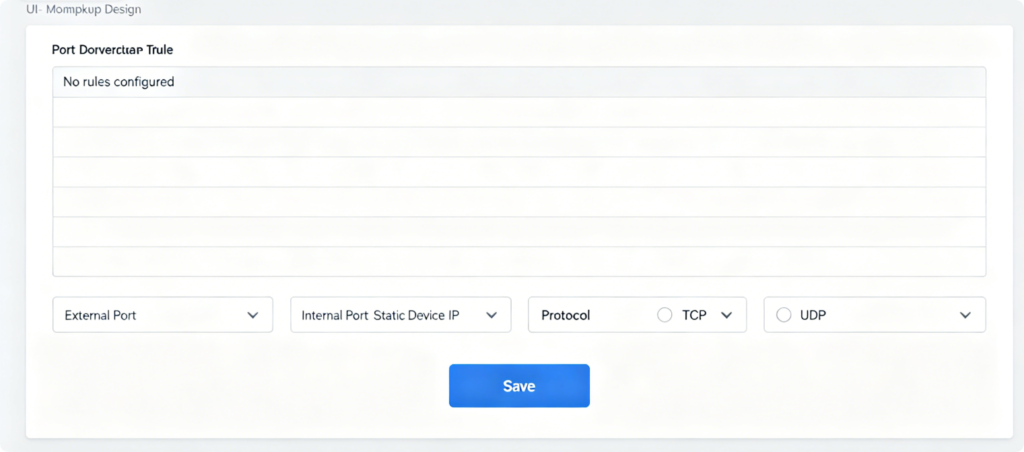
TP-Link Virtual Server (Port Forward) Steps
- Access
tplinkwifi.net, open Advanced > NAT > Virtual Servers - Click Add New to create a custom rule
- Fill fields: External Port, Internal Port, Static IP of camera/console, Protocol (TCP/UDP/ALL)
- Enable the rule, save and reboot router wireless radioFor IP cameras: Use single port range 80 or 554; for gaming, input full multi-port ranges required by your game title.
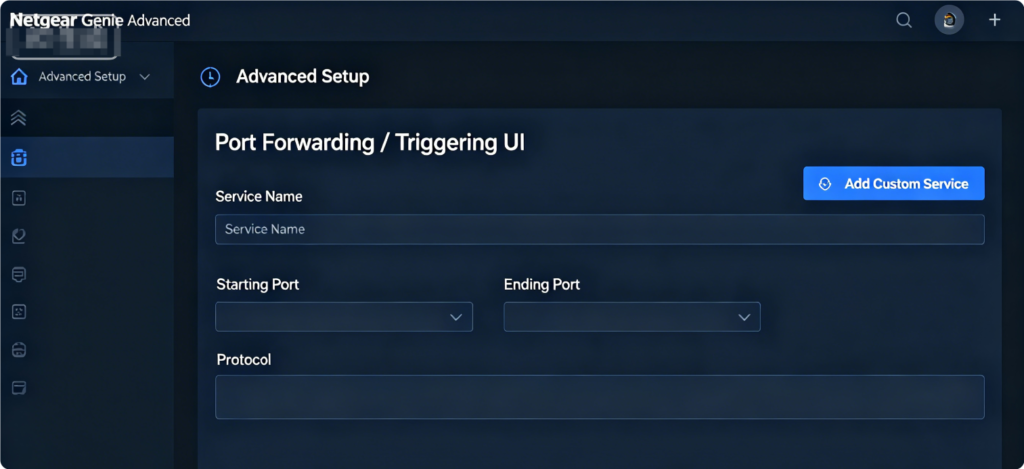
Netgear Port Forward Setup
- Visit
routerlogin.net, go to Advanced > Advanced Setup > Port Forwarding - Select Add Custom Service
- Name your rule (e.g. PS5 Gaming, Front Door IP Camera)
- Enter starting/ending port range, static device LAN IP, pick TCP/UDP protocol
- Apply settings to activate forwarding rules
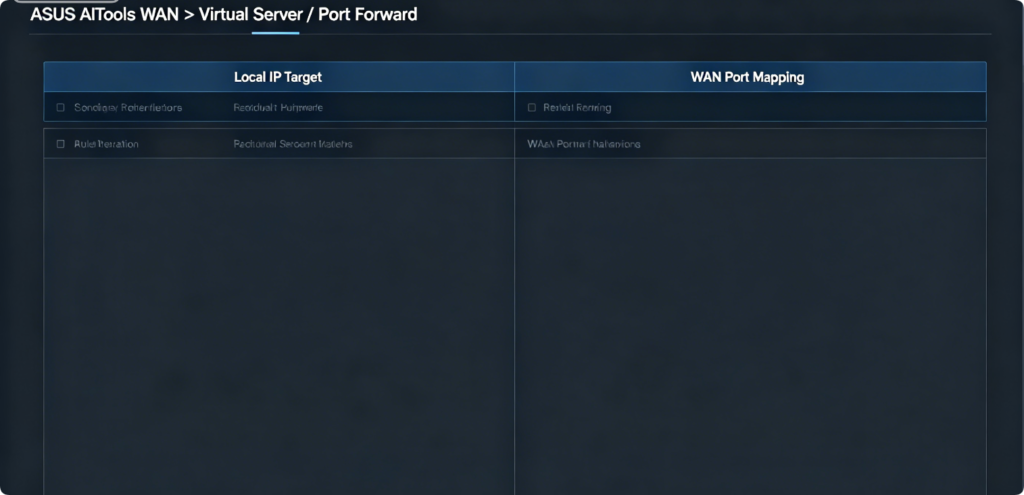
ASUS Virtual Server Port Mapping
- Log into ASUS router panel at
router.asus.com - Open WAN > Virtual Server / Port Forwarding tab
- Click Add to build a forwarding entry
- Input WAN external ports, matching internal device ports, static camera/console IP
- Toggle Enable and save all port rules
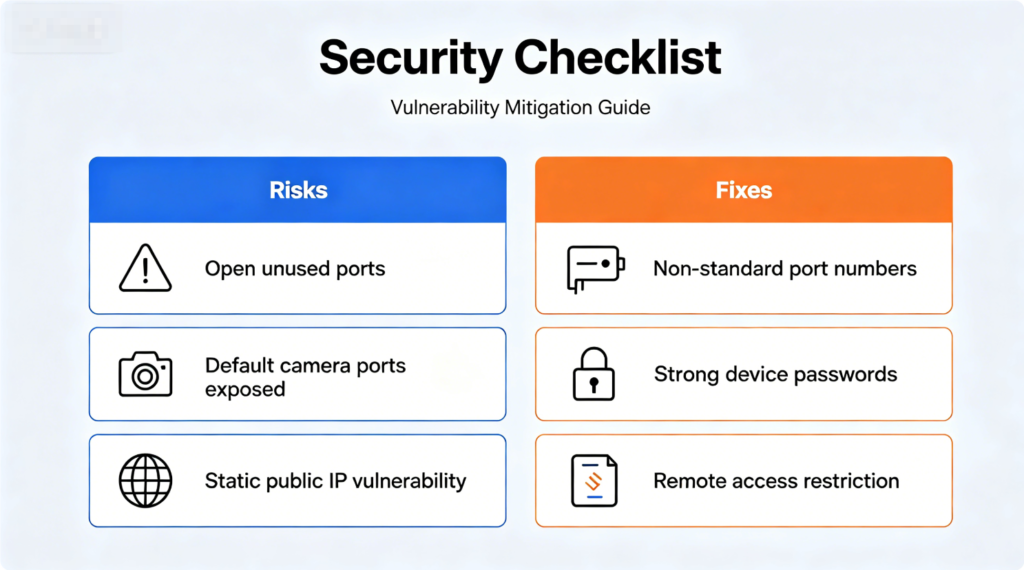
Non-Negotiable Security Rules After Setup
- Avoid default widely known ports (80, 554, 8080) for IP cameras; use random high port ranges above 30000
- Set complex login passwords on gaming devices and all IP cameras
- Disable remote management on your router WAN side entirely
- Delete unused port forward rules for old devices to close open firewall holes
- Enable SPI firewall and DoS protection to block port scanning bots
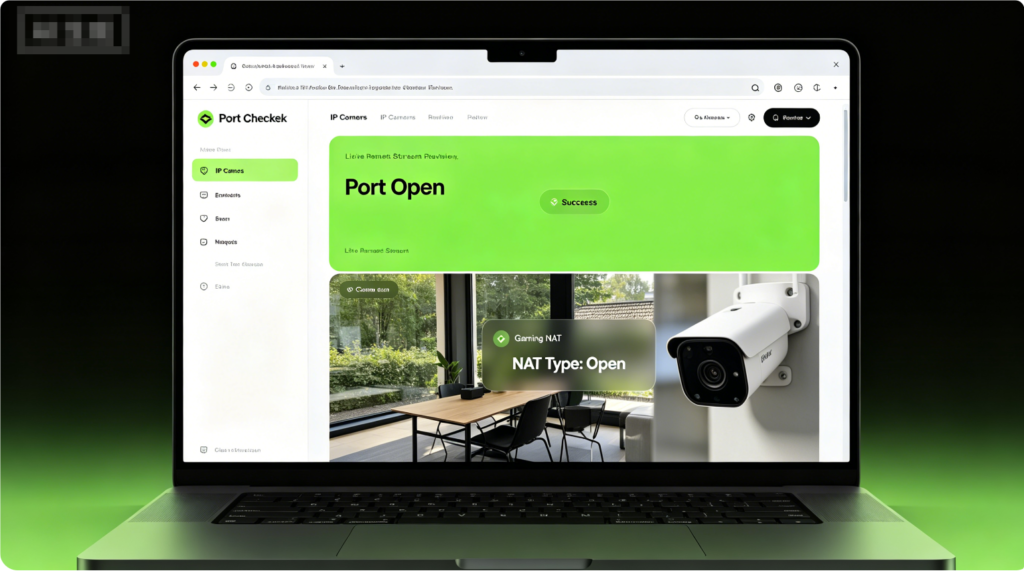
Post-Setup Validation Test
- Use an online public port checker tool from a cellular network (not home Wi-Fi)
- Confirm target ports show “Open” status
- Test remote IP camera live view on mobile data
- Launch multiplayer games to verify NAT type changes to Open/ModerateIf ports remain closed, double-check static IP assignment and router WAN PPPoE login credentials.
Conclusion
Port forwarding works uniformly across TP-Link, Netgear and ASUS routers via virtual server menus, but always start with a static DHCP reserved IP for your gaming console or IP camera to prevent broken rules after reboots. Each brand follows nearly identical port mapping logic, only differing slightly in menu naming. Pair functional forwarding with strict security practices—custom high-number ports, strong device passwords, and active router SPI firewalls—to safely enable remote camera viewing and lag-free online gaming without exposing your local network to hackers.