Slow website loading, laggy streaming and unreliable domain resolution usually stem from default ISP DNS servers. Swapping your router’s global DNS to public options like Cloudflare 1.1.1.1, Google DNS or Quad9 speeds up browsing, boosts privacy and blocks malicious sites. This tutorial covers DNS modification on TP-Link, Netgear and Eero mesh systems via web dashboards and mobile apps.
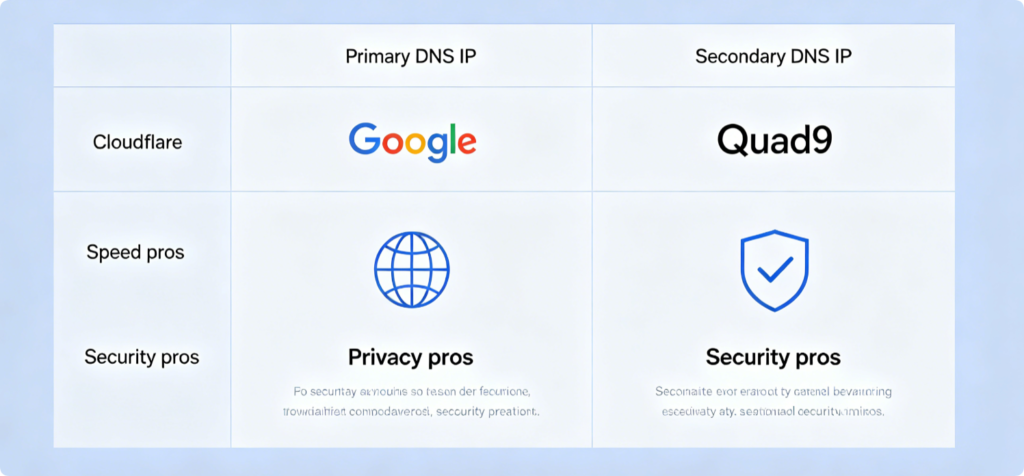
Best Free Public DNS Options
- Cloudflare DNS (Fastest general browsing): Primary 1.1.1.1 | Secondary 1.0.0.1
- Google Public DNS (High compatibility): Primary 8.8.8.8 | Secondary 8.8.4.4
- Quad9 DNS (Malware-blocking): Primary 9.9.9.9 | Secondary 149.112.112.112
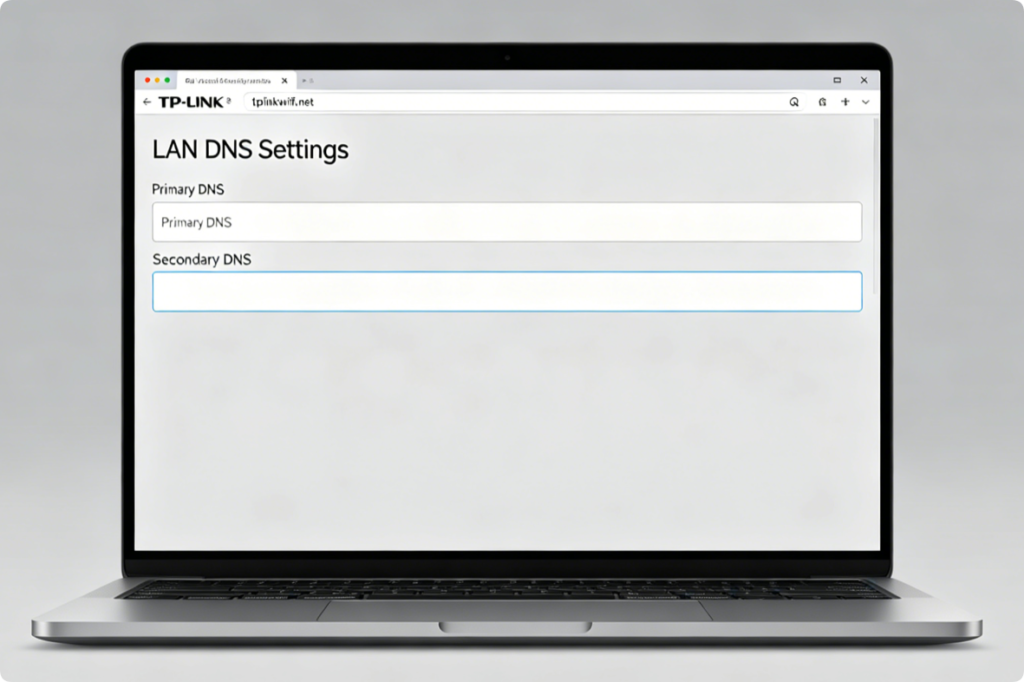
TP-Link Setup
- Log in to
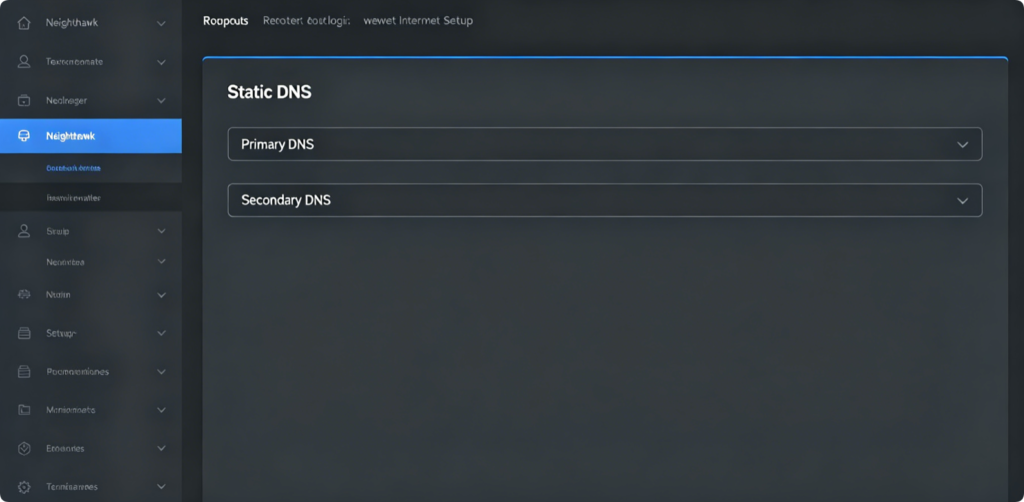
tplinkwifi.net, go to Advanced > Network > LAN - Disable “Get DNS Automatically from ISP”
- Paste your chosen primary and secondary DNS addresses
- Save settings; all connected devices adopt new DNS instantly Mobile shortcut: Open Tether App > Tools > Network Settings to edit DNS remotely.
Netgear Web Configuration
- Visit
routerlogin.netand enter admin credentials - Navigate Advanced > Setup > Internet Setup
- Scroll to Domain Name Server (DNS) address fields
- Uncheck “Use ISP’s DNS”, input custom DNS pairs and apply changes Orbi mesh syncs DNS rules to all satellites automatically after saving.
Eero Mesh DNS Adjustment
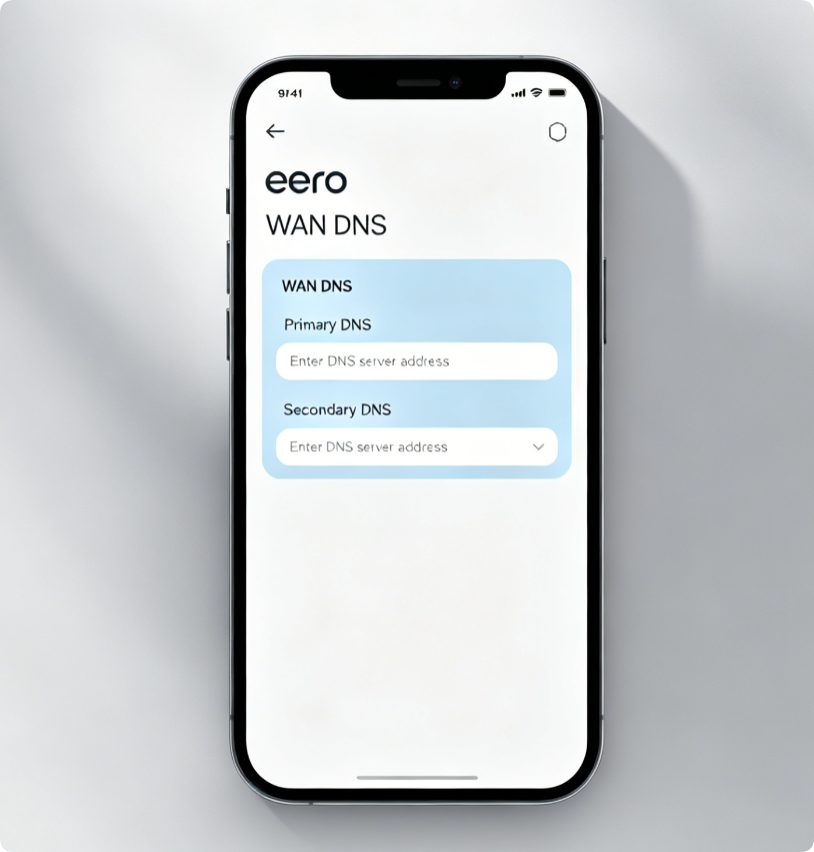
Eero only supports DNS edits via its mobile application:
- Open Eero App > Tap menu > Network Settings > Advanced Networking
- Find WAN DNS tab and toggle off automatic ISP DNS
- Manually fill primary and secondary public DNS IPs
- Save; the whole mesh network restarts DNS resolution within 10 seconds
Why Router-Level DNS Beats Device-Side Changes
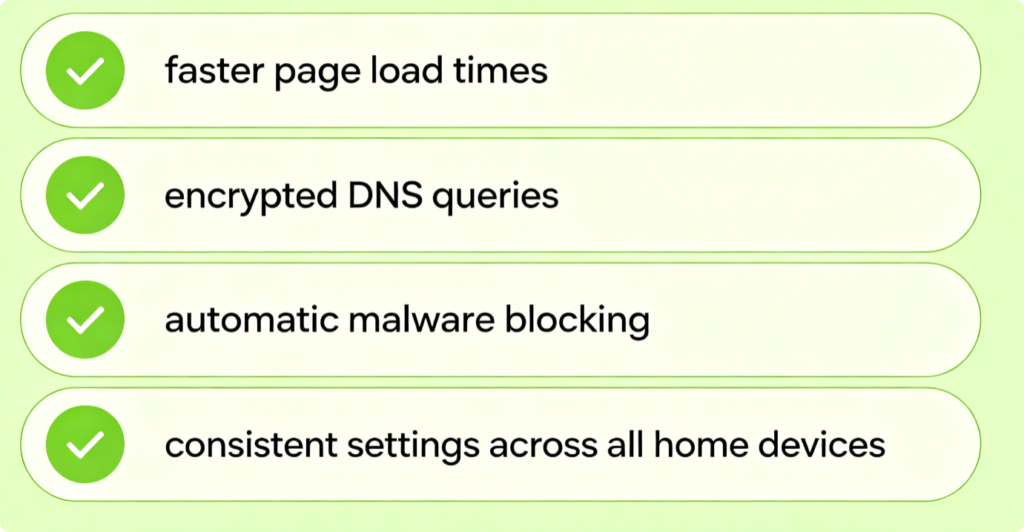
- One single edit applies to every phone, laptop, IoT camera and game console
- Public DNS providers use global edge servers for lower lookup latency
- Security-focused DNS blocks phishing and malicious domains before they load
- Encrypted DNS options prevent your ISP from logging every website you visit
Fix Slow or Broken DNS After Changes
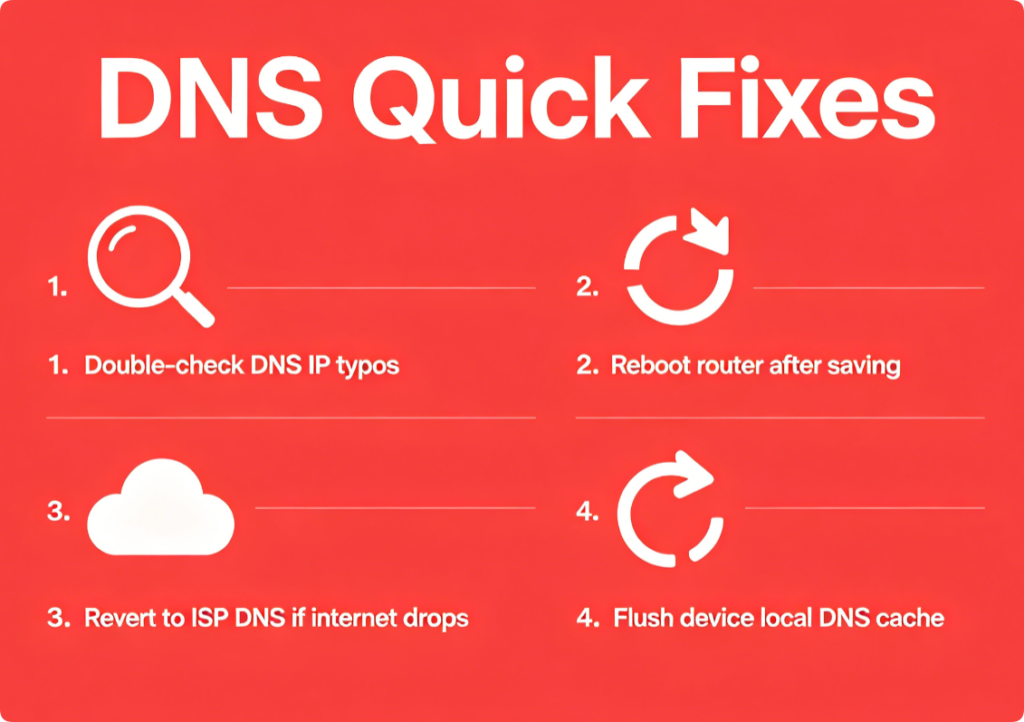
- Double-check no misplaced periods in DNS IP addresses
- Power-cycle your router to fully apply new server settings
- Clear device DNS cache on Windows/mobile if websites fail to load
- Switch back to ISP DNS if public servers cause connection outages
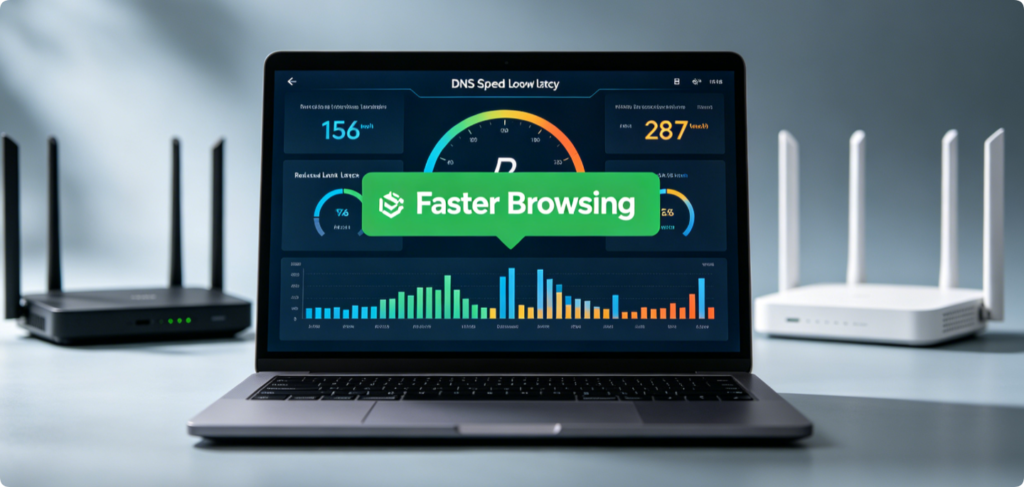
Test Your New DNS Performance
Run an online DNS speed test before and after modification. You will notice drastically reduced domain lookup times, faster website loading and smoother video streaming across all Wi-Fi bands.
Conclusion
Upgrading your router’s default ISP DNS is a simple, zero-cost tweak to improve every device’s internet performance. TP-Link and Netgear users can adjust DNS through desktop web dashboards, while Eero mesh owners use the official mobile app exclusively. Pick Cloudflare for raw speed, Quad9 for security protection, or Google DNS for maximum compatibility, then reboot your router to activate faster, more private browsing for your entire household network.