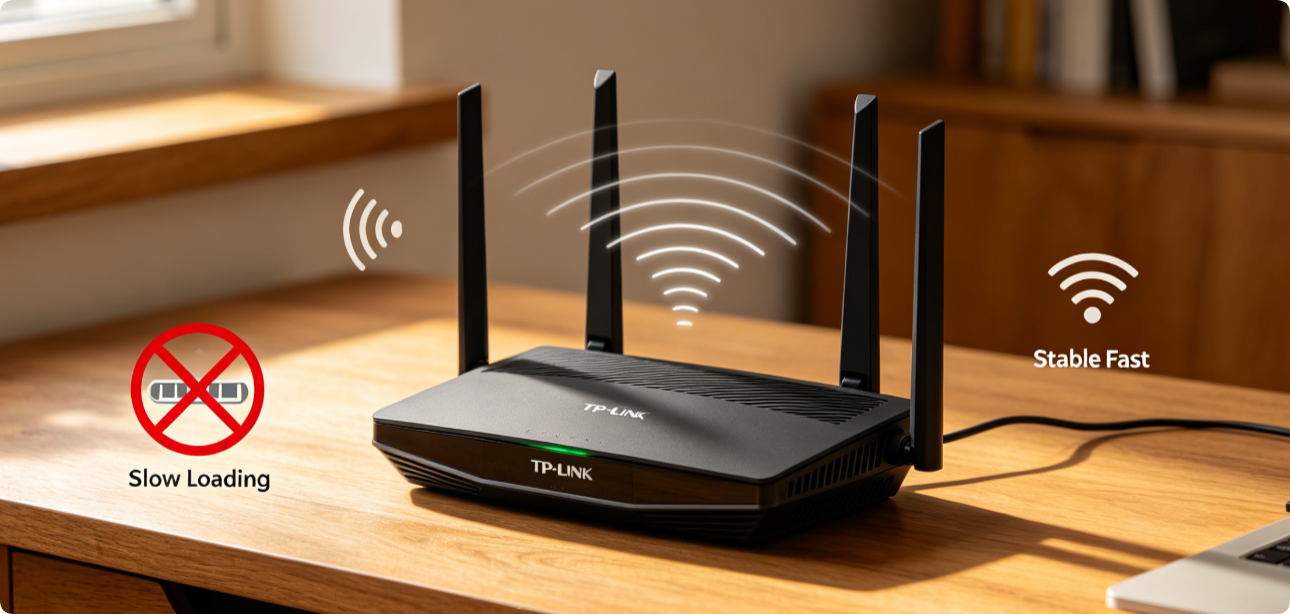
TP-Link Archer AX53 Wi-Fi 6 users frequently face random signal drops, constant lag, weak 5GHz speeds and frequent device disconnections. Most issues stem from misconfigured Wi-Fi bands, channel interference, outdated firmware or incorrect bandwidth settings. Every solution below takes under 10 minutes to implement and permanently resolves unstable wireless performance on the AX53.
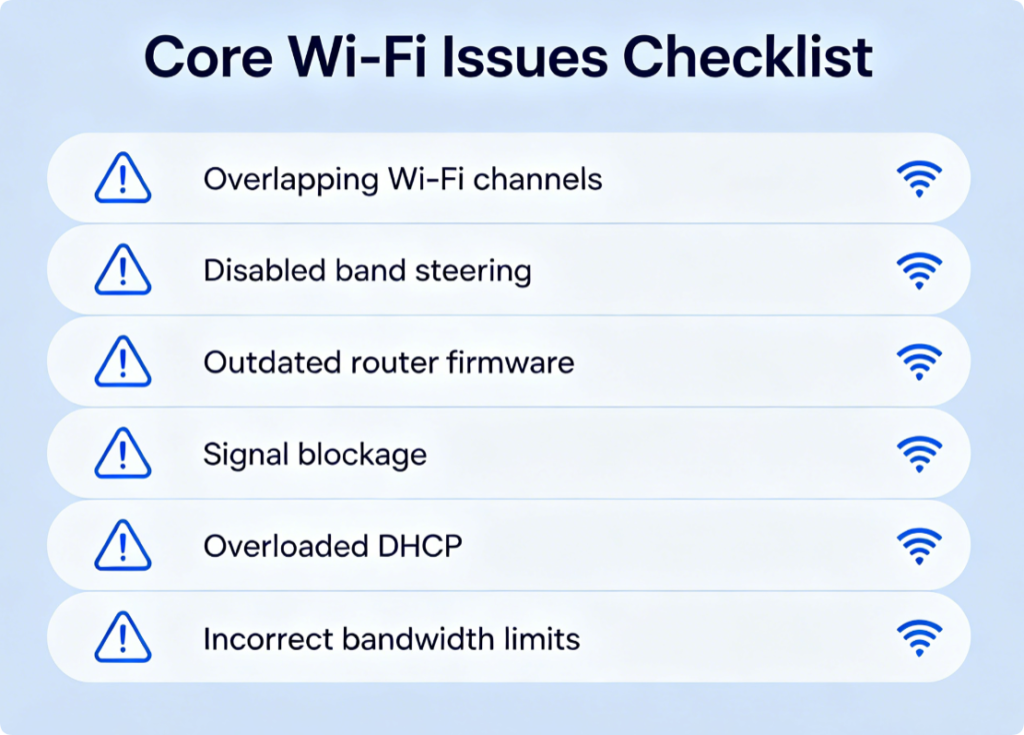
Why Your AX53 Drops Wi-Fi Or Feels Slow
- Neighbor Wi-Fi overlapping 2.4GHz/5GHz channels causing heavy interference
- Smart Connect band steering mismanagement trapping devices on slow 2.4GHz
- Outdated firmware carrying known Wi-Fi stability bugs specific to AX53
- Physical obstructions (walls, metal appliances) blocking router signal transmission
- Too many connected IoT devices overloading the router’s processing capacity
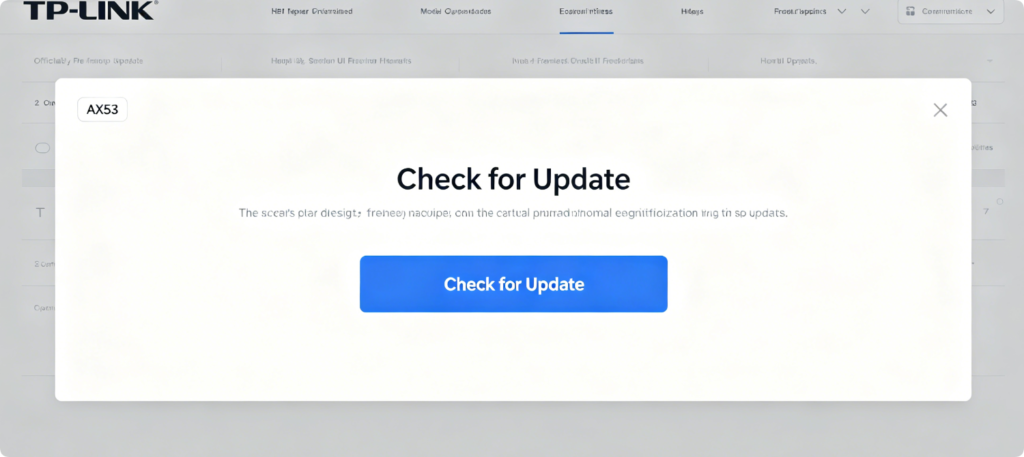
Quick Firmware Update Steps
- Connect PC via Ethernet cable and log into
tplinkwifi.net - Head to Advanced > System > Firmware Upgrade
- Tap Check for Update and install official AX53 firmware
- Do not cut power during reboot; this fixes factory wireless stability flaws
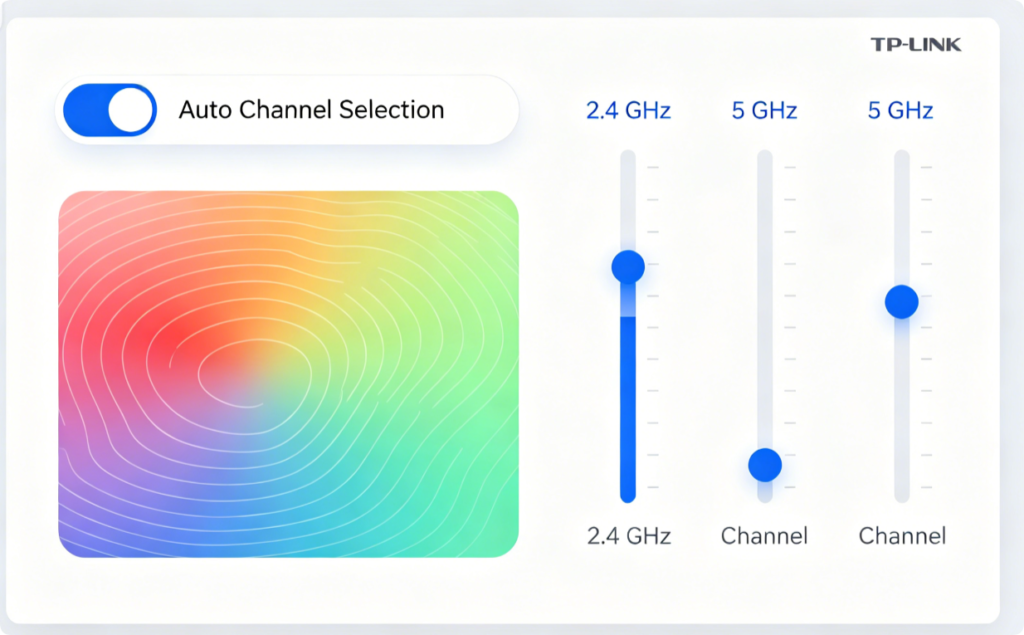
Eliminate Wireless Interference
- Enter Advanced > Wireless Settings for both bands
- Set 5GHz channel to Auto or select 36/40/44 for least congestion
- Restrict 2.4GHz to channels 1,6,11 only (non-overlapping options)
- Save settings and restart Wi-Fi broadcast instantly
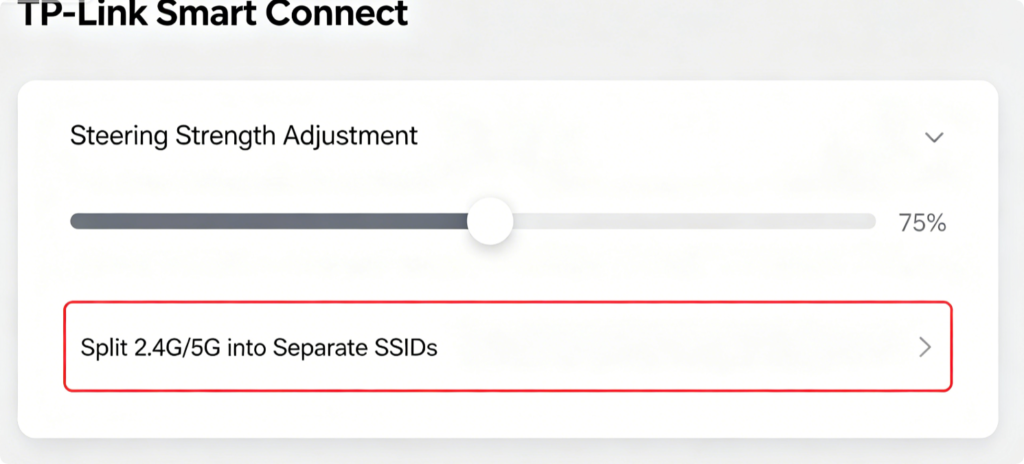
Stop Devices Stuck On Slow 2.4GHz
Option A (For Gamers/Streamers): Turn Smart Connect OFF, create separate Wi-Fi names for each band to manually assign fast 5GHz to high-demand devices
Option B (Household Convenience): Keep Smart Connect ON and raise steering aggressiveness to push compatible gadgets to 5GHz automatically
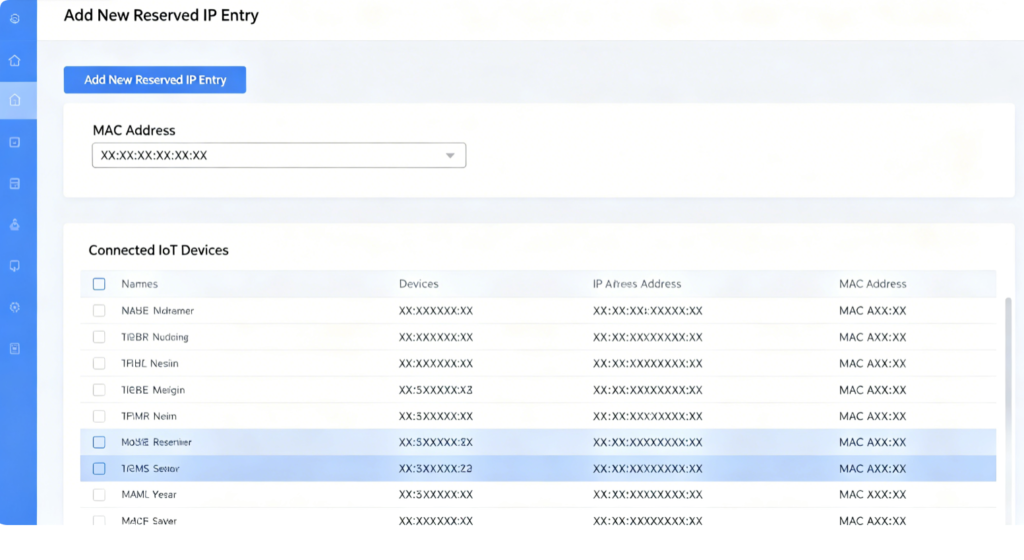
Prevent DHCP-Related Random Drops
Unstable dynamic IP assignments trigger frequent reconnections. Reserve fixed local IPs for cameras, smart TVs and game consoles on the AX53 to cut constant network renegotiation.
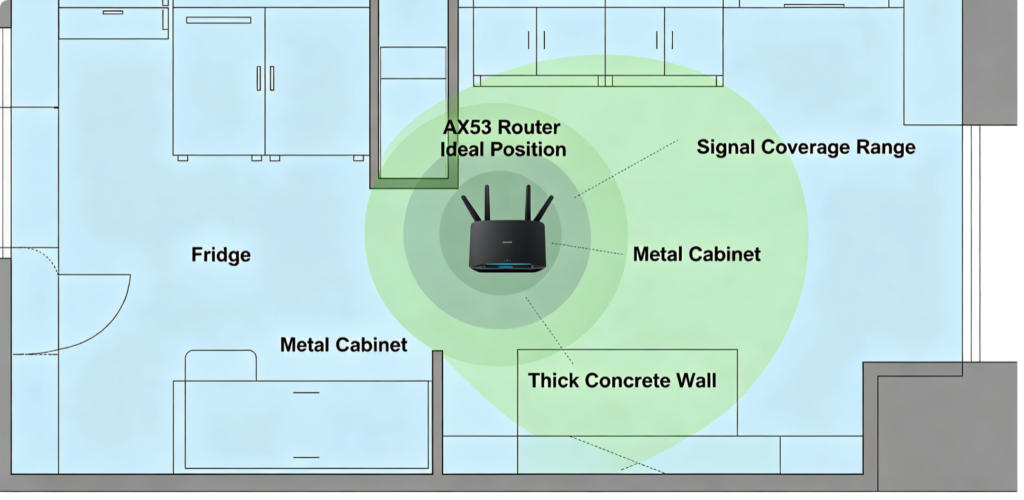
Simple Placement Tweaks For Stronger Signal
- Move AX53 to open central room, elevated off the floor
- Keep it far from microwaves, Bluetooth speakers and metal furniture
- Lower router transmit power if nearby neighbor signals clash severely
Full Reset Solution For Persistent Faults
If all prior fixes fail:
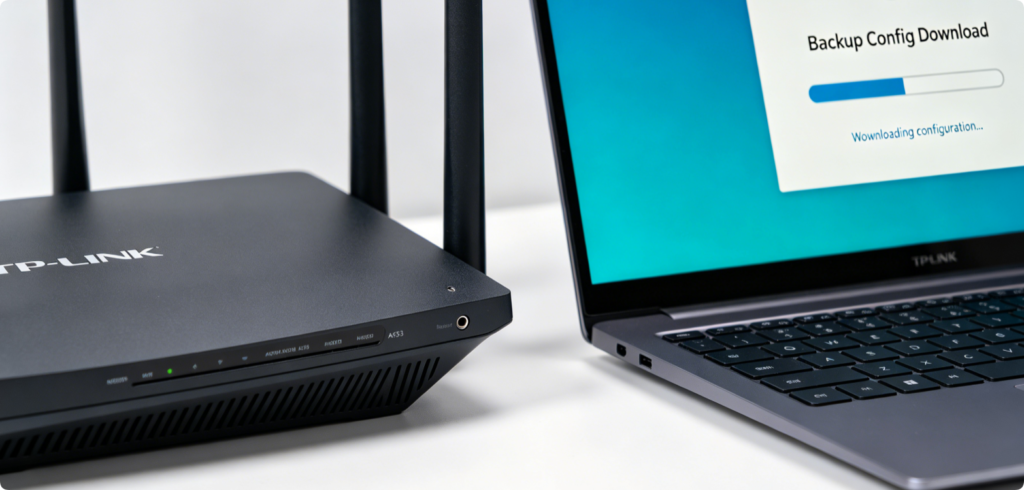
- Export router backup settings to avoid retyping all rules
- Hold AX53 reset pin for 10 seconds until lights flash
- Reconfigure Wi-Fi, band and LAN settings from scratch
Conclusion
Random Wi-Fi drops and slow speeds on the TP-Link Archer AX53 are almost always fixable within 10 minutes by updating firmware, tuning Wi-Fi channels, adjusting Smart Connect band steering and optimizing router placement. Assign static IPs to heavy-use devices to reduce DHCP instability, and factory reset the unit only if minor tweaks cannot resolve your connection issues. After applying these steps, your AX53 will maintain steady low-latency Wi-Fi without sudden disconnections.