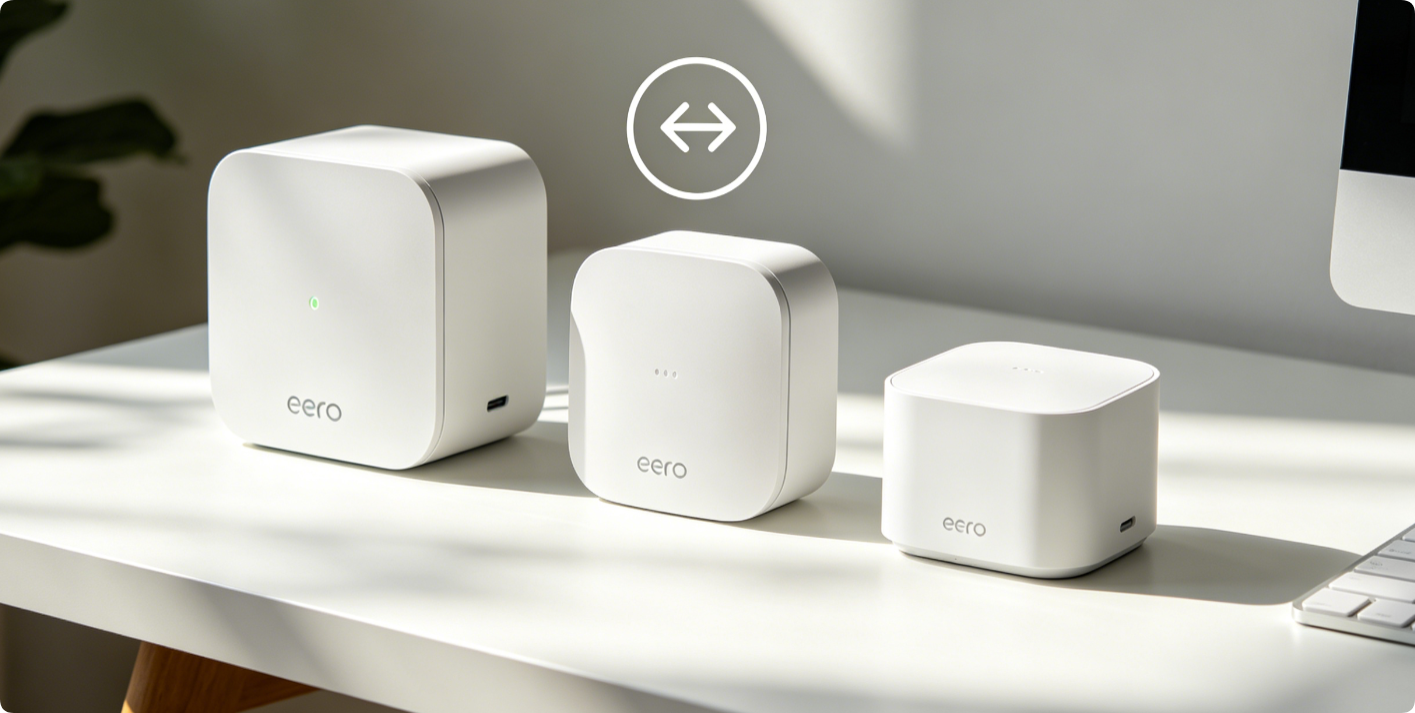
Factory reset wipes all custom mesh settings, Wi-Fi credentials, paired devices and network configurations from Eero hardware. This guide covers two reset methods: remote soft reset through the official Eero mobile app, and physical hard reset for unresponsive, offline Eero, Eero Pro and Beacon units. Resets fix mesh sync failures, forgotten login details, and prepare hardware for resale or network rebuilds.
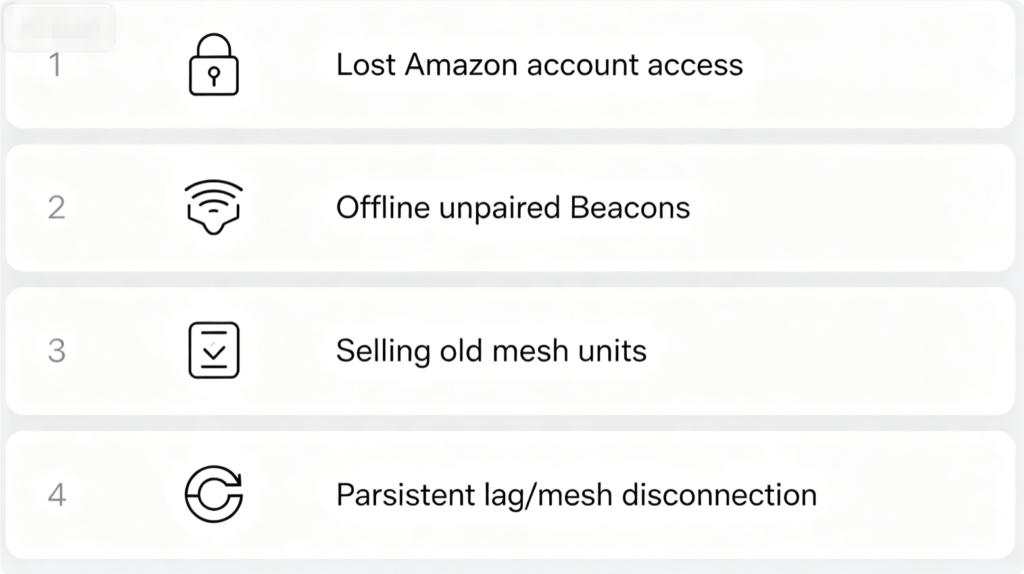
Common Reasons for an Eero Factory Reset
- You cannot access the original Amazon account linked to the Eero network
- Individual Eero Pro or Beacon satellites stay offline and refuse re-pairing
- You plan to sell, donate or transfer Eero devices to a new owner
- Corrupted mesh settings cause constant Wi-Fi drops or roaming malfunctions
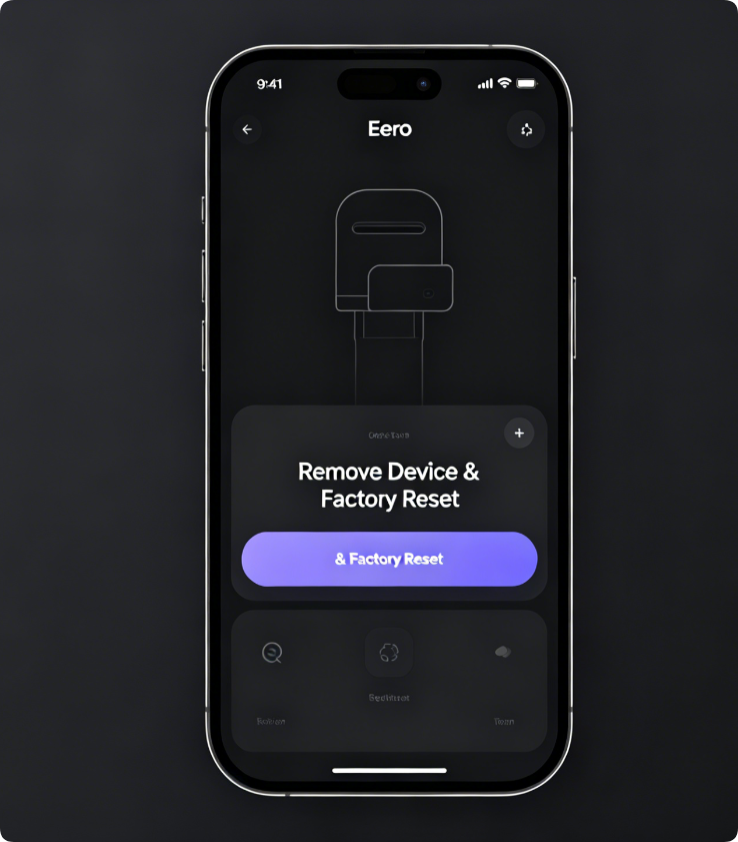
App Soft Reset (Only Works If Device Is Online)
- Open the Eero app and log into your linked Amazon account.
- Tap the offline or faulty Eero Pro / Beacon unit from your device list.
- Scroll down to Advanced Settings and select Remove Device.
- Confirm the pop-up prompt to fully factory reset the hardware remotely. The device will automatically reboot and revert to blank factory state within two minutes. This method avoids physical button operation and is safer for working mesh networks.
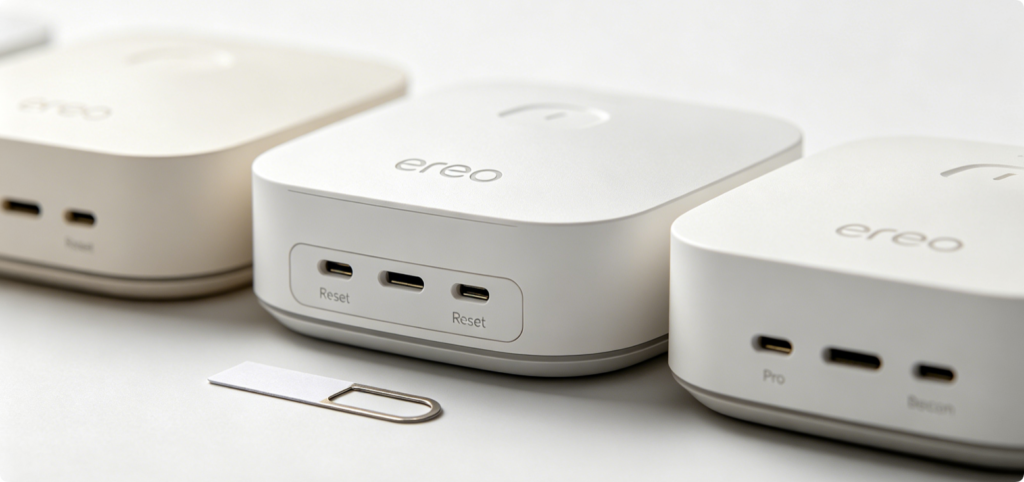
Find the Reset Pinhole
Every Eero generation, Eero Pro and Beacon extender features a tiny hidden reset hole on the bottom panel. It cannot be pressed by fingers—use a paperclip, SIM eject pin or thin plastic toothpick to reach the internal button.
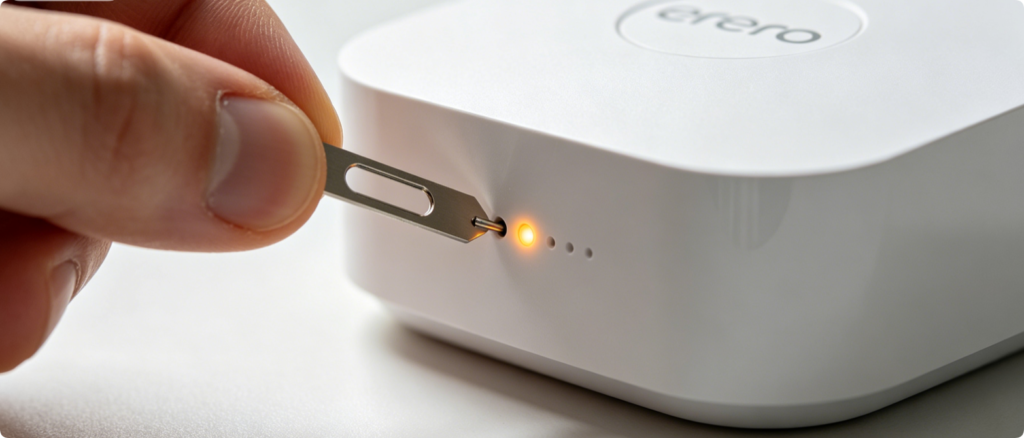
Full Hard Reset Steps
- Keep the Eero, Pro or Beacon powered on with a steady white LED light.
- Insert your thin tool into the reset pinhole and hold firmly for 7–10 seconds.
- Release the tool once the front status light flashes amber repeatedly.
- Leave power connected and wait 3–5 minutes for the reset process to finish. Warning: Never unplug power mid-reset, as this may damage internal firmware.
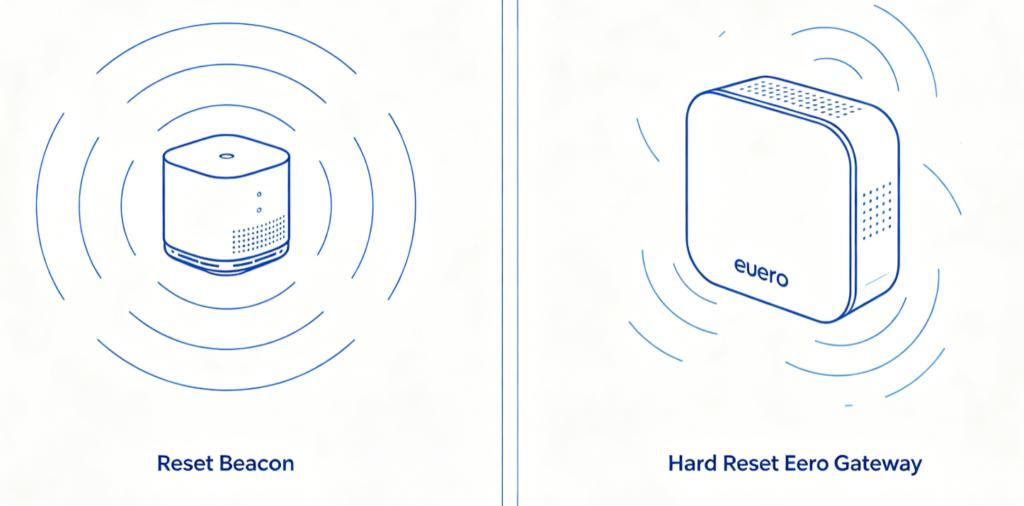
Mesh Reset Critical Note
- Resetting only a Beacon or Eero Pro satellite: Only that single device is cleared; the main mesh network remains intact.
- Hard resetting the primary Eero gateway erases the whole network. All satellites will lose pairing and require full reconnection afterward.
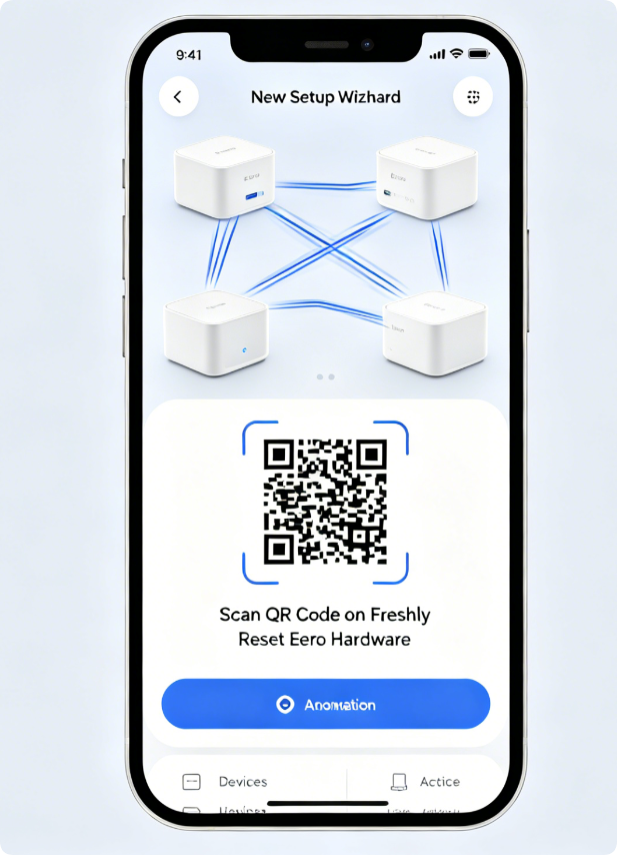
Reconnect Reset Eero Devices
After reset completes, the Eero LED will blink white to signal pairing mode:
- Open the Eero app and tap Set up new Eero or Add another Eero.
- Scan the QR sticker on the base of your reset gateway, Pro or Beacon.
- Follow on-screen prompts to rebuild mesh connections and create a new Wi-Fi SSID.
Quick Reset Troubleshooting
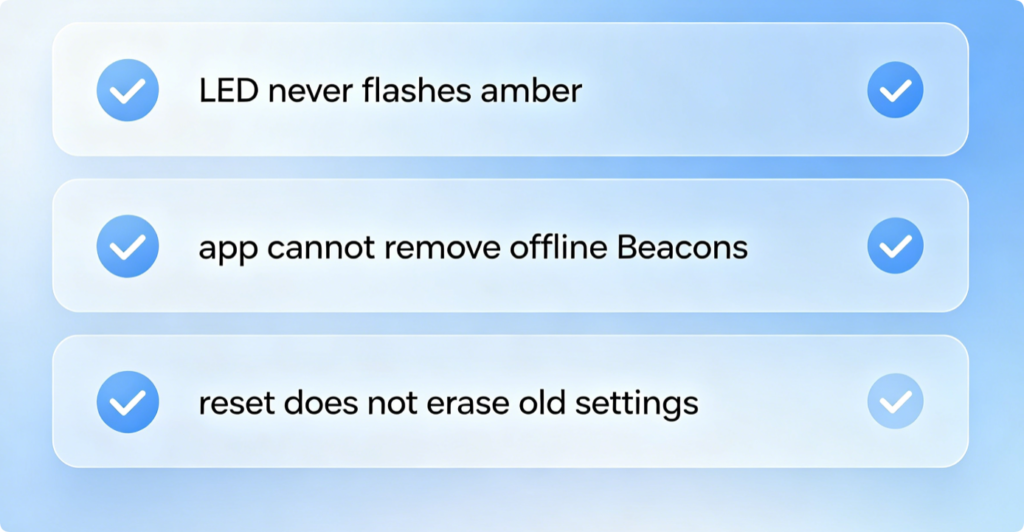
- No amber flash while holding reset pin: Apply steady pressure for a full 10 seconds, check power adapter connection.
- App cannot remove offline Beacons: Perform physical hard reset on the unresponsive unit directly.
- Device still shows old network data post-reset: Repeat the full 10-second hard reset cycle once more.
Conclusion
Eero mesh hardware supports two reliable reset options: a convenient remote soft reset via the Eero app for online devices, and a physical pinhole hard reset for offline, unpaired Eero Pro and Beacon extenders. Reset individual satellites to fix isolated connection faults, or reset the main gateway to wipe your entire whole-home Wi-Fi network. After any reset, use the Eero app’s built-in setup wizard to re-establish mesh pairing and restore seamless room-to-room roaming without leftover corrupted configurations.