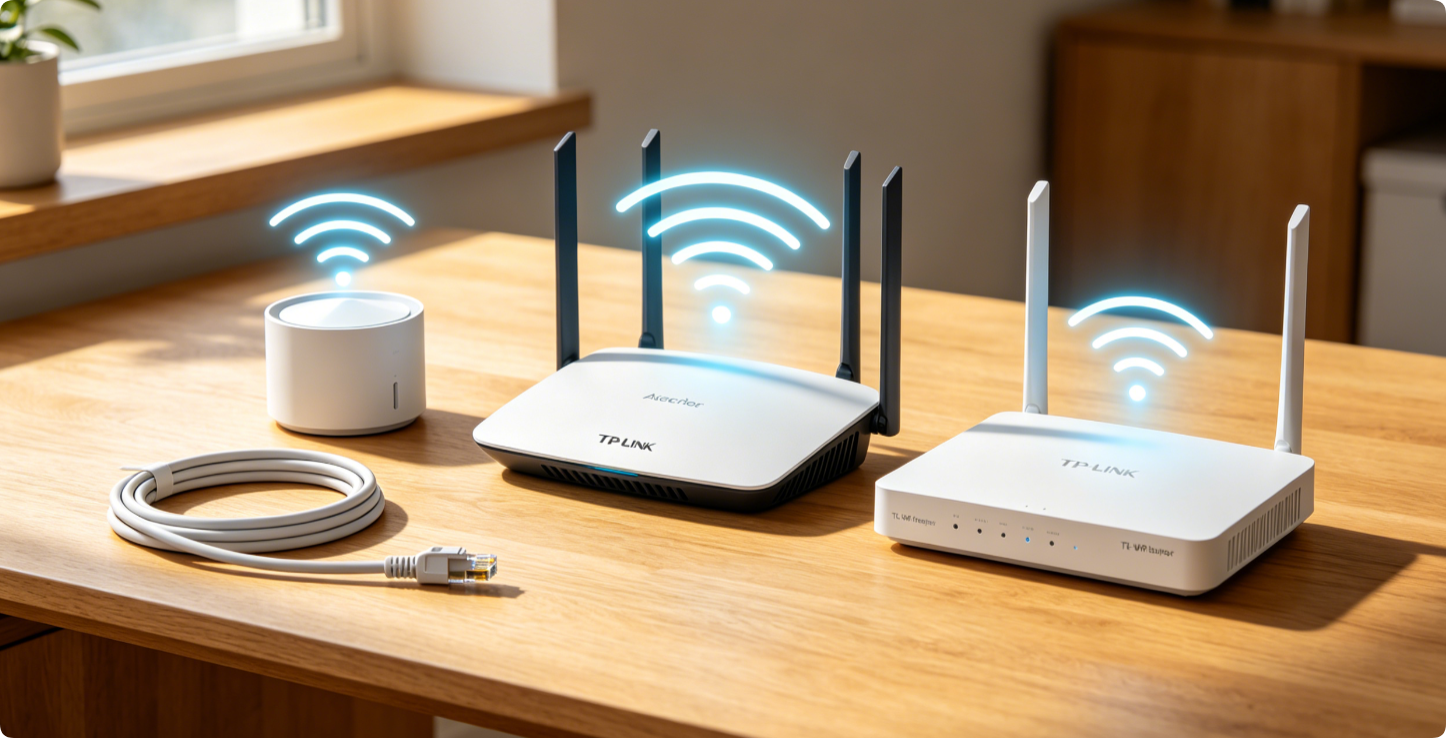
This all-in-one setup guide works for every TP-Link product line: entry-level TL-WR single-band routers, Wi-Fi 6 Archer AX series, and Deco EasyMesh whole-home mesh systems. You can finish full internet and wireless configuration either via the Tether mobile app or web admin panel (tplinkwifi.net), covering ISP connection, secure Wi-Fi settings, mesh pairing and post-setup optimization.
Pre-Setup Prep Rules
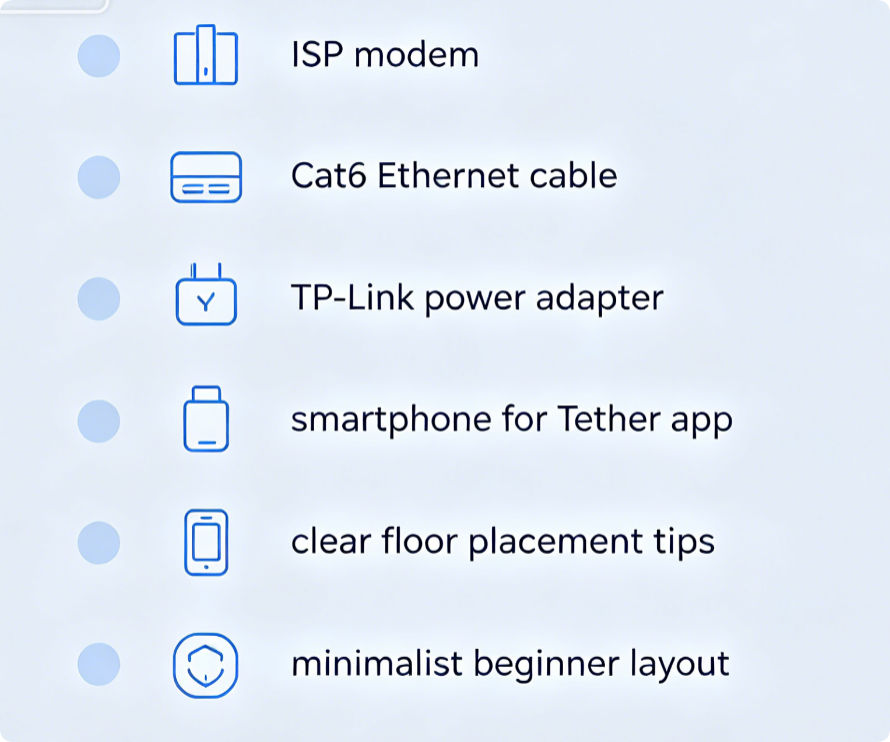
- Place the router centrally, away from metal furniture, microwaves and thick walls.
- Power off your fiber/cable modem for 60 seconds before connecting the router.
- Use Cat6 cable to link modem LAN port to the router’s blue WAN port; avoid yellow LAN ports.
- Download the official TP-Link Tether app on your iOS or Android phone for fastest setup.
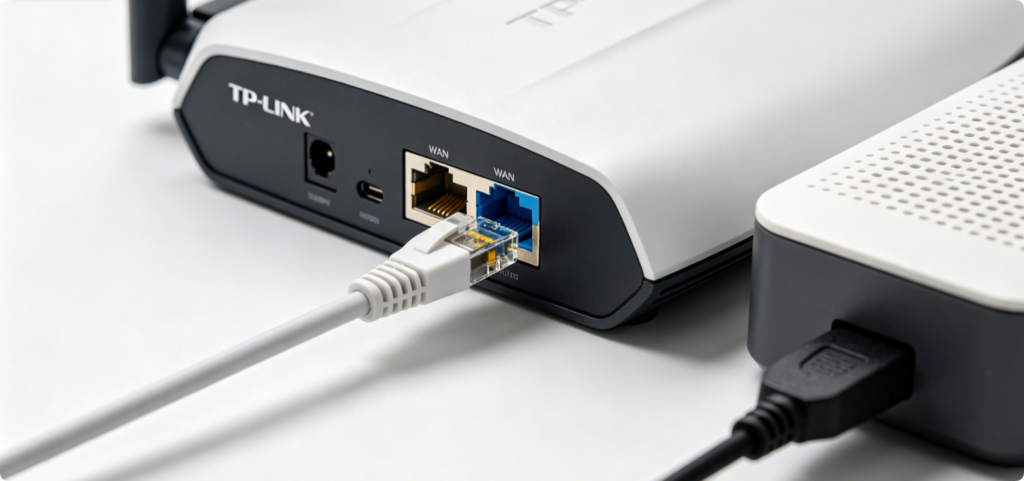
- Plug one end of Cat6 cable into your ISP modem’s LAN socket.
- Insert the other end into the dedicated blue WAN port on your TP-Link router.
- Connect the router’s power supply and switch it on; wait 2 minutes until the internet LED stabilizes.
- For Deco mesh kits, only connect the main Deco unit to your modem first.
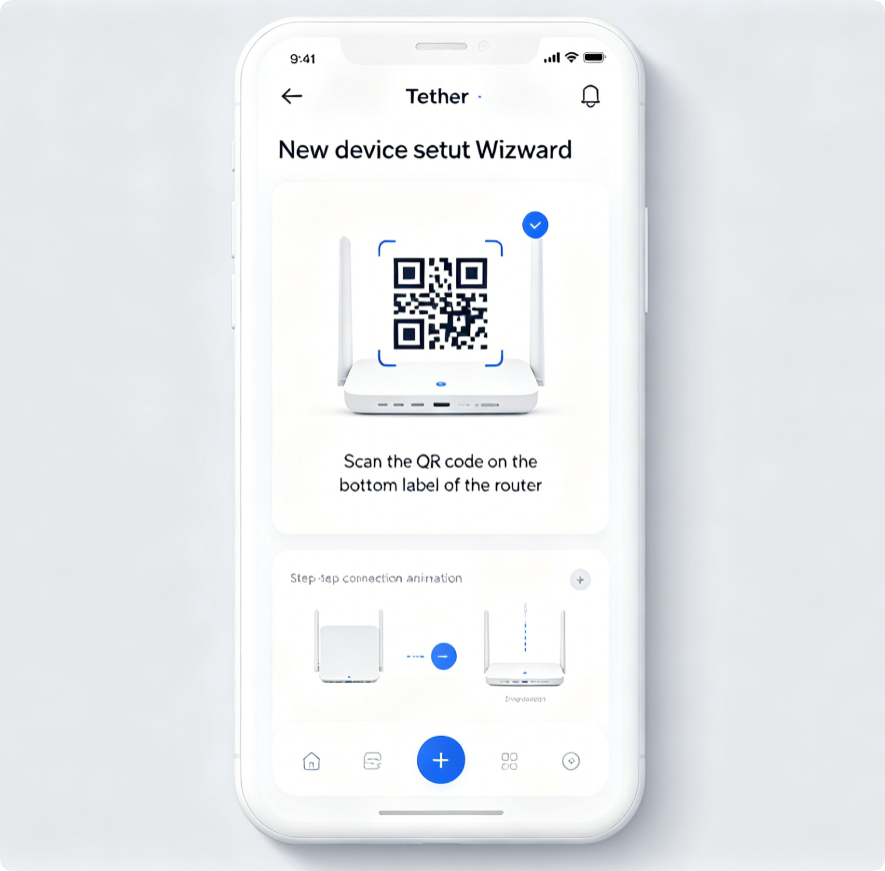
Tether App Guided Configuration (Recommended)
- Launch Tether and log in or create a TP-Link ID.
- Tap “Add Device” and scan the QR code printed on the router base sticker.
- The app auto-detects your ISP connection type (DHCP, PPPoE or static IP).
- Input your ISP username and password if using PPPoE fiber broadband.
- Create a unified Wi-Fi SSID and complex WPA2/WPA3 mixed security password.
- Save settings; your phone will auto-reconnect to the new wireless network.
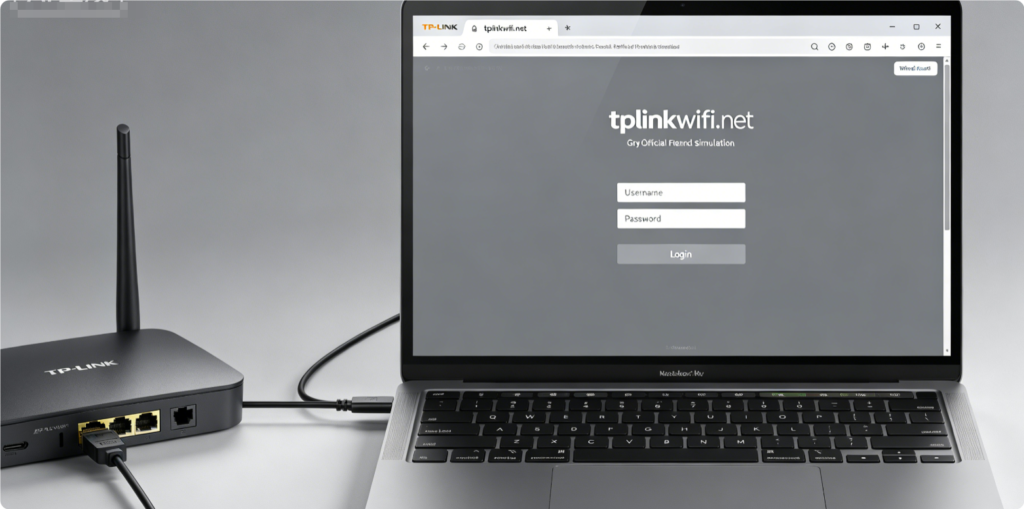
Web Admin Manual Setup
- Connect a PC to any yellow LAN port via Ethernet.
- Open a browser and visit
tplinkwifi.netor192.168.1.1. - Create a unique admin login password to enter the control panel.
- Go to Quick Setup, select your ISP connection mode, and fill in broadband credentials.
- Customize separate 2.4GHz and 5GHz Wi-Fi names and secure passcodes.
- Click Next and Apply to activate all network settings.
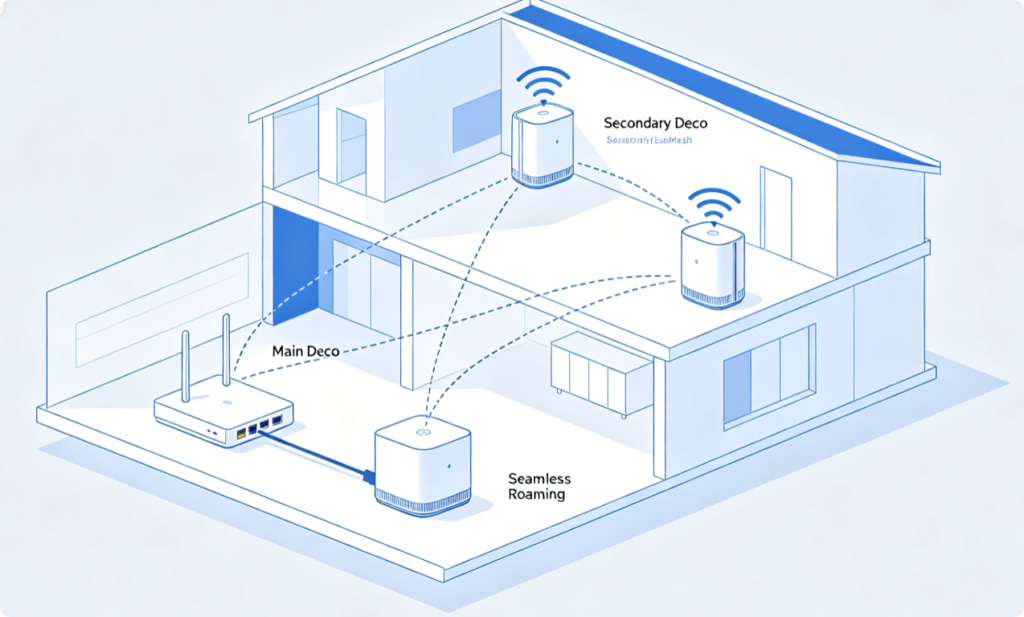
Extra Step for Deco Mesh Systems
After finishing the main Deco unit setup:
- Power on each Deco satellite one at a time in target dead zones.
- Open Tether > Tools > EasyMesh, then tap Add Mesh Device.
- Scan the satellite QR code to complete automatic pairing within one minute.
- All Deco units share one identical SSID for seamless room-to-room roaming.
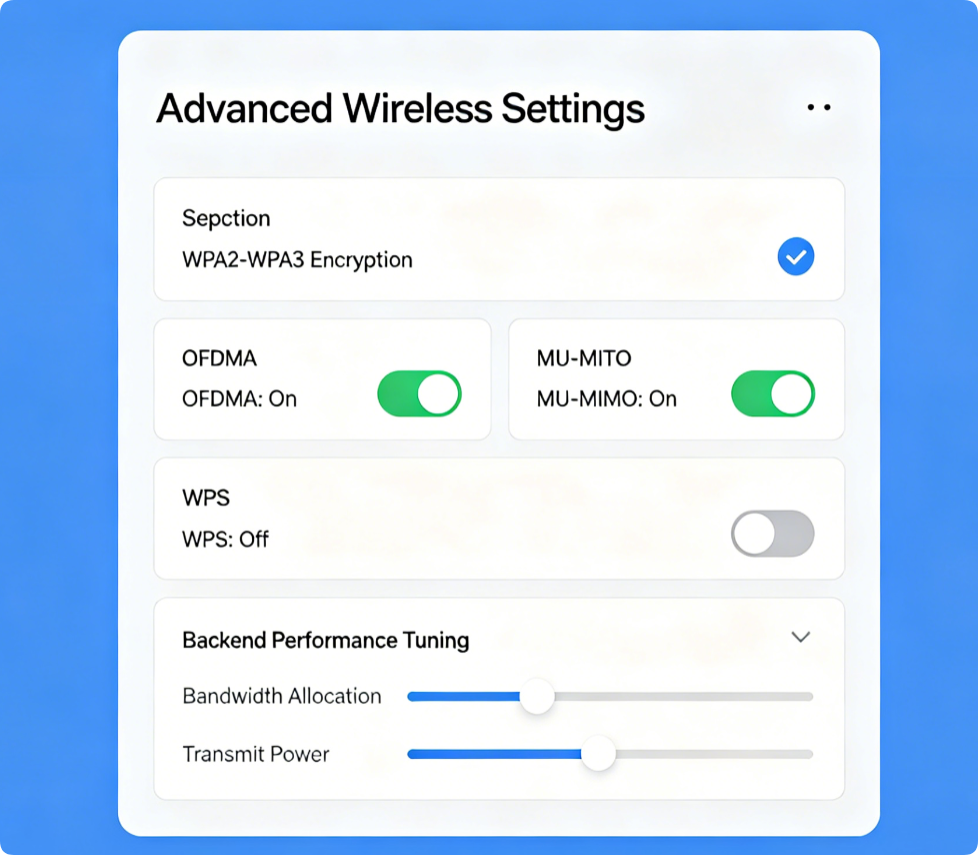
Must-Tweak Post-Setup Options
- Set wireless security to WPA2/WPA3 Mixed to support all modern devices.
- Disable WPS to eliminate common PIN brute-force hacking risks.
- Turn on OFDMA and MU-MIMO for Archer Wi-Fi 6 routers to boost multi-device speed.
- Update router firmware online via Tether or web panel to fix bugs and security flaws.
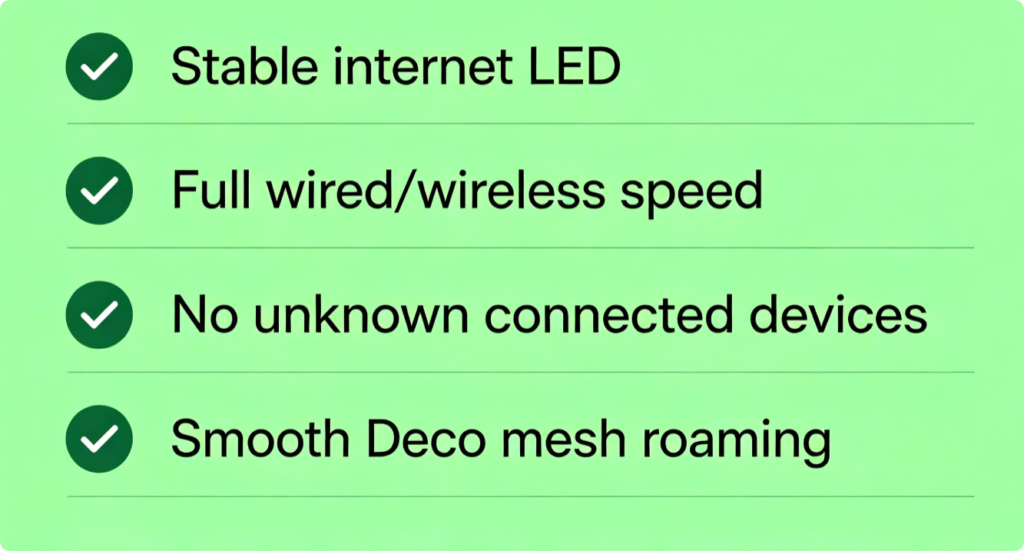
Final Network Verification
- Test internet access on phones, laptops and smart TVs over Wi-Fi and wired Ethernet.
- Walk through every room to confirm consistent signal if using Deco mesh.
- Enter the Client List page to check for unauthorized connected gadgets.
- Run an online speed test to confirm you receive full ISP gigabit bandwidth.
Conclusion
All TP-Link Archer, Deco and TL-WR routers follow the same core setup workflow: physical WAN modem connection, configuration via Tether app or web portal, Wi-Fi security setup, and optional Deco mesh pairing. The Tether mobile app delivers the fastest, most beginner-friendly installation, while the web interface offers deeper advanced tuning. After setup, always enable modern Wi-Fi encryption, disable risky WPS and install firmware updates to keep your whole-home network fast and protected from hackers.