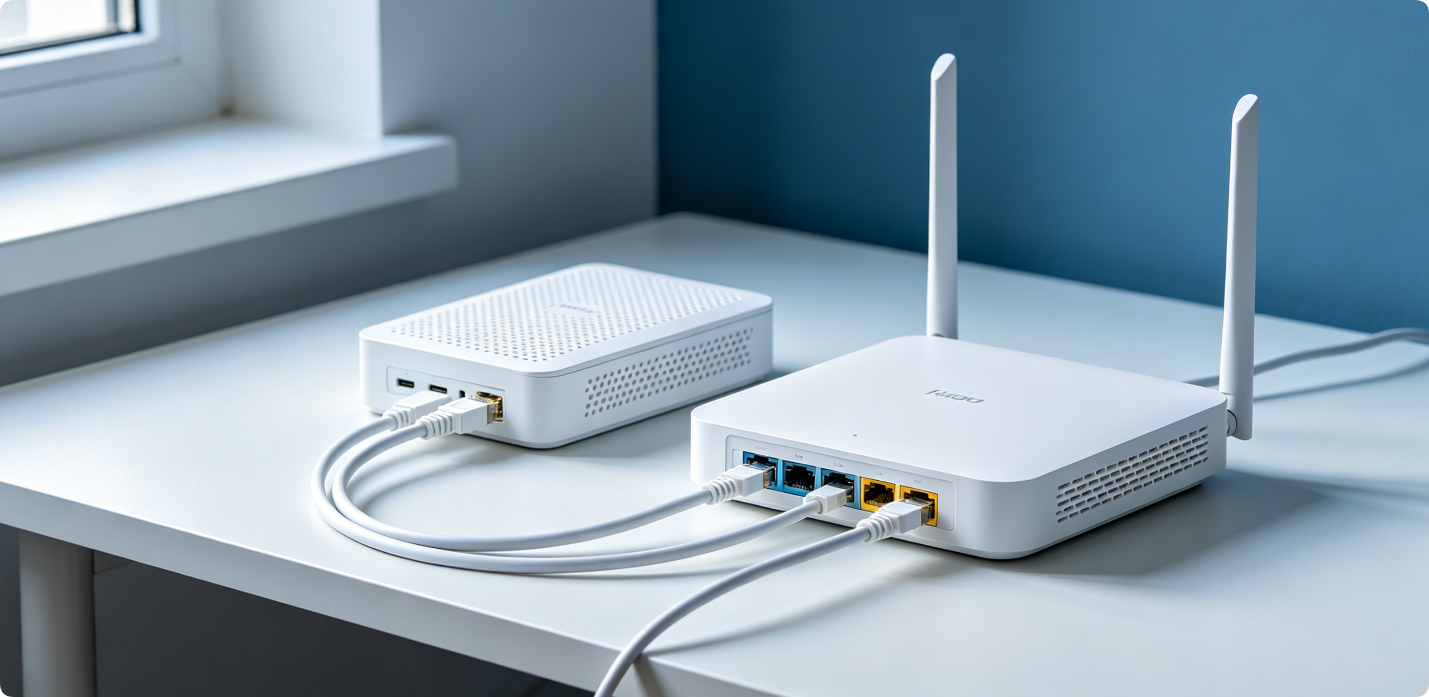
Connecting a wireless router to a cable modem is the foundation of building a stable home Wi-Fi network. A wrong cable connection, incorrect port insertion, or improper power sequence will cause no internet access, unstable network, or frequent disconnection issues. Many beginners accidentally plug cables into the wrong ports, leading to endless troubleshooting troubles.
This step-by-step guide teaches you the 100% correct connection method applicable to all mainstream home routers and cable modems. You can complete the physical connection and network activation without professional skills and avoid all common wiring mistakes.
2: Device Preparation Checklist
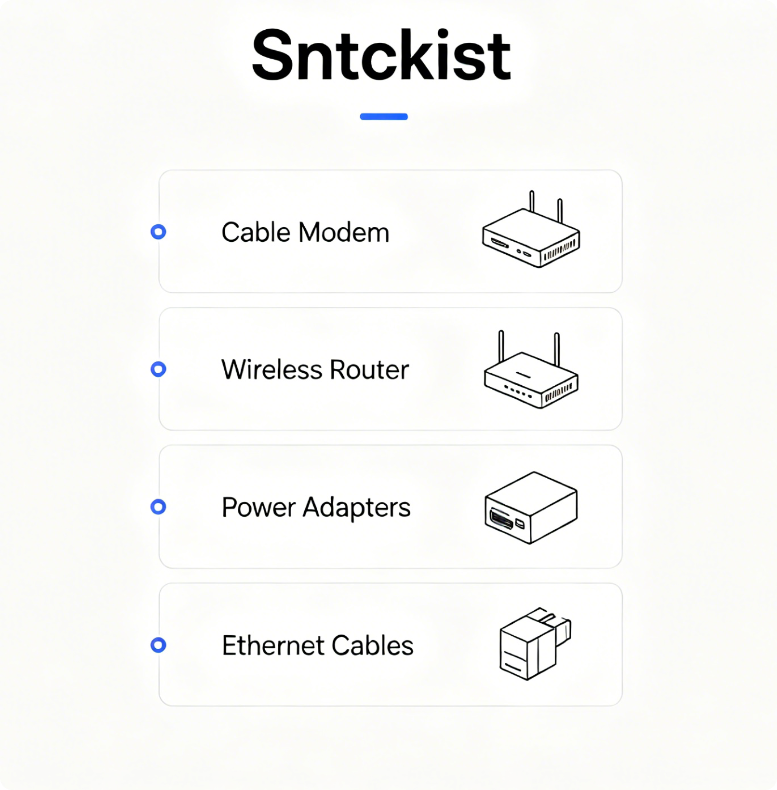
Before starting the connection, prepare all required devices and accessories. You need a working cable modem provided by your internet provider, a wireless home router, two power adapters, and a standard Ethernet cable. Ensure all devices are intact and the Ethernet cable has no broken cores or damaged ports. It is recommended to use a Cat5e or Cat6 cable for stable gigabit network transmission.
3: Power Off All Network Devices
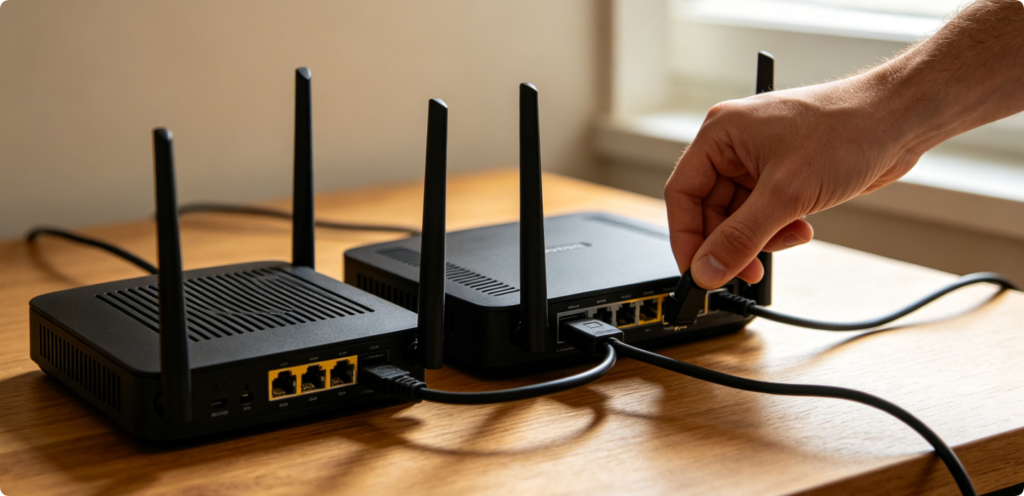
The first rule of correct network wiring: power off all devices first. Do not plug or unplug network cables while devices are powered on, which may cause port burnout or network identification errors. Unplug the power adapters of both the cable modem and wireless router, and wait for 10 seconds to completely release residual power.
4: Connect Coaxial Cable to Modem
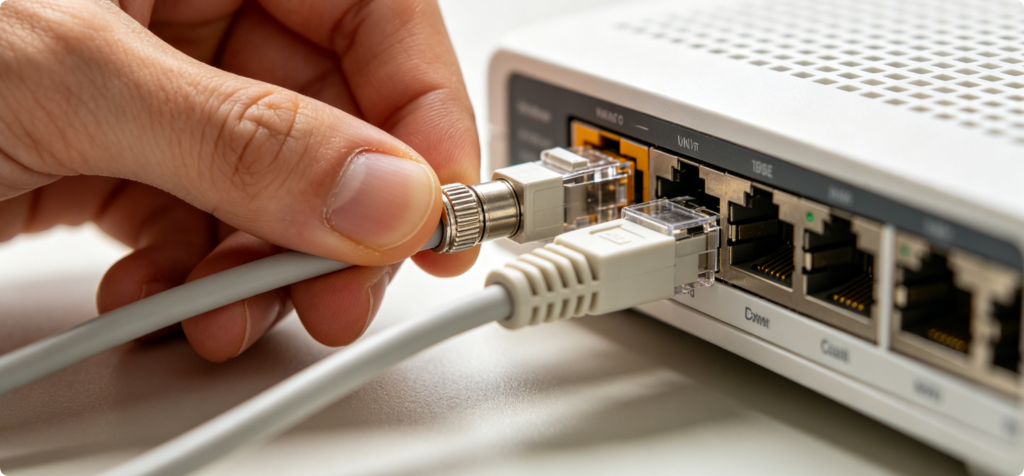
Locate the coaxial port on the back of your cable modem. Connect the wall broadband coaxial cable to this port, and twist the connector tightly to ensure a firm connection. A loose coaxial cable will cause unstable signal input and lead to slow or intermittent internet. Confirm the cable is fixed without shaking.
5: Power On Cable Modem First
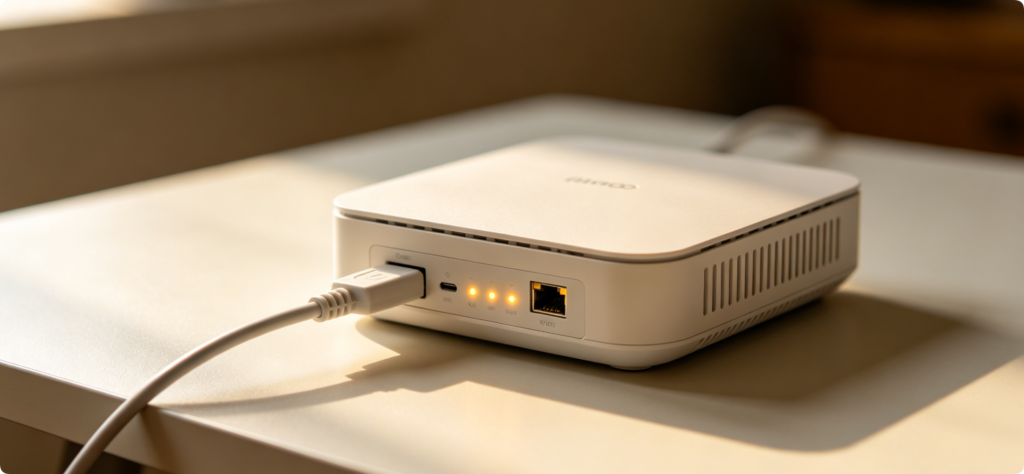
Plug the power adapter into the cable modem and turn it on. Always power on the modem before the router, this is the most critical step most users get wrong. Wait 2 to 3 minutes for the modem to fully boot up and synchronize signals with your internet service provider. When the modem’s online/link light turns steady green or blue, the signal reception is successful.
6: Ethernet Cable Connection (Modem LAN to Router WAN)
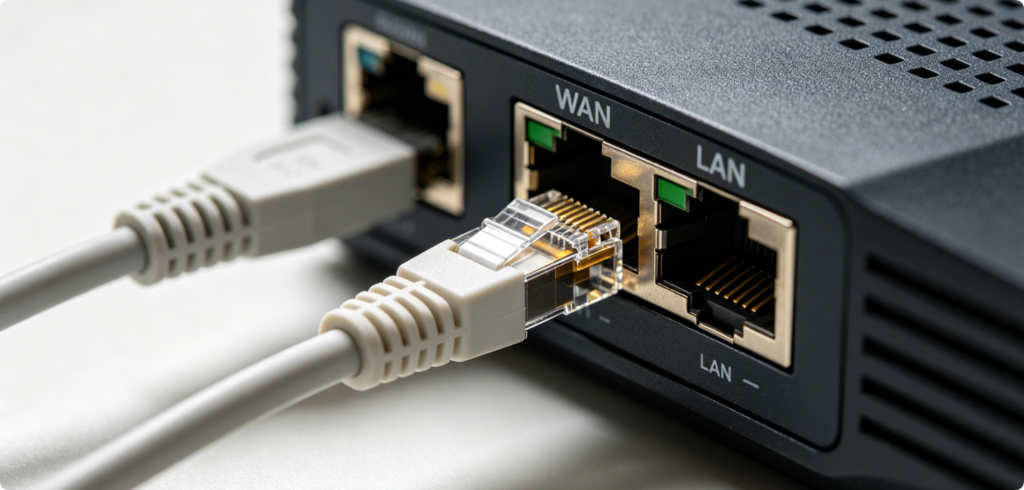
This is the core connection step. Take the Ethernet cable, insertone end into the LAN port of the cable modem, and insertthe other end into the WAN port of the wireless router. Do not confuse WAN and LAN ports: WAN is for external internet input, while LAN is for connecting local devices like computers and phones. Mixing up ports will result in no internet access.
7: Power On Wireless Router
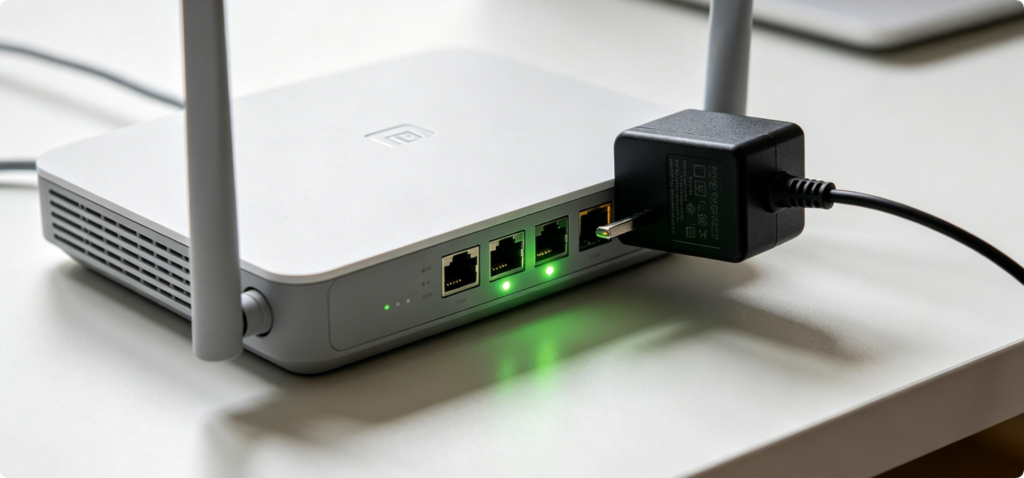
After confirming the WAN-LAN cable connection is correct, plug in the router’s power adapter and power on the device. Wait about 2 minutes for the router to complete self-checking and network matching. All indicator lights will change from flickering to steady status when the booting process is finished.
8: Verify Correct Port Labeling
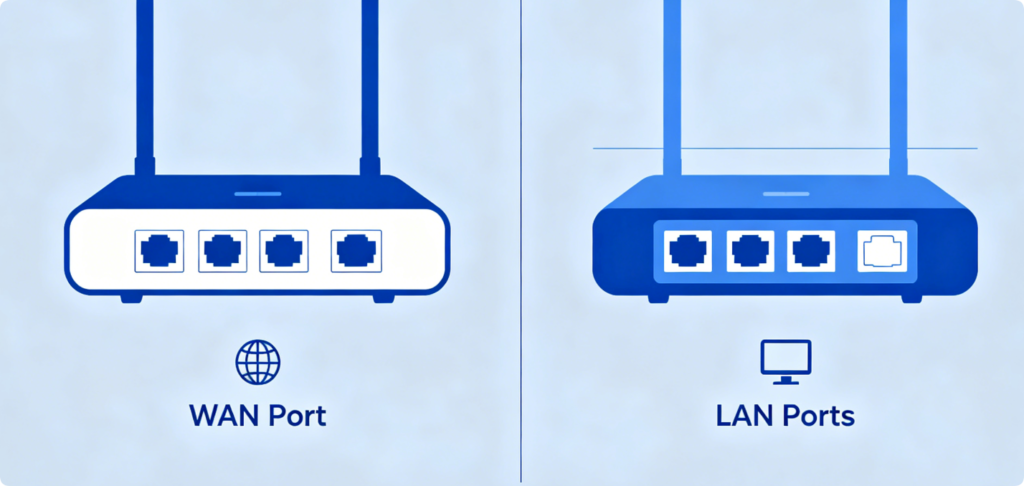
For beginners, port confusion is the top connection mistake. The router’s WAN port is usually colored differently or marked with independent WAN text, while LAN ports are generally four grouped ports labeled LAN1/LAN2/LAN3/LAN4. Remember the fixed rule: Modem LAN → Router WAN (internet input), Router LAN → Terminal devices (local output).
9: Connect Device to Router Wi-Fi
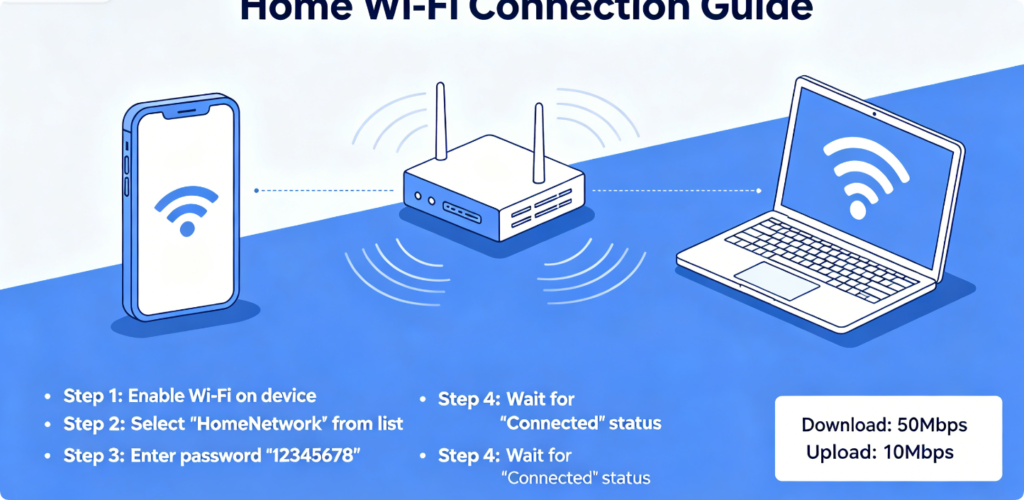
After both devices run stably, connect your mobile phone or laptop to the router’s default Wi-Fi network. Open a browser and visit any website to test the internet connection. If the network is accessible, it means your modem and router are connected correctly. If there is no network, check the cable sequence and port connection again.
10: Common Connection Mistakes & Fixes
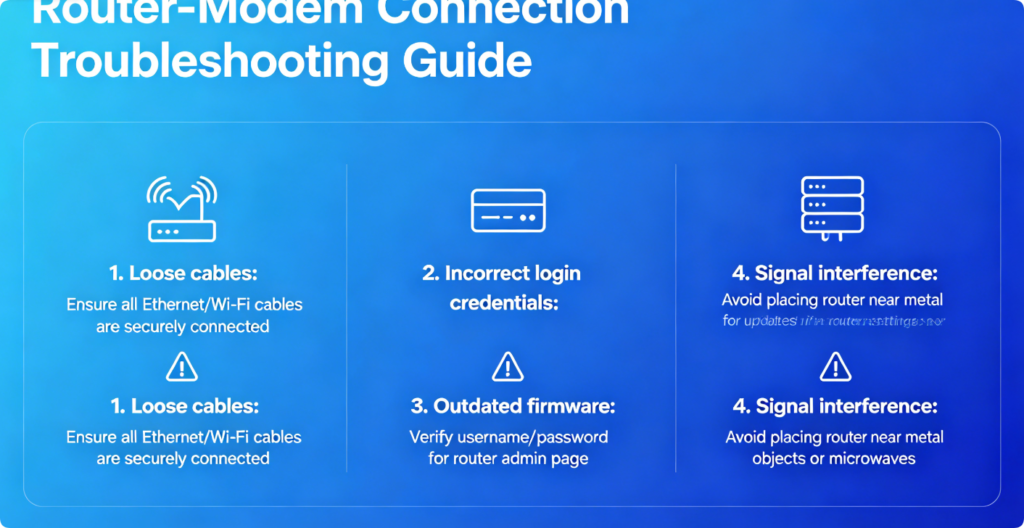
Here are the three most frequent connection errors and solutions. First, router LAN to modem LAN connection: cause no internet, fix by switching to modem LAN to router WAN. Second, power sequence error (router powered on first): cause network identification failure, fix by restarting modem first then router. Third, loose cable connection: cause unstable network, fix by reinserting all cables tightly.
11: Stable Network Setup Completed
Once the physical connection is successful, you can log into the router admin panel to complete Wi-Fi name, password and security settings. Correct hardware connection is the premise of a long-term stable network. Following the modem-first power-on sequence and standard WAN-LAN wiring rules can avoid 90% of home network faults.
Conclusion
Connecting a wireless router to a cable modem is simple but rigorous. The key correct steps include powering off devices in advance, powering on the modem first for signal synchronization, and using an Ethernet cable to connect modem LAN port to router WAN port. Avoiding port confusion and wrong power sequence can help you complete a zero-error network connection. A standardized physical connection ensures stable, high-speed and long-lasting home internet performance.