The router IP address, also known as the default gateway, is the numeric address used to open your router’s admin dashboard. Without this address, you cannot modify Wi-Fi settings, check connected devices, troubleshoot internet faults or update router firmware. Many new users struggle to locate the gateway address on Windows and Mac devices. This complete guide shares multiple reliable methods to find your router IP, compatible with all home router brands including TP-Link, Asus, Netgear and D-Link.
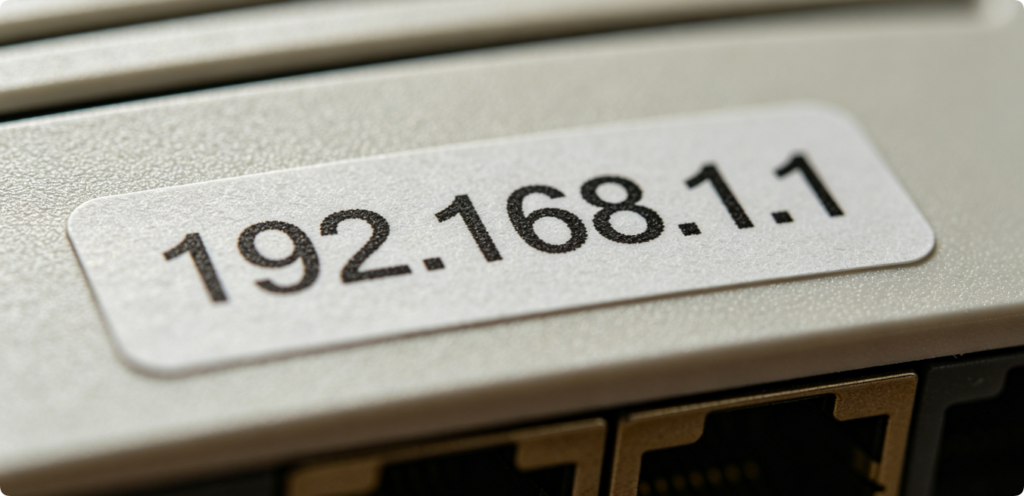
The fastest way to get your router IP is checking the physical label attached to your router. Manufacturers print all factory login data on a sticker located on the bottom, back or side panel of the device. Common default IP addresses include 192.168.1.1, 192.168.0.1 and 192.168.2.1. This method works perfectly if you have never changed your network gateway configuration. If the label is faded or lost, follow the computer-based steps below.
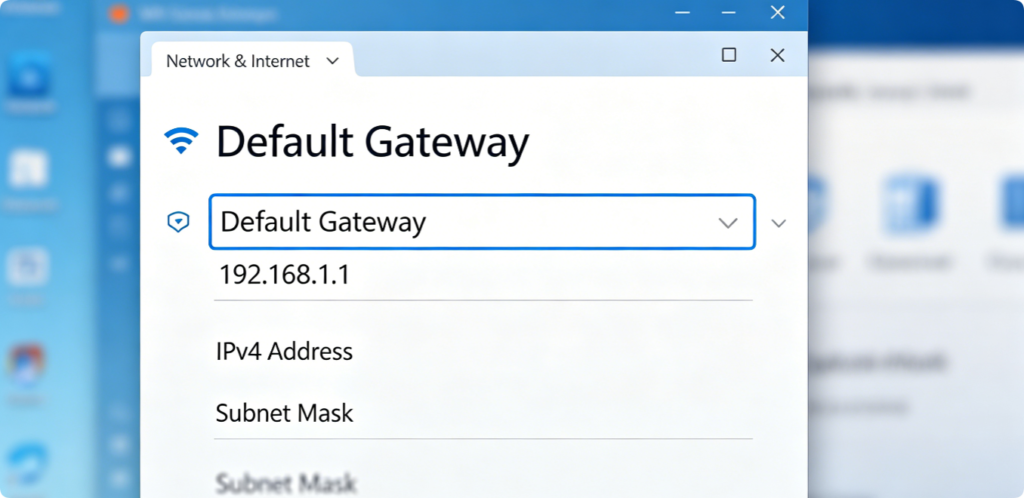
Method 1: Check Router IP through Windows Graphical Settings
- Connect your Windows PC to the router via Wi-Fi or Ethernet cable.
- Open Settings and navigate to Network & Internet.
- Select Wi-Fi or Ethernet based on your current connection type.
- Click the connected network name to view detailed properties.
- Scroll down to locate the Default Gateway value; this string of numbers is your router IP address.
This visual method is friendly for users unfamiliar with command-line tools, available on all modern Windows 10 and Windows 11 operating systems.
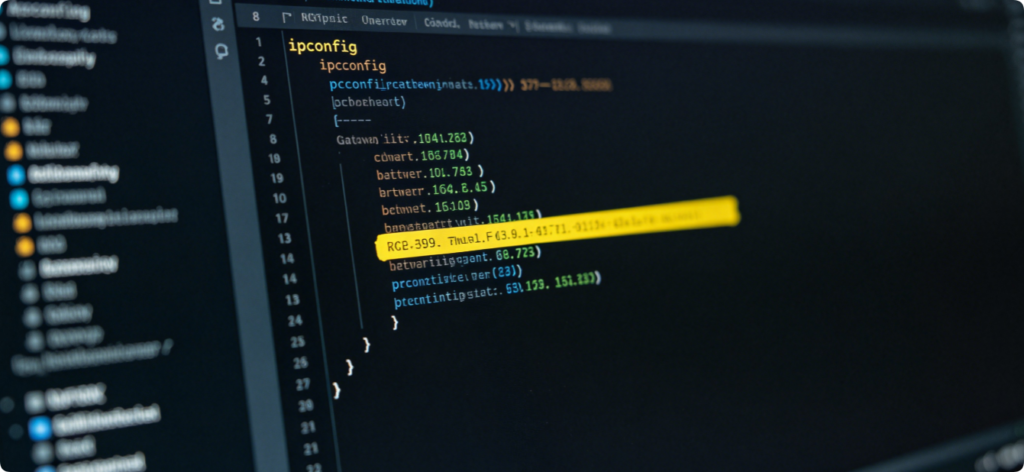
Method 2: Use Command Prompt (Fastest Windows Tool)
- Press Win + R on your keyboard, type cmd and press Enter to open Command Prompt.
- Input the command
ipconfigand hit Enter to load full network information. - Locate the section matching your active network adapter (Wi-Fi or Ethernet).
- Copy the numeric address next to Default Gateway, this is your router’s access IP.
Command Prompt delivers precise network data in one second, ideal for users who need to check the gateway address frequently.
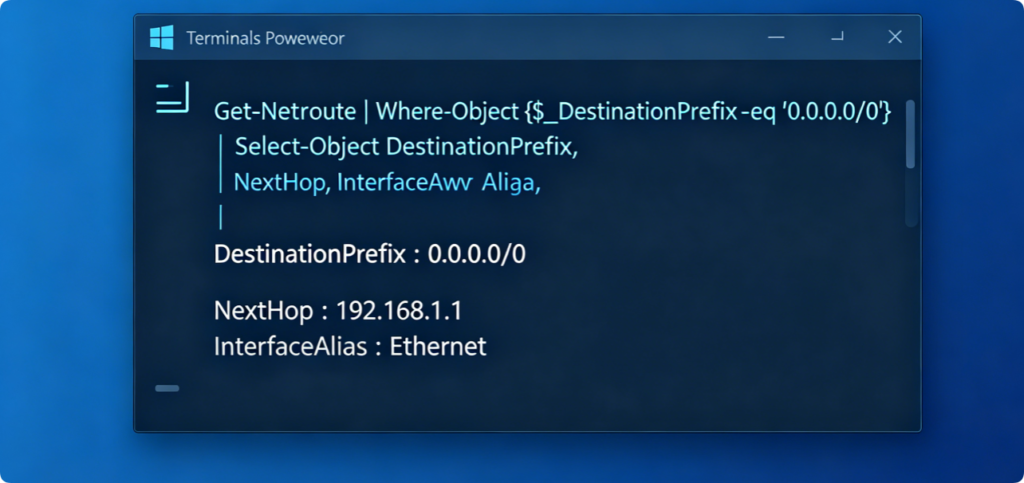
Method 3: Locate Gateway via Windows PowerShell
If Command Prompt is unavailable, PowerShell offers an alternative query command. Launch PowerShell from the Windows start menu, run the command Get-NetRoute -AddressFamily IPv4, then search for the row with destination value 0.0.0.0. The corresponding NextHop value is your router default IP address.
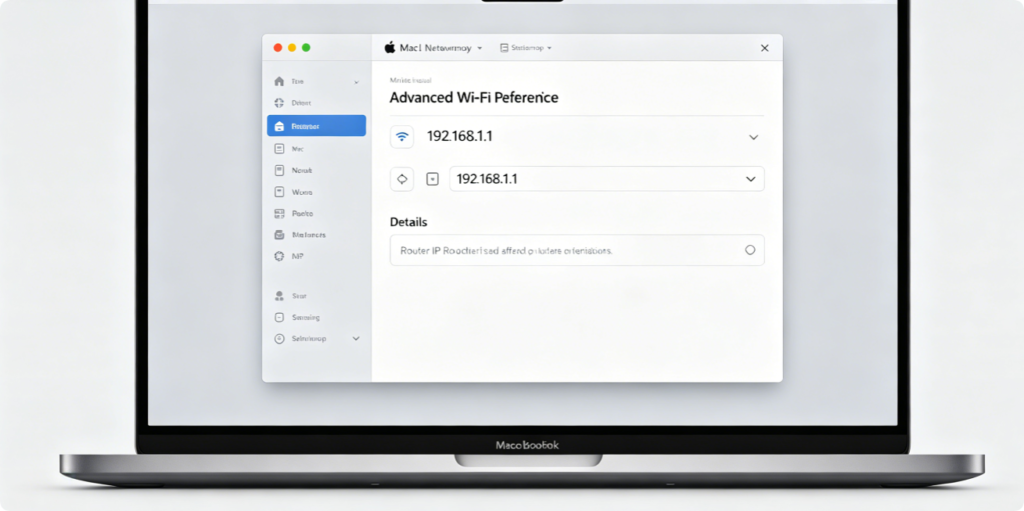
Method 1: Check Router IP from Mac System Settings
- Connect your MacBook to the target Wi-Fi network.
- Click the Apple logo in the top-left corner, open System Settings > Network.
- Select Wi-Fi on the left sidebar and click the Details button.
- Switch to the TCP/IP tab; the Router field shows your complete gateway IP address.
This built-in graphical panel requires no code and fits all MacBook Air, MacBook Pro and iMac devices running Ventura, Sonoma and newer macOS versions.
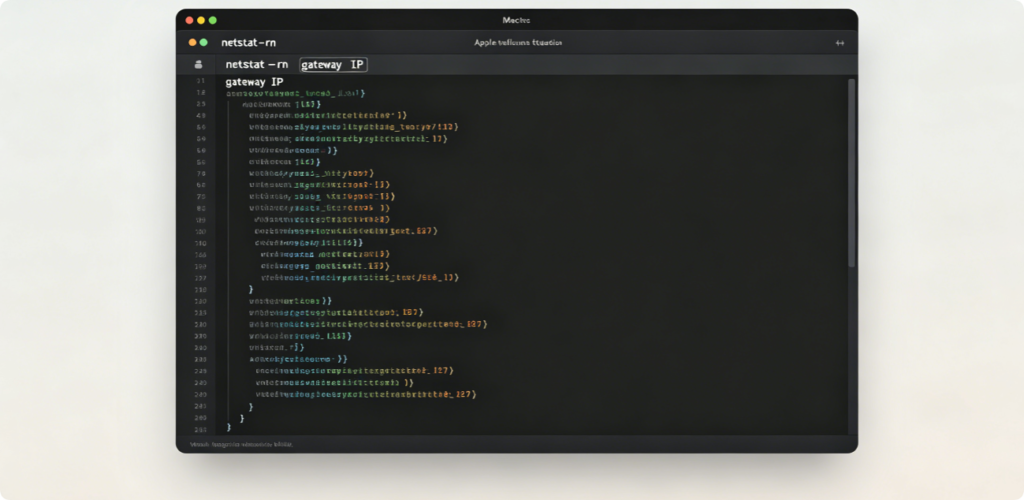
Method 2: Mac Terminal Command Line Check
- Open Terminal via Launchpad or Spotlight search.
- Type
netstat -rnand press Enter. - Look for the line labeled default; the number sequence beside it is your router IP. Alternative command: Run
ifconfigand check the gateway value under your active Wi-Fi adapter section.
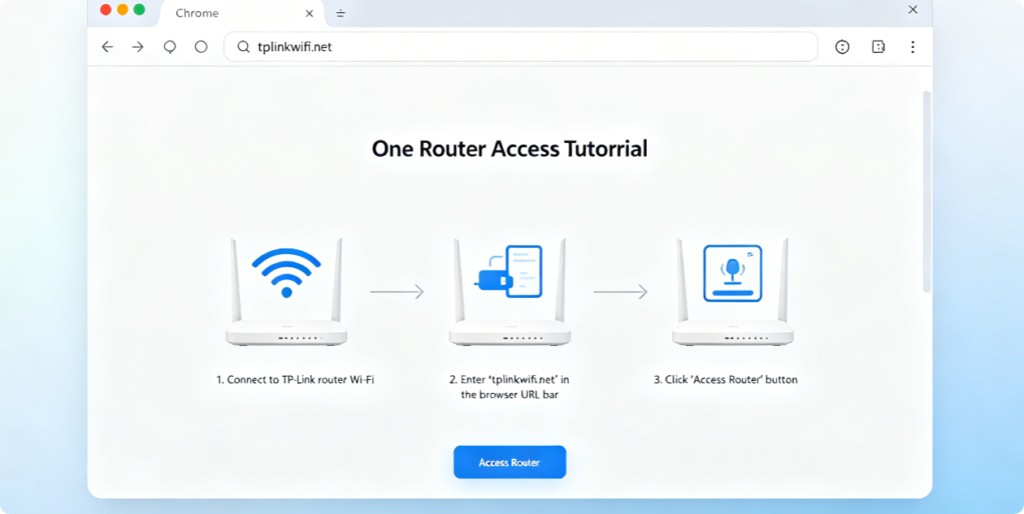
Many mainstream router brands provide an official domain that skips manual IP input entirely. For TP-Link devices, enter tplinkwifi.net directly into the browser address bar. Asus uses router.asus.com, while Netgear supports routerlogin.net. These domain links automatically detect your local router gateway without you looking up the numeric IP manually.
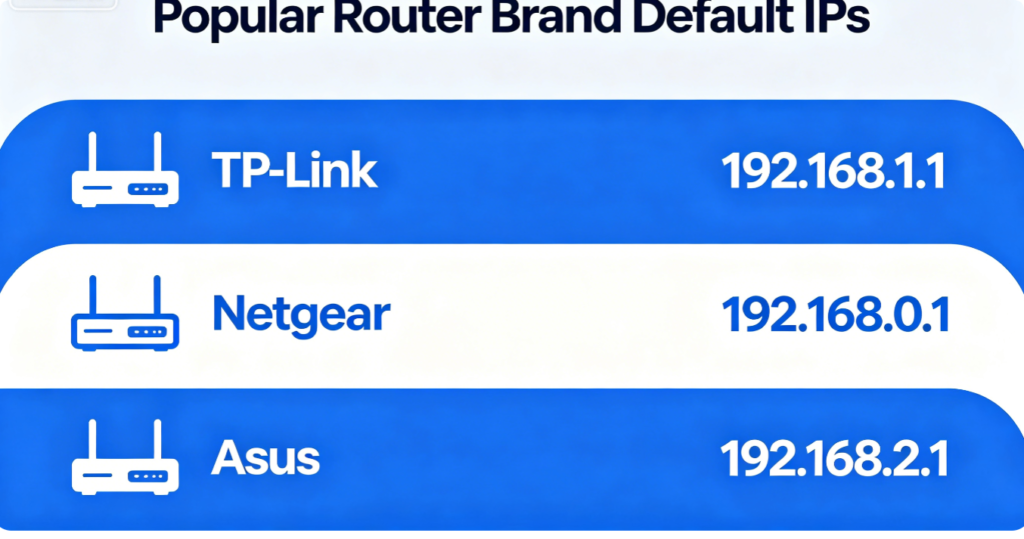
Most manufacturers stick to a small set of standard private IP addresses for home routers:
- 192.168.1.1 (TP-Link, D-Link, Linksys)
- 192.168.0.1 (Netgear, Tenda)
- 192.168.2.1 (Some old dual-band models) If none of your lookup methods return a usable address, test these three standard IPs one by one in your browser.
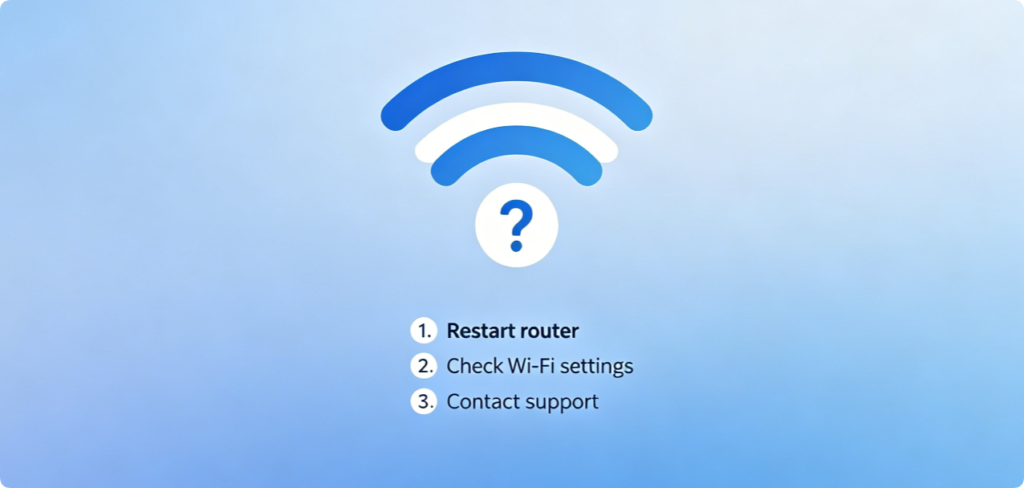
If you fail to retrieve the router IP address after trying all steps above, follow these quick fixes:
- Confirm your computer connects to the router’s own Wi-Fi, not cellular data or another network.
- Restart your router and laptop to refresh local network connections.
- Reset the router to factory defaults to restore the original gateway IP printed on the label.
- Double-check Ethernet cables for loose connections when using wired network access.
Conclusion
Finding your router IP address is a fundamental networking skill for all desktop users. Windows users can rely on Settings, Command Prompt or PowerShell, while Mac owners use System Network Preferences or Terminal commands. You can also quickly reference the router’s physical sticker or brand-specific web domains to skip complex lookup steps. Once you obtain the default gateway IP, paste it into any browser address bar to log into your router admin panel and adjust all home network configurations freely.