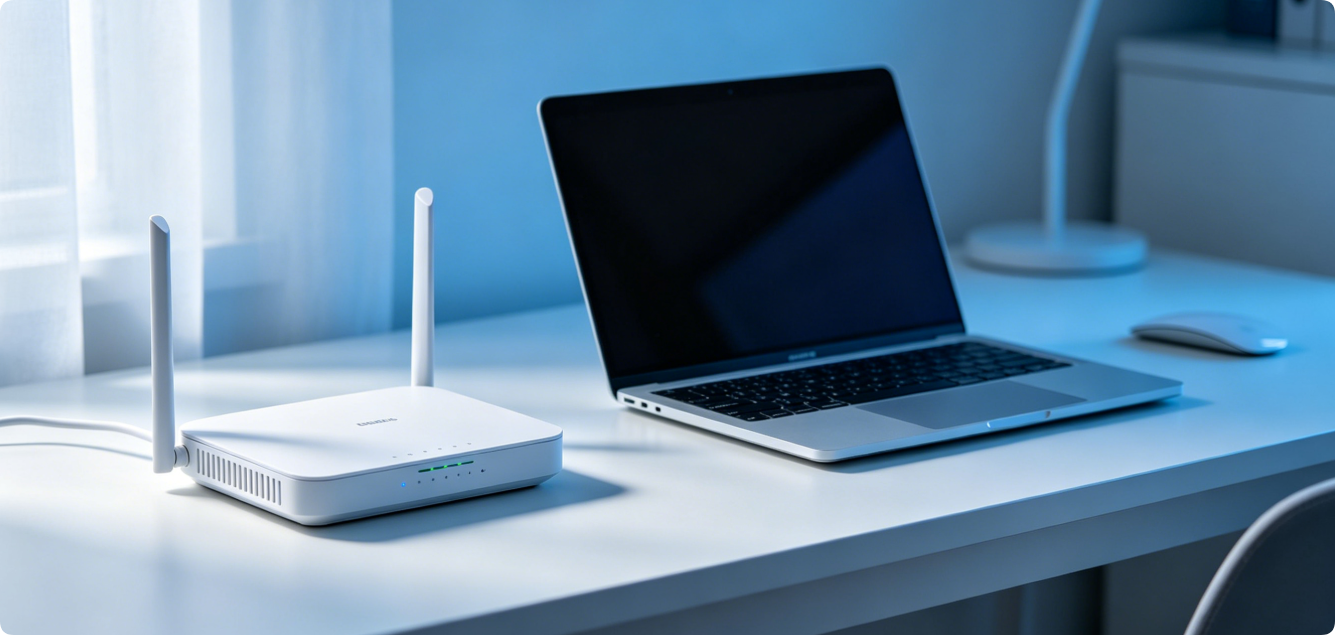
Every home and office network relies on a wireless router to distribute internet connection. To manage Wi-Fi settings, change network passwords, adjust bandwidth, or troubleshoot connection issues, users need to enter the router’s admin panel. Most routers allow quick access using the default gateway IP address and factory login credentials. This guide will show you exactly how to sign into your router admin page step by step.
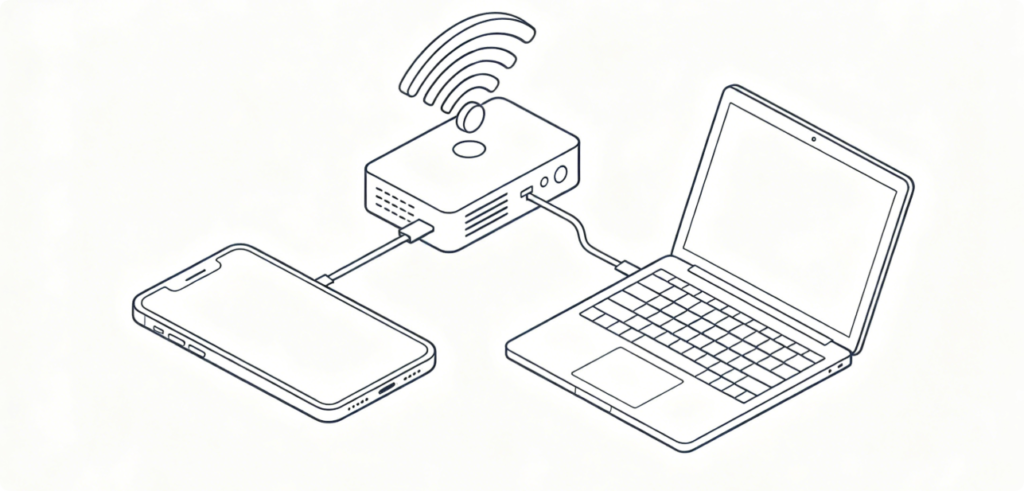
Before accessing the router dashboard, make sure your device is connected to the router’s network. You can connect via Wi-Fi or an Ethernet cable. A wired connection is more stable and prevents login errors caused by weak wireless signals. Without connecting to the local router network, you cannot open the admin page even if you enter the correct IP address.
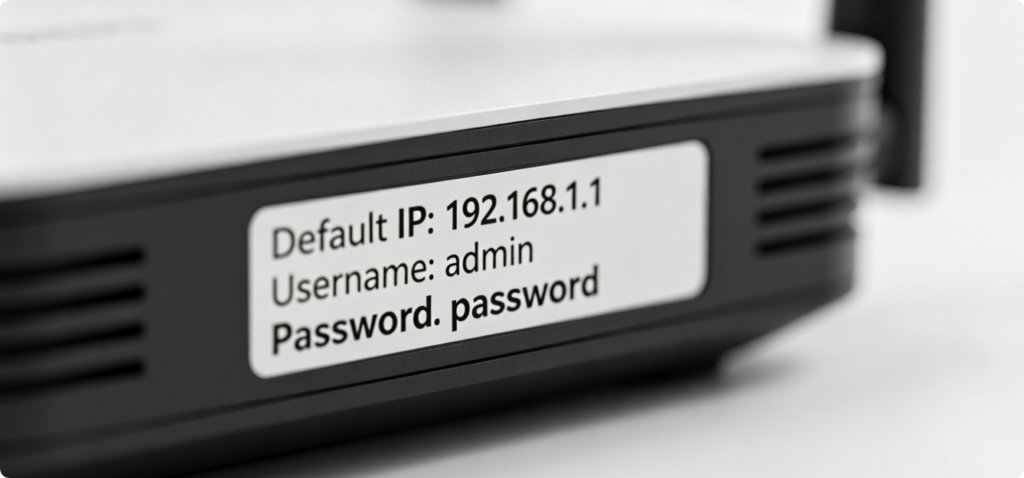
All standard routers come with factory default login information printed on the device label. The label is usually located on the bottom or back of the router. It includes the default admin IP address, default username, and default password. The most common router default IPs are 192.168.1.1 and 192.168.0.1, which work for most mainstream brands including TP-Link, Huawei, Xiaomi, D-Link, and Netgear.
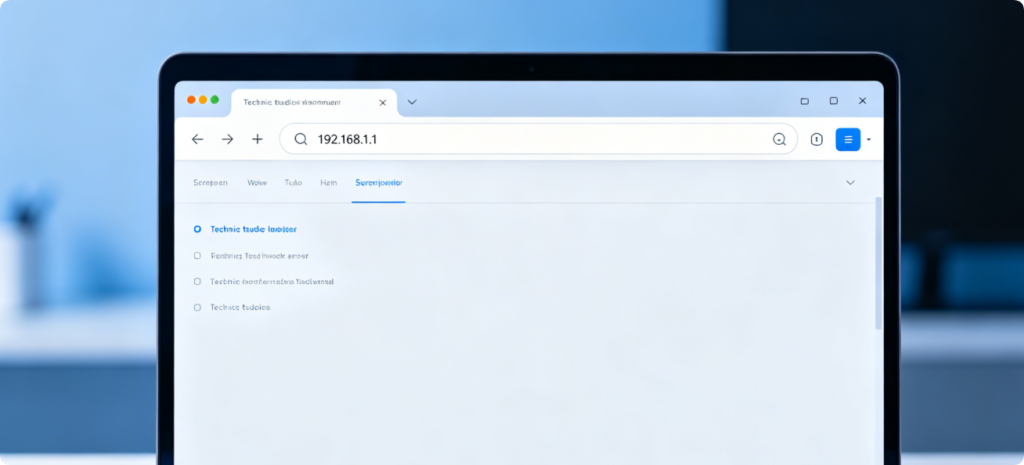
Once you confirm the correct default IP, open any web browser on your phone or computer. Type the full router IP address into the browser’s address bar and press enter. Do not search the IP in the search box; you must enter it directly in the URL bar. The browser will automatically load the official router admin login page within seconds.
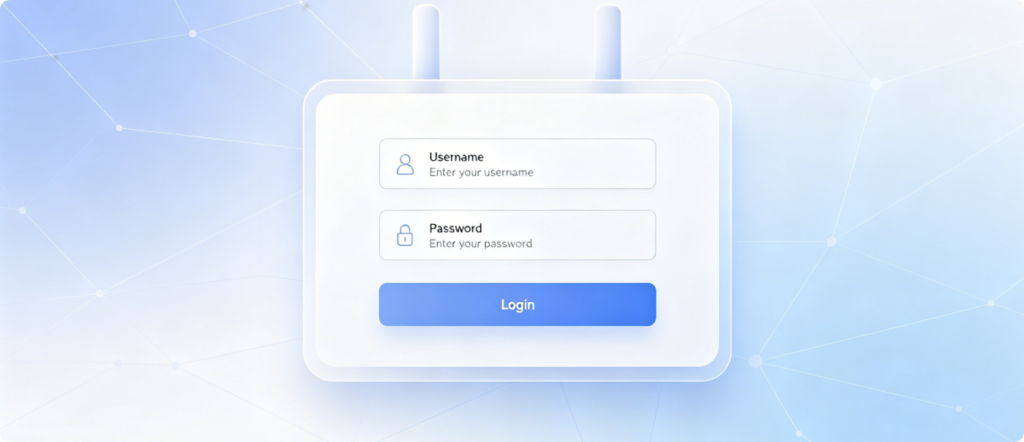
On the login screen, enter the default username and default password found on your router label. Many modern routers use “admin” as the default username, while some newer models use a unique random password printed on the label. After entering the correct credentials, click the login button to enter the full router control panel.
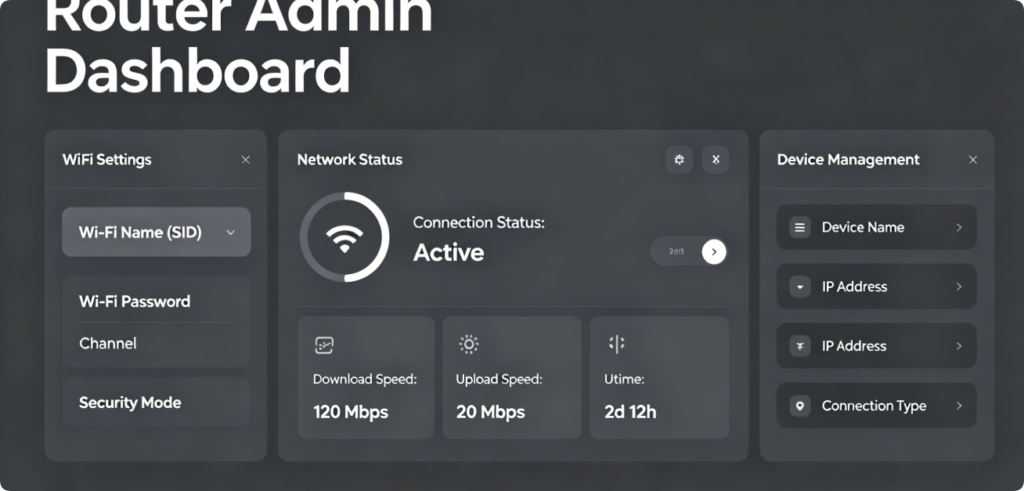
After successful login, you can fully manage your network settings. Inside the admin panel, users can change Wi-Fi names, update Wi-Fi passwords, view connected devices, adjust network speeds, enable parental controls, and upgrade router firmware. This powerful backend system controls all local network behaviors.
For network safety, it is extremely important to change your default admin password after your first login. Factory default credentials are public and easy for outsiders to guess. Changing the login password can prevent unauthorized access, network theft, and privacy leaks. If you forget your customized password, you can reset the router to factory mode to restore the default IP and login data.
Final Words
Accessing your router admin panel with the default IP and credentials is simple and beginner-friendly. As long as you connect to the local network and use the correct factory information, you can enter the router dashboard in less than one minute. Mastering this basic network skill helps you better maintain and secure your home internet environment.
Hi, this is a comment.
To get started with moderating, editing, and deleting comments, please visit the Comments screen in the dashboard.
Commenter avatars come from Gravatar.