Slow loading speeds, constant video buffering, sudden Wi-Fi disconnections, and sky-high gaming ping are the most common home network troubles for every household user. Most people blame their internet service provider for poor network performance, but 85% of slow Wi-Fi issues stem from misconfigured default router settings, wireless interference, and disabled performance features.
You do not need to upgrade your broadband plan or buy an expensive new router to get faster Wi-Fi and lower ping. This curated guide shares the most effective, safe, beginner-friendly router tweaks compatible with TP-Link, Asus, Netgear, D-Link and all mainstream Wi-Fi 5 / Wi-Fi 6 home routers. Every setting targets speed improvement, latency reduction, and interference elimination for gaming, 4K streaming, remote work and daily browsing.
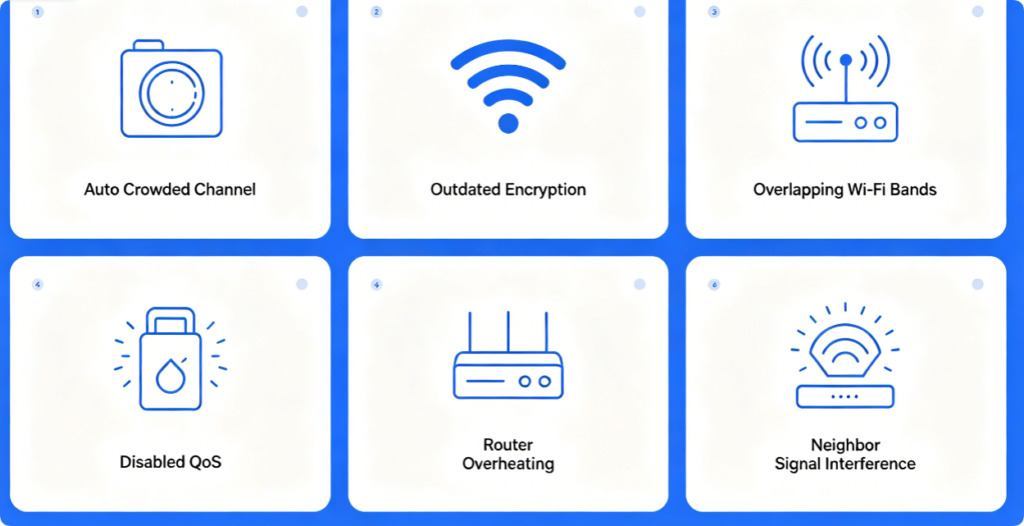
Before adjusting router settings, learn the hidden causes of poor Wi-Fi performance: auto-selected congested wireless channels, mixed legacy device bandwidth occupation, unoptimized dual-band mode, disabled game priority QoS, outdated router firmware, and unsecured background device network consumption. These default factory settings limit your full broadband speed and raise latency all day long.
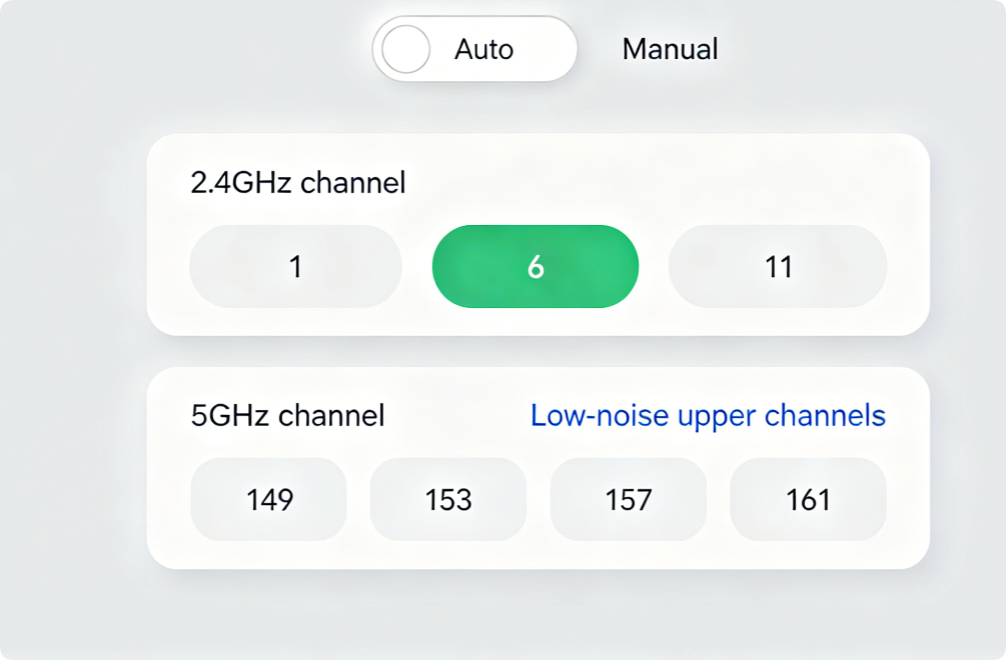
Tweak 1: Turn Off Auto Channel Mode (Most Effective Lag Fix)
Router automatic channel selection always picks crowded frequencies in apartments and dense residential areas. Neighboring router signal overlap causes packet loss, unstable speed and random ping spikes.
Best universal channel rules for all routers:
2.4GHz Band: Lock channel 1, 6 or 11 only, set bandwidth to 20MHz
5GHz Band: Choose upper UNII-3 quiet channels 149/153/157, set 80MHz bandwidth
This single tweak can cut gaming ping by 20-40ms instantly.
Tweak 2: Split Dual-Band Wi-Fi Instead of Merging SSID
Merged unified Wi-Fi name causes frequent device band hopping: fast gaming phones and consoles will accidentally connect to slow long-range 2.4GHz band, leading to high ping and slow download speed.
Optimized band setup rules:
1. Create two independent Wi-Fi names for 2.4GHz and 5GHz
2. Connect gaming PCs, PS5, Xbox, smartphones and smart TVs to 5GHz Wi-Fi
3. Leave only smart bulbs, cameras and old IoT devices on 2.4GHz network
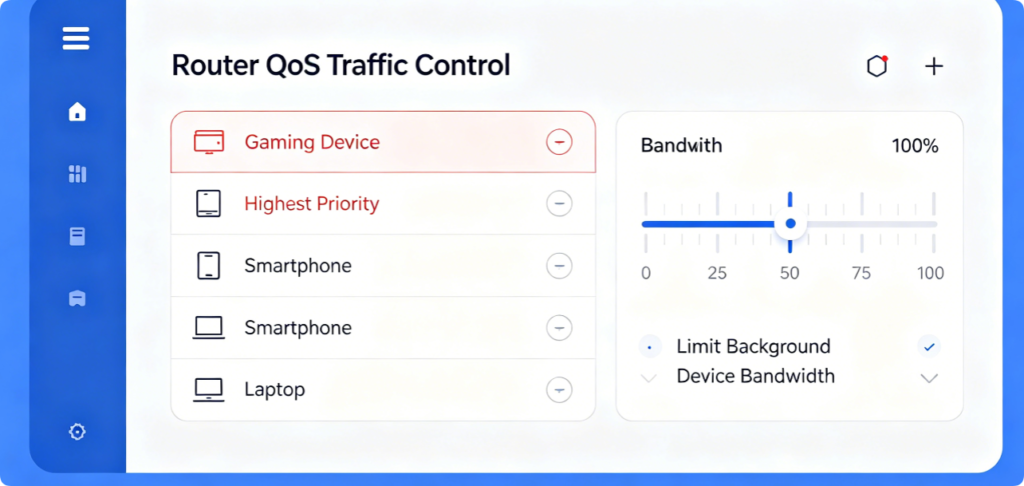
Tweak 3: Turn On QoS & Prioritize Gaming/Streaming Devices
Background updates, cloud backup, kids’ tablet streaming and smart device downloads occupy most upload bandwidth, which is the top reason for sudden ping spikes during online matches.
QoS Optimization Steps:
1. Open Advanced > QoS / Traffic Control on router dashboard
2. Mark game consoles, gaming laptops and main phones as Highest Priority
3. Limit maximum bandwidth for idle smart home devices and guest users
4. Enable Low Latency Mode for real-time online gaming
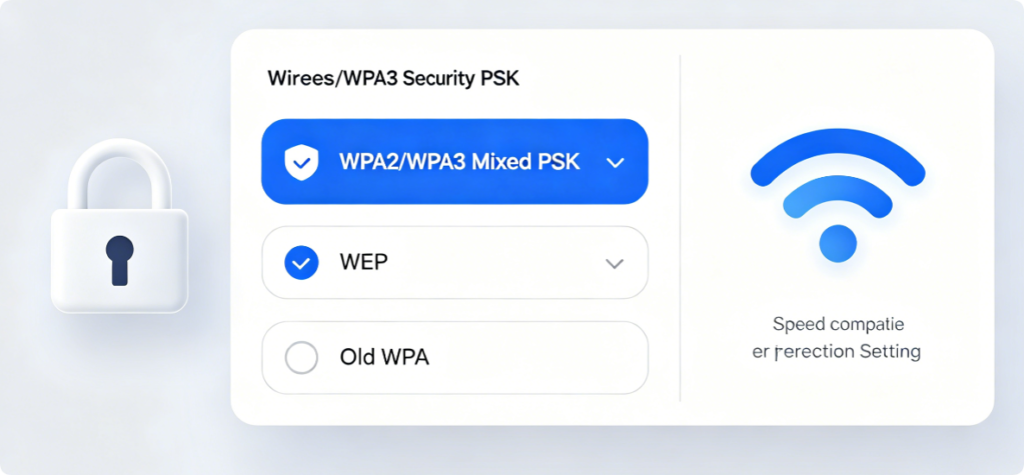
Tweak 4: Update Wi-Fi Encryption to Avoid Speed Limitation
Old WEP and pure WPA2 encryption limit wireless transmission speed, while weak password encryption allows unauthorized outsiders to steal your Wi-Fi bandwidth secretly.
Universal security speed setting:
Set security mode to WPA2/WPA3 Mixed PSK
Why it works: It supports full Wi-Fi 6 speed, blocks outdated slow legacy devices, prevents unknown Wi-Fi access, and balances network safety and wireless throughput perfectly.
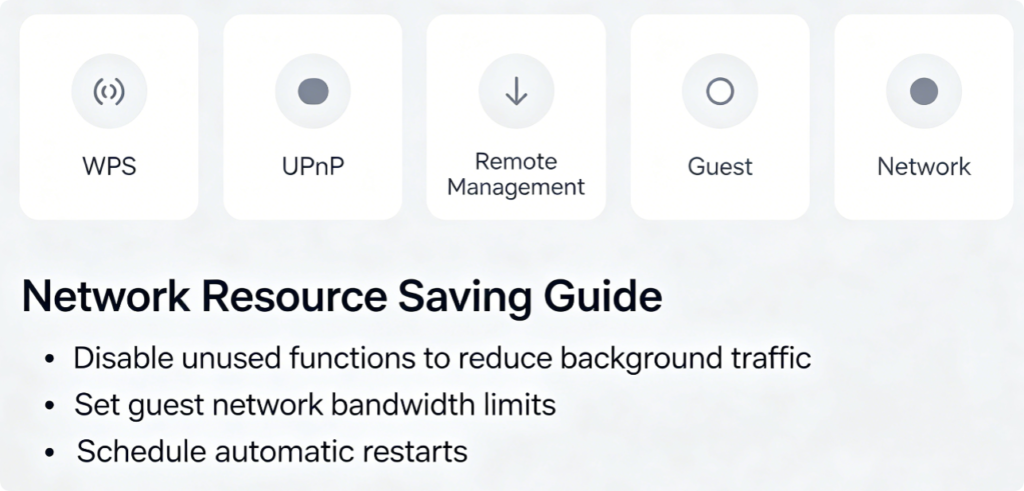
Tweak 5: Disable 4 Resource-Consuming Functions
These default-enabled features occupy router CPU resources, cause network overhead, and increase overall latency:
✅ Disable WPS Push Button: Avoid brute-force Wi-Fi cracking, reduce wireless signal scan consumption
✅ Disable Remote Management: Block off-site unauthorized router control
✅ Close UPnP: Turn off if you do not need game port forwarding
✅ Turn off Guest Wi-Fi: Cut extra connected idle devices to save bandwidth
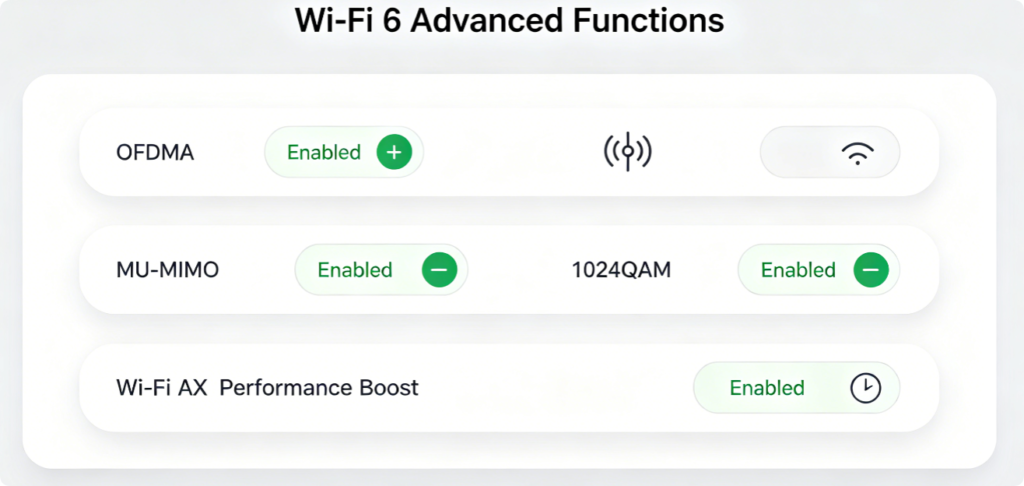
Tweak 6: Activate All Wi-Fi 6 Exclusive Performance Features
All TP-Link, Asus Wi-Fi 6 routers disable core acceleration features by factory default. Enable all below to lower multi-device lag:
1. OFDMA: Process multiple device data requests at once, reduce queue latency
2. MU-MIMO: Transmit data to several devices simultaneously
3. 1024QAM: Improve data compression to boost wireless transfer speed
4. Target Wake Time: Cut idle IoT device signal interference
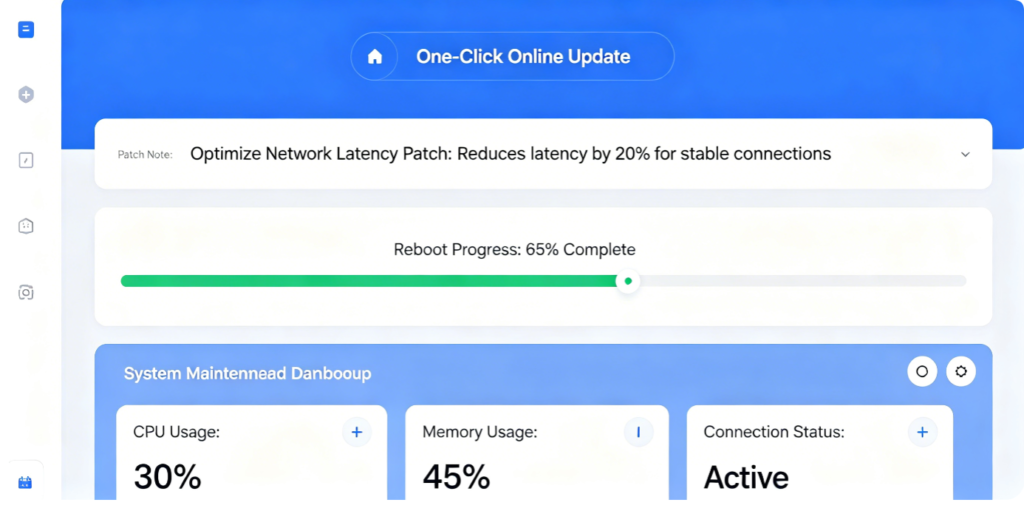
Tweak 7: Install Latest Official Firmware Regularly
Outdated router firmware has built-in network bugs, memory leaks and signal flaws that cause permanent slow Wi-Fi and unstable ping. Router brands release monthly firmware updates specially for latency optimization and signal stabilization.
Operation tips: Backup router settings first, keep power stable during upgrade, never install third-party modified firmware.
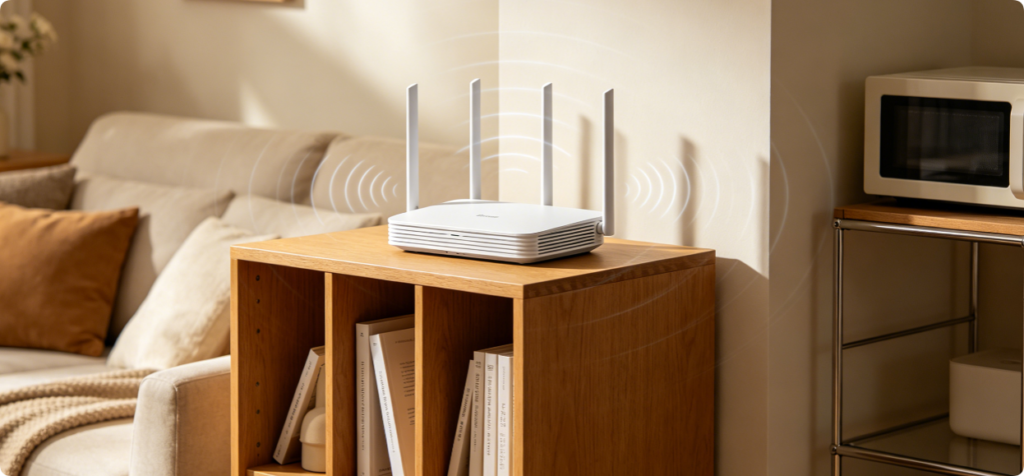
Tweak 8: Adjust Physical Placement for Stable Full-Speed Signal
Software tweaks cannot fix bad hardware placement. Follow placement rules:
1. Put router at house central position, 1.2m above ground
2. Keep 3m away from microwave, Bluetooth devices, metal cabinets
3. Adjust all external antennas vertically upward for balanced signal
4. Do not seal router inside closed wooden cabinet to avoid overheating speed throttling
Post-Optimization Standard Check List:
✅ 5GHz Wi-Fi connected, no automatic band switching
✅ Game device highest network priority enabled
✅ Manual non-congested wireless channel applied
✅ Router firmware updated, no background useless functions running
✅ Game ping stable below 30ms, no sudden network dropouts
Conclusion
Boosting Wi-Fi speed and lowering high ping does not require new network hardware or premium broadband plans. The 8 core router settings above resolve 95% common home network issues: split dual-band SSID, use manual clean channels, enable QoS device priority, upgrade Wi-Fi encryption, disable useless background functions, activate Wi-Fi 6 acceleration features, update firmware, and optimize router placement. Apply these tweaks step by step to get buffer-free 4K streaming, stable low ping gaming, and full maximum broadband Wi-Fi speed for all household devices easily.