Dynamic DHCP IP changes often break port forwarding, remote camera access and NAS connectivity on Eero mesh systems. Eero’s advanced networking menu offers static IP reservations to lock a permanent local IP to a device’s unique MAC address. This guide walks through full setup in the Eero mobile app for Eero 6, 6+ and Pro 6 whole-home mesh kits.
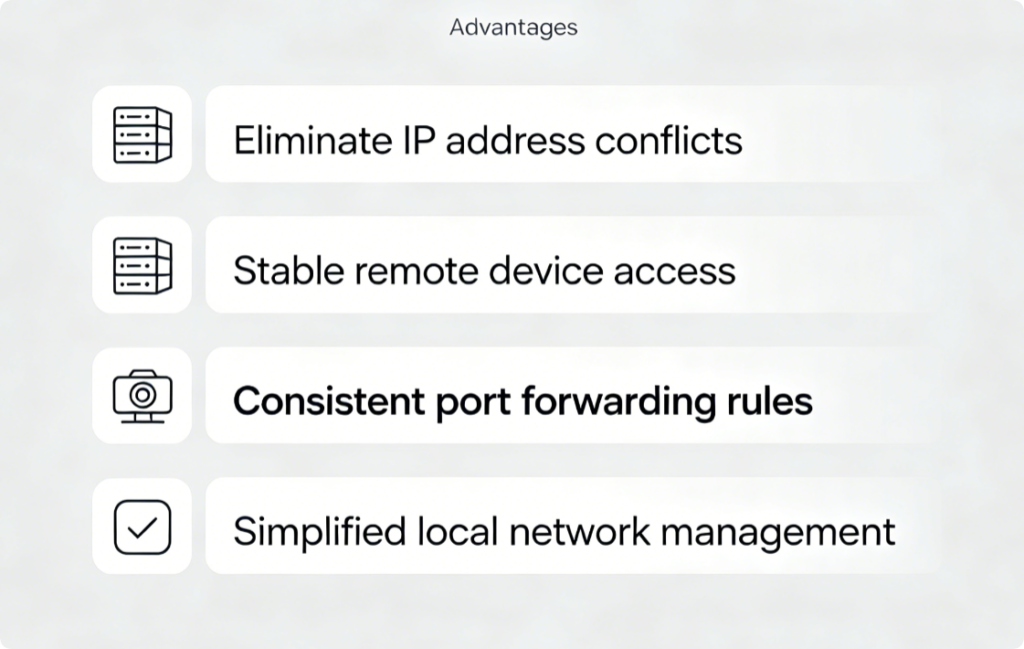
Why Static IP Reservations Matter
- Prevents IP collisions when multiple devices receive identical local addresses
- Ensures NAS, security cameras and gaming PCs retain fixed LAN addresses after router reboots
- Preserves port forwarding and remote access settings without repeated edits
- Makes local device identification faster for network troubleshooting
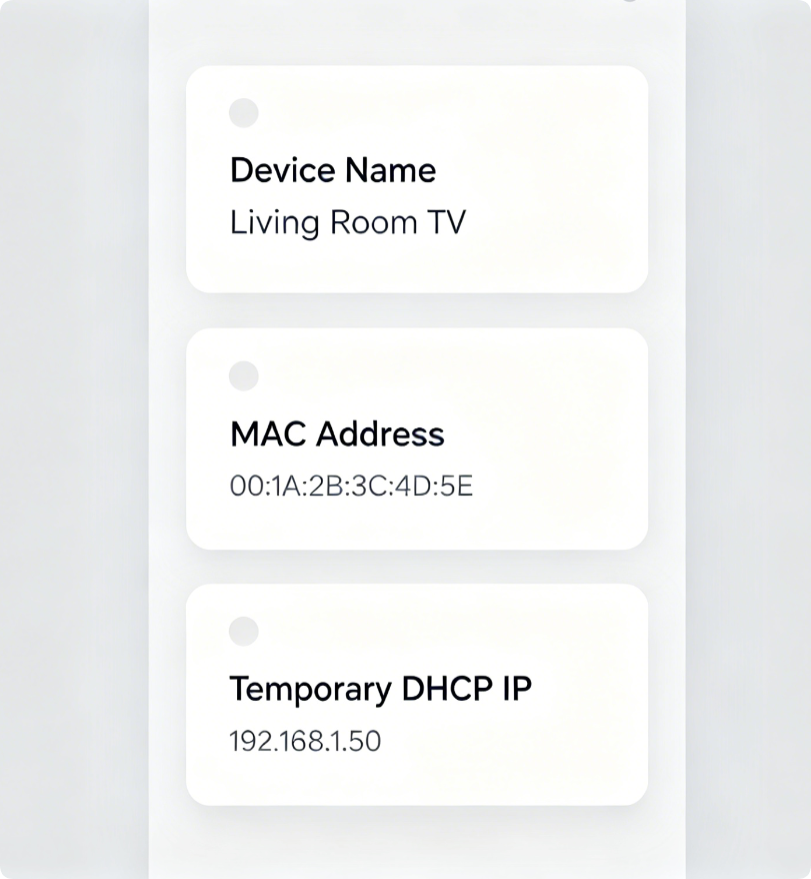
Gather Required Device Details First
- Open the Eero app and tap the Devices tab
- Browse wired and wireless clients to view full device information
- Note down the MAC address and current assigned IP for servers, cameras and consoles
- Choose unused IPs within your Eero default LAN range: 192.168.0.2–192.168.0.253
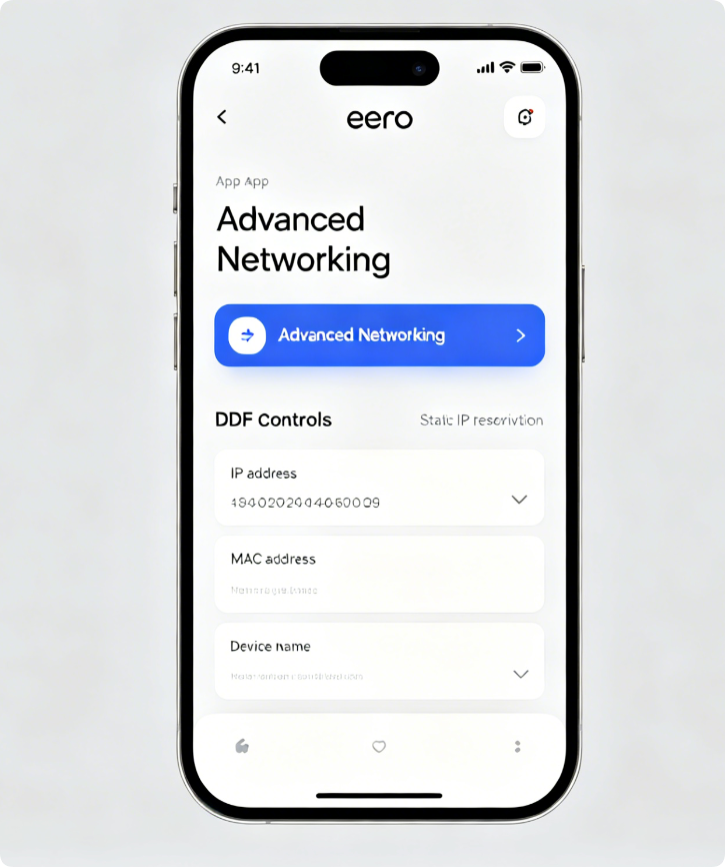
Open Static IP Tool
- Tap the three-line menu icon in the top-left of the Eero app homepage
- Select Network Settings, then scroll down to Advanced Networking
- Locate the Reservations tab to start creating fixed IP assignments
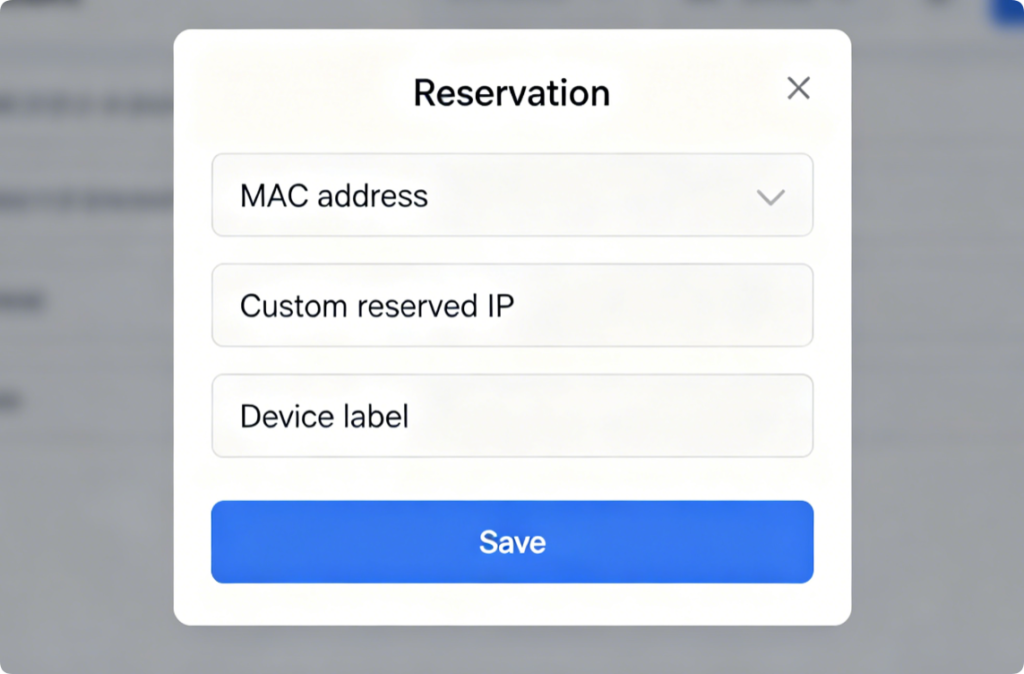
Build Fixed IP Rule
- Tap Add Reservation inside the Reservations panel
- Paste the copied MAC address from your device list
- Manually type your desired permanent local IP address
- Add a clear device label like “Living Room NAS” for easy identification
- Save the rule to activate the static IP lock
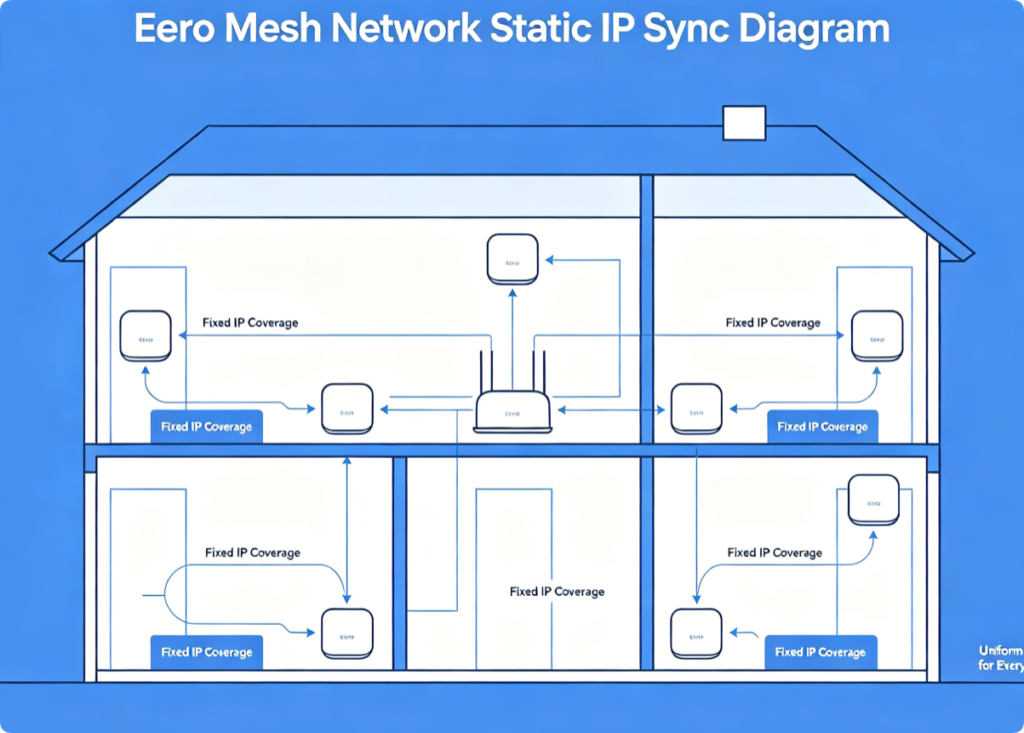
Mesh Synchronization Note
All static IP reservations created on the primary gateway automatically sync to every Eero satellite node. Devices connecting to remote mesh points retain their reserved IP without extra configuration on secondary units.
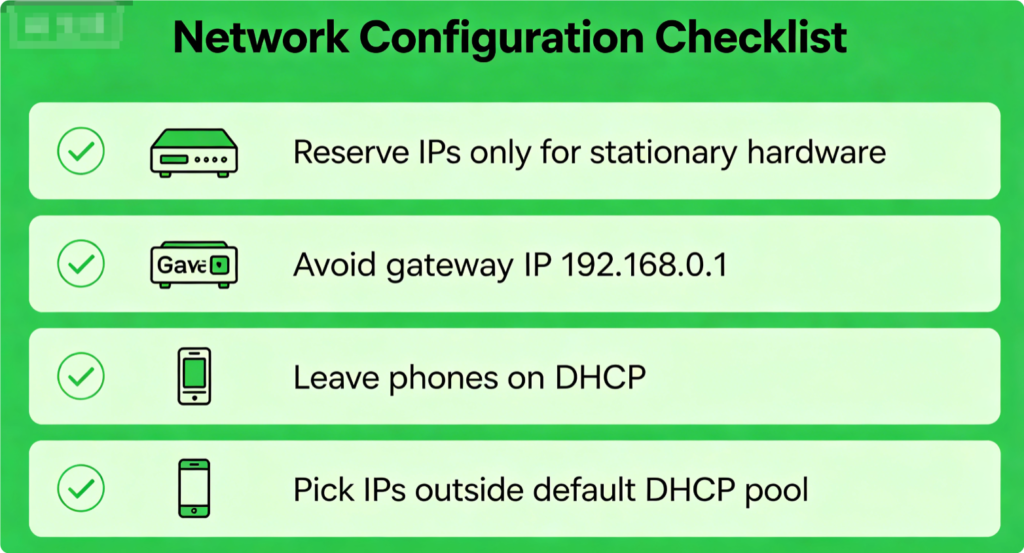
Critical IP Allocation Rules
- Only reserve static IPs for always-on devices: NAS, IP cameras, printers, game rigs
- Leave mobile phones, tablets and portable gadgets on dynamic DHCP
- Never assign the gateway router IP (192.168.0.1) to any client device
- Select IP addresses outside the DHCP pool to reduce server workload
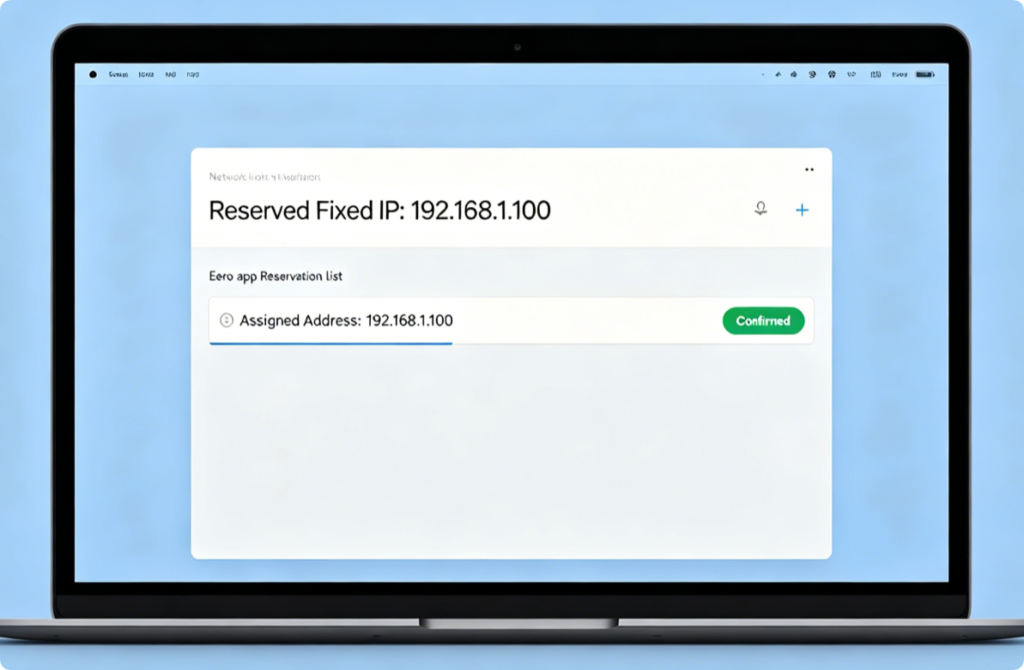
Verify Reservation Works
- Reboot the target wired or wireless device
- Check its network settings to confirm it pulls your reserved static IP
- Test port forwarding and remote access to confirm no connectivity drops
Conclusion
Eero static IP reservations resolve frustrating DHCP-related network issues with a few taps in the mobile app. Lock fixed local addresses to stationary critical hardware via Advanced Networking, and rely on automatic mesh sync for whole-house consistent IP assignment. Follow IP allocation best practices to avoid conflicts, and verify each reservation after saving rules for stable long-term network performance.