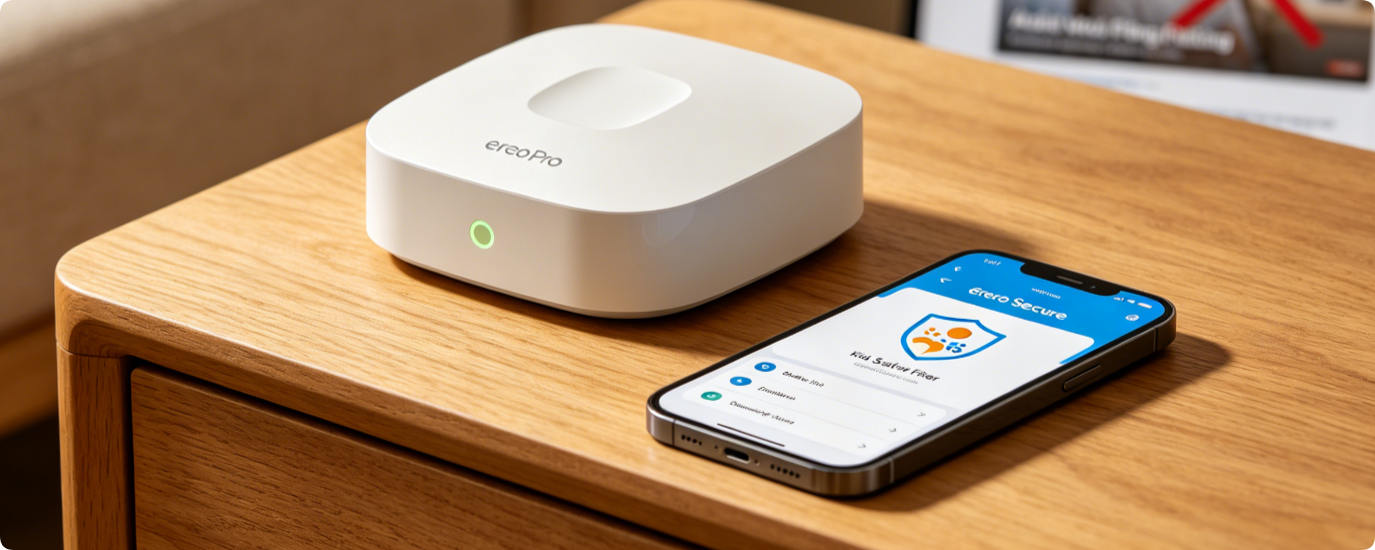
Eero Secure delivers robust customizable web filters to protect kids from inappropriate online content. Unlike basic parental controls, it supports permanent adult site blocks, forced Google SafeSearch and locked YouTube Restricted Mode across every connected child device. This step-by-step guide covers filter customization via the Eero mobile app for all Eero 6, 6+ and Pro 6 mesh systems.
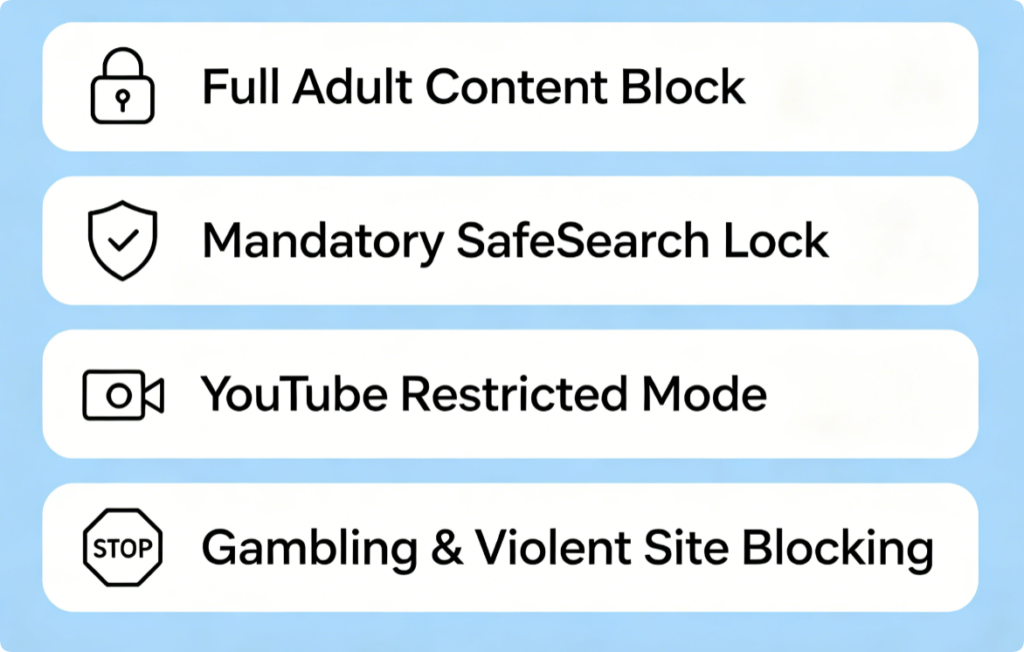
What Custom Filters Can Restrict
- All adult, pornographic and explicit websites auto-blocked system-wide
- Force SafeSearch on Google, Bing and DuckDuckGo to hide mature search results
- Lock YouTube into Restricted Mode to remove violent, adult and unfiltered videos
- Block harmful categories: gambling, hate content, online betting and dating platforms
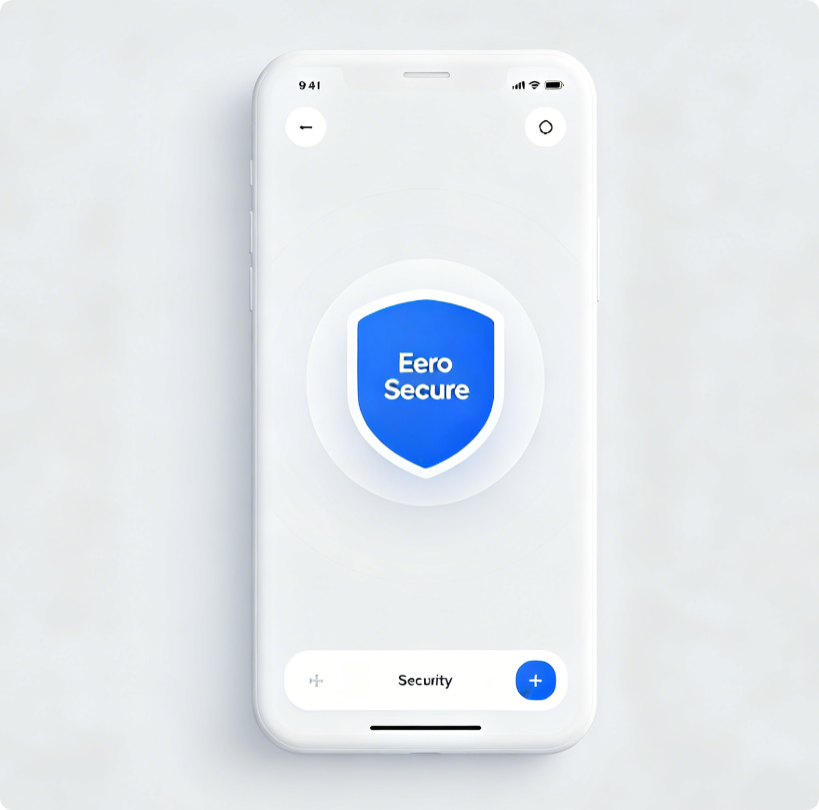
Access Filter Dashboard
- Connect your phone to home mesh Wi-Fi and launch the official Eero app
- Tap the Security tab at the bottom navigation bar
- Select Eero Secure to enter the content filtering configuration page Note: Full custom filtering requires an active Eero Secure subscription.
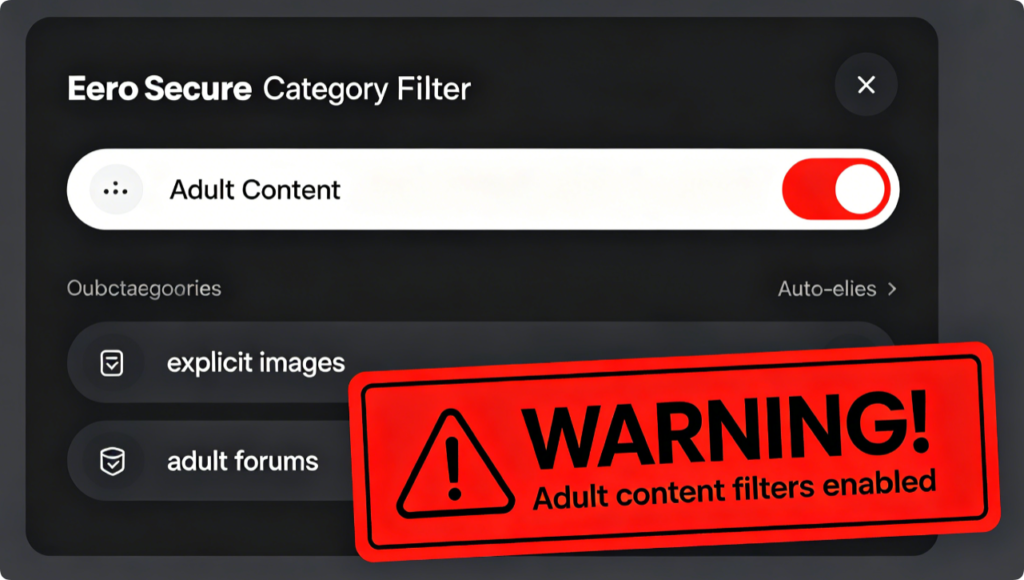
Block All Explicit Adult Content
- Browse the content category list and locate Adult Content
- Flip the master switch to enable universal blocking
- All sub-categories including adult videos, forums and explicit image sites activate automatically The filter applies instantly to every device linked to child Family Profiles.
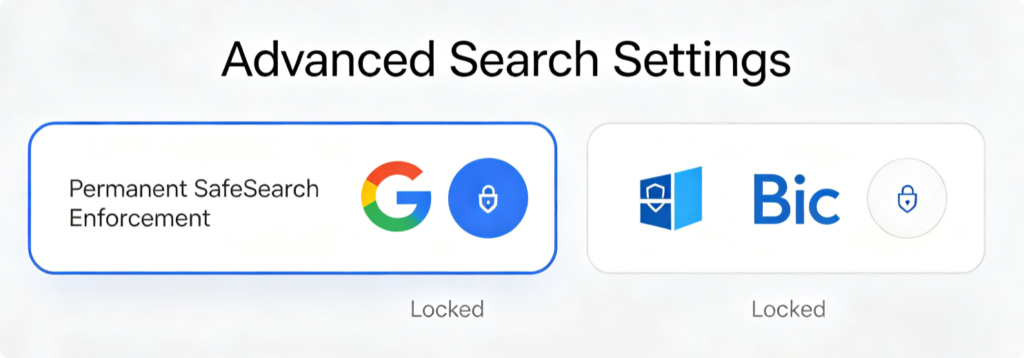
Enable Mandatory SafeSearch
- Scroll down to Search Safety settings inside Eero Secure
- Turn on “Enforce SafeSearch for all connected devices”
- This setting overrides any device-level search preference changes Kids cannot disable SafeSearch manually on phones, tablets or laptops.
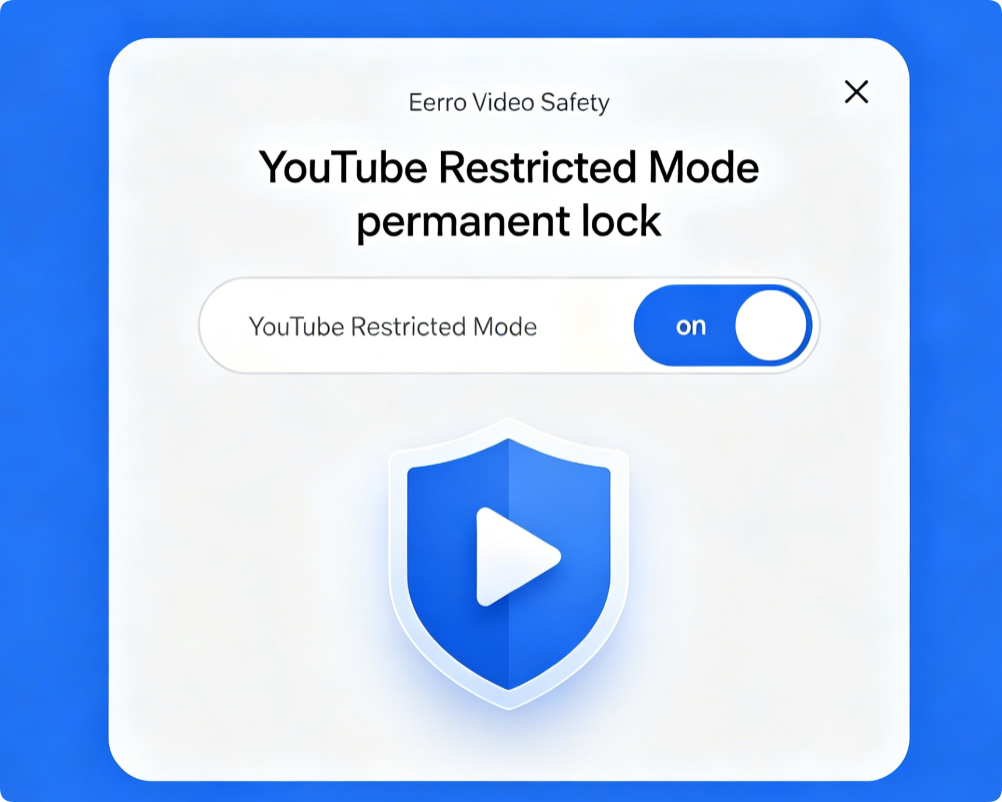
Lock YouTube Restricted Mode
- Navigate to Video Platform restrictions within Eero Secure
- Enable “Force YouTube Restricted Mode”
- The mesh network will override all YouTube account settings to hide mature videos Even if children log into personal YouTube accounts, restricted mode stays active.
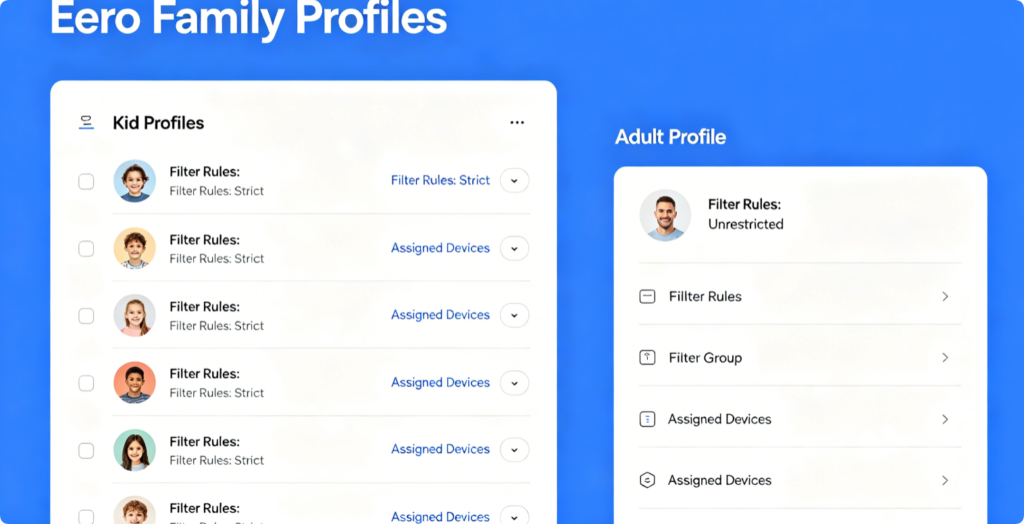
Assign Filters To Specific Children
- Return to the app’s Family tab and open each child profile
- Toggle on “Apply Eero Secure Content Filters” for minor profiles
- Leave adult family profiles unfiltered for unrestricted browsing This setup ensures safety limits only apply to kids without limiting adult household usage.
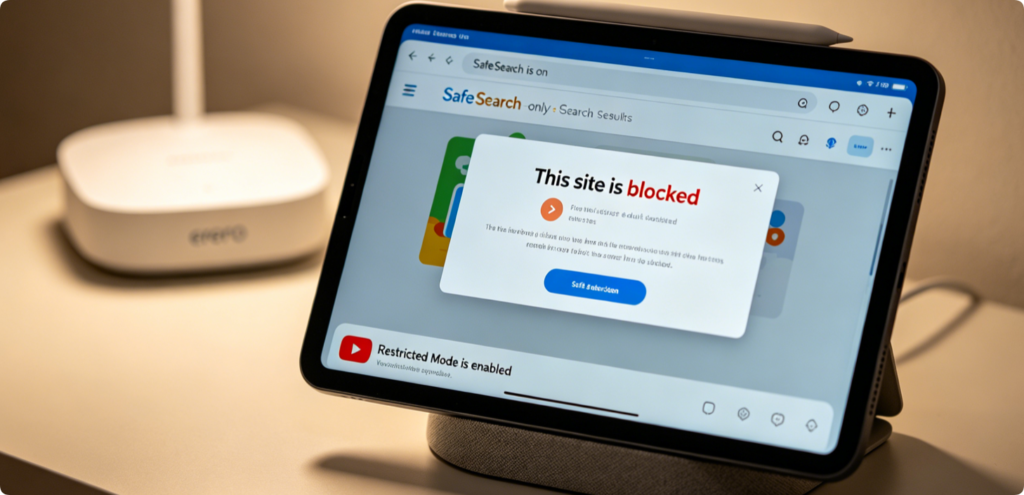
Test Filter Functionality
After saving all custom rules, test on a child’s device:
- Search explicit keywords to confirm SafeSearch hides mature results
- Visit adult websites to view the Eero block warning screen
- Open YouTube and verify restricted mode cannot be turned off manually
Conclusion
Eero Secure’s customizable filters create a fully locked safe browsing environment for children. With one subscription, parents can block all adult content, enforce mandatory SafeSearch and permanently activate YouTube Restricted Mode across the entire mesh network. Pair filter rules with dedicated child Family Profiles to separate restricted kid access from unrestricted adult devices, delivering complete, unbreakable online safety for every room in your home.