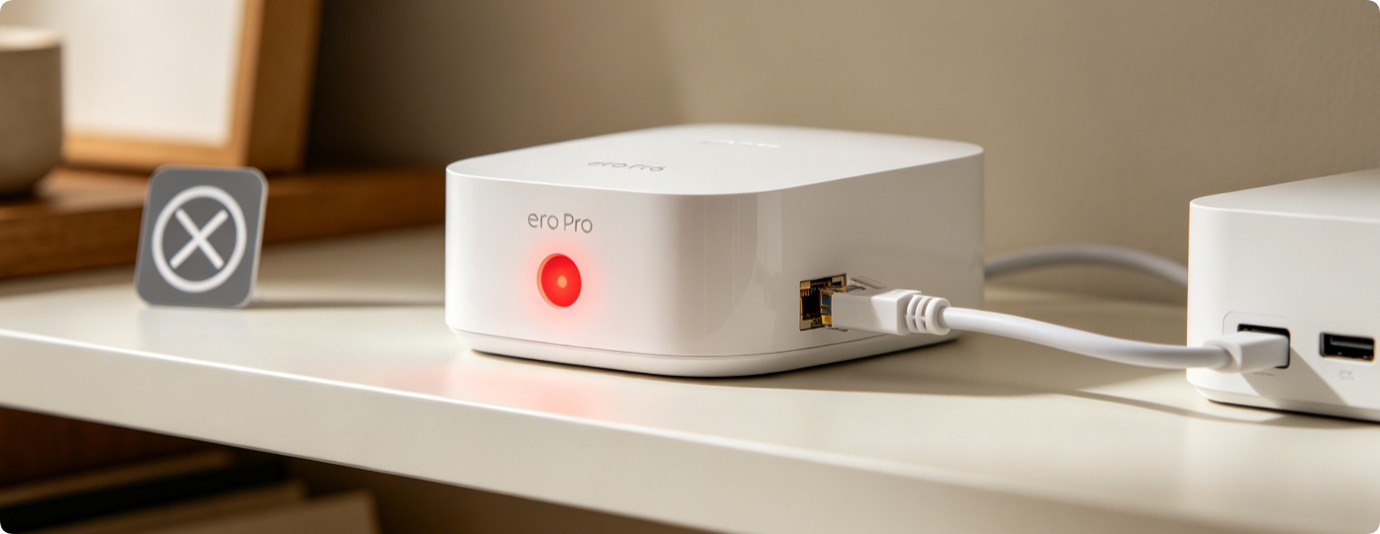
A solid red LED on your primary Eero gateway signals total WAN failure, cutting all household devices off from the internet. Unlike red satellites (mesh sync loss), gateway red lights stem from faulty cabling, modem glitches, ISP outages, misconfigured network settings or outdated firmware. Follow this ordered troubleshooting workflow to resolve disconnections and restore full connectivity within minutes.
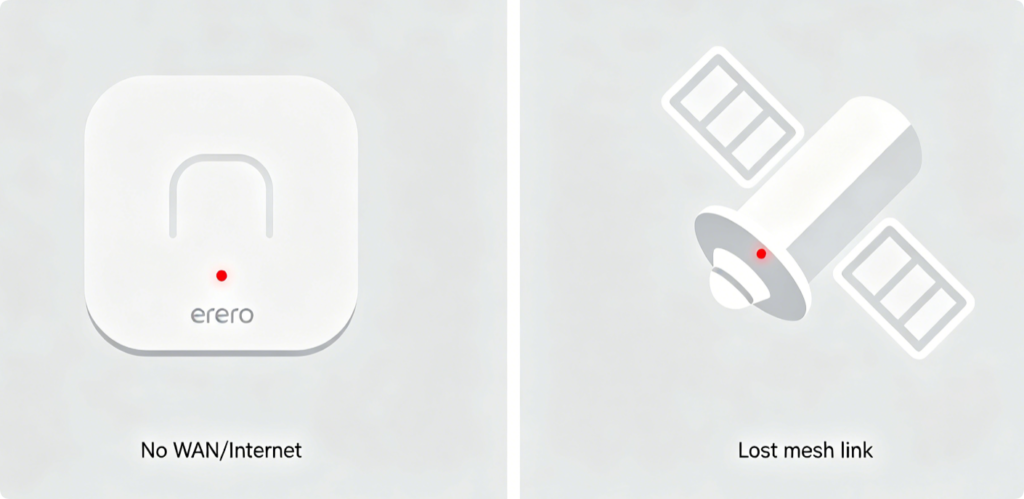
Critical Distinction
- Gateway solid red: Main unit cannot pull internet from your modem/ONT; every device loses web access
- Satellite-only red: Secondary mesh node failed to pair with gateway; local Wi-Fi still works for nearby devices
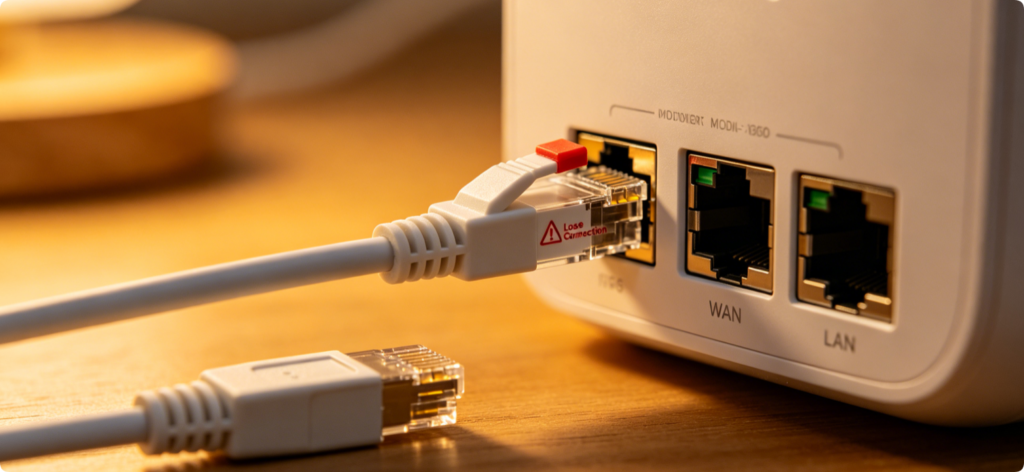
Resolve Physical Connection Faults
- Unplug the Ethernet cord linking modem/ONT to Eero gateway
- Re-seat firmly until you hear a firm click on both ends
- Test a brand-new Cat5e/Cat6 cable if the red light flickers while wiggling the wire Damaged cabling is the top cause of persistent solid red gateway lights.
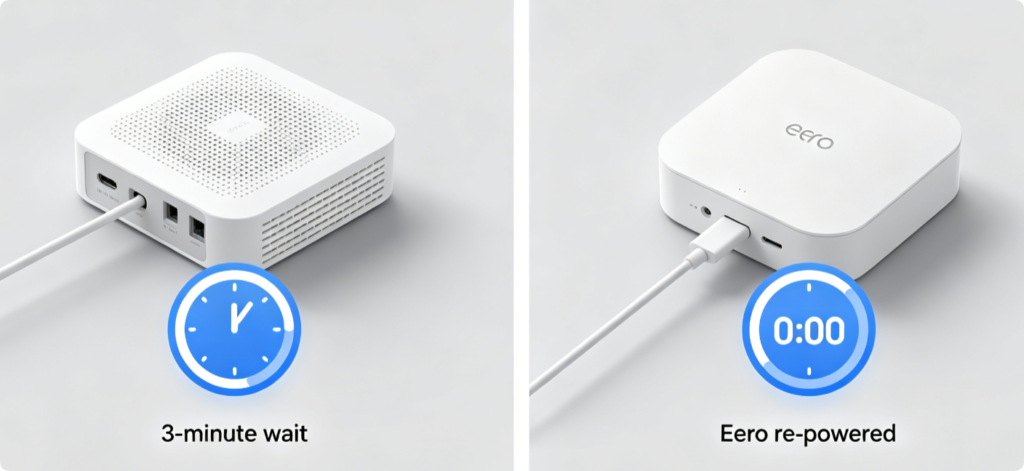
Correct Reboot Sequence
- Unplug power from modem/ONT and leave offline for 3 full minutes to clear ISP DHCP leases
- Reconnect modem power and wait 5–10 minutes for its online status lights to stabilize
- Plug the Eero gateway back in; wait up to 2 minutes for the LED to shift from red to solid white
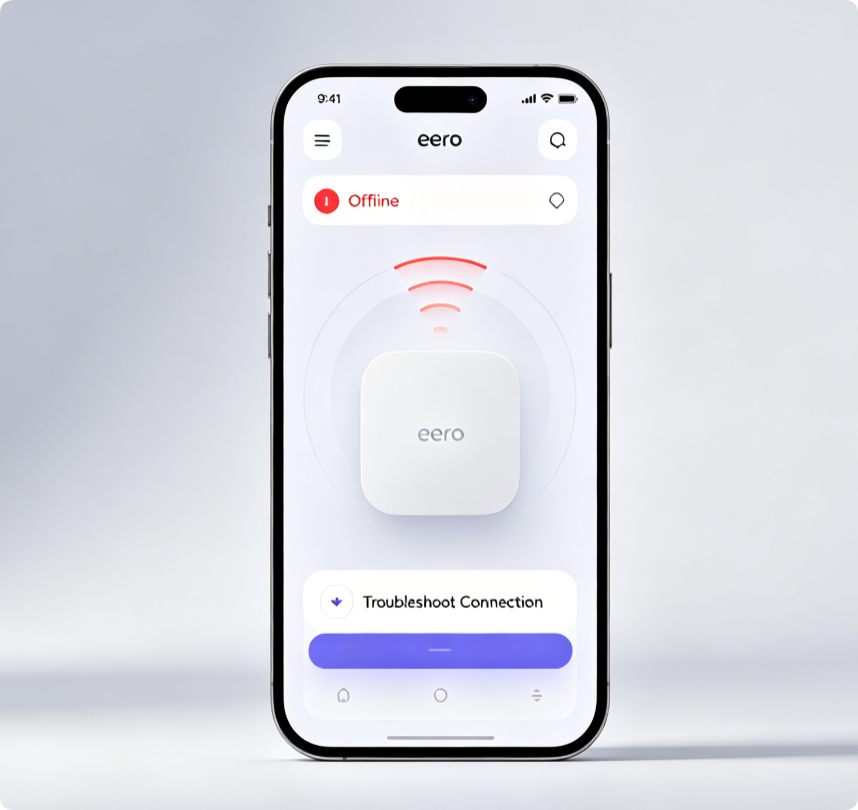
App-Guided WAN Testing
- Open the Eero app and view the top network status banner
- Tap the red “Troubleshoot your connection” prompt to launch automated diagnostics
- Review error codes: DHCP failure, link down, or ISP line outage alerts for targeted fixes
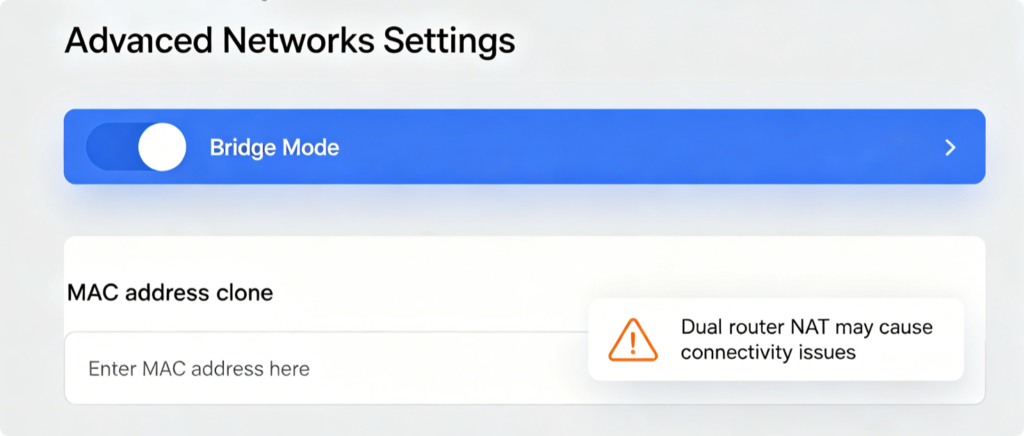
Resolve Advanced WAN Blockages
- Enable Bridge Mode if a separate upstream router sits before your Eero gateway to eliminate double NAT
- Use the MAC clone tool to copy your ISP-registered device MAC address to bypass line binding locks
- Switch WAN connection type from DHCP to Static IP or PPPoE if your ISP requires manual login credentials
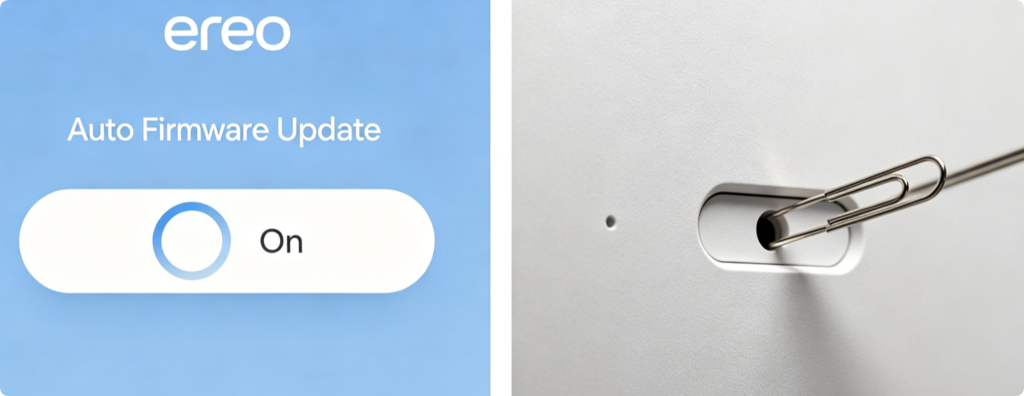
Deep Software Fixes
- Outdated firmware often triggers WAN negotiation bugs; enable automatic over-the-air updates once online
- If all prior steps fail, back up network settings, hold the gateway reset pin for 10 seconds, and re-add the device to your Eero network
Confirm Stable Connectivity
After the red light clears:
- Test streaming, web browsing and remote smart device access
- Check the Eero app’s internet speed test to confirm full ISP bandwidth delivery
- Monitor the gateway LED for 10 minutes to ensure the red light does not reappear
Conclusion
A solid red Eero gateway light rarely requires hardware replacement. Start with cable replacement and proper modem/gateway power cycling for instant results. Use the Eero app’s diagnostic tools to identify ISP or configuration conflicts, and adjust Bridge Mode/MAC cloning for tricky provider setups. Firmware updates and factory resets resolve persistent software glitches, returning reliable whole-home internet connectivity quickly.