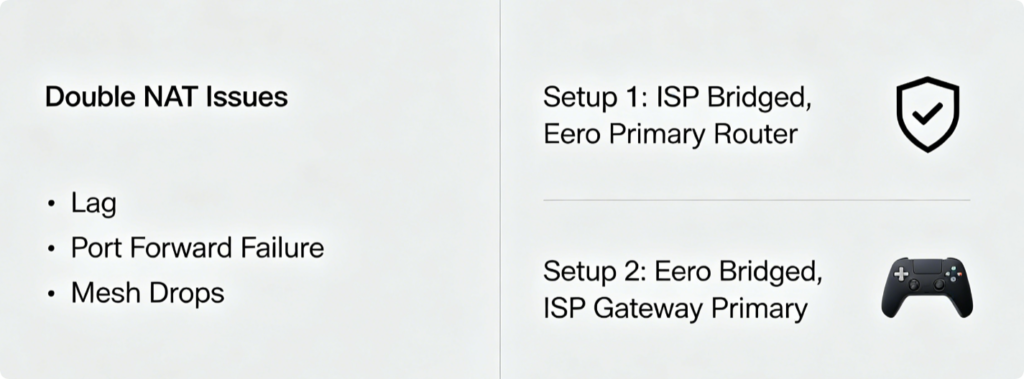
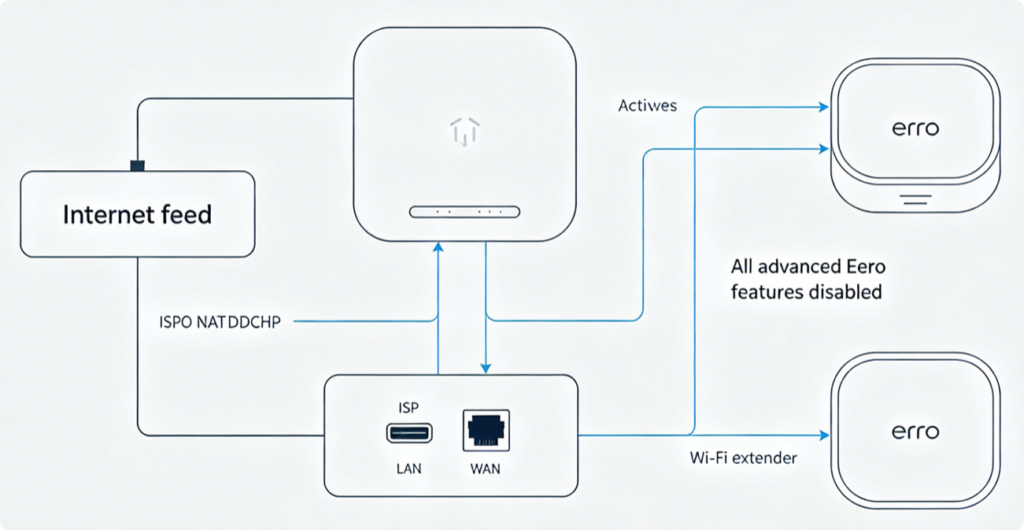
Double NAT occurs when your ISP’s combo gateway and Eero both run NAT, DHCP and firewalls simultaneously. This causes gaming strict NAT errors, broken port forwarding, unstable mesh roaming, remote NAS failures and intermittent internet drops. Eero officially supports two validated bridge setups for ISP modem-router hardware: ISP Gateway Bridge Mode (Recommended) and Eero Bridge Mode (Backup for locked ISP hardware). This guide walks through both configurations to fully resolve double NAT and lock in consistent whole-home mesh performance.
Core Setup Difference Breakdown
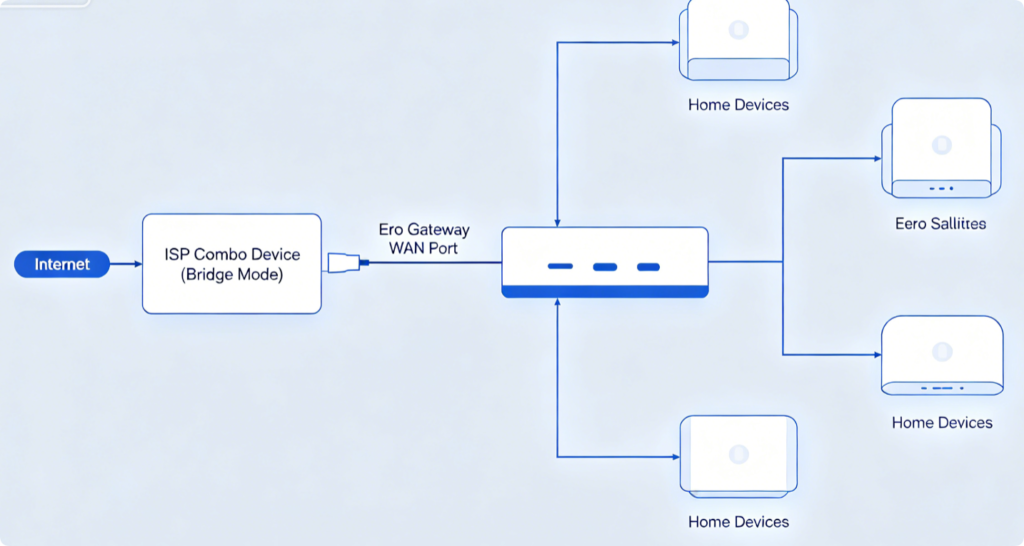
- Setup 1 (Best): Put ISP modem-router combo into bridge mode → Eero handles all routing, DHCP, NAT, Eero Secure and mesh controls (all premium features fully functional)
- Setup 2 (Fallback): Put Eero system into bridge mode → ISP gateway manages routing; Eero only acts as Wi-Fi mesh access points (loses parental filters, static IP reservations, port forwarding inside Eero app)
Setup 1 Step-by-Step (Official Preferred Configuration)
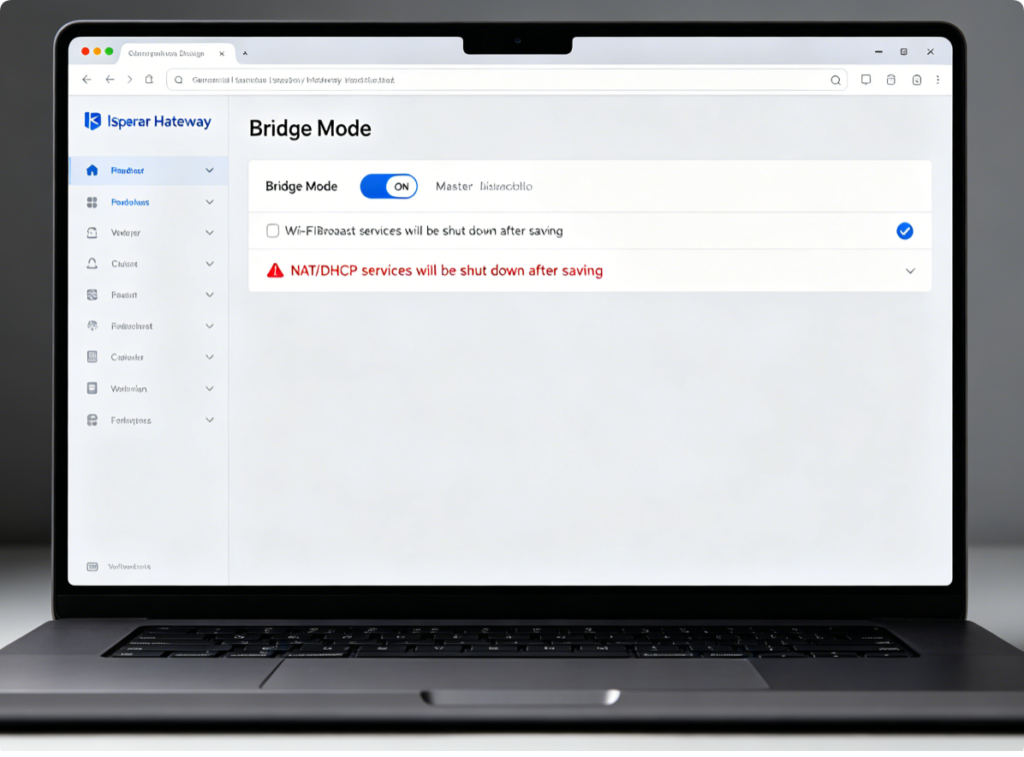
- Log into your ISP modem-router admin panel via its default IP (192.168.1.1 / 192.168.0.1)
- Locate Bridge Mode / Transparent Bridging setting and enable it; this disables the ISP unit’s DHCP, NAT and internal Wi-Fi
- Disable all Wi-Fi broadcast on the ISP gateway to eliminate signal interference with Eero mesh
- Reboot ISP combo hardware and wait 5 minutes for full provisioning
- Run an Ethernet cable from any ISP LAN port to the blue WAN port on your primary Eero gateway
- Open Eero App → Settings → Advanced → DHCP & NAT, leave mode on Automatic (Router Mode)
- Save settings; Eero now holds your public IP and controls the entire local mesh network
Setup 2 Step-by-Step (For ISPs That Block Gateway Bridging)
- Complete basic Eero mesh setup first with the ISP combo online
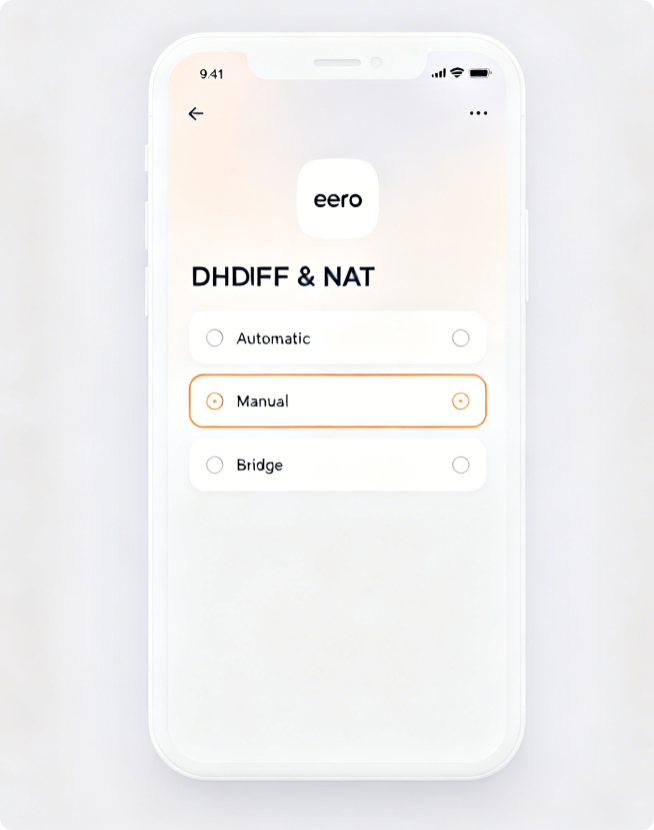
- Launch Eero mobile app, tap bottom-right Settings icon → Advanced → DHCP & NAT
- Switch mode from Automatic to Bridge, tap Save to confirm
- Keep ISP gateway Wi-Fi disabled to avoid overlapping SSID conflicts
- Verify all Eero satellites still sync via wired/wireless backhaul; mesh coverage remains intact
- All port forwarding, static IP and security rules must now be configured inside the ISP router panel
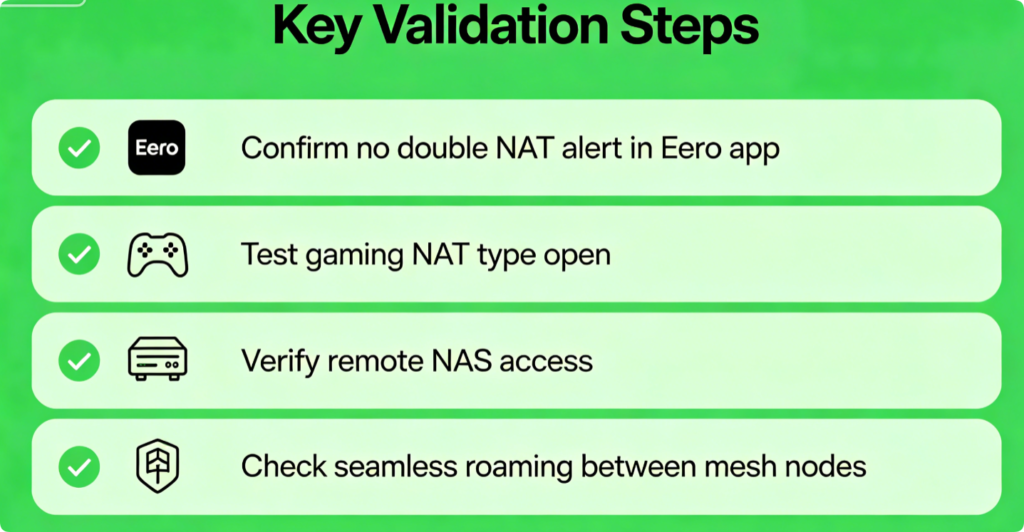
Mandatory Post-Configuration Checks
- Reopen Eero Advanced menu; confirm the “Double NAT Detected” warning disappears entirely
- Launch online gaming to validate Open/Moderate NAT type (no Strict NAT blocks)
- Test remote access to home NAS, security cameras and self-hosted servers
- Walk between rooms to confirm glitch-free mesh roaming without Wi-Fi drops
Conclusion
Setup 1 (bridging your ISP modem-router) delivers the full Eero mesh experience with all security, networking and parental control tools unlocked, eliminating double NAT at its source. Use Setup 2 (Eero bridge mode) only when your ISP locks gateway bridging functionality, accepting the tradeoff of lost Eero advanced features. After deploying either official configuration, unstable mesh connections, gaming NAT errors and remote access failures will be permanently resolved for reliable whole-home Wi-Fi performance.