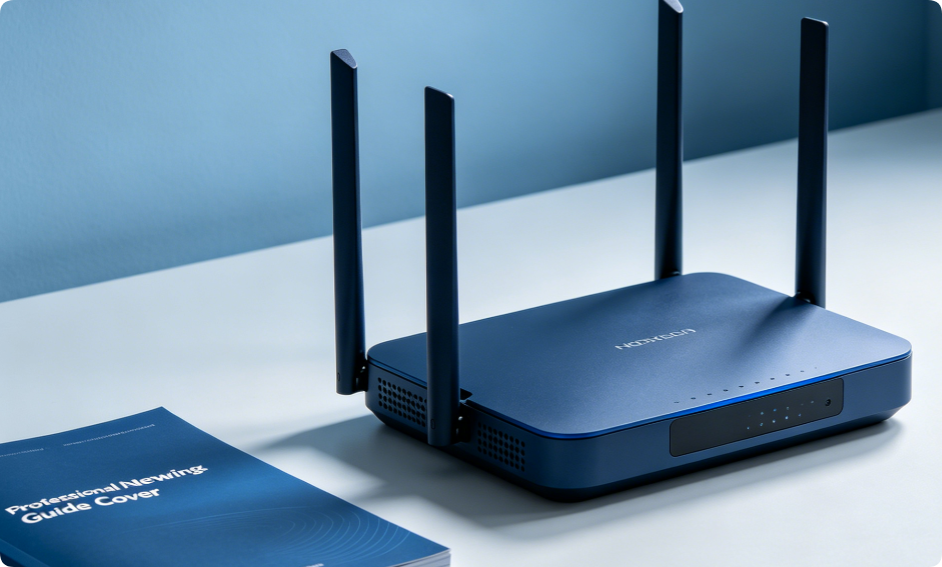
Router reset is a common solution to fix various network issues, including slow internet, frequent disconnections, login failures and abnormal device connections. Many users confuse soft reset with factory reset, and wrong operations may lead to loss of personalized settings. This detailed guide explains the differences between the two reset types and teaches you how to complete soft reset and factory reset step by step. The methods work for TP-Link, D-Link, Asus and almost all mainstream home wireless routers.
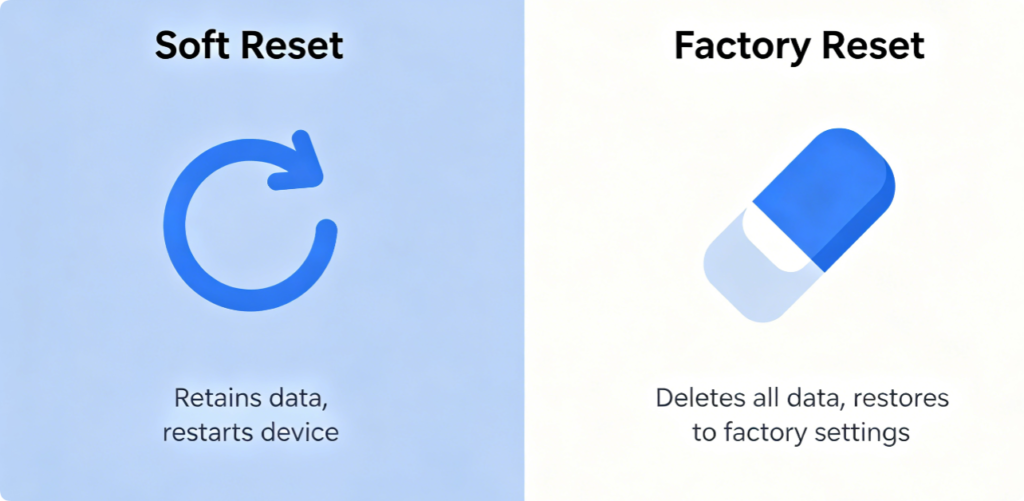
Before starting operations, you need to understand the core difference first. A soft reset is also known as a simple restart. It only powers the router off and on again to refresh the system cache and temporary errors, while keeping all your custom settings intact, such as Wi-Fi name, password and admin configurations. A factory reset will restore the router to its original factory state. All personalized settings will be erased, and the default login IP, username and password will be restored. Choose the right method according to your actual problems.
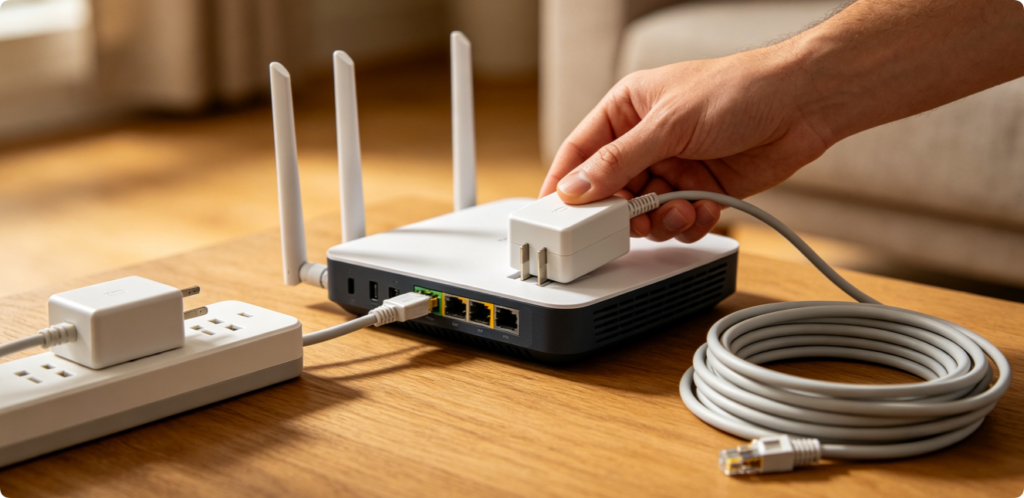
The easiest way to perform a soft reset is power cycling. First, find the power cable connected to your router and unplug it completely. Leave the router powered off for 30 to 60 seconds. This waiting time helps fully clear the residual power and temporary system cache inside the device. Do not plug in the power supply immediately, otherwise the reset effect will be greatly reduced.
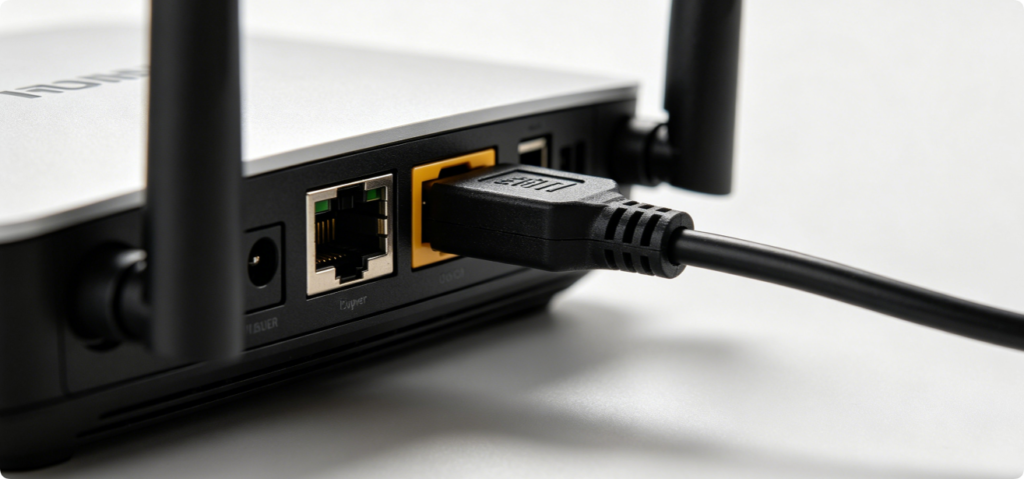
After waiting for one minute, plug the power adapter back into the socket and the router. Wait patiently for 2 to 3 minutes until all indicator lights on the router return to normal steady status. Now the soft reset is finished. You can reconnect your phones, laptops and other devices to the Wi-Fi and check whether the network problems are solved.
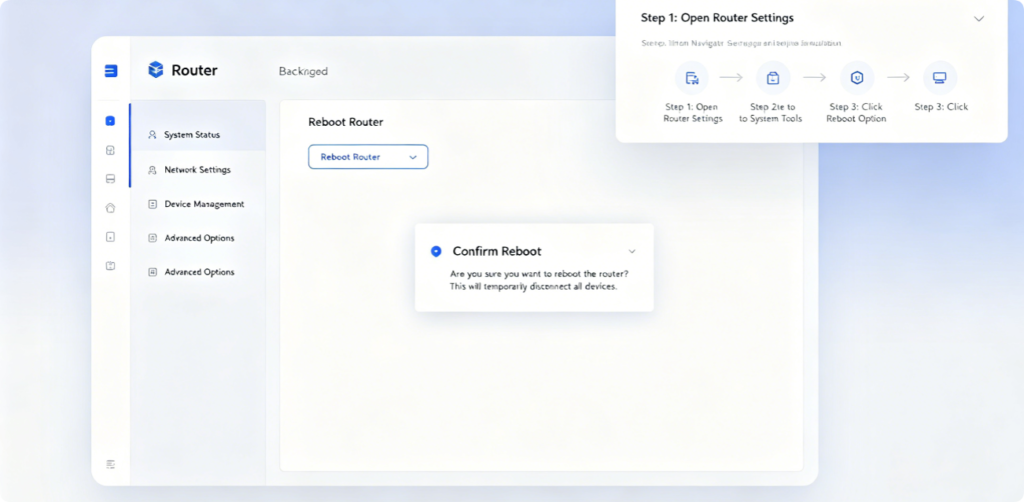
You can also complete soft reset remotely through the router admin panel. Log into the router dashboard with your admin account. Find the menu named System, Tools or Maintenance. Locate the Reboot / Restart button and click it. Confirm the operation in the pop-up window. The router will restart automatically. This method is convenient when the router is placed in a high or hard-to-reach position.
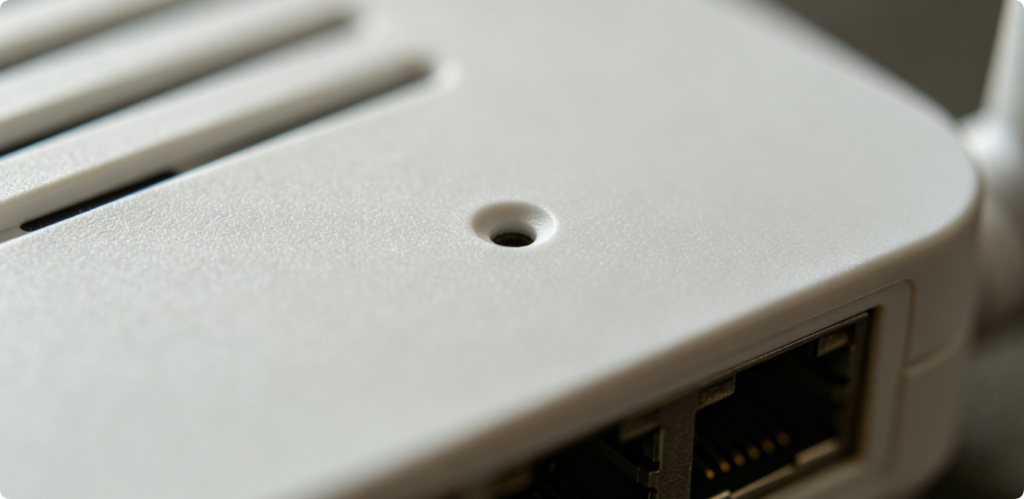
If soft reset cannot fix your network troubles, or you need to clear all settings and resell/give away the router, you need to perform a factory reset. First find the reset button on your router. Most home routers design it as a tiny pinhole on the back or bottom panel, marked with Reset text. It cannot be pressed directly by fingers, so you need auxiliary tools.
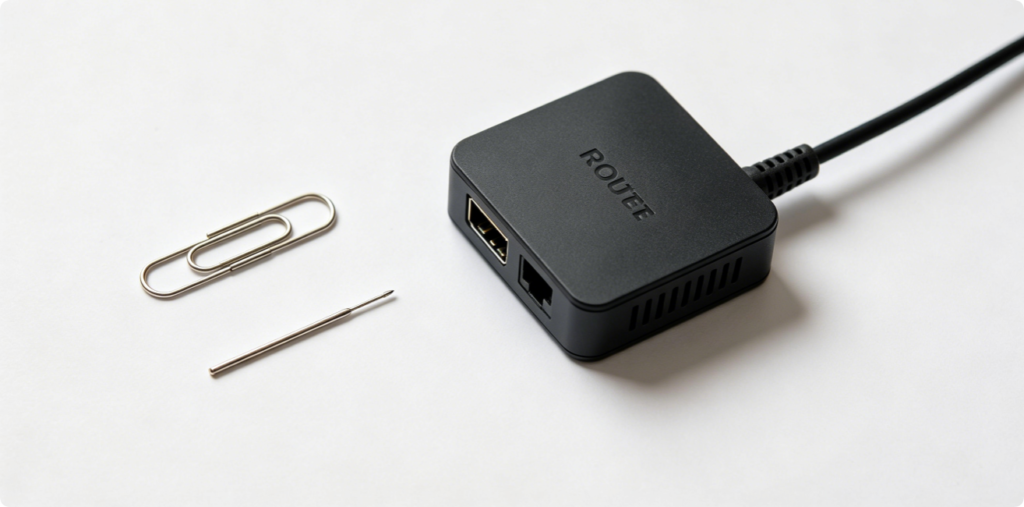
Prepare a paper clip, thin pin or toothpick. These slender tools are perfect for pressing the hidden reset pinhole. Make sure the router is powered on during the whole factory reset process. Do not cut off the power supply, otherwise the restoration will fail and even cause system damage.
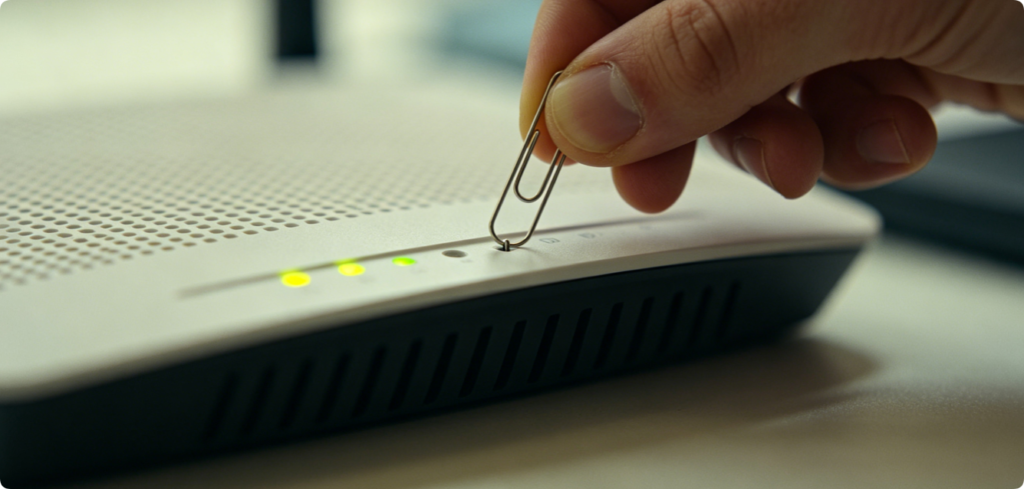
Insert the tool into the reset hole and press and hold the button continuously. Keep holding for 10 to 15 seconds. During this period, you will see the router indicator lights change rapidly, flash all at once or turn off temporarily. Do not release your hand ahead of time, or the factory reset will not take effect.
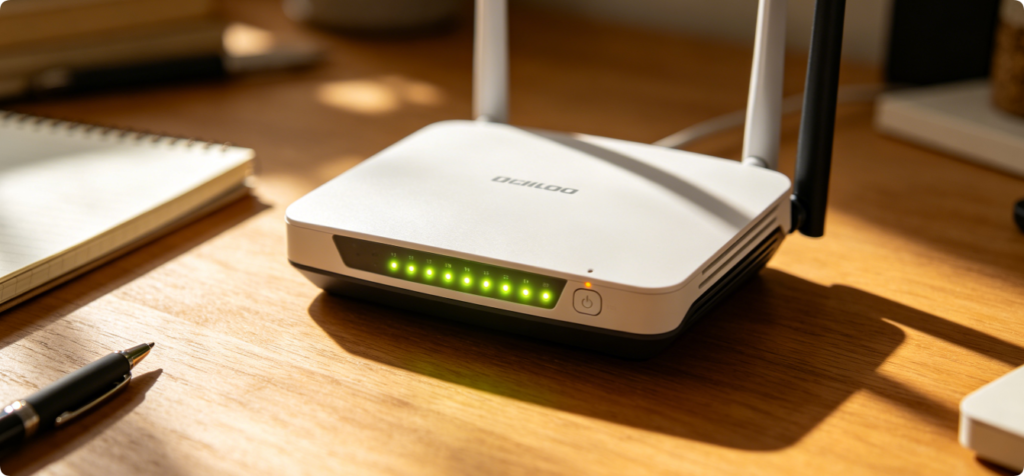
Release the tool after 15 seconds. The router will restart automatically. The whole reboot process takes about 3 minutes. When all lights return to normal, the factory reset is successfully completed. At this moment, all custom Wi-Fi names, passwords, port forwarding and admin passwords have been cleared, and the router is back to factory default status.
After factory reset, you have to reconfigure the router from scratch. Use the default IP and login credentials printed on the router label to enter the admin panel, set a new Wi-Fi name and strong password, and adjust other network settings. Remember to modify the default admin password in time to avoid potential network security risks.
Conclusion
Soft reset and factory reset serve completely different purposes. Use soft reset first to fix minor network glitches, as it keeps all your settings safe. Only choose factory reset when serious faults occur or you need to fully erase data. Mastering these two basic operations can solve most common router problems easily. Follow the above steps carefully, and you can safely reset any mainstream home router by yourself.