Every TP-Link router comes with factory default IP address and admin login credentials. These details are essential for accessing the router admin panel to adjust Wi-Fi settings, manage connected devices, troubleshoot network errors or update firmware. Many new users struggle to locate the default IP, username and password, especially when the router label is hard to find or missing. This full guide will show you multiple simple methods to find TP-Link default login information, cover common default combinations, and share solutions for forgotten custom passwords.
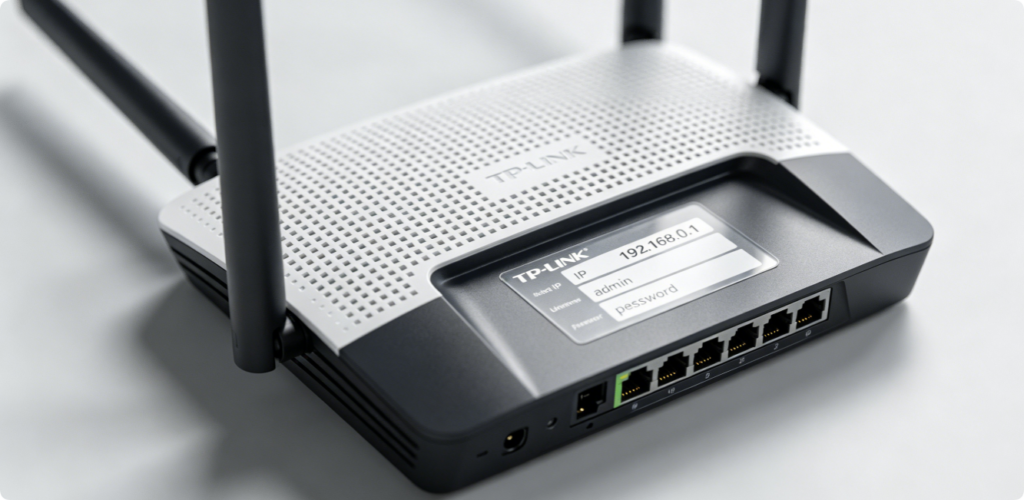
The most straightforward way to get default credentials is checking the physical label on your TP-Link router. Most models place the sticker on the bottom panel, while some put it on the back or side. This official label prints all factory information you need, including default gateway IP address, default admin username, default password and default Wi-Fi name. This is the most reliable source and works for all new and unmodified TP-Link routers.
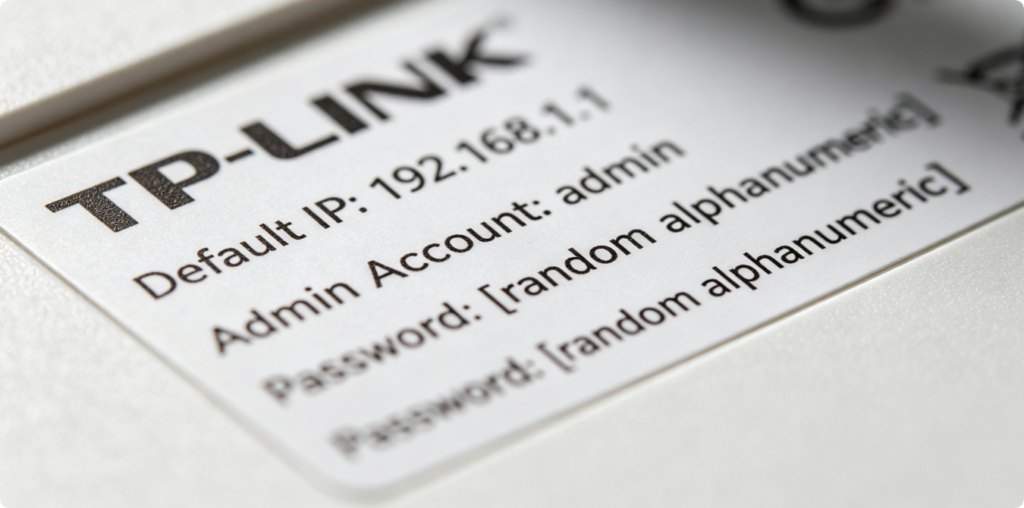
Take a close look at the text on the label. The most common default IP addresses for TP-Link devices are 192.168.1.1 and 192.168.0.1. For older classic models, the default username and password are both set to admin. For modern TP-Link routers, the manufacturer uses unique random passwords instead of universal default codes to improve network security. You must use the exact characters shown on the label to log in.
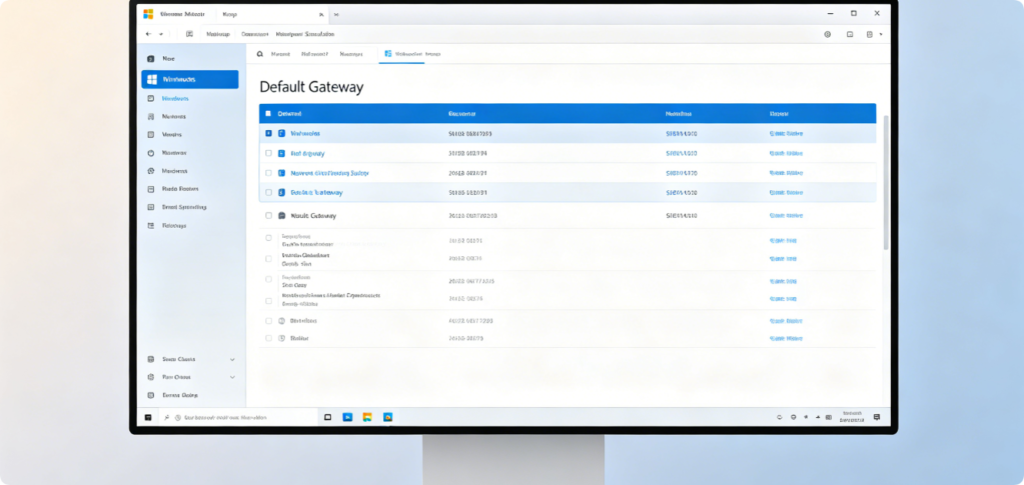
If the router label is damaged, faded or lost, you can check the default IP address on your Windows computer. First connect your PC to the TP-Link Wi-Fi or use an Ethernet cable. Open network settings, enter the details of the current network, and locate the Default Gateway field. The number here is your router’s correct access IP address. This method requires no extra tools and works for all TP-Link router series.
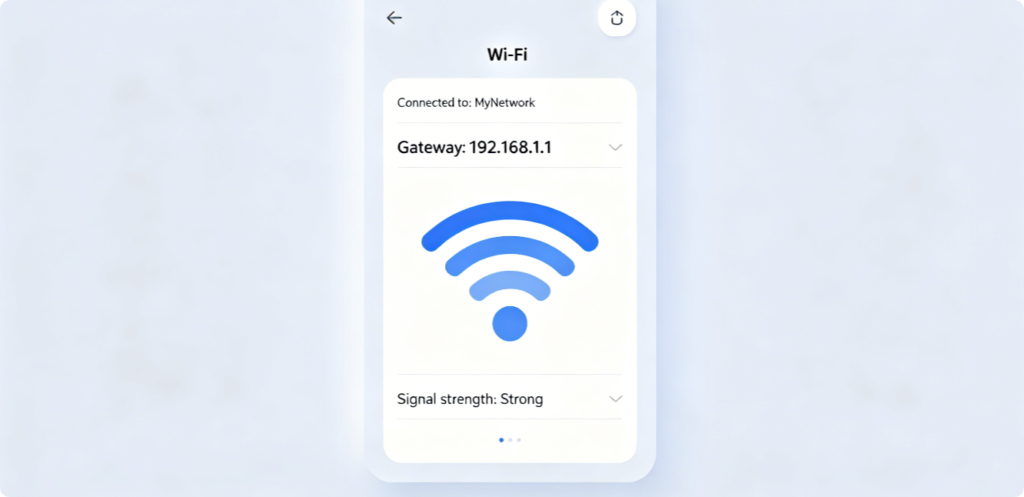
Mobile users can also find the router IP easily. After connecting your phone to the TP-Link network, go to system Settings > Wi-Fi. Tap the connected network to view full details. Look for options named Gateway, Router or IP address. The value provided here is the default login IP. The operation steps are similar on Android and iPhone, which is very convenient for users who do not have a computer at hand.
[Image 6: Official TP-Link Web Address tplinkwifi.net]
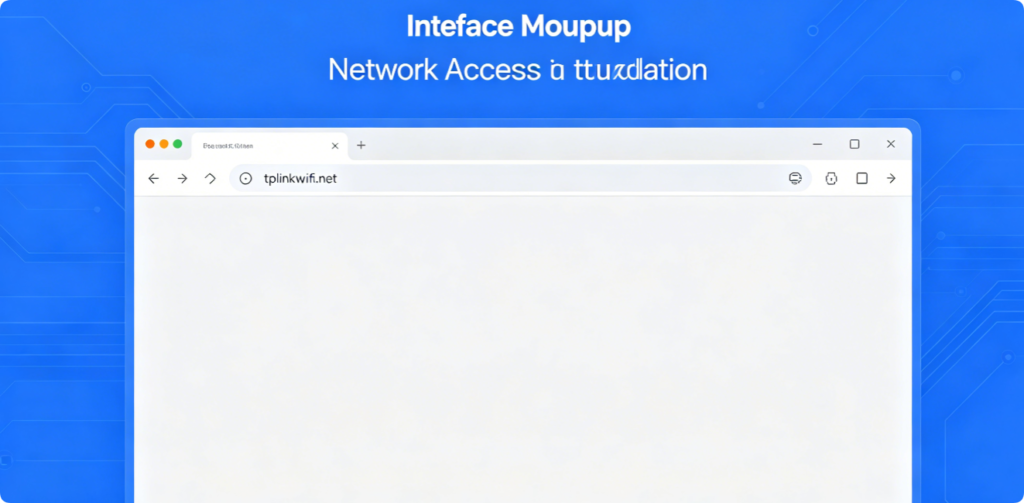
Besides numeric IP addresses, TP-Link provides an official domain for login: tplinkwifi.net. Open any web browser and enter this address directly into the address bar. The domain will automatically detect your router and redirect you to the official login page. It is a user-friendly alternative and recommended for beginners, as you do not need to remember long numbers.
After visiting the IP address or tplinkwifi.net, you will land on the TP-Link login page. Input the default username and password you found from the router label or official documents. Remember that passwords are case-sensitive. Double-check every character to avoid login failure caused by typos.
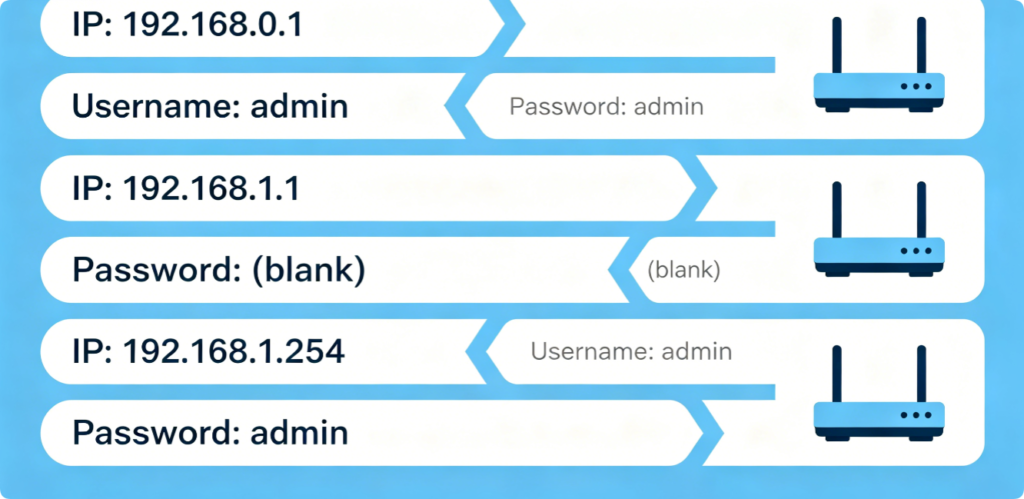
Here are the most widely used default login combinations for TP-Link routers for your reference:
- Default IP: 192.168.1.1 / 192.168.0.1
- Old models: Username: admin | Password: admin
- New models: Random exclusive password printed on the router label
These combinations apply to Archer series, basic home routers, Wi-Fi extenders and most TP-Link networking devices.
If you have changed the default admin password and completely forgotten it, the only solution is to restore factory defaults. Locate the small reset pinhole on the router. Use a paper clip or pin to press and hold the reset button for 10 to 15 seconds until all lights flash. After rebooting, all settings will return to factory status, including the original default IP and login credentials.

Using factory default credentials poses security risks. Strangers within Wi-Fi range may try to access your admin panel with public default accounts. It is strongly suggested to log in and change your admin password to a complex combination of letters, numbers and symbols immediately after setup. Regular password updates can effectively protect your home network from unauthorized access.
Conclusion
Finding TP-Link default IP and admin password is not difficult. You can check the physical router label, query gateway address on connected devices, or use the official domain tplinkwifi.net to access the login page. For forgotten custom passwords, factory reset will restore all default credentials. Always keep your login information safe and update your admin password regularly to maintain a secure network environment. With this guide, you can locate TP-Link admin credentials and manage your router freely.