Almost every brand-new home router comes with factory default SSID (Wi-Fi network name) and default Wi-Fi password set by manufacturers. Most default credentials are public, predictable, or printed publicly on router body labels, putting your home network at high risk of Wi-Fi hacking, unauthorized connection, bandwidth theft and private data leakage.
Modifying default router SSID and Wi-Fi password is the easiest, free and most effective network security measure for beginners. This universal guide works for TP-Link, Asus, D-Link, Netgear and all mainstream home wireless routers. No advanced tech skills are required, and you can finish all settings within 5 minutes.
1: Article Cover Banner
2: Risk of Using Default Router Wi-Fi Credentials
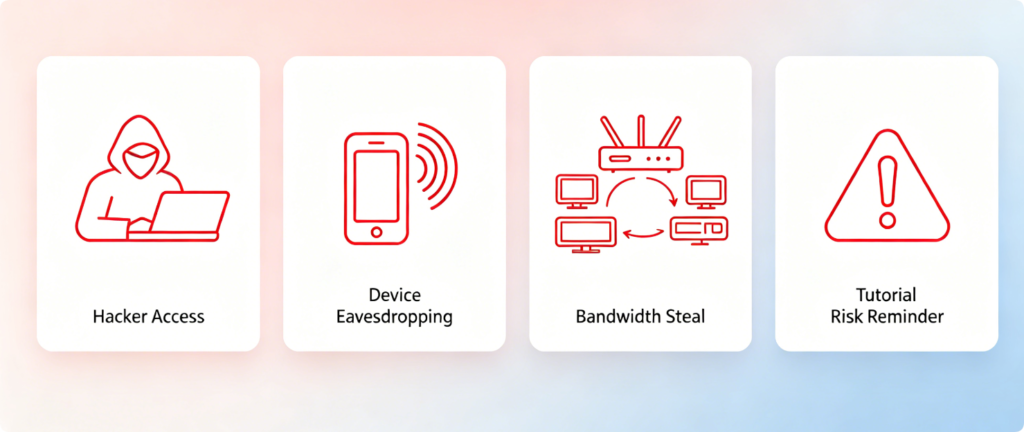
Keeping factory default SSID and Wi-Fi password brings hidden network dangers. Default SSID usually contains public brand model information, such as TP-Link_2.4G, WiFi_DLink. Experienced intruders can match universal default passwords to connect your network easily. Uninvited guests will occupy your internet bandwidth, access shared local files, and monitor your daily network behaviors without permission.
3: Connect Device to Local Router Network
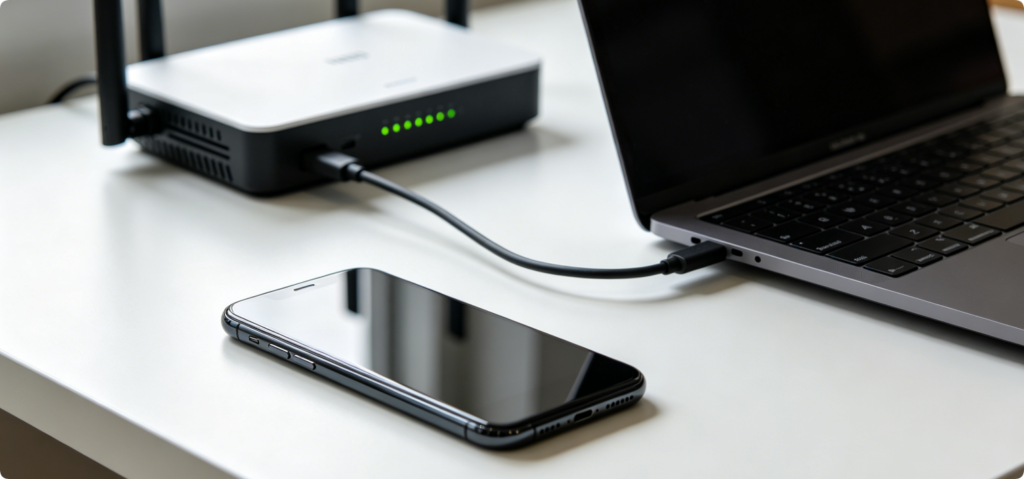
Before changing wireless credentials, connect your smartphone, laptop or tablet to the target router’s local network. You can choose wireless Wi-Fi connection or wired Ethernet connection. Note that you cannot log in the router backend and edit Wi-Fi settings via mobile cellular data or other external Wi-Fi networks.
4: Find Router Default Admin Login Info
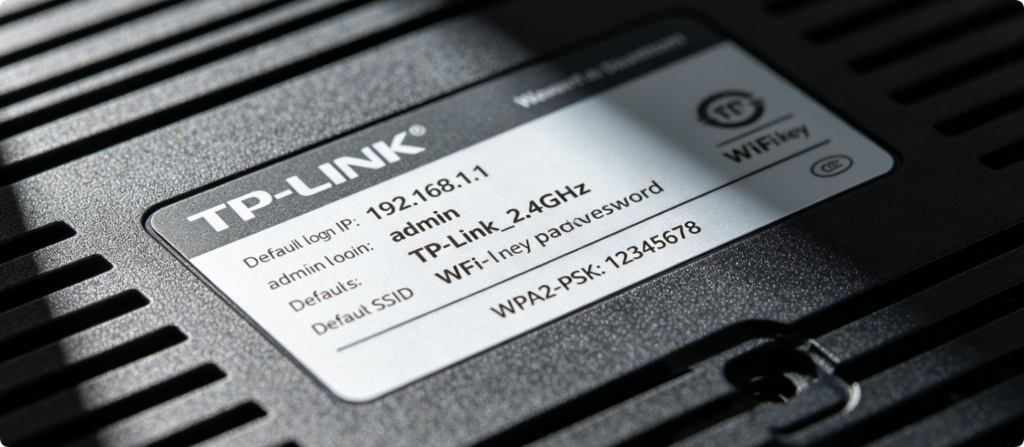
Check the sticker attached on the bottom or back side of your router. The label marks all factory data: default gateway IP, router admin password, original default SSID and default wireless password. Save these details for backend login, especially if you have never modified router admin settings before.
5: Access Router Admin Login Page
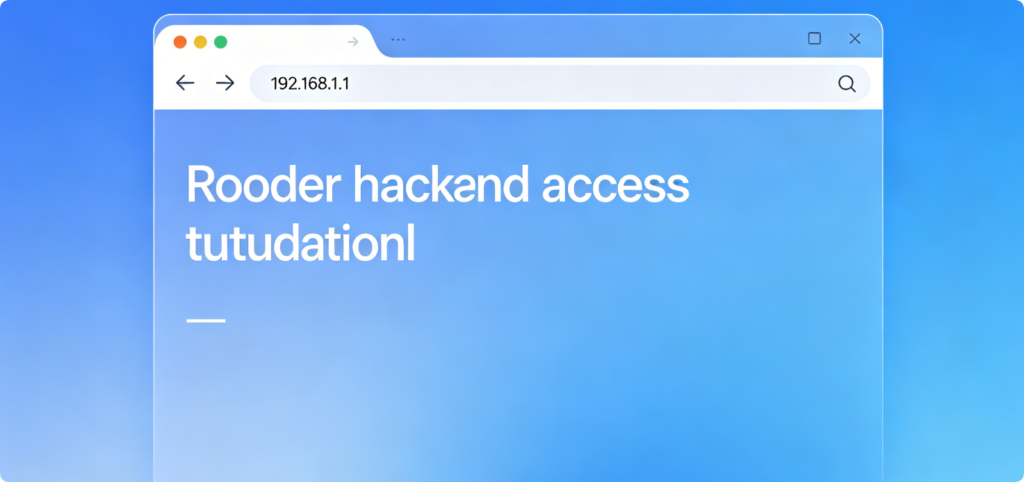
Open any mainstream browser including Chrome, Edge, Firefox or Safari. Input the official router domain or default IP address such as tplinkwifi.net, 192.168.1.1 or 192.168.0.1 on the top URL bar. Press Enter to load the official router admin login page directly.
6: Log Into Router Admin Dashboard
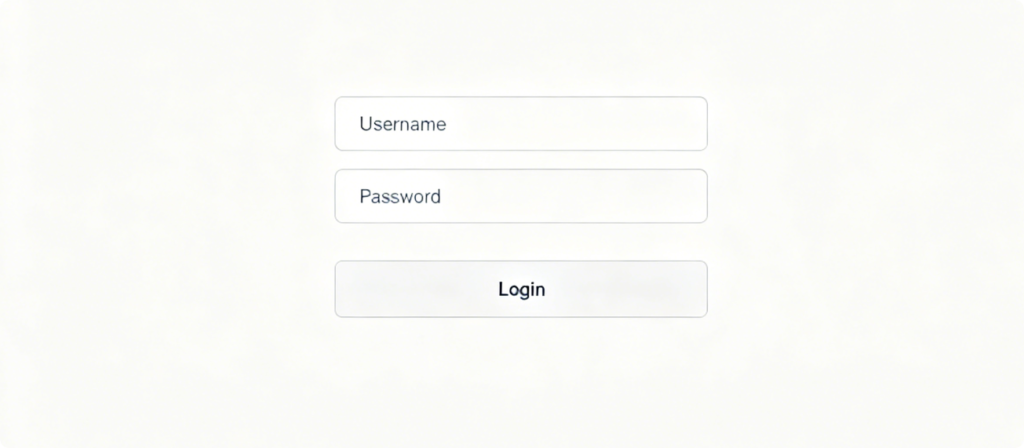
Input your router admin username and password to enter the control dashboard. If you customized the admin password before, use your new password instead of factory default data. Once logged in, you can edit all wireless network related configurations freely.
7: Locate Wireless Wi-Fi Setting Page
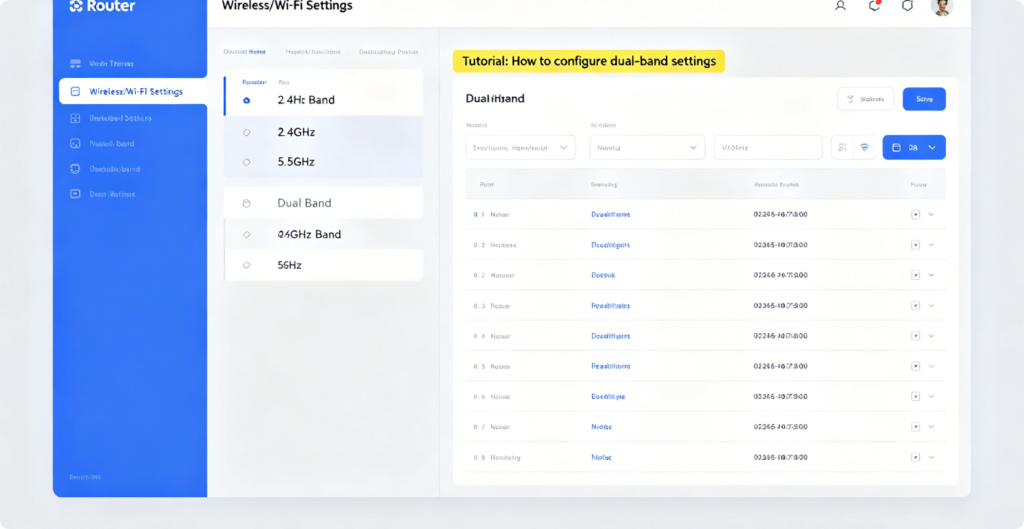
Navigate to the Wireless Settings,Wi-Fi Configuration or Network Settings tab on the left sidebar. All modern dual-band routers separate 2.4GHz and 5GHz wireless settings. You can edit two bands separately or combine them into one unified Wi-Fi network.
8: Edit Custom Secure SSID Name
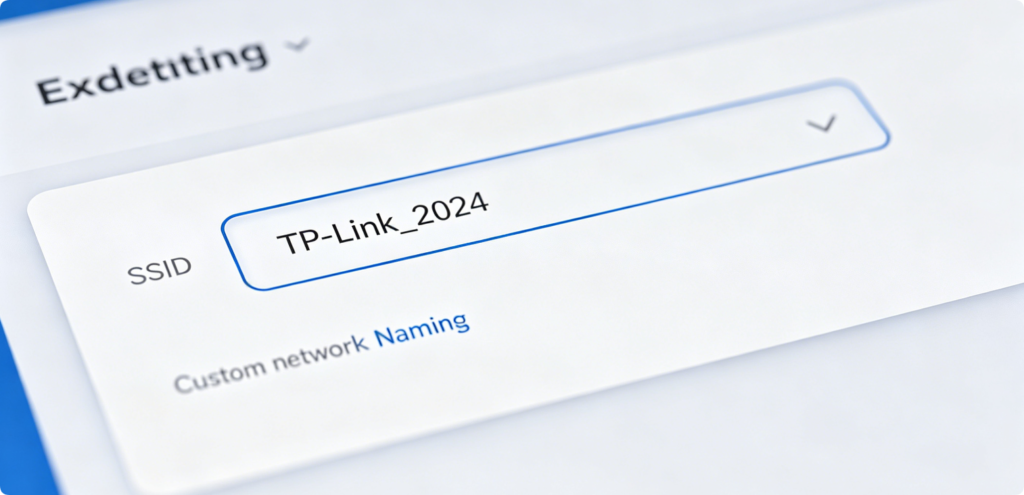
Delete the original factory default SSID completely. Create a private custom Wi-Fi name for security optimization. Security Naming Rules: Do not include your real name, house number, phone number or personal identity info. Avoid obvious brand keywords. Use simple random letters or neutral words to hide your router model.
9: Set Encrypted Strong Wi-Fi Password
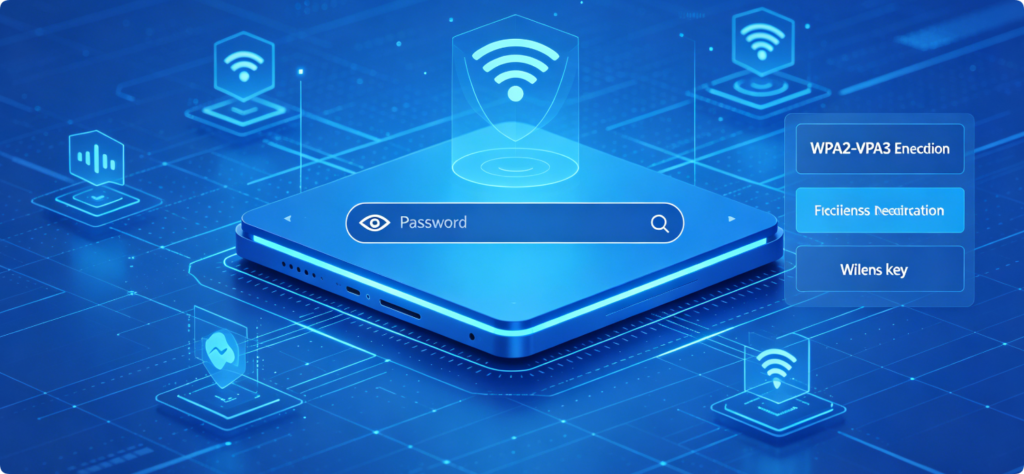
Erase the original default Wi-Fi password, and create a high-security wireless key. Always select WPA2-PSK or WPA3-PSK encryption mode, abandon outdated WEP encryption. A qualified secure password contains uppercase letters, lowercase letters, numbers and special symbols, longer than 12 digits. Never use sequential numbers or birthday combinations.
10: Save New Wireless Configuration
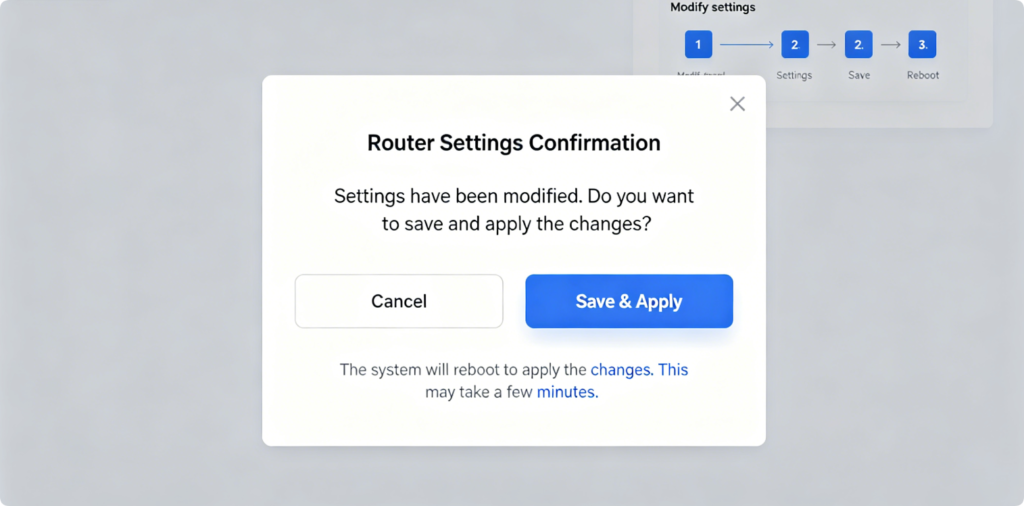
Double-check your new SSID and Wi-Fi password to avoid spelling errors. Click Save, Apply or Confirm button to activate new network settings. The router will refresh wireless network automatically, and the old default Wi-Fi connection will disconnect instantly.
11: Final Security Check Tips
After modification, reconnect all your smart devices to the new private Wi-Fi. Extra security tips: Do not share your Wi-Fi password publicly, turn off unused WPS function, update router firmware regularly, and change Wi-Fi password every 3 to 6 months to lower network intrusion risks.
Conclusion
Changing default router SSID and Wi-Fi password is the first and essential step for home network security. Default wireless credentials are the biggest security loophole for household internet. By accessing the router admin panel, hiding brand-related SSID, setting complex encrypted Wi-Fi password, you can block unknown access, prevent network theft, and protect personal browsing data safely. This universal method fits all home router brands for long-term stable and private internet use.