Internet connection mode configuration is the core basic setting of all TP-Link home routers. Improper internet type selection will cause no internet access, frequent offline disconnection, or IP conflict errors. All TP-Link wired and wireless routers support three mainstream connection protocols: PPPoE, DHCP Dynamic IP, and Static IP.
This beginner-friendly complete guide explains the definition, applicable scenarios, and step-by-step setup of three internet modes. It fits all TP-Link Archer dual-band routers, entry-level home routers and wall-mounted Wi-Fi devices. Users can select the correct network type based on ISP broadband service without professional network knowledge.
1: Article Cover Banner
2: Three Internet Connection Modes Overview
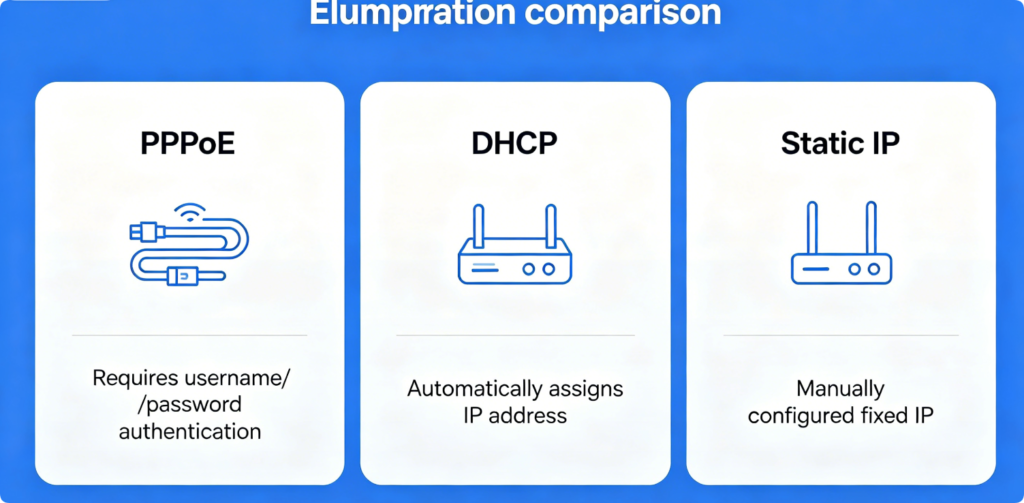
Before configuration, learn the applicable scenarios of the three core TP-Link internet modes to avoid wrong setup. PPPoE is the most common mode for household fiber broadband, requiring independent account and password login. DHCP Dynamic IP obtains network address automatically, mostly used for secondary router access and apartment broadband. Static IP is a fixed exclusive IP provided by ISP, widely used for office networking, port forwarding and remote monitoring.
3: Pre-Configuration Network Preparation
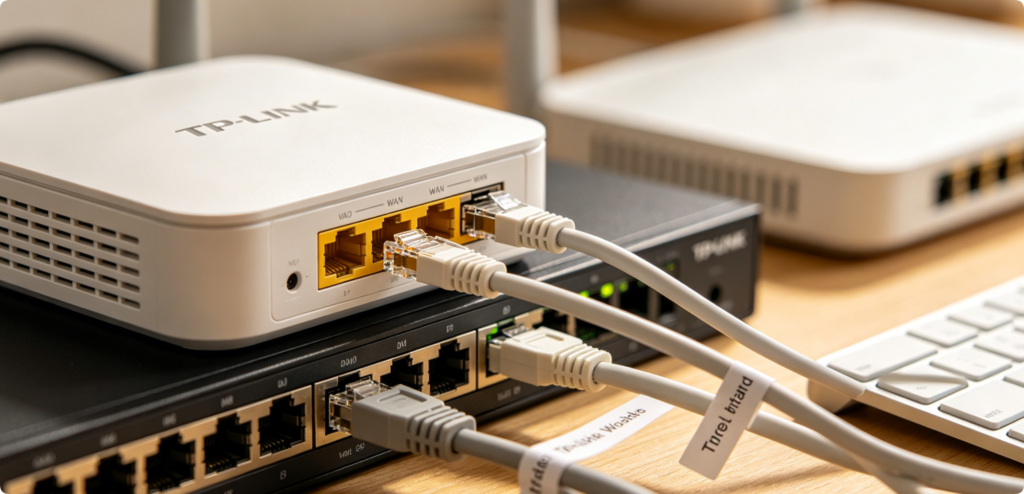
Finish physical wiring before modifying internet parameters. Connect the optical modem or cable modem LAN port to TP-Link router WAN port via intact Cat6 Ethernet cable. Power on both devices and wait for steady indicator lights. Connect your laptop or smartphone to TP-Link Wi-Fi or LAN wired port to log into the admin panel smoothly.
4: Access TP-Link Official Admin Page
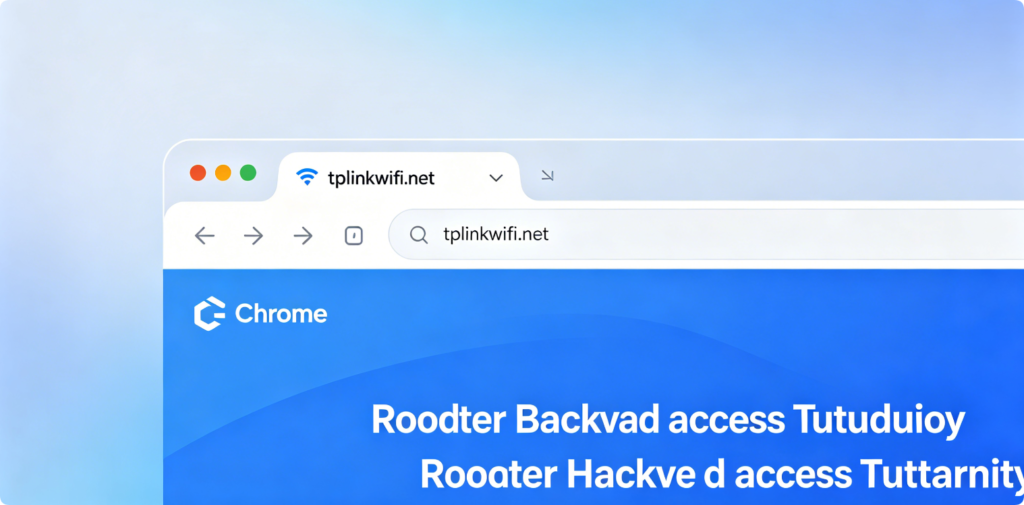
Open any mainstream browser on your connected device. Enter official login domain tplinkwifi.net or default gateway IP 192.168.1.1 in the top URL bar. Enter your custom admin password or default label password to enter the TP-Link main dashboard officially.
5: WAN Internet Settings Entry Page
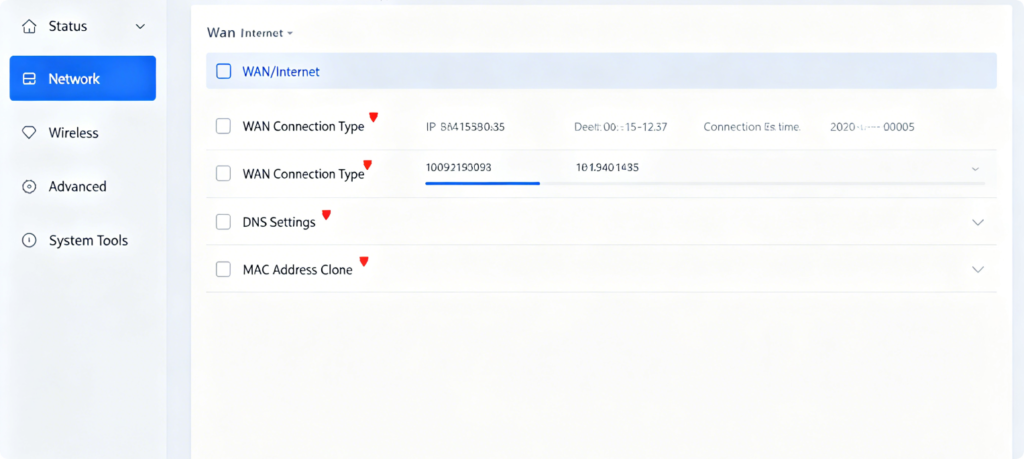
On the left sidebar menu, find and click Internet or WAN Settings. This page is the core configuration area for all internet access modes. The system will display a default connection mode, you can switch PPPoE, DHCP or Static IP manually according to your ISP broadband notice.
6: Step-by-Step PPPoE Configuration
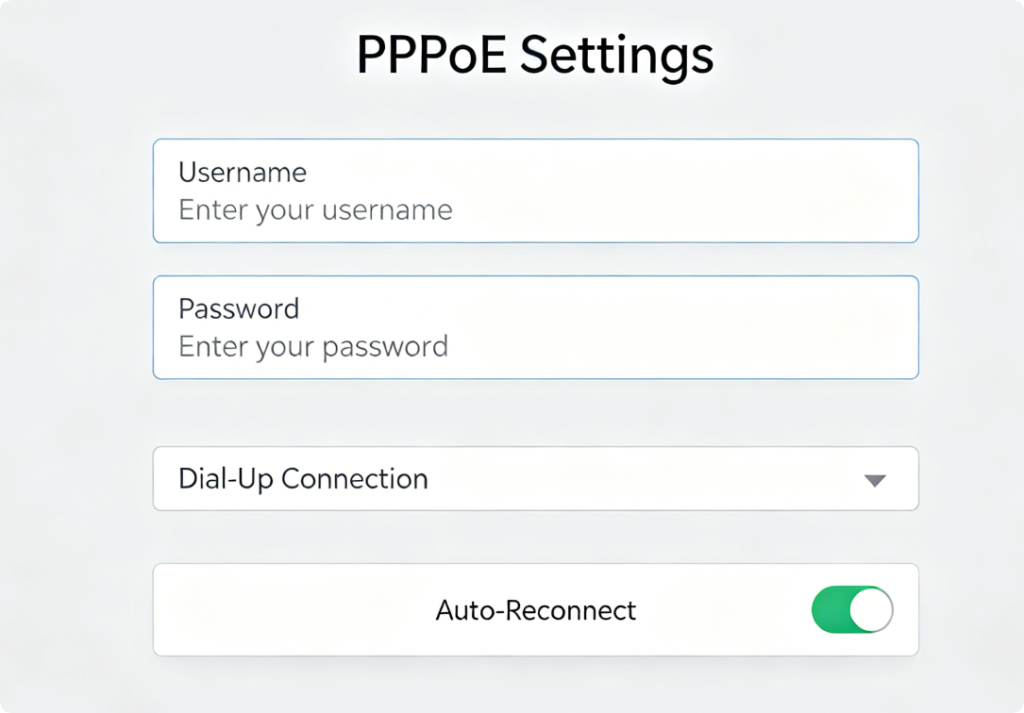
PPPoE is the default mode for most home fiber broadband. Select PPPoE from the drop-down connection list. Fill in the broadband PPPoE username and password provided directly by your internet operator. Turn on the Auto Reconnect function to avoid manual re-dial after power outage. Click save, and the router will dial automatically to access internet.
7: DHCP Dynamic IP Auto Setup Guide
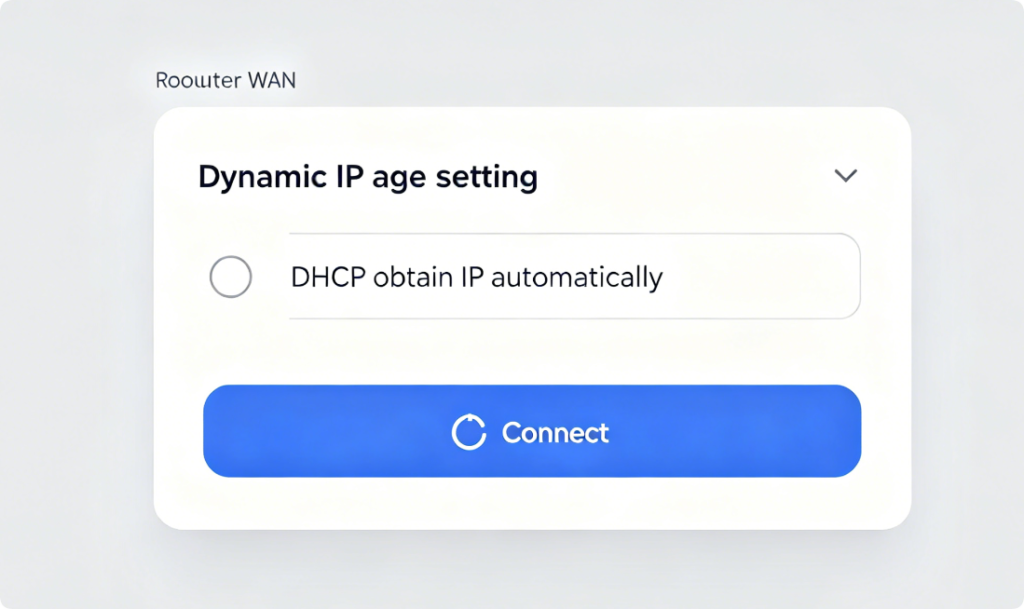
Choose DHCP (Dynamic IP) for automatic IP acquisition. This mode needs no account, password or manual IP filling. After selecting DHCP, simply click save. The router will automatically receive IP address, gateway and DNS data from the upper modem or main router. It is the simplest mode for secondary router networking and community shared broadband.
8: Static IP Manual Parameter Configuration
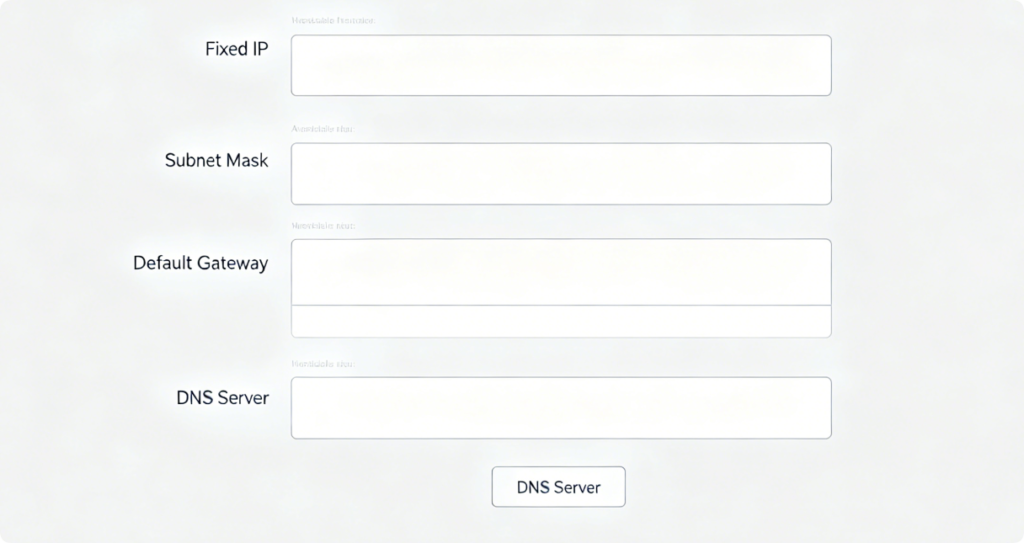
Select Static IP for enterprise, office or customized network use. You must fill in all fixed network data issued by ISP manually, including Fixed WAN IP Address, Subnet Mask, Default Gateway and Preferred DNS Server. Wrong DNS or gateway numbers will cause network connected but no internet. Double-check all digits before saving changes.
9: Edit Built-In Router DHCP Server
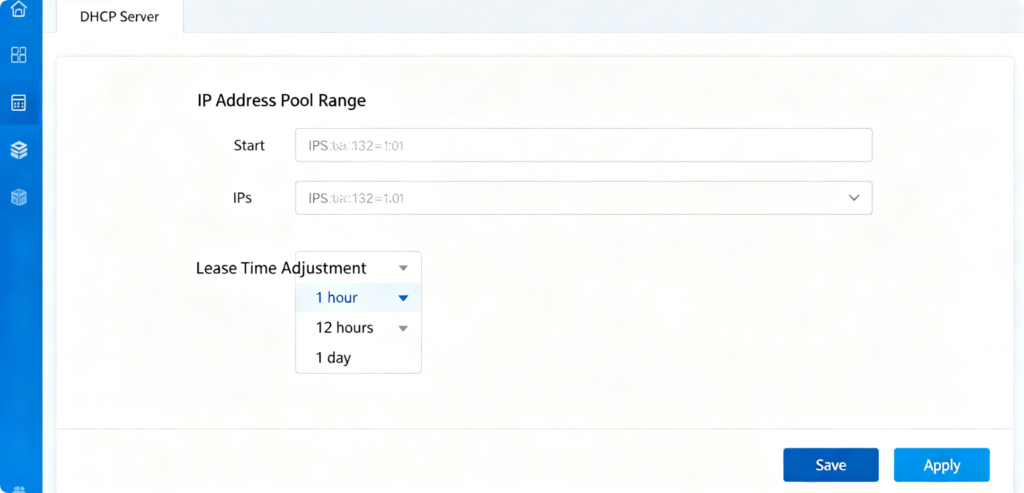
Except WAN internet mode, the built-in local DHCP server is another basic setting. Enter DHCP Server page to modify local IP allocation range, adjust device online lease time. Keep DHCP server enabled for home use; disable it when setting up secondary router to prevent LAN IP conflict and network crash.
10: WAN Connection Status Check Page
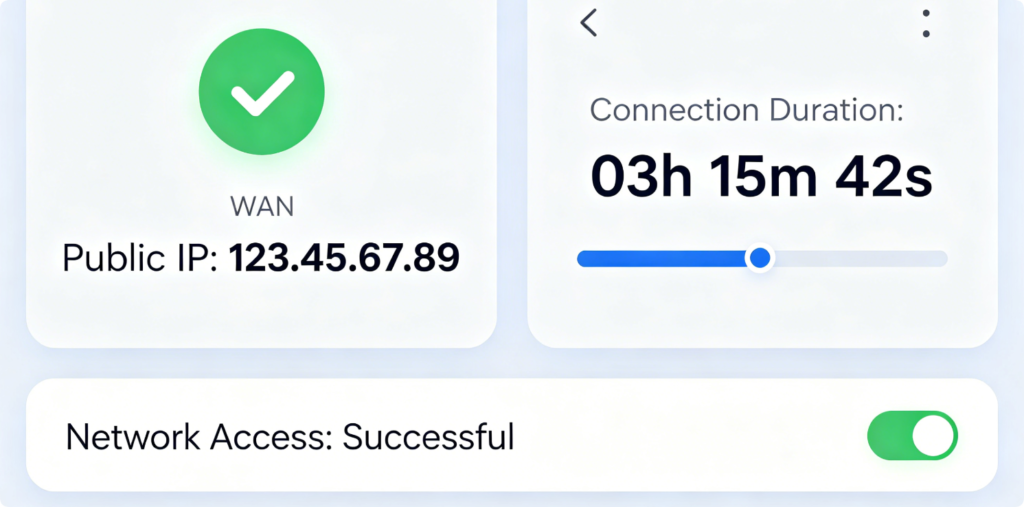
After finishing mode configuration, back to the homepage status board. Check WAN connection status: Connected means setup succeeds. Disconnected means account error, IP conflict or wrong wiring. Switch connection mode again or contact your ISP to confirm correct broadband internet type.
11: Common Connection Troubleshooting
Common basic setting errors and fixes:
PPPoE dial failure = wrong broadband account password or bound MAC address;
DHCP no IP = upper main router DHCP disabled;
Static IP offline = mismatched DNS parameters. Clear browser cache and reboot router to apply all modified network settings effectively.
Conclusion
Mastering PPPoE, DHCP and Static IP three basic TP-Link settings solves 90% home internet access problems. Choose PPPoE for independent household fiber broadband, DHCP for automatic secondary networking, Static IP for fixed-IP office network use. Match correct internet type, fill in standard network parameters, and manage local DHCP server reasonably to keep TP-Link router stable, high-speed and error-free for long-term daily use.