Setting up a brand-new home router is confusing for beginner network users. Missing key setup steps will cause slow Wi-Fi, random disconnections, unknown device access, network security risks and unusable broadband access. Most generic guides skip essential beginner settings, leaving hidden network flaws.
This organized, step-by-step router configuration checklist covers every mandatory basic setting for all mainstream home routers, including TP-Link, Netgear, Asus, D-Link. Beginners can follow this checklist one by one without advanced networking knowledge, finish full setup, and build a fast, stable, safe home network easily.
Pre-Setup Hardware Checklist
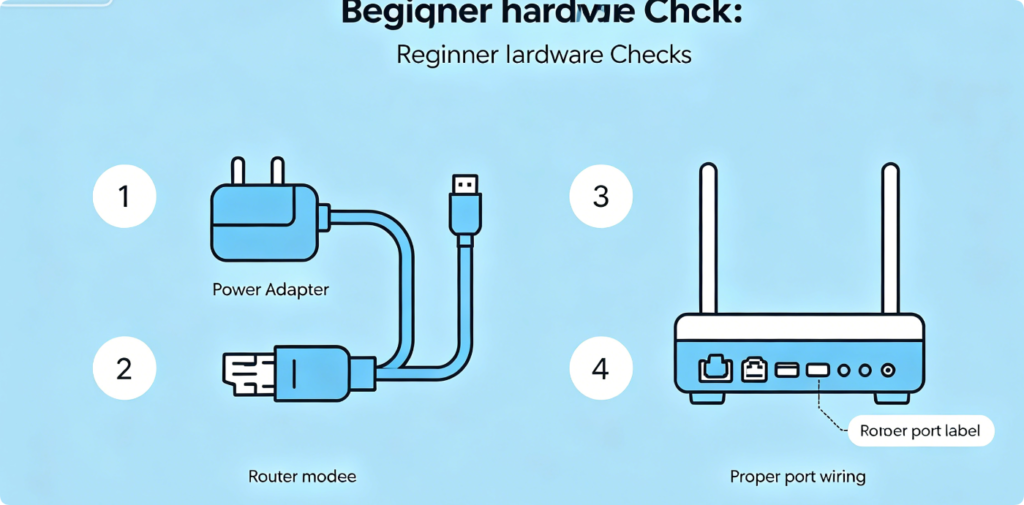
Checklist Part 1: Pre-Setup Hardware Preparation (Must Finish First)
1. Confirm intact power adapters for modem and router
2. Prepare Cat5e/Cat6 standard Ethernet cable for modem-to-router connection
3. Find router bottom label: default IP, admin password, default Wi-Fi credentials
4. Correct wiring: Modem LAN Port → Router WAN Port
5. Power on modem first, wait 2 minutes then power on router
Note: Wrong power-on sequence is the No.1 beginner setup mistake.
Checklist Part 2: Admin Panel Access Step
1. Connect phone/laptop to router default Wi-Fi or LAN wired port
2. Open Chrome, Edge or Safari browser only
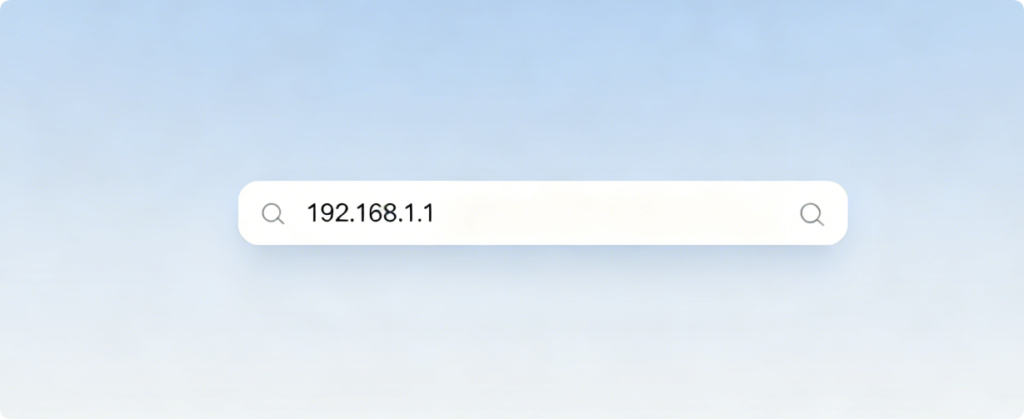
3. Enter official router domain or default IP: 192.168.1.1 / 192.168.0.1 / brand official web address
4. Log in with factory default admin password on router sticker
Pro Tip: Do not search the IP on Google, input it directly in the address bar.
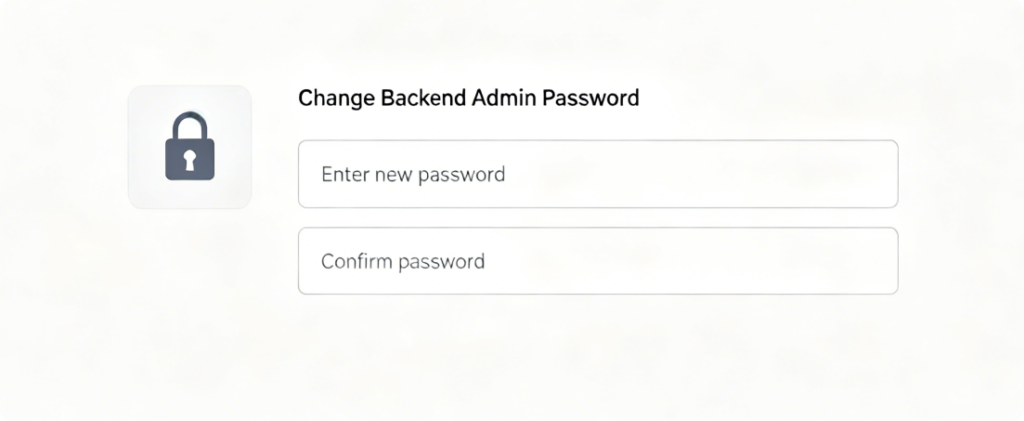
Checklist Part 3: Priority Security Setting (First Login Operation)
1. Locate System / Admin / Management password setting page
2. Replace default factory admin password with a custom complex password
3. Create password combining letters, numbers and symbols
4. Save new admin password and write it down for future login
Why: Default admin password allows anyone on Wi-Fi to change your router settings freely.
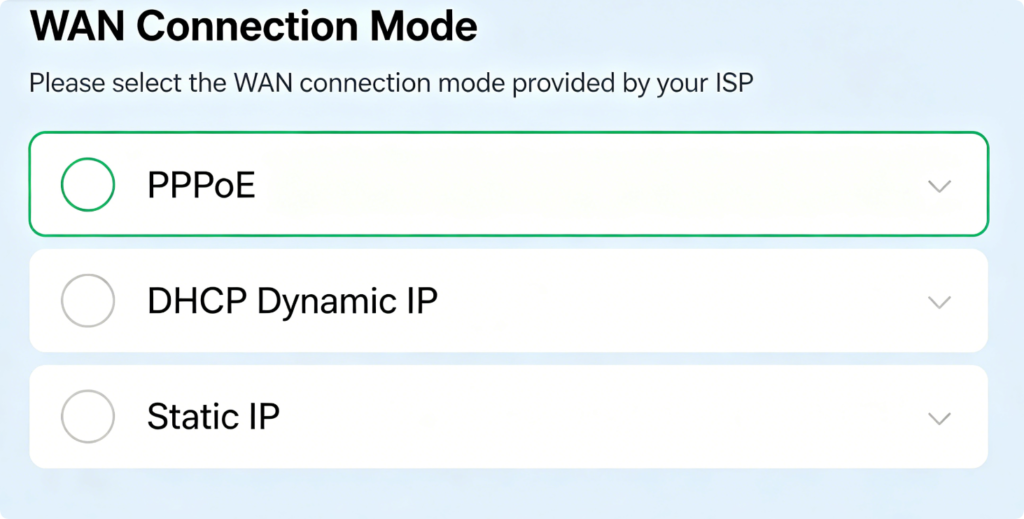
Checklist Part 4: Internet WAN Configuration Core Step
1. Enter WAN/Internet setting menu on router dashboard
2. Choose matched internet type provided by ISP:
– Home fiber broadband: Choose PPPoE, input broadband account + password
– Apartment shared network: Choose DHCP Dynamic IP, auto obtain network
– Office fixed network: Choose Static IP, fill ISP official IP parameters
3. Enable auto-reconnect function to avoid offline after power failure
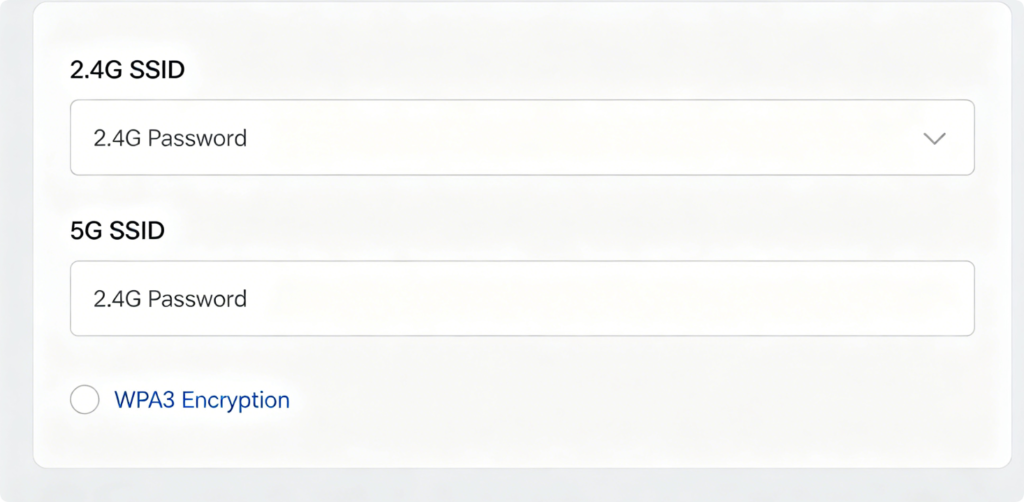
Checklist Part 5: Wireless Wi-Fi Custom Setup
1. Enter Wireless / Wi-Fi Settings page
2. Delete original default brand Wi-Fi name (SSID)
3. Set private SSID without personal name, house number or phone info
4. Set strong Wi-Fi password, turn on WPA2/WPA3 mixed encryption mode
5. Optional: Merge 2.4G and 5G Wi-Fi into one unified network name
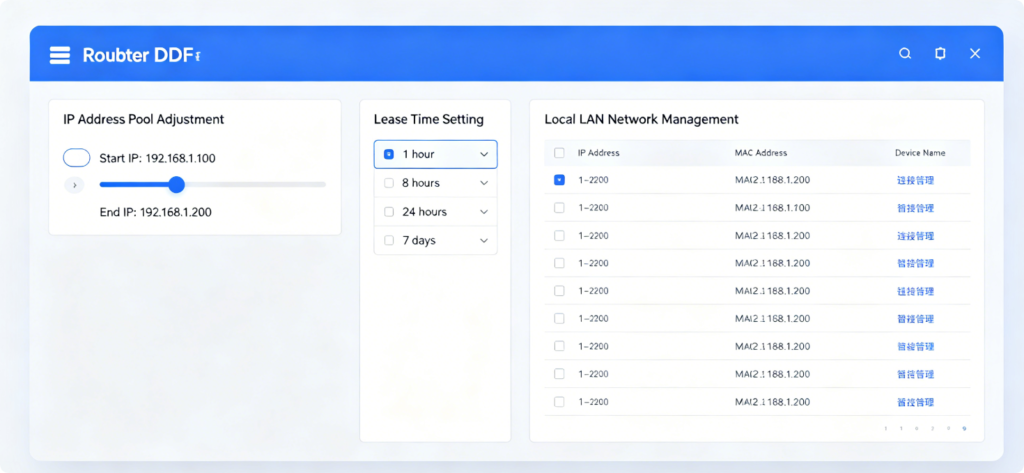
Checklist Part 6: LAN DHCP Optimization Setting
1. Find DHCP Server menu on router backend
2. Keep DHCP Server enabled for regular home use
3. Adjust IP address pool to avoid device IP conflict
4. Keep default lease time, no modification needed for beginners
5. Disable DHCP only when setting up a secondary slave router
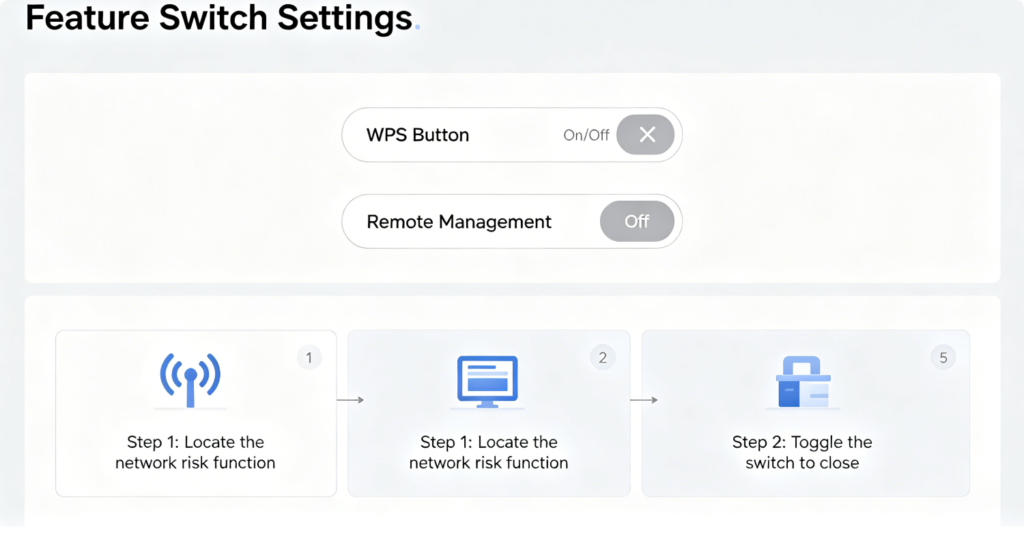
Checklist Part 7: Turn Off Unsafe Built-In Functions
1. Disable WPS function: easy password cracking loophole
2. Disable Remote Admin / Remote Management access
3. Close UPnP if you do not use game port forwarding
4. Turn off guest network if no temporary visitor Wi-Fi needed
Checklist Part 8: Access Device Permission Control
1. Bookmark connected device management page
2. Check all online devices regularly
3. Block unknown unfamiliar devices instantly
4. Enable device access blacklist function for long-term protection
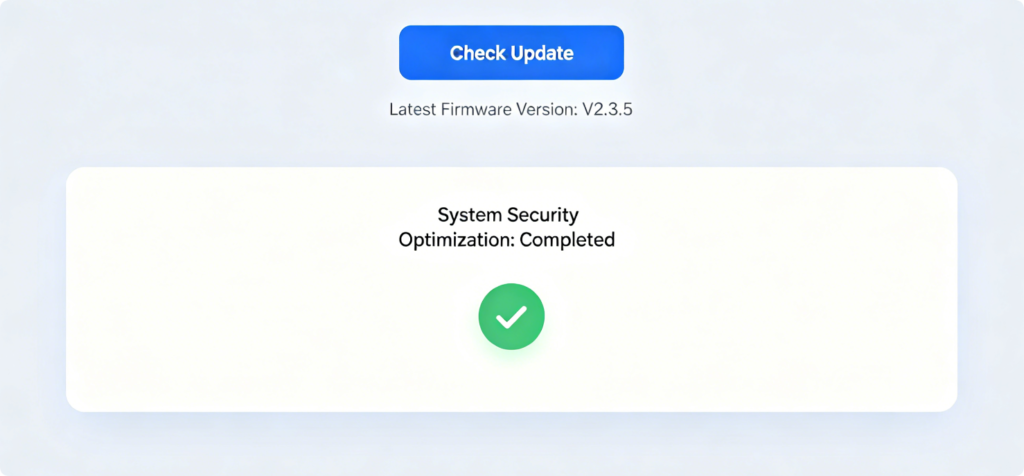
Checklist Part 9: System Maintenance & Upgrade
1. Enter System / Firmware Upgrade page
2. Click one-click online update to fix system vulnerabilities
3. Do not power off router during firmware updating
4. Backup all router settings to avoid repeated configuration later
Checklist Part 10: Final Full Confirm Check
✅ Internet access works normally on all wireless devices
✅ Both admin password and Wi-Fi password customized successfully
✅ No unknown devices connected to private Wi-Fi
✅ Risky network functions disabled completely
✅ Router indicator light keeps stable working status
Conclusion
This 10-part beginner router configuration checklist covers all non-negotiable basic settings for every home router. Beginners do not need to learn complex network theories, just follow every checklist item step by step. Standard hardware wiring, password modification, correct WAN mode selection, wireless encryption and system maintenance can eliminate 95% common home network failures. Save this checklist for new router installation or network reset, to build a fast, private and stable home network effortlessly.
Tags
Beginner Router Setup, Home Router Configuration Checklist, Basic Router Settings, Secure Home Wi-Fi Setup, New Router Full Setup, Router Beginner Guide, Router Security Checklist, Fix Common Home Network Issues, Universal Router Setup Steps, Home Network Optimization