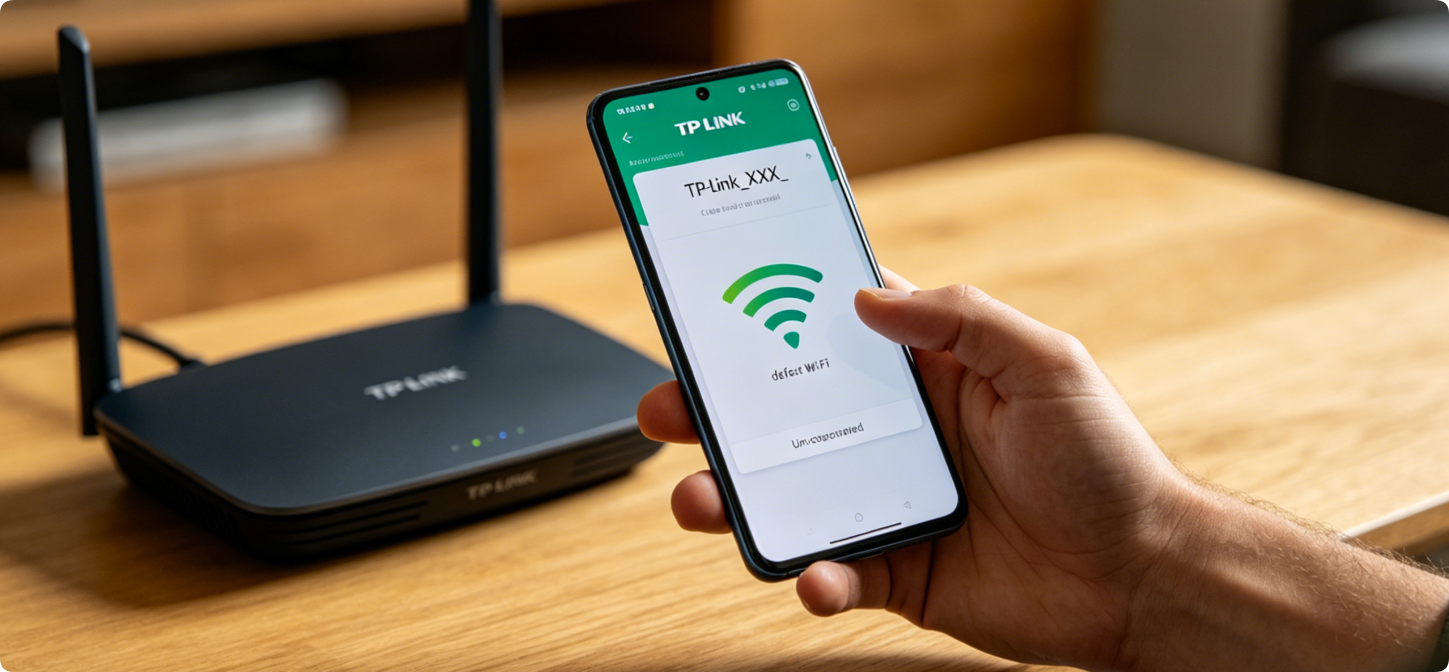
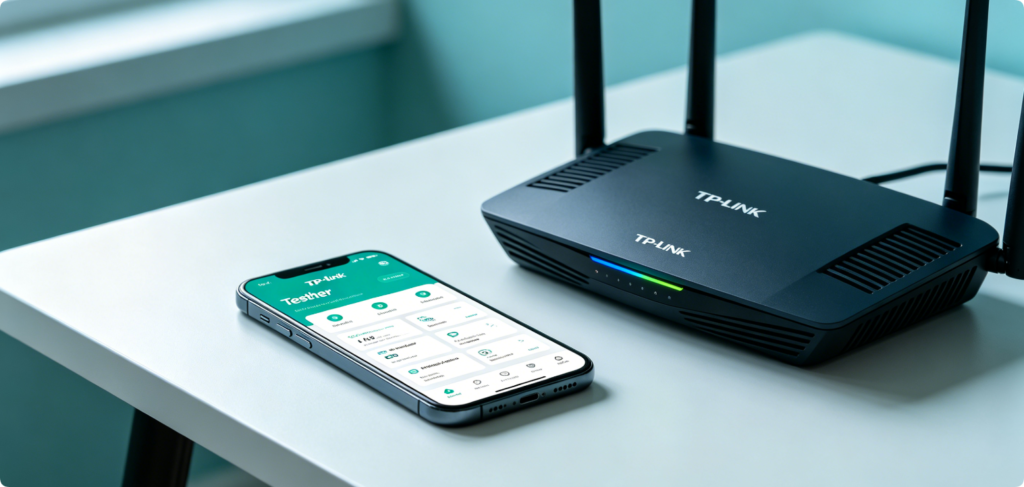
Traditional router configuration relies on computer browsers, which is inconvenient for users without laptops. TP-Link Tether is the official mobile application designed exclusively for all TP-Link wireless routers, Wi-Fi extenders and mesh networking devices. With this lightweight app, users can complete first-time router installation, adjust Wi-Fi parameters, monitor connected devices, modify admin credentials and even manage the router remotely from anywhere with internet access. This complete step-by-step tutorial covers every core function of the Tether app, suitable for newbies with zero network operation experience.
2: Download & Install TP-Link Tether App
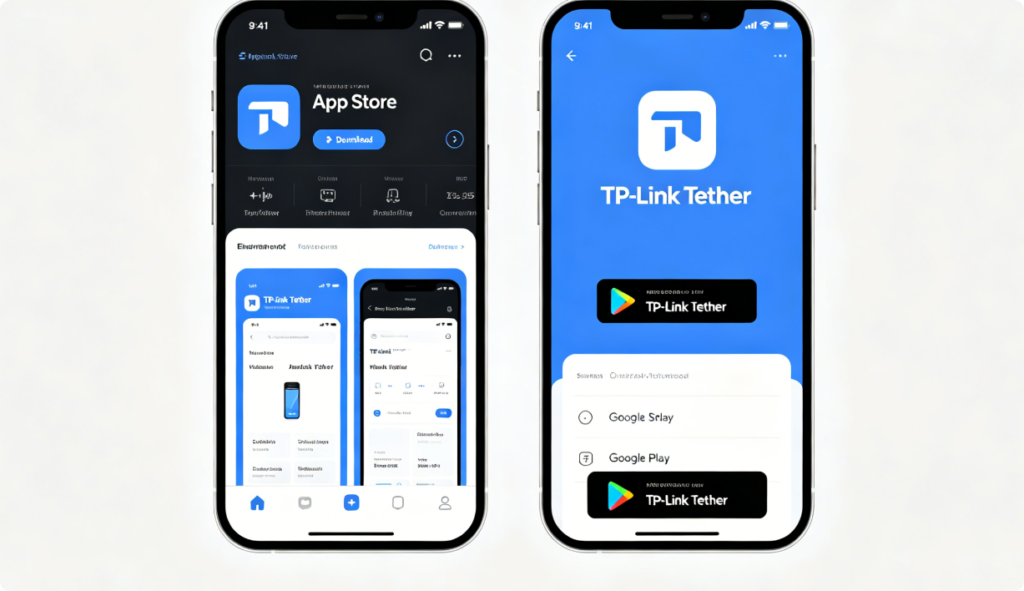
Before starting any router operation, download the official TP-Link Tether mobile app. Open Google Play for Android phones or App Store for iPhone, search the exact keyword “TP-Link Tether”, then tap Install to complete the download. Avoid third-party modified app versions to prevent account leakage and connection instability. After installation, enable local network and Bluetooth permissions when the app pops up permission requests.
3: Connect Phone to TP-Link Router Wi-Fi Signal
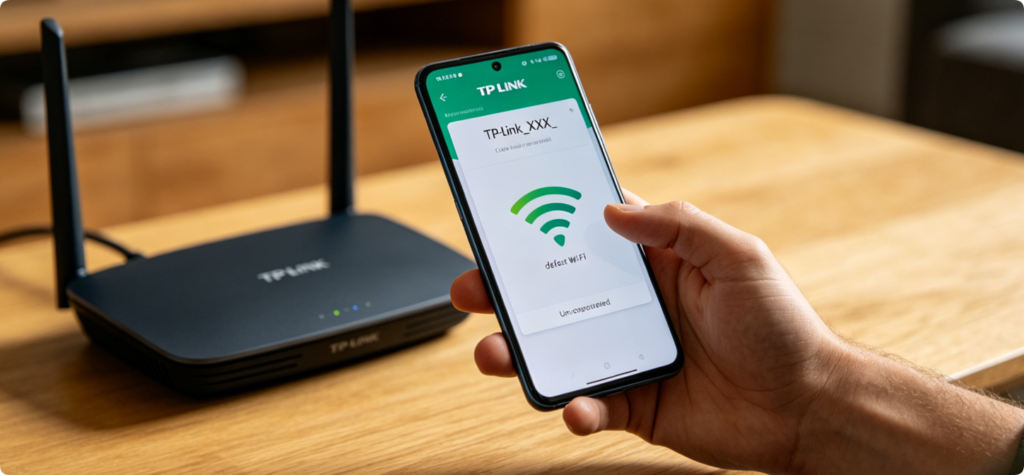
Turn on your TP-Link router and wait for the indicator lights to stabilize. Open the Wi-Fi list on your mobile phone and connect to the default wireless network printed on the router bottom label. Do not use cellular data during the setup process; the Tether app requires local LAN connection to identify and bind the router device successfully. Wired USB connection is not supported for mobile configuration.
4: Launch Tether App & Detect Unbound Router
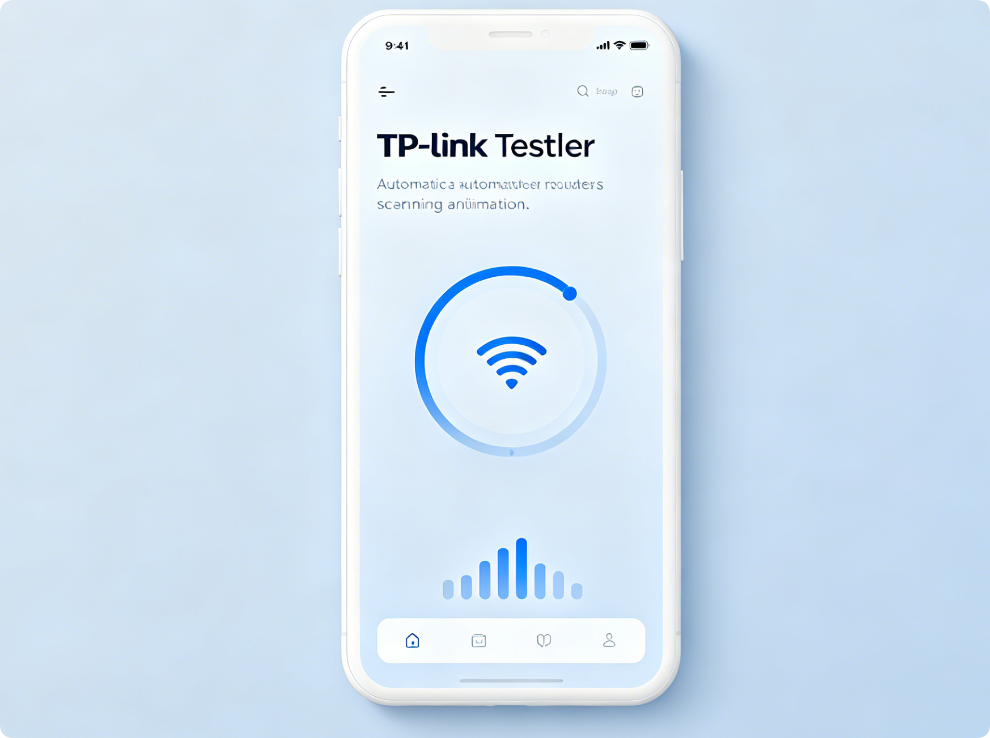
Open the Tether app you installed. The application will automatically scan all nearby TP-Link networking devices connected to the same Wi-Fi. After several seconds, your target router model will pop up on the device list. Tap the router name to enter the official quick setup wizard built inside the mobile app.
5: Complete Quick Setup Wizard via Tether App
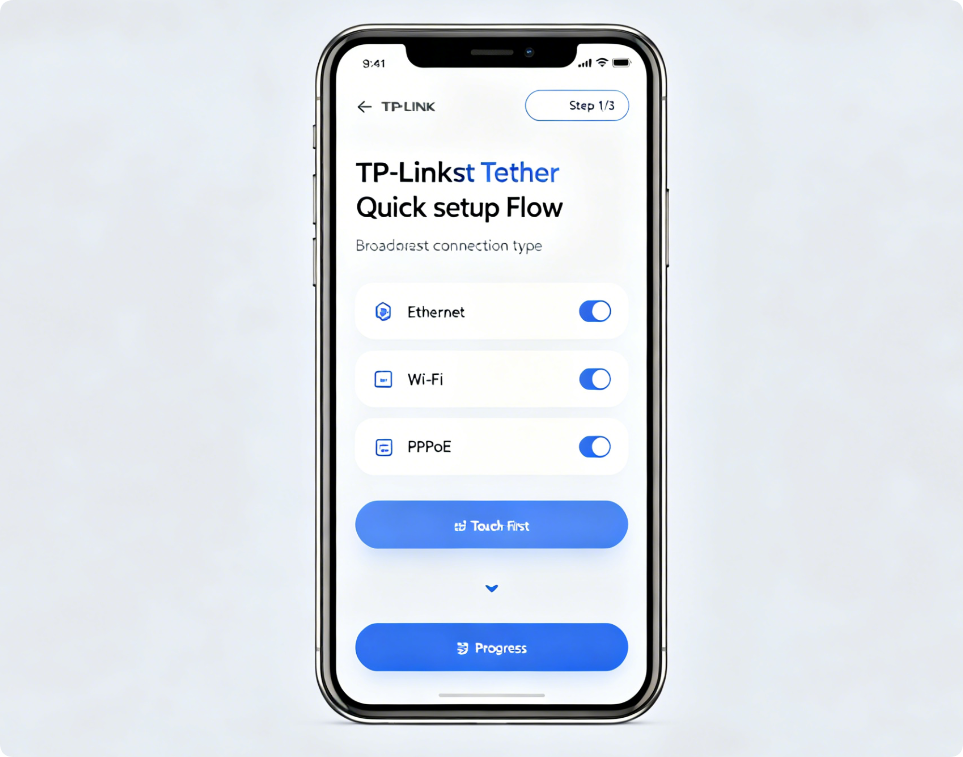
The Tether app’s quick setup wizard is identical to the web browser setup process, optimized for vertical mobile screens. First, select your internet connection mode: PPPoE for household fiber broadband, DHCP Dynamic IP for secondary routing, Static IP for fixed corporate network. Fill in the broadband account and password provided by your ISP if PPPoE mode is required, then tap Next to proceed.
6: Customize 2.4GHz & 5GHz Wi-Fi Name and Password in Tether
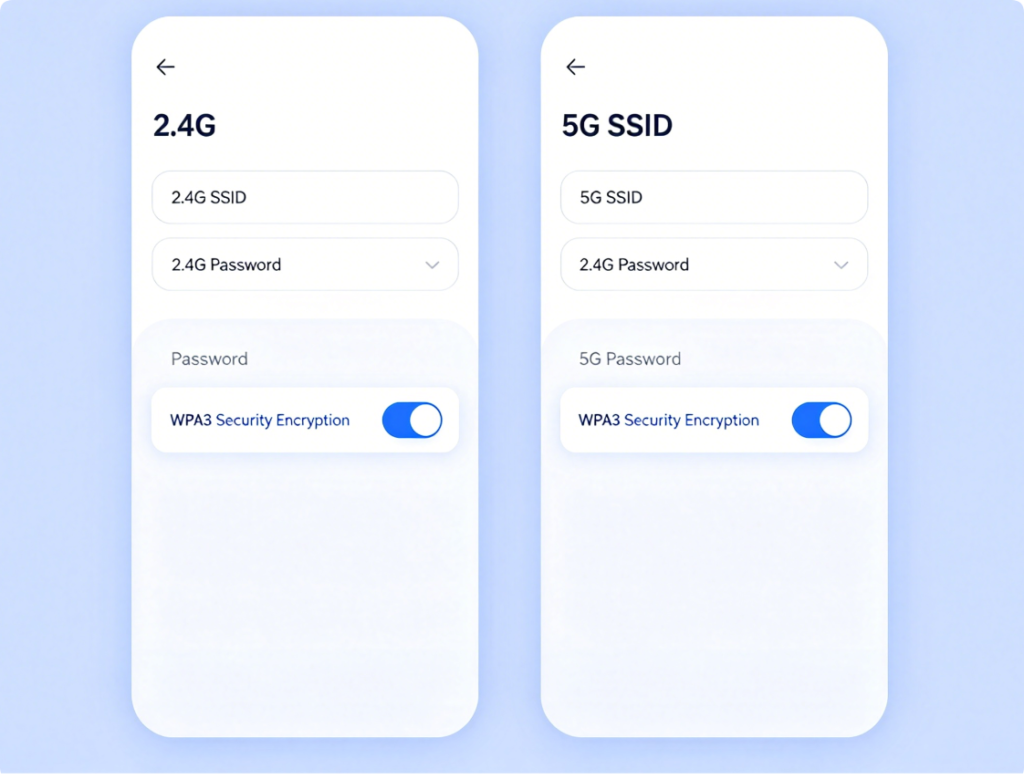
The next setup step is modifying your dual-band Wi-Fi credentials directly on the phone. Delete the factory default SSID for both frequency bands and create unique network names without private personal information. Set a complex Wi-Fi password mixed with letters, numbers and symbols, and keep the encryption mode set to WPA2/WPA3-PSK for maximum wireless security. Save the settings to apply changes instantly.
7: Set Custom Router Admin Password Through Tether
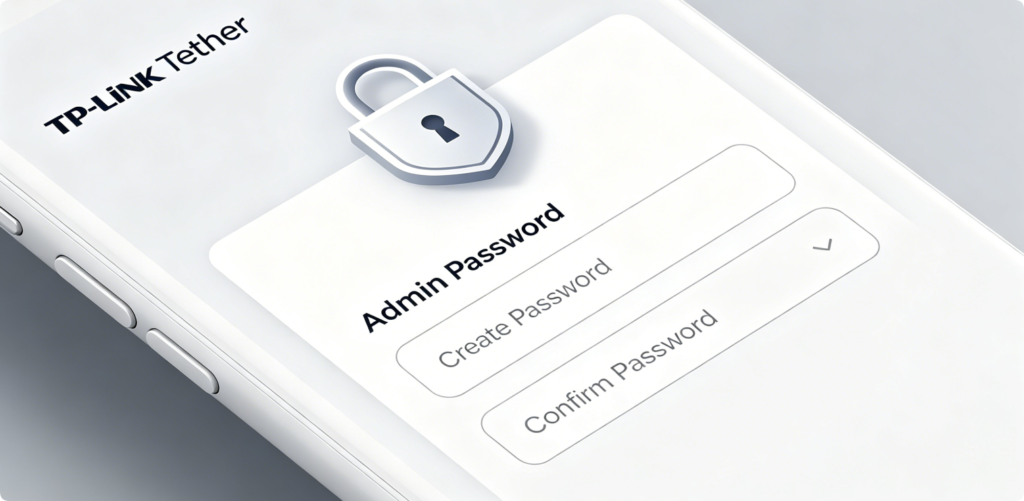
For backend management security, the Tether app will prompt you to create a unique router admin password after finishing Wi-Fi setup. This password controls all router backend access permissions. Do not use simple combinations such as 123456 or the same password as your Wi-Fi. Store this admin password in a safe place for future login and device remote access authentication.
8: Monitor All Connected Devices in Tether Device Manager
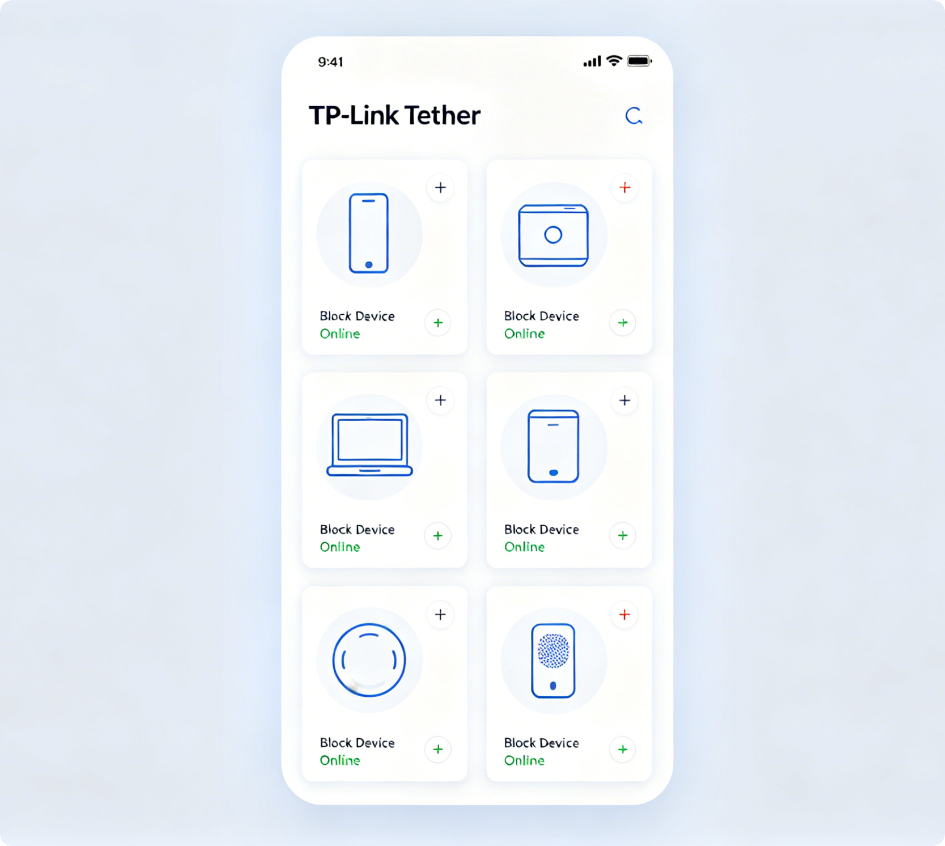
After finishing basic router setup, enter the core Device Manager function on the Tether app homepage. This page displays every gadget currently linked to your Wi-Fi, including device names, IP addresses and occupied bandwidth. If you spot unfamiliar unknown devices accessing your network, tap the Block option to ban unauthorized devices instantly and cut off their network access.
9: Adjust Advanced Router Settings Inside Tether App
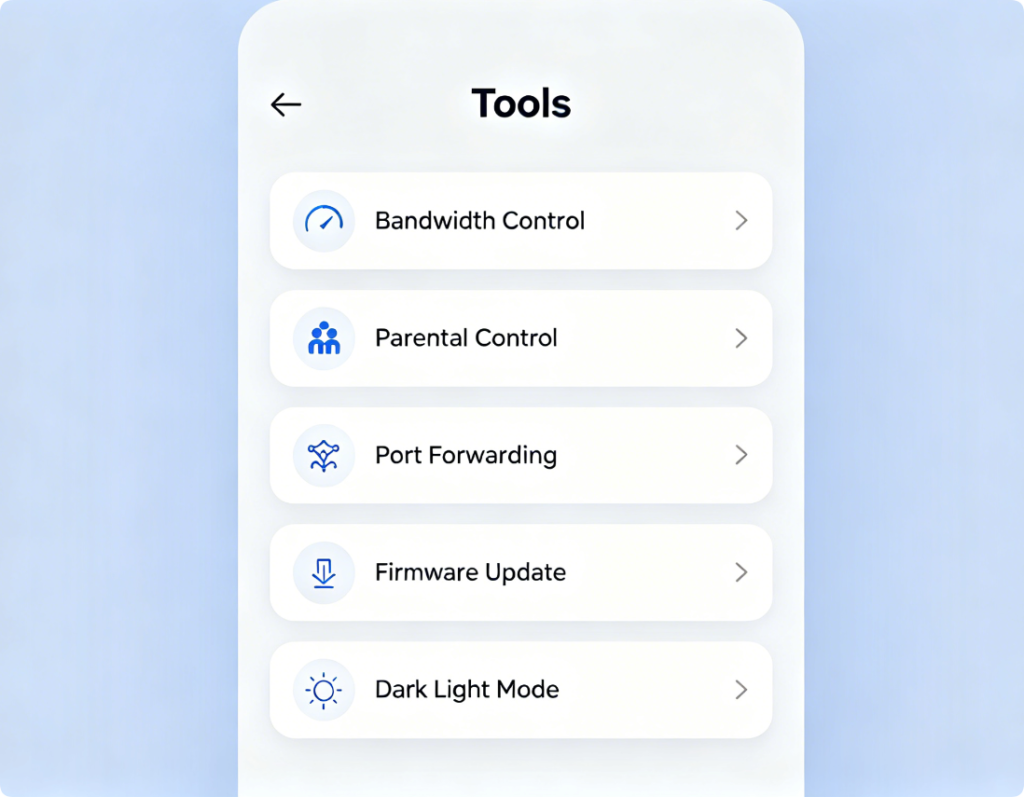
TP-Link Tether supports most mainstream advanced router adjustments without opening a computer browser. Users can limit internet speed for specific devices, set parental control schedules to restrict children’s online time, configure port forwarding for gaming and surveillance cameras, check real-time network speed, and enable or disable guest Wi-Fi networks with only a few taps on mobile screens.
10: Enable Remote Management Feature for Off-Site Access
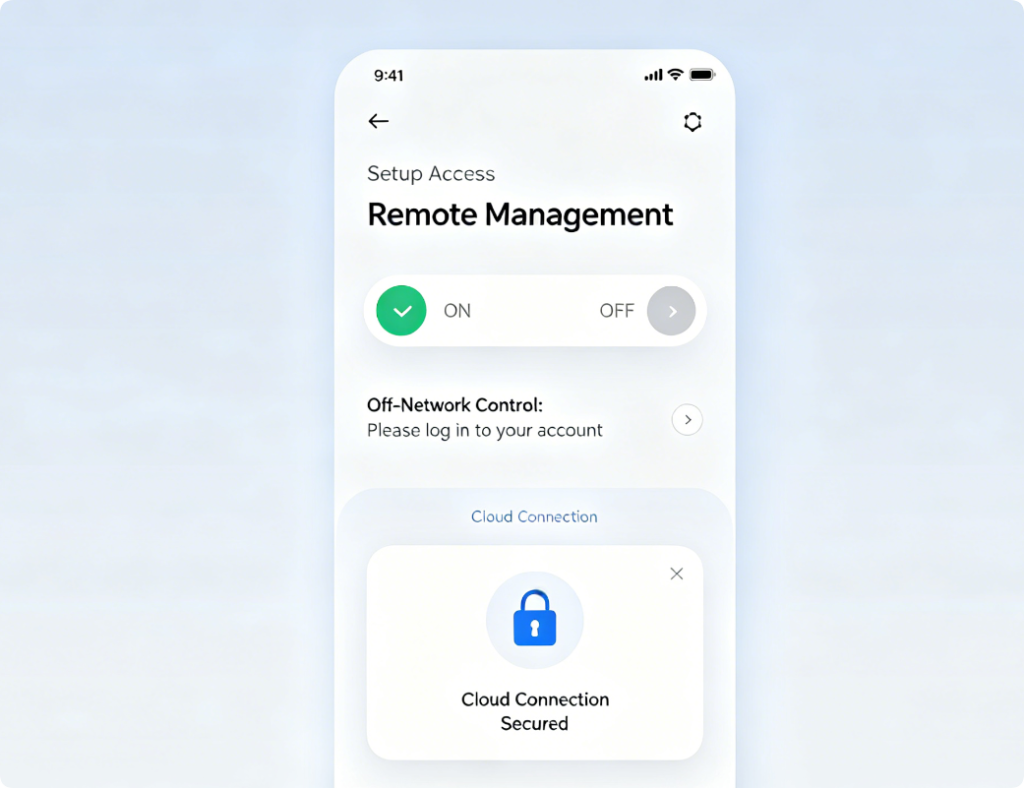
One standout feature of TP-Link Tether is remote router management. Enter the Tools menu and locate the Remote Management switch, then activate the function and log in with your TP-Link ID account. After successful binding, you can open the Tether app anywhere using cellular or external Wi-Fi to view router status, modify Wi-Fi passwords or kick off intruders without being connected to the home local network.
11: Update Router Firmware & Troubleshoot Network Errors on Tether
Regular firmware upgrades fix security vulnerabilities and optimize network stability. Navigate to the System section on Tether to check for official firmware updates; keep the router powered on during the upgrade process. If you encounter slow speeds or disconnection issues, use the built-in network diagnostic tool or tap Reboot to perform a soft reset. The factory reset button is also available here if you need to fully erase all customized router settings.
Conclusion
TP-Link Tether App simplifies full router management from initial installation to daily maintenance and remote monitoring entirely on a smartphone. The mobile interface streamlines complicated web panel operations into intuitive taps, making network adjustments accessible for users without desktop computers. By mastering device binding, wireless configuration, connected device monitoring and remote management functions, you can maintain a secure, stable home network anytime and anywhere. Whether you are setting up a new router or adjusting network rules on the go, TP-Link Tether is the most convenient official management tool for all TP-Link networking hardware.