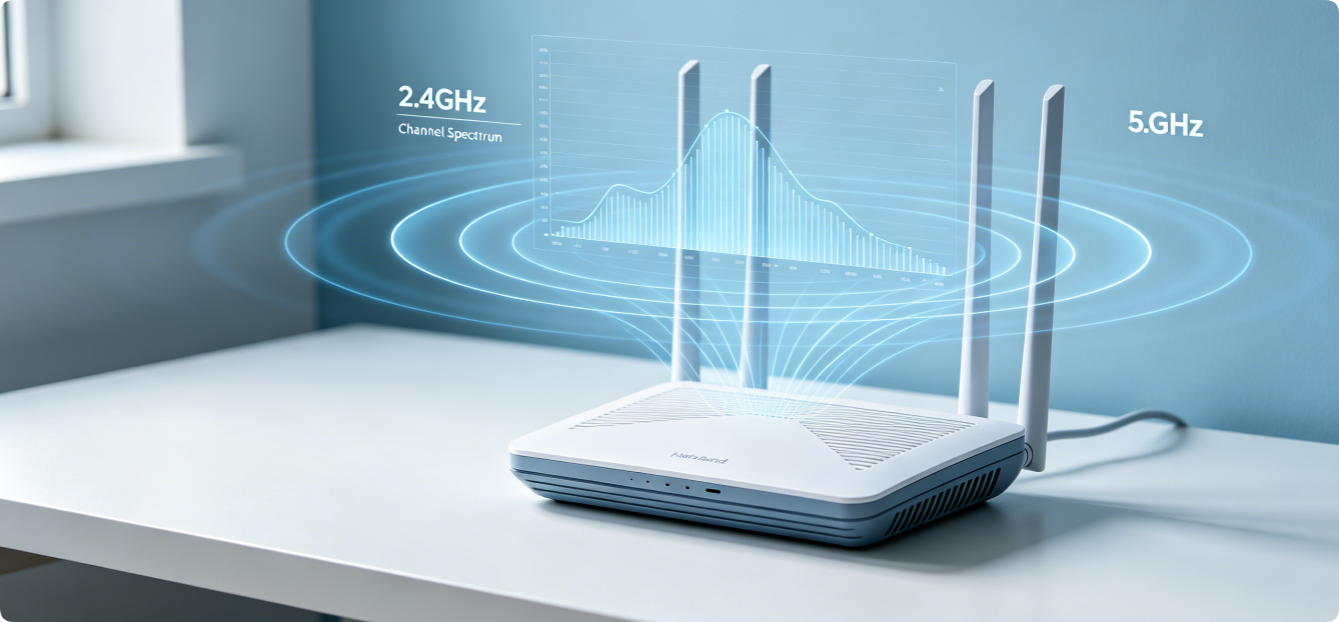
Wi-Fi signal slowdown, random disconnections, high gaming ping and dead coverage zones rarely come from slow broadband plans. The top root cause is wireless channel interference from neighboring routers, smart devices and household electronics. Every Wi-Fi router broadcasts data on specific frequency channels; overlapping channels create signal collision, data packet loss and crippled wireless performance.
This complete beginner’s guide breaks down how 2.4GHz and 5GHz channels work, how to scan surrounding network congestion, and how to manually select interference-free channels on all routers (TP-Link, Asus, Netgear, D-Link). After following these steps, you will see faster Wi-Fi speeds, stable streaming and zero lag during online gaming.
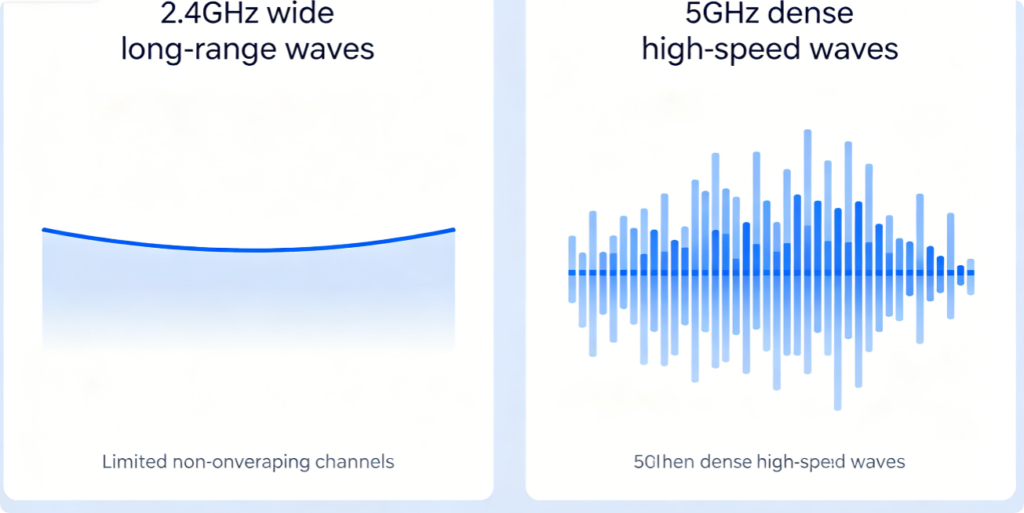
The two Wi-Fi frequency bands have entirely separate channel rules and interference risks:
- 2.4GHz Band Only 3 fully non-overlapping channels exist: 1, 6, 11. All other numbers overlap and clash heavily. This band has long wall penetration but faces massive congestion from microwaves, Bluetooth speakers, garage door openers and every neighbor’s older router.
- 5GHz Band Hundreds of independent channels split into UNII frequency segments, almost no internal overlap. Far fewer household devices use this spectrum, so interference is drastically lower. The tradeoff is weaker wall penetration compared to 2.4GHz.
Auto-channel mode on most routers randomly picks crowded channels in dense apartments, making manual selection mandatory for reliable Wi-Fi.
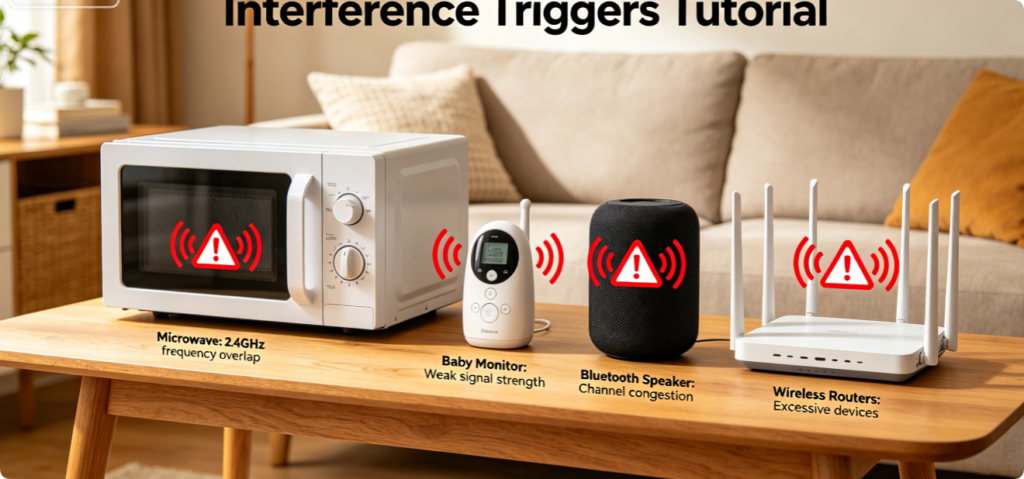
Before adjusting router channels, identify devices polluting your wireless spectrum:
- Microwave ovens (severe 2.4GHz disruption while running)
- Bluetooth headphones, speakers, smart watches
- Wireless cameras, baby monitors, walkie-talkies
- Neighbors’ dual-band routers stacked on same floor
- Old cordless home telephones and radio controllers All these gadgets flood the airwaves and ruin Wi-Fi stability unless you switch to clean channels.
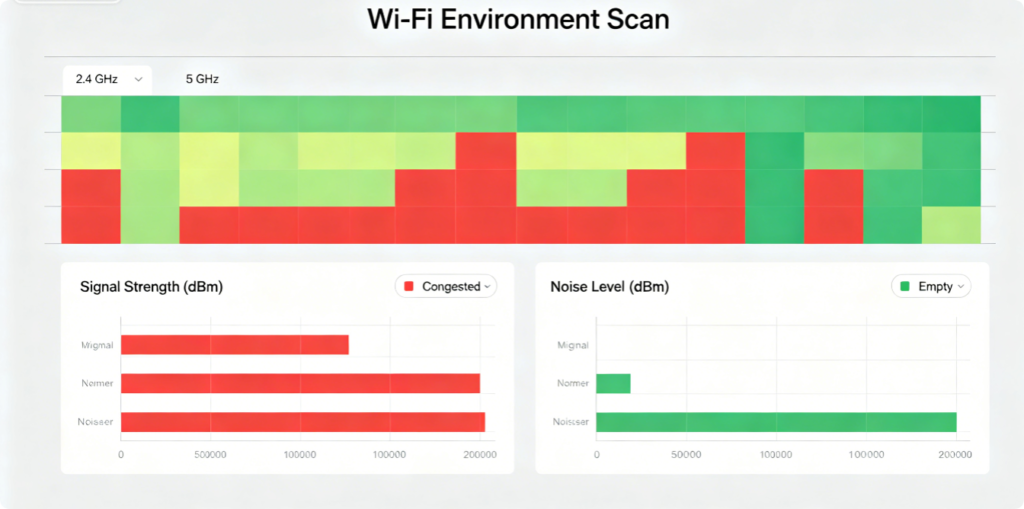
Every modern router includes a built-in Wi-Fi scanner tool to map nearby wireless networks:
- Log into your router admin panel via wired Ethernet cable
- Navigate to Advanced > Wireless > Channel & Transmit Power
- Tap Wi-Fi Environment Scan to load a full spectrum report
- Check each channel’s signal strength, number of competing networks and noise value Channels marked with low signal count and minimal noise are your ideal options for manual setup.
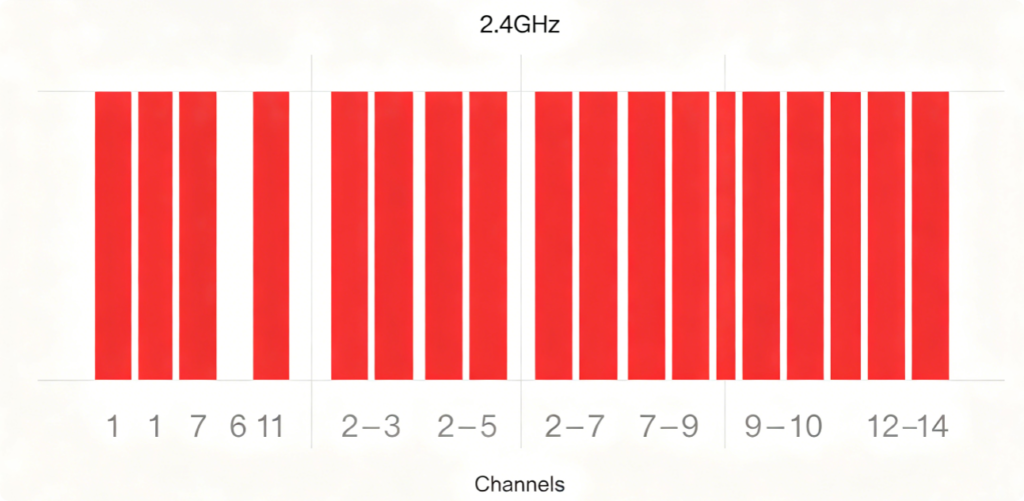
Strict rules for the 2.4GHz band with zero exceptions:
- Never use channels 2, 3, 4, 5, 7, 8, 9, 10 — all cause heavy signal overlap
- Choose 1, 6 or 11 based on which has the least neighbor activity from your scan
- Always lock bandwidth width to 20MHz; 40MHz doubles overlap range and worsens congestion If all three clean channels are crowded, pick the one with the lowest combined signal power from surrounding routers.
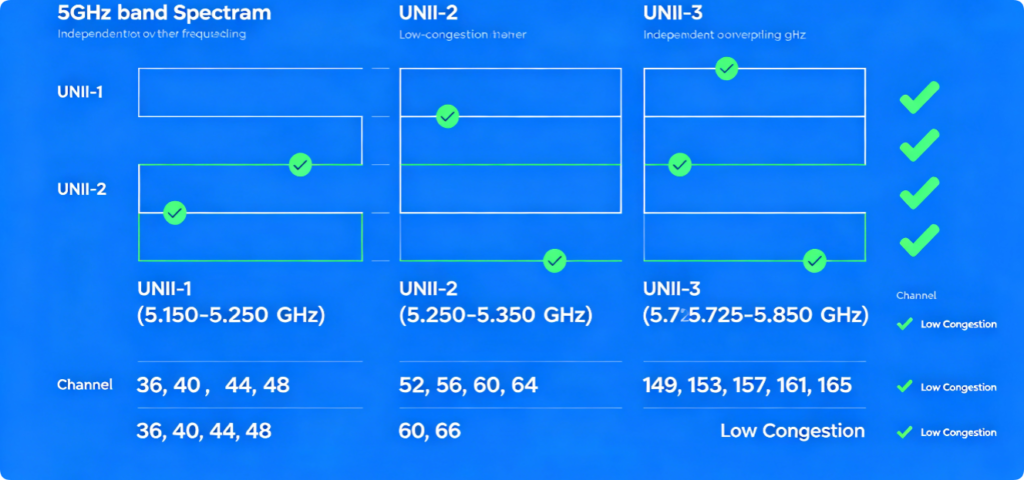
5GHz is split into three usable UNII segments with completely separate channels:
- UNII-1 (lower 5GHz): Channels 36, 40, 44, 48 — most widely used by neighbors
- UNII-2 (middle 5GHz): Channels 52, 56, 60, 64, DFS radar channels (auto-avoid radar signals)
- UNII-3 (upper 5GHz): Channels 149, 153, 157, 161, 165 — usually the quietest in residential buildings
Prioritize upper UNII-3 channels first; fewer neighboring households configure their routers to broadcast on these higher frequencies, leading to near-zero interference for gaming and streaming.
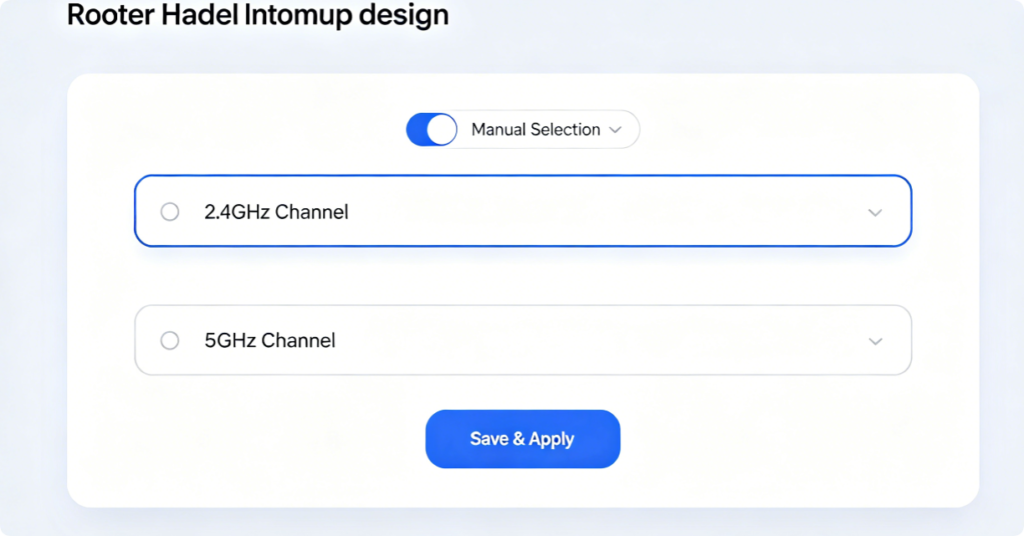
Follow this universal workflow for TP-Link and most brand routers:
- On the Channel & Transmit Power page, switch Channel Mode from Auto to Manual
- For 2.4GHz: Select only channel 1, 6 or 11 from the dropdown
- For 5GHz: Pick a quiet upper-band channel from your scanner report
- Set channel bandwidth width appropriately (20MHz for 2.4GHz, 80MHz for 5GHz)
- Click Save / Apply to lock new channel settings The router will briefly disconnect all Wi-Fi devices while reloading wireless configurations.
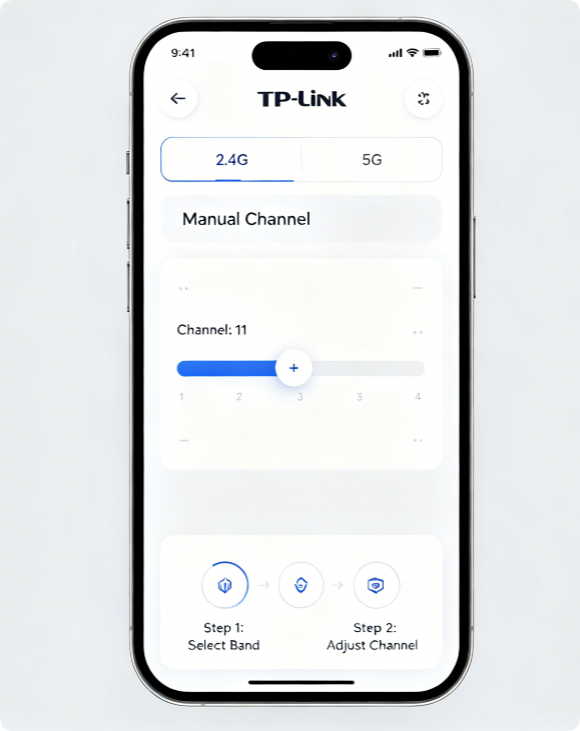
If you lack a laptop, adjust channels directly from your phone with Tether:
- Connect your mobile device to your home Wi-Fi and open the Tether app
- Select your router device, tap Tools > Wireless Settings
- Toggle off automatic channel assignment for each frequency band
- Manually input your pre-selected clean channel number
- Save settings and wait for the wireless network to reboot
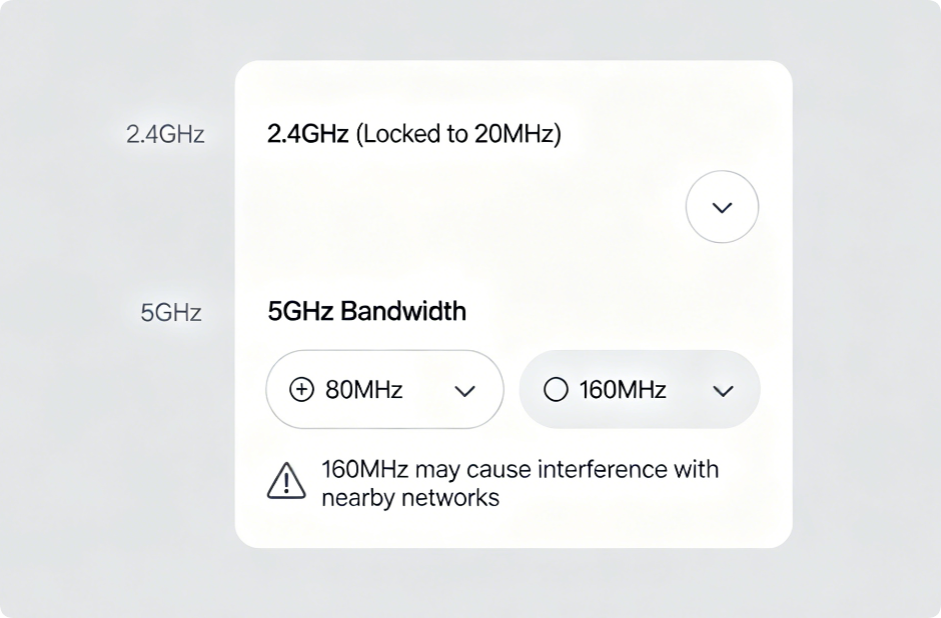
Channel bandwidth width expands or shrinks the frequency space your Wi-Fi occupies, directly impacting congestion:
- 2.4GHz: Only 20MHz allowed. 40MHz bandwidth doubles signal footprint and collides with every nearby router.
- 5GHz Standard Home Use: 80MHz bandwidth balances speed and low interference
- 5GHz 160MHz: Only enable if your Wi-Fi scan shows zero competing networks; otherwise massive cross-channel lag occurs In crowded apartment blocks, stick strictly to 80MHz for the 5GHz band.
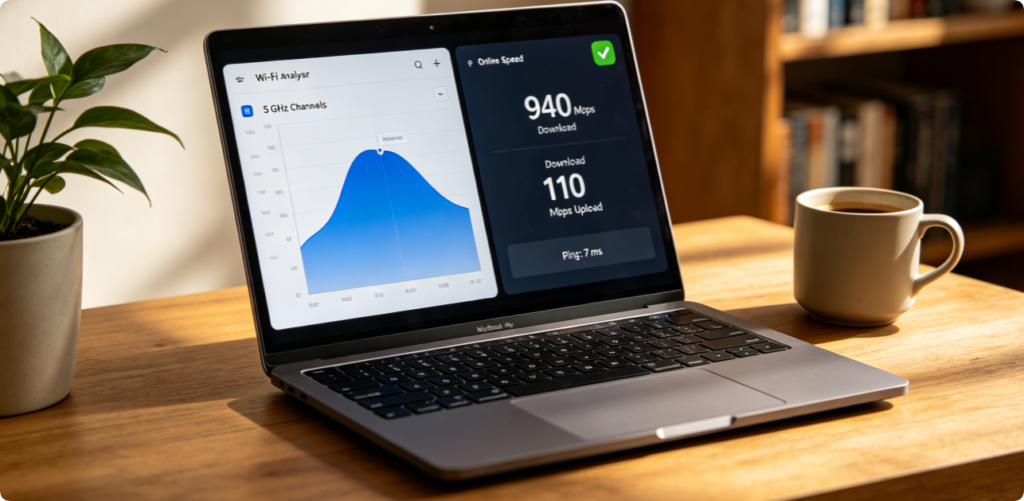
After applying custom channel settings, confirm interference is eliminated with two quick tests:
- Re-run the router Wi-Fi environment scan to check noise levels dropped significantly
- Run an internet speed test on a 5GHz Wi-Fi 6 compatible device You will observe higher download/upload speeds, stable low ping and no sudden Wi-Fi drops during peak evening usage when all neighbors stream video simultaneously.
If slow Wi-Fi and disconnections continue after channel adjustment, apply these extra fixes:
- Lower router transmit power if nearby routers overlap your signal range
- Separate 2.4GHz and 5GHz SSIDs to force high-speed devices onto cleaner 5GHz channels
- Move router away from metal walls, refrigerators and microwave appliances
- Enable DFS radar channel support to unlock quieter middle 5GHz frequency bands
- Reboot router weekly to reset wireless spectrum broadcast
Conclusion
Choosing clean, non-overlapping 2.4GHz and 5GHz Wi-Fi channels is the most impactful free optimization to eliminate wireless interference. Always limit the 2.4GHz band to channels 1, 6 or 11 with a 20MHz width, and prioritize upper UNII-3 channels on the 5GHz spectrum for minimal neighbor conflict. Disable automatic channel selection, use your router’s built-in spectrum scanner to map congestion, and manually lock ideal frequency slots. This simple configuration removes packet loss, gaming lag and random Wi-Fi outages, delivering consistent full broadband speed across your entire home wireless network.