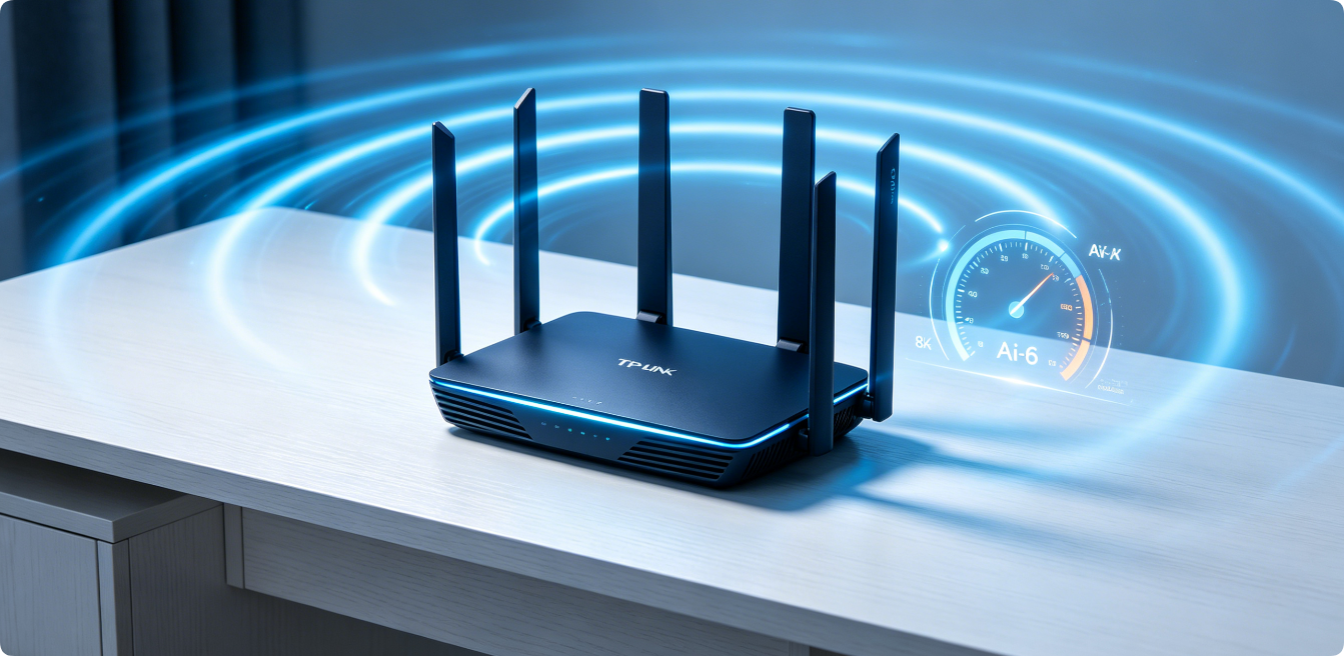
Wi-Fi 6 (802.11ax) delivers drastically faster speeds, lower latency, stronger multi-device handling and better wall penetration than older Wi-Fi 5 hardware. However, most TP-Link Wi-Fi 6 routers ship with generic factory default configurations that fail to unlock the full potential of AX chipsets. Poor channel selection, mismatched bandwidth width, disabled exclusive Wi-Fi 6 functions, improper band separation and wrong router placement lead to weak signal dead zones, stuttering 4K streaming and high gaming ping. This full, beginner-friendly optimization guide covers every adjustable wireless, system and hardware setting for all TP-Link AX routers to boost wireless throughput, expand coverage and eliminate network congestion once and for all.
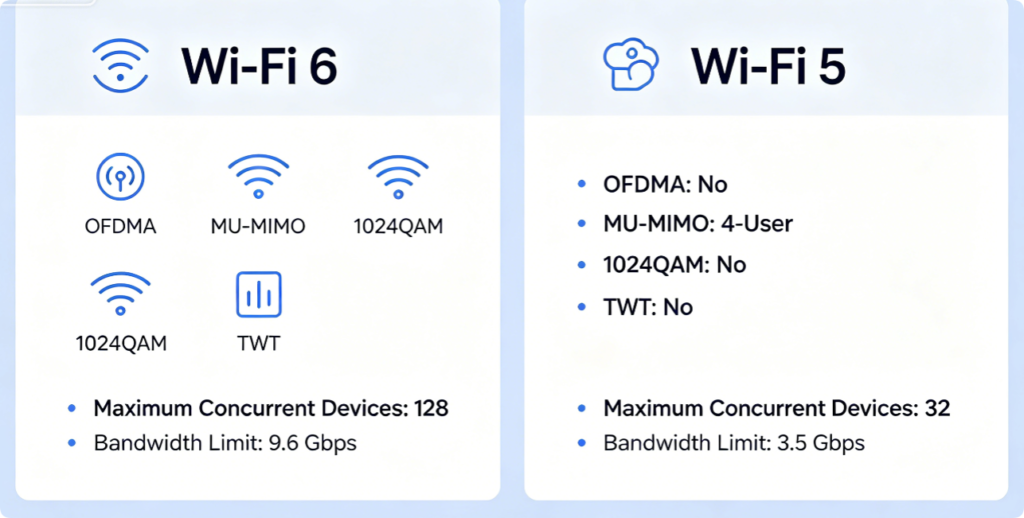
Before tuning your router settings, understand the exclusive Wi-Fi 6 technologies you will activate in this guide. OFDMA splits single channels to serve multiple gadgets at once and cut lag; MU-MIMO enables parallel data transmission to multiple clients; 1024QAM improves data compression for faster transfers; Target Wake Time reduces power consumption for smart home IoT devices. Legacy Wi-Fi 5 routers lack all these upgrades, so fully enabling these functions is the first step to maximize your TP-Link AX router performance.

Software tweaks cannot fix signal loss caused by bad physical placement. Follow these non-negotiable placement rules first:
- Position the router at the geometric center of your house or apartment
- Elevate the device 1.2–2 meters above the ground to avoid furniture blockage
- Keep 3+ meters away from microwaves, Bluetooth speakers, refrigerators and metal furniture that disrupt radio waves
- Do not store the router inside closed cabinets, closets or basements — overheating throttles Wi-Fi speed
- Align external antennas vertically and evenly to balance 2.4GHz long-range and 5GHz high-speed signals
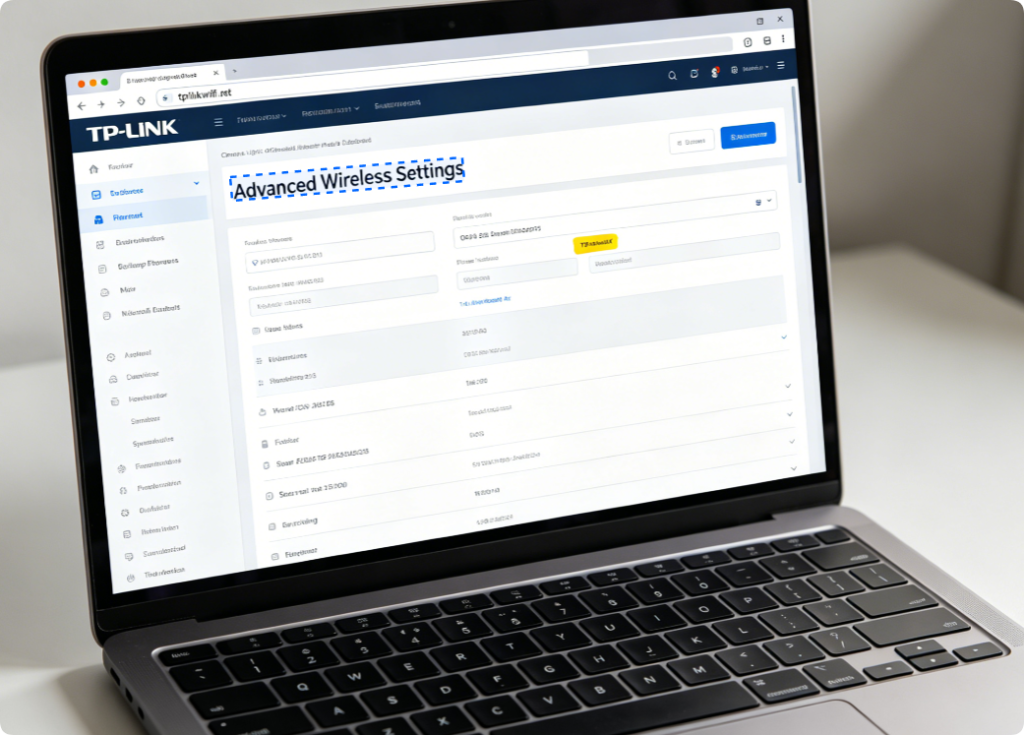
Always configure router settings through a wired Ethernet connection instead of Wi-Fi to avoid mid-setup disconnections:
- Connect your desktop/laptop Cat5e/Cat6 cable to any router LAN port
- Open Chrome or Edge browser, enter
tplinkwifi.netor default gateway192.168.1.1 - Log in using your custom admin password
- Navigate to Advanced > Wireless to access all Wi-Fi 6 tuning panels
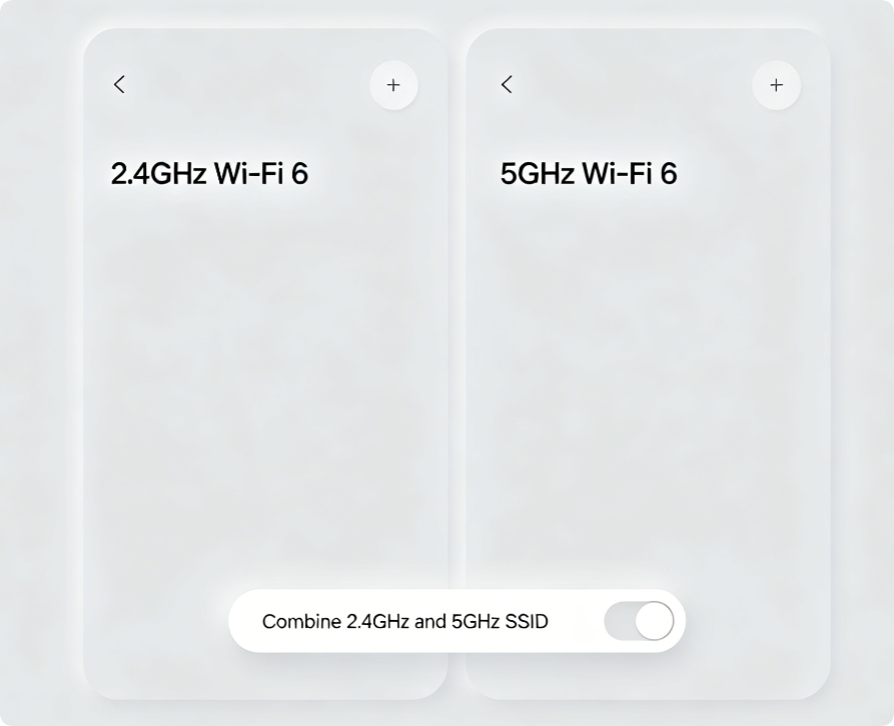
TP-Link Wi-Fi 6 routers run two independent frequency bands with distinct use cases:
- 2.4GHz: Long range, strong wall penetration, perfect for low-speed IoT devices (smart bulbs, security cameras)
- 5GHz Wi-Fi 6: Gigabit wireless speed, minimal interference, ideal for gaming PCs, 4K/8K streaming, file transfers
Two configurable options:
- Separate custom SSIDs: Manually assign devices to each band for full control over speed and coverage
- Single unified Wi-Fi name (Band Steering): Router automatically moves Wi-Fi 6 compatible devices to 5GHz when within strong signal range, great for household users who hate switching networks manually
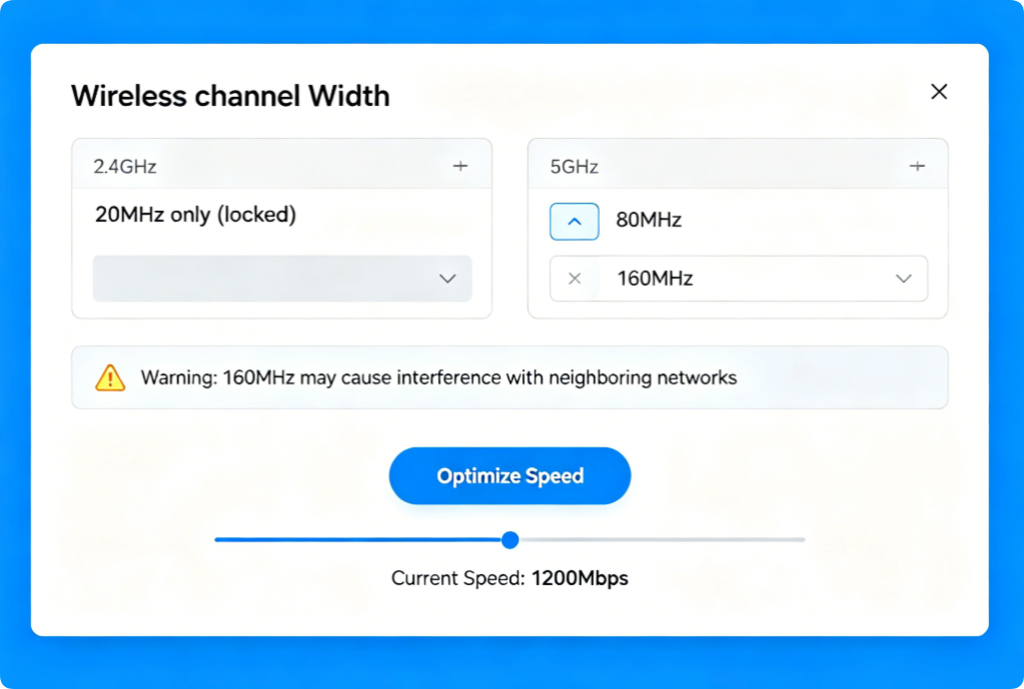
Channel width directly limits your maximum wireless speed; use these proven bandwidth rules:
- 2.4GHz Band: Always select 20MHz bandwidth. 40MHz creates massive cross-channel overlap with neighboring Wi-Fi networks and causes frequent disconnections.
- 5GHz Wi-Fi 6 Band: Choose 80MHz for most apartments and suburban homes; switch to 160MHz bandwidth only if Wi-Fi scan shows zero competing nearby networks. Wider channel width doubles raw transfer speeds for AX-compatible phones, laptops and consoles.
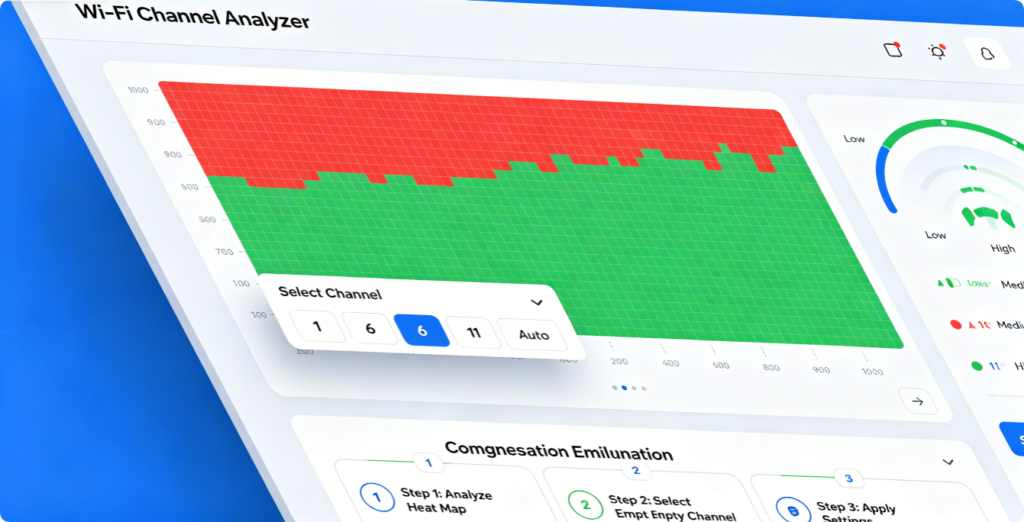
Auto-channel mode frequently picks overcrowded frequencies in dense residential buildings. Use the built-in TP-Link Wi-Fi scanner:
- Go to Advanced > Wireless > Channel & Transmit Power
- Run Wi-Fi Environment Scan to visualize all surrounding wireless signals
- For 2.4GHz: Only use non-overlapping channels 1, 6, 11
- For 5GHz: Pick channels with the lowest noise and least competing networks Switching to a clear empty channel instantly resolves random speed drops and gaming lag caused by neighbor Wi-Fi interference.
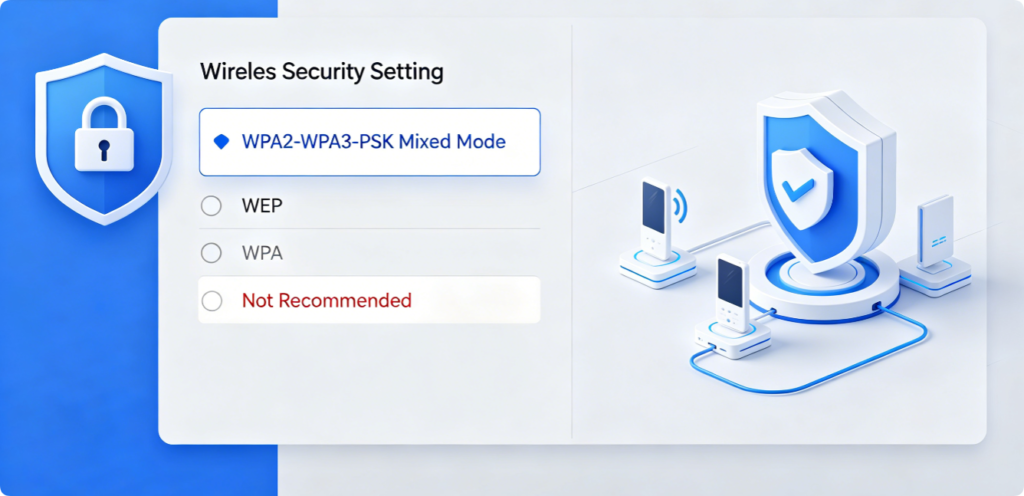
Outdated encryption limits Wi-Fi 6 performance and opens critical security vulnerabilities. Apply these security settings:
- Security Mode: WPA2/WPA3 Mixed PSK (supports all modern Wi-Fi 6 hardware while blocking old insecure devices)
- Create a Wi-Fi password longer than 12 characters, mixing uppercase letters, lowercase letters, numbers and special symbols
- Permanently turn off WPS push-button pairing to remove brute-force cracking entry points This setup balances maximum AX wireless speed and robust household network protection.
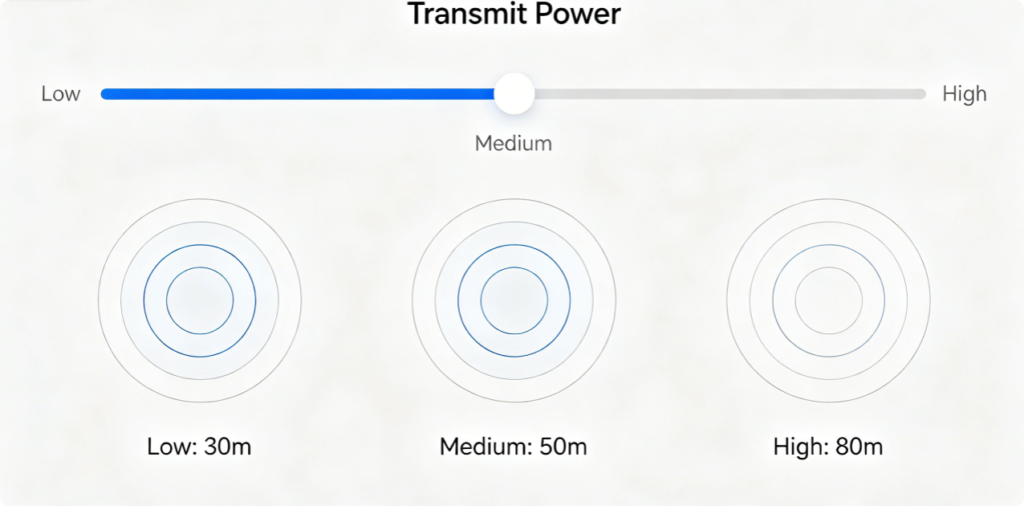
Maximum transmit power does not always equal better performance:
- Small apartments under 80㎡: Medium power prevents signal oversaturation and cross-channel interference with adjacent homes
- Large multi-floor houses over 120㎡: Switch to High transmit power for extended wall penetration and wider coverage
- Avoid full High power in crowded urban apartment blocks — strong leaked signals conflict with surrounding wireless networks
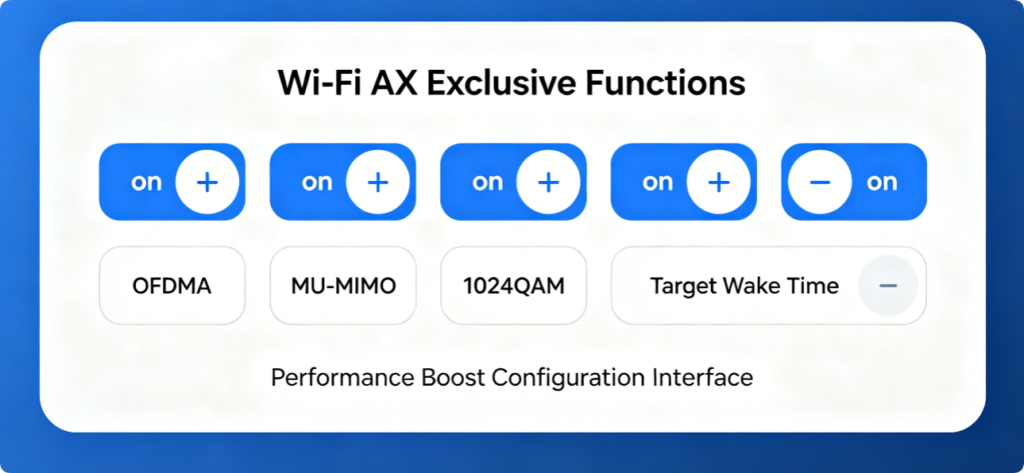
These core Wi-Fi 6 upgrades are disabled by default on many TP-Link AX routers; enable every option for peak performance:
- OFDMA: Eliminates lag when multiple family members stream, game and browse simultaneously
- MU-MIMO: Allows the router to send data to several Wi-Fi 6 devices at the exact same time
- 1024QAM: Raises raw wireless data throughput for compatible client hardware
- Target Wake Time (TWT): Extends battery life for battery-powered IoT gadgets without breaking connection stability
After applying all wireless optimization configurations:
- Reboot your TP-Link Wi-Fi 6 router fully to activate all new settings
- Connect a Wi-Fi 6 compatible smartphone or laptop and run an official speed test to verify improved throughput and lower ping
- Monthly check the web dashboard or TP-Link Tether mobile app for official firmware updates to patch bugs and security flaws
- Export a backup configuration file before any firmware upgrade to preserve all your custom optimized wireless settings
Conclusion
Maximizing speed and coverage on a TP-Link Wi-Fi 6 AX router relies on four core pillars: proper central router placement, intelligent dual-band configuration, interference-free channel and bandwidth tuning, and full activation of exclusive Wi-Fi 6 technologies including OFDMA and MU-MIMO. Avoid default auto wireless settings that create network congestion and signal dead zones, lock in WPA3 mixed encryption for safety, and adjust transmit power to match your living space size. Every step in this complete optimization guide eliminates weak Wi-Fi spots, reduces gaming latency, and unlocks the full gigabit wireless performance potential of your TP-Link AX router for all household connected devices.