Accessing your router’s admin panel is a fundamental skill for anyone managing a home or office network. From changing Wi-Fi names and passwords, managing connected devices, adjusting network settings to upgrading firmware and troubleshooting connection issues, all these operations require you to log into the router backend. Most routers come with a factory default IP address and login credentials, allowing users to enter the admin panel quickly without complicated configurations. This step-by-step guide will show you how to use the default gateway IP and original login details to access the router control panel, and also solve common login errors for beginners.
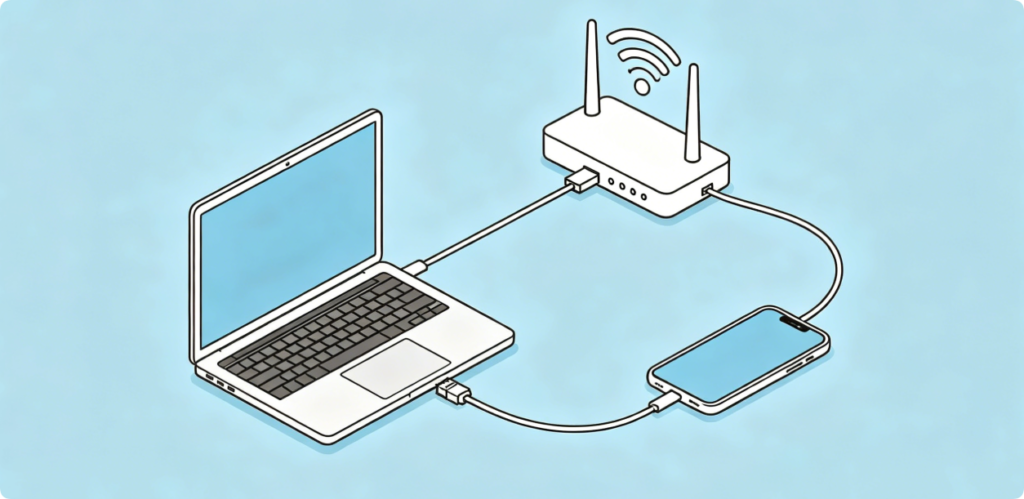
Before starting the login process, you must connect your device to the target router’s local network. You can use a desktop computer, laptop, smartphone or tablet. There are two connection options: wireless Wi-Fi connection and wired Ethernet connection. A wired connection is more stable and effectively avoids login failures caused by weak Wi-Fi signals or network conflicts. Please note that you cannot access the router admin page through an external public network or another router’s Wi-Fi.
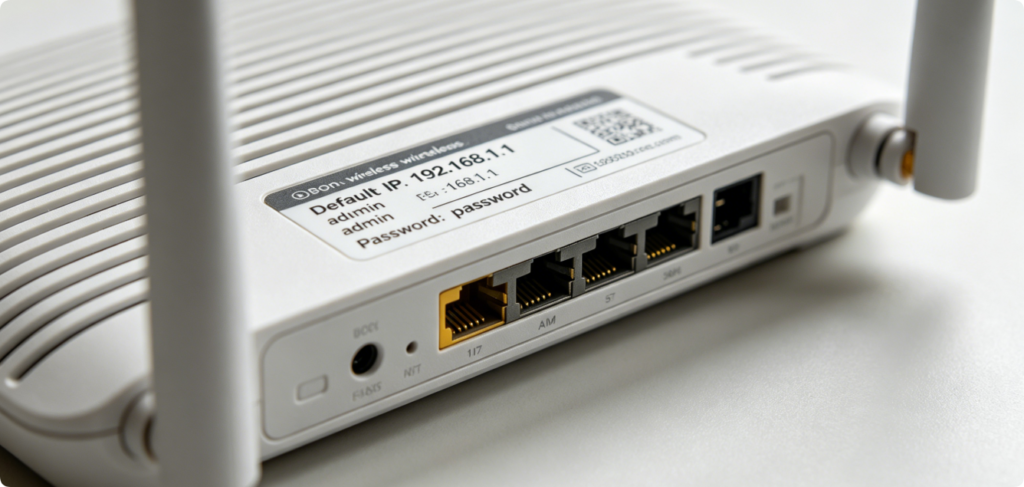
Every standard wireless router has a printed label attached to its bottom, back or side panel. This label records all factory default login information, including the default gateway IP address, default admin username and default password. The most widely used default IP addresses for mainstream router brands are 192.168.1.1 and 192.168.0.1. Some brands also use 192.168.2.1 as the access address. For older router models, the default username and password are usually both set to “admin”, while new devices adopt unique random passwords printed on the label for better security.
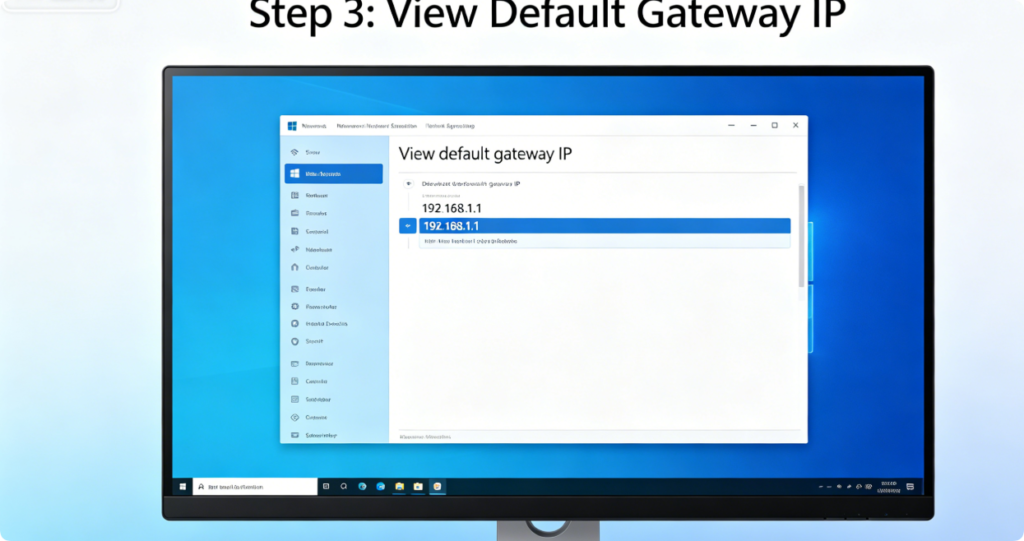
If the router label is damaged or lost, you can check the correct default IP address directly on your connected device. For Windows computers: open the network settings page, view the details of the currently connected network, and you will find the item named “Default Gateway”. The number shown here is the exact IP address to access the router admin panel. This method works for all router brands and can effectively prevent errors caused by using the wrong IP.
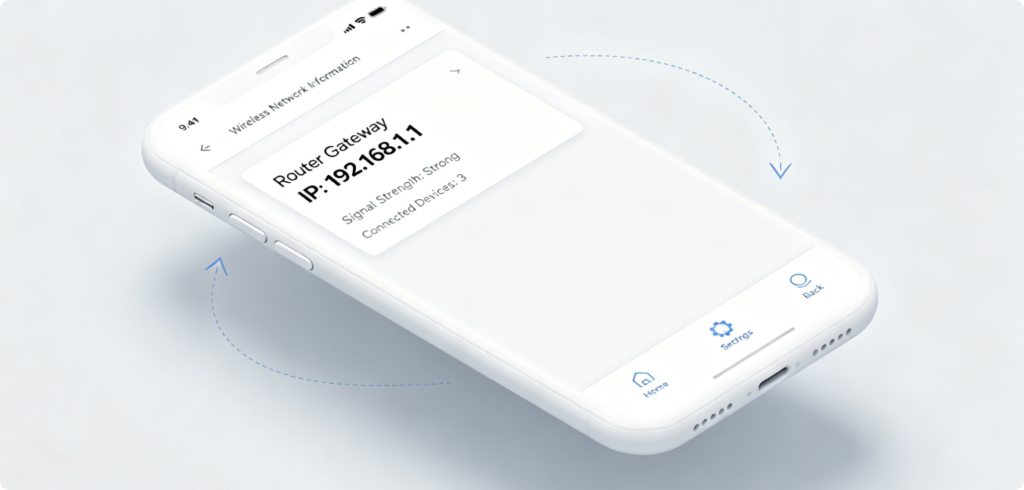
For mobile phone users, you can also find the router IP easily. After connecting to the router’s Wi-Fi, enter the Wi-Fi details page in your phone’s system settings. Look for gateway, router or IP address options, and the corresponding number is your router’s access IP. This operation is similar on Android and iOS systems, and it is very convenient for users who mainly use mobile devices to manage networks.
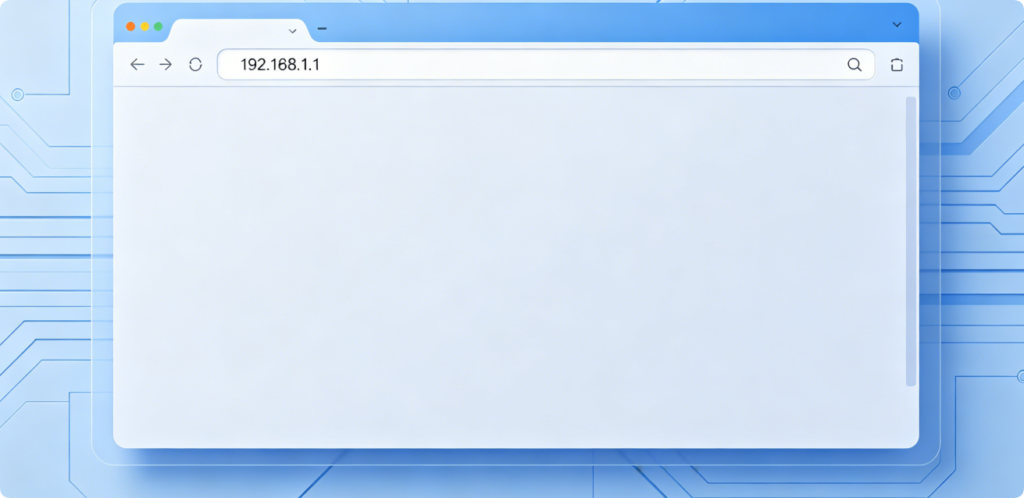
Once you confirm the correct default IP address, open any mainstream web browser on your device, such as Google Chrome, Microsoft Edge, Firefox or Safari. Do not enter the IP in the search box. You need to type the full IP address directly into the browser’s address bar at the top, then press the Enter key. The browser will automatically redirect to the router’s official login page within a few seconds.
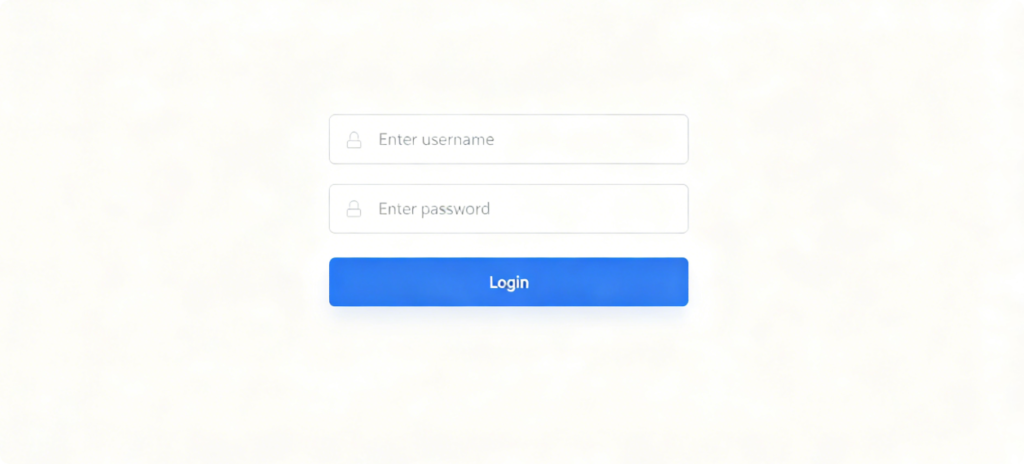
After the page loads completely, you will see the router admin login interface. Fill in the default username and password obtained from the router label or network details page into the corresponding input fields. Pay attention to uppercase and lowercase letters when entering passwords, because most router systems are case-sensitive. Double-check your input to avoid login failures due to typos.
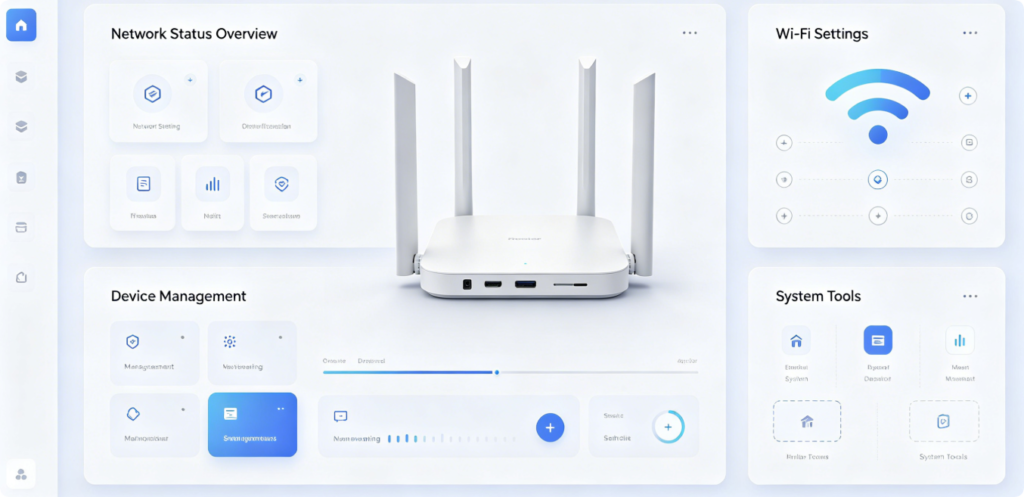
Click the login button, and you will successfully enter the router’s main admin dashboard. This is the core management center of your network. Here you can view real-time network speed, check all online devices, modify Wi-Fi name and password, set parental controls, configure port forwarding, adjust bandwidth limits and update router firmware. All network management functions are integrated on this panel.
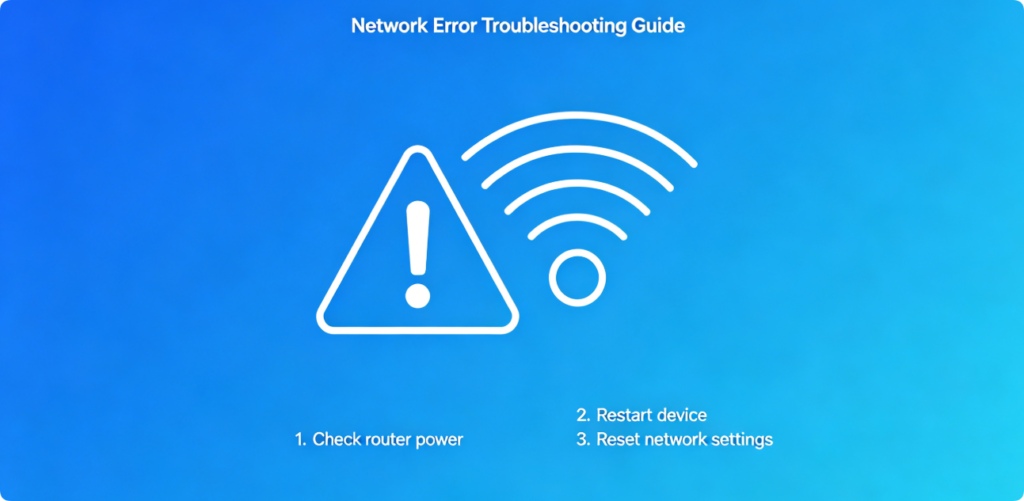
Many users may encounter problems such as page loading failure or repeated login errors. Here are practical solutions. First, confirm your device is connected to the correct router network. Second, clear browser cache, cookies or switch to another browser to try again. Third, verify that the IP address, username and password are entered correctly. If you have modified the admin password before and forgotten it, press and hold the reset button on the router for about 10 seconds to restore factory settings, which will revert all login information back to factory defaults.
Using factory default login credentials brings potential security risks, as these public default accounts can be easily guessed by outsiders. It is highly recommended to change your router admin password immediately after the first login. A complex password combining letters, numbers and symbols can effectively prevent unauthorized access, network theft and privacy leakage. In addition, regularly updating router firmware can also fix system vulnerabilities and keep your home network safe and stable.
Conclusion
Accessing the router admin panel with the default IP address and login credentials is a simple operation suitable for all users. The whole process only includes connecting to the network, confirming the default IP, visiting the login page and entering account information. Whether you use a computer or a mobile phone, you can complete the login in just a few minutes. Remember to modify the default admin password in time after logging in to protect your network security. Mastering this basic operation will help you better maintain and optimize your daily internet experience.