Changing your Netgear router’s SSID (Wi-Fi network name) and password is essential to stop bandwidth theft, avoid neighbor network confusion, and upgrade outdated weak security. This step-by-step guide works for all Nighthawk gaming routers and Orbi mesh systems via the web dashboard or Netgear Nighthawk app, with separate mesh satellite adjustment tips and secure encryption recommendations for 2026.
Why You Should Update SSID & Password Regularly
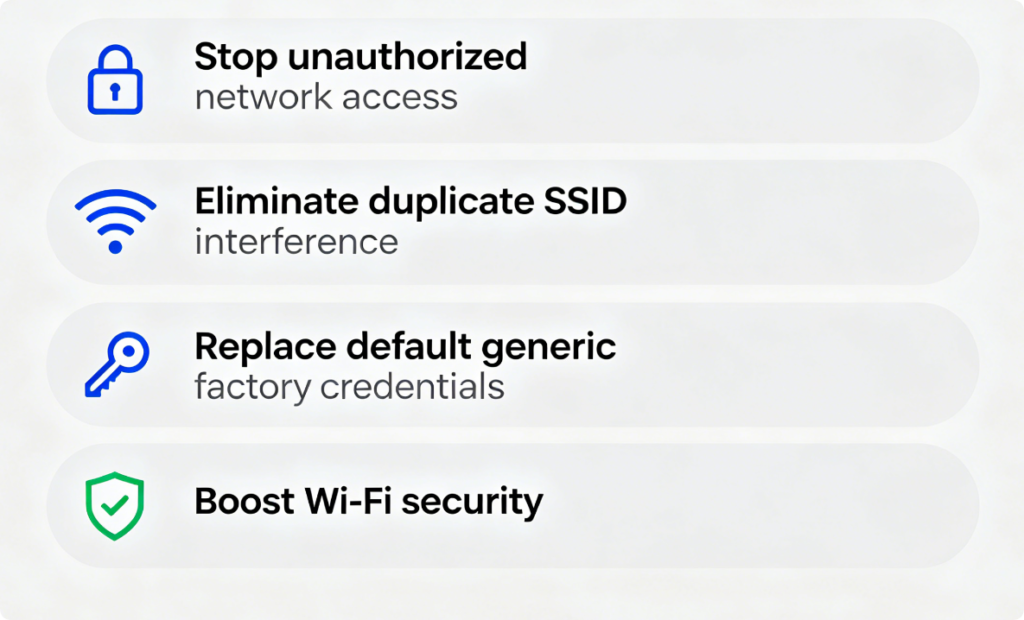
- Default router SSIDs (e.g., NighthawkXXXX, OrbiXXXX) reveal your hardware model to potential hackers.
- Shared building Wi-Fi overlap causes frequent device disconnection and slow speeds.
- Weak factory passwords let neighbors or intruders join your private network easily.
- Periodic password changes block long-term snooping on your browsing, streaming and smart home data.
Access Your Router Settings
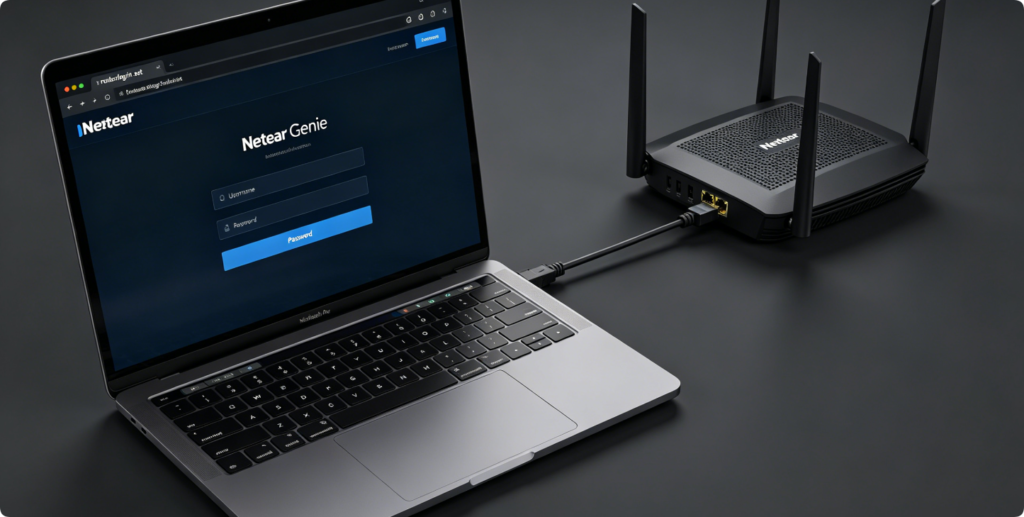
- Connect a laptop or PC to the router’s LAN port with an Ethernet cable to avoid Wi-Fi cutouts mid-edit.
- Open any browser and visit
routerlogin.net. - Enter your admin username and password (default: admin / password for all 2020–2026 Netgear models).
- For Orbi mesh, log into the main router; satellite settings sync automatically after saving changes.
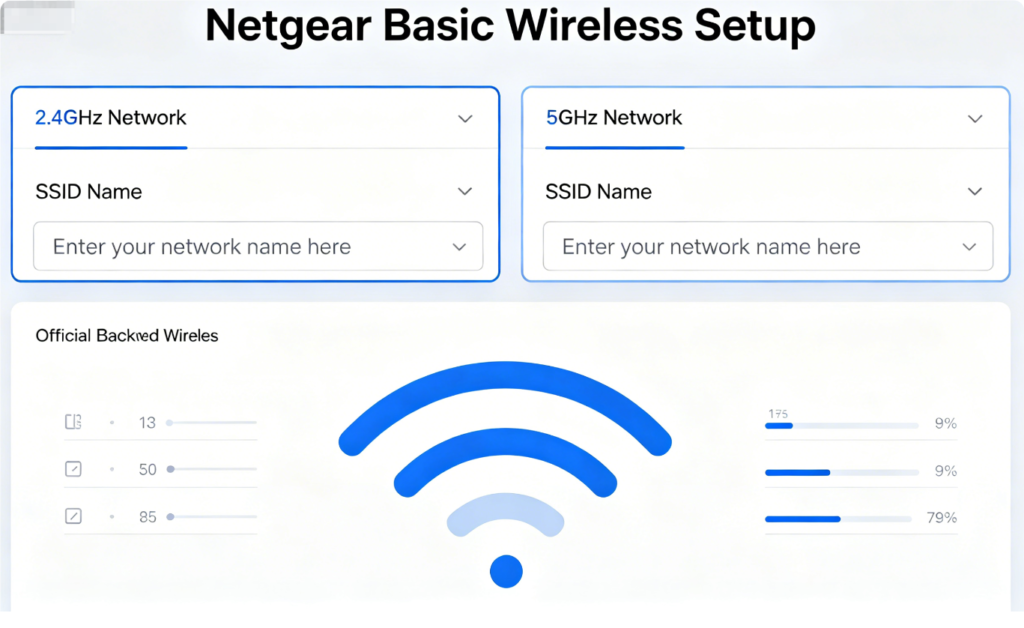
Edit Separate Dual-Band SSIDs
- On the left menu, open Basic > Wireless.
- Two independent panels appear for 2.4GHz and 5GHz bands.
- Clear the default network name and type your custom unique SSID for each band.
- Tip: Avoid personal names, addresses or identifiable details in your Wi-Fi name for privacy.
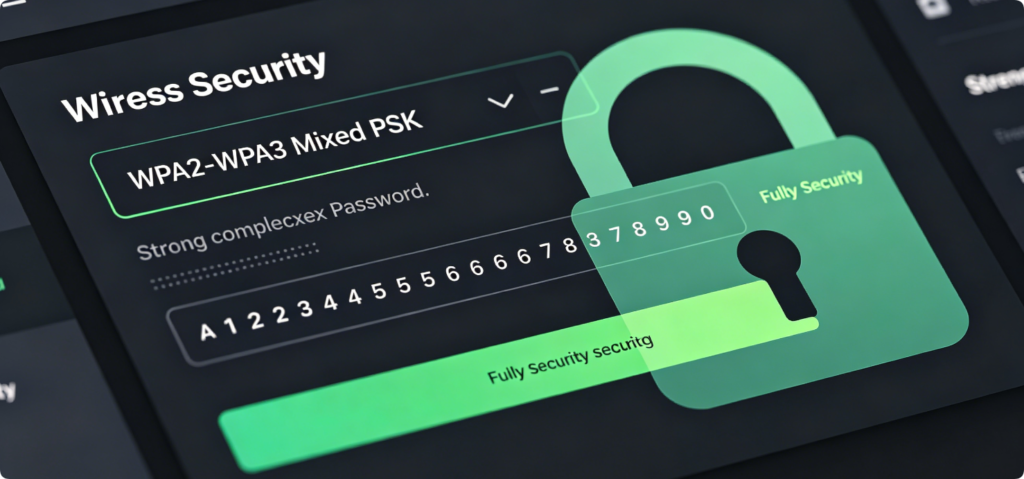
Create a Secure Wireless Passphrase
- Under each band’s wireless section, set Security Mode to WPA2/WPA3 Mixed PSK (most secure compatible standard).
- Delete the factory password and create a 12+ character passphrase mixing uppercase letters, numbers and symbols.
- Avoid simple sequences like 123456, birthdays or pet names that brute-force bots crack instantly.
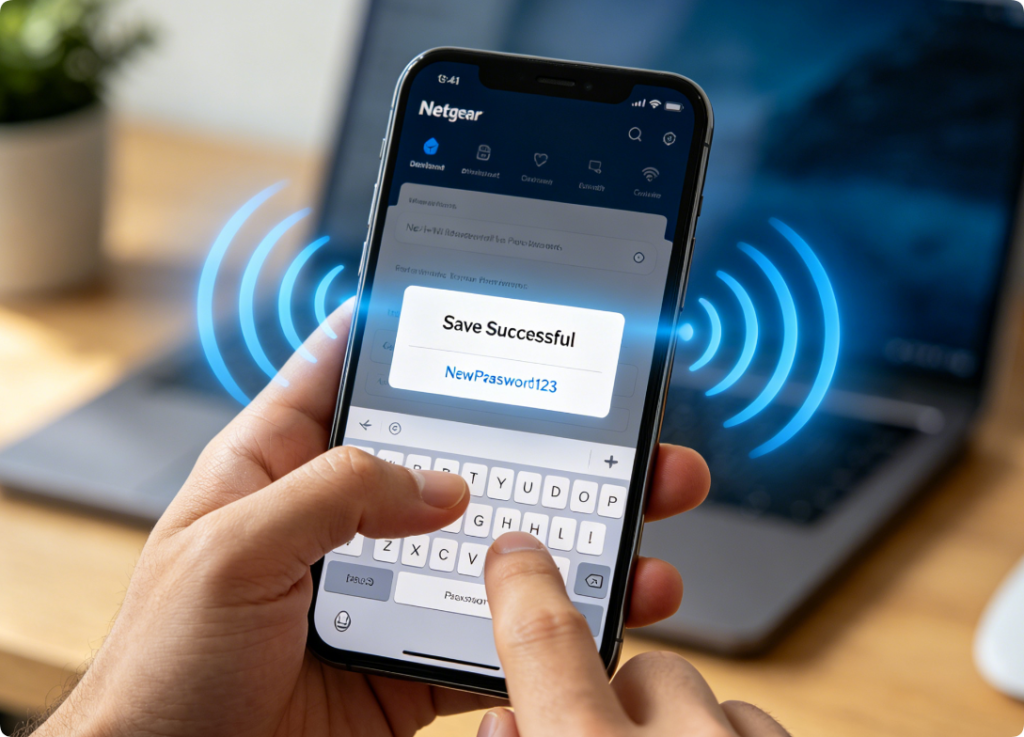
Apply Changes & Reconnect Hardware
- Click Apply to save all SSID and password edits. The router will briefly restart wireless signals.
- Every phone, laptop, smart TV and IoT device will drop offline.
- On each gadget, forget the old Wi-Fi network and reconnect using your new custom SSID and passphrase.
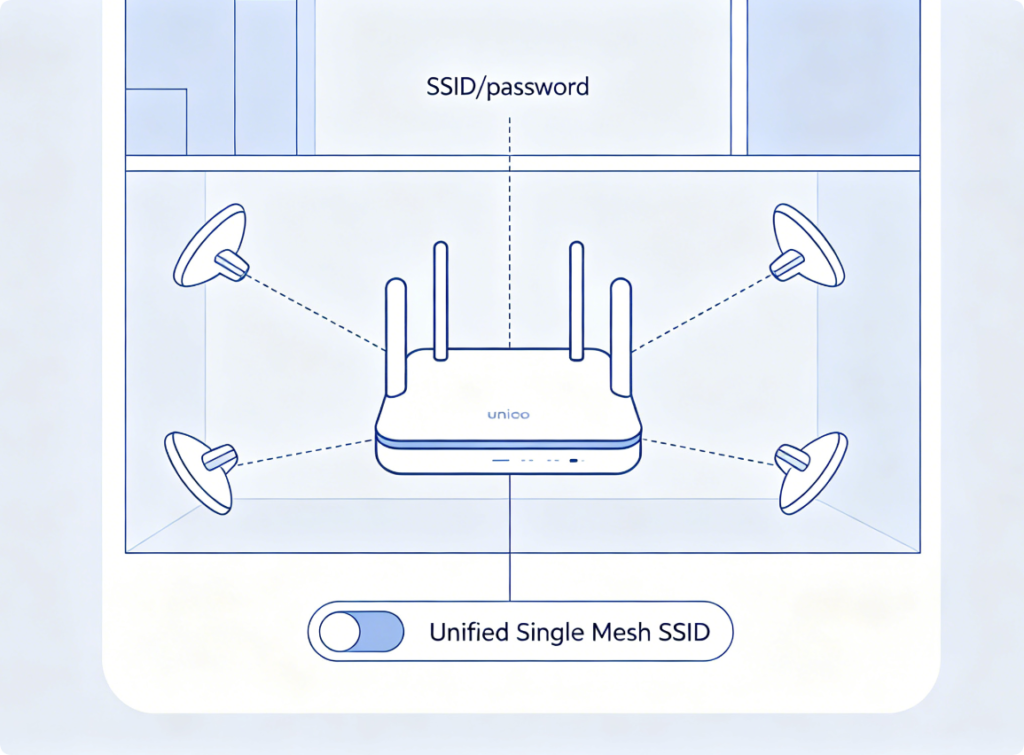
Special Orbi Mesh Adjustment
- If you use one unified mesh SSID for seamless roaming, enter identical Wi-Fi names and passwords on both bands of the main router. All Orbi satellites mirror these settings automatically after a 60-second sync.
- To separate satellite network names, disable mesh band steering and edit each satellite individually via the Nighthawk mobile app.
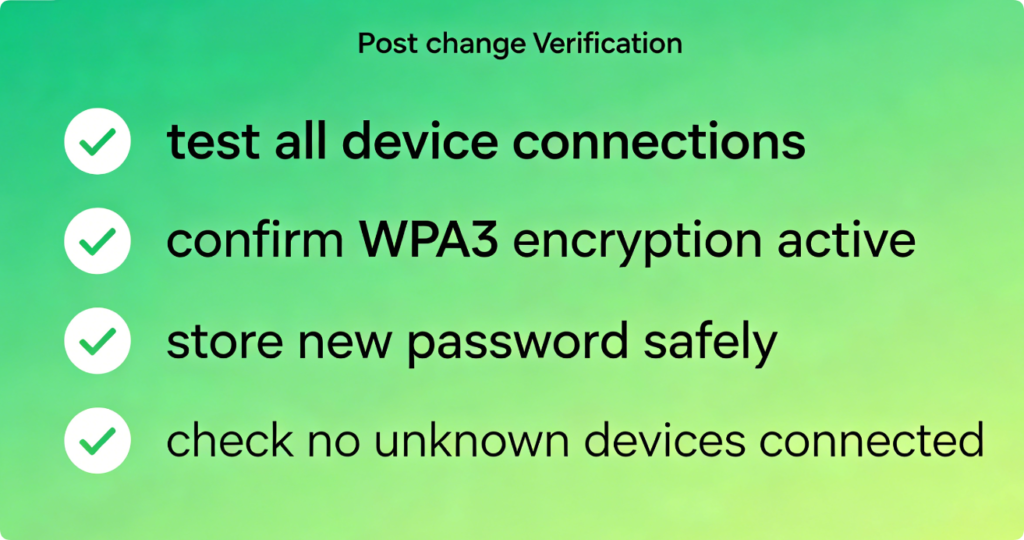
Post-Edit Verification Checklist
- Walk through every room to confirm all devices connect to the updated Wi-Fi without lag.
- Double-check the wireless security mode remains WPA2/WPA3 Mixed PSK.
- Save your new SSID and password in an encrypted password manager.
- Open the Connected Devices list to ensure no unauthorized gadgets joined the network.
Conclusion
Modifying your Netgear Nighthawk or Orbi mesh Wi-Fi SSID and password only takes 5 minutes via routerlogin.net. Using unique private network names and complex WPA2/WPA3 passcodes eliminates most basic home network security risks. For Orbi systems, matching dual-band credentials on the main router ensures seamless mesh roaming across all satellite nodes. Remember to reconnect every household device after saving changes, and refresh your Wi-Fi passphrase every 3–6 months for long-term network protection.