A factory reset erases all custom router settings—Wi-Fi names, admin passwords, port forwards, mesh links, QoS rules—to restore original factory defaults. This fix resolves unresponsive firmware, persistent Wi-Fi lag, forgotten login credentials, and broken Orbi mesh sync for all Netgear Nighthawk AX/RAX series and Orbi mesh systems. This guide covers two reliable reset methods: software web-based reset and physical hard reset, plus critical post-reset setup tips.
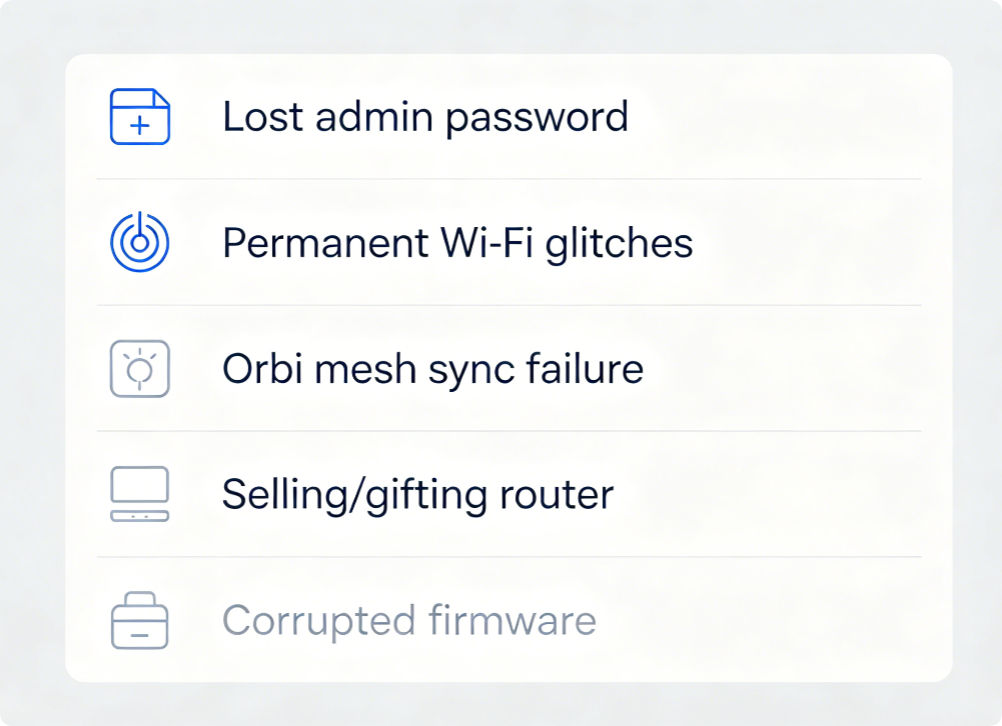
Common Reasons for a Full Factory Reset
- Forgot router admin username and password, cannot log into the web dashboard
- Chronic slow speeds, random disconnections or unpatched configuration conflicts
- Orbi satellite nodes fail to pair, unstable mesh roaming between units
- Preparing to sell, donate, or return the router (erase all private network data)
- Firmware update corruption that standard reboot cannot repair
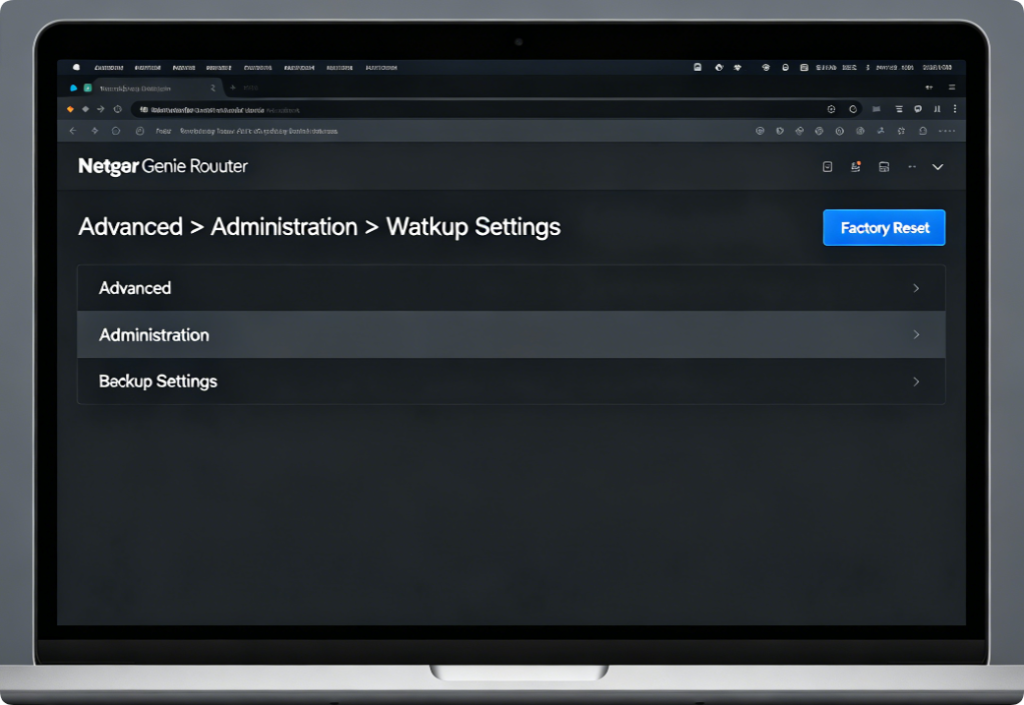
Software Soft Reset (Recommended If You Can Log In)
- Connect your PC to the router’s LAN port with an Ethernet cable.
- Visit
routerlogin.netand log in with your admin credentials. - Navigate to Advanced > Administration > Backup Settings.
- Locate the “Erase All Settings / Factory Reset” button and click it.
- Confirm the pop-up warning; the router will auto-reboot within 2 minutes.Advantage: Gentle reset that avoids hardware button pressure damage.
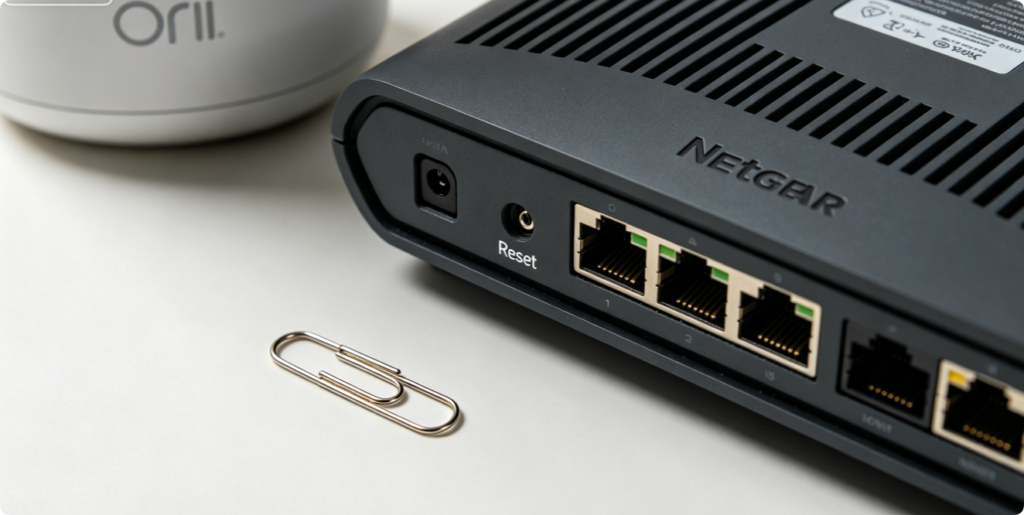
Locate the Reset Pinhole
All Nighthawk routers and Orbi satellites feature a small, recessed reset hole on the back/bottom panel. It is too narrow for fingers—you need a paperclip, SIM eject tool, or thin toothpick to press the internal button.
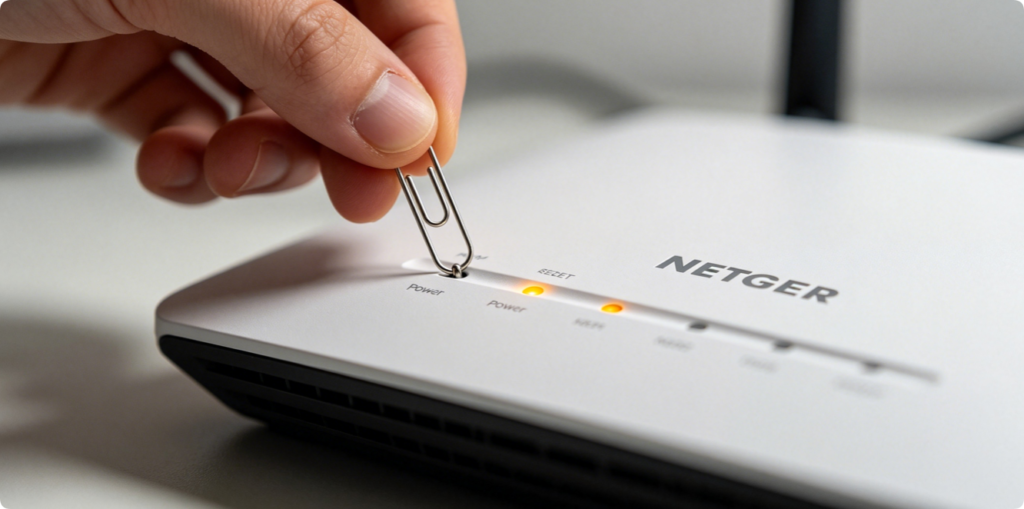
Hard Reset Steps (For Locked Routers You Cannot Log Into)
- Keep the router powered on with steady power LED light.
- Insert the paperclip into the reset pinhole and hold firmly for 7–10 full seconds.
- Release the clip once all front LEDs flash amber simultaneously.
- Wait 3–5 minutes for the router to complete reset and fully restart.Warning: Do not cut power mid-reset—this risks permanent firmware damage.
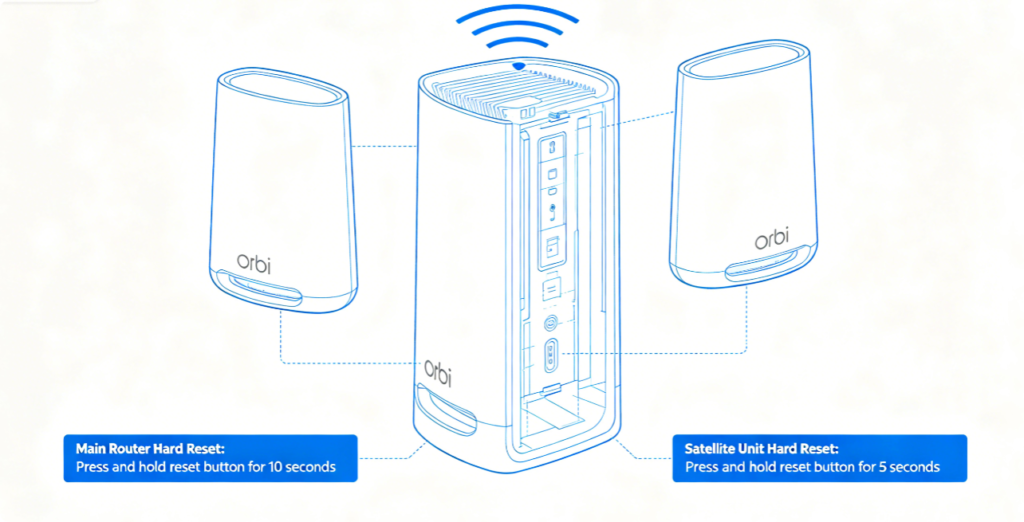
Orbi Mesh Extra Rule
- Reset the main Orbi router first if the whole mesh network malfunctions.
- Only reset individual satellites if one single node fails to connect; resetting satellites alone will break mesh pairing, requiring full re-sync after reboot.
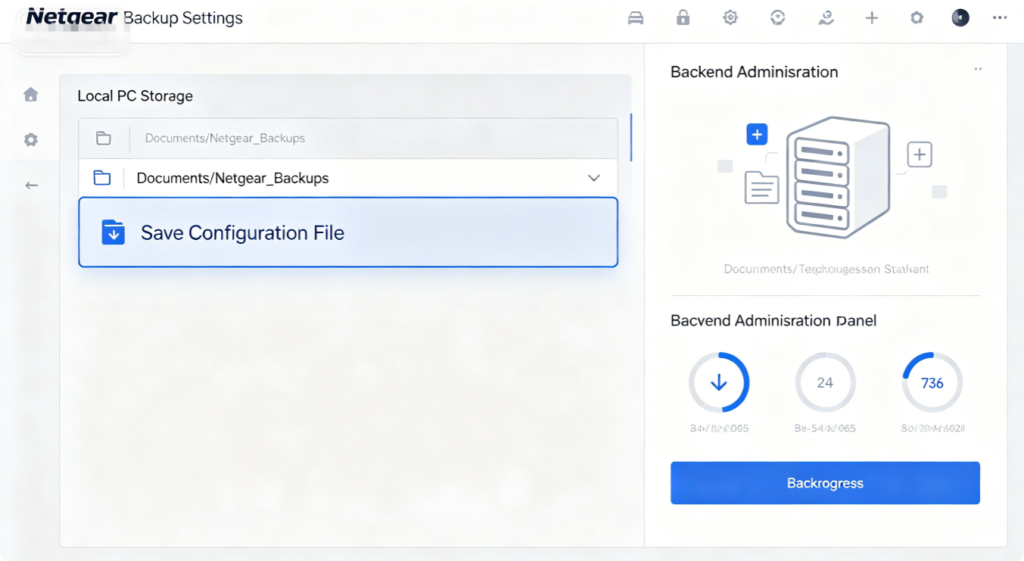
Backup Your Settings Before Reset
If you can log into routerlogin.net, download a backup config file via Backup Settings. This lets you restore all custom Wi-Fi, QoS and port rules post-reset instead of reconfiguring everything manually from scratch.
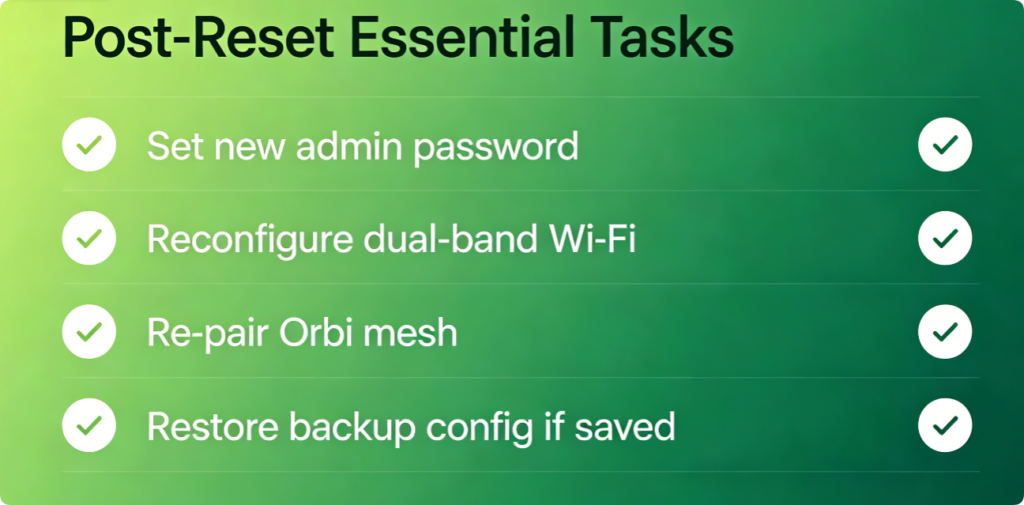
Post-Reset Setup Checklist
- Reconnect to the default Netgear Wi-Fi name printed on the router’s bottom label.
- Open
routerlogin.netto create a brand-new complex admin password. - Re-enter your ISP PPPoE or static IP internet credentials.
- Re-link Orbi satellites to the main router mesh network.
- Upload your saved backup file to restore old custom settings (if available).
Conclusion
Netgear Nighthawk and Orbi routers support two factory reset methods: a safe software soft reset for accessible dashboards, and a physical pinhole hard reset for locked, unloginable hardware. Always back up your configuration before resetting when possible, and follow separate guidelines for Orbi mesh satellites to avoid full mesh breakdowns. After resetting, complete the quick reconfiguration checklist to restore fast, stable whole-home Wi-Fi without leftover corrupted settings.