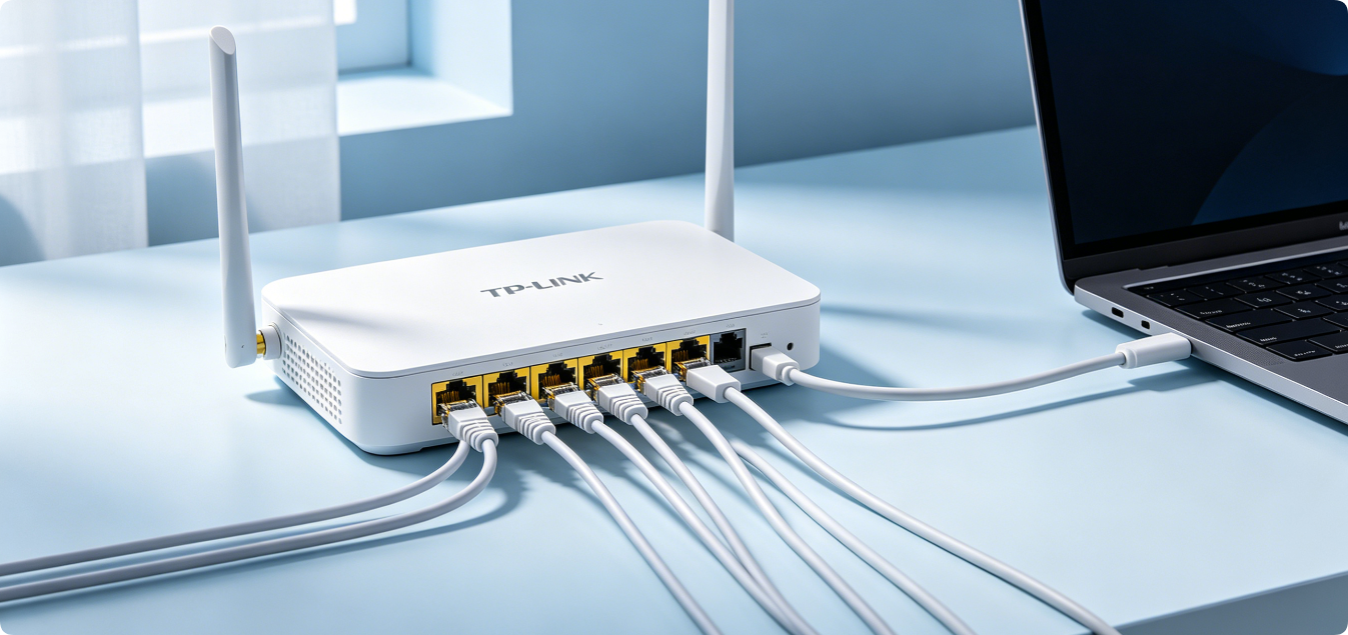
Wi-Fi is convenient for mobile devices, but wired LAN connections deliver far more stable, faster, and lower-latency internet access. Gamers, desktop PC users, smart TVs, and NAS storage devices all benefit greatly from a properly configured wired LAN link. Many home users plug Ethernet cables randomly and encounter slow speeds, packet loss, or no network signal at all. This step-by-step guide explains the correct physical wiring, LAN port settings, cable selection, and optimization tips to maximize wired network speed for all mainstream home routers.
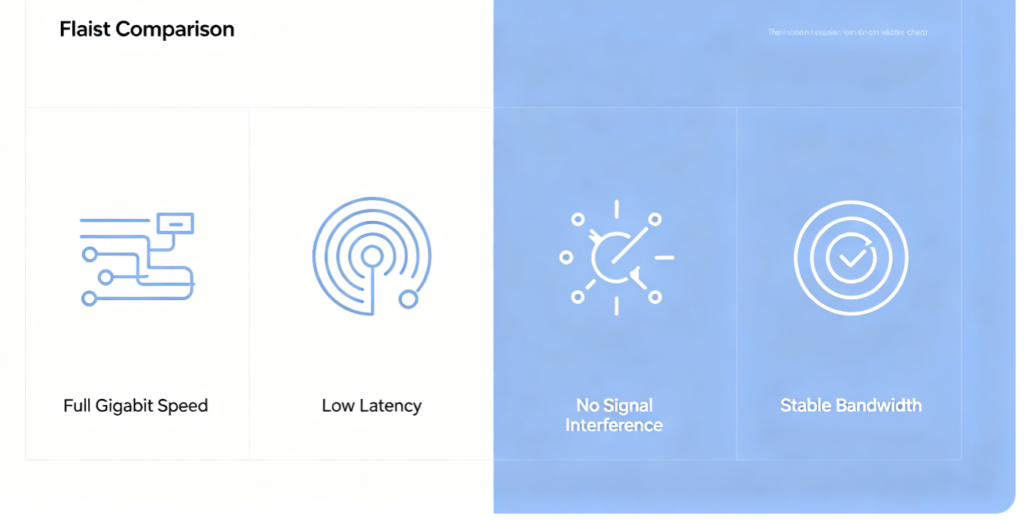
Wireless signals are easily disrupted by walls, microwaves, other routers, and household appliances, which causes speed drops and lag. In contrast, wired Ethernet connections transmit data directly through copper cables without wireless interference. Modern gigabit LAN ports support speeds up to 1000 Mbps, ideal for 4K streaming, online gaming, large file downloads, and cloud backups. For fixed-position devices, wired LAN is always the top choice for reliable high-speed networking.
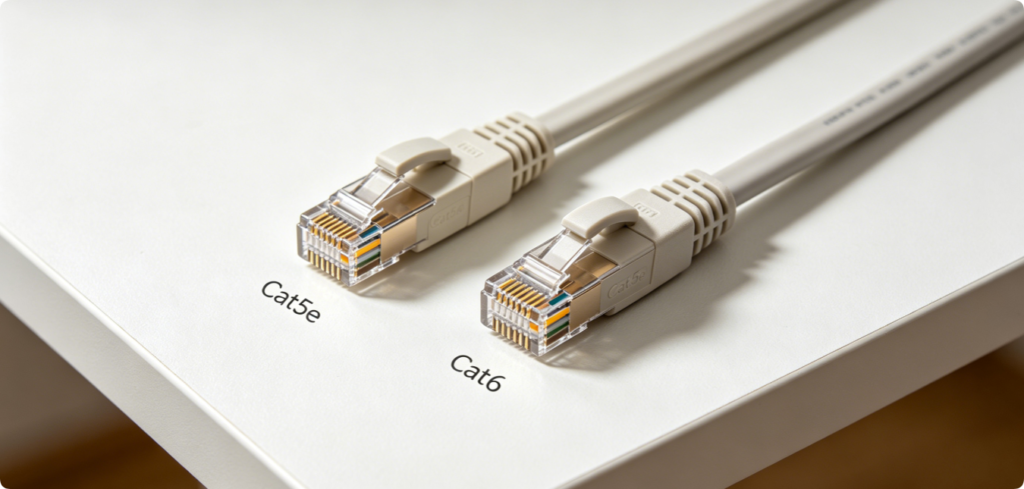
Not all Ethernet cables support the same speed standards, which is a common hidden cause of slow wired connections:
- Cat5: Maximum 100 Mbps, outdated, not recommended for modern broadband
- Cat5e: Supports full gigabit 1000 Mbps, budget-friendly daily choice
- Cat6: Gigabit transmission with anti-interference shielding, best for long cable runs and gaming Avoid cheap thin unshielded cables longer than 20 meters, as they create signal attenuation and slow down LAN throughput.
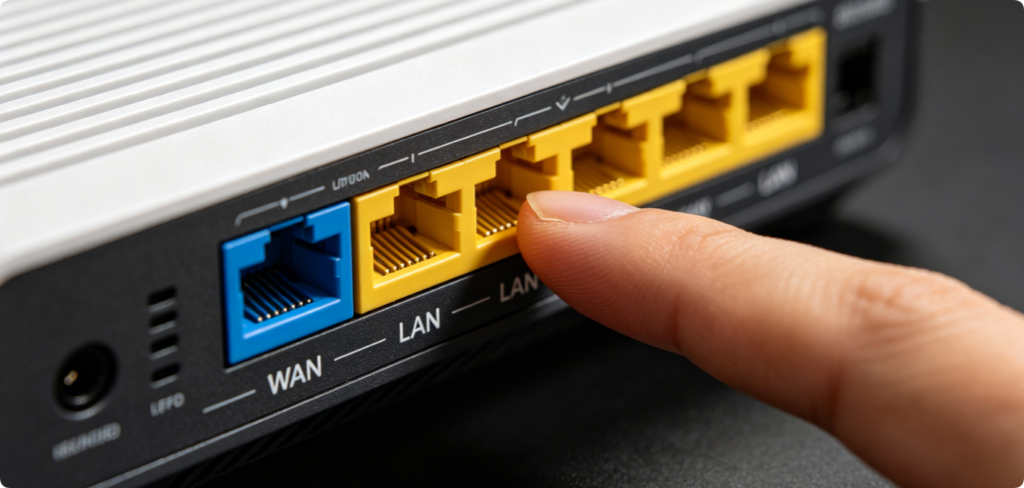
A critical beginner mistake is plugging devices into the WAN port by accident. The WAN port only connects to your modem for incoming internet. All desktop PCs, smart TVs, game consoles and NAS drives must be plugged into any of the numbered LAN ports (LAN1 / LAN2 / LAN3 / LAN4). Mixing up WAN and LAN ports will result in local network isolation and zero internet access for your wired device.
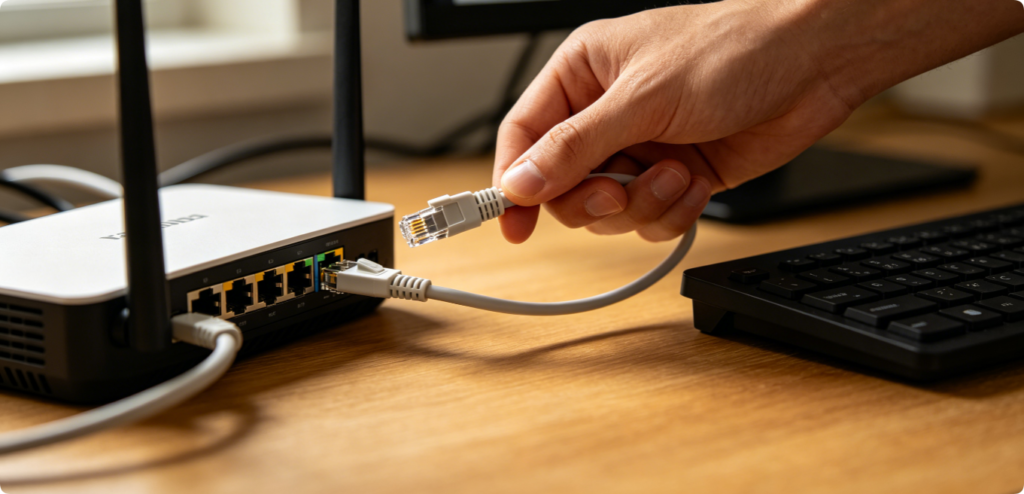
Follow this standard wiring process for a single wired device:
- Power off the router and your target wired device temporarily
- Take a Cat5e or Cat6 Ethernet cable
- Insert one RJ45 connector firmly into any empty router LAN port until you hear a click lock sound
- Plug the opposite end into the Ethernet network port on your PC, TV or game console
- Power both devices back on and wait 30 seconds for network recognition
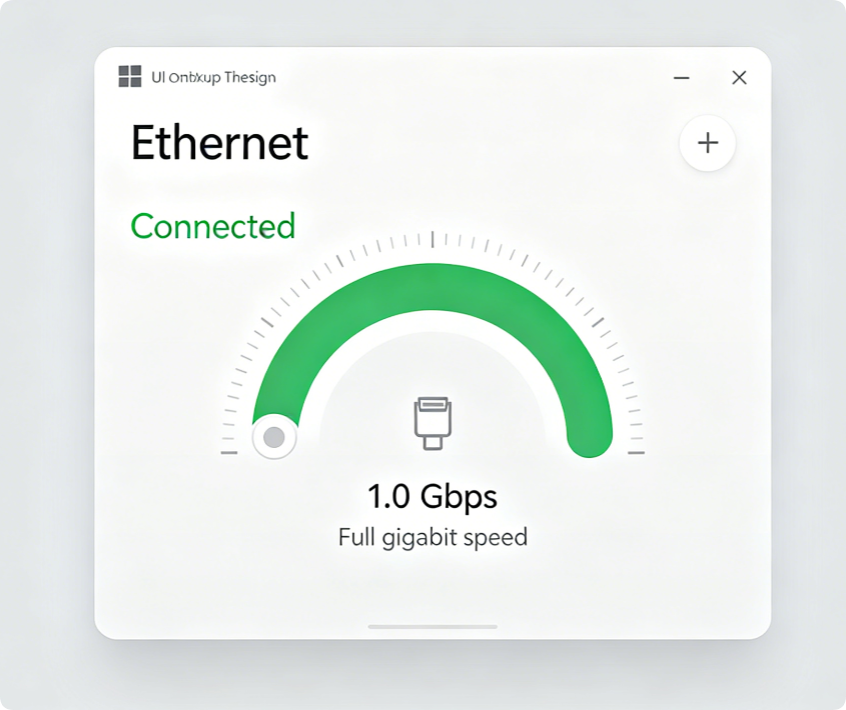
After physical wiring, verify the wired link status on Windows:
- Open Settings > Network & Internet > Ethernet
- Check the connection description; it should show “Connected”
- View Link speed & duplex to confirm 1.0 Gbps Full Duplex If it only shows 100 Mbps or Limited connectivity, re-seat both cable ends or swap to a higher-grade Cat6 cable.
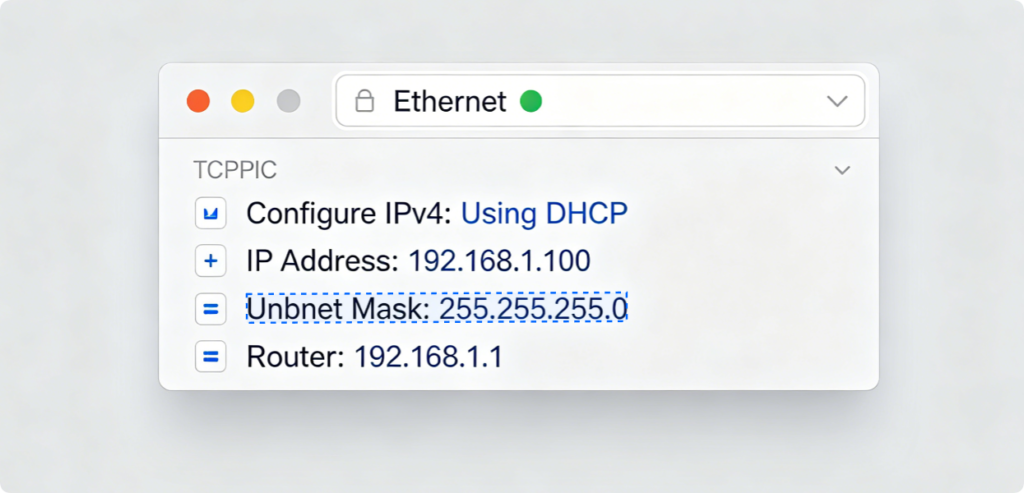
For Mac wired connection confirmation:
- Click Apple Menu > System Settings > Network
- Select Ethernet on the left sidebar
- A green dot means the LAN cable is properly detected
- Leave Configure IPv4 set to Using DHCP for automatic IP assignment, no manual editing required for basic use
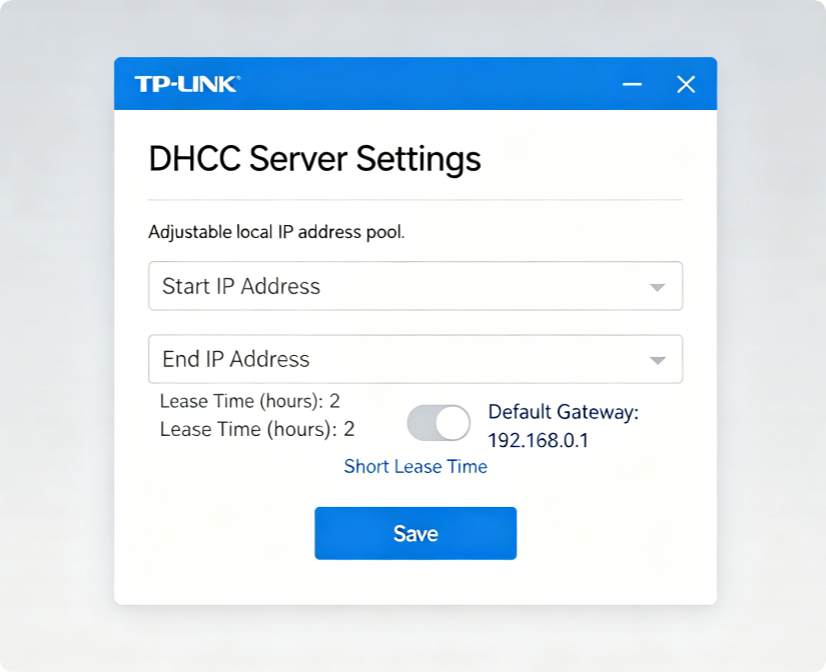
By default, the router’s built-in DHCP server automatically assigns unique local IP addresses to all wired LAN devices, which is suitable for most home networks. Keep these default settings unless you need static IPs for NAS or surveillance cameras:
- Keep DHCP Server enabled
- Leave the IP address pool range unchanged (192.168.1.100–192.168.1.200)
- Lease time can stay at default 1440 minutes for daily household use
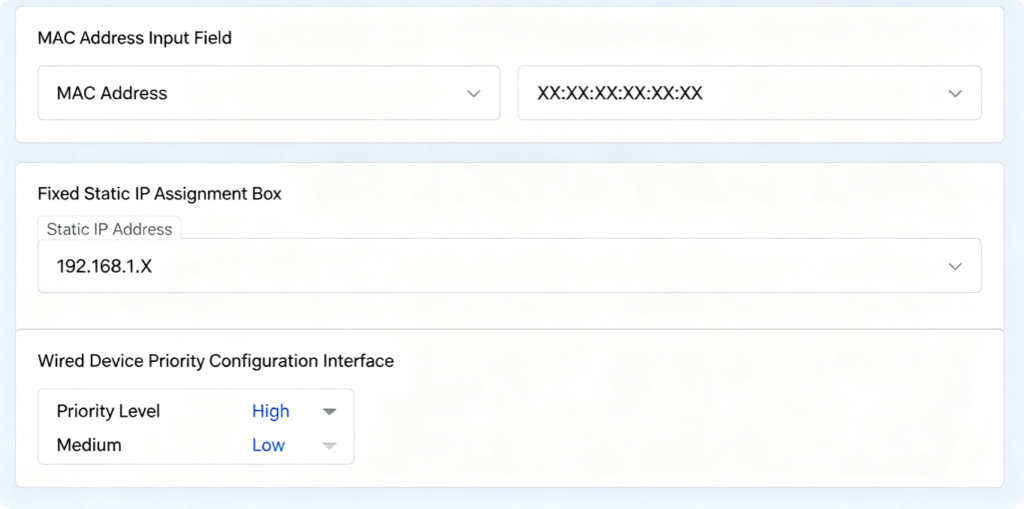
If you run a local file server, NAS storage, or host online game servers, set a permanent static LAN IP via Address Reservation:
- Enter Advanced > LAN > Address Reservation on your router admin panel
- Input the MAC address of your wired device
- Assign a fixed unchanging local IP within the DHCP pool range
- Save settings; the device will always use the same LAN IP after every reboot
This eliminates IP conflicts and stabilizes local area network data transmission.
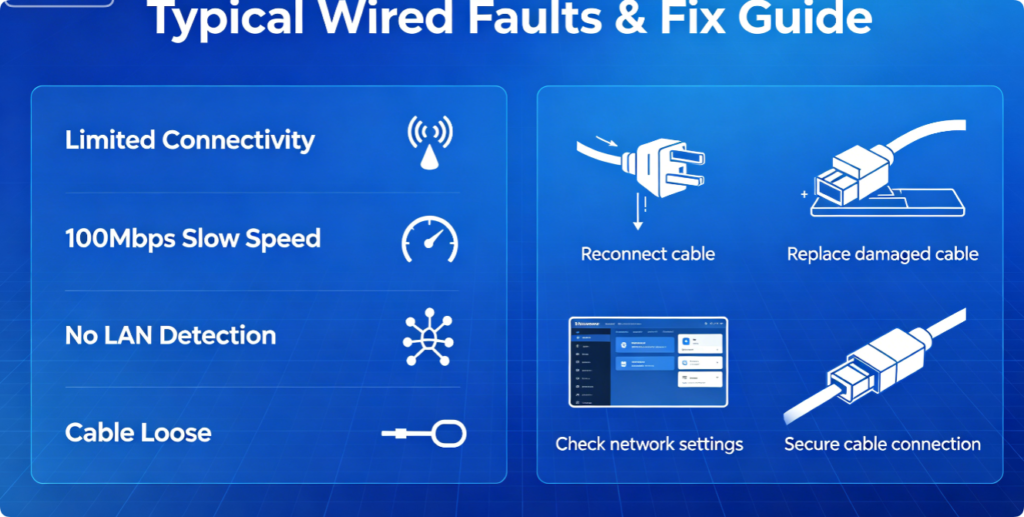
Solve frequent wired LAN problems instantly with these quick fixes:
- No wired connection detected: Replug both cable ends, swap a new Ethernet cable, check broken network port
- Only 100 Mbps speed instead of gigabit: Replace Cat5 cable with Cat5e/Cat6, clean dusty RJ45 connectors
- Limited internet access: Reboot router and wired device, confirm DHCP server is not disabled
- Frequent disconnection: Avoid overly long cables, keep wiring away from power cords to reduce interference
After finishing all wiring and basic router LAN settings, test your wired internet speed with an online speed test tool. You will notice drastically lower ping, zero wireless lag, and full utilization of your broadband’s maximum bandwidth compared to Wi-Fi. For heavy network usage scenarios such as 8K video playback and competitive gaming, a well-setup wired LAN is irreplaceable.
Conclusion
Setting up a fast wired LAN connection relies on three core factors: high-quality Cat5e/Cat6 Ethernet cables, correct LAN port wiring (avoid WAN port mix-up), and reasonable DHCP/static IP router configurations. Wired connections eliminate all wireless signal interference and unlock your broadband’s full speed potential for stationary household devices. Whether you use a desktop computer, smart TV, gaming console or NAS storage, following this complete setup guide guarantees a smooth, low-latency, high-speed local wired network at home.