Router firmware is the core operating system that controls all functions of your TP-Link wireless router. Regular official firmware upgrades patch critical security loopholes, optimize Wi-Fi speed, fix frequent disconnection bugs, add new features like WPA3 encryption and improve compatibility with smart home devices. However, improper updating operations can brick your router permanently, rendering it unusable. This 2026 complete risk-free guide covers every safe firmware update method for all TP-Link models, including web dashboard upgrade and TP-Link Tether mobile app upgrade, with full warning tips to avoid common upgrade failures.
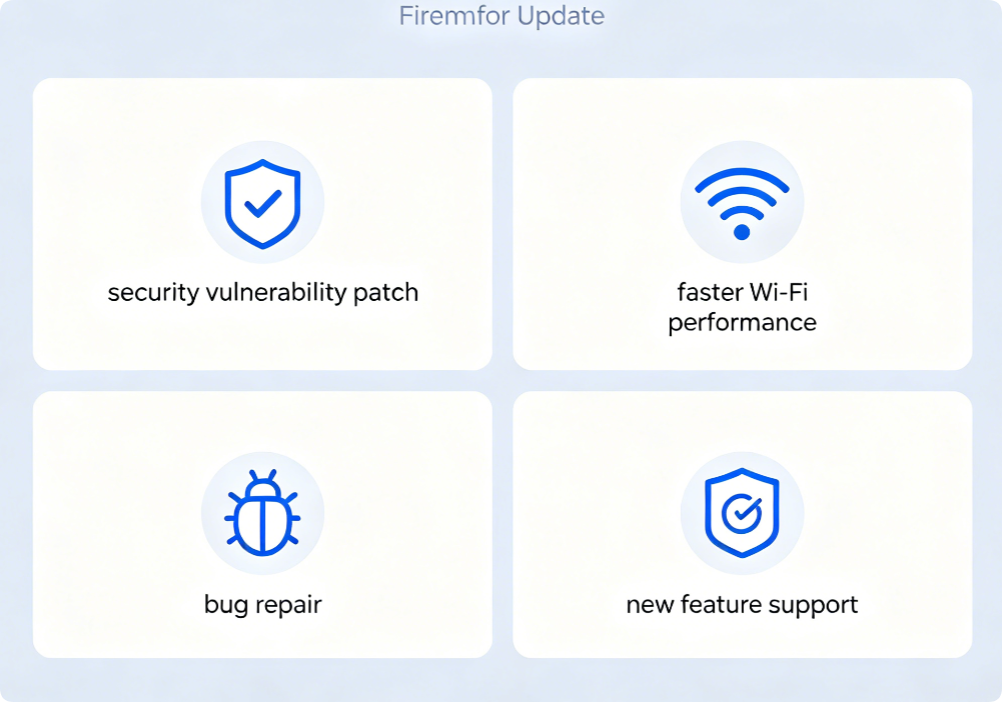
Many users ignore router firmware updates for years, exposing their home network to hidden dangers. Outdated firmware has unpatched security flaws that hackers can exploit to steal Wi-Fi passwords, monitor browsing data or hijack your router. Official TP-Link firmware releases optimize dual-band signal stability, solve device IP conflict issues, and enhance compatibility with new phones, game consoles and IoT gadgets. It is strongly recommended to check for new firmware versions every 3–6 months to maintain a safe and smooth network environment.
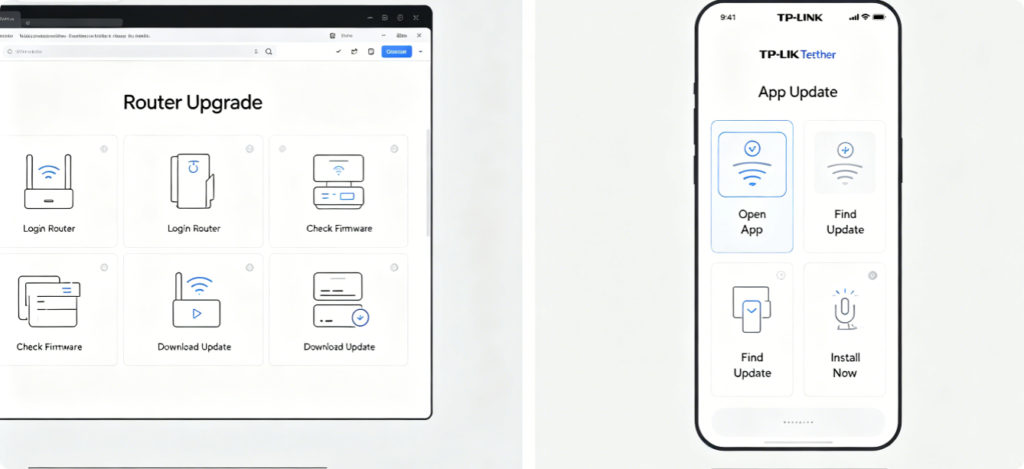
There are only two officially supported risk-free ways to upgrade TP-Link router firmware in 2026: upgrading through the router web admin panel on a computer, and one-click online update inside the TP-Link Tether mobile application. Third-party firmware files, offline modified firmware and unlicensed upgrade tools are strictly forbidden, as they will void your device warranty and easily cause router bricking.
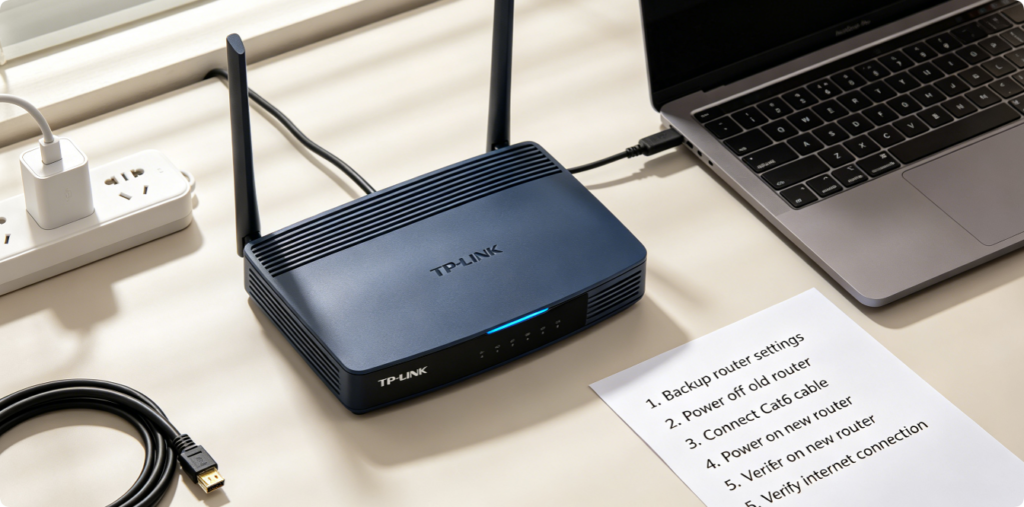
Complete all preparation steps before starting any firmware update to eliminate 99% of upgrade failure risks:
- Ensure stable continuous power supply; never use loose power adapters or extension cords prone to power cuts
- Connect the computer to the router via wired Ethernet cable instead of unstable Wi-Fi
- Close all browser tabs and background software to avoid network interruption
- Write down your custom Wi-Fi name, Wi-Fi password and admin password as backup
- Do not operate other network devices or download large files during the whole upgrade process
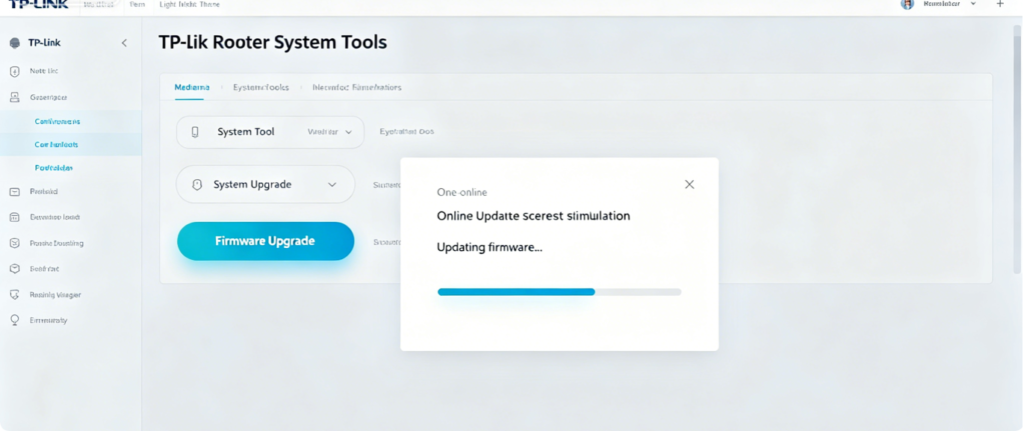
Step 1: Connect your laptop to the TP-Link router with an Ethernet cable, open Chrome or Edge browser, enter tplinkwifi.net or 192.168.1.1 to log into the admin dashboard using your custom admin password.
Step 2: Locate the System Tools or Advanced > System menu on the left sidebar, then select the Firmware Upgrade tab.
Step 3: Tap the Check Online button; the system will automatically detect the latest official firmware matching your exact router model.
Step 4: If a new firmware version is available, click Upgrade to start automatic downloading and installation.
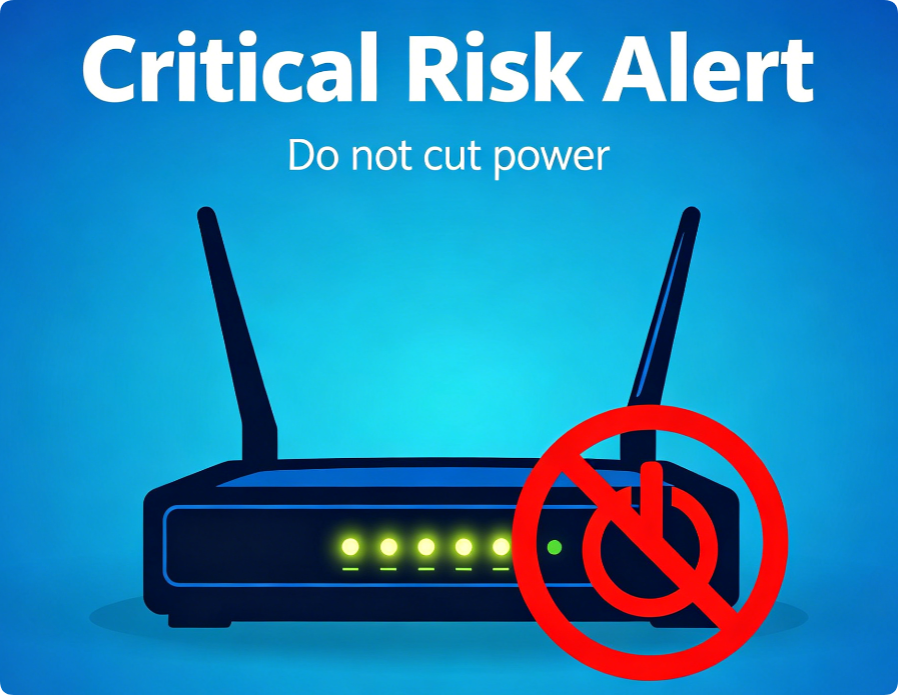
This is the most vital rule of router firmware upgrade: once the installation progress bar appears on screen, you cannot unplug the router power adapter, turn off the computer, disconnect the Ethernet cable or restart the device. Any power interruption mid-upgrade will damage the router’s internal system chip, resulting in permanent hardware failure that requires professional repair. The whole upgrade progress usually takes 2–4 minutes.
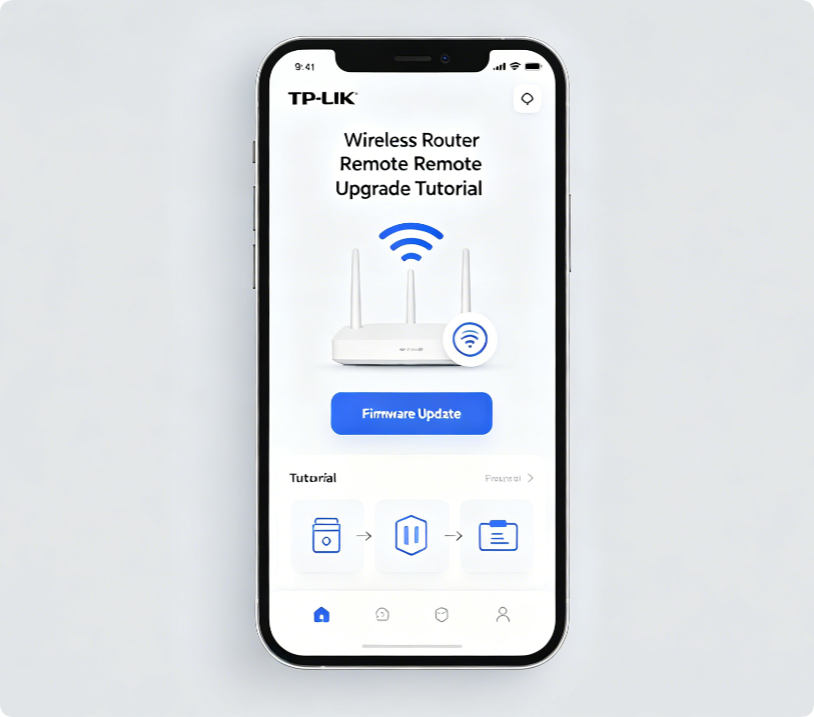
For users without a desktop computer, the official TP-Link Tether app provides a convenient wireless online upgrade solution:
- Download and log into the Tether app, ensure your phone connects to the target TP-Link router’s Wi-Fi network
- Select your bound router device on the app homepage, enter the Tools menu
- Scroll down and tap System > Firmware Update
- The app auto-scans for the newest official firmware, tap Update Now to run the automatic upgrade Keep your phone screen awake and the router powered on until the progress completes fully.
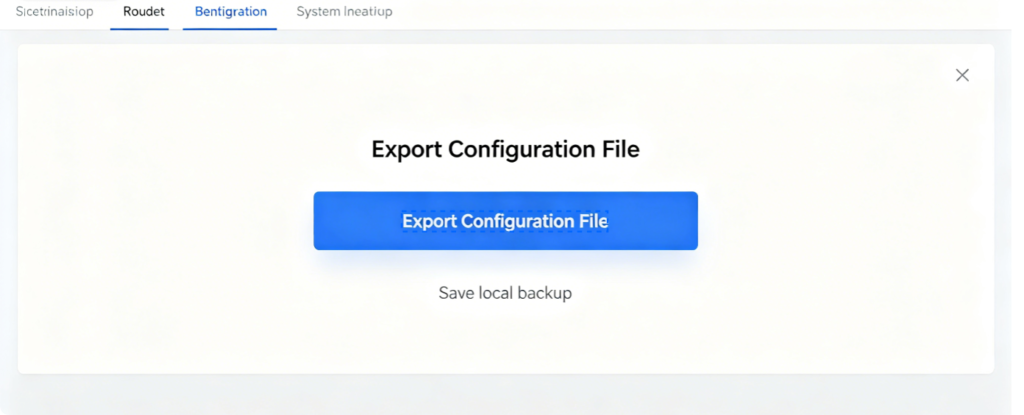
Before executing the firmware upgrade, export a backup file of all your router configurations to avoid reset loss: enter System Tools > Backup & Restore, click Export to save the .bin configuration file on your laptop. If the upgrade accidentally resets all custom network settings, you can quickly import this backup file to restore Wi-Fi names, bandwidth control and port forwarding rules in one click.
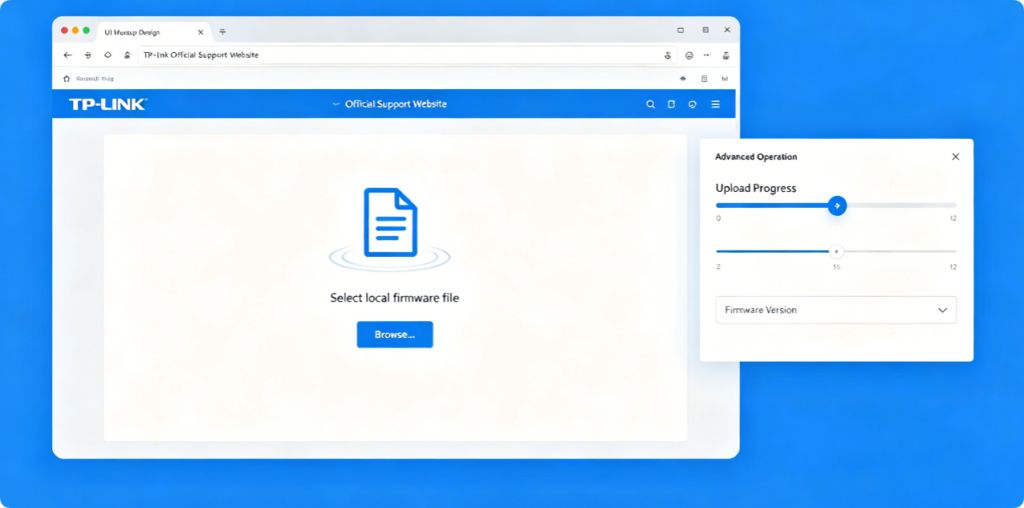
If the automatic online update fails due to unstable broadband, advanced users can perform an offline manual upgrade:
- Visit the official TP-Link Support website, search your precise router model number to download the matching official firmware .bin file
- Do not open or modify the downloaded firmware file, keep it intact on your computer
- Return to the Firmware Upgrade page, select Browse to upload the local firmware file, then start installation Note: Uploading mismatched model firmware will immediately brick the router, double-check the model code before uploading.
When the router automatically reboots and all indicator lights return to stable normal status, the firmware upgrade is finished completely. Follow these verification steps:
- Reconnect your phone and laptop to Wi-Fi to test normal internet access
- Log back into the admin panel to confirm all custom settings remain intact
- Check the firmware version number on the System page to confirm the latest version is installed
- Test core functions: Wi-Fi connection, device management and parental control to rule out upgrade compatibility bugs
Common upgrade issues and safe fixes:
- Online update cannot detect new firmware: Refresh the page, restart router, or use offline manual upload
- Upgrade progress stuck for over 10 minutes: Long press router Reset button to restore factory defaults, reconfigure network
- Router cannot boot after interrupted power cut: Contact TP-Link official after-sales support for chip repair
- Wi-Fi signal weak after update: Reboot router twice or reset wireless channel settings in Wi-Fi configuration page
Conclusion
Updating TP-Link router firmware safely is essential to protect your home network from cyber threats and optimize network performance. Stick to the two official upgrade channels: web panel online update and TP-Link Tether mobile one-click update. Always prepare stable power, wired network connection and setting backups before starting installation, and strictly avoid cutting power during the upgrade process. By following all the risk-free steps in this 2026 guide, you can complete firmware upgrades without hardware damage, data loss or network configuration failures.