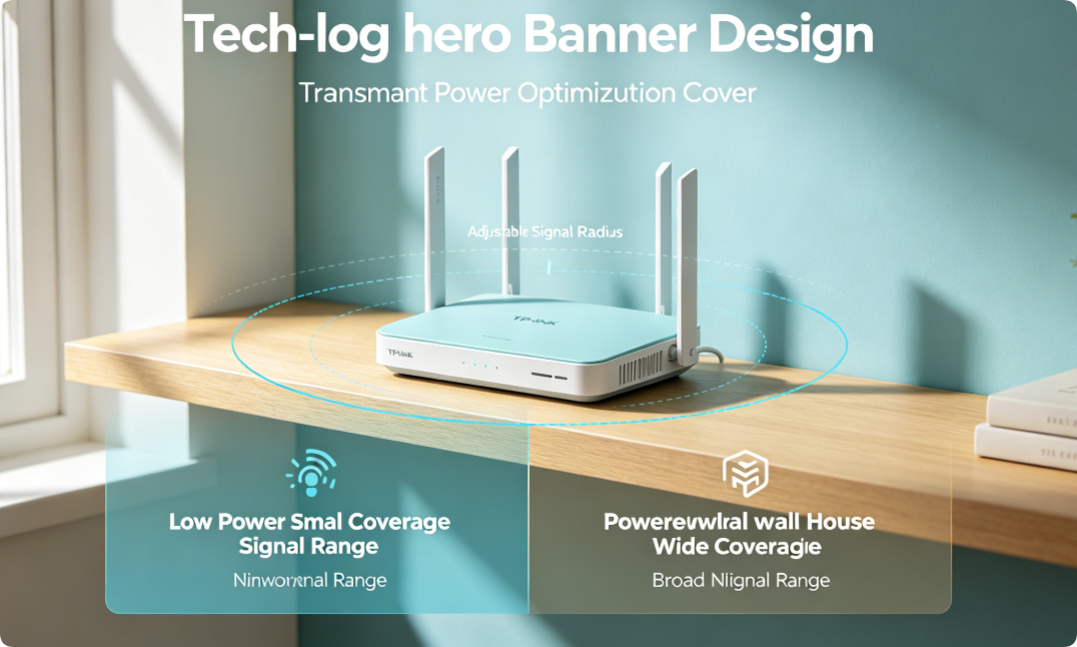
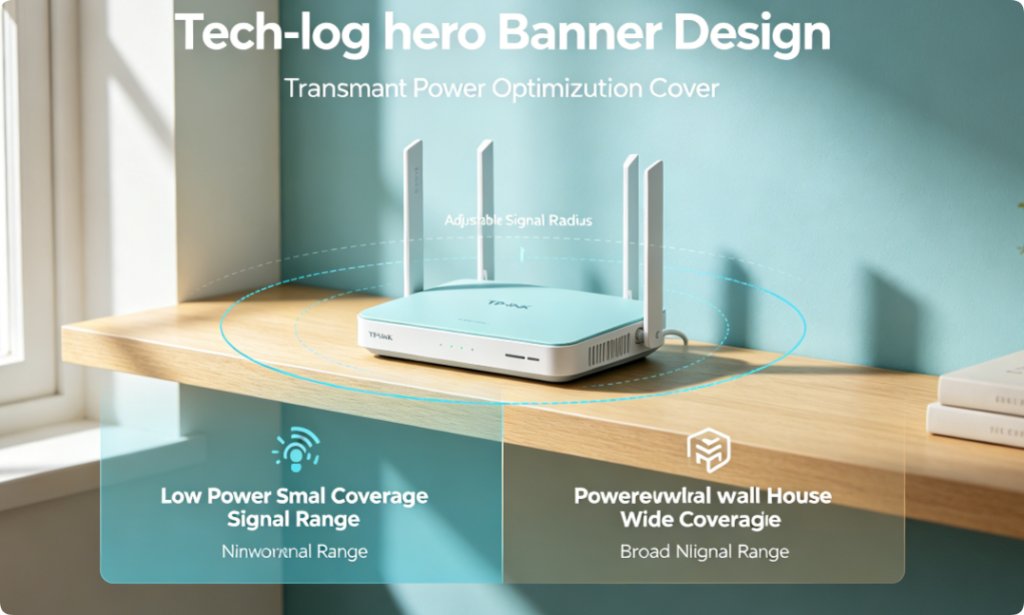
Many home network users struggle with two opposite Wi-Fi issues: weak signals in far bedrooms and basement dead zones, or constant lag and disconnections caused by overlapping neighbor Wi-Fi signals. Few people know the router transmit power control can solve both problems without buying mesh extenders or new hardware. Transmit power determines how strong your router broadcasts 2.4GHz and 5GHz radio waves, directly controlling coverage range and cross-building interference.
This complete guide explains what router transmit power is, how low/medium/high power modes affect dual-band Wi-Fi, step-by-step adjustment on TP-Link web dashboard and Tether mobile app, matched power settings for apartments, single-story houses and multi-story villas, plus troubleshooting unstable signals after tuning power levels. The tutorial works for all dual-band Wi-Fi 5 & Wi-Fi 6 routers including Archer AX53, TL-XDR1850, AX1800 and AX3000 models.
Basic Explanation of Transmit Power
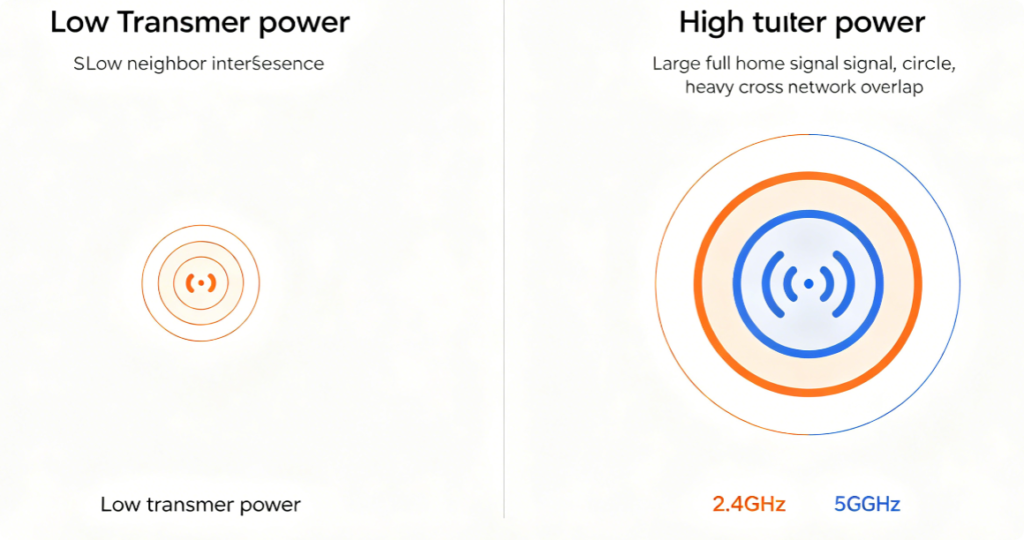
Router transmit power is the radio signal output strength for 2.4GHz and 5GHz bands separately, usually divided into three adjustable tiers: Low, Medium, High.
- Low Power: Weak signal output, narrow coverage, almost no interference with surrounding routers; suitable for tiny single-room apartments
- Medium Power: Balanced signal range and interference, the universal default recommended for most small & medium apartments
- High Power: Maximum signal broadcast strength, wide wall-penetrating coverage for large multi-floor houses; easy to cause signal overflow and congestion in dense residential buildings
2.4GHz signals travel farther at the same power level, while 5GHz requires higher power to pass through walls and floors.
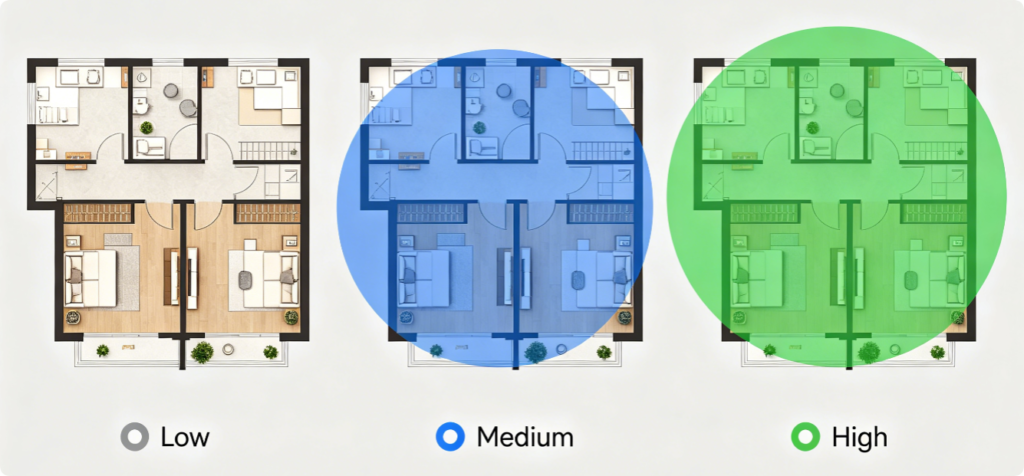
Visible differences between each power tier on identical house layout:
- Low Power: Only covers central living room; bedrooms, bathrooms and balconies become dead zones
- Medium Power: Covers all main living spaces; slight signal drop at far room corners
- High Power: Full uniform coverage across every room, including upstairs, basements and distant outdoor porches Critical reminder: High power brings wider range but amplifies channel overlap with neighboring Wi-Fi networks, triggering buffering and ping spikes in crowded high-rise apartments.
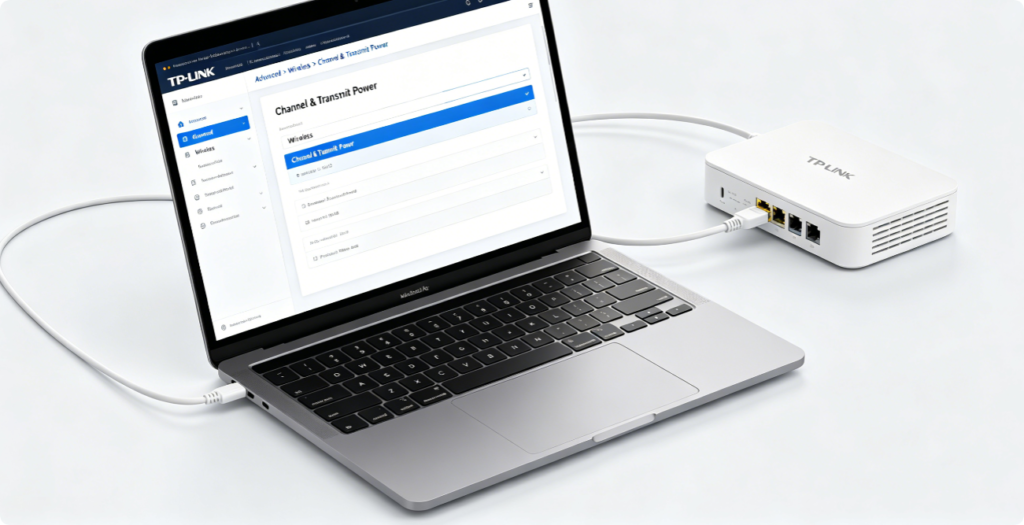
Follow wired connection login to avoid wireless interruption during power adjustment:
- Connect laptop or desktop to router LAN port via Cat5e/Cat6 Ethernet cable
- Open browser and visit
tplinkwifi.netor default gateway IP 192.168.1.1 - Input your custom admin password to enter backend
- Navigate to Advanced tab > Wireless > Channel & Transmit Power page, where signal strength sliders are separated for 2.4GHz and 5GHz bands
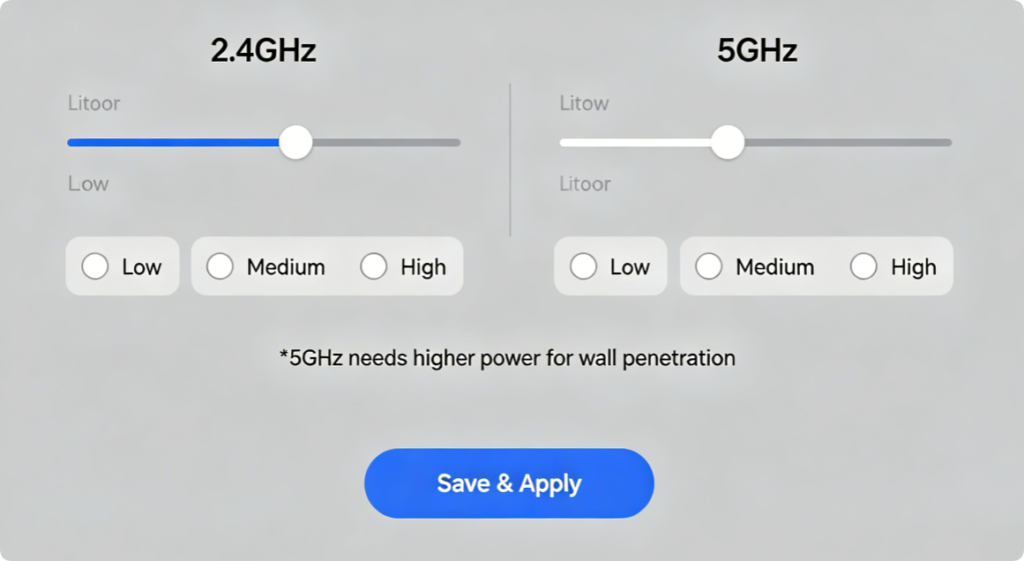
Step-by-step web panel tuning workflow:
- On Channel & Transmit Power page, find Transmit Power section
- Modify 2.4GHz and 5GHz power separately instead of using unified strength
- Matching power rules:
- Small apartment: 2.4GHz Medium, 5GHz Medium
- Large single-story home: 2.4GHz High, 5GHz High
- Two/three-story villa: 2.4GHz High, 5GHz High
- Dense downtown apartment: 2.4GHz Medium, 5GHz Medium (avoid High to reduce neighbor conflict)
- Click Save button to apply changes; wireless radios will restart within 30 seconds
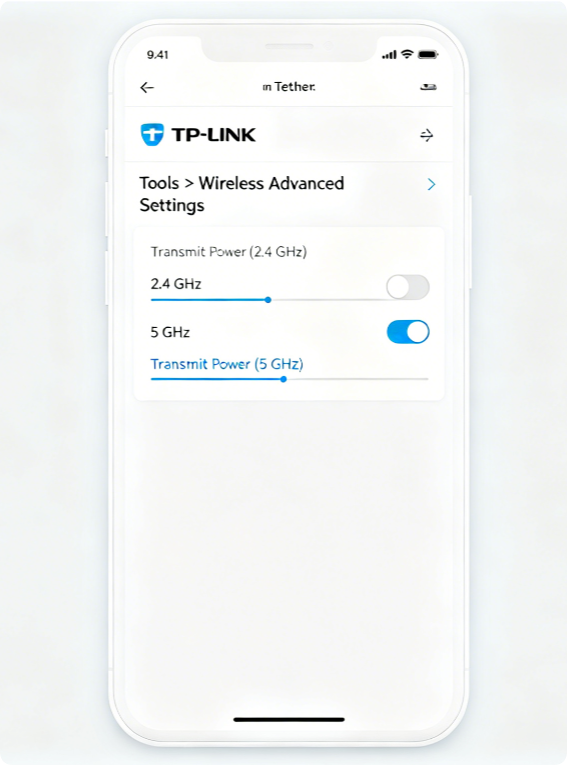
No laptop? Adjust signal strength directly on your mobile phone:
- Connect your smartphone to the target TP-Link router Wi-Fi and launch Tether App
- Tap your router device on the main page and open Tools menu
- Scroll down and enter Wireless Advanced Settings
- Locate Transmit Power option, pick Low / Medium / High for 2.4GHz and 5GHz individually
- Save modifications and wait for the wireless network to reload automatically
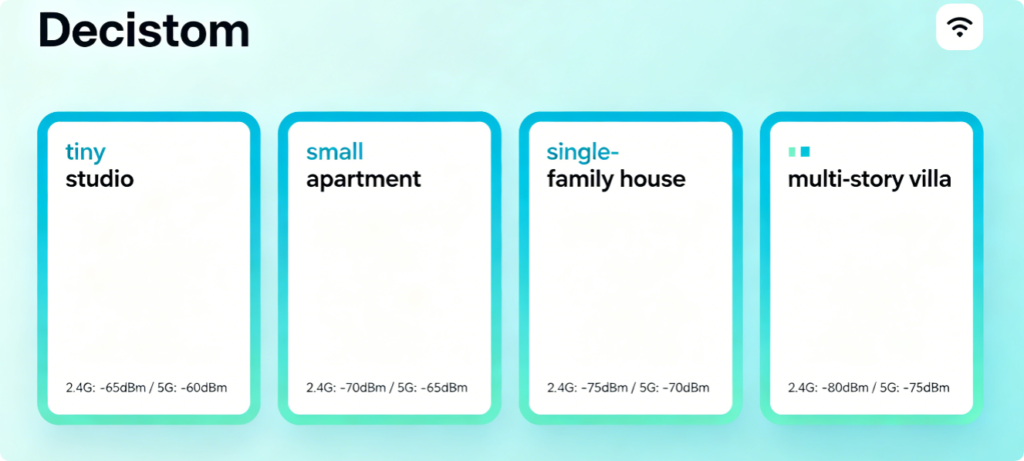
Universal matched power configuration table for all housing types:
- Tiny studio / single room (<60㎡): 2.4GHz Low, 5GHz Low
- One-bedroom apartment (60–90㎡): 2.4GHz Medium, 5GHz Medium
- Large open single-story house (90–150㎡): 2.4GHz High, 5GHz High
- Two / three-story villa with basement (>150㎡): 2.4GHz High, 5GHz High Key tip for high-rise apartments: Never set both bands to High transmit power, otherwise overlapping signals from dozens of nearby routers will cause severe multi-device lag.
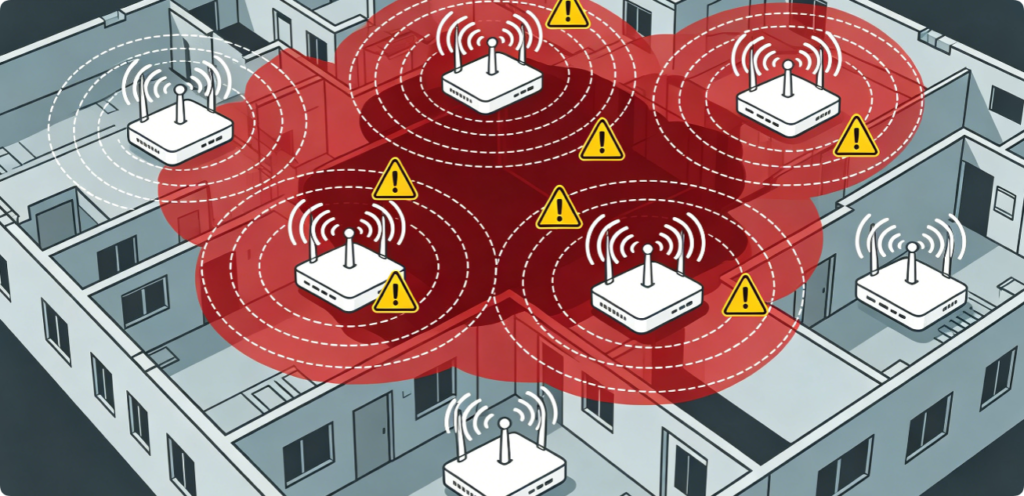
Many users mistakenly crank power to High to fix weak signals, which backfires in crowded buildings:
- Maximum-strength radio waves leak out of your apartment walls and collide with every neighbor’s Wi-Fi signal
- Overlapping saturated frequency space leads to frequent packet loss, random disconnections and video buffering
- Even clean manually selected channels will suffer interference if transmit power is set too high Solution: Drop power back to Medium and reposition the router to the geometric center of your home instead of relying solely on high signal output.
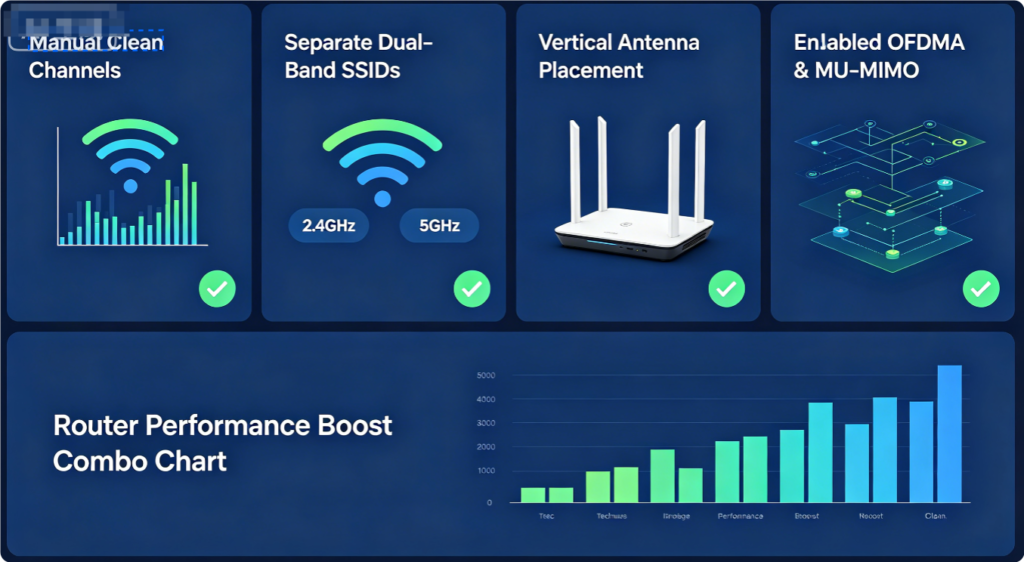
Transmit power adjustment works best when paired with these complementary settings:
- Manually set non-overlapping clean channels instead of Auto Channel mode
- Separate independent 2.4GHz and 5GHz SSIDs to avoid unstable band switching
- Keep all router external antennas fully vertical for balanced omnidirectional signal spread
- Activate Wi-Fi 6 exclusive OFDMA and MU-MIMO to reduce multi-device congestion
- Place router on elevated central open shelf away from metal appliances and thick walls
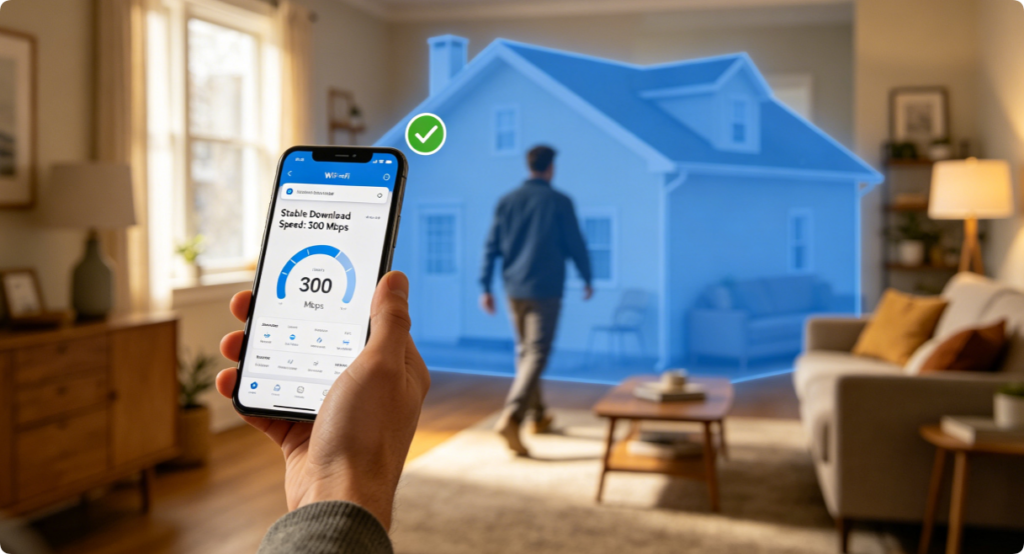
After adjusting transmit power, complete this coverage test to confirm ideal signal strength:
- Walk through every room, hallway, basement and balcony in your house
- Check Wi-Fi signal bar count on phones, laptops and smart TVs
- Run real-time speed tests while streaming 4K video and gaming simultaneously
- If far corners still show weak signal: reposition router centrally first before raising transmit power
- If constant buffering appears: lower power tier to Medium and re-scan surrounding Wi-Fi channels
Quick fixes for signal issues after transmit power adjustment:
- Persistent dead zones all over house: Upgrade power tier from Low to Medium/High, re-center router placement
- Constant buffering & gaming ping spikes: Reduce High power to Medium, switch to quiet manual 5GHz UNII-3 channels
- Smart home cameras/bulbs offline randomly: Keep 2.4GHz power at Medium, lock 2.4GHz bandwidth to 20MHz
- Unstable 5GHz connection upstairs: Boost 5GHz transmit power to High, tilt one antenna downward for vertical coverage
- No visible signal improvement: Update router to latest official firmware to fix radio transmission algorithm bugs
Conclusion
Adjusting router transmit power is a free, flexible method to balance wide whole-home Wi-Fi coverage and low wireless interference. Match Low power for tiny single rooms, Medium power as the balanced universal option for most apartments, and High transmit power exclusively for large single-family homes and multi-story villas. Avoid maximum signal strength settings in dense high-rise buildings to prevent severe cross-network congestion. Pair transmit power tuning with manual clean channel selection, proper central router placement, vertical antenna alignment and Wi-Fi 6 acceleration features to achieve stable, uniform dual-band signal across every room without lag, buffering or dead zones.