Slow download speeds, endless 4K video buffering, random gaming ping spikes, laggy smart home devices and frequent Wi-Fi disconnections plague thousands of TP-Link router users across every model line, including entry-level TL-XDR1850 AX1800, mid-range Archer AX53 AX3000, and premium AX5400 Wi-Fi 6 hardware. Most users immediately blame their internet service provider or rush to purchase expensive mesh extenders, yet over 90% of slow Wi-Fi issues stem from misconfigured factory default settings, signal interference, disabled performance features, poor physical placement, and wasted network bandwidth.
This actionable guide delivers 10 proven, easy-to-execute tweaks compatible with every TP-Link dual-band Wi-Fi 5 and Wi-Fi 6 TP-Link router. No advanced technical knowledge or extra networking hardware is required. Each adjustment directly eliminates bandwidth bottlenecks, reduces wireless congestion, unlocks hidden router performance, and stabilizes latency for gaming, streaming, remote work and smart home automation. We also include visual walkthroughs for the TP-Link web admin panel and Tether mobile app, alongside post-optimization testing and troubleshooting tips for stubborn slow Wi-Fi.
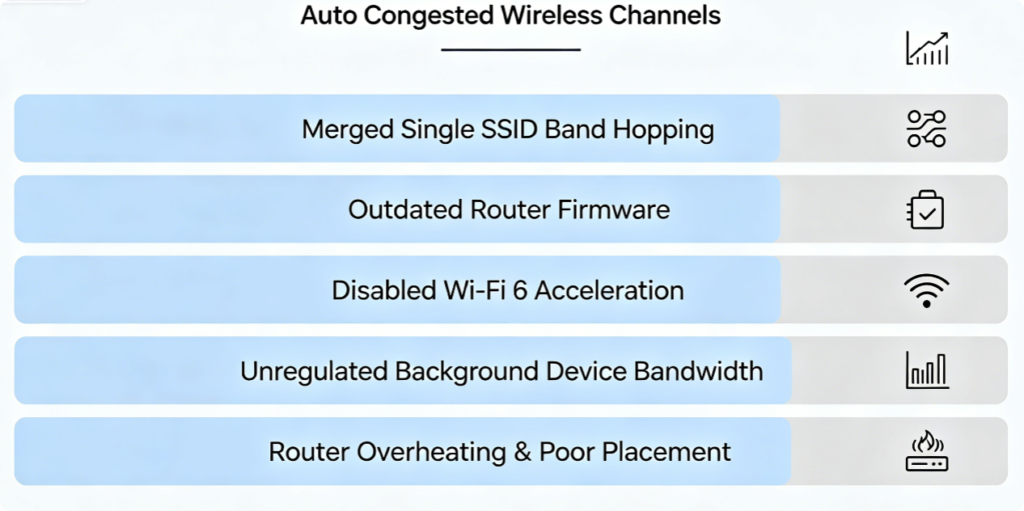
Before implementing any fixes, identify the core source of your weak wireless performance:
- Auto-selected crowded frequency channels creating constant signal collision with neighboring routers
- Unified Smart Connect single SSID triggering unstable automatic band switching between 2.4GHz and 5GHz
- Outdated firmware containing memory leaks, signal attenuation bugs and unoptimized wireless algorithms
- Factory-disabled OFDMA, MU-MIMO and 1024QAM that eliminate multi-device congestion on Wi-Fi 6 hardware
- Unrestricted background bandwidth consumption from idle IoT cameras, cloud backups and automatic device updates
- Router positioned inside closed cabinets, low to the ground or near metal appliances that block radio waves
All these widespread issues can be fully resolved using the 10 performance tweaks outlined below.
Tweak 1: Ditch Auto Channel Mode; Manually Pick Low-Congestion Channels
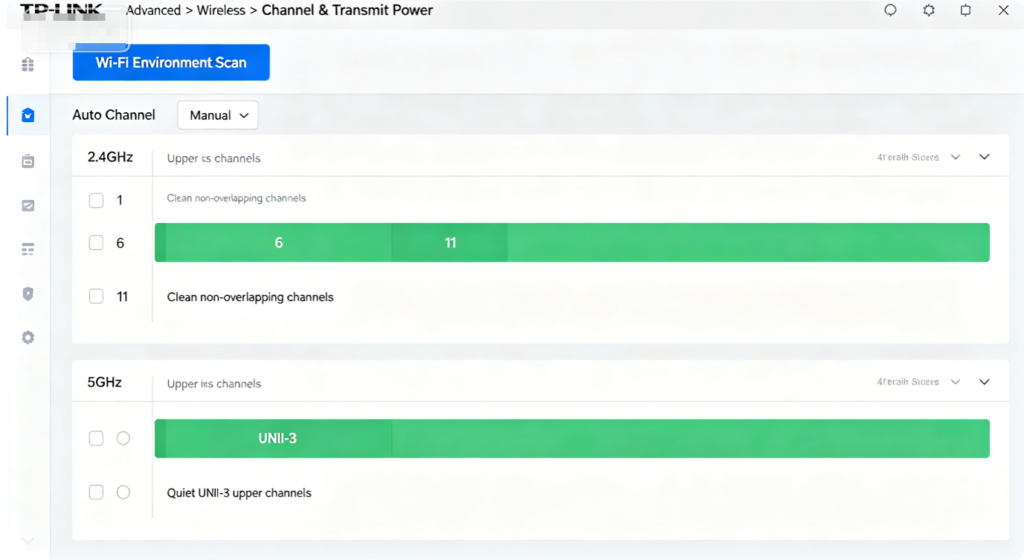
Automatic channel scanning is the number one cause of chronic slow Wi-Fi for TP-Link users living in apartments or dense residential neighborhoods. Routers default to re-scanning and switching channels constantly, often landing on saturated frequencies filled with competing neighbor signals.
Step-by-step setup:
- Log into
tplinkwifi.netvia wired Ethernet and navigate to Advanced > Wireless > Channel & Transmit Power - Run the Wi-Fi Environment Scan to view real-time channel congestion heatmaps
- For 2.4GHz: Only select channels 1, 6 or 11, lock bandwidth strictly to 20MHz
- For 5GHz: Choose upper UNII-3 channels (149, 153, 157) and set bandwidth to 80MHz for balanced speed and low interference
- Save settings to apply static channel allocation and eliminate recurring signal overlap
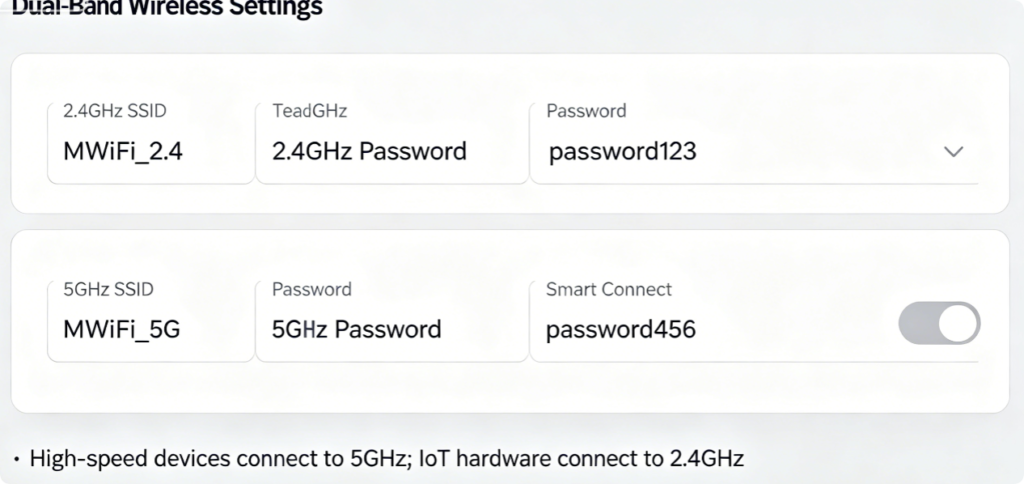
Tweak 2: Separate Dual-Band Wi-Fi Names to Prevent Random Band Hopping
While TP-Link’s Smart Connect single SSID simplifies basic connectivity, it creates crippling speed drops for gaming and streaming devices. Compatible hardware frequently falls back to the slower long-range 2.4GHz band when 5GHz signal weakens slightly, triggering sudden buffering and ping surges.
Optimal band assignment rules after splitting SSIDs:
- 5GHz Network: Gaming PCs, consoles, laptops, 4K smart TVs, video call devices (max wireless throughput, ultra-low latency)
- 2.4GHz Network: Smart bulbs, security cameras, thermostats, older legacy phones (long wall penetration for low-bandwidth IoT tasks) This manual separation guarantees high-demand devices remain locked to the faster 5GHz frequency without unexpected band jumps.
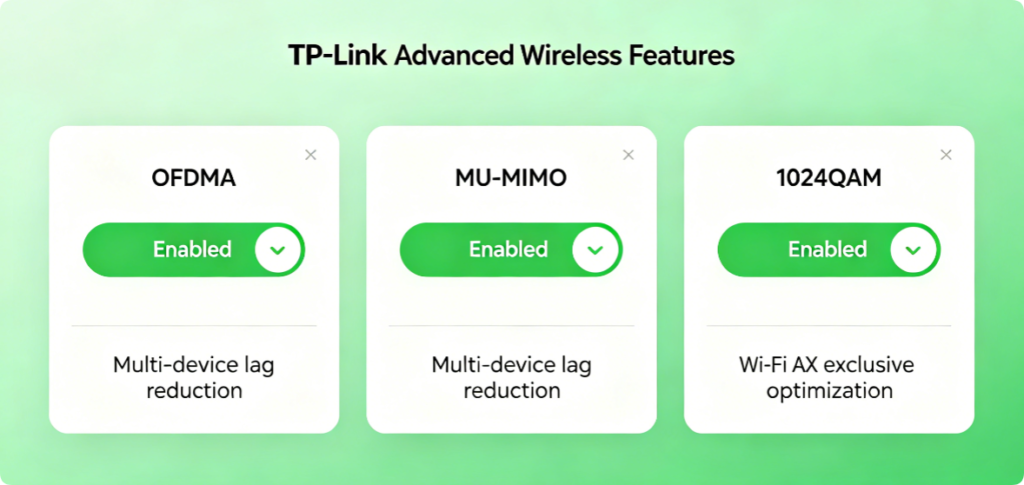
Tweak 3: Activate All Core Wi-Fi 6 Acceleration Features
Every TP-Link AX-series router ships with critical Wi-Fi 6 performance tools disabled by factory default. Traditional Wi-Fi transmits data to only one device at a time, creating massive bottlenecks when multiple family members stream, game and browse simultaneously.
Turn on three essential functions to eliminate multi-device slowdowns:
- OFDMA: Splits single channels into small sub-channels to serve dozens of low-power IoT gadgets concurrently
- MU-MIMO: Allows the router to send parallel data streams to multiple high-bandwidth gaming/streaming devices
- 1024QAM: Boosts wireless data compression to unlock the router’s maximum advertised AX speed ceiling After enabling these features, multi-device network lag can drop by 40–60% during peak evening usage hours.
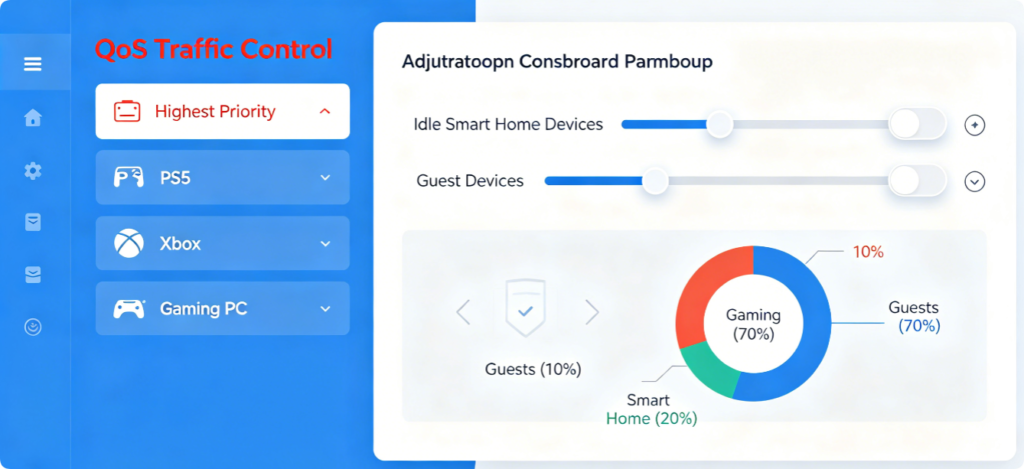
Tweak 4: Use QoS to Reserve Bandwidth for High-Priority Devices
Background processes such as automatic system updates, continuous security camera recording and cloud file backups consume the majority of upload bandwidth, which is the primary trigger of unstable gaming latency and stuttering video streams. TP-Link’s built-in QoS tool reallocates network resources to critical devices.
QoS configuration workflow:
- Navigate Advanced > QoS > Game Prioritization
- Drag gaming consoles, primary laptops and smart TVs to the Highest Priority tier
- Cap maximum upload/download bandwidth for idle IoT sensors and guest network connections
- Toggle Low Latency Mode to minimize packet delay during online multiplayer matches
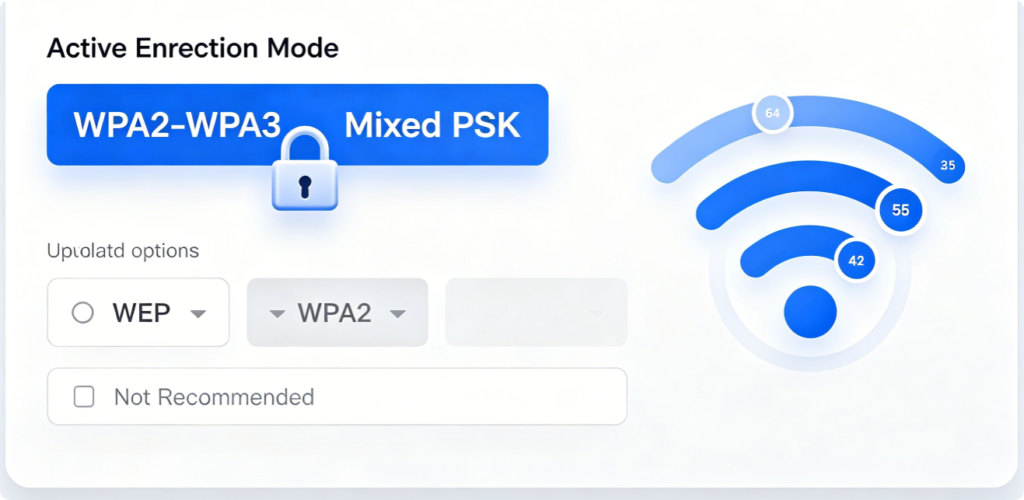
Tweak 5: Switch to WPA2/WPA3 Mixed Encryption to Remove Hidden Speed Limits
Outdated security protocols severely restrict wireless transfer speeds and leave your network vulnerable to unauthorized bandwidth theft from neighboring users. WEP encryption cuts throughput drastically, while pure WPA2 fails to support full Wi-Fi 6 performance.
WPA2/WPA3 Mixed PSK is the universal optimized standard for all TP-Link routers:
- Maintains full gigabit wireless speeds for modern Wi-Fi 5 / Wi-Fi 6 devices
- Blocks slow, insecure legacy hardware from connecting to your network
- Balances robust cybersecurity and unthrottled wireless transmission efficiency Always create a complex 12+ character Wi-Fi password with mixed letters, numbers and symbols to prevent unauthorized network access.
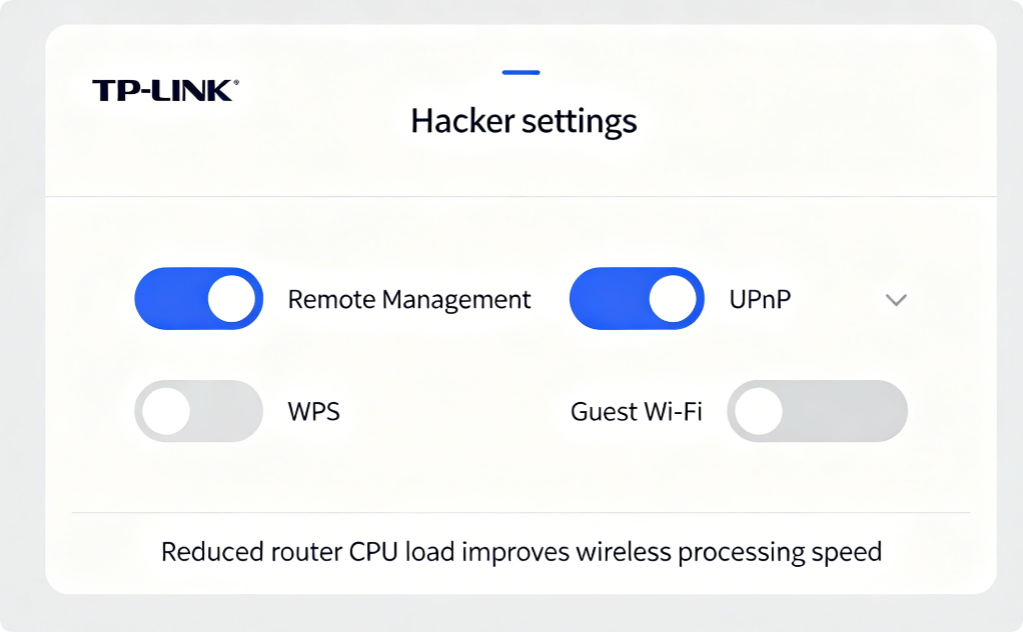
Tweak 6: Turn Off Resource-Hungry Default Features Running In The Background
Several pre-enabled TP-Link tools continuously consume router processor power, limiting the hardware’s ability to process wireless data packets efficiently. Disable all four functions if you do not actively rely on them:
- WPS Push Button: Eliminates constant background wireless signal scanning for pairing requests
- Remote Management: Blocks external off-site access attempts that create persistent network overhead
- Unused UPnP: Reduces unnecessary port mapping traffic unless you require port forwarding for gaming servers
- Guest Wi-Fi Network: Removes extra connected idle devices that drain shared bandwidth
Disabling these features lightens router CPU load, delivering smoother wireless performance across all connected hardware.
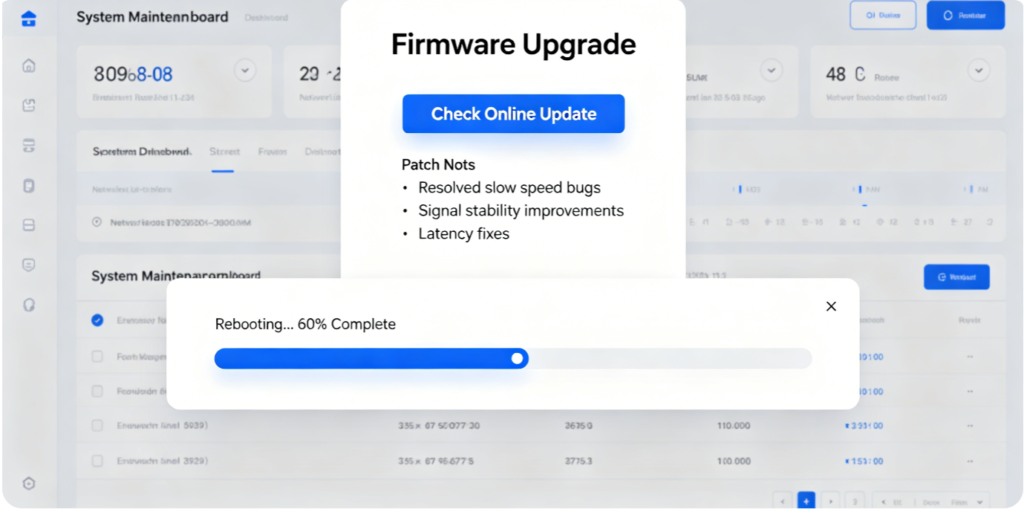
Tweak 7: Install the Latest Official Firmware to Patch Persistent Performance Flaws
TP-Link releases regular firmware updates for every router model to resolve memory leaks, broken signal transmission algorithms, wireless congestion bugs and security vulnerabilities. Outdated firmware often creates permanent slow Wi-Fi that cannot be fixed via wireless setting adjustments alone.
Safe firmware update guidelines:
- Back up your full router configuration file before initiating upgrades
- Maintain stable power throughout the download and installation process — power loss bricks the router
- Only download official TP-Link firmware; avoid untested third-party custom firmware builds
- Complete firmware updates every 2–3 months for sustained peak wireless performance
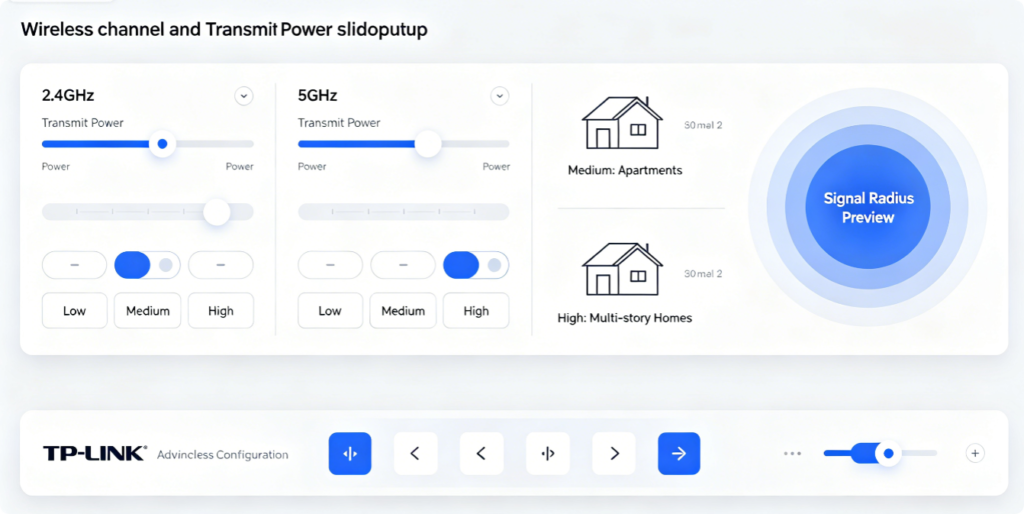
Tweak 8 – Tune Transmit Power to Match Your Home Layout
Many users incorrectly crank transmit power to High to resolve weak far-room signals, which backfires in dense apartment buildings by amplifying cross-neighbor signal overlap and congestion. Conversely, Low power creates widespread dead zones in large multi-floor residences.
Universal power matching rules for all TP-Link hardware:
- Small high-rise apartments (<90㎡): 2.4GHz Medium, 5GHz Medium (avoid High power to reduce outside signal leakage)
- Large single-family homes (90–150㎡): 2.4GHz High, 5GHz High
- Two/three-story villas with basements (>150㎡): 2.4GHz High, 5GHz High Adjust transmit power in Advanced > Wireless > Channel & Transmit Power for independent dual-band signal strength control.
Tweak 9 – Fix Router Placement & Antenna Angles to Eliminate Signal Attenuation
Software configuration cannot overcome poor physical positioning that blocks radio waves. Follow these universal placement rules to restore full wireless range:
- Position the router at your home’s geometric horizontal center, elevated 1.2–1.8 meters above floor level
- Maintain a minimum 3-meter clearance from metal furniture, refrigerators, microwaves and large fish tanks
- Align all external antennas completely vertical for balanced 360° dual-band signal spread; tilt 1 antenna slightly downward for downstairs coverage in two-story homes
- Never store the router inside closed wooden cabinets, sealed wall niches or bathroom countertops — trapped heat triggers automatic speed throttling
Tweak 10 – Connect Gaming & Streaming Hardware Via Gigabit Ethernet Cables
Wireless transmission always introduces minor latency and speed loss compared to stable wired gigabit links. For devices requiring consistent maximum bandwidth, hardwire directly to your TP-Link router’s LAN ports:
- PlayStation, Xbox, gaming desktop PCs
- 4K/8K smart TVs and NAS storage drives
- Home office workstations for video conferencing and large file transfers All TP-Link dual-band routers ship with four full gigabit LAN ports that deliver 1000 Mbps uninterrupted bandwidth, eliminating wireless slowdowns entirely for wired equipment.
Post-Tweak Verification Checklist
After applying all 10 performance tweaks, complete this quick multi-room test to confirm your slow TP-Link Wi-Fi is fully resolved:
- Walk through every bedroom, hallway, basement and balcony to confirm consistent strong Wi-Fi signal bars
- Simultaneously stream 4K video on a smart TV and launch an online multiplayer game to check for buffering or ping spikes
- Run multiple mobile speed tests across distant corners of your property
- Verify smart home IoT devices respond instantly to app commands without lag or disconnection
- Confirm no unexplained random Wi-Fi dropouts occur over a 24-hour test window
Advanced Troubleshooting for Unresolved Slow TP-Link Wi-Fi
If wireless speeds remain sluggish after completing every tweak above, apply these secondary targeted fixes:
- Persistent dead zones: Add an official TP-Link OneMesh Wi-Fi extender matched to your router model
- Severe building-wide channel congestion: Reduce transmit power to Medium and re-scan for quieter 5GHz UNII-3 channels
- Slow mobile/laptop speeds: Replace aging device Wi-Fi adapters that lack Wi-Fi 5 / Wi-Fi 6 compatibility
- Chronic router overheating: Relocate to a well-ventilated open shelf and clear dust buildup from router ventilation grilles
- Network-wide constant disconnections: Perform a full factory reset and reconfigure all optimized settings from scratch
Conclusion
Fixing slow TP-Link Wi-Fi does not require costly broadband upgrades or brand-new networking hardware. The 10 actionable performance tweaks covered in this guide resolve nearly all common wireless slowdowns across every TP-Link router model, from entry AX1800 units to flagship Wi-Fi 6 AX5400 hardware. By switching to manual interference-free channels, splitting dual-band SSIDs, unlocking full Wi-Fi 6 acceleration tools, prioritizing gaming bandwidth via QoS, updating firmware, optimizing transmit power and physical placement, and hardwiring high-demand devices, users can eliminate buffering, gaming ping spikes, dead zones and multi-device congestion entirely. Combined with regular firmware maintenance and periodic Wi-Fi environment scans, these adjustments deliver consistent full-speed, low-latency whole-home Wi-Fi for streaming, competitive gaming, remote work and smart home automation year-round.