Overlapping Wi-Fi channels from neighboring apartments or homes cause severe signal interference, slow speeds, random disconnections and lag on Netgear Nighthawk routers. This guide breaks down ideal channel picks for 2.4GHz and 5GHz bands, plus step-by-step dashboard adjustments to eliminate signal clutter and maximize throughput for gaming, streaming and smart home gear.
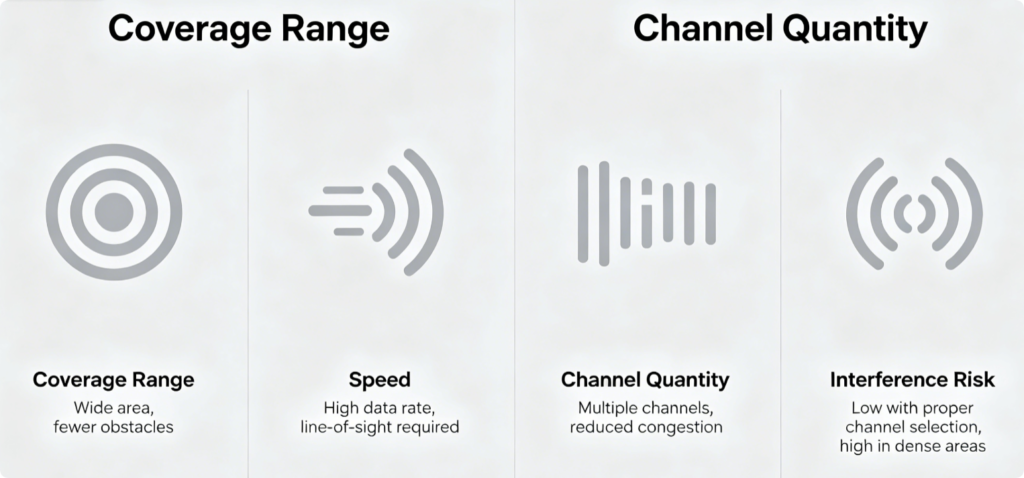
Quick Band Overview
- 2.4GHz: Long penetration through walls, only 3 non-overlapping channels (1, 6, 11), highly crowded by old routers, cameras and microwaves
- 5GHz: Faster speeds, dozens of independent channels, minimal interference, weaker wall penetration, ideal for 4K streaming and gaming
All Netgear Nighthawk AX/RAX models split channel controls separately for each band.
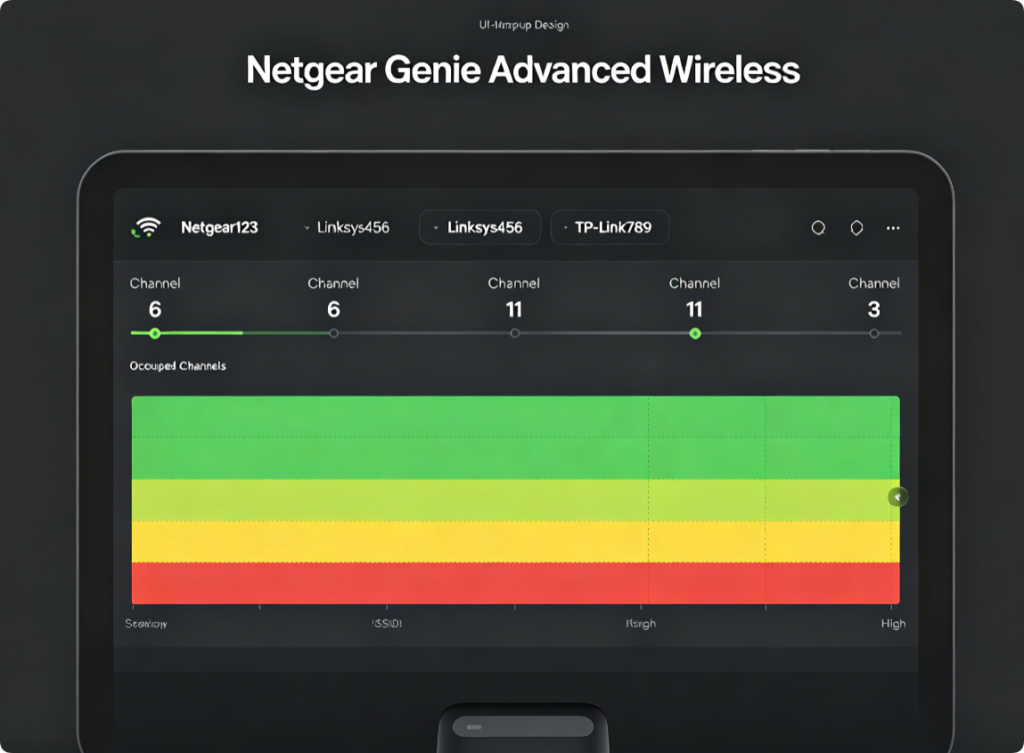
Run Built-In Channel Scan
- Connect PC via Ethernet and log into
routerlogin.net - Open Advanced > Wireless Setup > Wi-Fi Channel Scan
- The tool displays all neighboring Wi-Fi and their active channels
- Note overcrowded channels to avoid for both frequency bands
Optimal 2.4GHz Channel Rules
Never use channels other than 1, 6, or 11—all others overlap and create signal collision.
- Pick whichever of 1/6/11 shows the least neighboring network traffic from your scan
- Keep 2.4GHz for low-bandwidth IoT devices: thermostats, doorbells, old phones
5GHz Channel Selection Tips
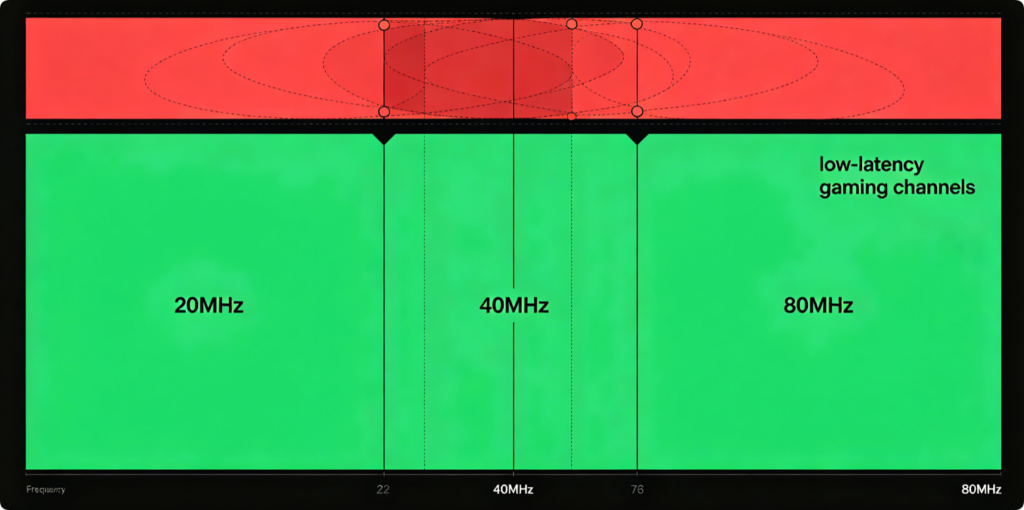
5GHz offers wide, interference-free 80MHz channels for Wi-Fi 6 Nighthawk routers:
- Low congestion UNII-1 channels: 36, 40, 44, 48 (best for indoor home use)
- Avoid upper 5GHz UNII-3 channels if nearby buildings have strong competing signals
- Set channel width to 80MHz for maximum speed; drop to 40MHz only with extreme interference
Disable Auto Channel & Apply Manual Settings
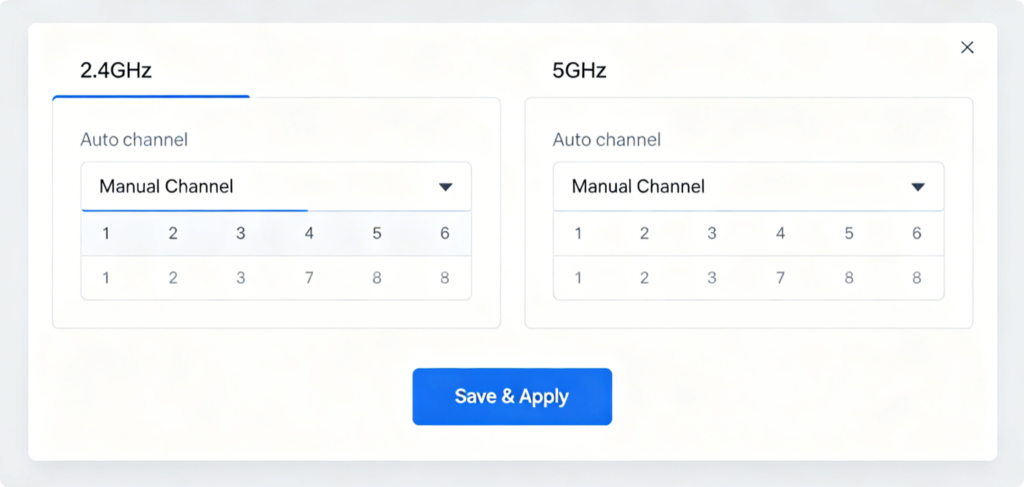
- On Wireless Setup page, switch from “Auto” channel mode to Manual
- For 2.4GHz: Select cleanest option from 1, 6, 11
- For 5GHz: Choose empty low-number UNII channel (36 recommended default)
- Set channel width to maximum supported bandwidth (20MHz for 2.4GHz, 80MHz for 5GHz)
- Click Apply to lock new channel configuration
Extra Ways To Lower Signal Noise
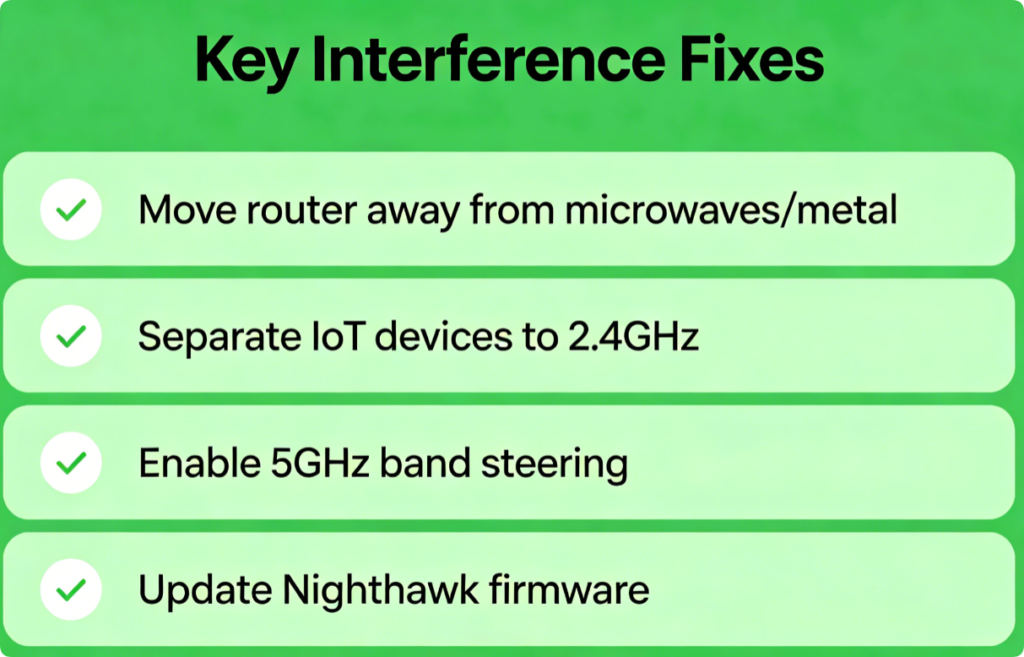
- Shift thick metal appliances and microwaves at least 3 meters from the router
- Use band steering to push fast devices automatically onto 5GHz
- Install latest Netgear firmware to improve channel switching algorithms
- Lower 2.4GHz transmit power if neighboring Wi-Fi bleed is severe
Test Improved Performance
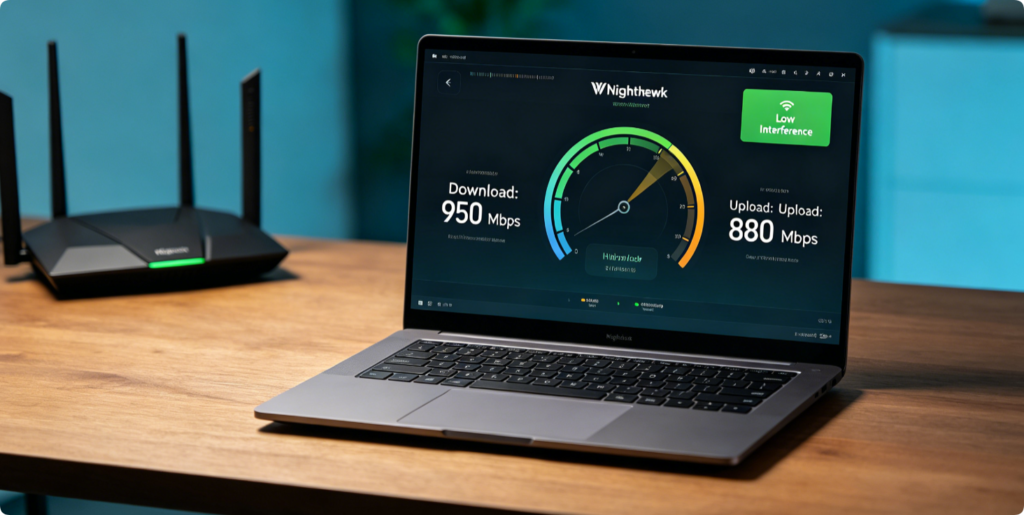
After saving channel settings, run a Wi-Fi speed test on multiple devices. You will notice less buffering, stable online gaming NAT types and fewer random Wi-Fi drops compared to auto-channel mode. Re-scan channels every few months if new neighbors install wireless hardware.
Conclusion
The biggest cause of slow Nighthawk Wi-Fi is unmanaged overlapping channels. Stick exclusively to 1, 6 or 11 for 2.4GHz, and select low-traffic UNII-1 channels like 36 for 5GHz with 80MHz width. Turn off automatic channel selection and apply manual settings via the Netgear admin dashboard, paired with basic interference avoidance habits, to drastically boost wireless speed and stability across your entire home network.