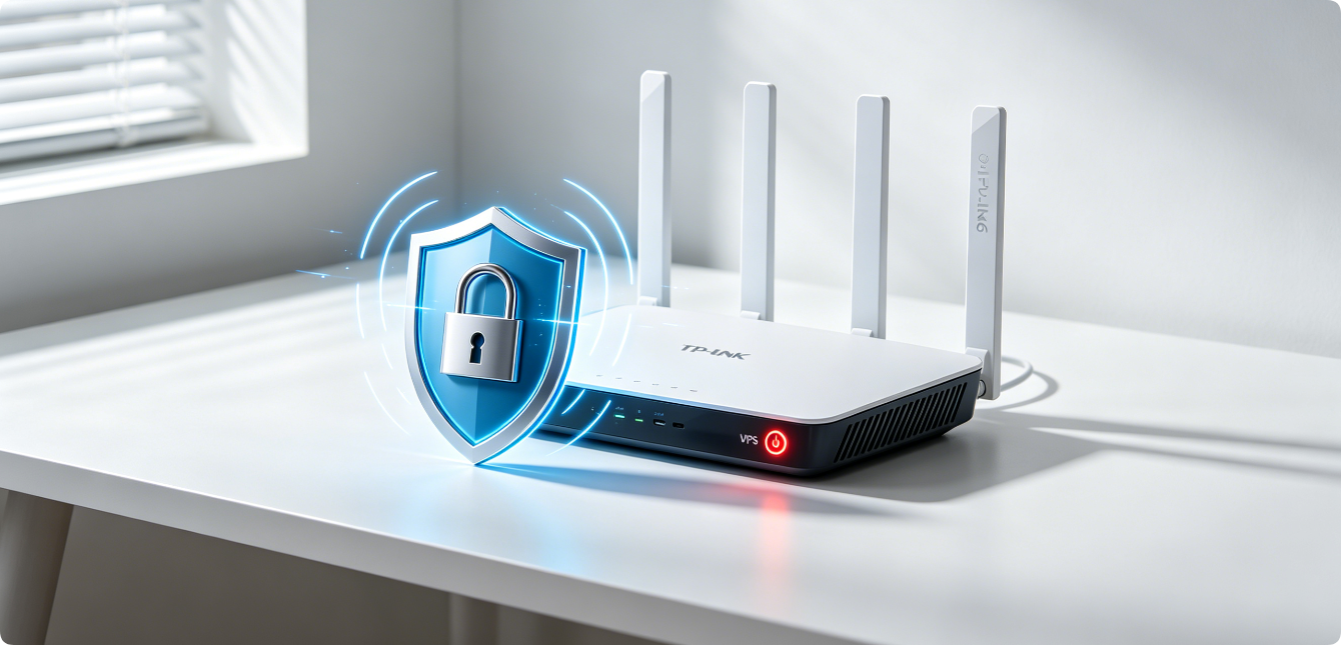
Wi-Fi Protected Setup (WPS) was designed to simplify fast device pairing, yet it is one of the most dangerous built-in router features. Hackers use automated brute-force scripts to crack WPS PIN codes in minutes, bypassing strong Wi-Fi passwords to access your entire home network. This guide breaks down WPS critical risks and walks through step-by-step WPS disablement for all TP-Link, Asus, Netgear dual-band routers via web dashboard and mobile apps.
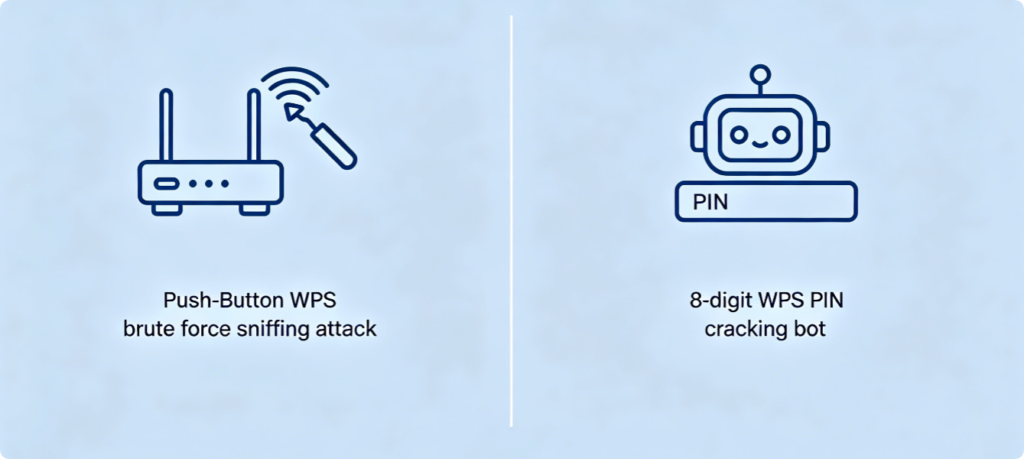
Two Unfixable WPS Security Flaws
- PIN Code Vulnerability: The 8-digit WPS PIN splits into two separate 4-digit segments. Attack tools only need to test 11,000 combinations instead of 100 million, cracking valid PINs in under 1 hour regardless of complex Wi-Fi passwords.
- Push-Button Signal Sniffing: Hackers within Wi-Fi range capture WPS handshake signals when the physical button is pressed, intercepting authentication data to steal network access credentials.
Even WPA3 encryption cannot fully block these WPS backdoor exploits.
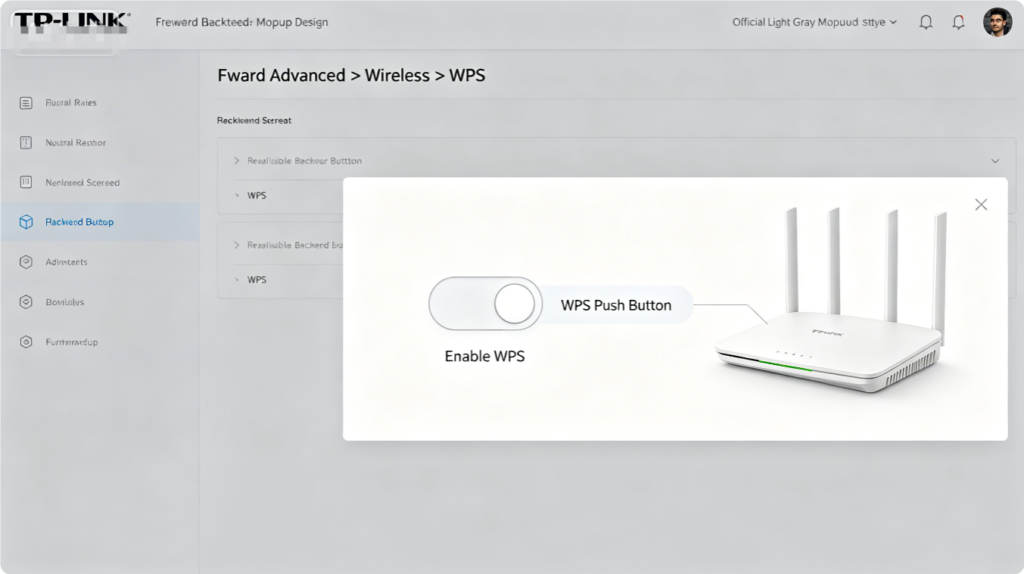
Step 1: Access Router WPS Configuration Panel
- Connect your laptop to router LAN port with Cat6 cable to avoid Wi-Fi dropouts during edits.
- Log into
tplinkwifi.netor gateway IP192.168.1.1using your admin password. - Navigate to Advanced > Wireless > WPS; this page controls all WPS pairing functions.
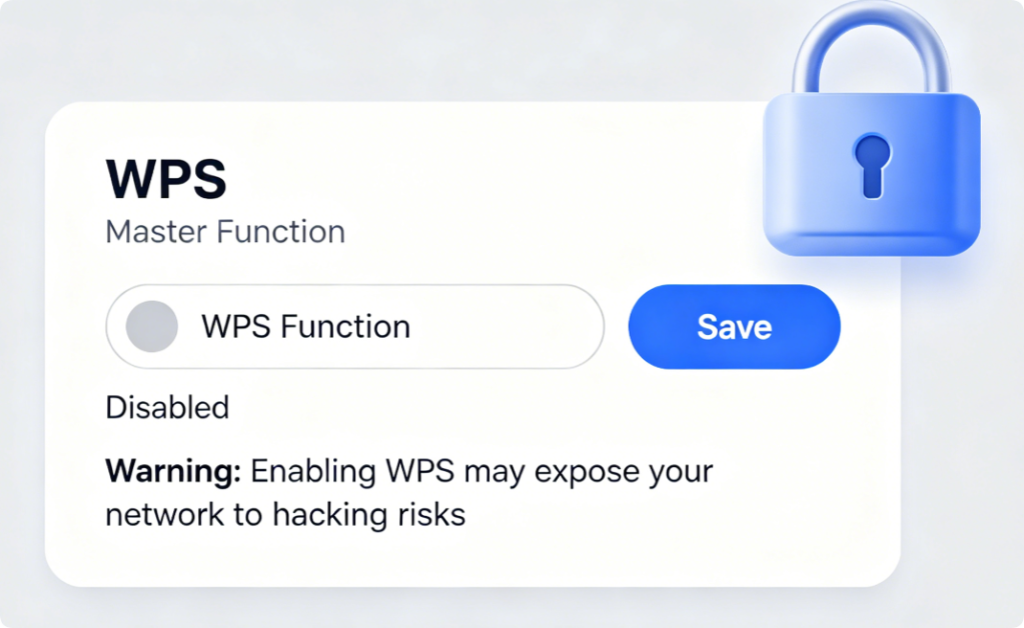
Step 2: Fully Disable All WPS Functions
- On the WPS management page, slide the main WPS master switch to Disabled.
- Confirm sub-options are also turned off: WPS PIN code, WPS push-button pairing, WPS USB printer pairing.
- Click Save to apply changes; the router instantly shuts down all WPS broadcast signals with no reboot required.
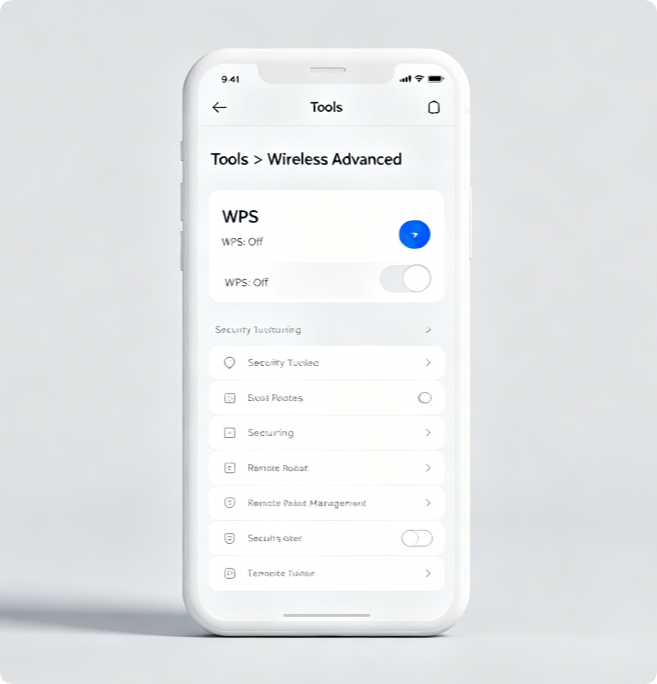
Step 3: Tether Mobile App WPS Shutdown (No Laptop Needed)
- Link your phone to router main Wi-Fi and launch TP-Link Tether.
- Select your router device > Tap Tools > Wireless Advanced Settings.
- Find the WPS control switch and turn it off, then save all modifications.
[Image 6: Safe Alternatives to Replace Risky WPS Device Pairing]
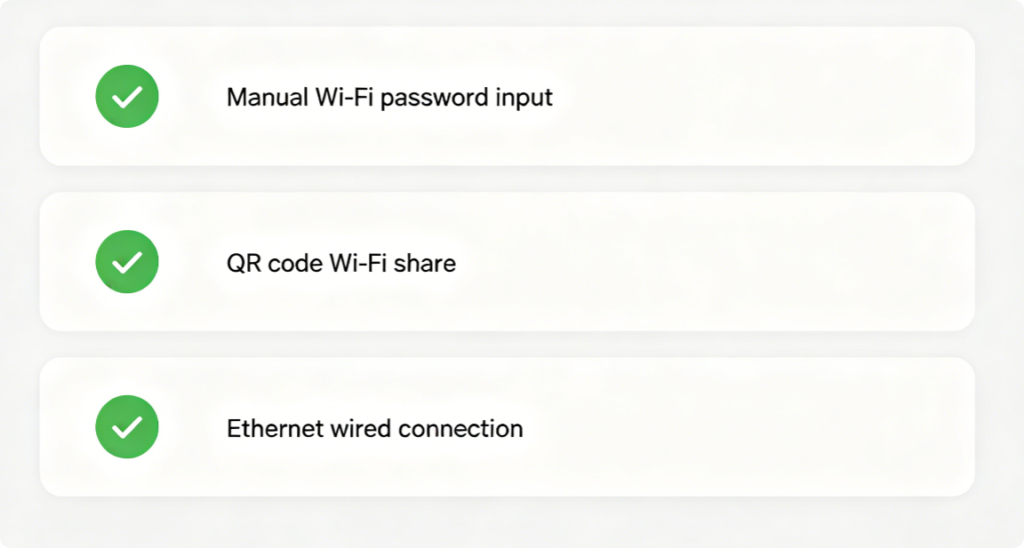
Secure Pairing Workarounds After Disabling WPS
You never need WPS to add new devices; use these fully safe alternatives:
- Manually enter your complex WPA2/WPA3 Wi-Fi password on phones, TVs and game consoles.
- Generate router Wi-Fi QR code to scan and auto-connect mobile gadgets.
- Hardwire stationary devices (NAS, desktop PC) via gigabit Ethernet cable for zero wireless risk.
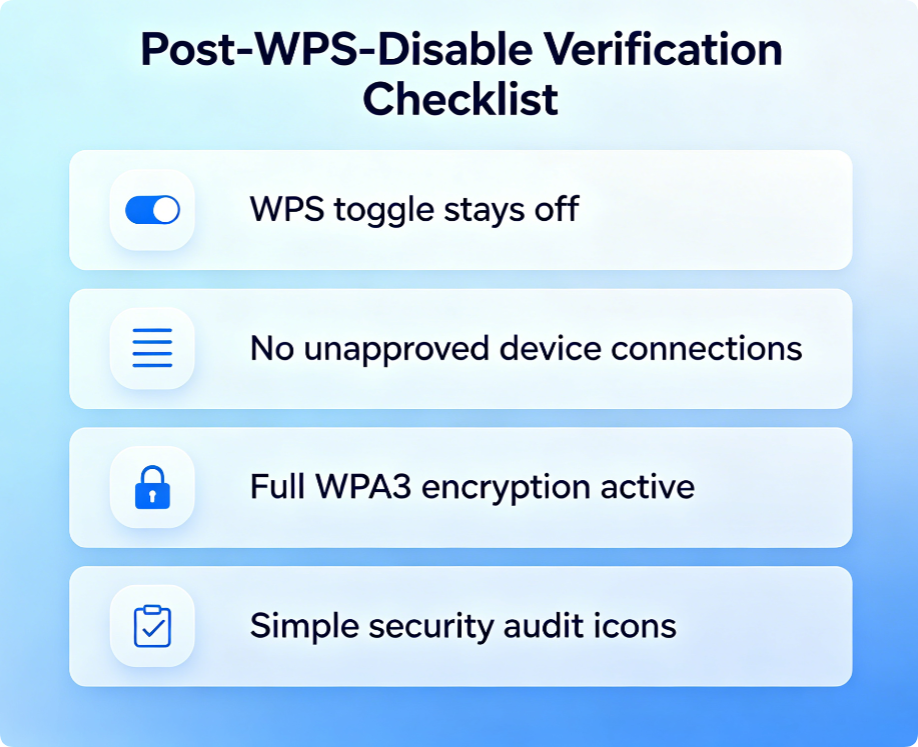
Post-Setup Security Validation
- Re-enter the WPS settings page to confirm the function remains disabled after power cycles.
- Check connected device list to verify no unknown hardware joined your network.
- Pair a new smart device manually to confirm Wi-Fi connection works without WPS support.
If you cannot disable WPS due to outdated firmware, download the latest official router update to unlock full WPS shutdown controls.
Conclusion
Leaving WPS enabled creates an unpatched hacking backdoor that bypasses even high-grade Wi-Fi encryption. Disabling WPS eliminates PIN brute-force and signal-sniffing exploits, closing one of the most common home network security holes. Whether you adjust settings via desktop web panel or Tether mobile app, this single tweak requires no extra hardware and delivers immediate protection against nearby attackers. Replace WPS pairing with manual password entry or QR codes to add new devices safely while keeping your whole wireless network locked down.