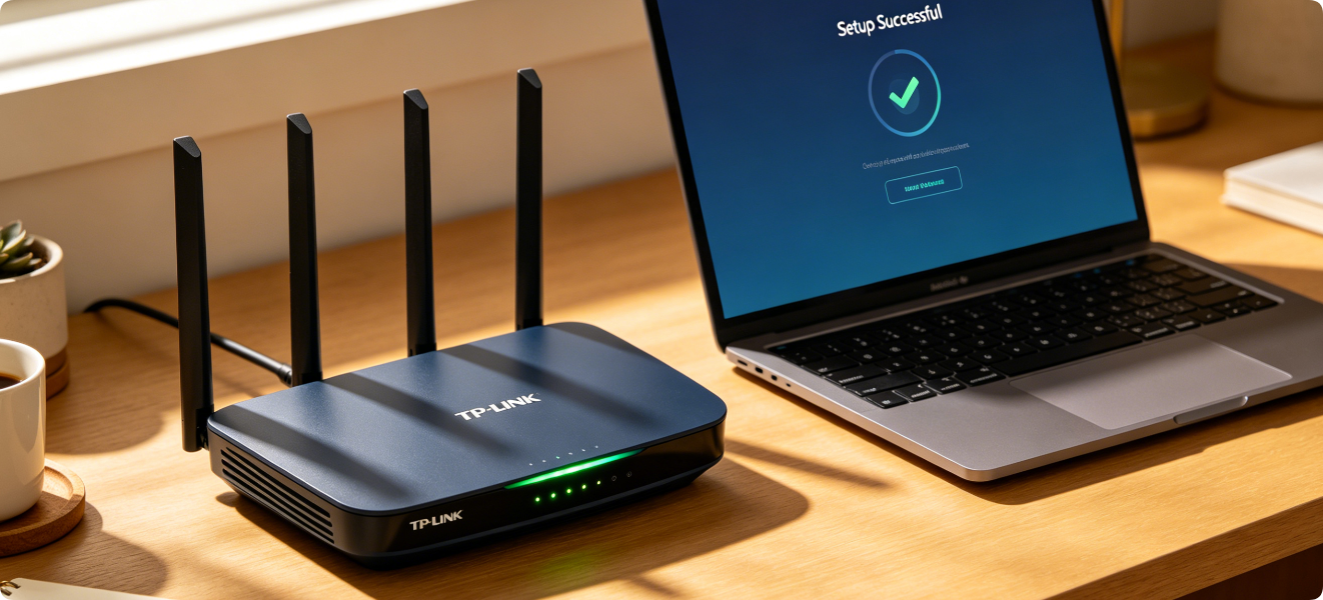
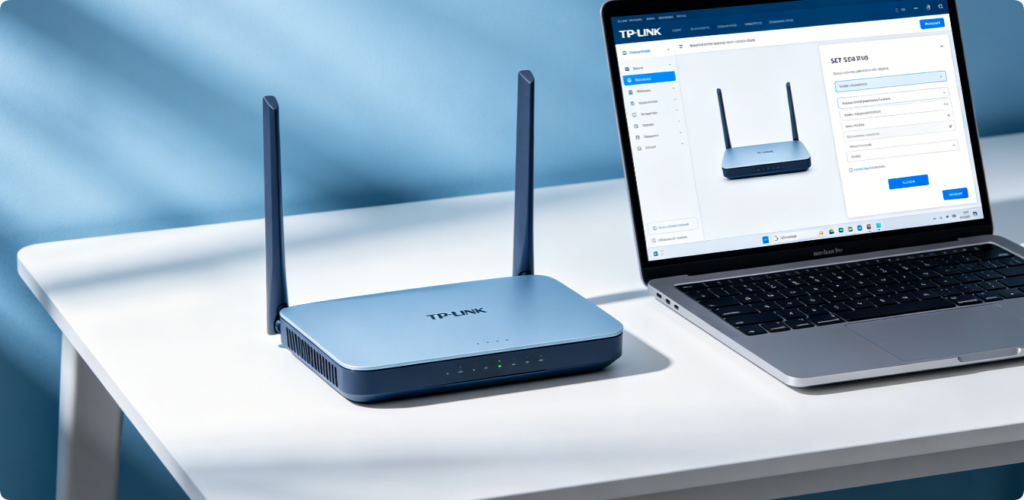
Setting up a new TP-Link router for the first time is simple with the built-in Quick Setup Wizard. This official tool streamlines the entire configuration process, allowing beginners to finish network connection, Wi-Fi setup and security settings within minutes. Whether you are replacing an old router or installing a new network at home, this step-by-step guide will walk you through every detail of the TP-Link Quick Setup Wizard. The tutorial applies to all mainstream TP-Link wireless router models including the Archer series.
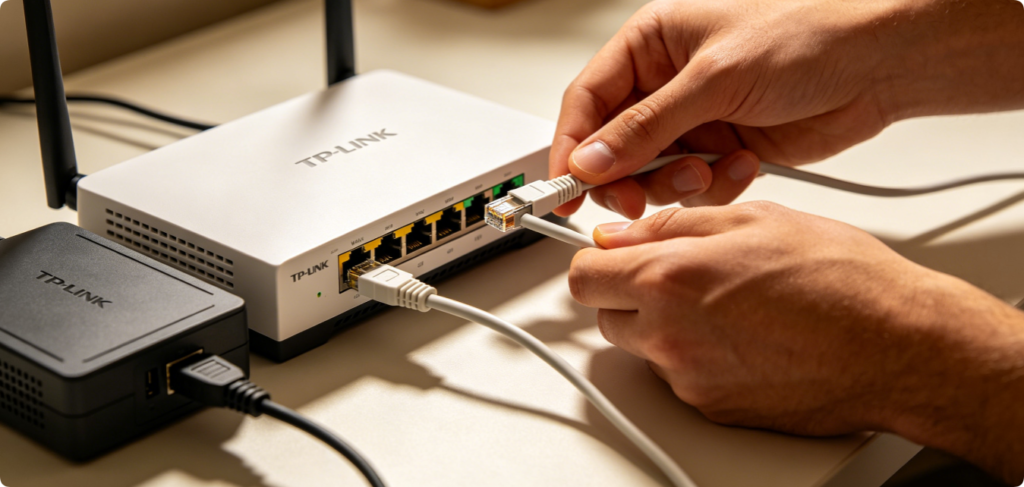
Before launching the setup wizard, complete all physical connections first. Use an Ethernet cable to connect your broadband modem to the WAN port on the back of the TP-Link router. Then plug in the router’s power adapter and turn on the device. Wait until the power indicator light stays steady. You can connect your computer or mobile phone to the router via Wi-Fi or another Ethernet cable to start configuration.
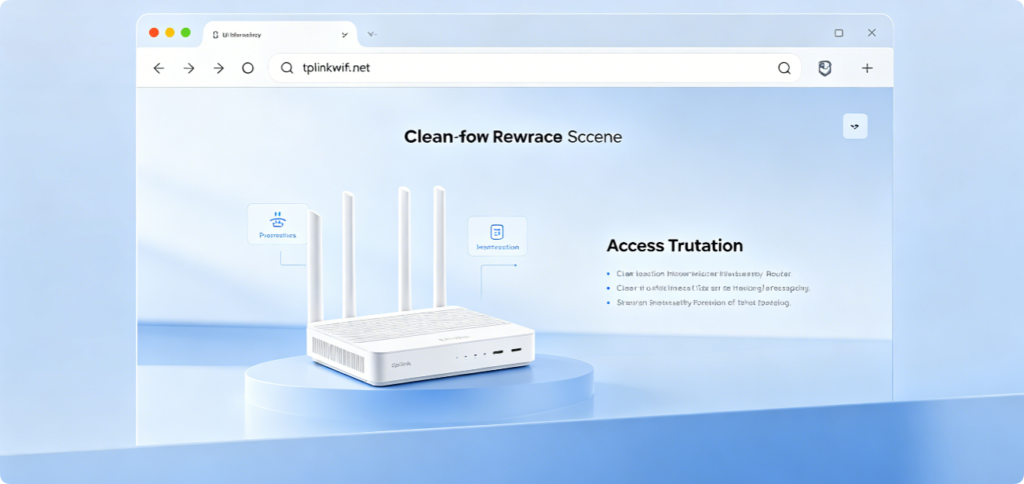
Open any web browser on your connected device. Enter the official address tplinkwifi.net or the default IP address 192.168.1.1 into the address bar and press Enter. You will be redirected to the TP-Link router login page. If you are using the device for the first time, the system will directly jump to the Quick Setup Wizard instead of asking for a password.
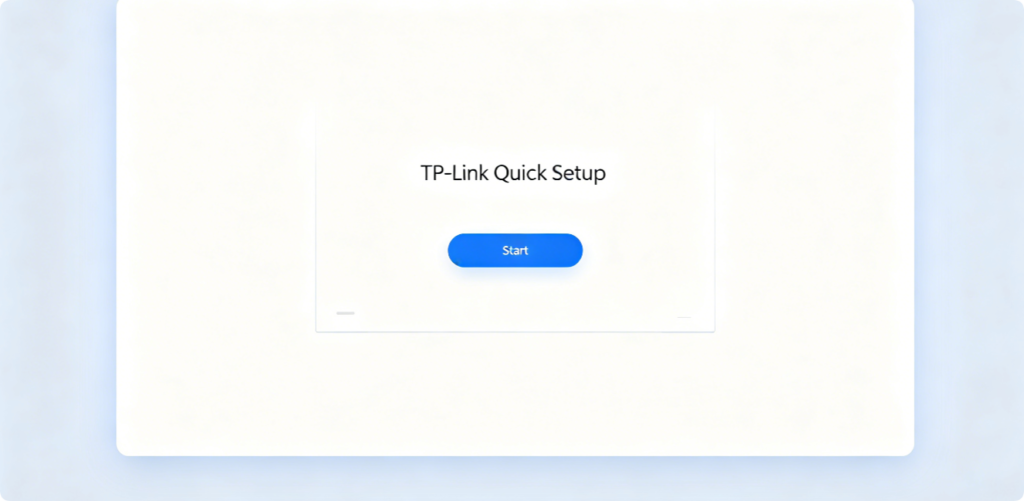
The Quick Setup welcome page will appear automatically. Read the brief introduction on the page, then click the Start button to begin the configuration process. The wizard will guide you through each setting one by one, and you can follow the on-screen prompts without professional network knowledge.
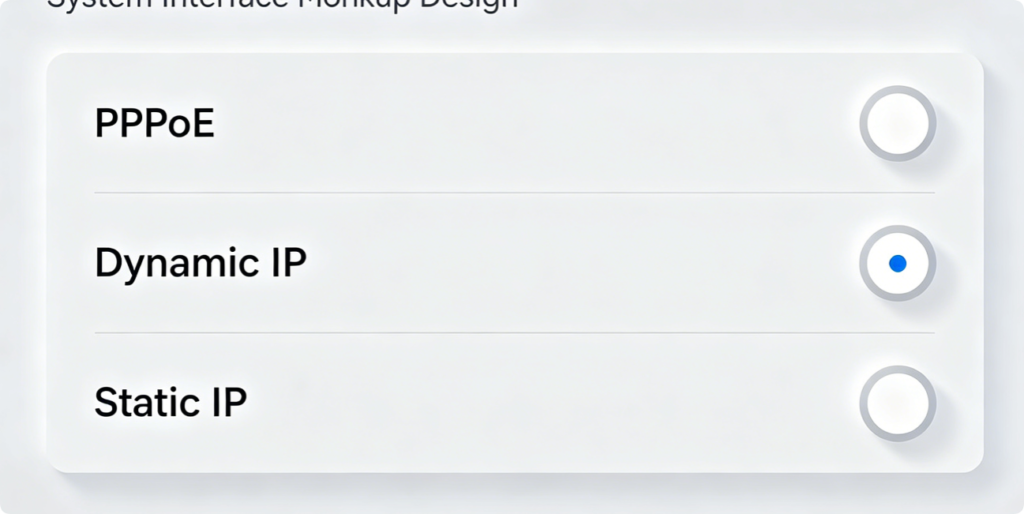
Next, select your internet connection type. TP-Link wizard provides three common options: PPPoE, Dynamic IP and Static IP. Most home broadband uses PPPoE, which requires your broadband account and password. If you are unsure, you can check the notes from your internet service provider or select the automatic detection function.
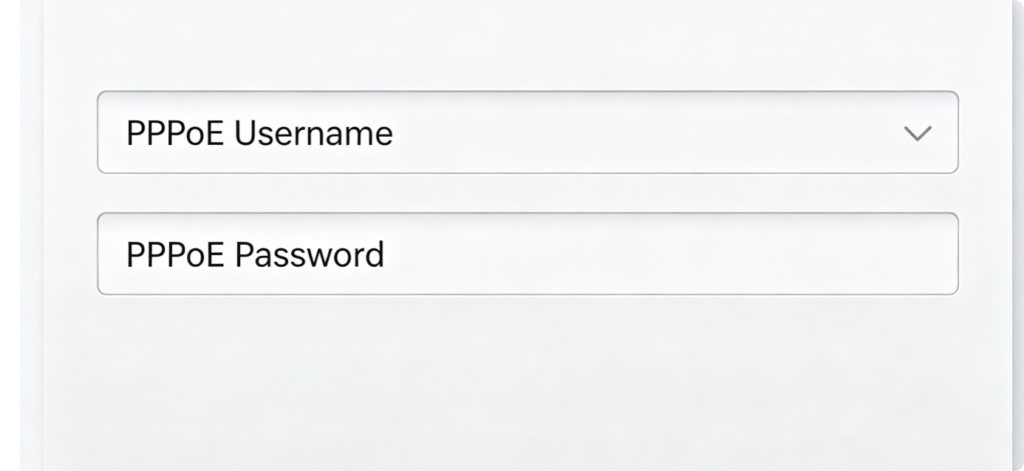
If you choose PPPoE connection, fill in your broadband username and password provided by your ISP in the corresponding input boxes. Double-check the spelling and case of characters to avoid connection failures. After completing the information, click the Next button to proceed.
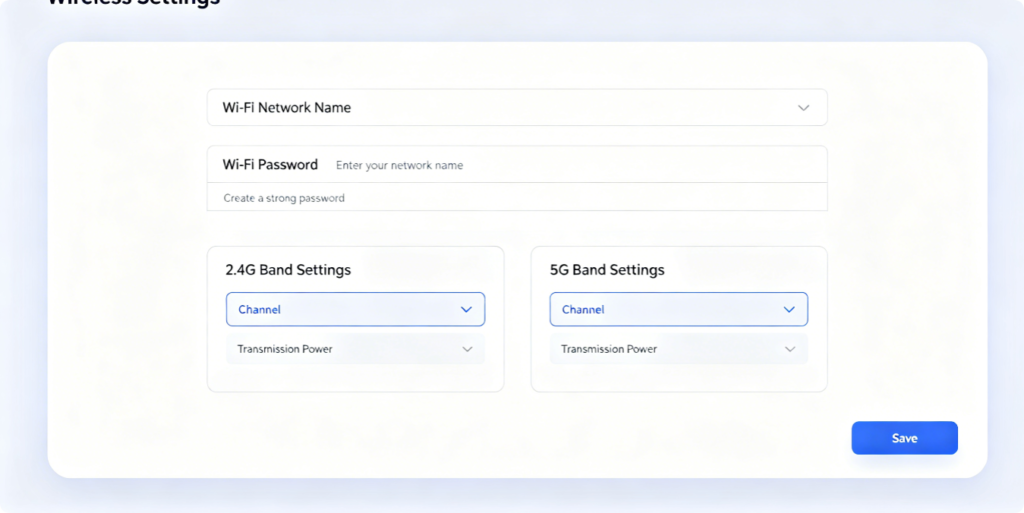
Now it is time to set your wireless network. You can set separate names and passwords for 2.4GHz and 5GHz Wi-Fi bands, or combine them into one network name. Create a unique Wi-Fi name that is easy to recognize, and set a strong password with letters, numbers and symbols to improve security. Click Next to continue.
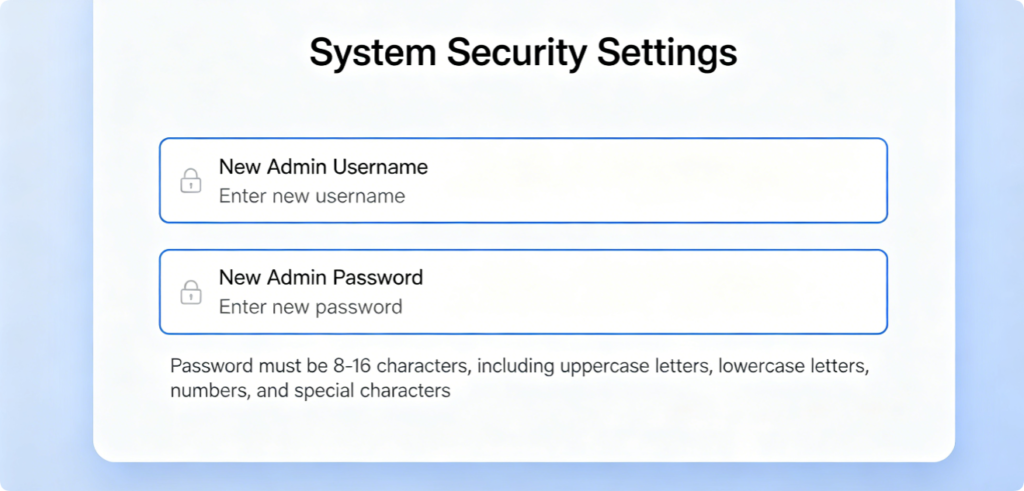
For device management security, set a custom admin password for the router backend. This password is used to log into the admin panel for future settings changes. Do not use simple combinations. Remember this password or save it in a safe place, as you will need it for subsequent management operations.
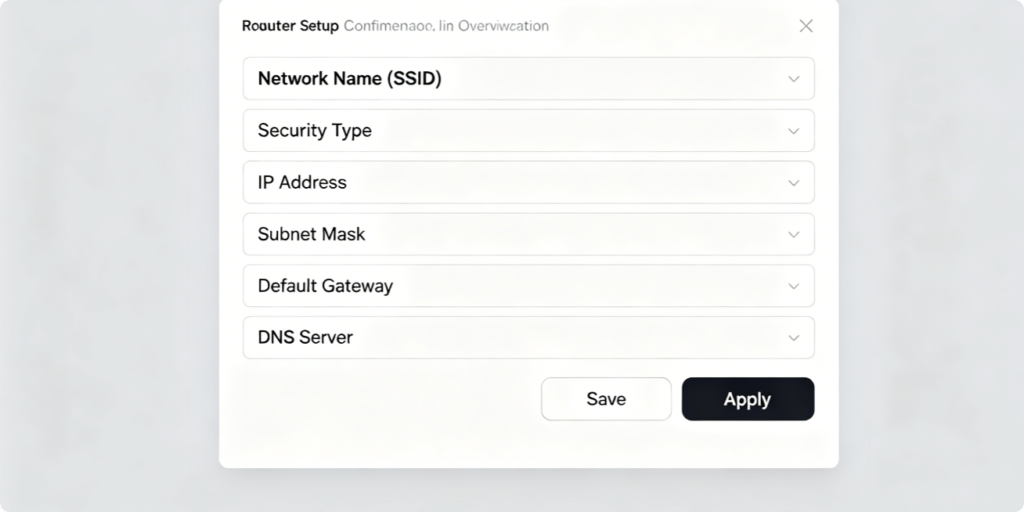
The page will display a summary of all your configured information, including internet type, Wi-Fi name and admin password. Check all details carefully. If there is any mistake, click the back button to modify. When everything is correct, click Save / Apply to confirm all settings.
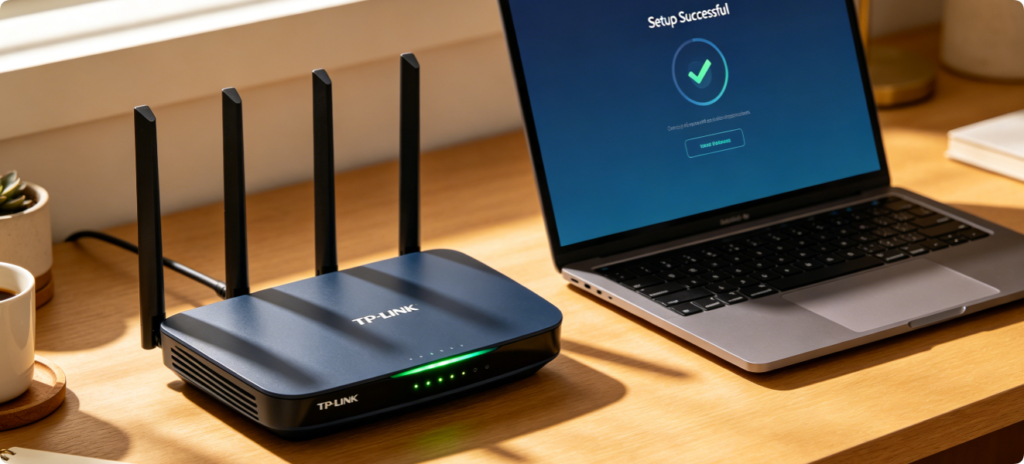
The router will now restart automatically to apply all new settings. The reboot process takes about 2 to 3 minutes. After all lights return to normal, the Quick Setup is fully completed. Reconnect your phones, computers and other smart devices to the new Wi-Fi, and you can start using the internet normally.
After configuration, you can enter the router admin panel to check network status, view connected devices or adjust advanced functions. The TP-Link Quick Setup Wizard covers all basic needs for home use. If you encounter slow network speed or unstable connection later, you can also enter the panel to optimize relevant parameters.
Conclusion
The TP-Link Quick Setup Wizard makes router installation accessible to every user. From physical wiring, internet connection selection, Wi-Fi configuration to security password setup, every step is clearly guided. Even if you are setting up a router for the first time, you can finish all configurations smoothly by following this guide. A reasonable initial setup lays a solid foundation for stable daily network use.