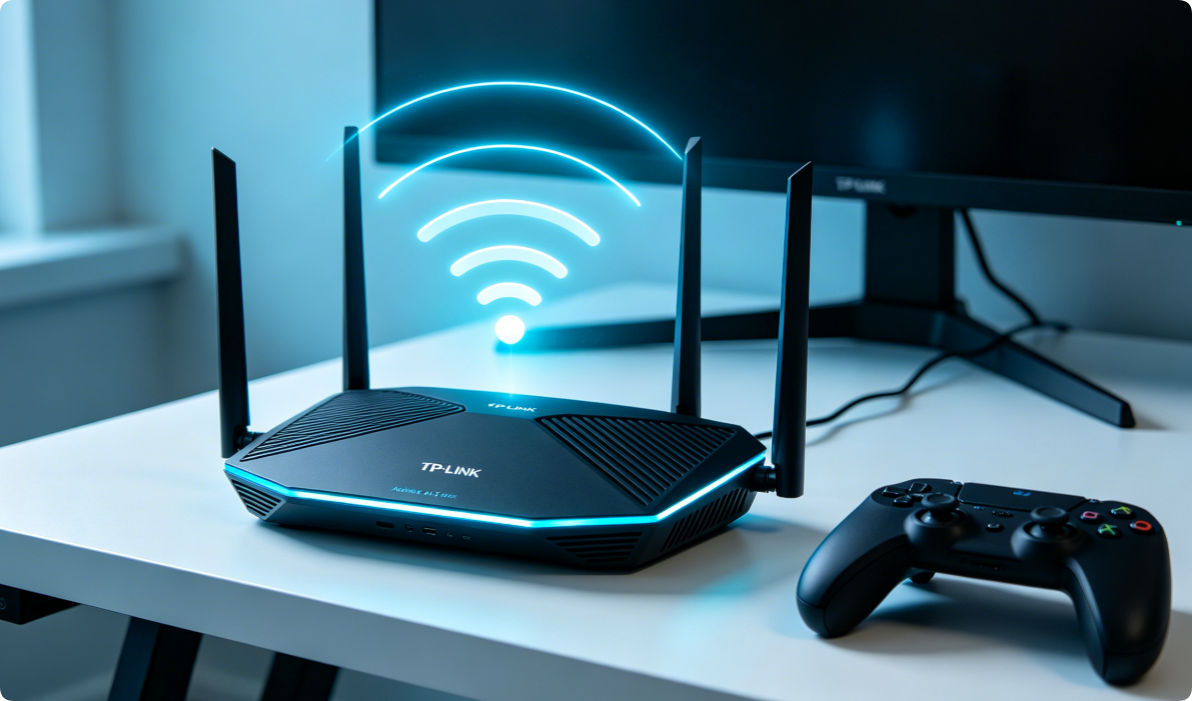
The TP-Link Archer AX53 AX3000 is a budget-friendly Wi-Fi 6 dual-band router built for household gaming, 4K UHD streaming, and multi-device smart home connections. Its AX3000 wireless speed (574 Mbps 2.4GHz + 2402 Mbps 5GHz) delivers low-latency connections for PS5, Xbox, PC gaming, and buffer-free video playback. However, factory default settings fail to unlock its full Wi-Fi 6 performance, leading to stuttering streams, high game ping, and weak signal coverage. This step-by-step full setup guide walks you through hardware installation, internet dial configuration, wireless tuning, gaming priority settings, and security hardening specifically optimized for gamers and streaming enthusiasts.
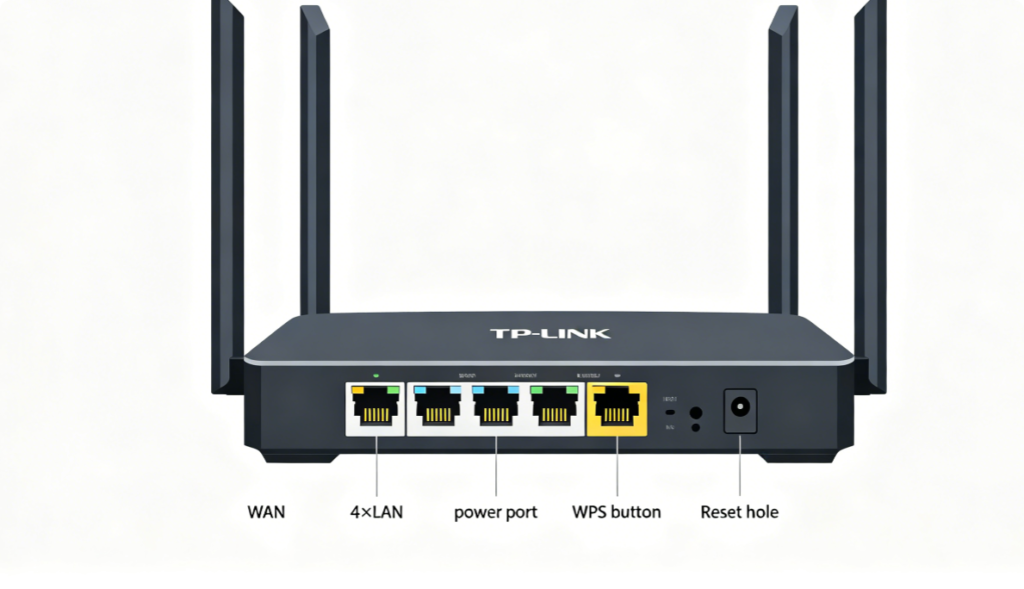
Before wiring, get familiar with every port and button on the Archer AX53 body:
- 1× WAN Port: Connect optical modem for broadband input
- 4× Gigabit LAN Ports: Wired links for gaming PC, console, NAS and smart TV
- Four adjustable high-gain omnidirectional antennas: Rotate vertically for balanced signal coverage
- WPS one-touch pairing button for quick IoT device connection
- Tiny Reset pinhole for factory restoration if configuration errors occur All LAN/WAN ports support full 10/100/1000 Mbps gigabit transmission, perfect for wired low-latency gaming links.
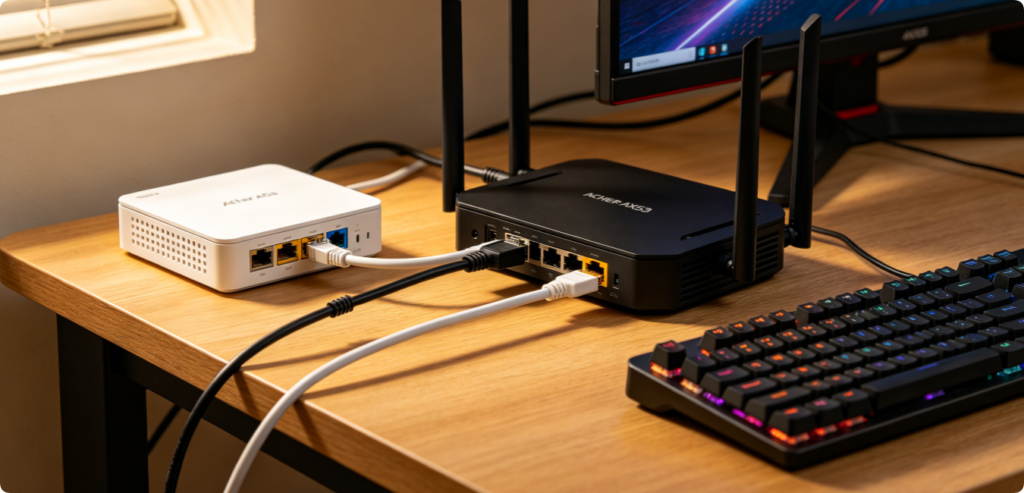
Follow this standard wired connection sequence to avoid offline faults:
- Power on fiber optical modem first, wait 2 minutes for stable optical signal light
- Use a high-quality Cat6 Ethernet cable to link modem LAN port to AX53 WAN port
- Plug gaming PC, game console or 4K TV into any empty LAN port via extra Cat6 cable for ultra-stable wired network
- Insert the original matching power adapter into the router power jack, turn on the power switch
- Wait 3 minutes until the router front Wi-Fi indicator lights stay steady without flashing
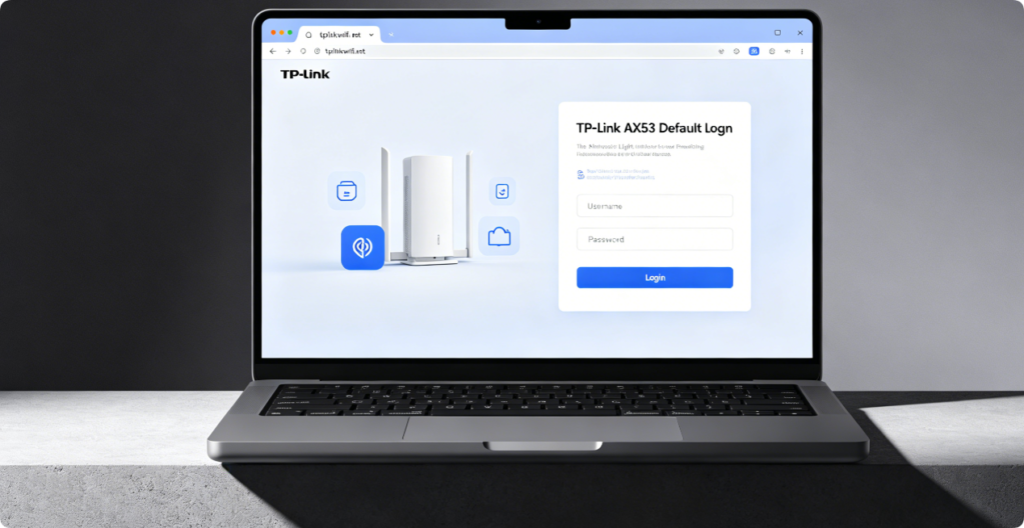
- Connect laptop to AX53 Wi-Fi or wired LAN port; do not use cellular data
- Open Chrome, Edge or Safari browser, enter
tplinkwifi.netor gateway IP192.168.1.1 - Set a brand-new custom admin password on the first login page (write it down for later use)
- After login, you will enter the AX53 quick setup wizard to configure internet access mode
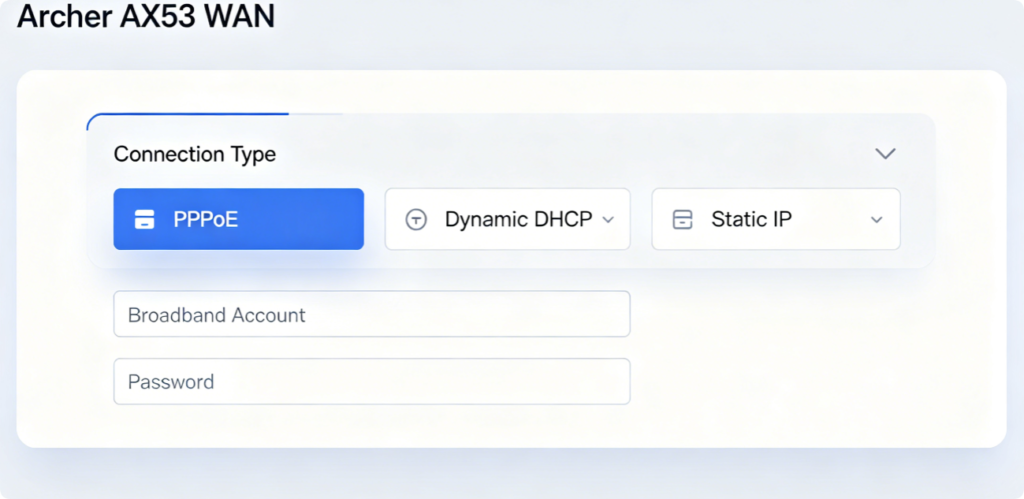
Select the matching internet mode provided by your ISP:
- Household fiber broadband: Choose PPPoE, fill in broadband username and password, enable Auto Reconnect to avoid offline after power outages
- Apartment secondary routing: Select DHCP Dynamic IP for automatic IP acquisition
- Fixed enterprise broadband: Pick Static IP and manually input IP, subnet mask, gateway and DNS parameters Save settings, and the AX53 will dial up to connect to the internet automatically.
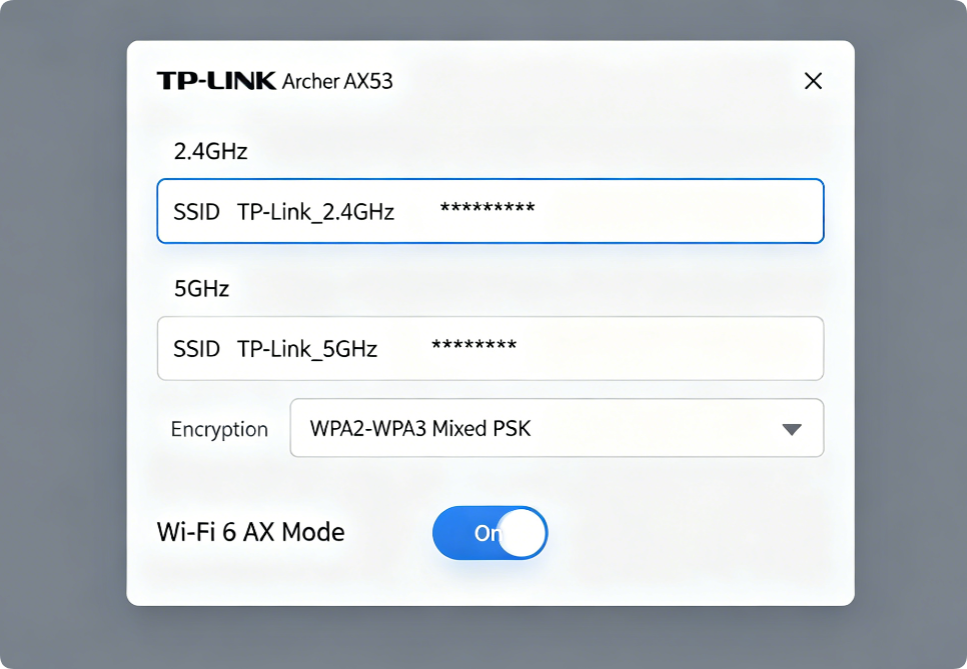
Optimize dual-band wireless settings for gaming and streaming:
- 2.4GHz: Set an independent SSID for smart bulbs, cameras and low-speed IoT devices, lock bandwidth to 20MHz
- 5GHz Wi-Fi 6: Create a unique SSID for gaming consoles, PCs and 4K streaming devices; enable 80MHz channel width for maximum AX3000 speed
- Encryption Mode: Force WPA2/WPA3 Mixed PSK to retain Wi-Fi 6 full throughput and block insecure old devices
- Set complex Wi-Fi passwords over 12 characters with mixed letters, numbers and symbols
Optional: Enable Band Steering to merge two bands into one unified Wi-Fi name for automatic device band switching.
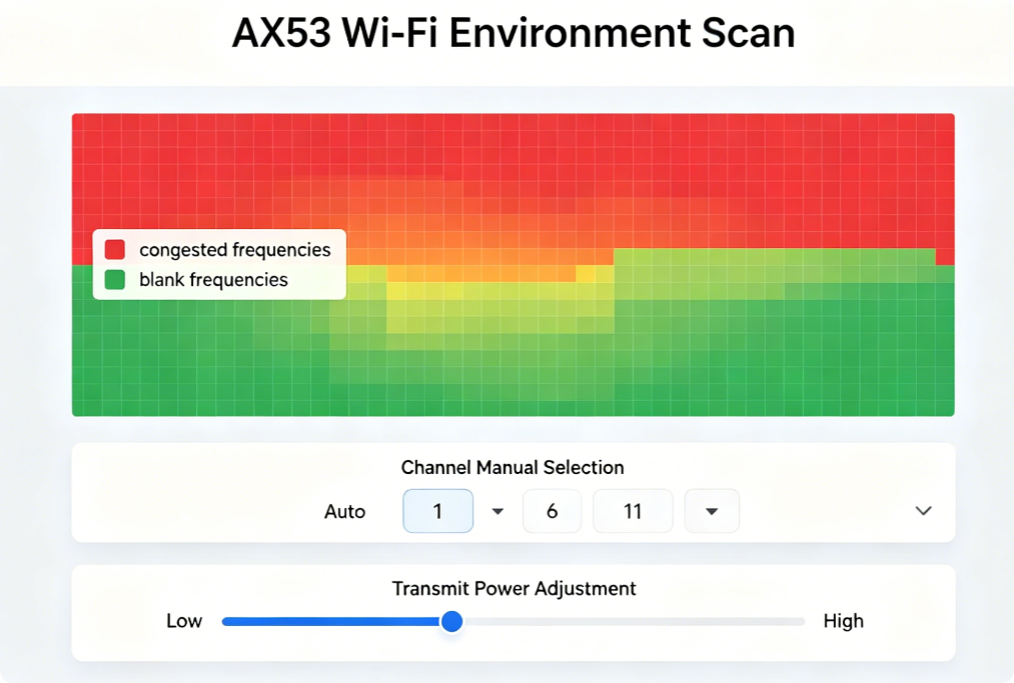
Eliminate lag caused by neighbor Wi-Fi interference on Archer AX53:
- Enter Advanced > Wireless > Channel & Transmit Power, run Wi-Fi Environment Scan
- For 2.4GHz: Manually select only channel 1, 6 or 11 (non-overlapping channels)
- For 5GHz: Choose quiet upper UNII-3 channels with minimal surrounding network signals
- Transmit power adjustment: Medium for small apartments, High for large multi-floor houses Avoid Auto-Channel mode, which often selects crowded frequencies and triggers streaming buffering.
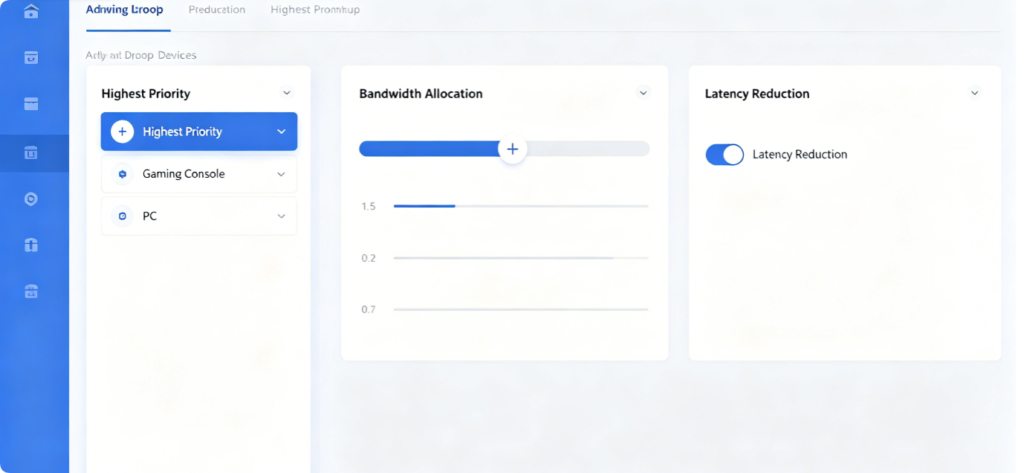
This is the core optimization for gamers using Archer AX53:
- Navigate Advanced > QoS > Game Prioritization
- Select your PS5, Xbox, gaming PC from the connected device list, drag to the Highest Priority tier
- Set bandwidth weight to allocate more upload/download resources to gaming devices
- Enable Low Latency Mode exclusive to TP-Link Wi-Fi 6 routers to reduce game ping and packet loss With QoS activated, video streaming and phone browsing will not occupy network bandwidth during online matches.
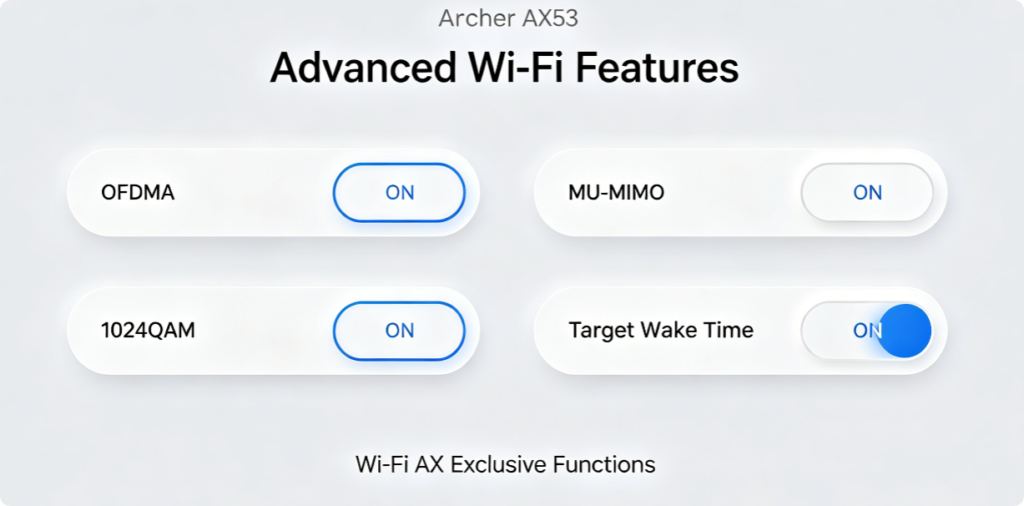
Unlock full AX3000 Wi-Fi 6 performance by enabling all disabled factory features:
- OFDMA: Supports multi-device parallel data transmission, no lag when multiple people stream 4K videos simultaneously
- MU-MIMO: Router sends data to several gaming/streaming devices at once
- 1024QAM: Boost raw wireless throughput to reach the full AX3000 speed limit
- Target Wake Time: Extend battery life of mobile streaming devices without disconnection These functions are shut down by default on the AX53 and must be manually enabled for peak performance.
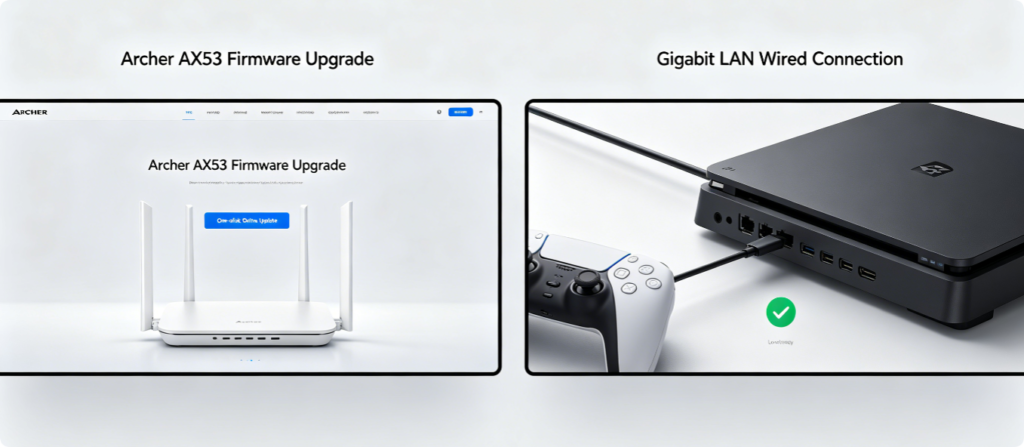
Two maintenance steps for stable long-term gaming and streaming:
- Update Official Firmware Go to System > Firmware Upgrade, click Check Online to download the latest AX53 firmware. New versions fix latency bugs, optimize 5GHz signal and patch security vulnerabilities. Never cut power during upgrade.
- Wired Priority for Game Devices Connect consoles and gaming PCs directly to AX53 gigabit LAN ports instead of Wi-Fi. Wired gigabit links deliver near-zero ping, completely eliminating 4K video buffering and wireless signal fluctuation.
Fast solutions for frequent Archer AX53 performance problems:
- Constant game lag: Enable Game QoS, switch 5GHz to clean manual channel, use wired Ethernet connection
- 4K streaming buffer endlessly: Expand 5GHz bandwidth to 80MHz, lower nearby Wi-Fi interference
- 5GHz signal dead zones: Adjust router antennas vertically, set transmit power to High, move router to house central position
- Random Wi-Fi dropouts: Reboot router weekly, update firmware, disable unused WPS function
Conclusion
The TP-Link Archer AX53 AX3000 Wi-Fi 6 router delivers outstanding value for gaming and 4K streaming, but its full performance depends on standardized wiring, correct WAN dial configuration, interference-free dual-band channel tuning, and Game QoS priority settings. By following this complete setup guide, you can activate exclusive Wi-Fi 6 technologies including OFDMA and MU-MIMO, allocate maximum network resources to game consoles and streaming equipment, and eliminate buffering and high latency. Regular firmware maintenance and wired gigabit connections will keep your home network smooth for competitive gaming and long-hour 4K video playback all day long.