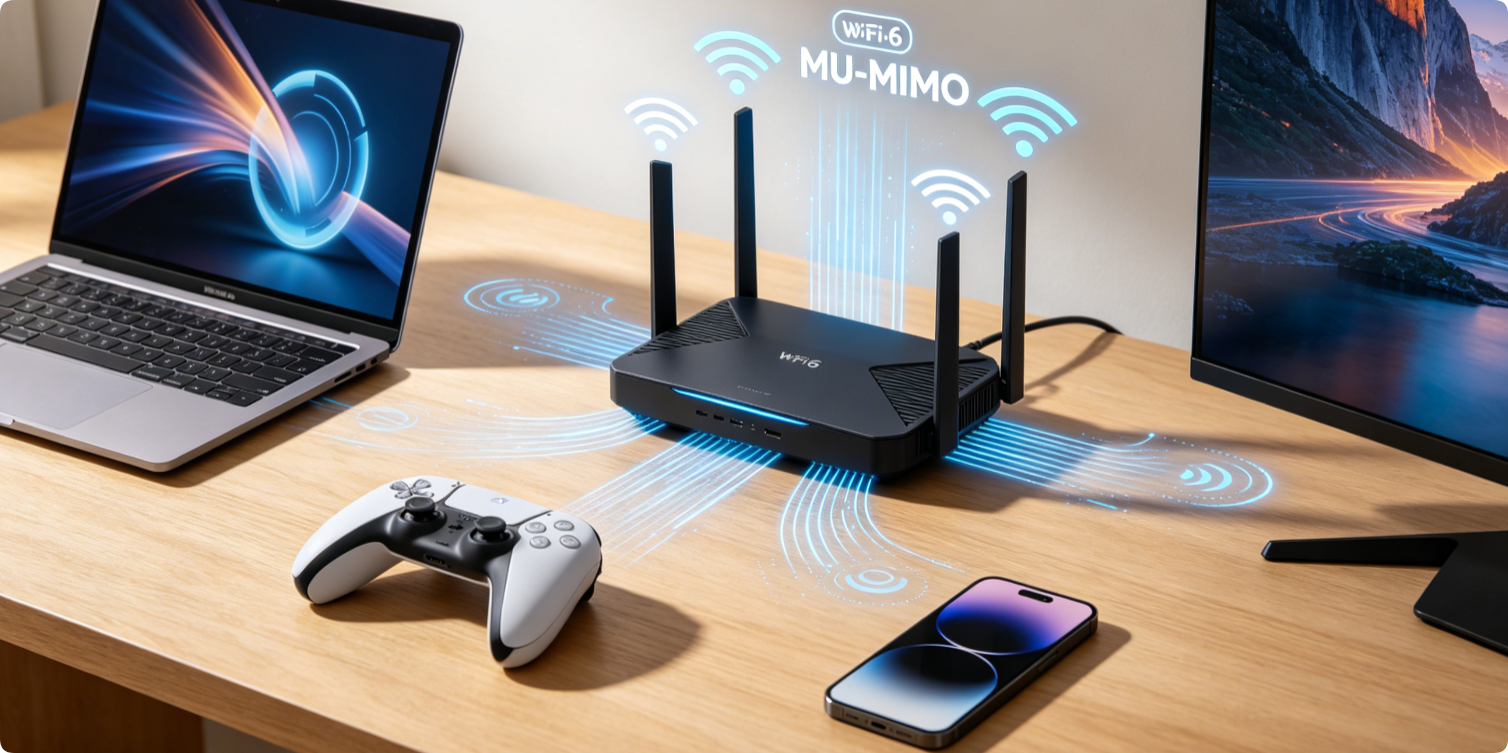
MU-MIMO (Multi-User Multiple Input Multiple Output) is a critical wireless feature that lets your router send data to several gadgets simultaneously, instead of handling them one by one with older SU-MIMO technology. It drastically reduces lag, buffering and congestion when many phones, smart home gear, consoles and laptops connect at once. This guide explains how MU-MIMO works and how to turn it on for TP-Link, Netgear, ASUS and Eero routers.
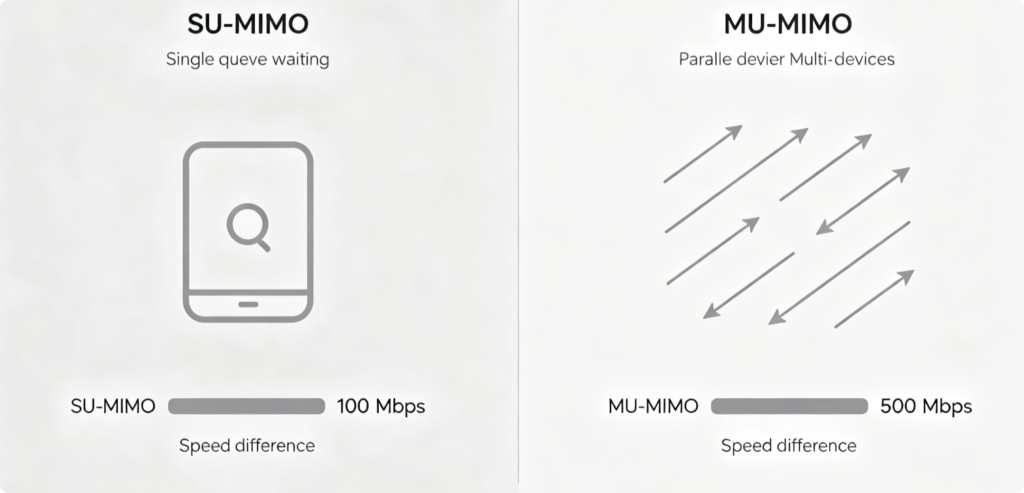
What’s the Difference Between SU-MIMO and MU-MIMO
- SU-MIMO: The router communicates with only one device at a time; all other gadgets wait in line, causing stuttering and slowdowns.
- MU-MIMO: The router splits its wireless bandwidth to serve up to 4 devices concurrently, eliminating waiting queues and lowering network load. Note: MU-MIMO only works on the 5GHz band; 2.4GHz Wi-Fi rarely supports this technology due to narrow channel space.
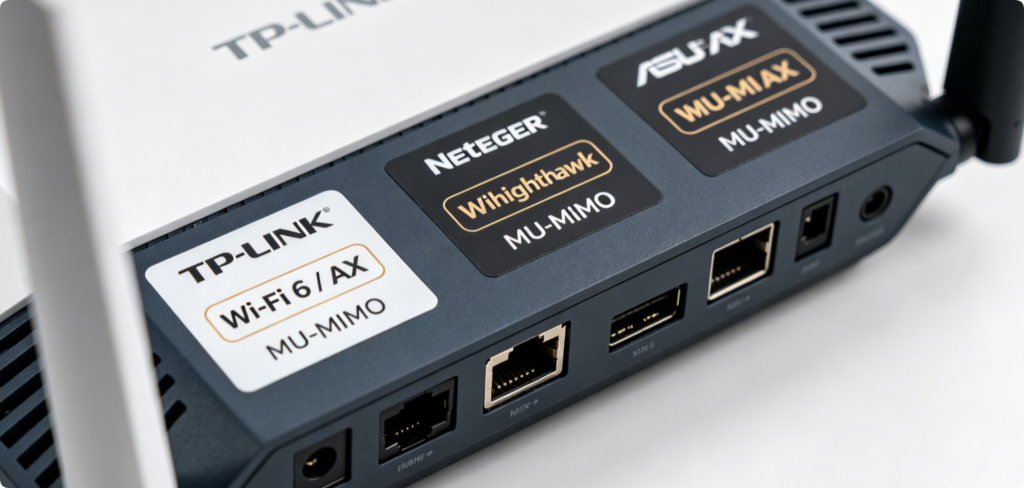
Hardware Compatibility Check
MU-MIMO is exclusive to modern routers:
- Wi-Fi 5 (AC) high-end models and all Wi-Fi 6 (AX) routers fully support MU-MIMO
- Old single-band Wi-Fi 4 (N) routers lack this function entirely
- Mesh systems like Deco, Orbi and Eero activate MU-MIMO across all satellite nodes once enabled on the main unit
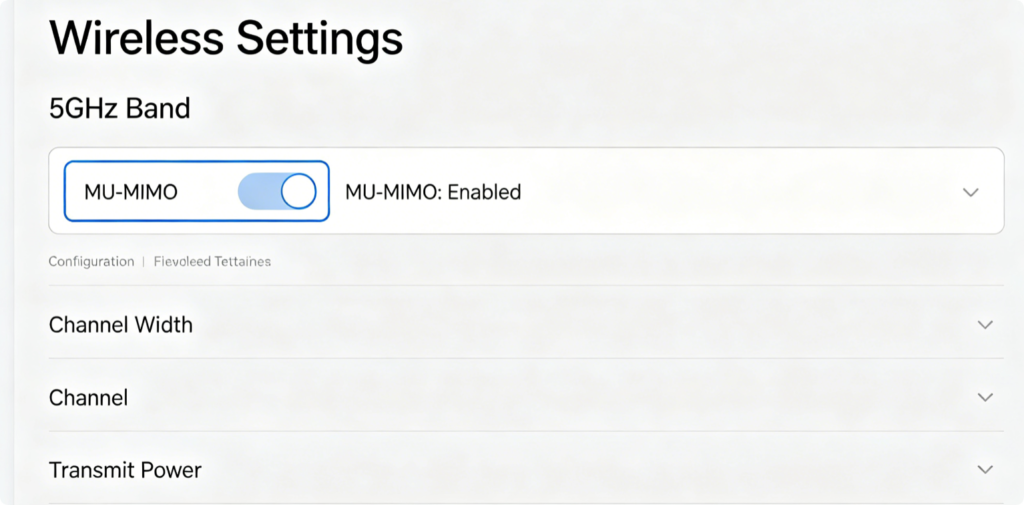
TP-Link Activation Steps
- Log into
tplinkwifi.netvia wired Ethernet - Navigate to Advanced > Wireless > 5GHz Settings
- Locate the MU-MIMO checkbox and tick to enable
- Save settings; the router applies changes without full reboot
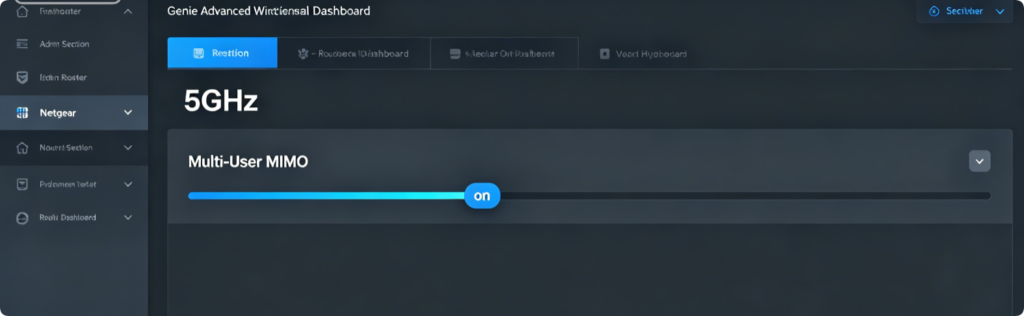
Netgear Activation Steps
- Access
routerlogin.netand open Advanced > Wireless Setup - Switch to the 5GHz tab and find MU-MIMO control
- Toggle the feature on and click Apply to save wireless rules
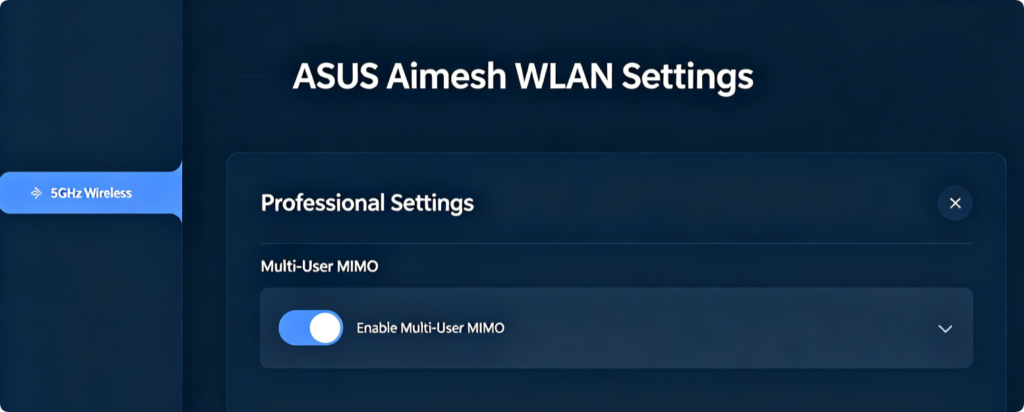
ASUS Activation Steps
- Visit
router.asus.com, go to Wireless > Professional - Select 5GHz band from the dropdown menu
- Enable Multi-User MIMO and confirm the configuration
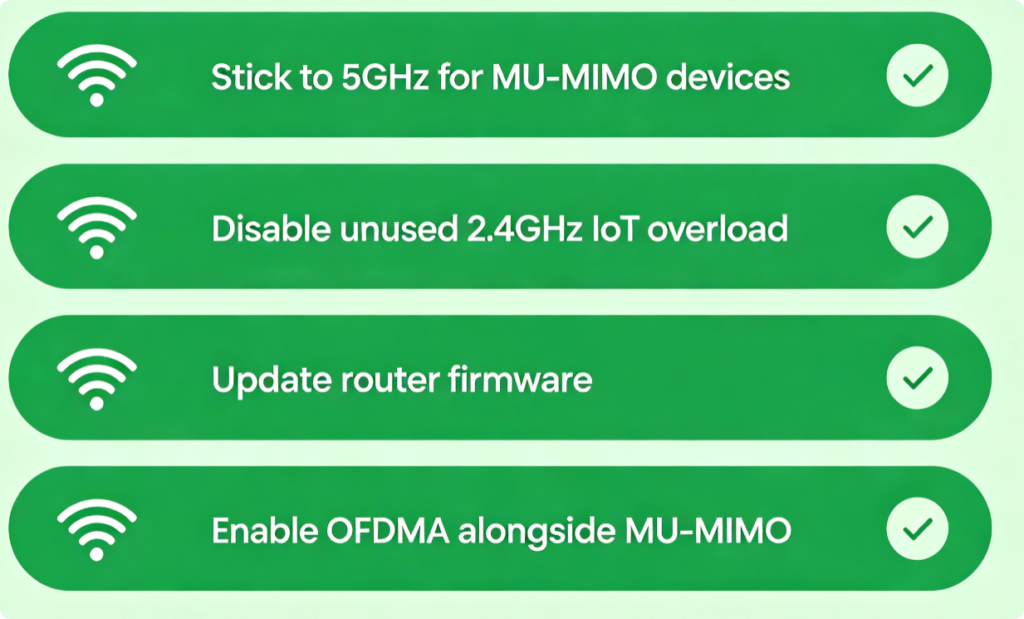
Boost MU-MIMO Effectiveness
- Move bandwidth-heavy devices (game PCs, 4K TVs) to the 5GHz network
- Keep router firmware updated to fix MU-MIMO signal handling bugs
- Pair MU-MIMO with OFDMA on Wi-Fi 6 routers for maximum multi-device throughput
- Reduce physical walls and metal obstacles between router and connected gadgets

Verify MU-MIMO Works
After enabling the feature, connect 3–4 devices to 5GHz Wi-Fi and run concurrent streaming or online games. You will notice far less buffering and consistent speeds compared to before activation. If congestion persists, double-check that all devices are linked to the 5GHz band rather than 2.4GHz.
Conclusion
MU-MIMO solves one of the most common home network pain points: slow speeds when multiple devices run data-heavy tasks. Compatible TP-Link, Netgear and ASUS routers let you activate this feature in seconds inside the 5GHz wireless settings menu. Always pair MU-MIMO with regular firmware updates and proper device band allocation to fully cut down Wi-Fi congestion and maintain stable connections for your whole household.