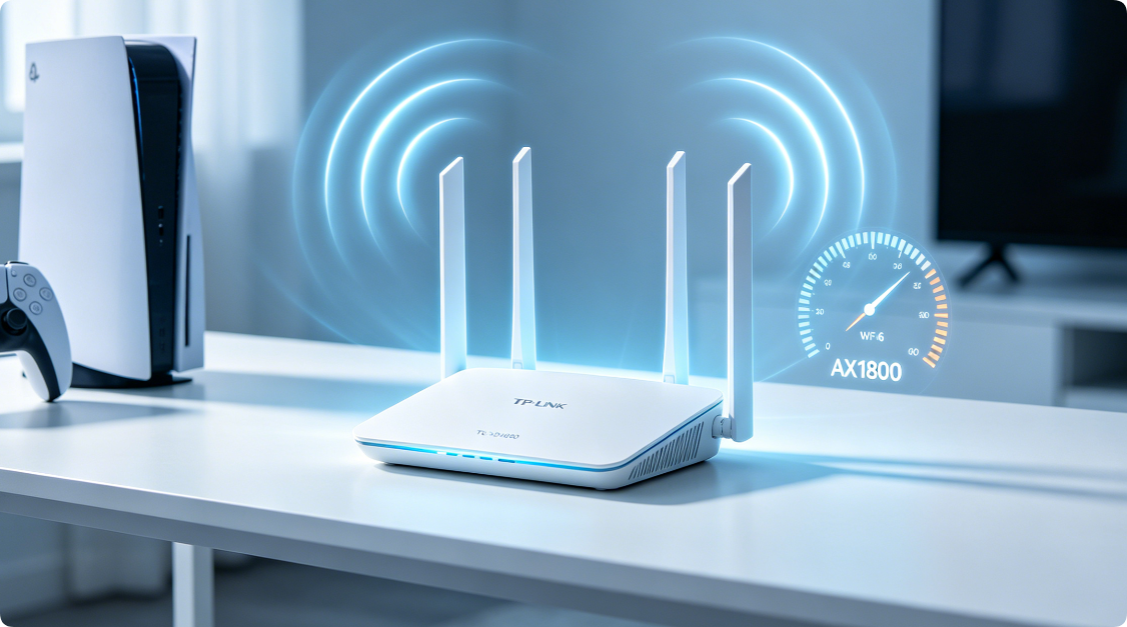
The TP-Link TL-XDR1850 is a cost-effective entry-level Wi-Fi 6 AX1800 dual-band router, delivering combined wireless speeds of 574 Mbps on 2.4GHz plus 1201 Mbps on 5GHz. It suits small-to-medium homes, remote work, casual gaming, and simultaneous 4K video streaming across multiple smart home gadgets. Out-of-box factory settings limit its Wi-Fi 6 performance, resulting in weak wall penetration, unnecessary signal interference, inconsistent speeds, and minor gaming ping spikes. This all-in-one guide covers full physical installation, web panel setup, Tether mobile configuration, targeted wireless tuning, QoS optimization, and security hardening exclusive to the TL-XDR1850 model.
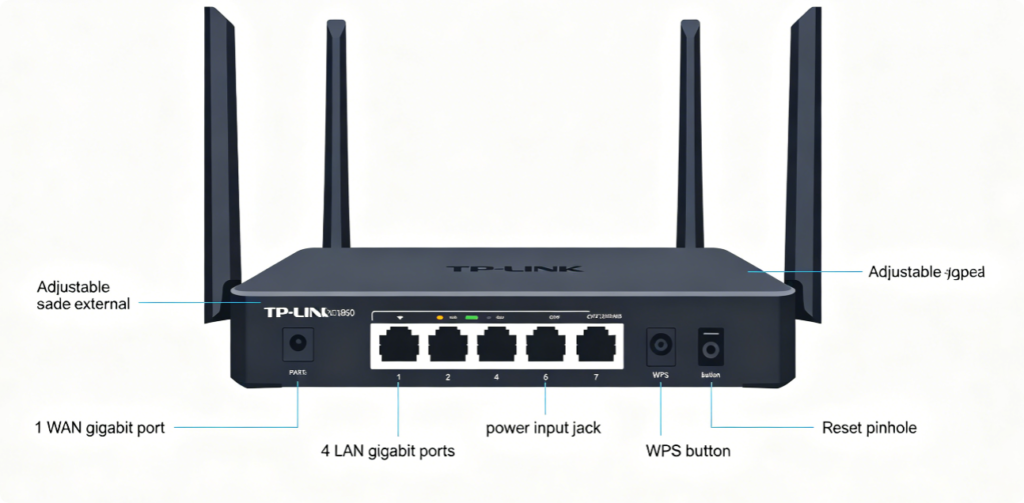
Before connecting cables, learn every component on your TL-XDR1850 router:
- 1 Gigabit WAN Port: Connect fiber or cable modem for incoming internet
- 4 Gigabit LAN Ports: Wired connections for PCs, game consoles, smart TVs, NAS drives
- Four omnidirectional adjustable antennas: Rotate vertically for balanced 2.4GHz and 5GHz coverage
- WPS Button: Quick one-touch pairing for IoT smart devices
- Tiny Reset Pinhole: Restore factory defaults if misconfiguration occurs All wired ports support full 10/100/1000 Mbps gigabit transfer, eliminating wired speed bottlenecks for local file transfers and low-latency gaming.
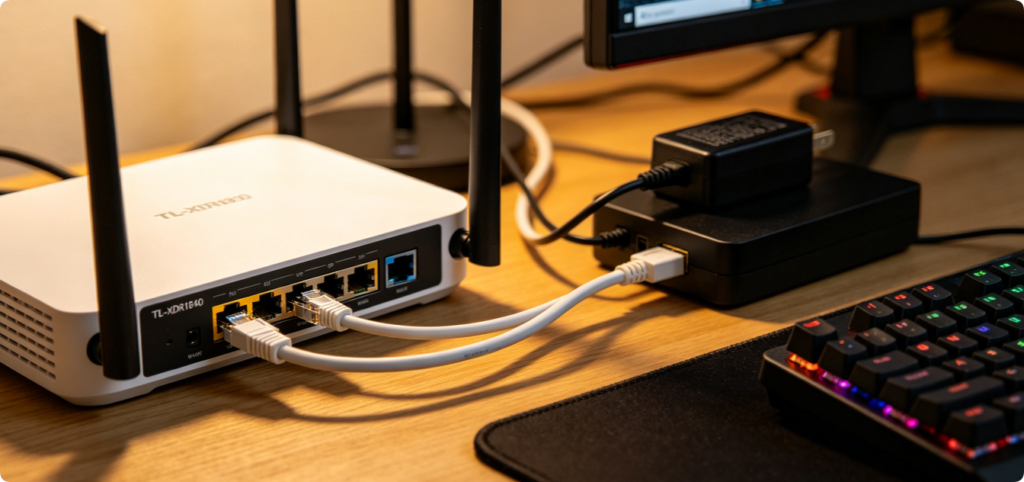
Follow this correct wiring and power-up sequence to avoid offline connection failures:
- Power on your optical/cable modem first, wait 2 full minutes until all modem indicator lights stabilize
- Use a premium Cat5e or Cat6 Ethernet cable to connect modem LAN output to the TL-XDR1850 WAN port
- Plug gaming PCs, PlayStation, Xbox or 4K smart TV into any empty LAN port for stable wired low-latency links
- Attach the official TP-Link power adapter to the router power port and switch on power
- Wait roughly 3 minutes for the TL-XDR1850 boot cycle; stop when front Wi-Fi LEDs stay steady without rapid flashing
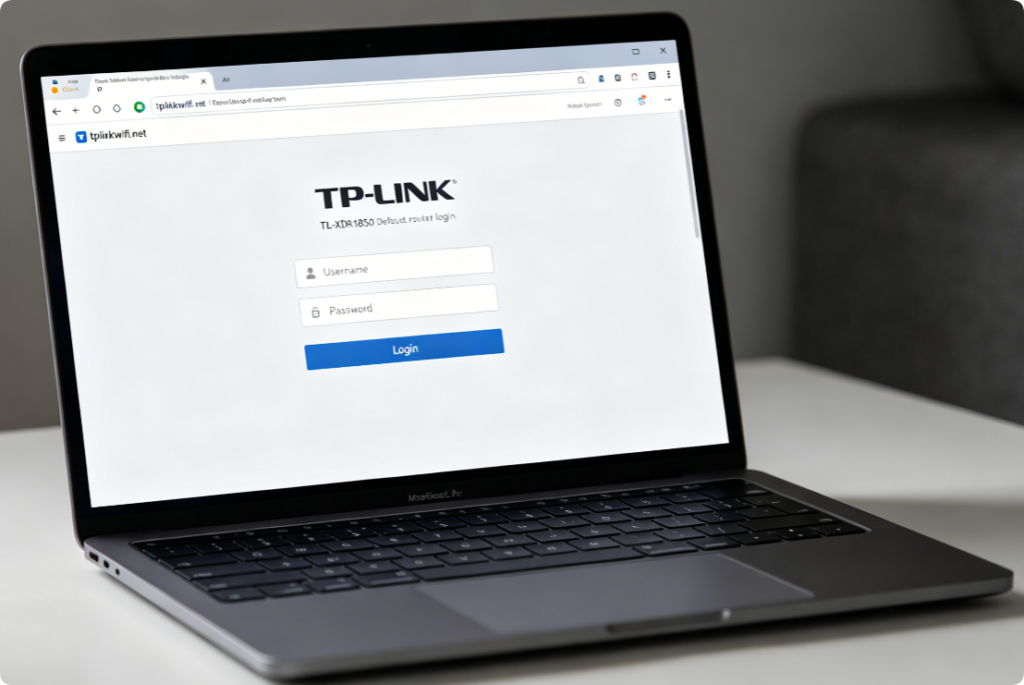
- Link your laptop to the TL-XDR1850 either via wired Ethernet LAN cable or factory default Wi-Fi
- Do not rely on cellular mobile data during configuration
- Open Chrome, Edge, or Safari and input
tplinkwifi.netor the default gateway IP192.168.1.1 - Create a unique complex custom admin password on the initial login page; store it securely for future access
- After login, the built-in quick setup wizard will launch to configure your internet dial-up mode
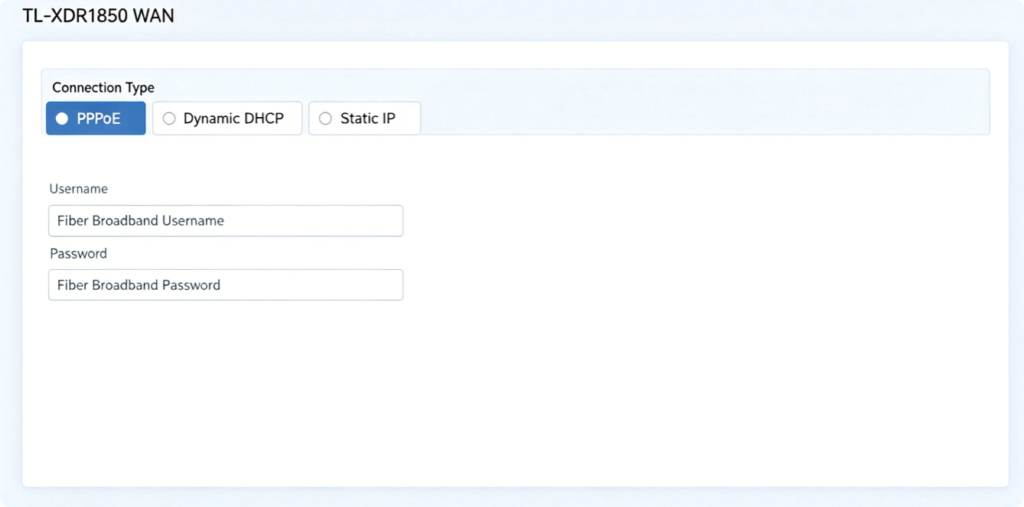
Select the exact internet type provided by your internet service provider:
- Home fiber broadband (most households): Choose PPPoE, enter ISP broadband username and password, enable Auto Reconnect to prevent disconnection after power outages
- Shared apartment secondary network: Select Dynamic DHCP for automatic local IP assignment
- Business fixed static broadband: Pick Static IP and manually fill in IP address, subnet mask, gateway, and DNS server values Save your WAN settings, and the TL-XDR1850 will automatically establish internet connectivity.
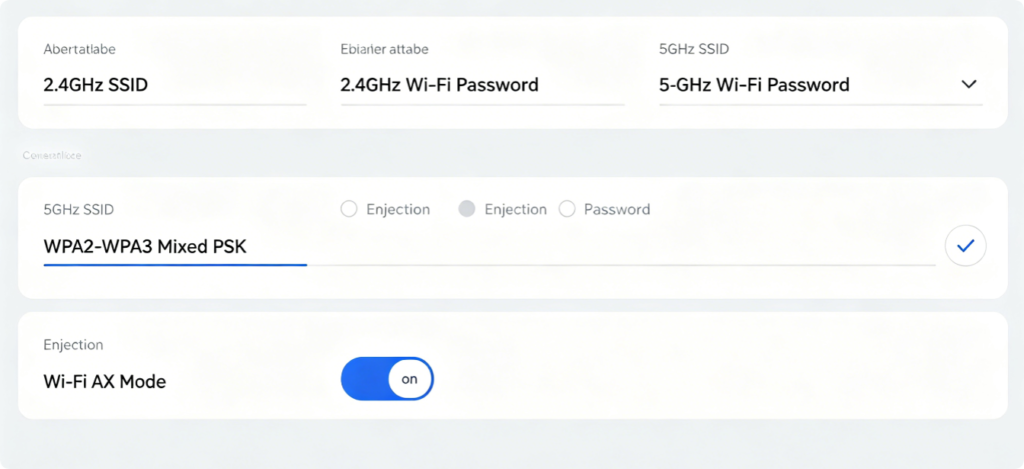
Optimize dual-band wireless settings for smooth streaming and gaming on AX1800 hardware:
- 2.4GHz Band: Assign an independent SSID exclusively for low-bandwidth IoT devices (smart lights, security cameras), lock channel bandwidth to 20MHz only
- 5GHz Wi-Fi 6 Band: Create a distinct SSID for gaming consoles, laptops, smartphones, and 4K streaming devices; set channel width to 80MHz to unlock maximum AX1800 wireless throughput
- Encryption Standard: Force WPA2/WPA3 Mixed PSK; this preserves full Wi-Fi 6 speed while blocking insecure legacy device connections
- Wi-Fi Password Rule: Create a 12+ character password mixing uppercase letters, lowercase letters, numbers, and special symbols Optional: Activate Band Steering to merge both bands into a single unified Wi-Fi name for automatic device band switching.
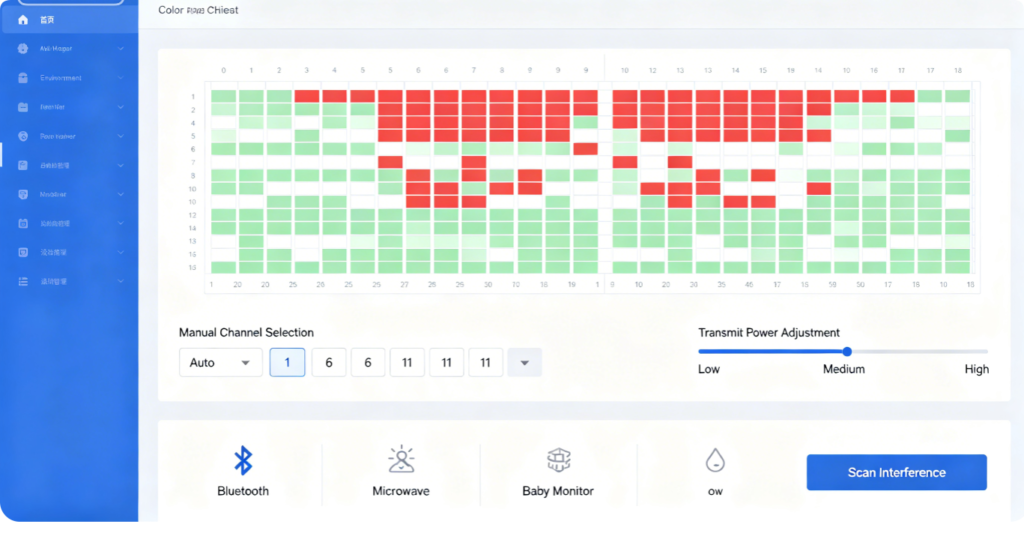
Neighboring router signal overlap causes buffering and ping spikes; optimize channels on your TL-XDR1850:
- Navigate to Advanced > Wireless > Channel & Transmit Power, launch the built-in Wi-Fi Environment Scan tool
- For the 2.4GHz band: Manually select only non-overlapping channels 1, 6, or 11
- For the 5GHz band: Choose quiet upper UNII-3 channels with minimal competing nearby wireless signals
- Transmit Power Guide: Medium power for small apartments under 80㎡; High power for multi-floor homes over 120㎡ Avoid Auto-Channel mode, which frequently selects overcrowded frequencies in dense residential buildings.
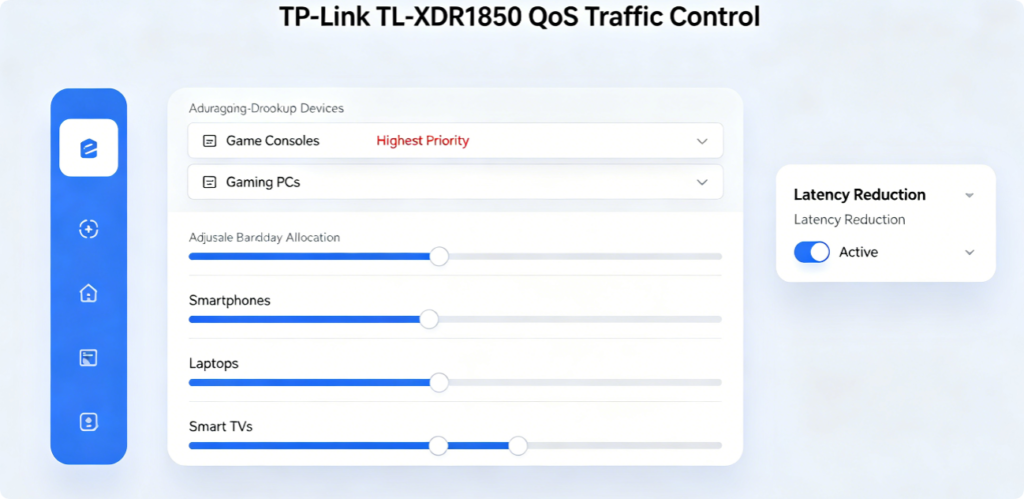
This QoS tweak drastically cuts gaming lag on the TL-XDR1850 AX1800:
- Enter Advanced > QoS > Game Prioritization
- Select your PlayStation, Xbox, or gaming laptop from the connected device roster and drag it to the Highest Priority tier
- Allocate more upload and download bandwidth weight to priority gaming hardware
- Toggle on Low Latency Mode, a dedicated TP-Link Wi-Fi 6 feature that reduces packet delay during online multiplayer matches Once enabled, background streaming, phone browsing, and smart device downloads will no longer hog bandwidth during gaming sessions.
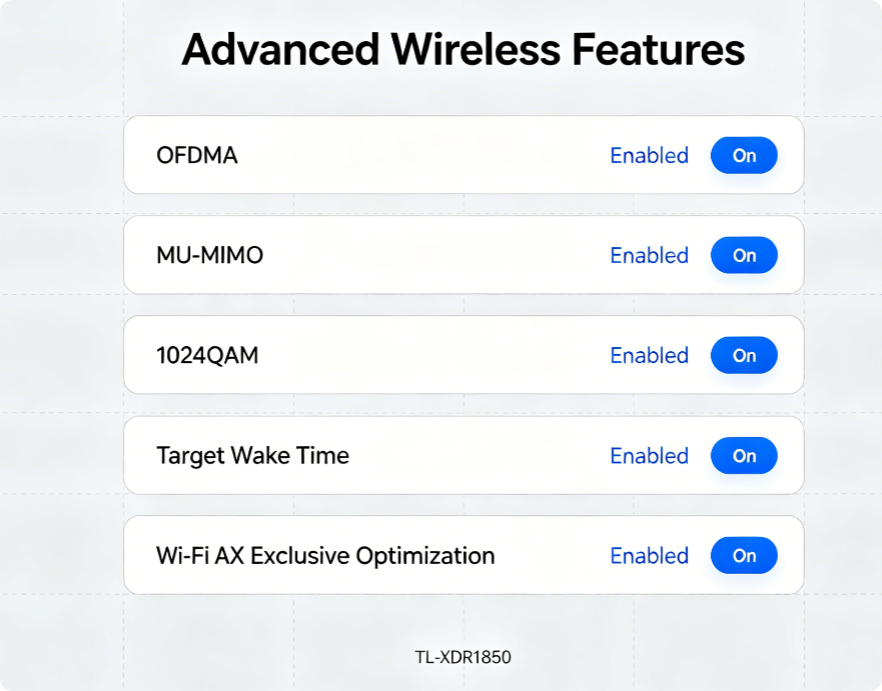
The TL-XDR1850 disables core Wi-Fi 6 acceleration functions by factory default; enable all four to unlock full AX1800 throughput:
- OFDMA: Handles simultaneous data requests from multiple connected devices, eliminating lag when several people stream 4K video at once
- MU-MIMO: Lets the router transmit data to multiple Wi-Fi 6 compatible devices in parallel
- 1024QAM: Improves wireless data compression to hit the full AX1800 speed ceiling
- Target Wake Time: Conserves battery power for mobile streaming devices without causing random disconnections
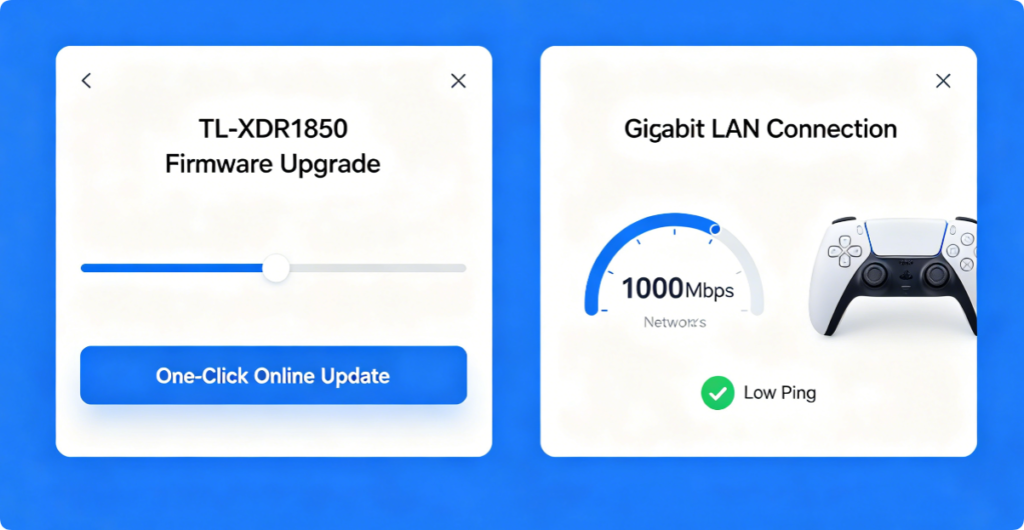
Two critical maintenance tasks for consistent long-term AX1800 performance:
- Install Official Firmware Updates Visit System > Firmware Upgrade, click Check Online to download the latest TL-XDR1850 firmware. New official releases patch latency bugs, stabilize 5GHz signal strength, and fix security vulnerabilities. Never disconnect router power during the upgrade process.
- Prioritize Wired Connections for High-Demand Devices Connect gaming consoles and desktop PCs directly to the TL-XDR1850 gigabit LAN ports rather than relying on Wi-Fi. Wired gigabit links deliver near-zero ping and completely eliminate wireless signal fluctuation and video buffering.
Fast actionable fixes for typical TL-XDR1850 AX1800 problems:
- Persistent gaming lag: Activate Game QoS, switch 5GHz to a manually selected clean channel, or use a wired Ethernet connection
- Endless 4K video buffering: Set 5GHz channel width to 80MHz, reduce surrounding wireless interference by repositioning the router
- Weak 5GHz signal dead zones: Align router antennas vertically, raise transmit power to High, move the router to your home’s central open area
- Frequent Wi-Fi dropouts: Reboot the router weekly, install the newest firmware, disable unused WPS and Remote Management functions
Conclusion
The TP-Link TL-XDR1850 AX1800 delivers outstanding budget Wi-Fi 6 performance for small and medium households, yet its full capabilities rely on proper hardware wiring, accurate WAN dial configuration, interference-free dual-band channel tuning, and dedicated Game QoS prioritization. Following this complete setup guide lets you activate exclusive Wi-Fi 6 technologies including OFDMA and MU-MIMO, reserve maximum network bandwidth for gaming and streaming hardware, and remove persistent buffering and ping spikes. Regular official firmware updates and wired gigabit connections will maintain a smooth, stable home network for daily remote work, casual multiplayer gaming, and non-stop 4K video playback.