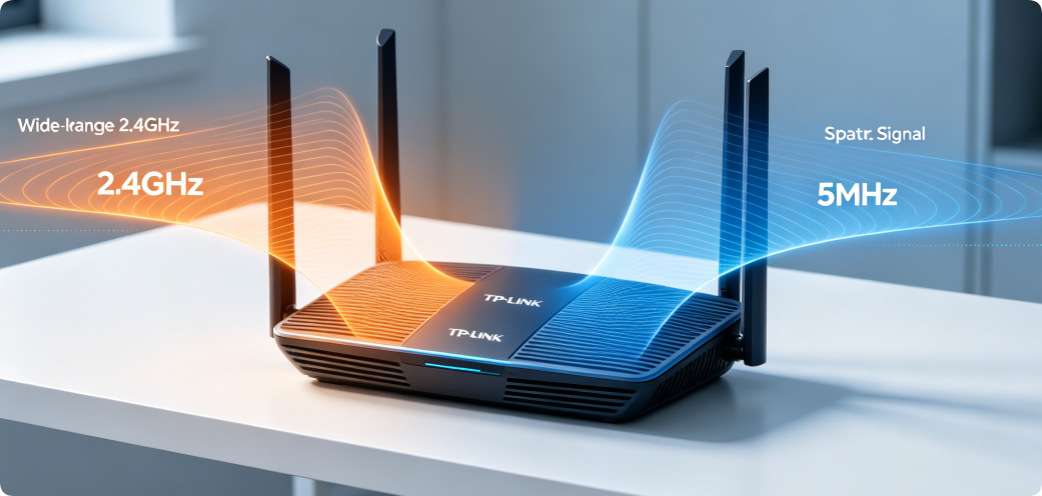
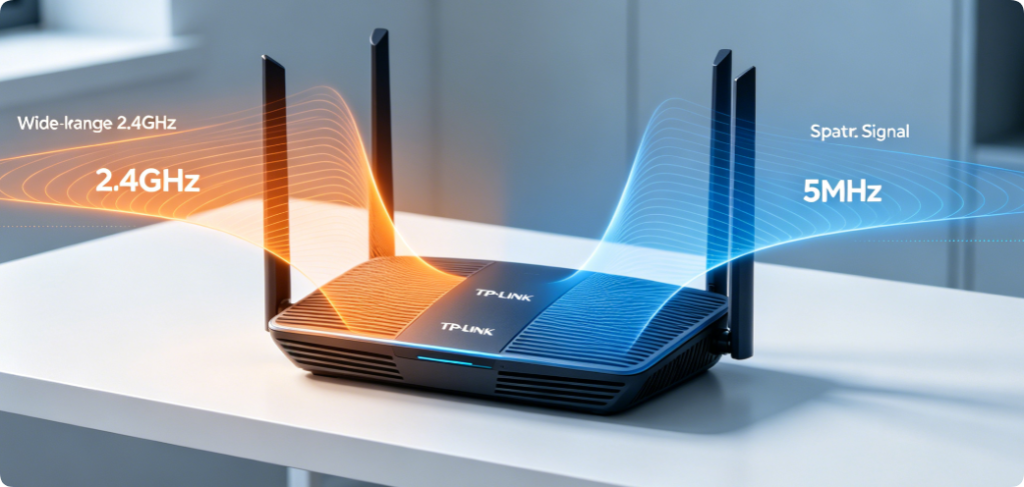
Every TP-Link dual-band router broadcasts two independent wireless networks: 2.4GHz and 5GHz. Each frequency band carries unique strengths, weaknesses, and strict configuration rules for channels and bandwidth width. Most household users rely on default auto settings, which create heavy signal overlap, constant buffering, weak coverage, and gaming ping spikes.
This complete guide breaks down the core differences between 2.4GHz and 5GHz on all TP-Link models (AX1800, AX3000, Archer AX53, TL-XDR1850). It shares industry-standard channel selection rules, optimal bandwidth width values, and band assignment tips to eliminate interference, maximize speed, and balance full-home coverage. The steps work for Wi-Fi 5 and Wi-Fi 6 TP-Link routers alike.
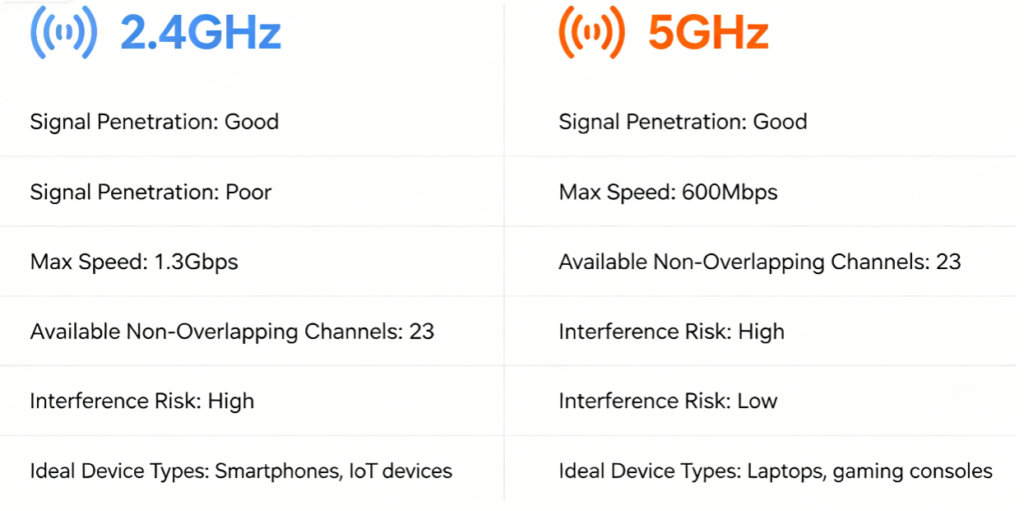
Key Band Breakdown
- 2.4GHz Band (Orange Signal)
- Pros: Longer transmission range, strong wall penetration, compatible with all old smart IoT devices
- Cons: Severe congestion from microwaves, Bluetooth, neighbor routers; only 3 non-overlapping channels
- Max practical speed: Under 300 Mbps, designed for low-bandwidth tasks
- 5GHz Band (Blue Signal)
- Pros: Dozens of independent clean channels, minimal household interference, gigabit wireless speeds, ultra-low latency
- Cons: Poor wall penetration, signal fades fast through brick/concrete walls
- Max practical speed: Up to 2400 Mbps on Wi-Fi 6 routers, built for gaming, 4K streaming, large file transfers
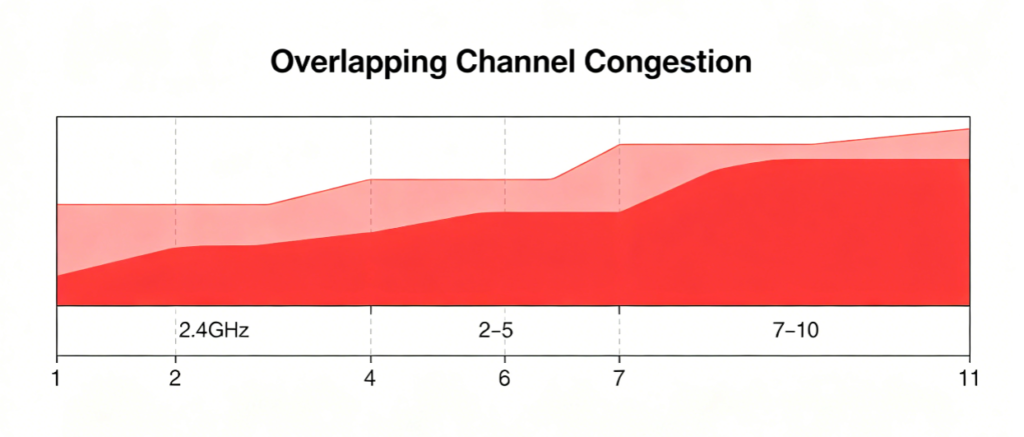
The biggest mistake TP-Link users make: leaving 2.4GHz channel on Auto. All channels except 1, 6, and 11 share overlapping frequency space, creating constant packet collision with nearby Wi-Fi networks.
Hard rule for TP-Link routers:
- 2.4GHz manual channel options: Only pick 1, 6, or 11
- Never use channels 2,3,4,5,7,8,9,10 under any circumstance
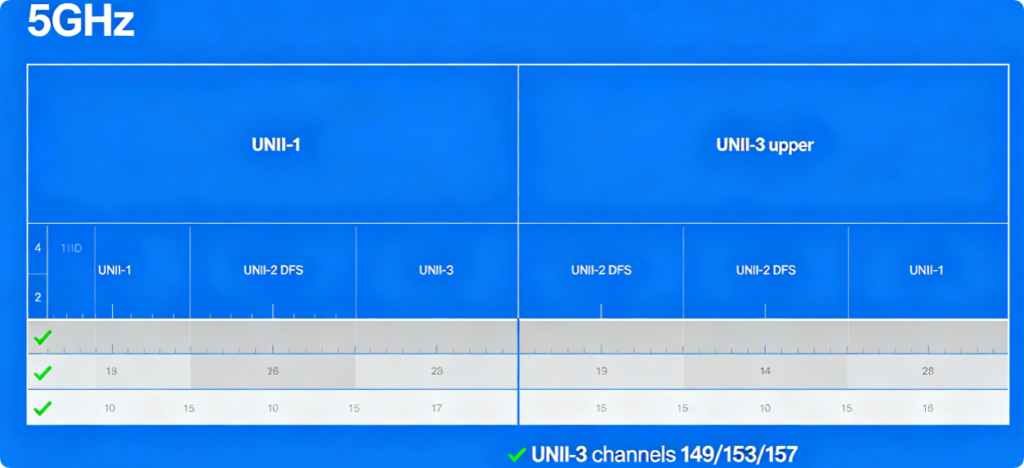
The 5GHz spectrum is split into three separate frequency blocks on TP-Link firmware:
- UNII-1 (36–48): Heavily used by nearby apartments, high interference
- UNII-2 DFS (52–64): Radar-detect channels, auto-switch if radar signals are detected
- UNII-3 (149–165): Upper 5GHz channels, almost no neighbor congestion (best choice for residential areas) For stable low-latency Wi-Fi, always prioritize UNII-3 channels during manual channel setup.
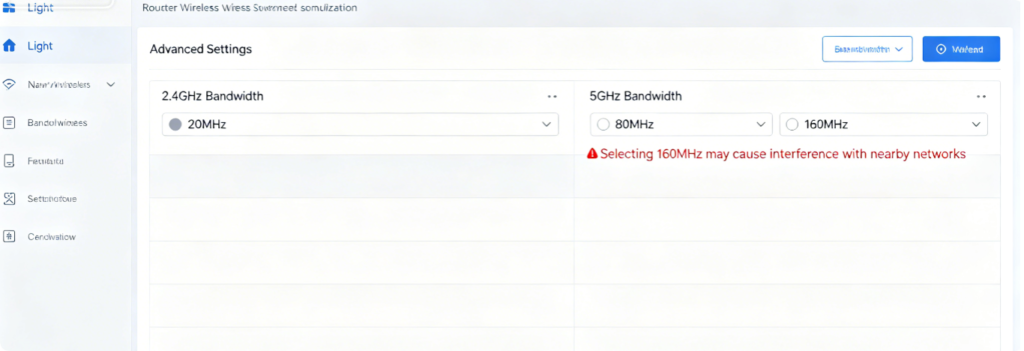
Bandwidth width directly controls maximum wireless throughput and interference footprint:
- 2.4GHz Bandwidth: Lock to 20MHz Only 40MHz bandwidth doubles the signal footprint on the crowded 2.4GHz spectrum and guarantees heavy overlap with neighboring routers. 20MHz eliminates extra congestion and delivers stable IoT connectivity.
- 5GHz Bandwidth Rules
- Apartments / dense neighborhoods: Fixed 80MHz (balance of speed and low interference)
- Large isolated single-family homes: 160MHz (full Wi-Fi 6 speed, only if Wi-Fi scan shows zero competing networks)
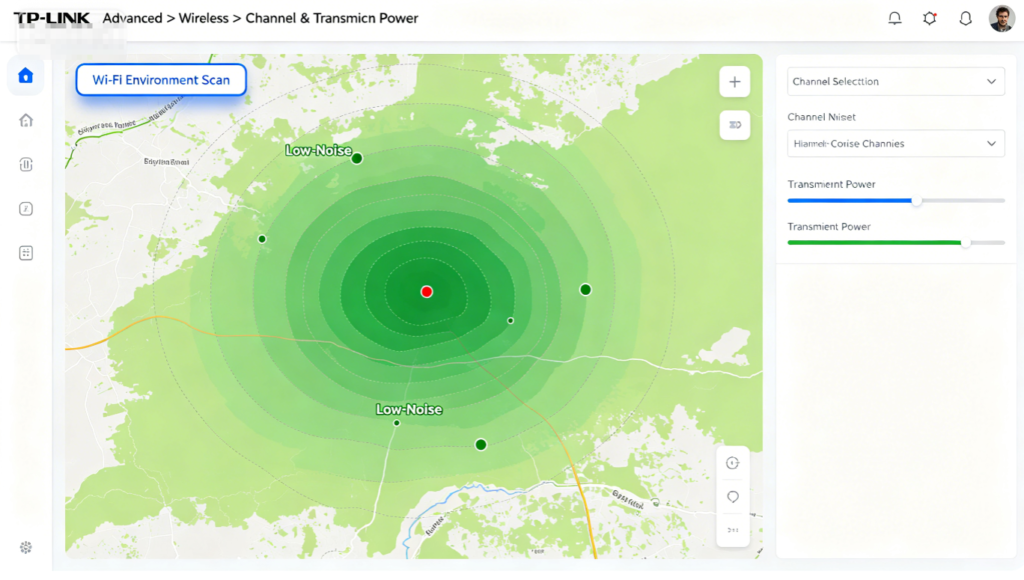
Before manually setting channels on your TP-Link router, run the built-in spectrum scanner to view real-time congestion:
- Log into tplinkwifi.net via wired Ethernet
- Navigate to Advanced > Wireless > Channel & Transmit Power
- Tap Wi-Fi Environment Scan and wait 30 seconds for the full report
- Check signal strength and noise levels for each channel
- Select the channel with the lowest number of competing networks for both bands
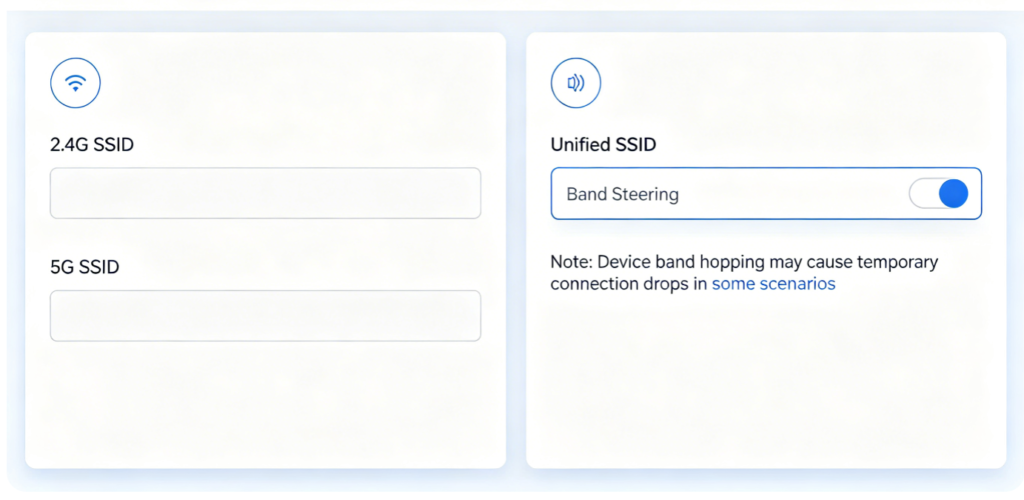
Two band management modes available on all TP-Link dual-band routers:
- Separate Independent SSIDs (Recommended for Gamers & Streamers)
- Unique Wi-Fi names for 2.4GHz and 5GHz
- Manually assign IoT devices to 2.4GHz; gaming PCs, consoles, TVs to 5GHz
- Eliminates random automatic band switching that causes speed drops
- Band Steering Unified Single SSID (For Casual Household Users)
- Merges both bands under one Wi-Fi name
- Router automatically moves compatible devices to 5GHz when signal is strong
- Downside: Phones often drop back to slow 2.4GHz when walking to distant rooms
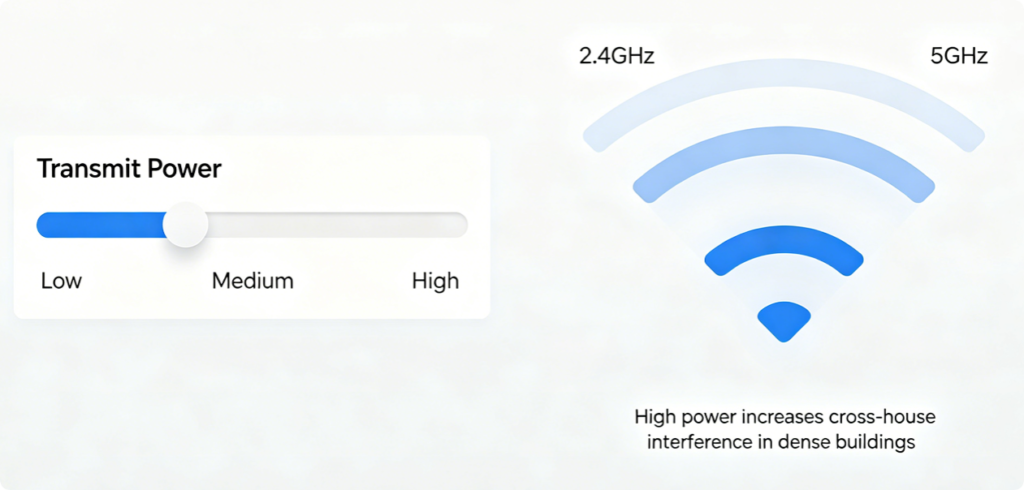
Transmit power impacts both bands differently:
- Small apartments (<80㎡): Medium power for both bands to avoid signal overflow and neighbor channel conflict
- Large multi-floor houses (>120㎡): High power to boost 2.4GHz wall penetration and extend 5GHz range Critical note: 5GHz signals are more sensitive to over-power saturation than 2.4GHz; avoid max power in crowded apartment blocks.
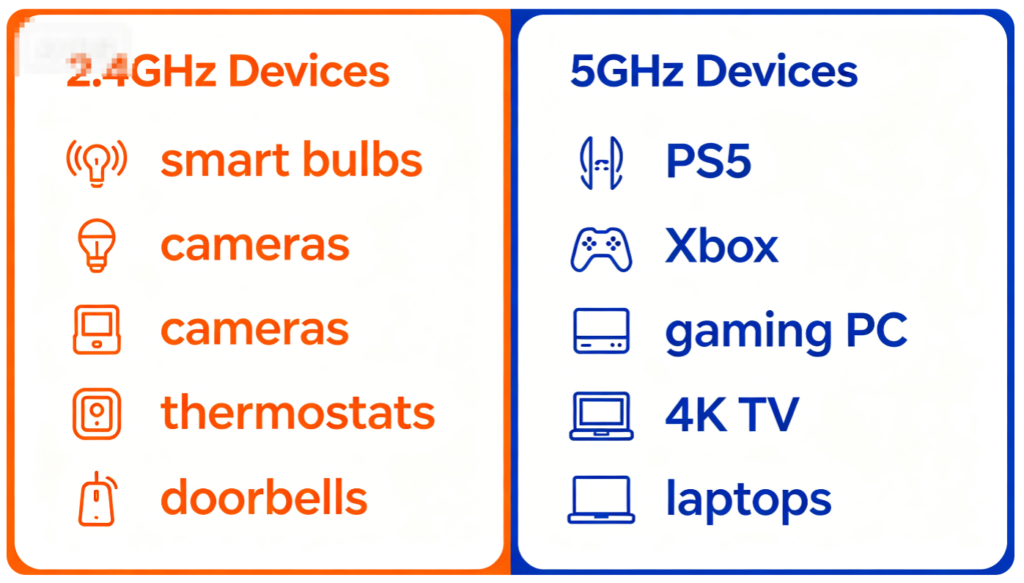
Assign each device to the matching band to avoid wasting 5GHz bandwidth on low-speed IoT hardware:
✅ Connect to 2.4GHz: All battery-powered smart home gadgets, older legacy phones, remote backyard cameras
✅ Connect to 5GHz: All modern Wi-Fi 5 / Wi-Fi 6 devices used for streaming, gaming, video calls, file downloads
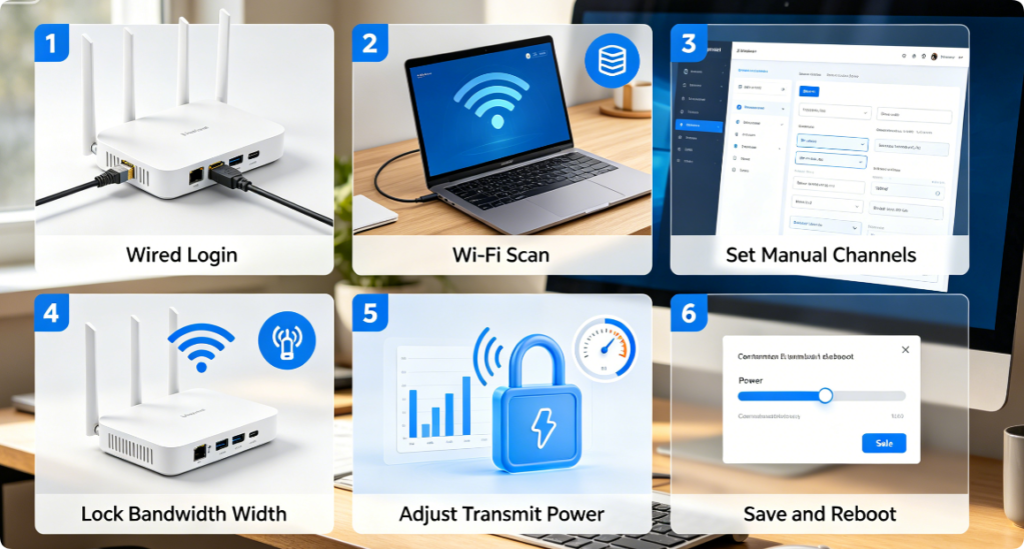
Follow this complete workflow once to fully optimize your dual-band network:
- Plug laptop into router LAN port via Cat5e/Cat6 cable
- Log into TP-Link web admin panel and run Wi-Fi Environment Scan
- Manually set 2.4GHz to channel 1/6/11 with 20MHz bandwidth
- Manually set 5GHz to quiet UNII-3 channel with 80MHz bandwidth
- Adjust transmit power based on your home size
- Configure separate dual-band SSIDs (preferred)
- Save settings and allow router Wi-Fi radio to reboot
Quick fixes for typical dual-band performance issues:
- Weak 5GHz signal dead zones: Raise transmit power, reposition router centrally, tilt antennas toward weak coverage rooms
- Frequent 2.4GHz IoT disconnections: Switch to a cleaner non-overlapping channel, move router away from microwaves
- Sudden speed drops: Split SSIDs to stop automatic band steering jumps
- Multi-device lag: Enable OFDMA and MU-MIMO under Wi-Fi 6 advanced settings
- Persistent interference: Re-scan Wi-Fi environment and swap to quieter channels
Conclusion
Configuring 2.4GHz and 5GHz bands correctly is the foundation of fast, stable TP-Link dual-band Wi-Fi. Stick to non-overlapping 2.4GHz channels (1, 6, 11) locked at 20MHz bandwidth, select quiet upper UNII-3 channels for 5GHz with 80MHz width for most homes, and separate your two band Wi-Fi names to avoid unwanted device band switching. Match low-power IoT devices to long-range 2.4GHz and high-demand gaming/streaming hardware to interference-free 5GHz. When paired with transmit power adjustments and regular Wi-Fi spectrum scans, these channel and bandwidth settings eliminate lag, buffering, and dead zones for your entire household network.