Fix Slow Wi-Fi: Effective Router Configuration Tweaks to Boost Speed Instantly
Slow loading pages, endless video buffering, weak bedroom Wi-Fi signals, and inconsistent download speeds trouble nearly every home network user. Most users mistakenly upgrade internet plans or buy new routers to gain faster Wi-Fi, while 90% of slow wireless issues come from wrong default router settings, wireless interference, disabled performance features and unreasonable network allocation. No extra hardware, no professional maintenance, no complicated wiring — these beginner-friendly router tweaks can boost Wi-Fi speed instantly, stabilize connection speed, and cut random lag for phones, PCs, game consoles and smart TVs. This guide works for all mainstream routers: TP-Link, Asus, Netgear, D-Link and Wi-Fi 5 / Wi-Fi 6 dual-band models.
Before modifying router settings, confirm the hidden reasons behind persistent slow Wi-Fi: Factory auto channel mode connects crowded neighboring networks; combined 2.4G/5G Wi-Fi name causes frequent band jumps; old encryption limits wireless throughput; idle guest devices occupy background bandwidth; blocked router ventilation triggers speed throttling. All these problems can be fixed within 5 minutes via backend configuration.
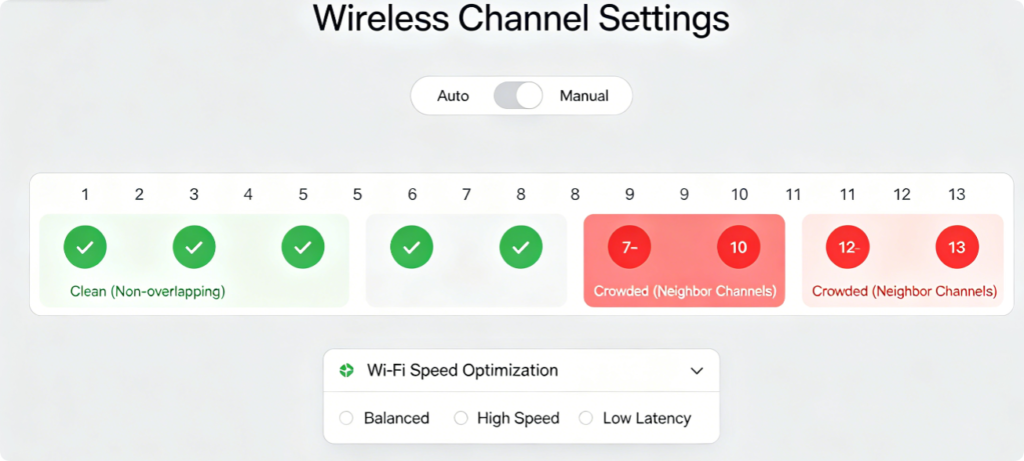
Instant Speed Tweak 1: Disable Auto Channel Mode (Fastest Fix)
Router automatic channel selection always picks crowded frequency bands in apartments and dense residential communities, leading to signal collision and packet loss. Follow universal channel rules for immediate speed improvement:
✅ 2.4GHz Band: Lock channel 1 / 6 / 11 only, set bandwidth fixed at 20MHz
✅ 5GHz Band: Choose upper quiet channels 149/153/157, set bandwidth to 80MHz
Never use 40MHz on 2.4GHz or 160MHz on 5GHz in crowded buildings, which will worsen cross-network interference and slow down Wi-Fi speed obviously.
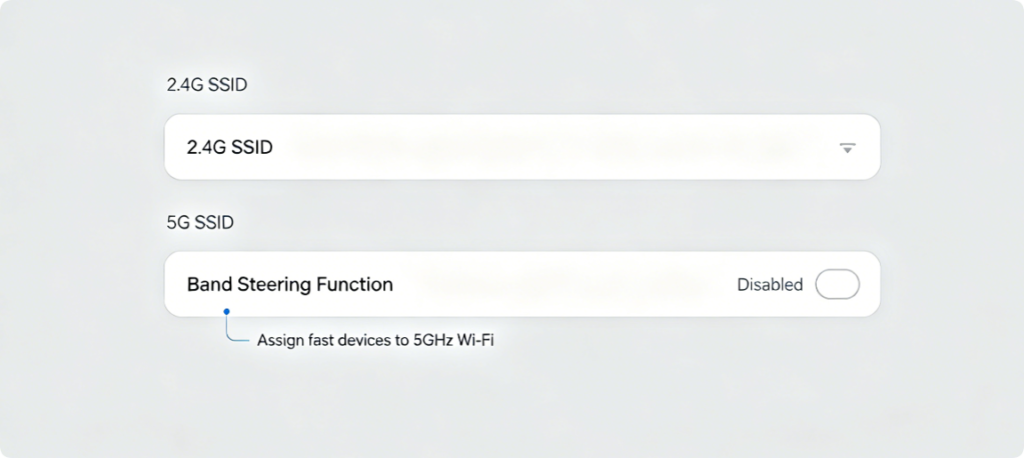
Instant Speed Tweak 2: Split Dual-Band SSID Instead of One Unified Wi-Fi
Merged single Wi-Fi name is the biggest hidden speed killer. Smartphones, gaming PCs and 4K TVs will automatically drop to slow long-range 2.4GHz network when 5GHz signal weakens, resulting in sudden speed drops.
Best band usage rule:
1. Set two independent Wi-Fi names for 2.4GHz and 5GHz
2. Connect gaming, streaming, office devices to high-speed 5GHz Wi-Fi
3. Leave only smart lights, cameras and old IoT devices on 2.4GHz network
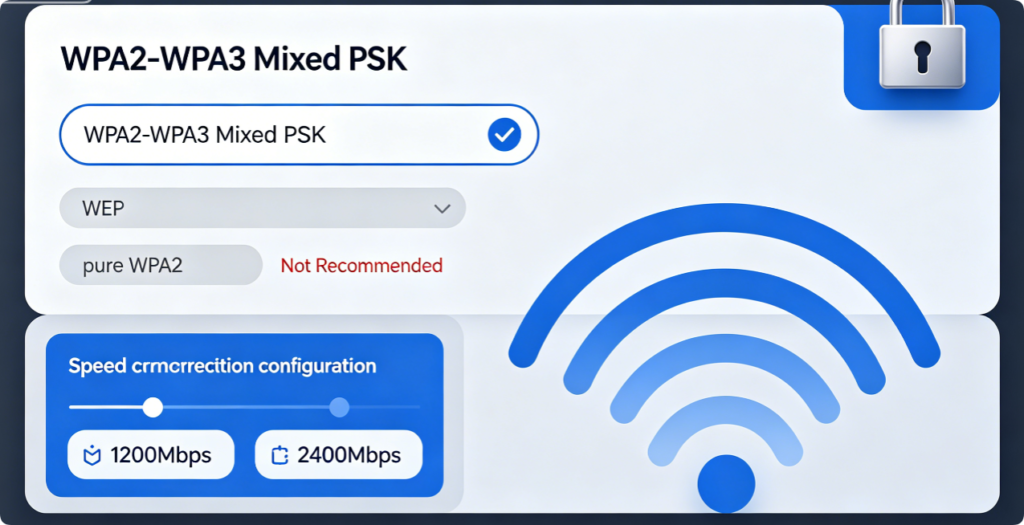
Instant Speed Tweak 3: Update Encryption to Avoid Bandwidth Limit
Outdated WEP and single WPA2 encryption reduce Wi-Fi transmission efficiency, and allow unauthorized outsiders to sneak into your Wi-Fi network and consume bandwidth silently.
Standard optimized security setting:
Switch wireless security mode to WPA2/WPA3 Mixed PSK
This setting supports full Wi-Fi 5 / Wi-Fi 6 speed, blocks old slow-access devices, prevents unknown Wi-Fi connection, and keeps network safe without speed loss.
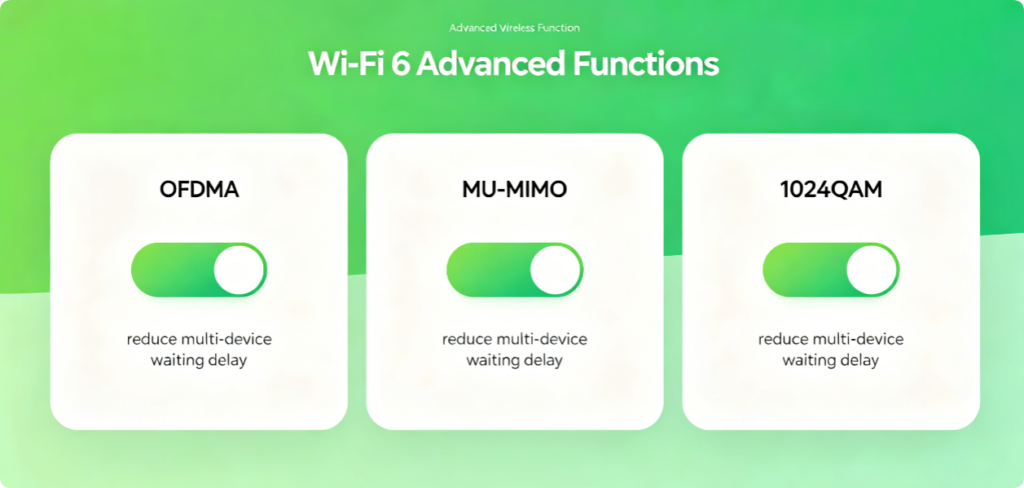
Instant Speed Tweak 4: Turn On Core Wi-Fi 6 Acceleration Features
All Wi-Fi 6 routers disable OFDMA and MU-MIMO by factory default. Traditional Wi-Fi can only serve one device at one time, causing slow speed when multiple family members use Wi-Fi simultaneously.
Enable these three functions for instant speed boost:
1. OFDMA: Split channel to serve multiple small IoT devices at once
2. MU-MIMO: Transmit data to gaming and streaming devices in parallel
3. 1024QAM: Improve data compression to raise wireless transfer speed
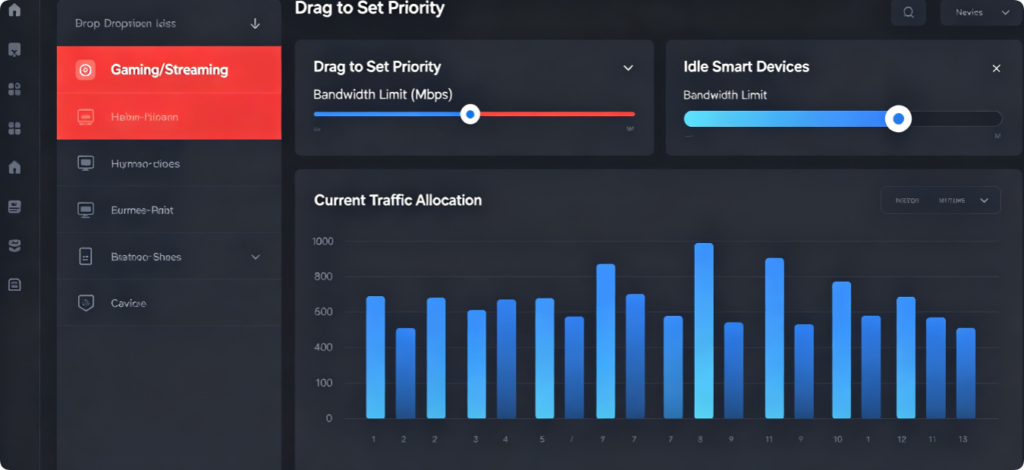
Instant Speed Tweak 5: Use QoS to Stop Background Bandwidth Waste
Automatic system updates, cloud file backup, idle smart camera recording occupy most upload bandwidth, which greatly slows down daily Wi-Fi usage.
Quick QoS configuration steps:
1. Enter Advanced > QoS / Traffic Management
2. Mark phone, PC, game console as highest network priority
3. Limit maximum bandwidth for guest network and idle IoT devices
4. Turn on Low Latency Mode to stabilize real-time network speed
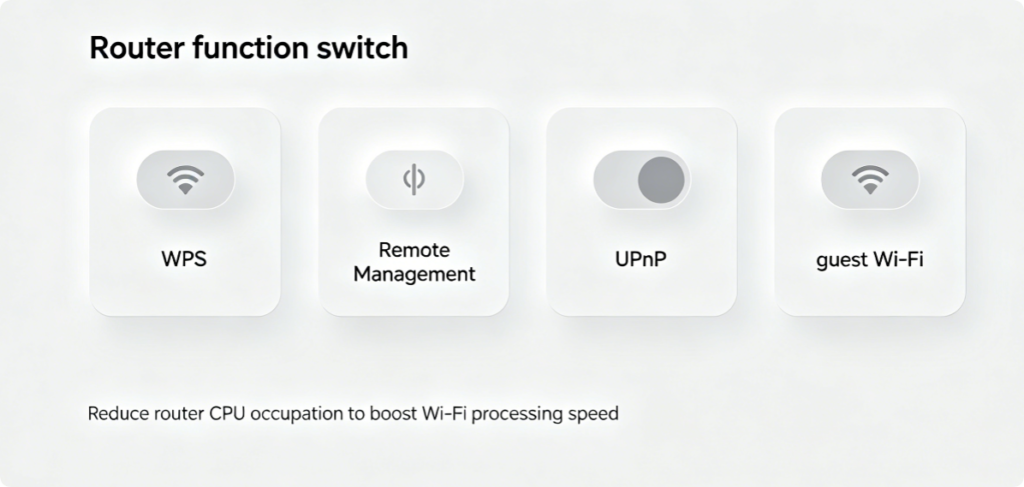
Instant Speed Tweak 6: Turn Off 4 Wasteful Default Functions
These built-in functions run automatically in the background, consume router chip performance, and reduce overall Wi-Fi processing speed:
❌ Disable WPS: Stop frequent wireless signal scanning
❌ Disable Remote Management: Prevent external unauthorized access
❌ Close unused UPnP: Reduce network port overhead
❌ Turn off Guest Wi-Fi: Cut extra hidden connected devices
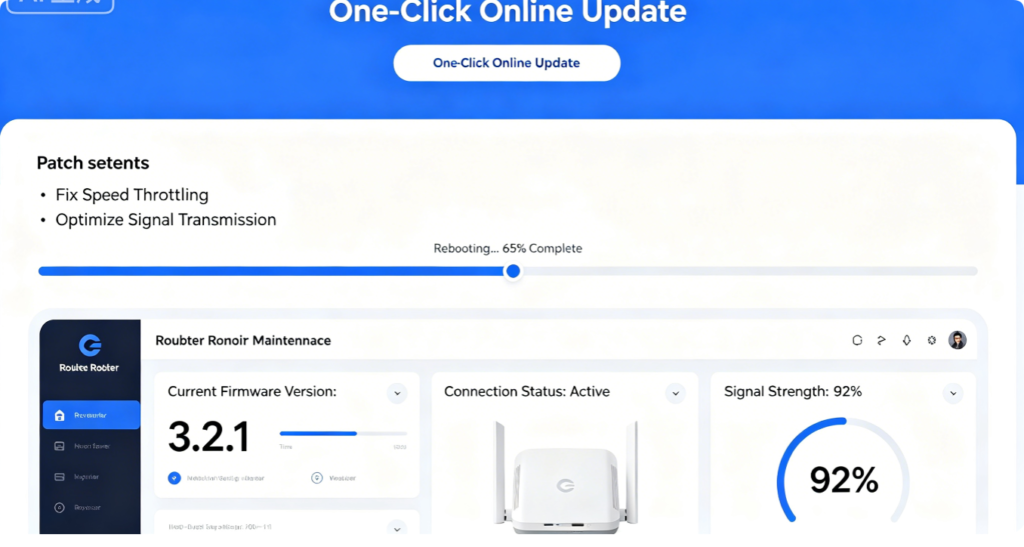
Instant Speed Tweak 7: Upgrade Firmware to Repair Built-In Speed Bugs
Outdated firmware has long-term memory leaks, signal attenuation bugs and protocol flaws, which cause permanent slow Wi-Fi speed no matter how you adjust wireless settings. Router brands release monthly firmware updates to optimize wireless algorithm, fix speed limit bugs and enhance signal penetration.
Operation tip: Backup router configuration first, keep stable power during upgrade, never install third-party modified firmware.
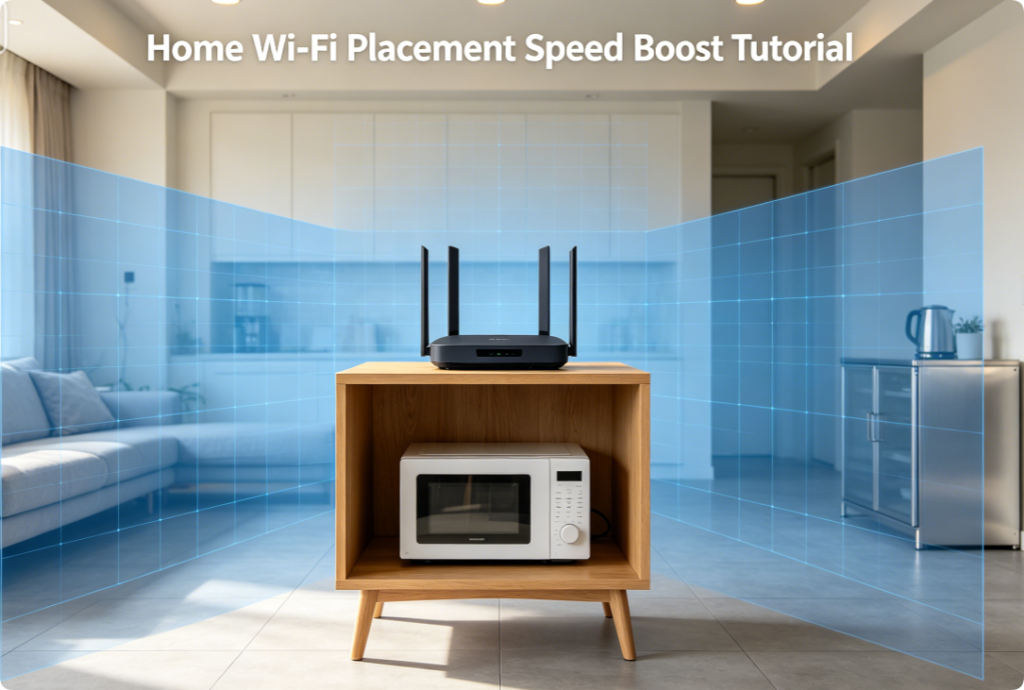
Instant Speed Tweak 8: Optimize Placement to Avoid Signal Attenuation
Software tweaks cannot fix poor hardware placement. Follow placement rules to restore full Wi-Fi speed:
1. Place router at home geometric center, 1.2m above ground
2. Keep 3 meters away from microwave, refrigerator, metal furniture
3. Place all external antennas vertically upward for 360° balanced signal
4. Never put router inside closed wooden cabinet to avoid overheating speed limit
Visible speed improvement after finishing all tweaks:
✅ 30%-70% higher download and upload wireless speed
✅ Stable gaming ping without sudden large spikes
✅ Zero 4K video buffering during multi-device simultaneous use
✅ Strong stable Wi-Fi signal in every room without dead zones
✅ Fast smart device response speed for whole smart home system
Conclusion
Fixing slow Wi-Fi does not require broadband upgrade or expensive new router purchase. The 8 easy router configuration tweaks above can boost Wi-Fi speed instantly: switch manual clean channels, split dual-band Wi-Fi names, upgrade WPA2/WPA3 mixed encryption, enable Wi-Fi 6 multi-device acceleration features, set QoS device priority, disable useless background functions, update official firmware, and optimize router placement. These settings eliminate wireless interference, background bandwidth occupation and router performance waste. Apply these tweaks step by step to unlock your router’s maximum wireless speed, enjoy buffer-free streaming, low-latency gaming and smooth internet browsing for all home connected devices.