Unsecured home routers create critical digital vulnerabilities: neighbors stealing your bandwidth, hackers snooping on browsing traffic, malicious IoT device breaches, and remote unauthorized network intrusions. Most TP-Link dual-band Wi-Fi 5 & Wi-Fi 6 routers (TL-XDR1850, Archer AX53, AX3000, AX5400) ship with weak default security configurations out of the box—outdated encryption, disabled firewalls, and open unrestricted device access.
This all-in-one walkthrough covers three core non-negotiable security layers for TP-Link hardware: modern WPA3 mixed wireless encryption, SPI stateful packet inspection firewall, and MAC address filtering access control. Every step works for both the web admin dashboard and TP-Link Tether mobile app, with zero advanced networking expertise required. We also cover hidden security risks, guest network isolation, admin password hardening, and post-setup vulnerability checks to fully lock down your home wireless network.
Hidden Dangers of Default TP-Link Router Security
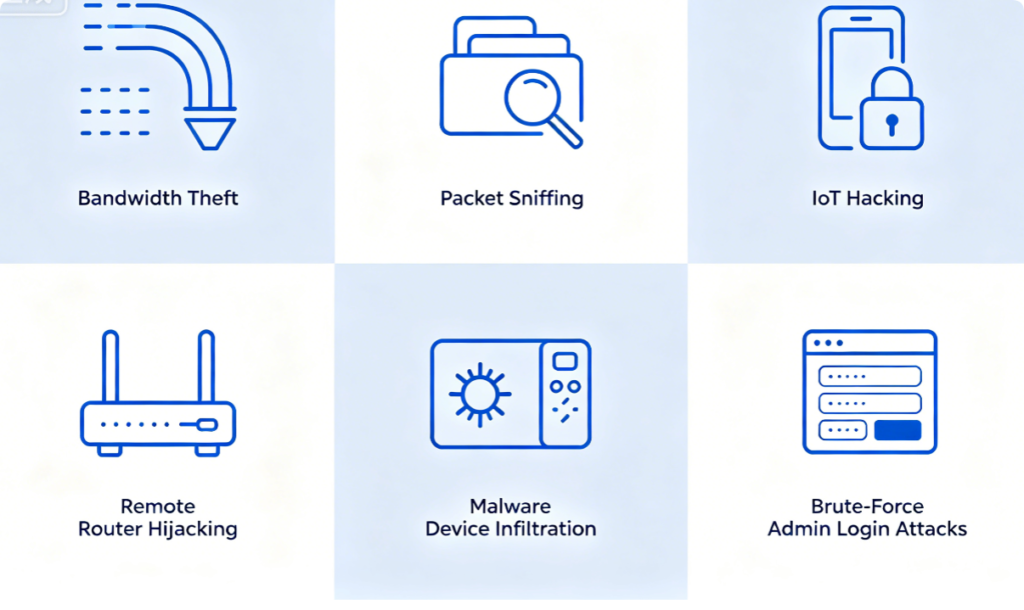
Factory default settings leave your network exposed to six major cyber threats:
- Weak legacy WEP/WPA2-only encryption that attackers can crack in minutes to intercept your internet traffic
- Disabled SPI Firewall, allowing unfiltered incoming internet traffic to reach all connected phones, PCs and smart cameras
- Open unrestricted device access: any person within Wi-Fi range can join your network with the password
- Generic default admin login credentials (admin/admin) vulnerable to automated brute-force hacking bots
- Unisolated guest Wi-Fi, letting visitor devices access your private local network storage and printers
- Enabled Remote Management that opens your router backend to global external internet attacks
The three key security tweaks in this guide eliminate every one of these risks.
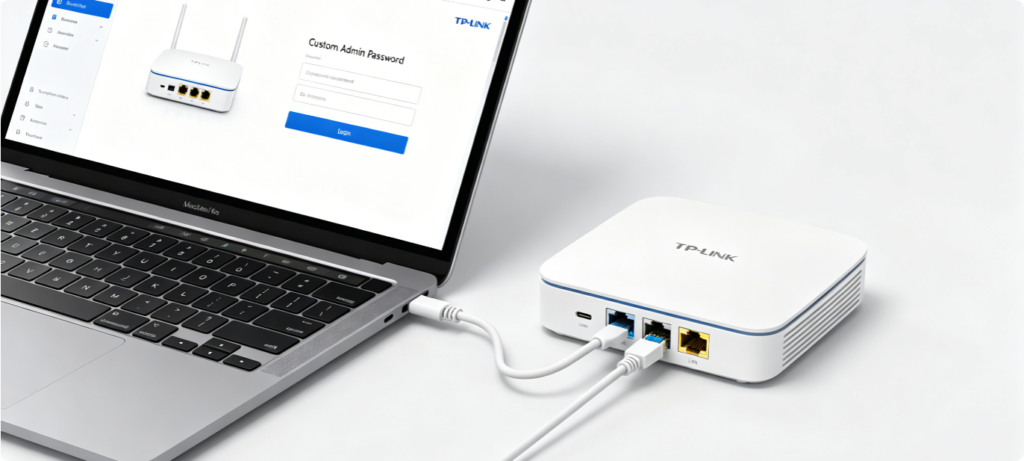
Always configure security settings via wired Ethernet to avoid accidental Wi-Fi disconnection mid-setup:
- Plug your laptop or desktop into any router LAN port with Cat5e/Cat6 cable (never use Wi-Fi for security edits)
- Open Chrome, Edge, or Safari and navigate to
tplinkwifi.netor the default gateway IP192.168.1.1 - Enter your unique custom administrator password; skip default generic login combinations entirely
- Navigate to the Advanced tab, where all encryption, firewall, and MAC filter security tools live
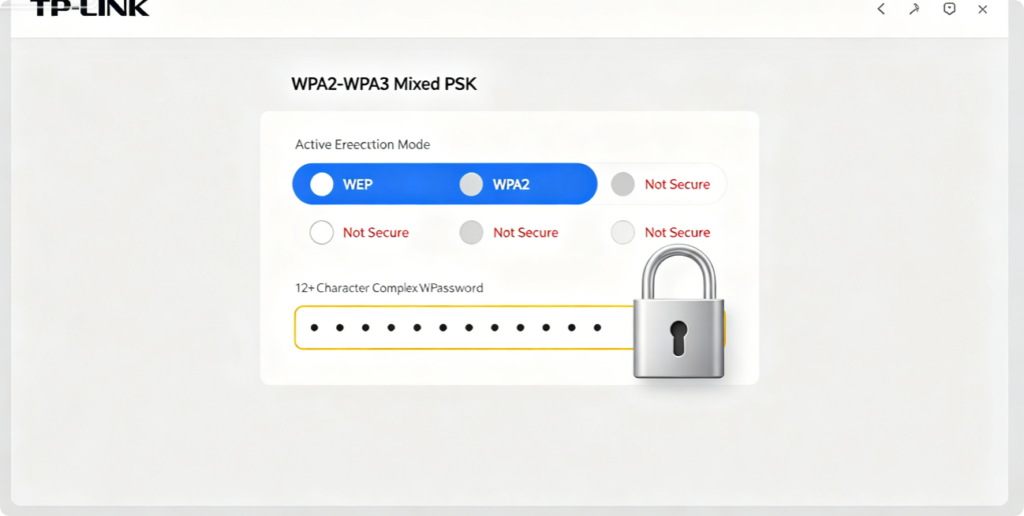
Full WPA3 Encryption Setup Steps
WPA3 is the latest Wi-Fi security standard, fixing critical cracking vulnerabilities found in older WPA2 protocols. TP-Link’s recommended balanced mode is WPA2/WPA3 Mixed PSK, supporting both new Wi-Fi 6 devices and legacy Wi-Fi 5 hardware without sacrificing safety:
- From the left menu, open Basic > Wireless > Wireless Security
- For both 2.4GHz and 5GHz bands individually, change Security Mode to WPA2/WPA3 Mixed PSK
- Set Password Format to AES (the only secure cipher; avoid TKIP which limits speed and security)
- Create a strong Wi-Fi password with 12+ mixed uppercase letters, lowercase letters, numbers, and special symbols
- Click Save; the router will reboot wireless radios to apply encrypted signal broadcasting
Critical note: Never select WEP, WPA, or WPA2-Only modes—these outdated standards contain easily exploitable encryption weaknesses.
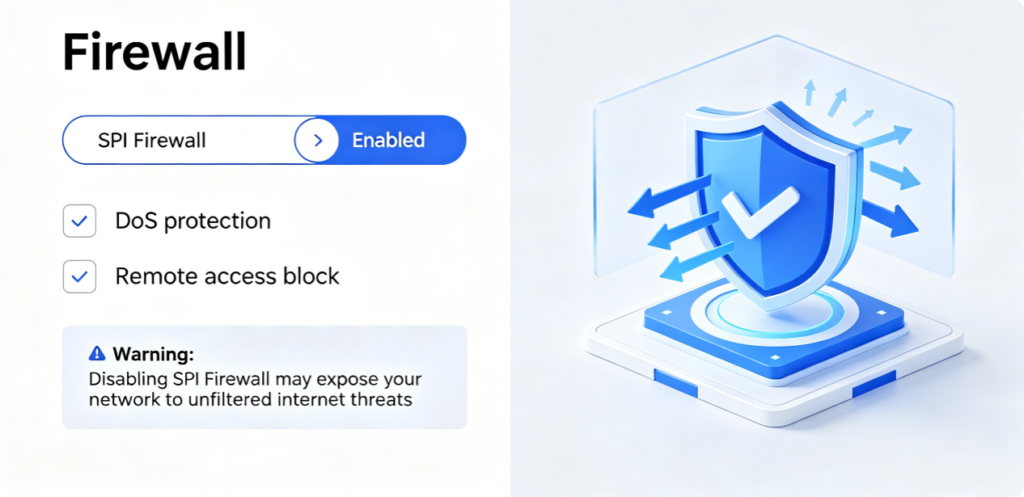
How to Turn On Stateful Packet Inspection (SPI) Firewall
SPI Firewall acts as a digital gatekeeper, analyzing every incoming internet data packet and automatically blocking suspicious malware, hacking probes, and port-scanning attacks before they reach your home devices:
- Navigate Advanced > Security > Firewall
- Locate the SPI Firewall master switch and toggle it to Enabled
- Enable secondary protective sub-settings for maximum defense:
- DoS Protection: Blocks denial-of-service flood attacks that crash your network
- Block WAN Ping Requests: Hides your router from external internet port scanners
- Restrict Remote Management: Disables off-site backend router access entirely
- Save firewall configuration changes; the security filter activates instantly without a full router reboot
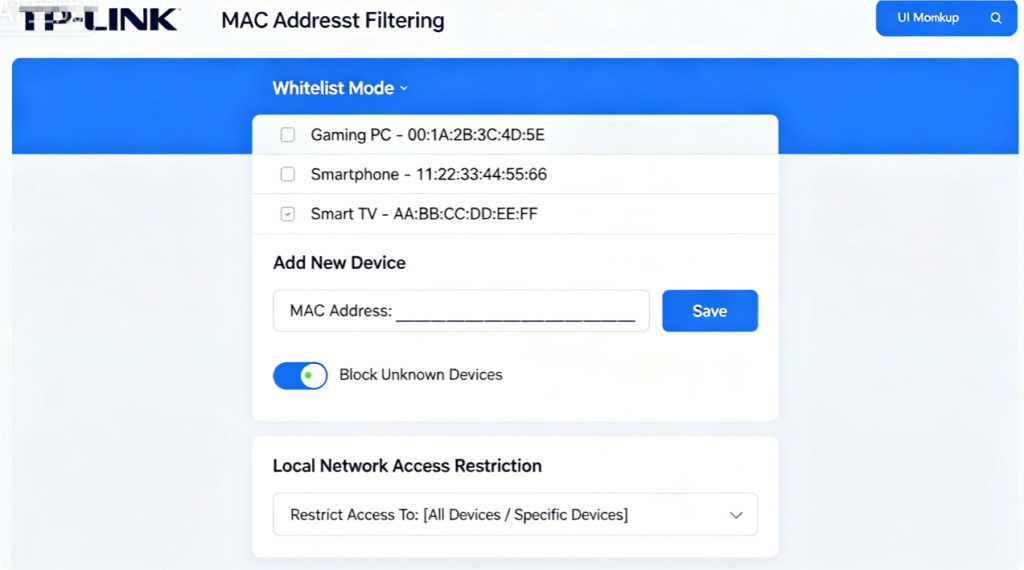
Step-by-Step MAC Access Control Whitelist Setup
MAC filtering creates an exclusive allowlist: only devices whose unique hardware MAC addresses you manually approve can connect to your Wi-Fi, even if outsiders guess your Wi-Fi password:
- Go to Advanced > Security > Access Control
- Switch Filter Mode to Allow the stations specified in the list (Whitelist Mode, recommended for maximum security)
- Click Add New to register each trusted device:
- Enter the device’s 12-character MAC address
- Add a clear device name (e.g. My Gaming Laptop, Living Room Smart TV)
- Repeat for every phone, console, PC and IoT gadget in your household
- Save the whitelist; all unlisted hardware will be permanently rejected from joining the Wi-Fi network
Two filter modes breakdown:
- Whitelist (Allow): Only added MAC addresses connect (highest security, recommended for most homes)
- Blacklist (Deny): Block specific problematic devices only (low security, temporary use only)
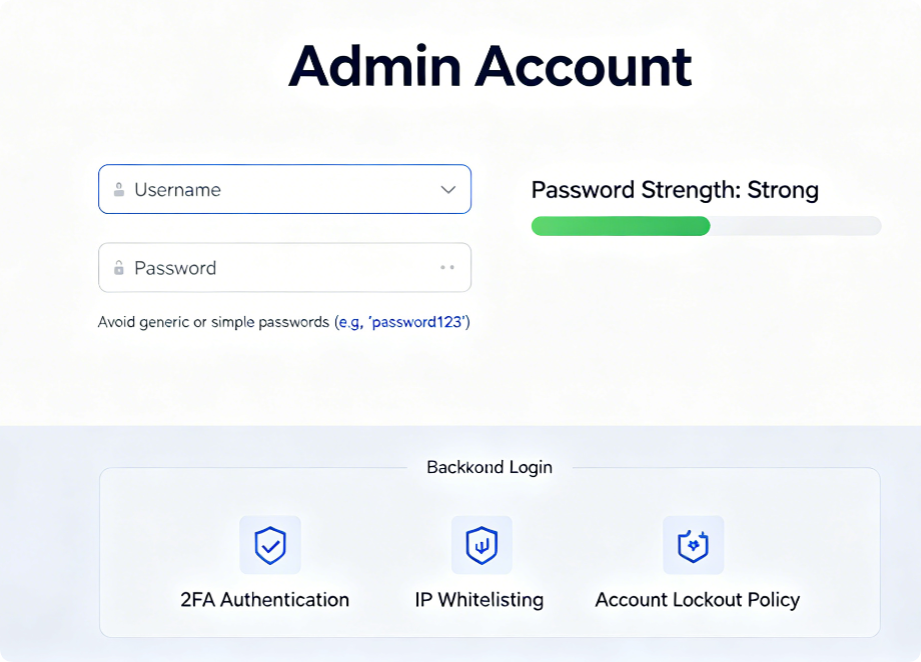
Hackers target default router admin credentials to take full control of your network—lock this entry point immediately:
- Open Advanced > System > Administration
- Replace the generic default admin username with a unique custom label
- Create a separate complex admin password (do NOT reuse your Wi-Fi password)
- Disable Remote Management entirely to block external internet login attempts
- Save changes and store your admin credentials in a secure offline password manager
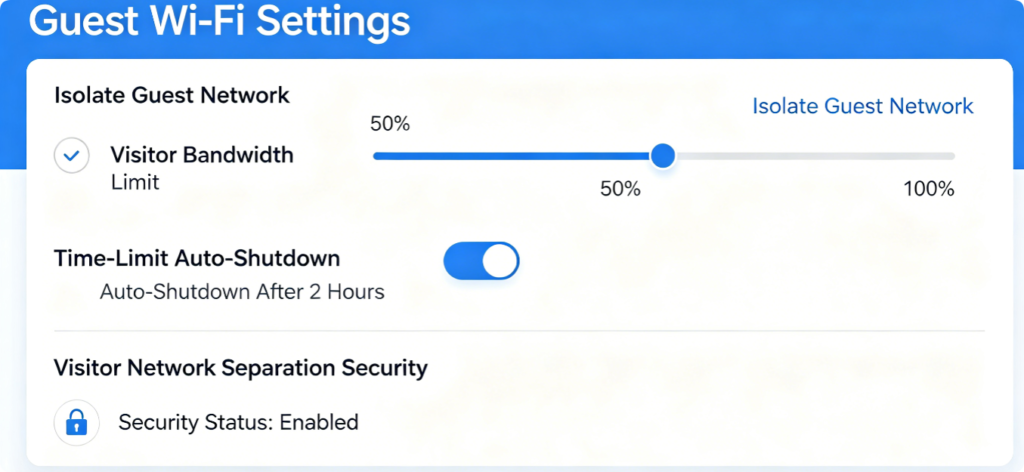
Unisolated guest networks let visitors access your private NAS storage, printers, security cameras and personal computers. Enable isolation to split guest traffic from your main home LAN:
- Navigate Basic > Guest Network and enable your temporary visitor Wi-Fi if needed
- Locate and tick Isolate Guest Network (also called Access Point Isolation)
- Optional extra security limits: cap guest bandwidth and set automatic daily network expiry
- Save settings; guest devices will only access the internet, with zero visibility into your private home devices
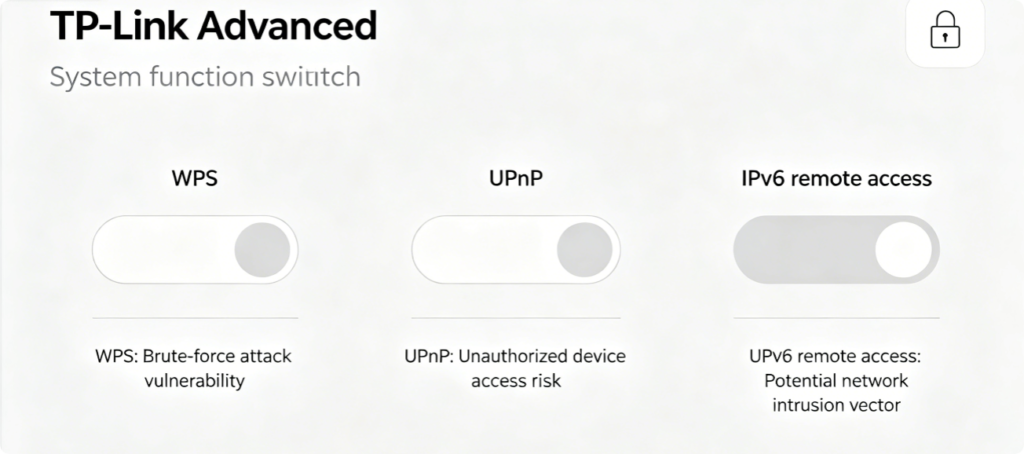
Several factory-enabled built-in tools create open security loopholes; disable all functions you do not actively use:
- WPS Push Button: Eliminates brute-force PIN cracking attacks targeting quick device pairing
- Unnecessary UPnP: Blocks automatic unregulated port forwarding for unknown third-party devices
- Unused IPv6 Remote Access: Closes alternate external entry points to your router backend
- WAN Remote Management: Fully locks off internet-side router login attempts
Disabling these cuts the number of potential attack surfaces hackers can exploit to breach your network.
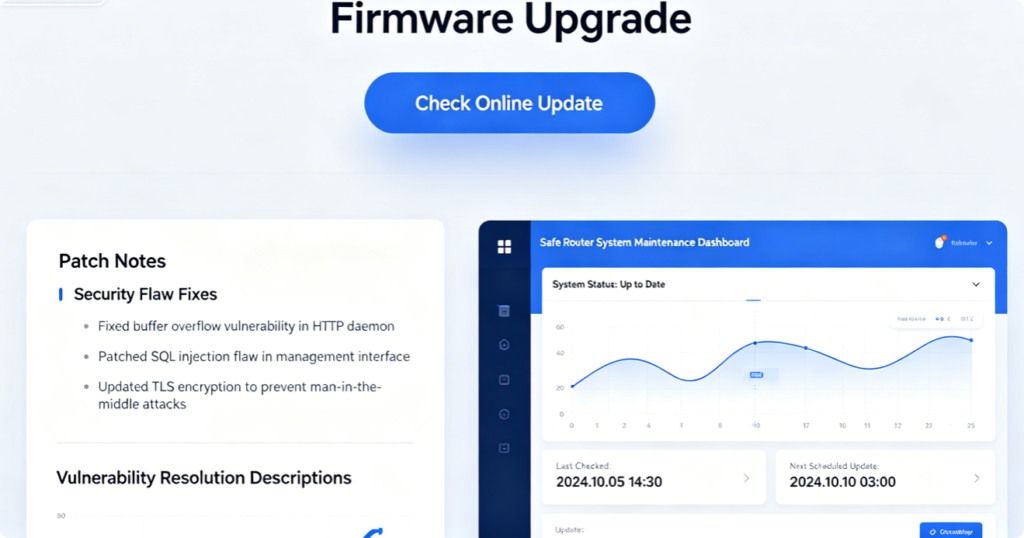
TP-Link releases regular official firmware patches to close newly discovered security holes, encryption bugs, and firewall bypass exploits. Outdated firmware leaves even fully configured security settings vulnerable to new hacking methods:
- Navigate Advanced > System > Firmware Upgrade
- Click Check Online to pull the latest official model-specific firmware build
- Backup your full router security configuration file before installing updates
- Maintain constant stable power during installation—power loss can permanently damage the router
- Schedule firmware checks every 2–3 months to keep all security defenses fully up to date
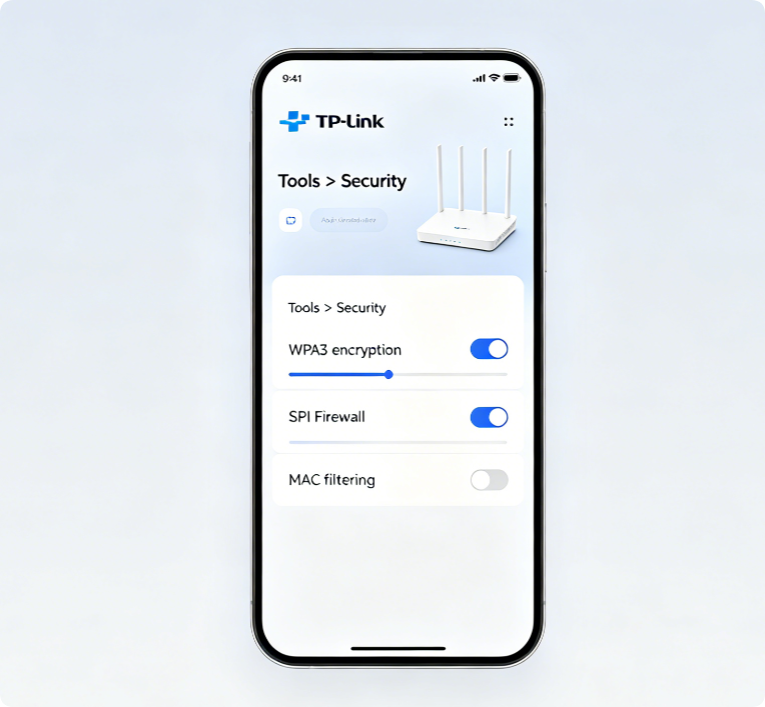
If you lack access to a desktop computer, lock down all security layers remotely from your mobile phone with the Tether app:
- Connect your phone to your TP-Link router’s private main Wi-Fi and launch Tether
- Select your router hardware on the main dashboard, then open the Tools tab
- Enter the Security submenu to adjust SPI Firewall rules and MAC address whitelist
- Open Wireless Settings to switch dual-band encryption to WPA2/WPA3 Mixed PSK
- Save every modification and wait 30 seconds for wireless radios and security filters to reload
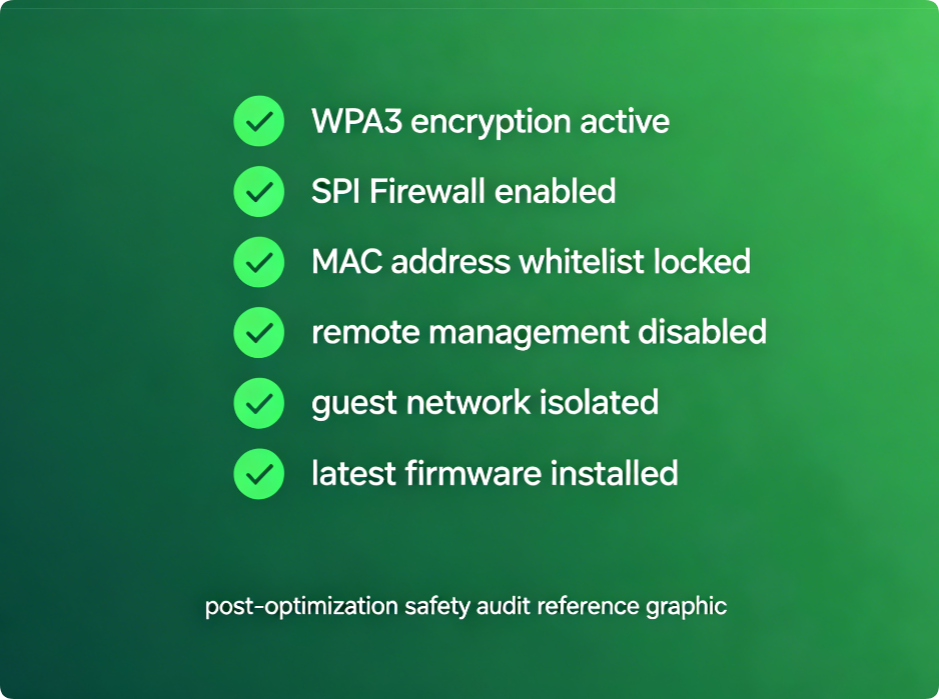
Complete Post-Configuration Security Audit Checklist
After applying all security tweaks, run this quick validation to confirm your network is fully hardened:
- Verify both 2.4GHz and 5GHz bands run WPA2/WPA3 Mixed encryption
- Double-check SPI Firewall and DoS protection remain enabled
- Test an unapproved random device to confirm it cannot join Wi-Fi via MAC filter whitelist
- Confirm guest devices cannot view or connect to your private home NAS and printers
- Check for available official firmware updates to close unpatched security flaws
- Confirm Remote Management and WPS features are permanently disabled
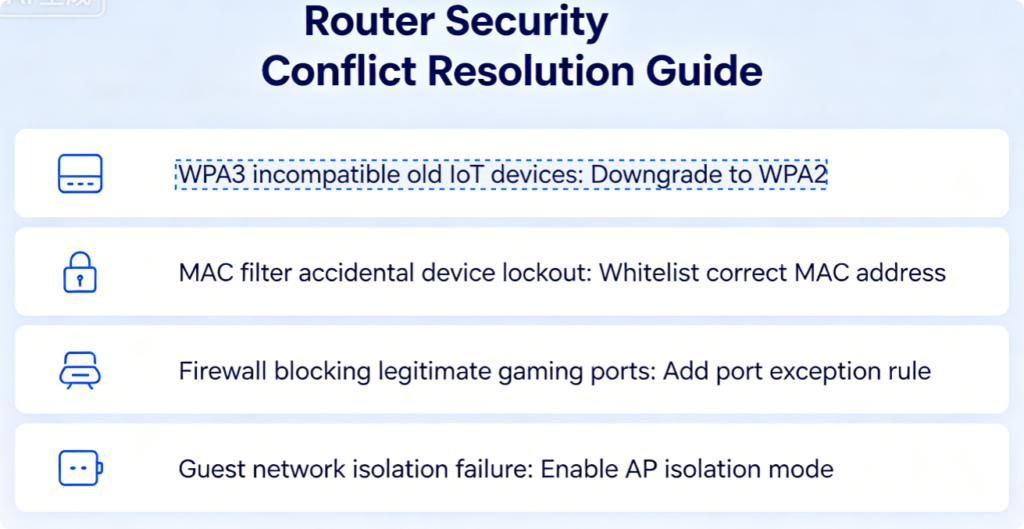
Quick Fixes For Security Feature Compatibility Issues
- Old IoT devices fail to connect after enabling WPA3: Keep WPA2/WPA3 Mixed mode instead of pure WPA3-Only to retain legacy hardware support
- Accidentally locked yourself out via MAC filtering: Hardwire a laptop to the router LAN port to edit the access whitelist without Wi-Fi
- SPI Firewall blocks online gaming connection ports: Navigate Virtual Servers to create safe port forwarding rules for game consoles
- Guest devices can still access local printers: Re-save the Isolate Guest Network toggle and reboot the router wireless radio
- Security settings reset automatically after power loss: Download and store a permanent router configuration backup file
Conclusion
Securing your TP-Link router is the first critical line of defense against home network hacking, bandwidth theft, and private data interception. The three core security pillars—WPA2/WPA3 mixed wireless encryption, active SPI stateful inspection firewall, and MAC address whitelist access control—eliminate nearly all common consumer Wi-Fi vulnerabilities when paired with supplementary hardening steps: strong admin login credentials, isolated guest networks, disabled risky unused features, and regular official firmware security patches.
Whether you configure defenses through the desktop web admin panel or TP-Link Tether mobile app, following this full step-by-step guide locks down your dual-band Wi-Fi for gaming, remote work, smart home IoT devices, and family internet use. Complete the post-setup security audit checklist to confirm every protective layer is active, and schedule quarterly firmware updates to maintain long-term network safety against evolving cyber threats.