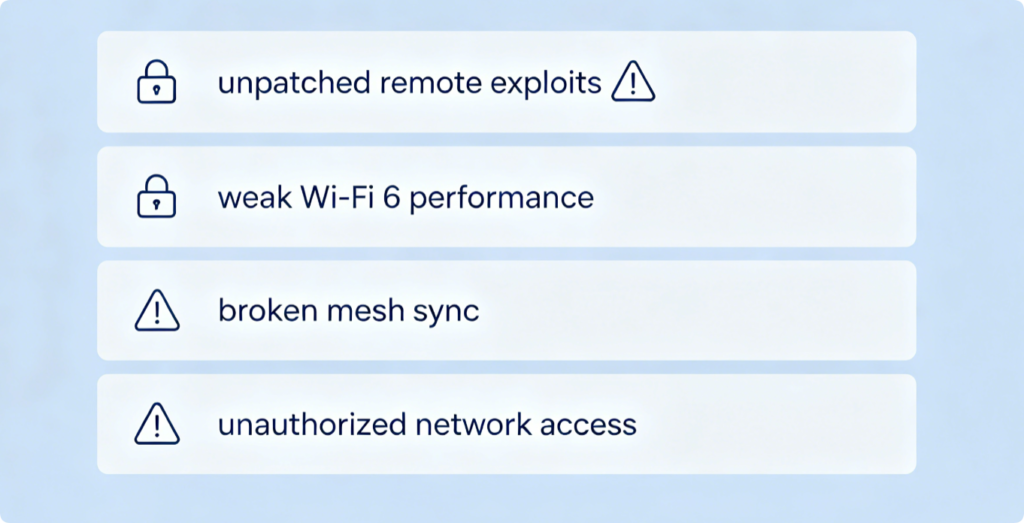
Outdated router firmware carries unpatched security holes, slow wireless speeds and unstable mesh connections. Regular official updates fix bugs and block hacking attacks, yet careless upgrades can permanently damage (“brick”) your router. This guide covers risk-free firmware update workflows for TP-Link, Netgear, ASUS and Eero, plus critical rules to prevent hardware failure.
Non-Negotiable Pre-Upgrade Rules
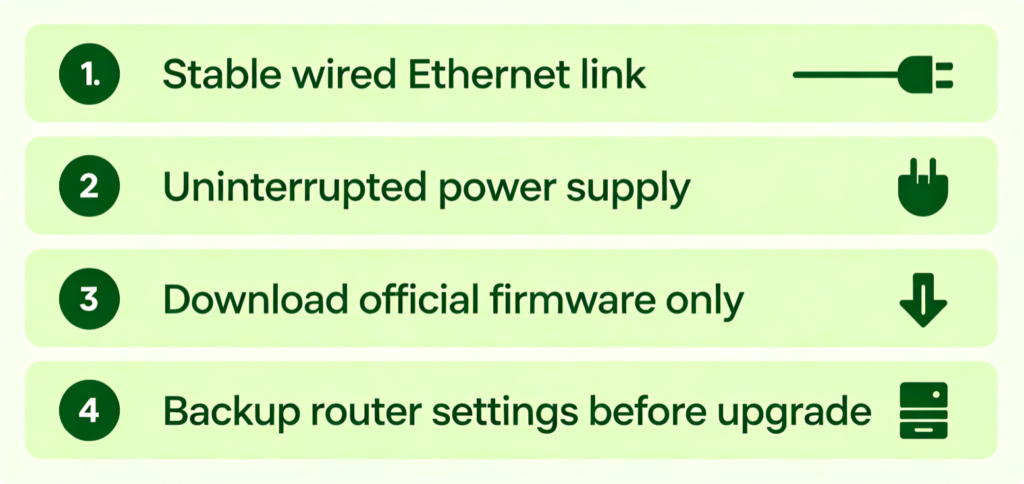
- Always connect PC to router via Ethernet cable; never update over unstable Wi-Fi
- Plug router into a surge protector or UPS to prevent sudden power cuts
- Download firmware exclusively from the brand’s official support website
- Export a backup file of your router’s custom network configurations
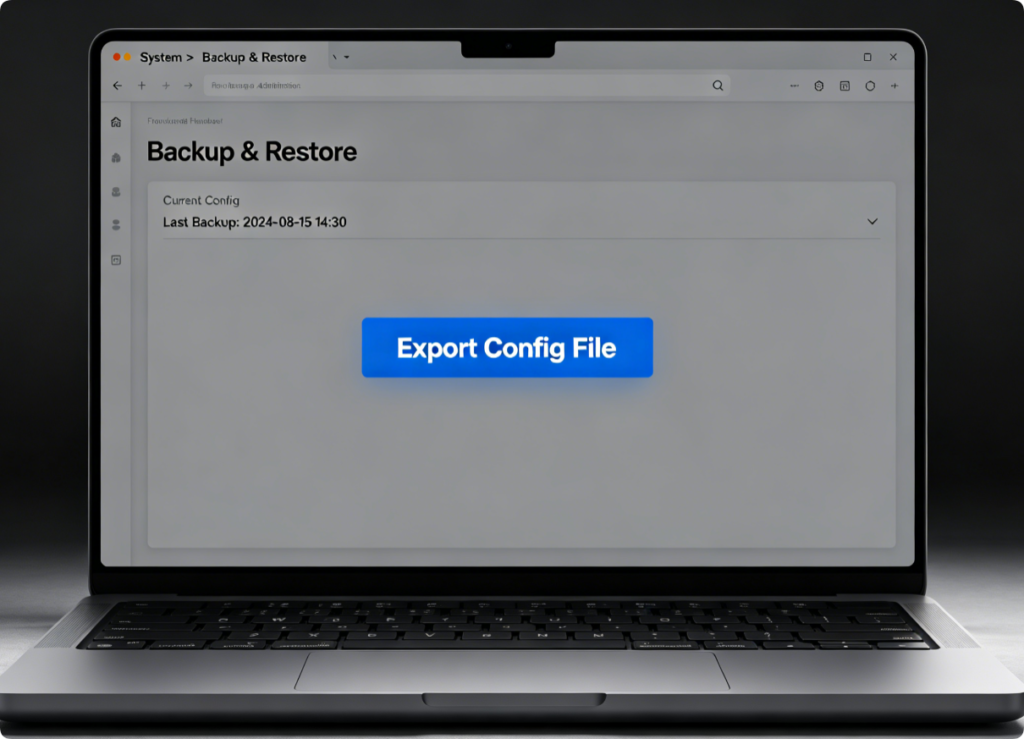
Save Your Network Configurations
- Log into your router’s web dashboard
- Navigate to System / Administration > Backup Settings
- Tap Export to save a local .bin backup file on your computer If the upgrade resets all settings, you can restore this file in one click.
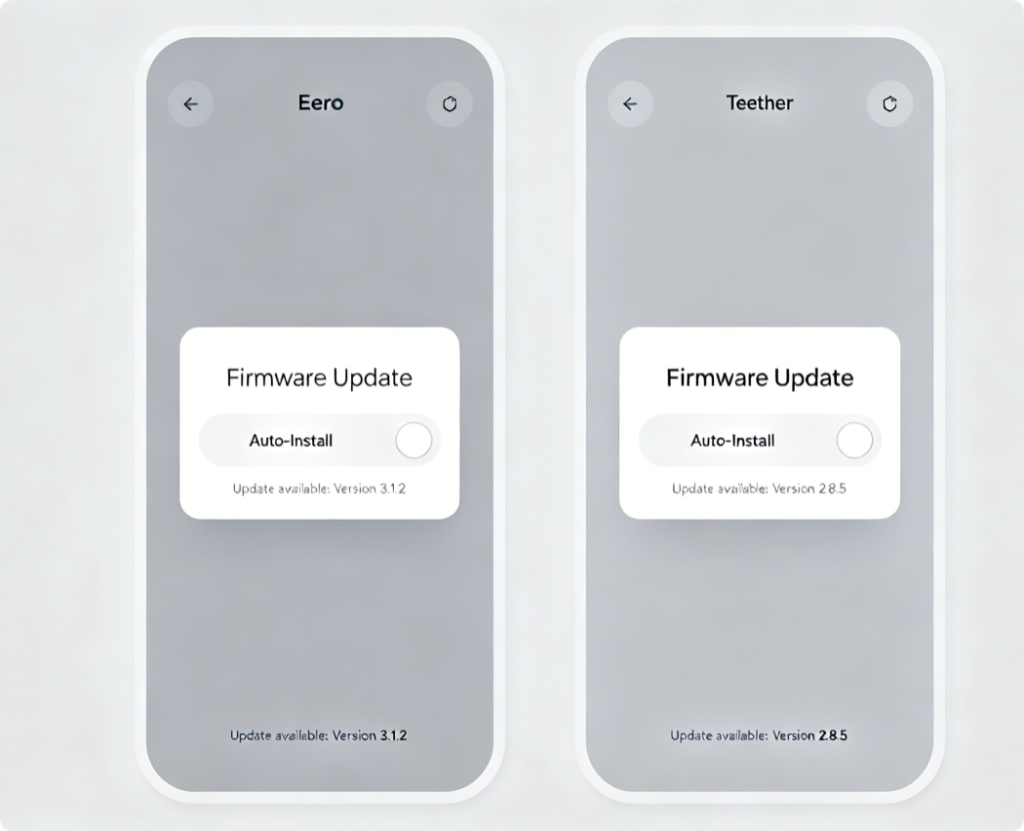
One-Click Automatic Upgrades (Safest Option)
Mesh systems and modern routers support over-the-air OTA updates:
- Eero: App auto-scans nightly; tap Install to apply mesh-wide updates
- TP-Link Tether: Tools > Firmware Upgrade to trigger official OTA downloads OTA updates eliminate manual file upload risks and are recommended for beginners.
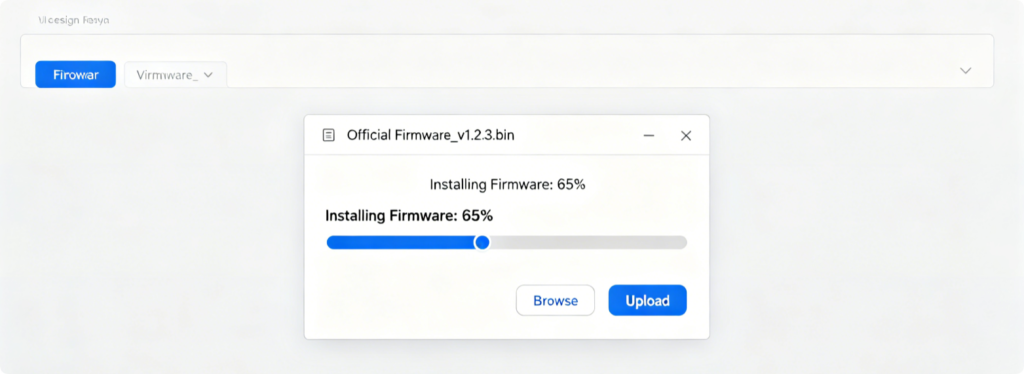
Manual Upload Step-by-Step
- Locate your exact router model on the brand official site and download matching firmware
- Enter the router’s Firmware Upgrade page
- Select the downloaded file and click Upgrade; do not close the browser tab
- Wait 3–5 minutes for automatic reboot; the router will apply new code silently
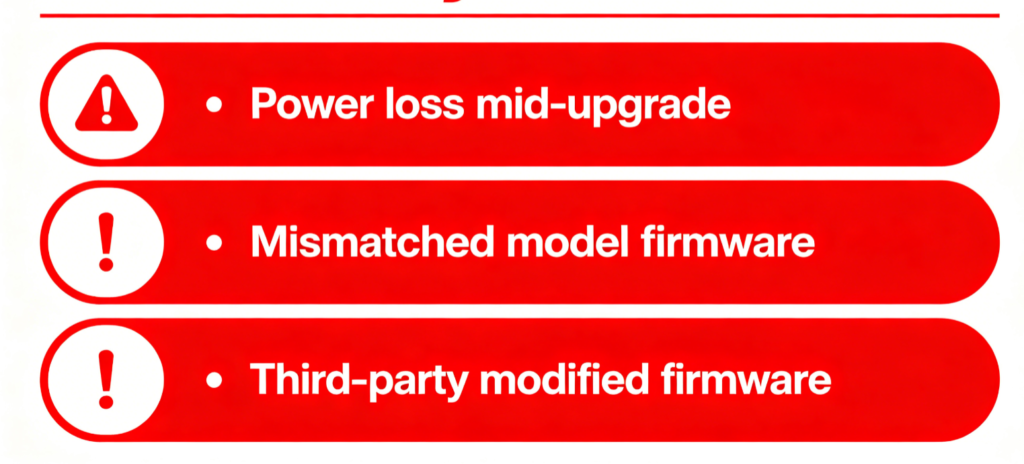
Actions That Permanently Break Routers
- Unplug power or turn off the router during installation
- Install firmware built for a different hardware model
- Flash custom unofficial firmware without advanced technical knowledge
- Use slow unstable Wi-Fi connections to run the upgrade process
After Upgrading
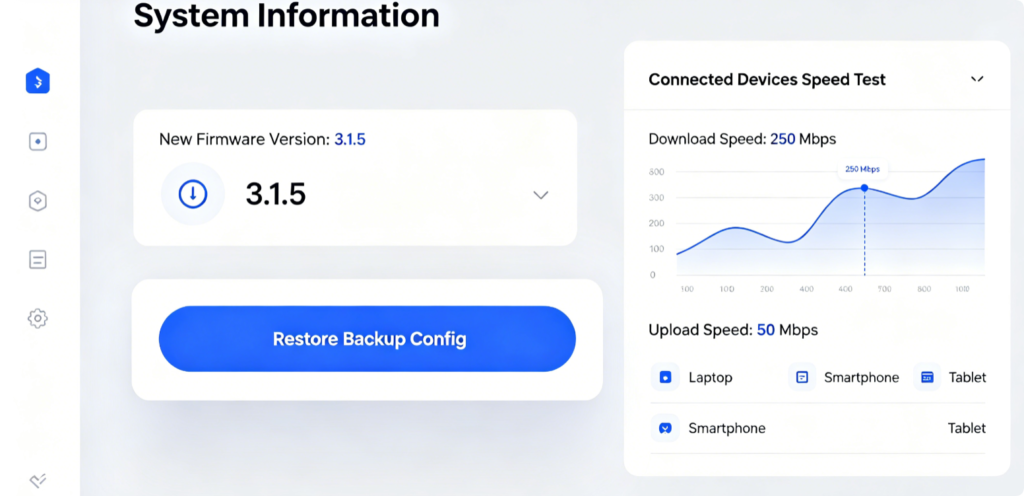
- Confirm the new firmware version displays under System Information
- Recheck Wi-Fi, port forwarding and mesh connections for normal function
- Restore your backup file if all custom settings were erased
- Re-run a speed test to verify improved wireless stability
Conclusion
Safe router firmware updates rely on wired connections, stable power and official vendor files—avoid risky manual flashing unless necessary. Mobile OTA app upgrades are the simplest low-risk choice for Eero and TP-Link users. Always back up your network settings first and never cut power mid-install to stop your router from bricking. Consistent updates keep your home network secure, fast and free of persistent wireless malfunctions.