Slow Wi-Fi speeds, hidden data usage spikes and compromised network privacy often signal neighbors or strangers leeching your wireless signal. Strong Wi-Fi passwords offer basic protection, but MAC address filtering adds a powerful second layer of security. This guide explains MAC filtering setup for TP-Link, Netgear, ASUS and Eero routers to only allow your trusted devices and block all unknown connections permanently.
MAC Filtering Core Concept
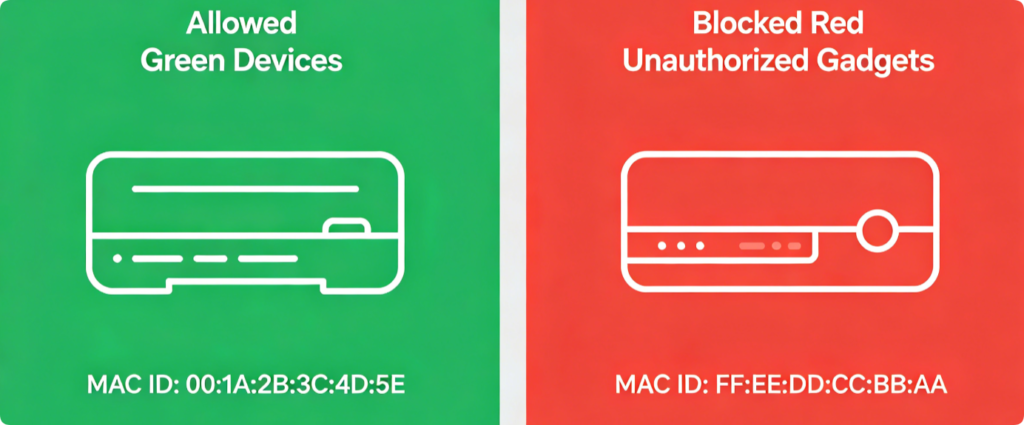
Every phone, laptop, game console and smart home device has an exclusive MAC address hard-coded to its network chip. MAC filtering creates an access list:
- Allow List Mode: Only manually added MAC addresses can join Wi-Fi
- Deny List Mode: Block specific suspicious MACs while letting all others connect Allow List is the safest choice to fully lock out neighbors.
Collect Trusted MAC IDs First
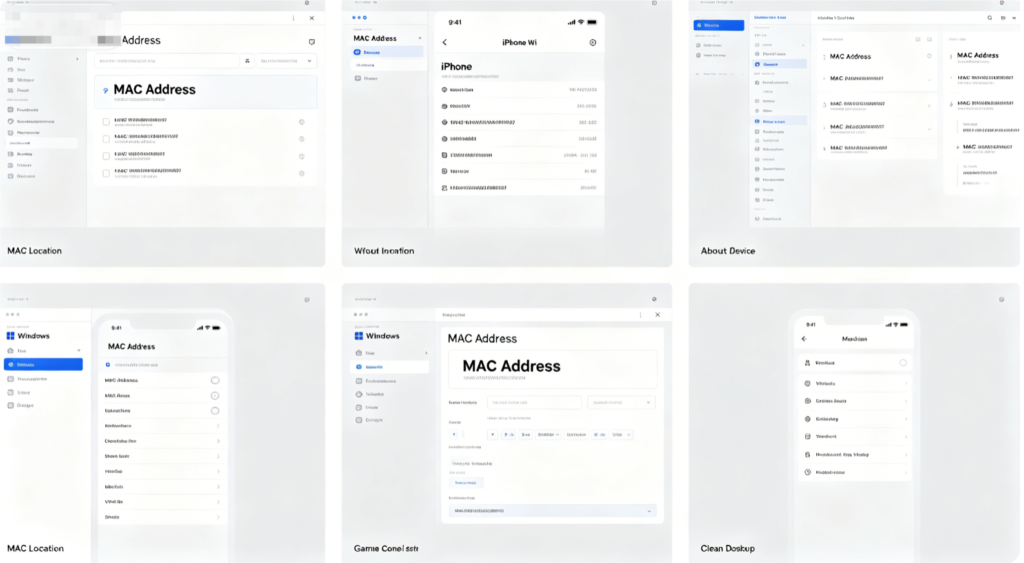
- Connect all your family devices to home Wi-Fi
- Check each device’s network settings to copy its MAC address
- Alternatively, view the full connected client list inside your router admin panel to copy MAC codes with one click Save all MAC strings in a note for quick router setup.
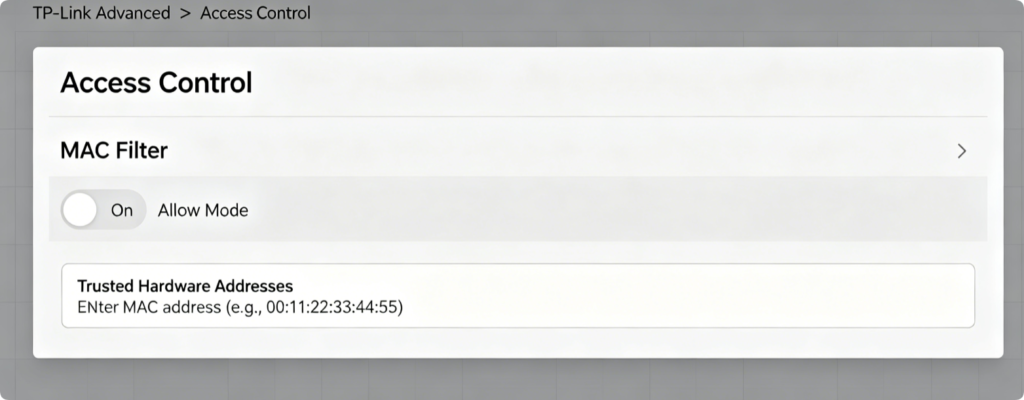
TP-Link Setup Steps
- Log into
tplinkwifi.net, open Advanced > Security > Access Control - Switch filtering mode to “Allow only listed devices”
- Paste each saved MAC address and label the device name
- Save rules and enable the access control function
Netgear Setup Steps
- Visit
routerlogin.netand navigate Advanced > Security > Access Control - Turn on Wireless MAC Filtering, select Allow Access Only
- Manually input all trusted MAC addresses from your list
- Apply settings to block every unregistered wireless device
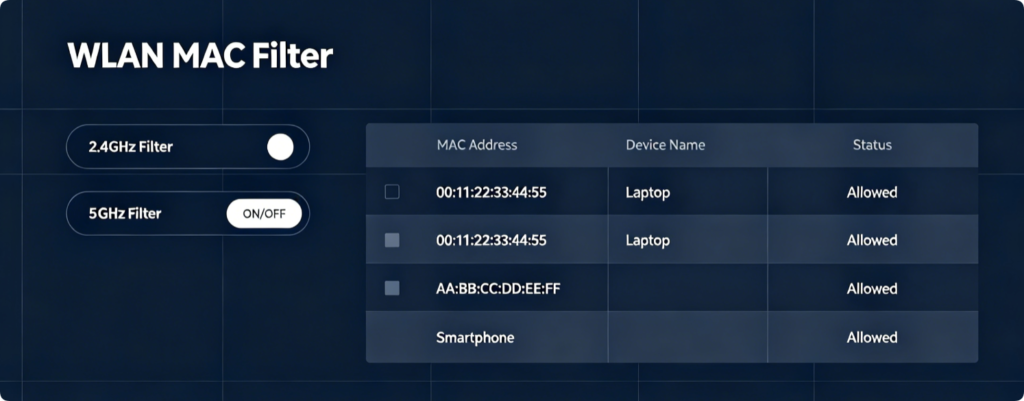
ASUS Setup Steps
- Log in at
router.asus.com, go Wireless > Wireless MAC Filter - Enable filter and set policy to Accept only listed MAC
- Import or manually type all your trusted device hardware IDs
- Click Apply to activate restrictions on both Wi-Fi bands
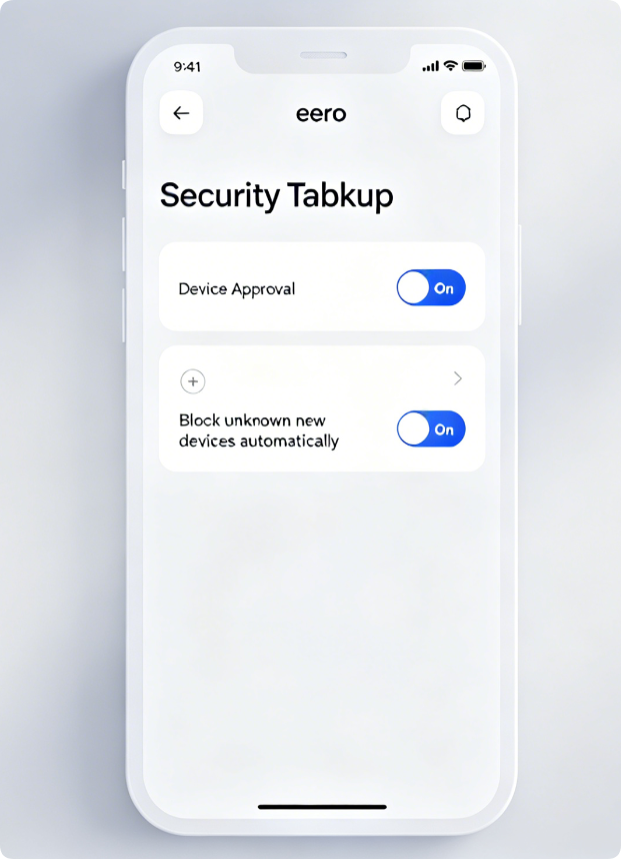
Eero Mesh Alternative Restriction
Eero lacks native MAC filtering, use built-in device approval:
- Open Eero App > Security > Device Access Controls
- Turn on “Require approval for new devices”
- Decline access requests from unknown gadgets instantly This achieves the same effect as MAC filtering for whole-home mesh systems.
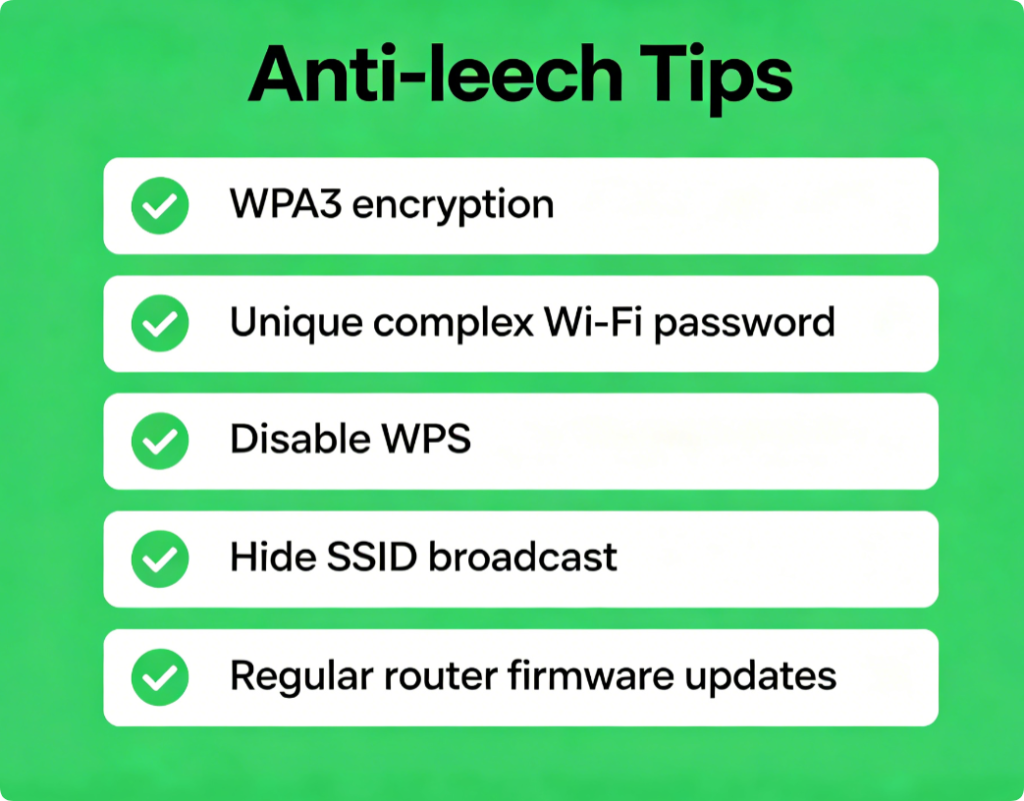
Extra Ways To Block Neighbor Wi-Fi Access
- Upgrade wireless security to WPA3 instead of outdated WPA2
- Create a long random Wi-Fi password with mixed letters, numbers and symbols
- Turn off WPS to eliminate PIN brute force cracking risks
- Lower router transmit power if nearby homes pick up your signal easily
Conclusion
MAC address filtering acts as an impenetrable gatekeeper for your Wi-Fi network. For TP-Link, Netgear and ASUS routers, enable allow-list MAC filtering after recording all your trusted device hardware IDs; Eero mesh users rely on built-in new device approval. Combine MAC restrictions with WPA3 encryption and a secure Wi-Fi passphrase to fully stop neighbors and strangers from stealing your bandwidth, protecting your internet speed and personal local network data.