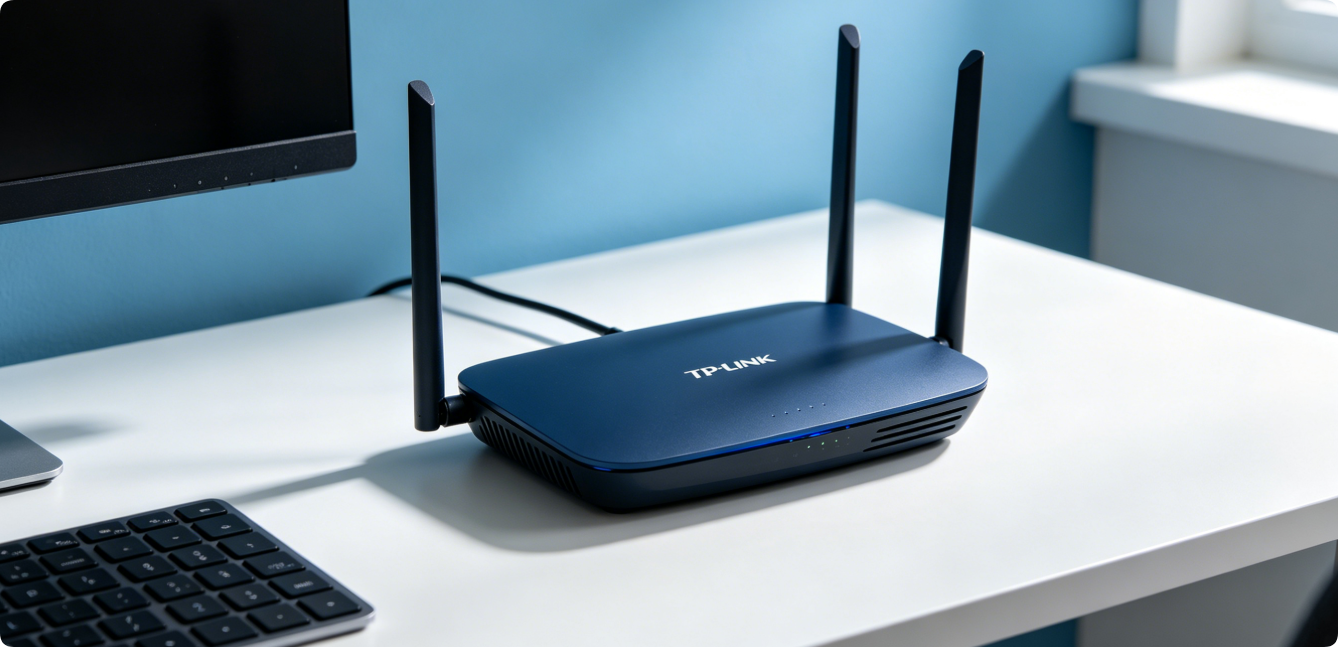
Setting up a TP-Link router for the first time can seem intimidating for beginners, but the official installation process is simple and straightforward. Whether you are replacing an old router or setting up a brand-new home network, this complete step-by-step guide will help you install, configure, and secure your TP-Link router within minutes. This tutorial works for all common TP-Link Wi-Fi router models, including Archer series and basic home routers.
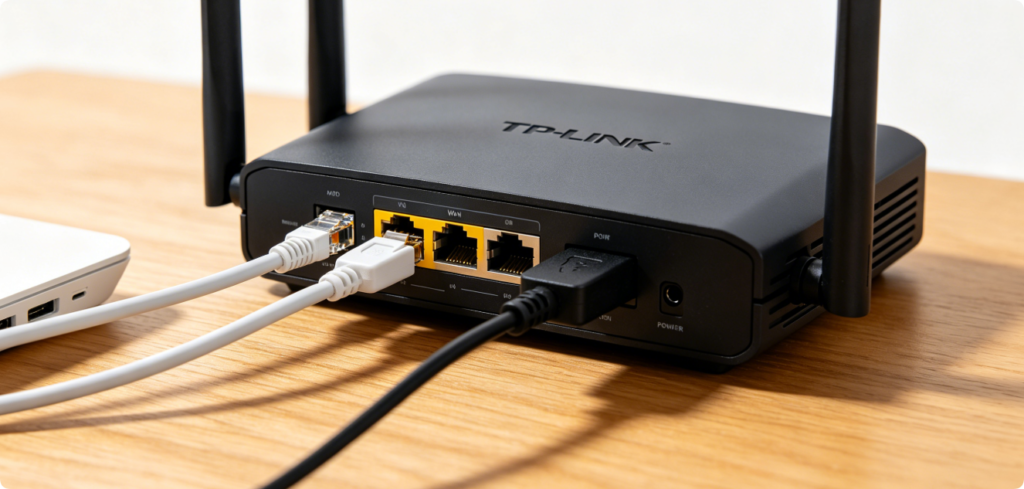
Before configuring network settings, complete the physical hardware installation first. Place your TP-Link router in an open, central location to ensure full Wi-Fi coverage. Connect the power adapter to the router and turn on the power. Then use an Ethernet cable to connect your optical modem or broadband modem’s LAN port to the WAN port of the TP-Link router. Wait one minute for the router to finish booting up.
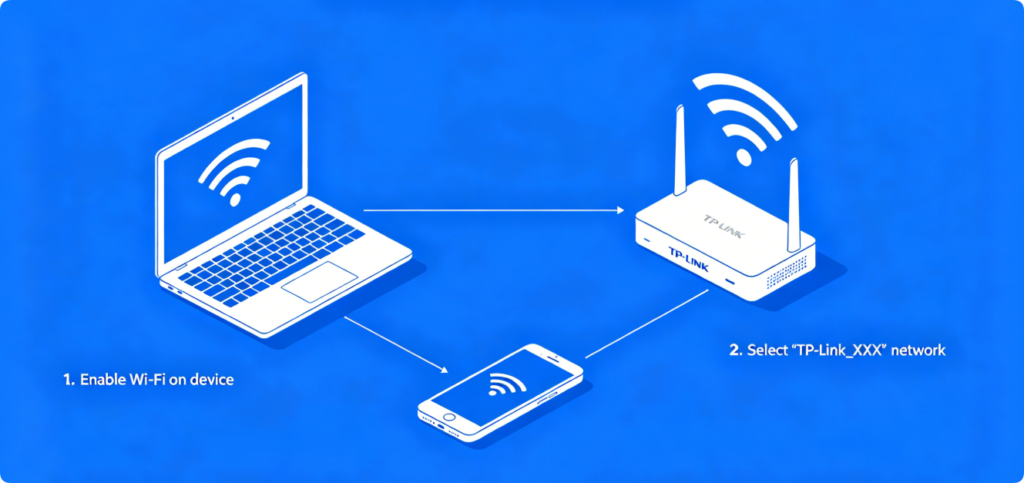
Next, connect your personal device to the TP-Link router network. You can use a desktop, laptop, or mobile phone. Connect to the default Wi-Fi name printed on the router label, or use an Ethernet cable for a stable wired connection. Make sure your device is linked to the router’s local network, as the admin panel can only be accessed through the current router connection.
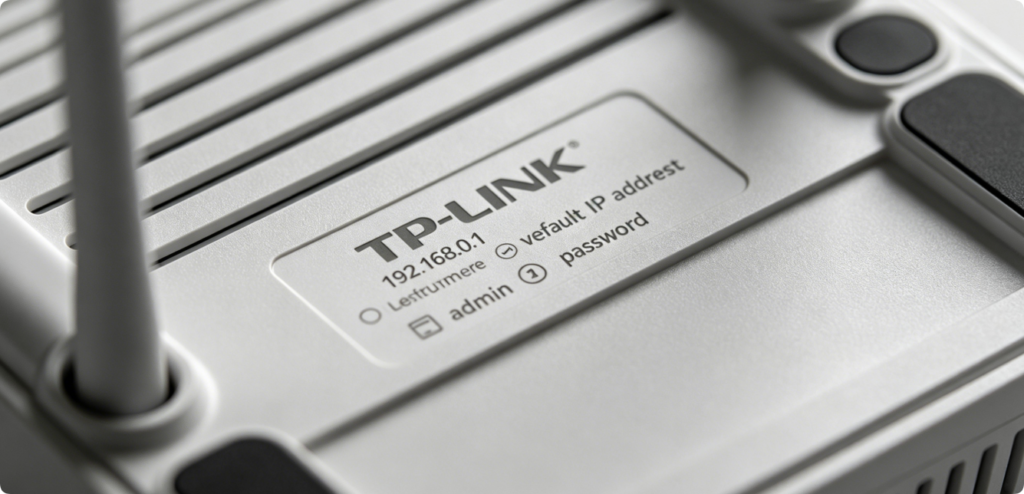
Check the bottom label of your TP-Link device for default login information. Most TP-Link routers use the default gateway IP 192.168.0.1 or 192.168.1.1. The default login username and password are usually marked on the sticker. Keep this information ready for accessing the admin dashboard in the next step.
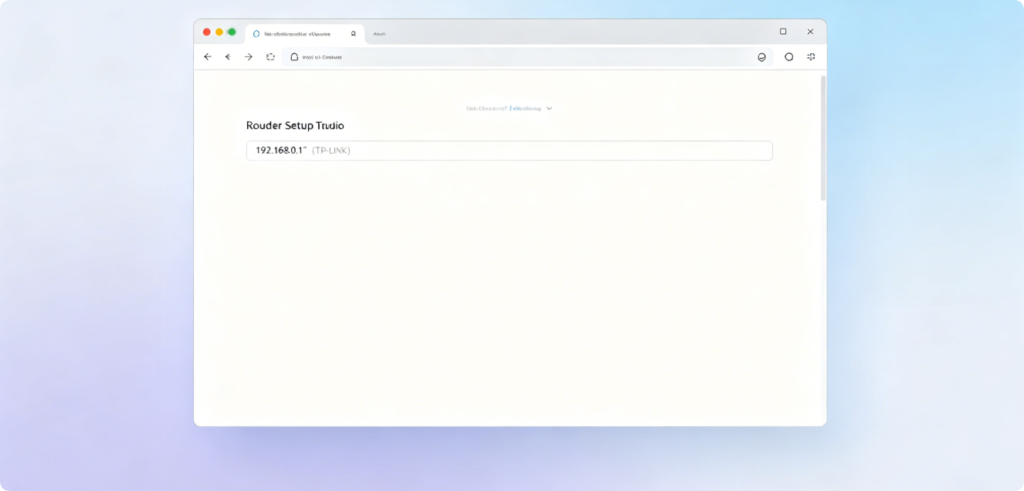
Open any web browser on your connected device. Enter the default TP-Link IP address into the browser’s address bar and press enter. Never enter the IP in a search box. After loading, you will land on the official TP-Link router admin login page. Input the default username and password from the router label to log into the control panel.
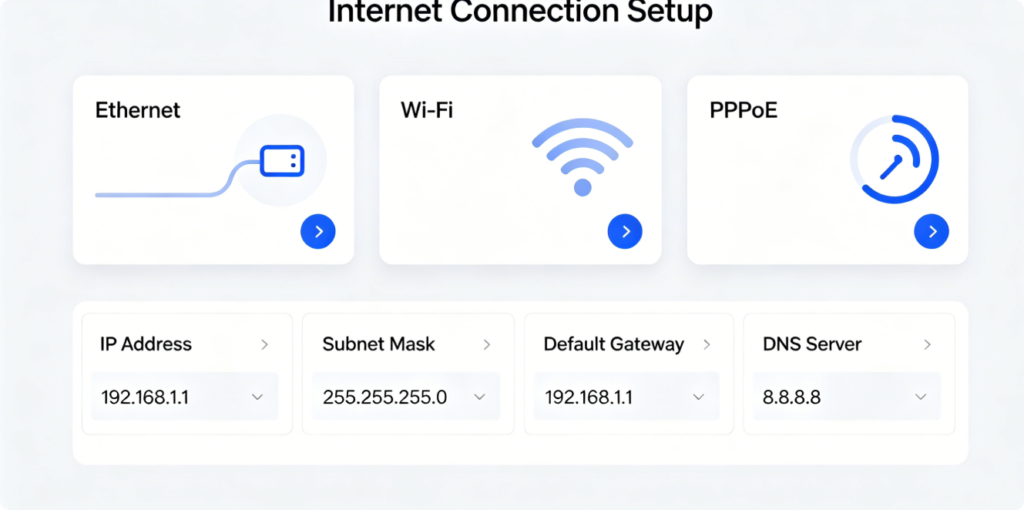
Once logged in, the system will automatically pop up a quick setup wizard. Follow the on-screen instructions to select your internet connection type, including PPPoE, dynamic IP, or static IP. Most home broadband users choose PPPoE and enter the broadband account and password provided by your internet service provider. After verification, your basic internet connection will be activated.
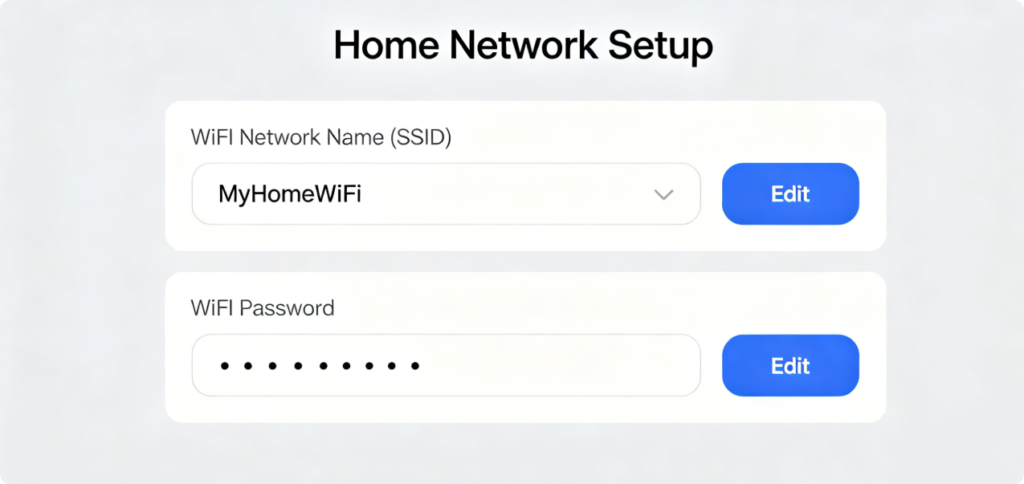
After successful internet activation, customize your personal Wi-Fi settings. Set a unique and easy-to-remember Wi-Fi network name and create a strong secure password. Avoid using simple passwords to prevent network cracking. New TP-Link router models support dual-band Wi-Fi, allowing you to set separate names and passwords for 2.4G and 5G frequency bands for better network speed and stability.
To protect your home network, modify the default router admin password after first setup. Default credentials are public and vulnerable to unauthorized access. You can also enable firewall protection, parental control functions, and device management features in the admin panel. Regularly updating the router firmware can fix system bugs and improve network security and performance.
After saving all settings, reboot your TP-Link router to make sure all configurations take effect. Reconnect your devices to the new Wi-Fi network. You will now enjoy stable, high-speed home internet. The entire first-time setup process is user-friendly and requires no professional technical knowledge.
Conclusion
Setting up a TP-Link router for first use is an essential skill for every home internet user. From hardware connection and admin panel login to internet configuration and Wi-Fi security setup, every step ensures a safe and stable network environment. By following this complete guide, you can finish TP-Link router installation and configuration independently and optimize your home network experience.