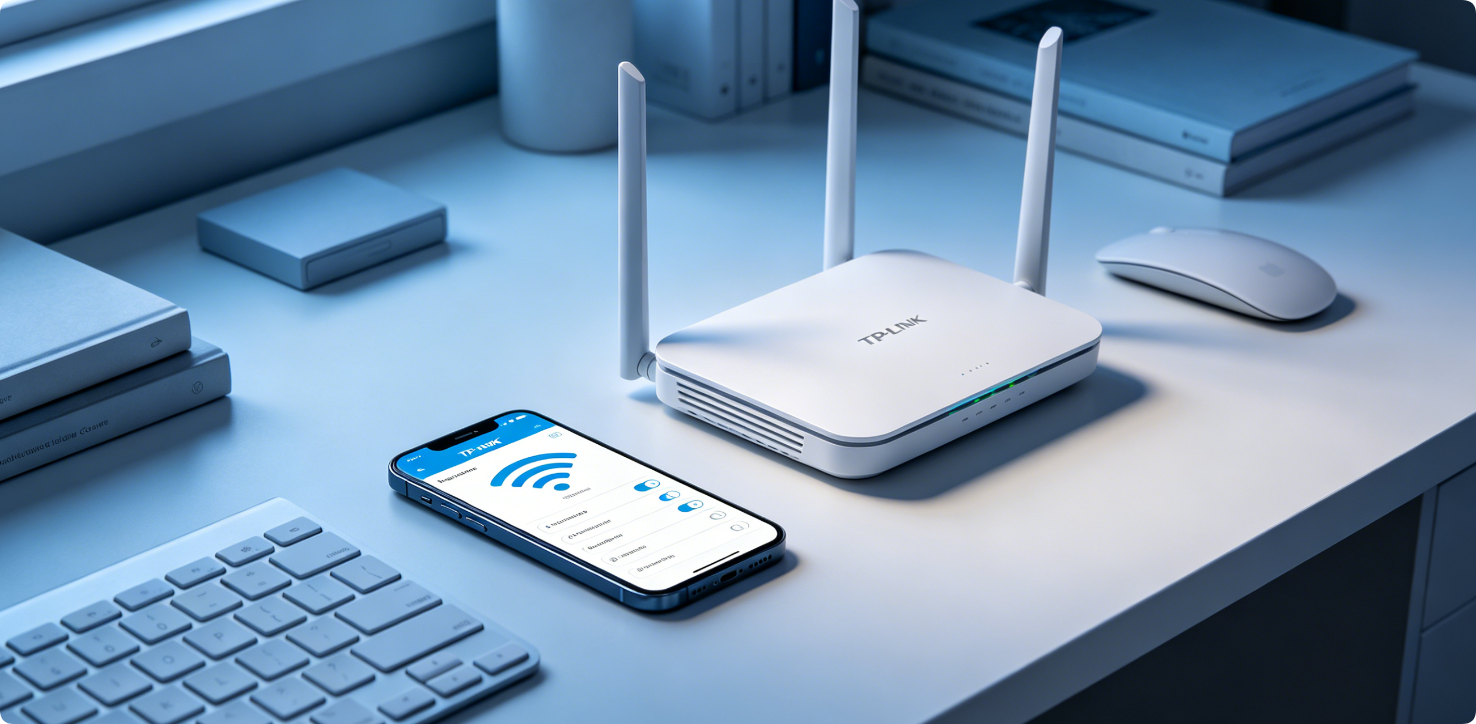
Changing your TP-Link Wi-Fi name and password is one of the most basic and important network maintenance tasks. Default router SSIDs and passwords are easy to guess, which may lead to unauthorized access, Wi-Fi theft, slow internet speed, and potential network security risks.
Whether you have a new TP-Link Archer router, a basic home wireless model, or you simply want to update your old Wi-Fi credentials, this step-by-step guide will show you exactly how to modify your Wi-Fi SSID and wireless security key safely. All methods work for all modern TP-Link router firmware versions.
2: Connect Device to TP-Link Network
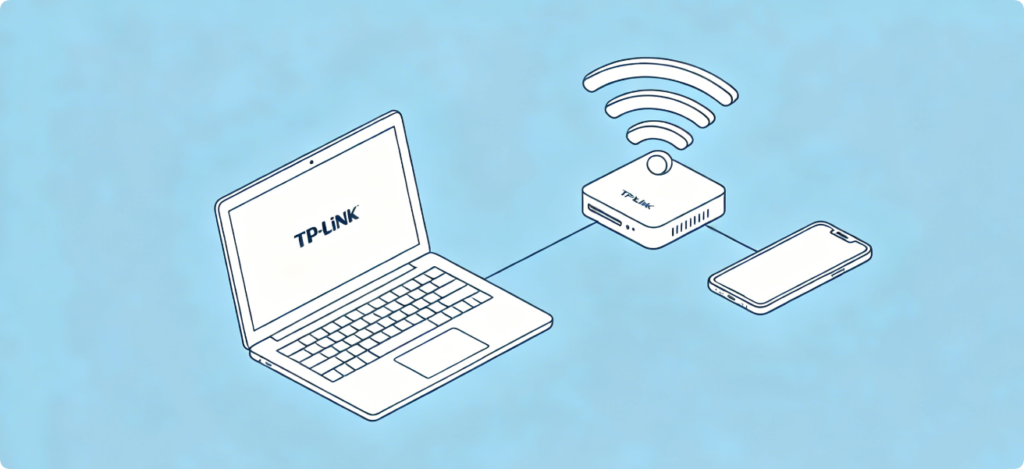
Before editing your Wi-Fi settings, connect your phone, tablet, or laptop to your TP-Link router’s network. You can use either a wireless Wi-Fi connection or a wired Ethernet connection. The router admin panel can only be accessed from devices connected to the local network, not from external internet or other Wi-Fi networks.
3: Access TP-Link Router Login Page
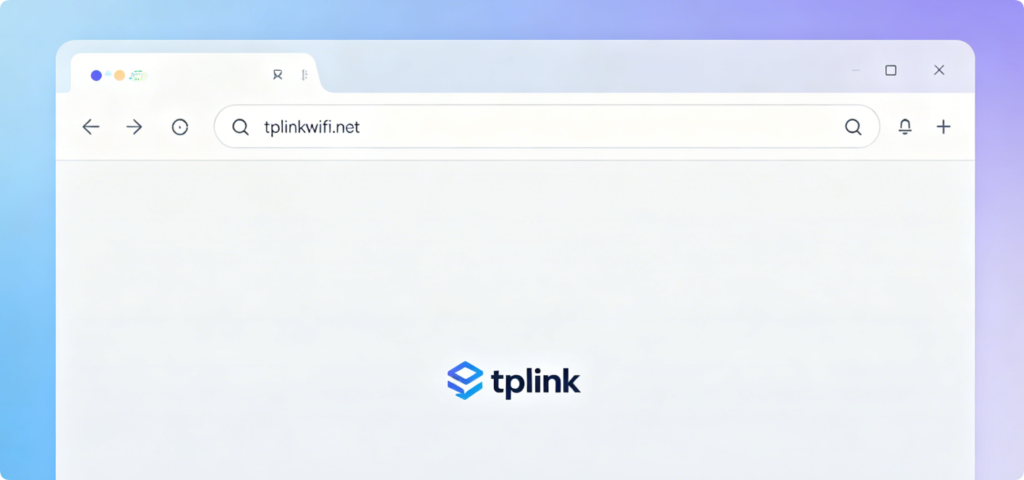
Open any web browser such as Chrome, Edge, or Safari. Type the official TP-Link login domain tplinkwifi.net or the default gateway IP 192.168.1.1 into the address bar and press Enter. Do not type the address into the search box. You will be directed to the TP-Link router admin login page.
4: Log Into TP-Link Admin Dashboard
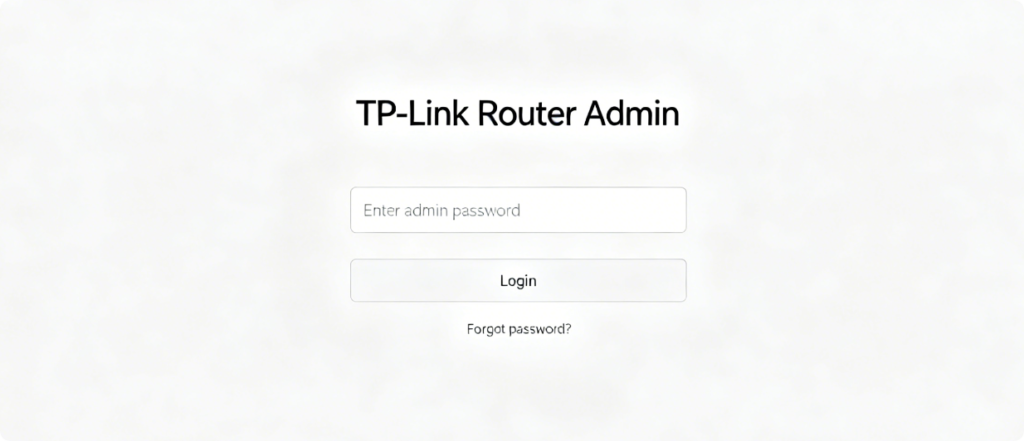
Enter your router admin password to log in. If you have never changed it, check the default password printed on the bottom router label. New TP-Link models use a unique default password, while older models commonly use “admin”. After entering the correct credentials, you will enter the main router dashboard.
5: Find Wireless Settings Menu
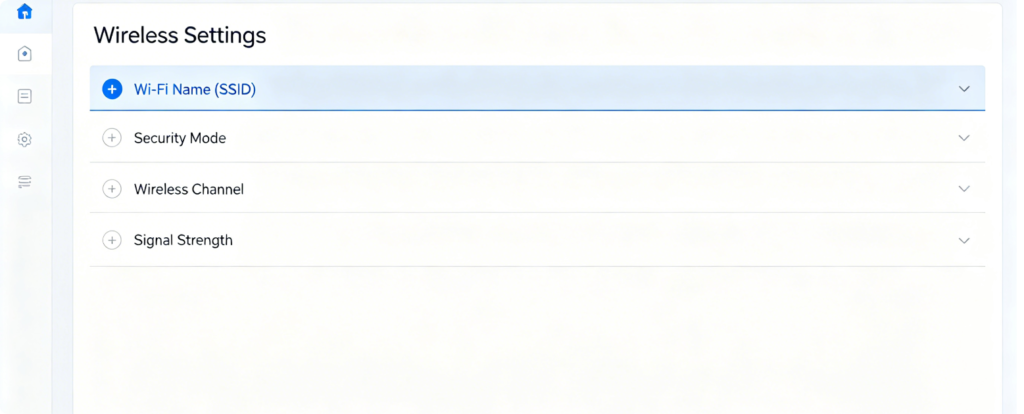
Once logged in, locate the Wireless, Wi-Fi Settings, or Network tab on the sidebar or homepage menu. Different TP-Link firmware versions have slightly different layouts, but the wireless configuration option is always placed in a prominent position for quick access.
6: 2.4G and 5G Dual Band Wi-Fi Settings
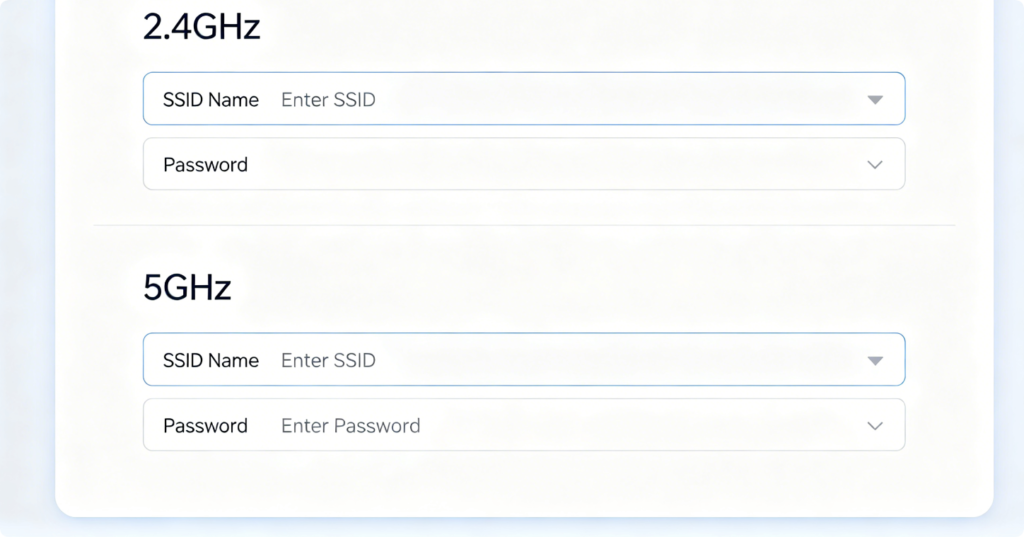
Modern TP-Link routers support dual-band Wi-Fi, including 2.4GHz and 5GHz frequency bands. You can set separate Wi-Fi names and passwords for each band or use the same credentials for both bands. The 2.4GHz band provides wider coverage, while the 5GHz band delivers faster speed and lower interference.
7: Change Wi-Fi SSID (Network Name)
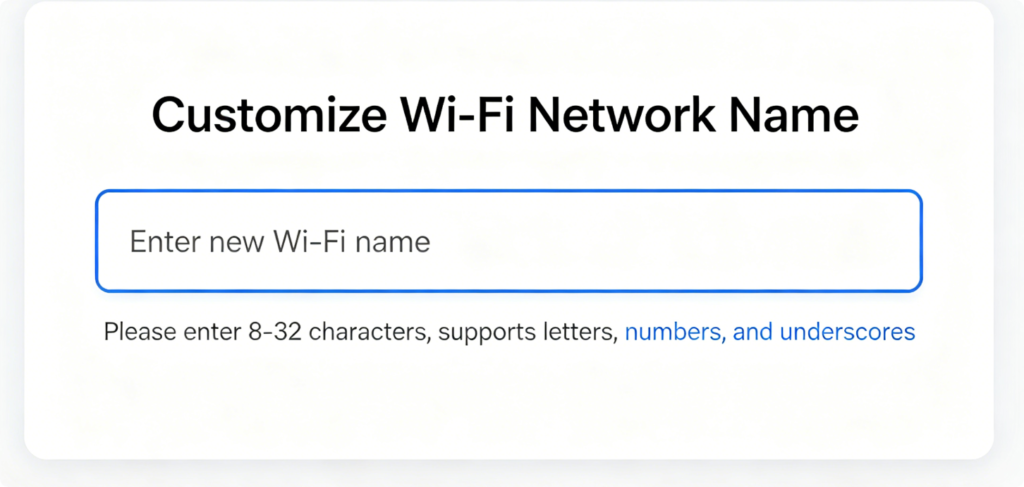
Find the Wi-Fi Name (SSID) input box. Delete the default network name and create your new custom SSID. Choose a simple, recognizable name that does not contain personal information such as your full name, address, or phone number. Avoid using overly complex symbols that may cause device connection failures.
8: Create New Wi-Fi Password (Wireless Security Key)
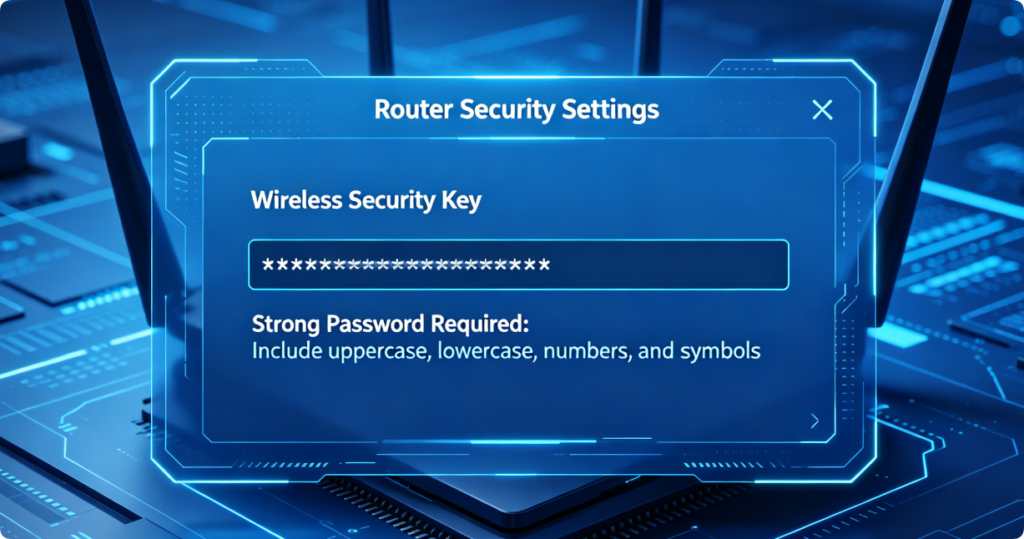
Locate the Wi-Fi Password orWireless Security Key field. Set a strong, secure password for your network. For best security, use a combination of uppercase letters, lowercase letters, numbers, and special symbols. Never use simple passwords such as 12345678, 88888888, or your phone number.
Always keep the security mode set to WPA2/WPA3-PSK, which is the most secure encryption standard for home Wi-Fi networks.
9: Save and Apply Router Settings
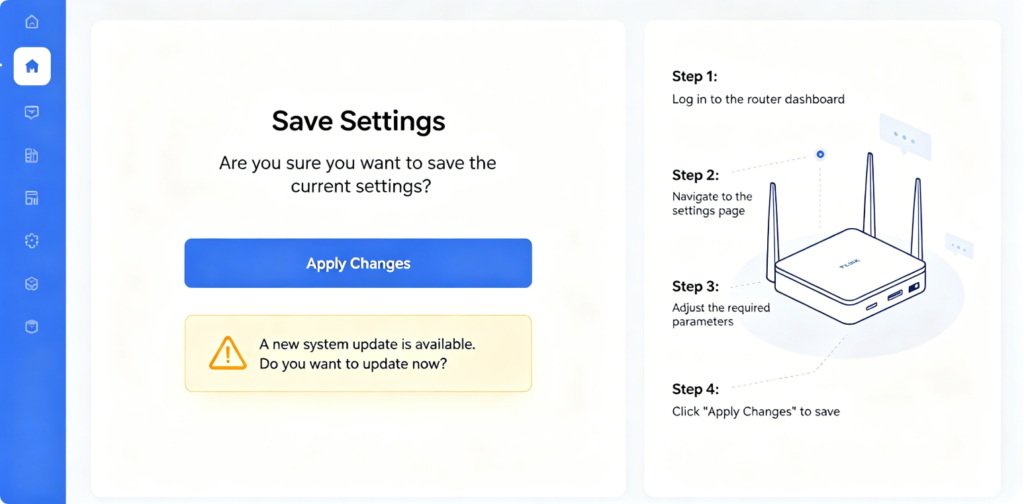
After editing your new Wi-Fi name and password, double-check all settings to avoid typos. Click the Save or Apply button to confirm the changes. The router will take a few seconds to update the wireless configuration. During this process, your Wi-Fi network will temporarily disconnect.
10: Reconnect Devices to New Wi-Fi
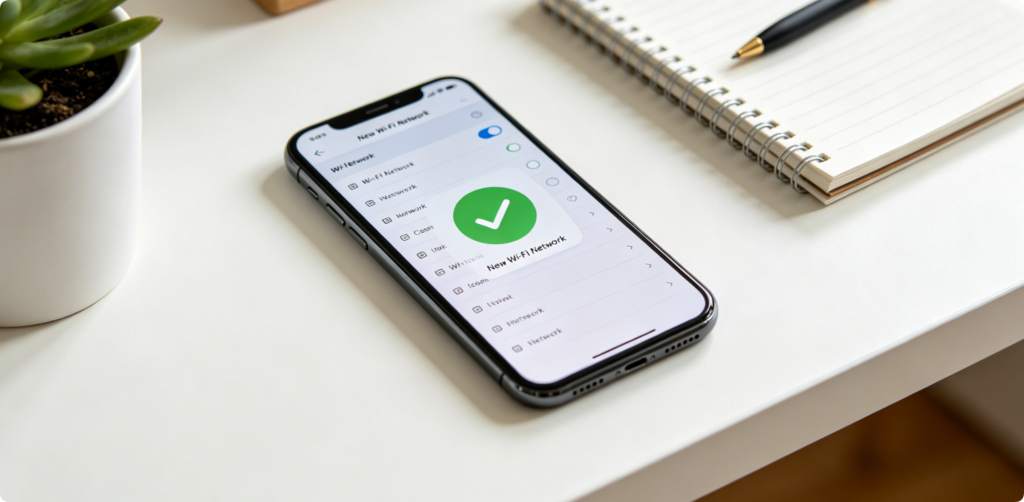
Once the settings are applied, your old Wi-Fi connection will expire. Go to your phone, laptop, and other smart devices, find your new custom Wi-Fi name, and log in using your new password. All future network connections will use your updated secure wireless credentials.
11: Wi-Fi Security Best Practices
AI Prompt: Minimalist security illustration, Wi-Fi signal icon with shield and lock symbol, blue gradient background, network safety concept, wireless protection tutorial graphic
To maintain long-term network security, change your Wi-Fi password regularly, disable WPS if not in use, and keep your router firmware updated. A unique Wi-Fi name and a strong security key effectively prevent network intrusion, Wi-Fi sniffing, and unauthorized device access.
Conclusion
Changing your TP-Link Wi-Fi name and password is a fast and essential security upgrade for every home network. By accessing the router admin panel, modifying the SSID and wireless security key, and saving new settings, you can fully customize your network and eliminate common security vulnerabilities. Regularly updating your Wi-Fi credentials keeps your home network private, stable, and protected from unwanted users.
Tags
Change TP-Link Wi-Fi Name, Change TP-Link Wi-Fi Password, TP-Link SSID Settings, Wireless Security Key Update, Custom Home Wi-Fi, Router Wireless Configuration, TP-Link Router Setup, Secure Home Network, Dual Band Wi-Fi Setup, Fix Unsafe Wi-Fi Defaults