[Image 1: Article Cover Hero Banner]
If your home suffers from stuttering video streams, sudden gaming ping spikes, slow file downloads, and freezing smart home gadgets when dozens of devices connect to Wi-Fi at the same time, standard single-user Wi-Fi transmission is the main culprit. Most TP-Link Wi-Fi 6 routers ship with OFDMA and MU-MIMO disabled by factory default—two core 802.11ax technologies designed to eliminate network congestion for crowded multi-device households.
This step-by-step guide explains what OFDMA and MU-MIMO do, why they cut lag drastically, and how to turn on both features via the TP-Link web admin panel and Tether mobile app for all AX series models (Archer AX53, TL-XDR1850, AX3000, AX1800). We also cover post-setup testing and troubleshooting persistent multi-device slowdowns after activation.
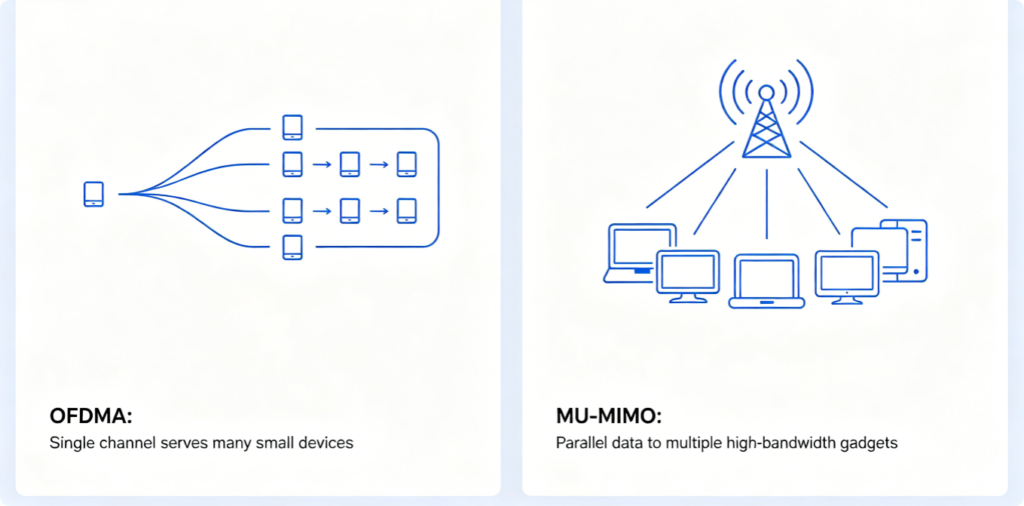
What Are OFDMA and MU-MIMO?
- OFDMA (Orthogonal Frequency-Division Multiple Access) Traditional Wi-Fi allocates the full wireless channel to one device at a time, forcing all other gadgets to wait in a queue. OFDMA divides one Wi-Fi channel into tiny sub-channels, letting the router send small data packets to dozens of low-power IoT devices (cameras, smart lights, thermostats) simultaneously. It drastically reduces minor lag caused by constant background smart device traffic.
- MU-MIMO (Multi-User Multiple Input Multiple Output) Without MU-MIMO, a router can only communicate with one high-speed device per cycle. MU-MIMO enables the TP-Link router to transmit data to multiple bandwidth-heavy devices (gaming PCs, 4K TVs, laptops) in parallel. This removes buffering when several people stream videos or play online games together.
Both technologies only work on Wi-Fi 6 compatible TP-Link routers; older Wi-Fi 5 models lack this hardware support entirely.
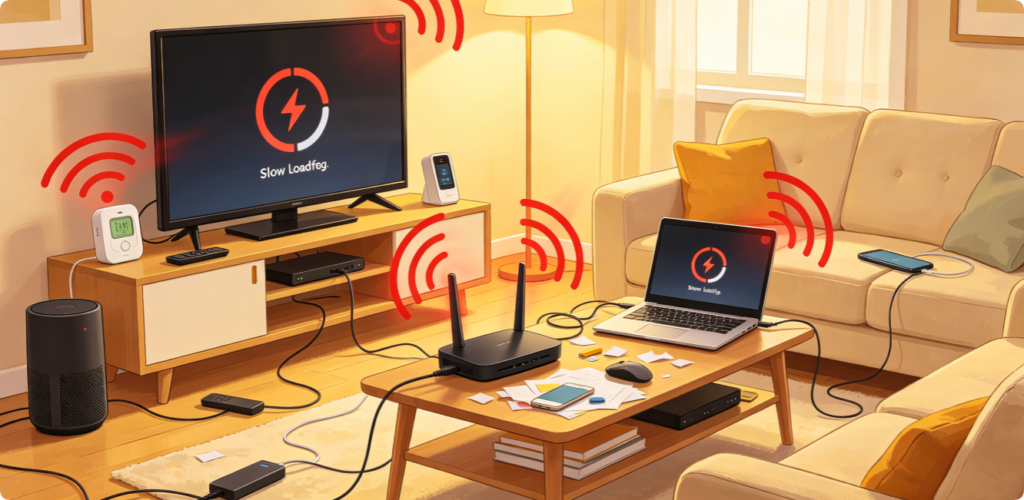
Typical symptoms showing you need to enable these two features immediately:
- 4K video constantly buffers when someone else browses social media on a phone
- Online gaming ping jumps from stable 20ms to over 100ms when smart cameras activate recording
- Smart bulbs, doorbells and sensors delay responding to app commands
- Large file transfers grind to a crawl while multiple family members use Wi-Fi
- Mobile video calls freeze during peak evening usage with 10+ connected household gadgets
All these issues stem from serial single-device transmission without OFDMA and MU-MIMO acceleration.
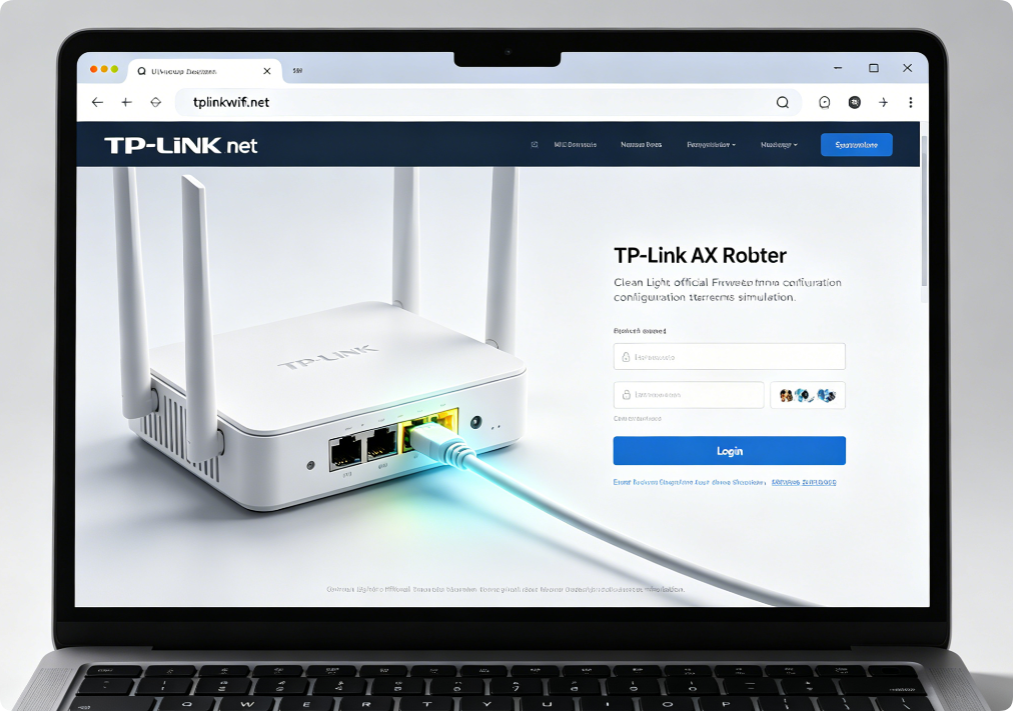
Always configure advanced Wi-Fi features via a wired connection to avoid mid-setup disconnections:
- Connect your desktop or laptop to any router LAN port with Cat5e/Cat6 Ethernet cable
- Open Chrome, Edge or Safari and input
tplinkwifi.netor default gateway192.168.1.1 - Log in using your custom admin password
- Navigate to Advanced > Wireless Settings to access Wi-Fi 6 exclusive function toggles
Avoid adjusting critical wireless settings over unstable Wi-Fi, which may cause incomplete setting saves.
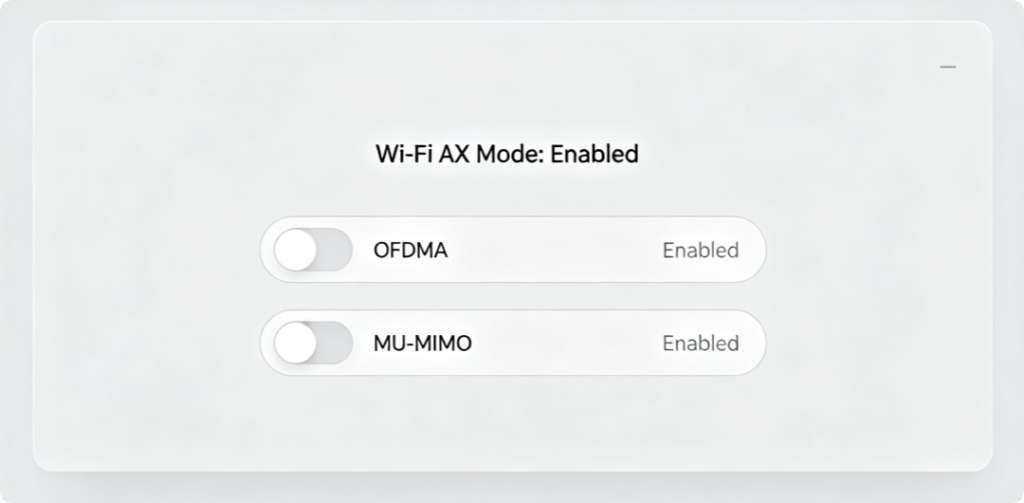
Step-by-step web panel activation steps for all TP-Link Wi-Fi 6 routers:
- Inside Advanced > Wireless, open the Advanced sub-tab dedicated to Wi-Fi 6 features
- Locate two separate options: Enable OFDMA and Enable MU-MIMO
- Tick or slide both toggles to the ON / Enabled position
- Optional complementary tweak: Turn on 1024QAM and Target Wake Time alongside them for maximum multi-device performance
- Click Save / Apply at the bottom of the page The router will briefly reboot its wireless radio to apply the new acceleration settings.
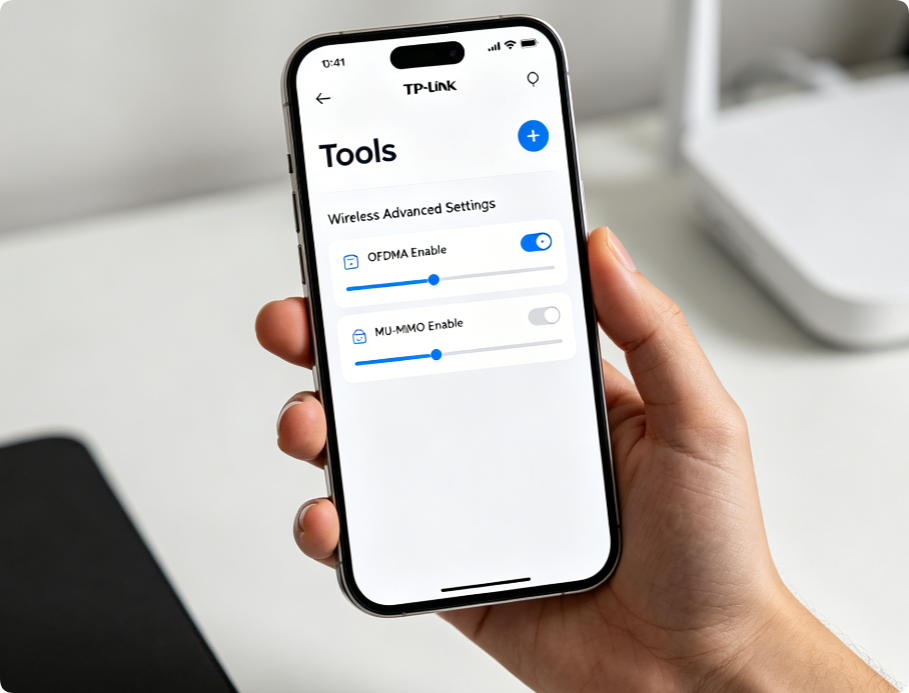
If you do not have a laptop handy, adjust these features directly on your phone:
- Connect your mobile to the target TP-Link router’s Wi-Fi network and launch the Tether app
- Select your AX router device on the main dashboard
- Tap Tools, scroll down and open Wireless Advanced Settings
- Switch OFDMA and MU-MIMO from Disabled to Enabled
- Save changes and wait 30 seconds for the router’s Wi-Fi radio to reload
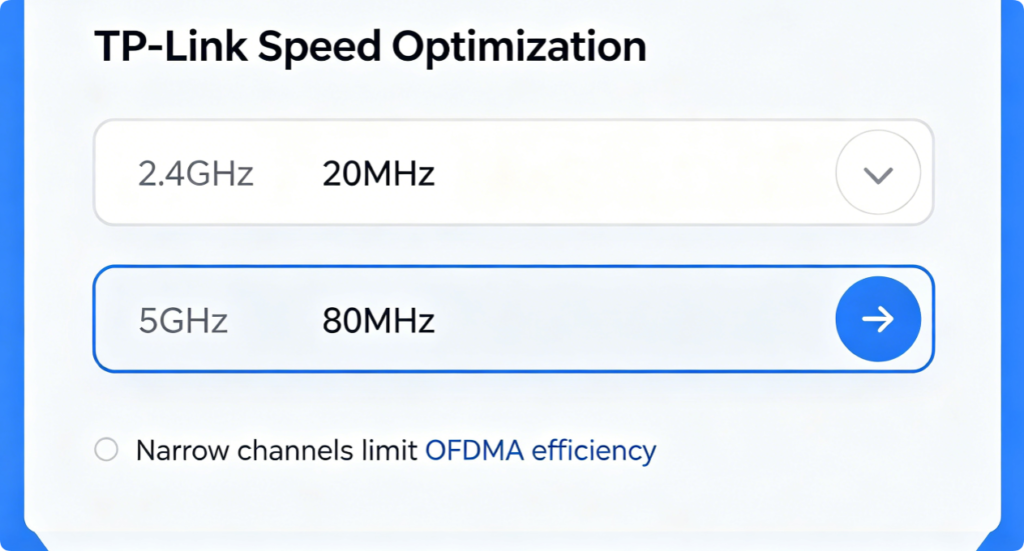
OFDMA and MU-MIMO cannot perform at full potential with incorrect channel width settings:
- 2.4GHz Band: Keep bandwidth at 20MHz only; wider channels create heavy neighborhood interference and break OFDMA sub-channel division
- 5GHz Wi-Fi 6 Band: Set channel width to 80MHz (160MHz only if zero nearby competing networks exist) Wide 5GHz channels provide more sub-spectrum space for OFDMA to split signals and allow MU-MIMO parallel data streams without collision.
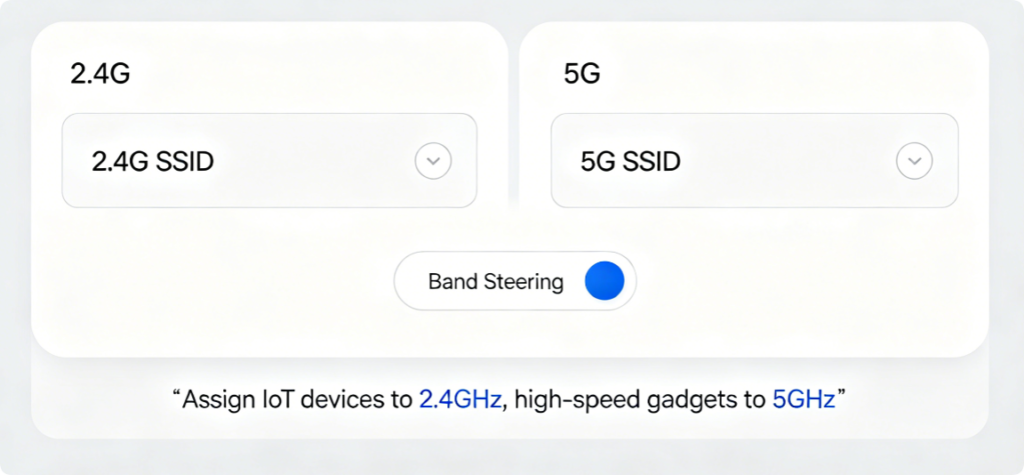
To further ease network load after enabling OFDMA and MU-MIMO:
- Create two distinct Wi-Fi names for each frequency band
- Assign all low-speed IoT devices (cameras, sensors, smart lights) to the 2.4GHz band
- Restrict gaming consoles, laptops and streaming devices to the optimized 5GHz Wi-Fi 6 band This band separation prevents overcrowding on one single radio and lets OFDMA/MU-MIMO work more efficiently on each frequency.
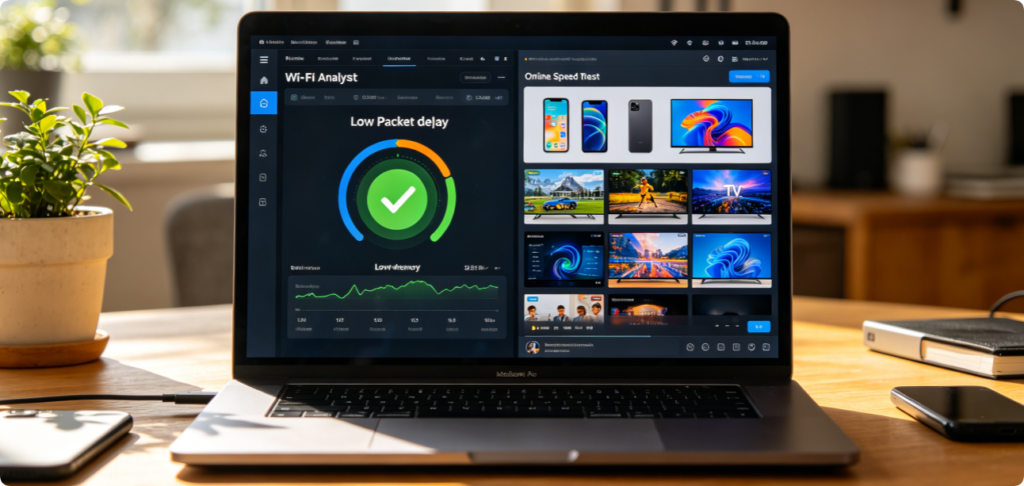
After saving OFDMA and MU-MIMO settings, verify lag reduction with this test workflow:
- Connect 5–10 smart devices to your Wi-Fi network at the same time
- Launch 4K streaming on a TV while running an online multiplayer game on PC
- Run an internet speed test on a separate smartphone simultaneously
- Check gaming ping values—you should see consistent stable latency without random spikes
- Observe instant, responsive control for all smart home IoT gadgets
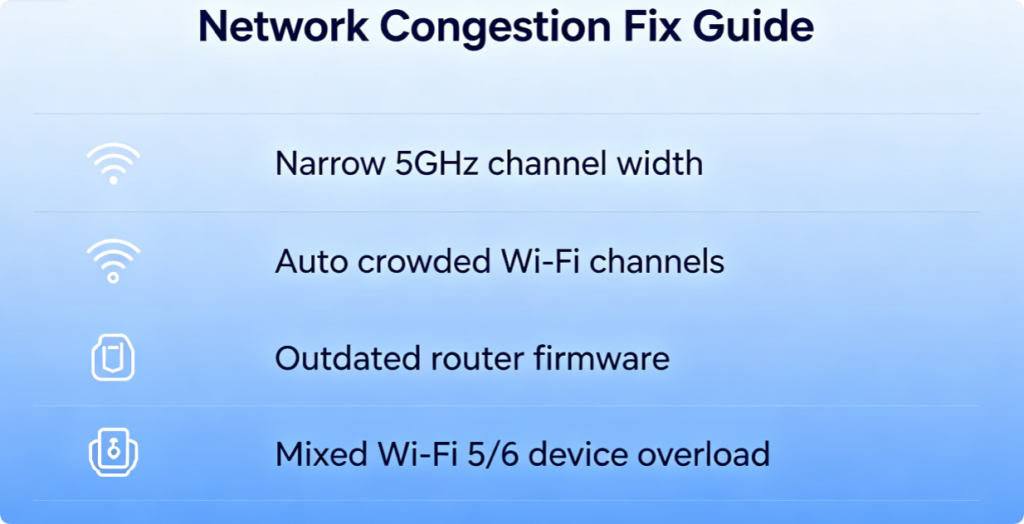
If multi-device slowdowns persist even with OFDMA and MU-MIMO turned on, apply these fixes:
- Run a Wi-Fi environment scan and switch to manual low-interference channels
- Update your TP-Link router to the latest official firmware to patch OFDMA processing bugs
- Avoid mixing dozens of old Wi-Fi 4/5 devices; legacy hardware limits Wi-Fi 6 acceleration efficiency
- Enable router QoS Game Prioritization to reserve bandwidth for gaming and streaming devices
- Reposition the router to a central elevated spot to eliminate signal attenuation
Conclusion
OFDMA and MU-MIMO are the most impactful built-in performance upgrades for TP-Link Wi-Fi 6 routers dealing with dozens of simultaneous smart devices. Enabling both features eliminates queue-based wireless congestion, cuts gaming ping spikes, stops video buffering, and speeds up smart IoT response times. Whether you configure settings via the web admin panel or TP-Link Tether mobile app, always pair these two technologies with proper 80MHz 5GHz channel width, separated dual-band SSIDs, and regular firmware updates. With OFDMA and MU-MIMO active, your home Wi-Fi can smoothly handle streaming, gaming, video calls and smart home automation running all at once without frustrating lag or slowdowns.