TP-Link Smart Connect (also known as Band Steering) is a built-in router feature that merges separate 2.4GHz and 5GHz frequency bands under one identical Wi-Fi name and password. Instead of manually toggling between two different network IDs, your phones, laptops, game consoles and smart home gadgets automatically switch bands based on signal strength, device capability and bandwidth demand.
For casual household users, Smart Connect eliminates the confusion of picking the right Wi-Fi network. However, improper Smart Connect configuration causes constant band hopping, gaming ping spikes and 4K streaming buffering. This complete guide explains how Smart Connect works, step-by-step setup for TP-Link web UI and Tether App, key optimization rules, compatible router models, and troubleshooting unstable auto-switching issues. The tutorial applies to all TP-Link dual-band Wi-Fi 5 and Wi-Fi 6 routers, including Archer AX53, TL-XDR1850, AX1800 and AX3000 series.
Core Mechanism of Smart Connect
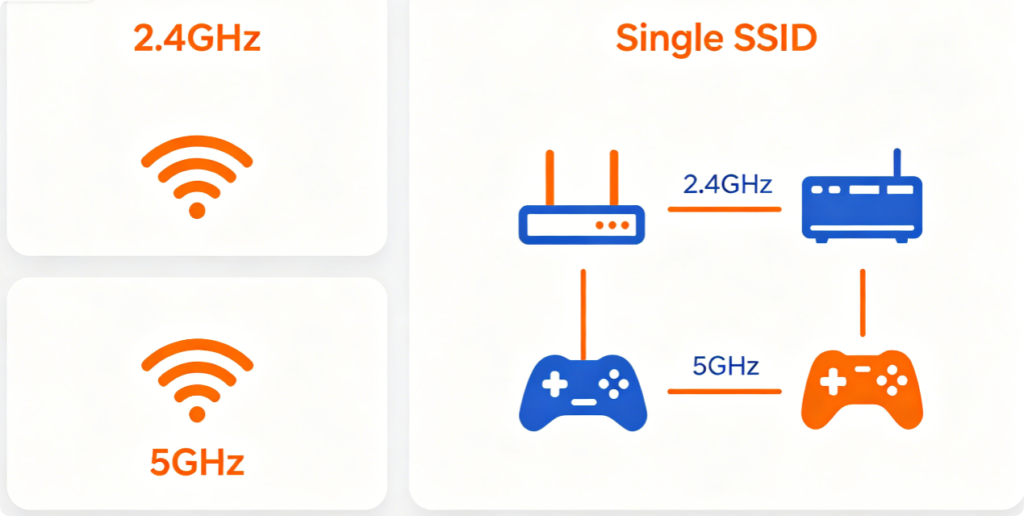
When Smart Connect is enabled, your TP-Link router constantly analyzes three data points to assign devices to the optimal band:
- Device Wi-Fi generation: Wi-Fi 4/5/6 compatible hardware prioritized for 5GHz
- Real-time signal strength: Devices far from router get routed to long-range 2.4GHz
- Band load balance: Prevents overcrowding on either frequency band
- 2.4GHz assignment: Low-bandwidth smart bulbs, security cameras, thermostats, older legacy phones
- 5GHz assignment: High-speed gear for gaming, 4K streaming, video calls and large file transfers Without Smart Connect, users must manually reconnect devices to switch bands, which is inconvenient for multi-room homes with dozens of connected gadgets.
Key Advantages of Smart Connect
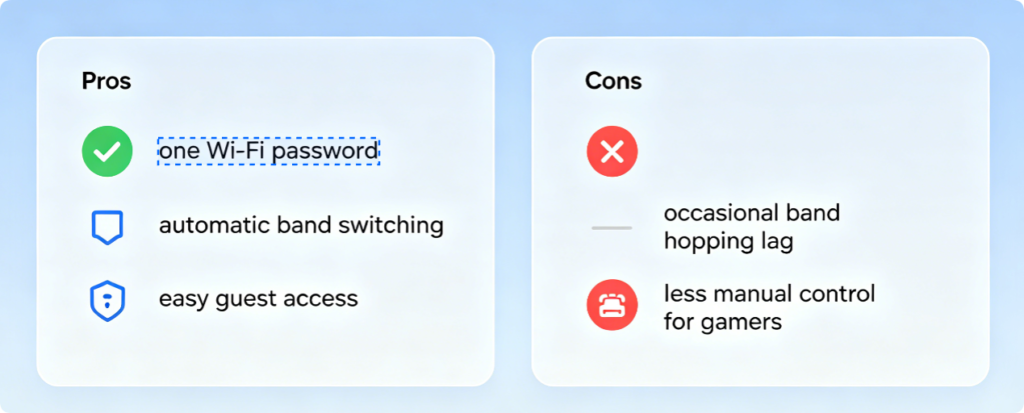
- Only one Wi-Fi name and password to remember for all family members and guests
- No manual network switching when moving between distant bedrooms and living rooms
- Simplified connection for elderly users and kids who cannot distinguish 2.4G/5G networks
- Router auto-balances device load to reduce single-band congestion
Common Drawbacks
- Mid-room signal drop triggers frequent band jumps, causing brief video freezes
- Competitive gamers lose stable low-latency 5GHz connection during signal fluctuations
- Some older IoT devices fail to reconnect properly after automatic band switching
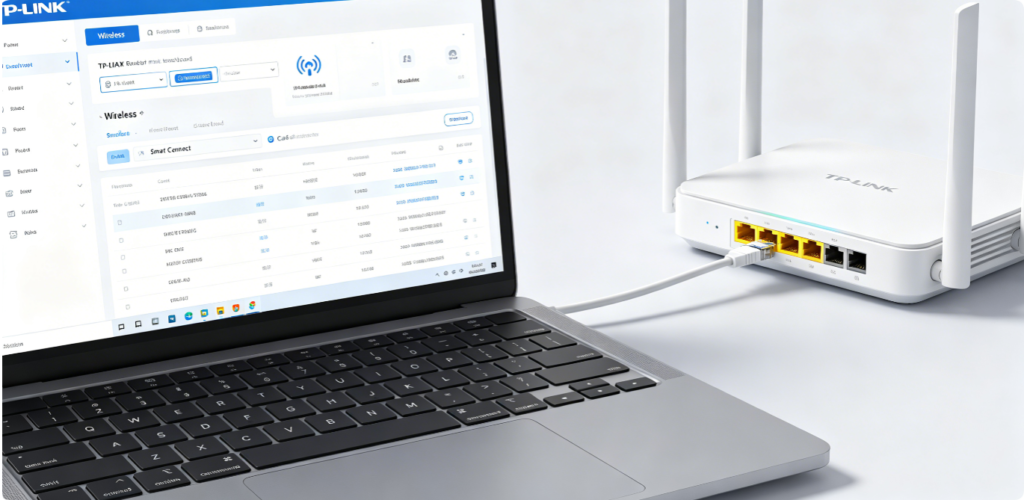
Always configure Smart Connect via wired Ethernet to avoid disconnection during wireless setting changes:
- Link your computer to any router LAN port with Cat5e/Cat6 cable
- Open Chrome, Edge or Safari and visit
tplinkwifi.netor gateway IP192.168.1.1 - Enter your custom admin password to log into the backend
- Navigate to the Basic > Wireless page where Smart Connect toggle is located
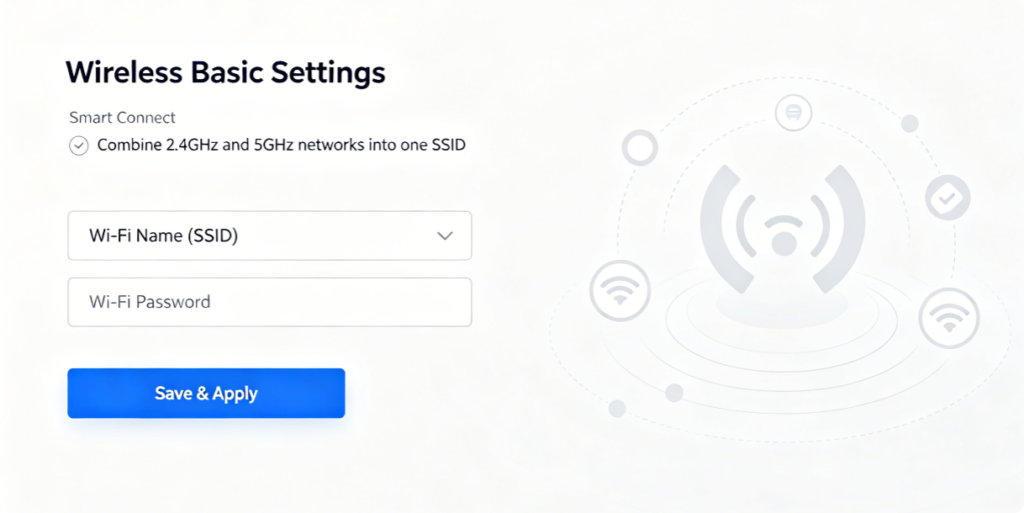
Full web panel setup workflow:
- On the Basic > Wireless page, locate the Smart Connect option at the top of the page
- Tick the checkbox to enable Combine 2.4GHz and 5GHz SSIDs
- Input your preferred unified Wi-Fi network name and complex password (12+ mixed characters)
- Verify both frequency bands share identical SSID and passphrase
- Click Save, the router will reboot wireless radios to activate single SSID mode All previously connected devices will automatically reconnect to the merged network within 1 minute.
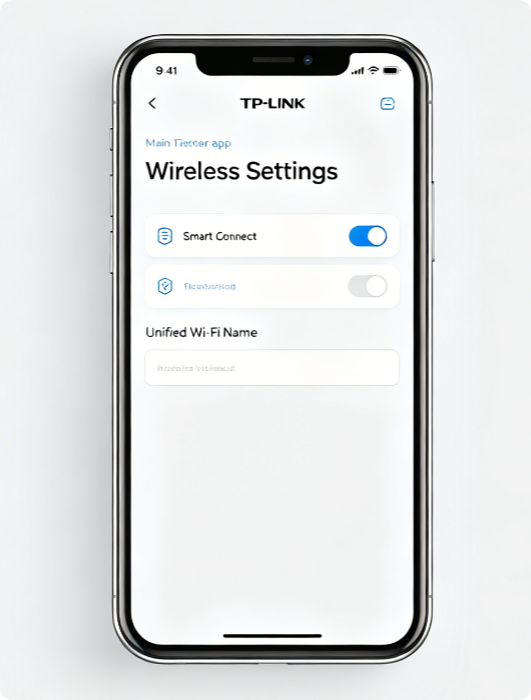
If you do not have a laptop, complete Smart Connect setup on your smartphone:
- Connect your phone to the router’s default Wi-Fi and launch the Tether app
- Select your TP-Link router from the device list
- Tap Tools > Wireless Settings
- Slide the Smart Connect toggle switch to ON position
- Customize your shared single SSID and Wi-Fi password
- Save changes and wait for the wireless network to reload
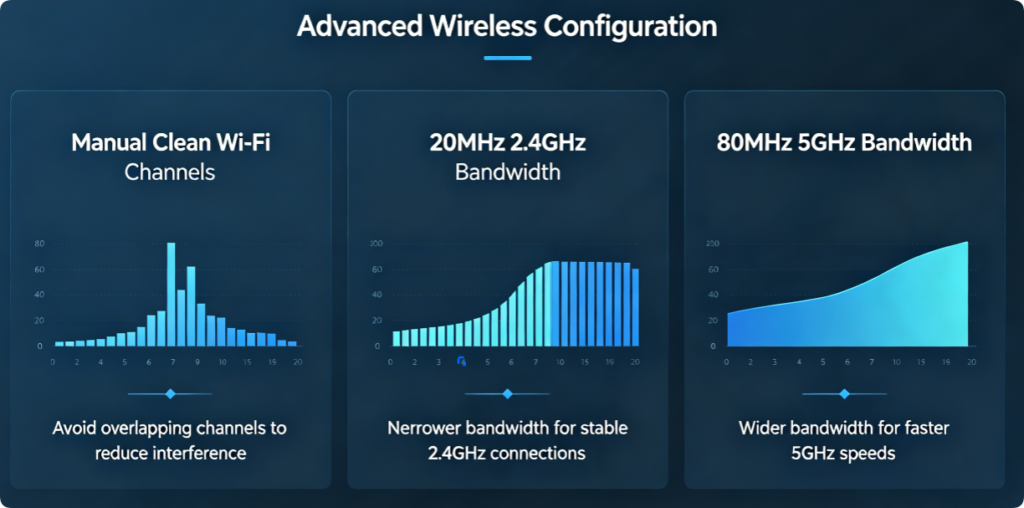
Smart Connect performance heavily relies on well-tuned channel and bandwidth parameters; apply these alongside single SSID mode:
- 2.4GHz Band: Lock manual channel 1/6/11, bandwidth fixed to 20MHz only
- 5GHz Band: Select quiet upper UNII-3 manual channel, bandwidth set to 80MHz
- Run Wi-Fi Environment Scan weekly to avoid congested neighboring frequencies Crowded auto-selected channels force unstable signal strength, triggering excessive automatic band hopping and lag.
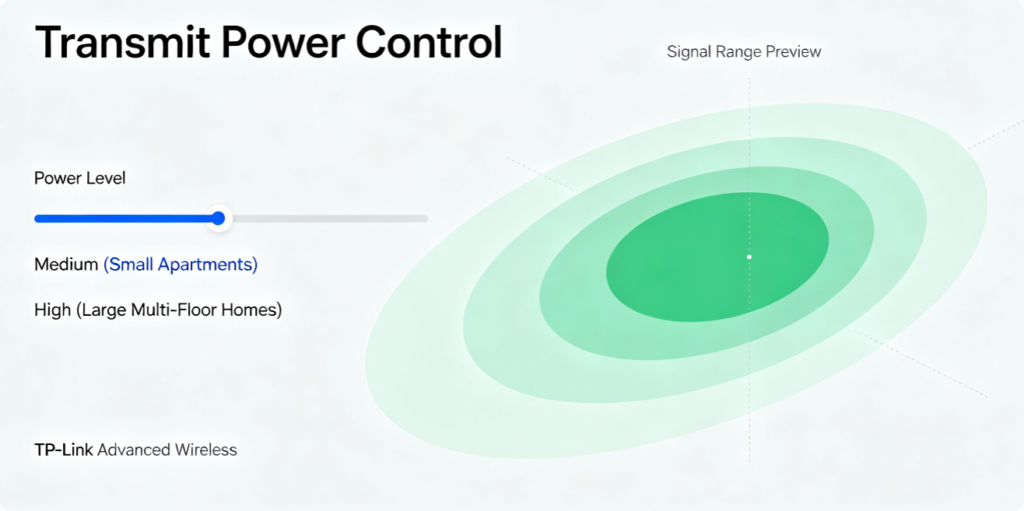
Incorrect transmit power is a top hidden cause of random Smart Connect band shifts:
- Small apartments under 80㎡: Medium transmit power for both bands Strong maximum power creates signal overflow; devices detect weak signal fluctuations and switch bands repeatedly
- Large multi-story homes over 120㎡: High transmit power Extend 5GHz coverage range so gaming/streaming devices stay locked to fast 5GHz without falling back to 2.4GHz mid-use
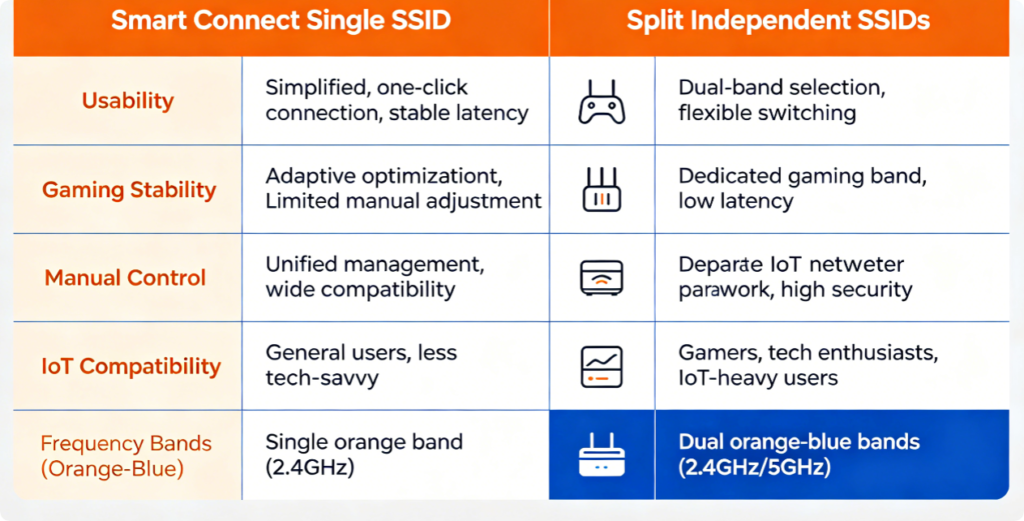
Which mode should you choose?
- Pick Smart Connect Single SSID if: You have a small family, prioritize simple one-network access, mostly browse social media and watch casual streaming, own basic smart home IoT devices
- Choose Separate Independent SSIDs if: You are a competitive gamer, regularly stream 4K/8K content, want full manual control over device band assignment, live in dense high-rise apartments with heavy neighbor interference
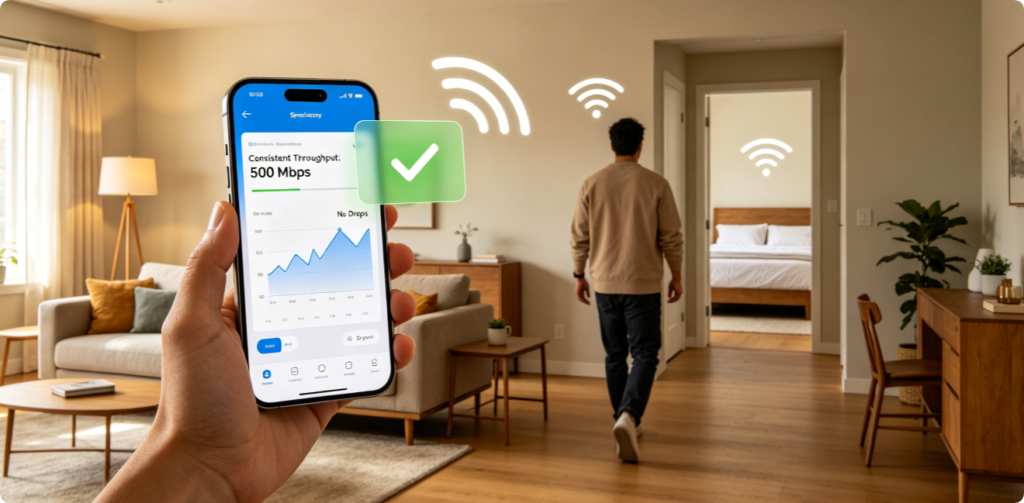
After enabling Smart Connect, complete this mobility test to confirm seamless switching:
- Carry a Wi-Fi 6 smartphone or laptop around every room of your house
- Check video playback continuity and real-time gaming ping while moving between near and far router zones
- Confirm smart lights, cameras and thermostats maintain steady connections without disconnection
- Reconnect guest devices to test simplified single-password access
If videos freeze or ping spikes appear during movement, re-adjust transmit power or switch to cleaner manual Wi-Fi channels.
Quick fixes for unstable Smart Connect performance:
- Excessive band jumping: Switch to manual low-interference channels, lower transmit power
- Smart IoT devices lose connection: Lock 2.4GHz bandwidth to 20MHz, avoid 40MHz wide channels
- High gaming ping mid-session: Temporarily disable Smart Connect and use separate SSIDs for gaming devices
- Slow overall wireless speed: Enable OFDMA, MU-MIMO and WPA2/WPA3 mixed encryption
- Persistent signal instability: Update router to the latest official firmware to patch band steering algorithm bugs
Conclusion
TP-Link Smart Connect single SSID mode greatly simplifies daily Wi-Fi usage by merging 2.4GHz and 5GHz bands into one unified wireless network with automatic device band steering. The feature is perfect for casual home users seeking effortless connectivity without managing two separate Wi-Fi names and passwords. To avoid lag, buffering and frequent band hopping, always pair Smart Connect with manually selected clean Wi-Fi channels, optimized bandwidth width and matched transmit power based on your house layout. Gamers and users living in crowded apartments can switch back to split dual SSIDs for full performance control. With proper complementary wireless tweaks, Smart Connect delivers seamless, stable whole-home Wi-Fi coverage across every room of your property.