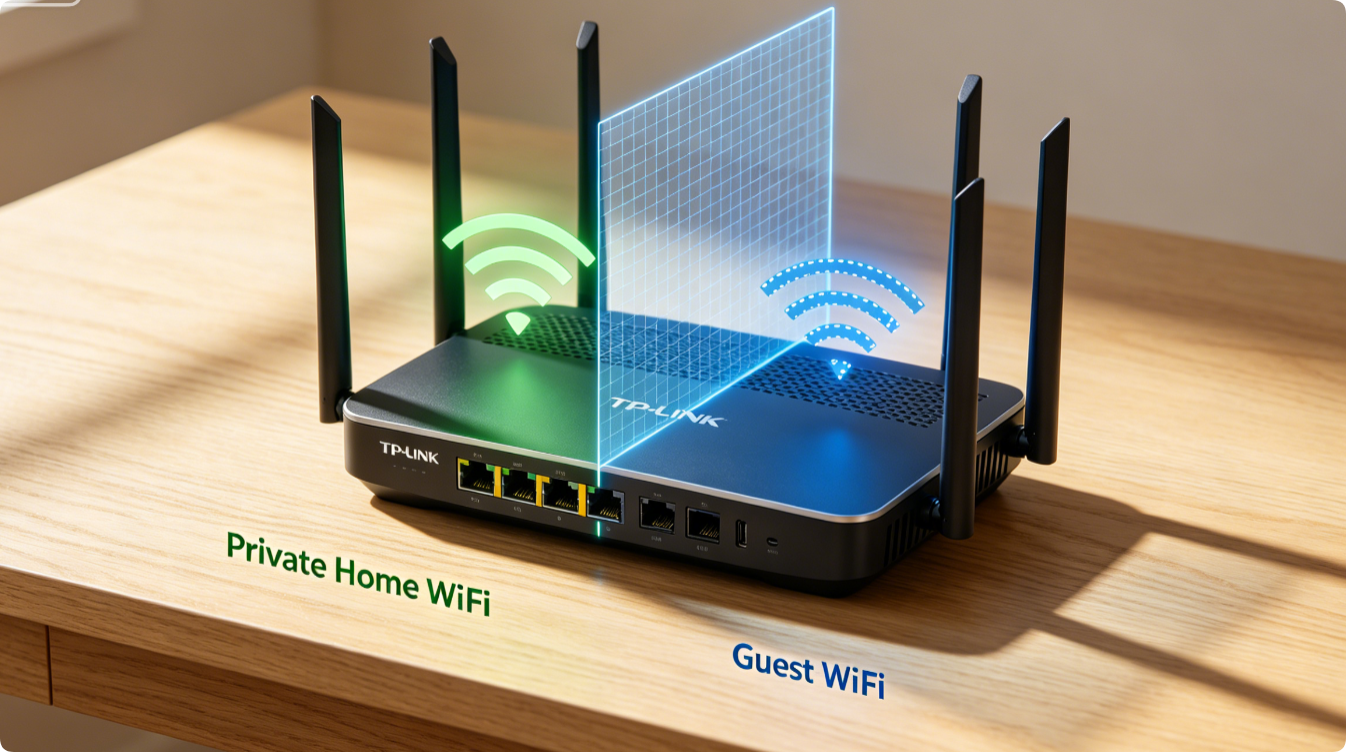
Sharing your main Wi-Fi with guests exposes personal devices, local storage and smart home gear to strangers. TP-Link’s built-in Guest Network feature creates a fully isolated secondary wireless zone. With network isolation enabled, visitor phones, laptops and tablets cannot access your private main network. This guide covers setup via web panel and Tether app for all Archer, Deco and TL-WR models.
Why Isolated Guest Networks Are Essential
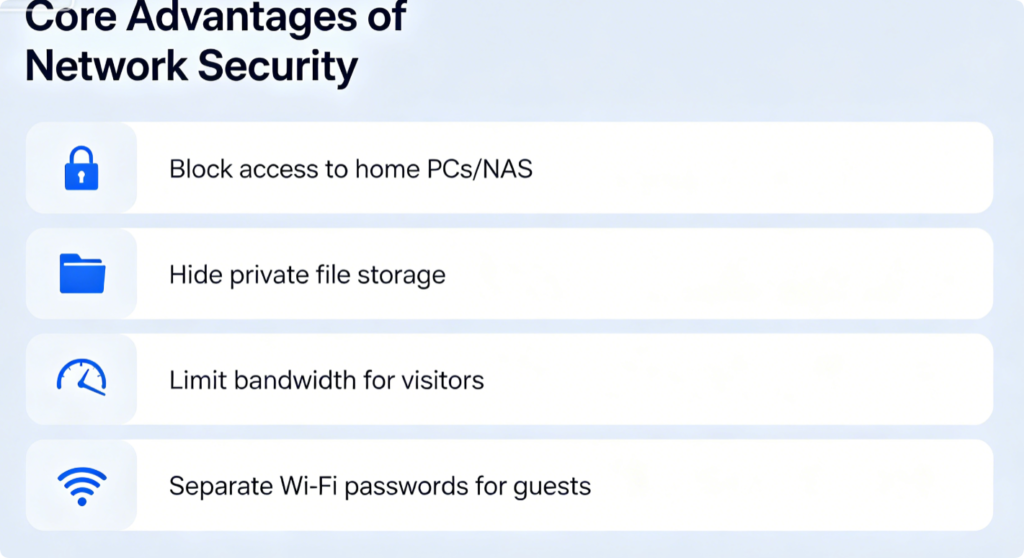
- Prevents guests from scanning or connecting to your local devices like printers and NAS drives
- Avoids outsiders accessing sensitive files stored on home network storage
- Controls guest bandwidth to stop visitors hogging gigabit internet speed
- Uses a separate password you can change anytime without disrupting family Wi-Fi
Web Interface Configuration
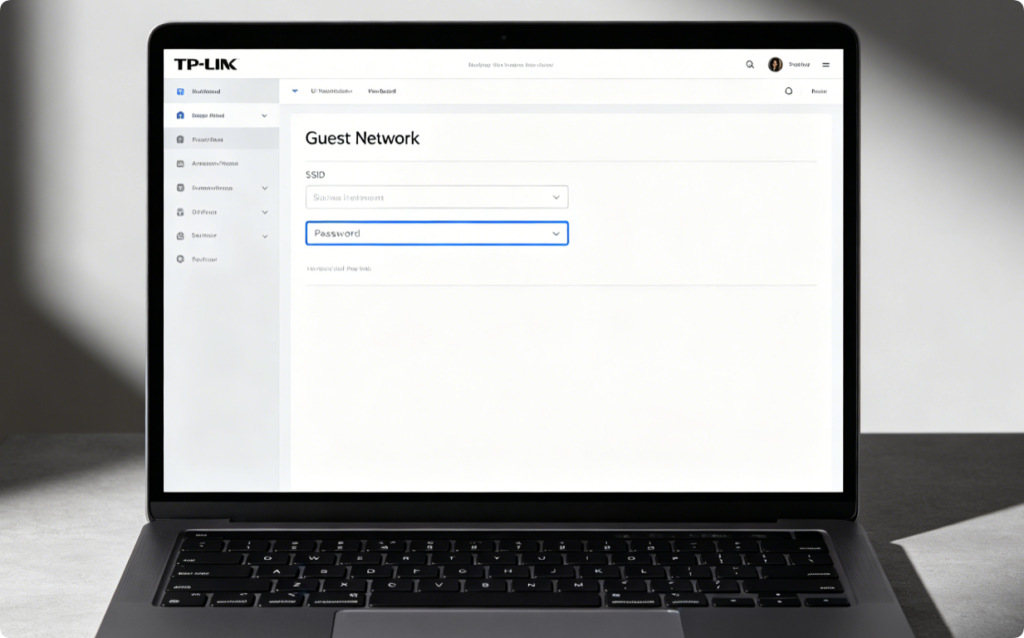
- Connect PC to router LAN port and log in to
tplinkwifi.net - Go to Advanced > Guest Network, toggle the guest zone switch on for 2.4GHz or 5GHz
- Create a unique guest Wi-Fi name (SSID) and secure independent password
- Adjust guest bandwidth limits if you need to cap visitor download speeds
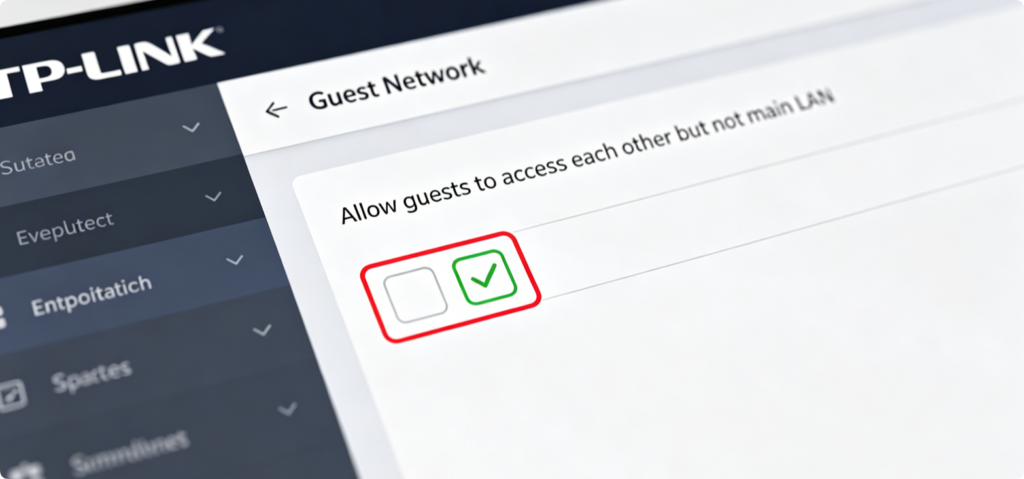
Turn On LAN Isolation (Most Important Step)
Locate the option named Isolate Guest Network / Access Local Network:
- Uncheck “Allow guests to access the local network”
- This creates a hard digital wall between guest devices and your private main network
- Leave “Allow guests to communicate with each other” enabled if visitors need file sharing among themselves

Mobile Tether App Fast Setup
- Link your phone to home Wi-Fi and open TP-Link Tether
- Select your router, tap Tools and enter Guest Network menu
- Toggle Enable Guest Network, customize SSID and passcode
- Switch on Network Isolation to block all private LAN access with one tap
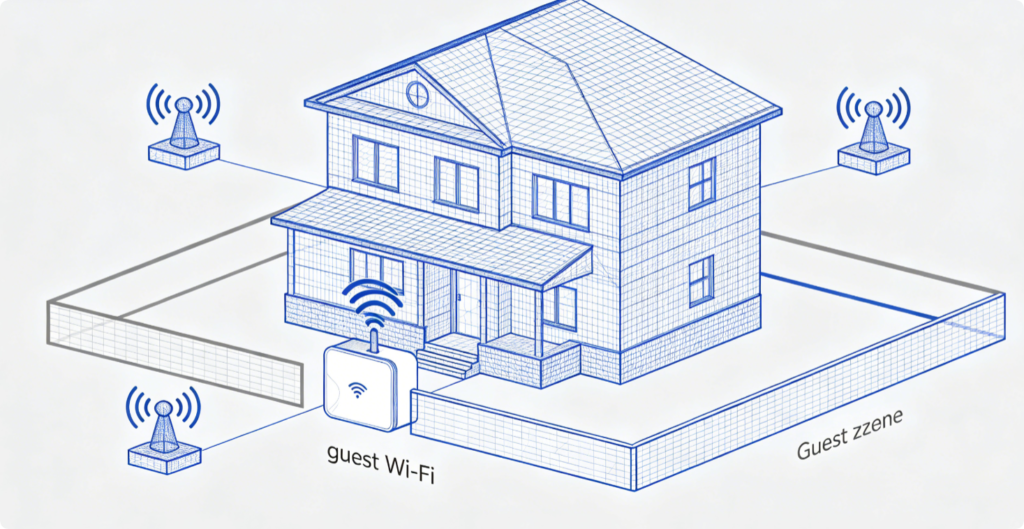
Deco Mesh Special Note
For Deco EasyMesh kits, guest Wi-Fi syncs automatically across every satellite node after setup on the primary unit. Isolation rules apply to all mesh nodes uniformly, so guests remain separated in every room of your house.

Extra Guest Wi-Fi Controls
- Set automatic schedule to turn off guest Wi-Fi overnight
- Lower guest maximum bandwidth to preserve speed for family use
- Hide guest SSID broadcast for extra privacy
- Enforce WPA2/WPA3 mixed encryption on the guest wireless zone
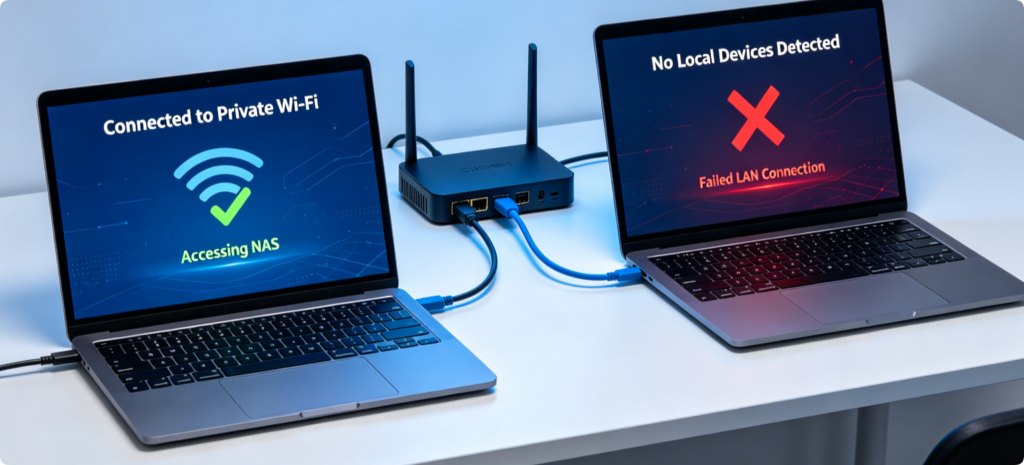
Verify Isolation Works
After saving all settings:
- Connect a spare phone to the guest network
- Attempt to locate home printers, NAS or smart TVs
- No private devices should appear on the guest side if isolation is active
Conclusion
TP-Link Guest Wi-Fi paired with network isolation is a simple, powerful security tool to protect your private local network from visitors. You can finish full configuration either through the desktop web admin panel or the portable Tether mobile app. Always remember to enable LAN isolation—this single setting fully blocks guests from viewing or connecting to your family’s personal devices, storage and smart home hardware while still granting them safe standalone internet access.