The default TP-Link router admin password is widely known to hackers, leaving your network dashboard open to brute-force attacks. Changing this master login credential blocks unauthorized access to port forwarding, Wi-Fi settings, EasyMesh and firewall rules. This guide covers two simple methods: web admin panel and Tether mobile app, compatible with all Archer, Deco and TL-WR models.
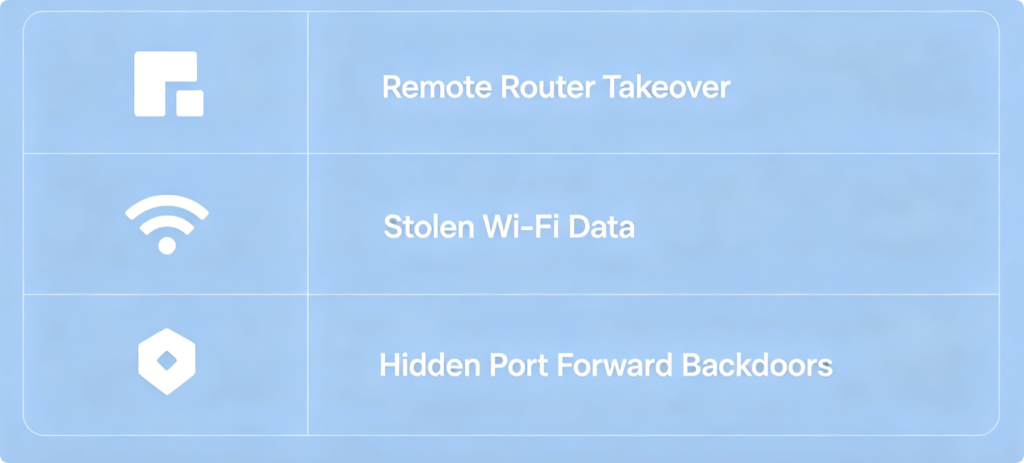
Why You Must Update the Admin Password
- Default universal passwords are public knowledge; scanners target TP-Link gateways nonstop.
- Intruders can rewrite your Wi-Fi passphrase, open dangerous port forwards or disable firewalls.
- If you use Deco mesh, compromised admin access lets attackers alter all satellite node settings. Never reuse Wi-Fi passwords or simple sequences for your router admin login.
Web Panel Password Update (Desktop Method)
- Connect PC to router LAN port with Ethernet to avoid disconnection.
- Visit
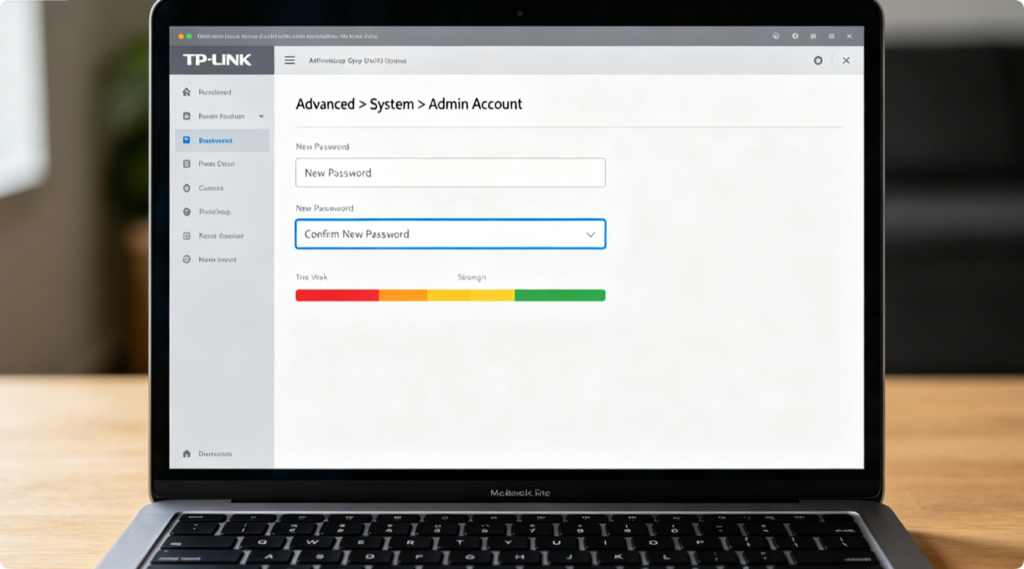
tplinkwifi.netand log in with your current admin password. - Navigate to Advanced > System > Administration / Admin Account.
- Enter old password, then create a new complex 12+ character password mixing letters, numbers and symbols.
- Re-type the new password for confirmation and click Save. The router will instantly lock all future logins to the new credential.
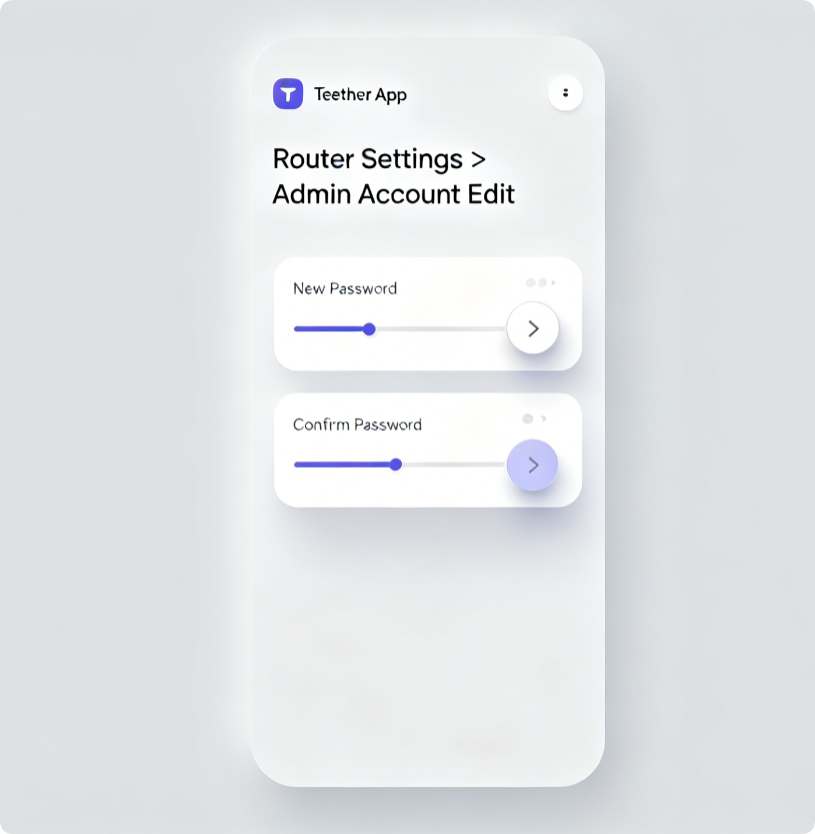
Tether Mobile App Quick Edit
- Link your phone to the router’s Wi-Fi network and open Tether.
- Select your TP-Link router device and enter Tools > System Settings.
- Locate the Admin Password modification section.
- Fill in the original password and your new secure admin passcode.
- Tap Save to apply changes without rebooting the router.
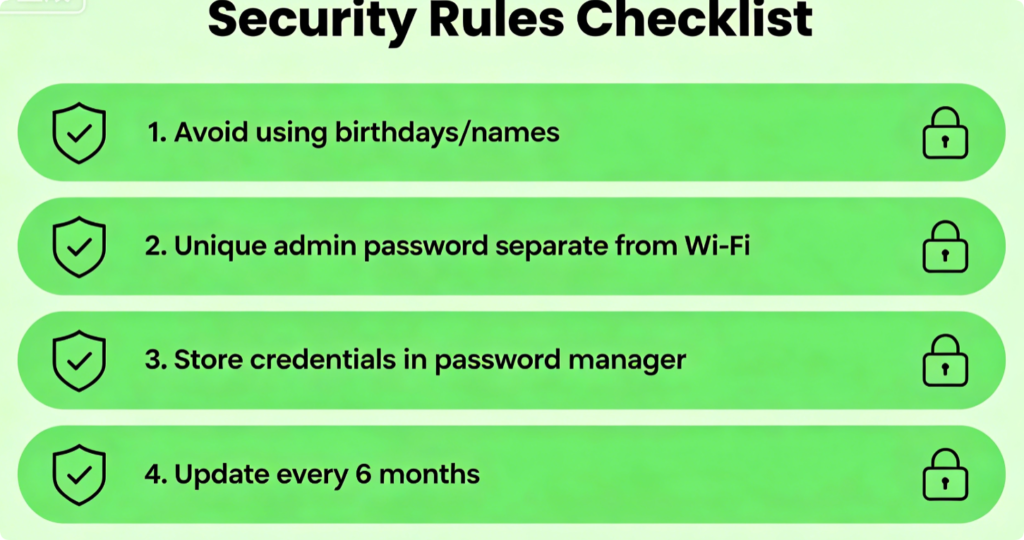
Non-Negotiable Password Rules
- Skip predictable phrases like “123456”, your address or pet names.
- Create distinct admin and Wi-Fi passwords to limit breach damage.
- Save the new login pair in an encrypted password manager.
- Refresh the admin password every half year for ongoing protection.
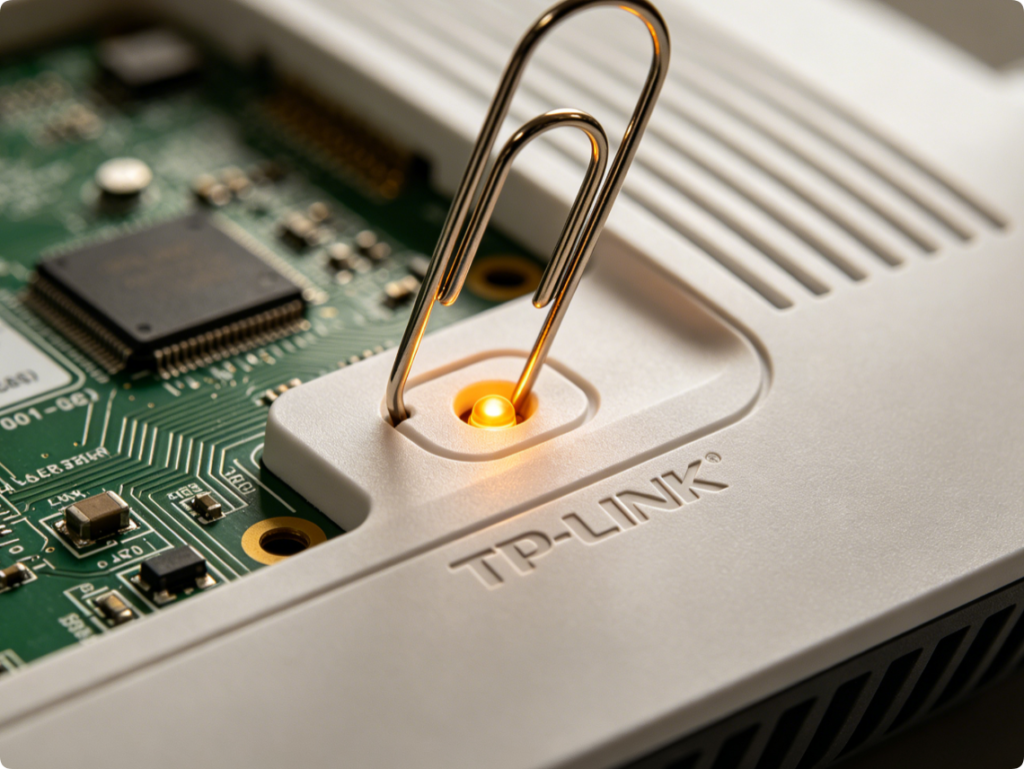
If You Forget Your Admin Password
If you cannot log in to edit credentials, a full factory reset is the only fix:
- Hold the router’s reset pinhole for 10 seconds until all LEDs flash amber.
- The router reverts to blank factory default admin access.
- Complete quick setup again and set a brand-new custom admin password immediately.
Conclusion
Updating your TP-Link admin password takes less than two minutes through either the web dashboard or Tether app, eliminating a major entry point for hackers. Always create a long, unique login credential separate from your wireless network passphrase. If locked out entirely, perform a hardware factory reset to regain access and rebuild secure router administration settings.